
A dim laptop screen can make text hard to read, videos difficult to watch, and everyday work uncomfortable. Sometimes the screen remains dark even when brightness is set to 100%. In other cases, it becomes dim when you unplug the charger, open a dark webpage, move away from the laptop, or stop using the keyboard.
A laptop screen dim problem does not always mean that the display is broken. The cause may be a brightness setting, battery-saving feature, graphics driver, privacy mode, ambient light sensor, or manufacturer utility. However, a damaged screen cable, backlight, or display panel can cause similar symptoms.
This guide explains how to identify the cause and fix a dim laptop screen on Windows laptops, MacBooks, and Chromebooks.
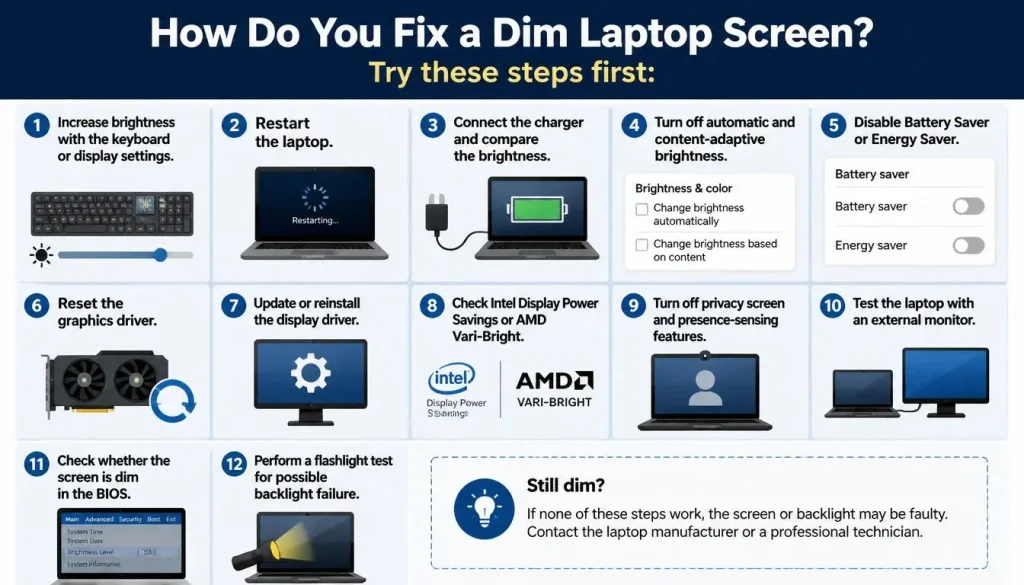
Quick Answer: How Do You Fix a Dim Laptop Screen?
Try these steps first:
- Increase brightness with the keyboard or display settings.
- Restart the laptop.
- Connect the charger and compare the brightness.
- Turn off automatic and content-adaptive brightness.
- Disable Battery Saver or Energy Saver.
- Reset the graphics driver.
- Update or reinstall the display driver.
- Check Intel Display Power Savings or AMD Vari-Bright.
- Turn off privacy screen and presence-sensing features.
- Test the laptop with an external monitor.
- Check whether the screen is dim in the BIOS.
- Perform a flashlight test for possible backlight failure.
If the external monitor works normally but the built-in screen remains dim, the laptop screen, backlight, or display cable may require repair.
First, Identify the Type of Screen Problem
Before changing settings, check exactly how the screen behaves.
| Symptom | Most Likely Causes |
|---|---|
| Screen is dim even at 100% brightness | Adaptive brightness, graphics power saving, weak backlight |
| Screen dims when unplugged | Battery Saver, Intel DPST, AMD Vari-Bright |
| Screen dims on dark or white pages | Content-adaptive brightness, OLED protection, graphics settings |
| Brightness slider is missing | Display driver, monitor driver, external display |
| Screen dims after a few seconds | Screen timeout, presence sensing, battery utility |
| Screen becomes dim after login | Graphics driver, startup app, color profile |
| Screen changes when the lid moves | Loose or damaged display cable |
| Only one side of the screen is dim | Backlight or LCD panel failure |
| Screen is dark but a faint image is visible | Backlight failure |
| External monitor works normally | Internal screen, cable, or backlight issue |
Identifying the symptom helps you avoid changing unrelated settings.
Why Is My Laptop Screen So Dim?
A laptop display can appear unusually dark for several reasons.
Brightness Is Set Too Low
The brightness level may have changed after a restart, battery drain, Windows update, or accidental keyboard press.
Some laptops save separate brightness levels for plugged-in and battery modes. As a result, the screen may be bright while charging but dim when running on battery.
Automatic Brightness Is Enabled
Laptops with an ambient light sensor can change brightness based on the light around you. The screen may become darker in a dim room or when something covers the sensor.
Windows and macOS only show automatic brightness controls on devices that include a compatible light sensor.
Content-Adaptive Brightness Is Active
Content Adaptive Brightness Control changes screen brightness and contrast based on what appears on the display. A dark webpage, video scene, or app may cause the brightness to fall even though the brightness slider has not moved.
Microsoft allows this setting to be turned off through the Brightness section on supported Windows devices.
Battery Saver Is Reducing Brightness
Energy-saving settings can lower display brightness to extend battery life. This often happens when the battery falls below a set percentage or when the charger is disconnected.
Intel or AMD Graphics Settings Are Changing Brightness
Intel Display Power Saving Technology and AMD Vari-Bright can adjust the built-in display to reduce power use.
AMD describes Vari-Bright as a laptop power-saving feature that adjusts screen brightness, especially when the device is running on battery.
Presence Sensing Is Dimming the Screen
Some Windows 11 laptops include a presence sensor. The computer may dim the screen when you look away, turn it off when you leave, and wake it when you return.
These options only appear on supported devices with presence-sensing hardware.
A Privacy Screen Is Enabled
Business laptops may include a built-in privacy display such as HP Sure View. Privacy mode narrows the viewing angle and can make the screen appear darker, especially when viewed from the side.
HP notes that Sure View brightness can be adjusted using the keyboard brightness keys while privacy mode is active.
The Graphics Driver Is Damaged
The graphics driver controls communication between Windows and the display hardware. A corrupted, outdated, or incompatible driver can cause low brightness, a missing slider, flickering, or brightness controls that do not respond.
The Backlight or Display Cable Is Failing
Most LCD laptop screens use a backlight to illuminate the image. If the backlight fails, the laptop may still create an image, but the screen will look almost black.
A loose display cable can also cause brightness to change when the lid is moved.
Try These Quick Fixes First
Start with these simple checks before changing advanced settings.
Increase Brightness with the Keyboard
Look for a sun or brightness icon on the top row of the keyboard.
Press the brightness-up key several times. Depending on the laptop, you may need to hold the Fn key while pressing it.
Also try toggling Fn Lock. On many laptops, this is done by pressing:
Fn + Esc
The exact shortcut varies by model.
Use the Windows Brightness Slider
On Windows 11:
- Press
Windows + A. - Find the brightness slider.
- Move it to the right.
- If the slider is missing, open Settings.
- Go to System > Display.
- Expand Brightness and adjust the level.
The Windows brightness slider normally controls the laptop’s built-in display. External monitors often require their own buttons or on-screen controls.
Restart the Laptop
A restart can clear temporary display-driver, sensor, and power-management errors.
Choose Restart, not Shut down, because Windows may use Fast Startup during a normal shutdown.
Connect the Charger
Connect the original or compatible laptop charger.
If the screen becomes brighter immediately, the problem is probably related to Battery Saver, a battery power profile, Intel Display Power Savings, AMD Vari-Bright, or manufacturer software.
Reset the Graphics Driver
Press:
Windows + Ctrl + Shift + B
The screen may blink, briefly go black, or produce a sound. This restarts the Windows graphics driver without restarting the computer.
Remove a Privacy Filter
A physical privacy filter or thick matte screen protector can make the display look much darker.
Remove it temporarily and view the screen directly from the center.
How to Fix a Dim Laptop Screen on Windows 11 or Windows 10
Work through the following fixes in order. Check the screen after each step.
1. Manually Set the Correct Brightness
Open:
Settings > System > Display
Move the Brightness slider to a comfortable level.
Set the brightness once while the laptop is plugged in and again while it is running on battery. Some laptops remember different levels for each power state.
If the screen remains dark at 100%, continue to the next steps.
2. Turn Off Automatic Brightness
Open:
Settings > System > Display > Brightness
Look for an option such as:
- Change brightness automatically when lighting changes
- Automatically adjust brightness
- Help improve battery by optimizing the content shown and brightness
Turn the option off temporarily.
If it is not visible, your laptop may not have a compatible ambient light sensor.
Also clean the area around the webcam. On some laptops, the ambient light sensor is located near the camera and may be blocked by dirt, tape, a webcam cover, or a case.
3. Turn Off Content Adaptive Brightness Control
Open:
Settings > System > Display > Brightness
Find Change brightness based on content and select Off.
Depending on your Windows version and laptop hardware, the available choices may include:
- Off
- Always
- On battery only
Content-adaptive brightness can change both brightness and contrast according to the image shown on the screen. Turning it off is especially useful when the laptop dims on dark websites, videos, games, or large white pages.
4. Disable Battery Saver or Energy Saver
Open:
Settings > System > Power & battery
Turn off Energy Saver or Battery Saver temporarily.
Then check:
- Power mode
- Battery percentage at which Energy Saver starts
- Screen and sleep settings
- Energy recommendations
- Display brightness recommendations
Windows includes display brightness and contrast adjustments among its energy-saving options.
If brightness returns to normal, adjust your Energy Saver settings instead of leaving the feature disabled permanently.
5. Stop the Screen from Dimming When Unplugged
If the display becomes dim only after disconnecting the charger:
- Unplug the charger.
- Open Settings > System > Display.
- Increase the brightness while running on battery.
- Turn off Energy Saver temporarily.
- Check Intel or AMD power-saving settings.
- Open the laptop manufacturer’s battery utility.
- Select a Balanced or Performance display profile.
Also confirm that Windows is not applying a separate low-brightness level for battery use.
6. Turn Off Presence Sensing and Look-Away Dimming
If the laptop dims when you look away or move back from the screen, check presence-sensing settings.
Open:
Settings > System > Power & battery > Screen and sleep
Turn off options such as:
- Automatically dim my screen when I look away
- Automatically turn off my screen when I leave
- Automatically wake up my device when I approach
You may also find related controls under:
Settings > Privacy & security > Presence Sensing
Microsoft states that presence-sensing controls are only available on supported Windows 11 computers with the required sensor.
7. Turn Off Intel Display Power Savings
If your laptop uses Intel graphics, open Intel Graphics Command Center.
Look under:
System > Power > On Battery
If available, turn off:
- Display Power Savings
- Enhanced Power Saving
- Panel Self Refresh
You can also test a Maximum Performance power option.
Not every laptop or graphics-driver version shows these controls. Some manufacturers hide or replace them with their own power-management software.
If the setting is unavailable, check Windows content-adaptive brightness and the laptop manufacturer’s utility instead.
8. Disable AMD Vari-Bright
For laptops with AMD Radeon graphics:
- Open AMD Software: Adrenalin Edition.
- Select the Display section.
- Find Vari-Bright.
- Turn it off temporarily.
- Disconnect the charger and test the screen again.
AMD Vari-Bright adjusts laptop brightness to balance image quality and power efficiency. Its effect is often more noticeable while the laptop is on battery.
9. Turn Off the Built-In Privacy Screen
Look for a privacy-screen icon on the keyboard. It may appear as a rectangle, eye, or screen with angled lines.
Depending on the laptop, privacy mode may be called:
- HP Sure View
- Lenovo Privacy Guard
- ePrivacy Screen
- Integrated Privacy Display
Press the privacy key once and check whether the display becomes brighter.
Also open your manufacturer’s control app and disable privacy mode there. Make sure you are viewing the display directly from the center.
10. Check Night Light, HDR, Color Filters, and Contrast
These settings may not reduce the physical backlight, but they can make the image appear darker.
Turn Off Night Light
Open:
Settings > System > Display > Night light
Turn it off temporarily.
Test Without HDR
Open:
Settings > System > Display > HDR
Turn HDR off and compare the desktop.
If the desktop looks dim only when HDR is enabled, adjust the SDR content brightness control where available.
Disable Color Filters
Open:
Settings > Accessibility > Color filters
Turn Color filters off.
Check Contrast Themes
Open:
Settings > Accessibility > Contrast themes
Select None for testing.
Reset Graphics Color Settings
Open the Intel, AMD, or NVIDIA graphics app and restore brightness, gamma, contrast, and color settings to their defaults.
11. Fix Brightness Keys That Are Not Working
If the Windows slider works but the brightness keys do not:
- Test the keys with and without holding
Fn. - Toggle
Fn Lock. - Restart the laptop.
- Open Device Manager.
- Update the keyboard and system-interface drivers.
- Install the correct hotkey utility from the laptop manufacturer.
- Check for BIOS or firmware updates.
Common manufacturer packages include hotkey, system control interface, function key, or keyboard utility drivers.
Download them only from the official support page for your exact laptop model.
12. Update the Graphics Driver
To update the graphics driver:
- Right-click the Start button.
- Select Device Manager.
- Expand Display adapters.
- Right-click the graphics device.
- Select Update driver.
- Choose Search automatically for drivers.
- Check Windows Update for optional driver updates.
- Restart the laptop.
Microsoft recommends Windows Update as the main source for driver updates. If Windows cannot find a suitable driver, use the laptop or graphics manufacturer’s official website.
Avoid downloading display drivers from unknown driver websites.
13. Roll Back a Recent Graphics Driver
Use this fix if the dim screen started immediately after a graphics-driver update.
- Open Device Manager.
- Expand Display adapters.
- Right-click the graphics device.
- Select Properties.
- Open the Driver tab.
- Select Roll Back Driver.
- Choose a reason.
- Restart the laptop.
Microsoft includes driver rollback as a troubleshooting option when a recently installed driver causes hardware problems.
If the Roll Back button is unavailable, reinstall the manufacturer-approved driver manually.
14. Reinstall the Graphics and Monitor Drivers
To reinstall the graphics driver:
- Open Device Manager.
- Expand Display adapters.
- Right-click the graphics device.
- Select Uninstall device.
- Restart the laptop.
Windows should detect the graphics hardware and reinstall a driver.
Next, expand Monitors in Device Manager.
Check the built-in display or Generic PnP Monitor entry. Make sure it is enabled. You can also uninstall it and restart the laptop so Windows detects it again.
A disabled or corrupted monitor entry can cause the brightness slider to disappear.
15. Install Windows, Firmware, and BIOS Updates
Open:
Settings > Windows Update
Install:
- Windows updates
- Optional graphics drivers
- Firmware updates
- Manufacturer system updates
Then visit the laptop manufacturer’s official support page and search for your exact model.
Check for:
- Graphics drivers
- Chipset drivers
- Display firmware
- System interface drivers
- BIOS or UEFI updates
Only update the BIOS when the manufacturer lists a relevant display, power, firmware, or compatibility fix.
Keep the charger connected during a BIOS update. Do not turn off or restart the laptop until the process finishes.
Test the Screen in Safe Mode
Safe Mode loads Windows with a limited set of basic drivers and services.
If the brightness problem disappears in Safe Mode, the screen hardware may be fine. A graphics driver, startup app, manufacturer utility, or third-party service is more likely to be responsible.
Microsoft explains that when a problem does not appear in Safe Mode, default settings and basic drivers can generally be eliminated as the cause.
To enter Safe Mode:
- Open Settings > System > Recovery.
- Under Advanced startup, select Restart now.
- Choose Troubleshoot > Advanced options > Startup Settings.
- Select Restart.
- Press the key for Safe Mode.
Perform a Clean Boot
A clean boot starts Windows with essential services and startup programs. It can help identify a background app that changes brightness.
Possible conflicts include:
- Third-party brightness apps
- Blue-light filtering tools
- Battery managers
- GPU tuning software
- Manufacturer display utilities
- Color calibration software
Microsoft recommends a clean boot for isolating software conflicts that do not appear under a minimal startup environment.
After testing, restore normal startup settings.
How to Fix a Dim Screen on a MacBook
Increase Brightness Manually
Use the brightness keys or open Control Center and move the Display brightness slider upward.
You can also open:
Apple menu > System Settings > Displays
Move the Brightness slider to the right.
Turn Off Automatic Brightness
Open:
Apple menu > System Settings > Displays
Turn off:
- Automatically adjust brightness
- Ambient light compensation
The wording depends on the Mac and display. These options only appear when a supported ambient light sensor is available.
Disable Low Power Mode Temporarily
Open:
System Settings > Battery
Turn off Low Power Mode temporarily and compare the screen brightness.
Check Night Shift and True Tone
Under System Settings > Displays, turn off Night Shift and True Tone for testing.
These features mainly change color temperature and appearance, but some users may interpret the warmer or adjusted image as dim.
Restart and Update macOS
Restart the MacBook and install available macOS updates.
If the issue started after installing an app, remove display-control, color-temperature, or battery-optimization apps temporarily.
Test an External Display
Connect an external display.
If the external display looks normal while the MacBook screen remains unusually dim, the built-in display, backlight, sensor, or display connection may need service.
How to Fix a Dim Screen on a Chromebook
Increase Brightness
Press the brightness-up key repeatedly.
If the display turns completely off, keep pressing the brightness-up key until the image returns.
Restart the Chromebook
Turn the Chromebook off fully, wait several seconds, and turn it back on.
Update ChromeOS
Open:
Settings > About ChromeOS
Select Check for updates.
Google states that available ChromeOS updates download automatically after the device finds them.
Disable Night Light
Open the Quick Settings panel and turn off Night Light temporarily.
You can also check the screen-color settings in ChromeOS.
Perform a Chromebook Hardware Reset
Try this only after a normal restart fails.
For most Chromebooks:
- Turn off the Chromebook.
- Hold the Refresh key.
- Tap the Power button.
- Release Refresh when the Chromebook starts.
Google warns that a hardware reset restarts components such as the keyboard and touchpad and may remove some files from the Downloads folder.
Test an External Monitor
Connect a compatible monitor through HDMI or USB-C.
If the external monitor works normally but the built-in Chromebook screen remains dim, the internal display hardware may be faulty. Google provides external monitor support instructions for compatible Chromebooks.
Use a factory reset or Powerwash only as a last software step after backing up important files.
Fixes for Specific Dim-Screen Symptoms
Laptop Screen Is Dim Even at Full Brightness
Try these fixes:
- Disable automatic brightness.
- Turn off content-adaptive brightness.
- Disable Intel Display Power Savings.
- Disable AMD Vari-Bright.
- Turn off privacy mode.
- Reset graphics color settings.
- Update or reinstall the graphics driver.
- Perform the flashlight test.
- Test an external monitor.
If none of these changes the brightness, backlight wear or panel failure becomes more likely.
Laptop Screen Dims When Unplugged
Check:
- Energy Saver or Battery Saver
- Battery brightness level
- Intel Display Power Savings
- AMD Vari-Bright
- Manufacturer battery profiles
- OLED battery-saving settings
If the laptop is several years old, a weak battery or power-management problem may also cause unusual display behavior.
Laptop Screen Dims After a Few Seconds
Review:
- Screen timeout
- Sleep settings
- Presence sensing
- Look-away dimming
- OLED protection
- Third-party battery software
- Manufacturer attention-detection features
If moving the mouse restores brightness, the cause is probably a timeout, sensor, or software feature rather than the backlight.
Laptop Screen Dims on Dark Backgrounds
Turn off:
- Change brightness based on content
- Intel Display Power Savings
- AMD Vari-Bright
- HDR
- Manufacturer dynamic contrast settings
This symptom is often caused by content-based power saving rather than a faulty screen.
Laptop Screen Dims on a White Page
If the laptop uses an OLED display, a large bright area may trigger panel-protection or power-management behavior.
Check the manufacturer utility for settings such as:
- OLED Care
- OLED Power Saving
- Dynamic Dimming
- Screen Saver
- Brightness and Contrast Optimization
ASUS, for example, includes OLED Care tools designed to protect supported OLED laptop panels.
Do not permanently disable important OLED protection features without understanding the risk of image retention.
Screen Is Bright at Startup but Dim After Login
This usually points to software because the problem starts when Windows loads the full graphics driver and startup apps.
Check:
- Graphics driver
- Intel or AMD power settings
- Startup applications
- Color profiles
- Manufacturer display utilities
- Clean boot results
Screen Brightness Changes When Moving the Lid
This strongly suggests a display cable or hinge-area problem.
Stop repeatedly moving the lid to reproduce the fault. Continued movement may worsen a damaged cable.
Back up important files and arrange an inspection.
How to Tell Whether the Problem Is Software or Hardware
Use these tests to narrow down the cause.
| Test Result | What It Suggests |
|---|---|
| Screen is normal in BIOS but dim after login | Windows, driver, or startup software |
| Screen is dim in BIOS and Windows | Hardware or firmware is more likely |
| Brightness works in Safe Mode | Driver or third-party software |
| External monitor also looks wrong | Graphics driver, GPU, or system settings |
| External monitor works normally | Internal panel, cable, or backlight |
| Screen changes when the lid moves | Display cable or hinge connection |
| Only one area is dim | Panel or backlight damage |
| Faint image is visible with a flashlight | Backlight failure is likely |
These results are clues, not absolute proof. More than one problem can exist at the same time.
Check Whether the Screen Is Dim in BIOS
Restart the laptop and enter the BIOS or UEFI setup.
The required key is often:
F2F10F12DeleteEsc
Do not change unknown BIOS settings.
If the display is already dim before Windows starts, Windows apps and most Windows display settings are unlikely to be the main cause.
Possible causes include:
- Backlight failure
- Display cable damage
- LCD panel failure
- Firmware issue
- Motherboard backlight circuit problem
Perform the Flashlight Test
Use this test when the screen looks almost black.
- Turn on the laptop.
- Set brightness to maximum.
- Darken the room.
- Shine a flashlight at an angle across the screen.
- Look closely for a faint logo, cursor, desktop, or window.
If a faint image is visible, the laptop is likely producing video but the backlight is not illuminating it correctly.
Possible faulty parts include:
- LED backlight
- Display cable
- Screen assembly
- Backlight power circuit
- Motherboard connector
Do not open the display panel unless you have the correct repair experience and tools.
Test the Laptop with an External Monitor
Connect a monitor or television through HDMI, DisplayPort, or USB-C.
Then switch the display output using Windows display settings or the laptop’s display shortcut.
If the external image is normal, the GPU is probably still producing a usable signal. The internal display panel, cable, backlight, or sensor becomes more likely.
If both screens are dim or display incorrect colors, investigate the graphics driver, graphics settings, GPU, and operating system.
Brand-Specific Checks
HP
Check:
- HP Sure View
- myHP display settings
- HP Command Center
- Graphics and system interface drivers
- BIOS updates
Dell
Run the Dell LCD Built-In Self-Test where supported.
Many Dell laptops can start the LCD test by holding the D key while pressing Power. Dell describes LCD BIST as a way to separate panel problems from GPU or display-setting problems.
Lenovo
Check:
- Lenovo Vantage
- Intelligent Sensing
- Privacy Guard
- Eye Care Mode
- Battery and power profiles
- Hotkey Features Integration
ASUS
Check:
- MyASUS
- Splendid display profiles
- OLED Care
- Target Mode
- Battery Health settings
- ASUS System Control Interface
Acer
Check:
- AcerSense
- Quick Access
- Bluelight Shield
- Display and chipset drivers
- BIOS updates
Microsoft Surface
Check:
- Adaptive brightness
- Change brightness based on content
- Surface app updates
- Windows Update
- Surface firmware
Microsoft provides a specific setting for disabling adaptive brightness and contrast on supported Surface devices.
When Should You Contact a Repair Technician?
Arrange professional repair when:
- The screen is dim before Windows starts.
- A faint image is visible only with a flashlight.
- The display changes when the lid moves.
- One side or section of the screen remains dark.
- The laptop was dropped or exposed to liquid.
- The external monitor works but the built-in display does not.
- The screen flickers, flashes, or turns black.
- You smell burning or notice unusual heat.
- Software fixes do not change the brightness.
- The laptop is still under warranty.
Do not open a laptop that is covered by a manufacturer or retailer warranty before checking the warranty terms.
How Much Does It Cost to Fix a Dim Laptop Screen?
The cost depends on the failed component and laptop model.
Important factors include:
- LCD or OLED panel type
- Touchscreen construction
- Display size and resolution
- Backlight integration
- Display cable price
- Motherboard repair needs
- Labor rates
- Availability of replacement parts
- Warranty or accidental-damage coverage
A display cable replacement is often less expensive than replacing a complete OLED or touchscreen assembly. However, a motherboard backlight-circuit repair may require specialist board-level work.
Ask the repair shop to diagnose the exact failed part before approving a full screen replacement.
How to Prevent Laptop Brightness Problems
You cannot prevent every hardware failure, but these habits can reduce the risk:
- Install graphics and chipset updates from trusted sources.
- Review display settings after major operating-system updates.
- Open the laptop lid from the center.
- Avoid twisting or lifting the laptop by the screen.
- Keep liquids away from the keyboard and hinges.
- Do not block ambient light or presence sensors.
- Avoid unknown brightness-control apps.
- Use the correct charger.
- Keep air vents clear to prevent excess heat.
- Use OLED protection features on OLED laptops.
- Back up important files before hardware problems become worse.
Frequently Asked Questions
Why is my laptop screen so dim even at full brightness?
Automatic brightness, content-adaptive brightness, Intel or AMD power saving, privacy mode, driver problems, or a weak backlight may keep the screen dark even at 100%.
Turn off automatic adjustments, test the laptop while plugged in, update the graphics driver, and perform an external-monitor test.
Why does my laptop screen dim automatically?
The laptop may be responding to room lighting, screen content, battery level, your physical presence, or an energy-saving profile.
Check automatic brightness, content-adaptive brightness, Presence Sensing, Energy Saver, Intel Display Power Savings, and AMD Vari-Bright.
Why does the screen dim when I unplug the charger?
Many laptops use separate battery power settings. Energy Saver, graphics power-saving features, or manufacturer software may lower brightness after the charger is disconnected.
Set the brightness while running on battery and disable power-saving display controls for testing.
Why does my laptop screen dim when I look away?
A supported Windows 11 laptop may use Presence Sensing or adaptive dimming. Turn off “Automatically dim my screen when I look away” under the Screen and sleep or Presence Sensing settings.
Why does my screen dim on dark webpages?
Content Adaptive Brightness Control, Intel Display Power Savings, AMD Vari-Bright, or dynamic contrast may change the brightness according to displayed content.
Turn these features off one at a time and test again.
Why is the brightness slider missing?
The slider may be missing because Windows does not recognize the internal display correctly, the monitor or graphics driver is damaged, or you are trying to control an external monitor.
Update or reinstall the graphics adapter and monitor entries in Device Manager.
Can a graphics driver cause a dim screen?
Yes. A corrupted or incompatible graphics driver can cause low brightness, a missing slider, color problems, flickering, or automatic brightness changes.
Update, roll back, or reinstall the graphics driver.
How do I know whether the laptop backlight is broken?
Shine a flashlight across the dark screen. If you can see a faint image, the display may be producing video while the backlight is failing.
An external monitor can provide another useful comparison.
Why is my screen bright before login but dim afterward?
The full graphics driver, power profile, manufacturer utility, or startup app loads after login. Test Safe Mode or a clean boot to identify a software conflict.
Why is only one side of my laptop screen dim?
Uneven darkness usually suggests a failing backlight, damaged display panel, loose cable, or physical screen damage. Software settings normally affect the entire screen.
Is it safe to keep using a laptop with a dim screen?
It may be safe if the cause is only a setting. However, stop using the laptop and seek help if the screen flickers, produces unusual heat, smells burned, or changes when the lid moves.
Can I replace a laptop backlight myself?
Many modern laptop backlights are integrated into the display assembly. Replacing them may require panel disassembly, delicate cables, adhesives, and model-specific parts.
Professional repair is safer for users without electronics-repair experience.
Final Thoughts
A laptop screen dim problem is often caused by an automatic brightness feature, power-saving setting, graphics driver, or manufacturer utility. Begin with simple steps such as increasing brightness, restarting the laptop, connecting the charger, and disabling automatic adjustments.
Next, check Intel Display Power Savings, AMD Vari-Bright, privacy mode, presence sensing, display drivers, and operating-system updates.
When the screen remains dim in the BIOS, changes as the lid moves, or shows only a faint image under a flashlight, the problem is more likely to involve the display cable, backlight, screen panel, or motherboard.
Testing with an external monitor is one of the best ways to separate a software problem from an internal screen fault. If the evidence points to hardware, check the warranty and contact a qualified repair technician.

“Electronics aren’t just gadgets. They’re the invisible threads that connect our work, our play, and our world.”
I’m Julian Reed, and my obsession with tech started at age twelve, when I soldered a defunct gaming console back to life in my bedroom. That tiny green screen taught me that technology isn’t just a black box, it’s a tool you can master.
After fifteen years as a hardware engineer and a decade reviewing consumer tech, I’ve joined this team to cut through the jargon. Whether you’re building a high-end home theater or just need a laptop that won’t lag, I’m here to help you choose the gear that truly powers your life.


