
A wrong battery percentage on a laptop can be confusing and frustrating. Your laptop may show 80% battery and then suddenly drop to 20%. Sometimes it may shut down even when the battery indicator says there is still charge left. In other cases, the battery may stay stuck at 0%, 99%, or 100% for a long time.
The good news is that this problem does not always mean your battery is dead. In many cases, the issue is caused by battery calibration errors, outdated drivers, incorrect power settings, BIOS problems, charging limit settings, or software bugs. However, if the battery is old, swollen, or no longer holding charge, replacement may be the safest and most practical solution.
In this guide, you will learn how to fix wrong battery percentage in a laptop using safe, practical steps for Windows laptops, MacBooks, Dell, HP, Lenovo, ASUS, Acer, MSI, and other popular brands.
Common Signs Your Laptop Battery Percentage Is Wrong
Before fixing the issue, it helps to confirm whether your laptop is actually showing inaccurate battery readings. Here are the most common signs:
- Battery percentage suddenly drops from a high number to a low number
- Laptop shuts down even when battery shows 20%, 30%, or 40%
- Battery percentage is stuck at 0%, 1%, 99%, or 100%
- Laptop says “plugged in” but the percentage is not increasing
- Battery jumps up or down after restarting the laptop
- A new replacement battery shows incorrect percentage
- Battery drains much faster than expected
- Charging stops before reaching 100%
- Battery icon shows full charge, but the laptop dies quickly
If you notice one or more of these problems, follow the steps below before replacing the battery.
Quick Fixes to Try First
Start with these simple fixes. Sometimes, a temporary system error can make the battery percentage appear wrong.
First, restart your laptop. A restart can refresh the battery reading and clear temporary power management glitches.
Next, disconnect the charger, wait for a few seconds, and plug it back in. Make sure the charger is properly connected to both the laptop and the wall socket.
Use the original charger or a charger that matches your laptop’s required wattage. A weak or incompatible charger may power the laptop but fail to charge the battery correctly.
If your laptop feels hot, shut it down and let it cool. Heat can affect battery performance and charging behavior.
Also, check for system updates. Windows, macOS, BIOS, firmware, and driver updates can fix battery reporting and power management issues.
If these quick fixes do not solve the problem, move on to deeper troubleshooting.
Why Is My Laptop Showing the Wrong Battery Percentage?
A laptop estimates battery percentage using information from the battery, charging circuit, operating system, and power management software. If any of these systems gives incorrect data, the percentage can become inaccurate.
Here are the most common reasons.
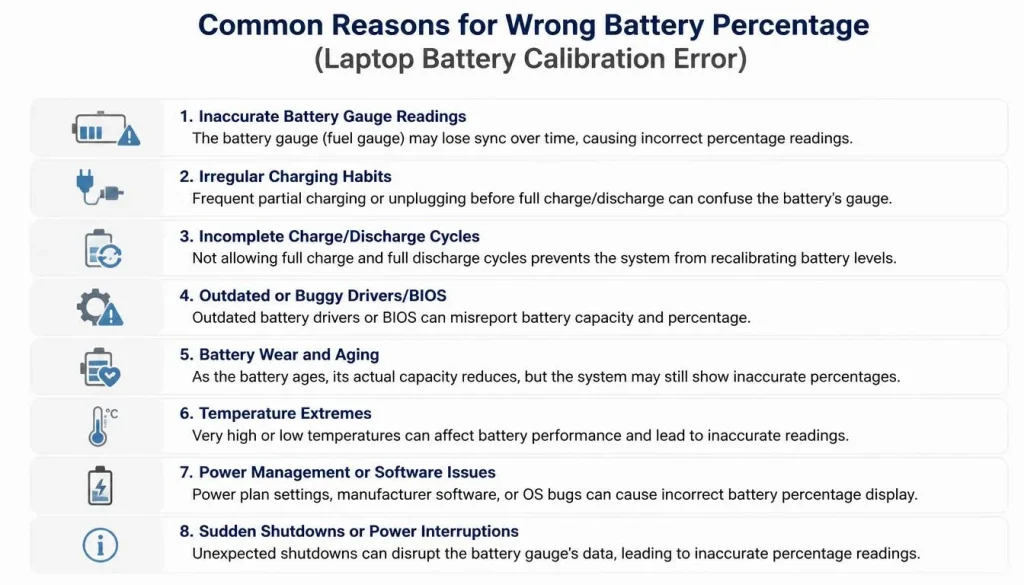
Battery Calibration Error
Battery calibration is one of the most common causes of wrong battery percentage. Over time, your laptop may lose track of the actual battery level. The battery may still work, but the software reading becomes inaccurate.
For example, your laptop may think the battery is at 40%, even though the real charge is much lower. This can cause sudden shutdowns.
Outdated or Corrupted Battery Driver
On Windows laptops, battery percentage is managed partly through system drivers. If the battery driver becomes corrupted or outdated, Windows may show the wrong charge level.
This is especially common after a Windows update, driver update, or battery replacement.

BIOS or Firmware Issue
The BIOS or UEFI firmware helps your laptop communicate with the battery and charger. If the BIOS is outdated or has a power management bug, your battery percentage may not update correctly.

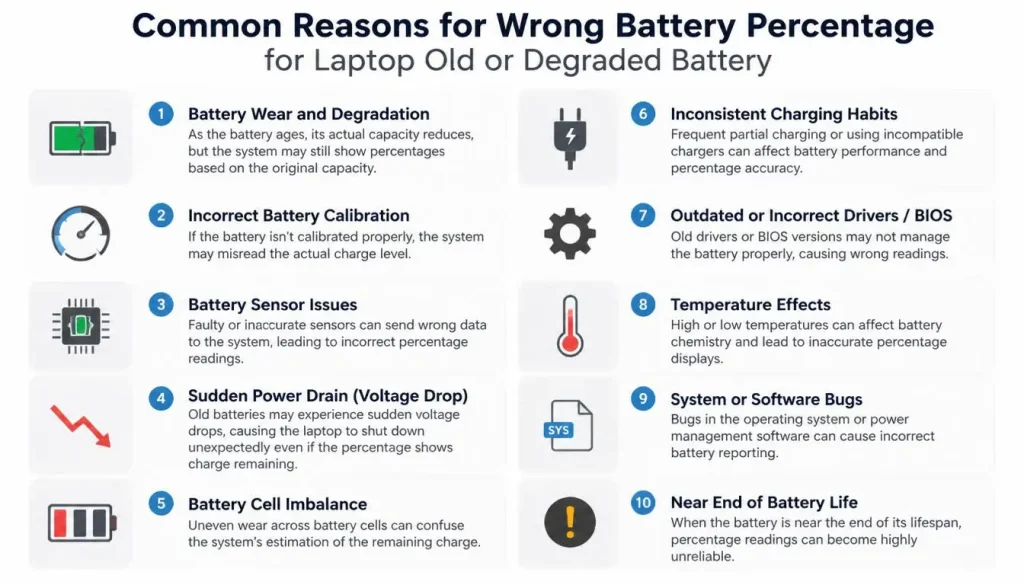
Old or Degraded Battery
Laptop batteries lose capacity with age and usage. When the battery becomes weak, it may no longer discharge smoothly. This can cause sudden drops from 50% to 10%, or shutdowns even when the battery indicator still shows charge.
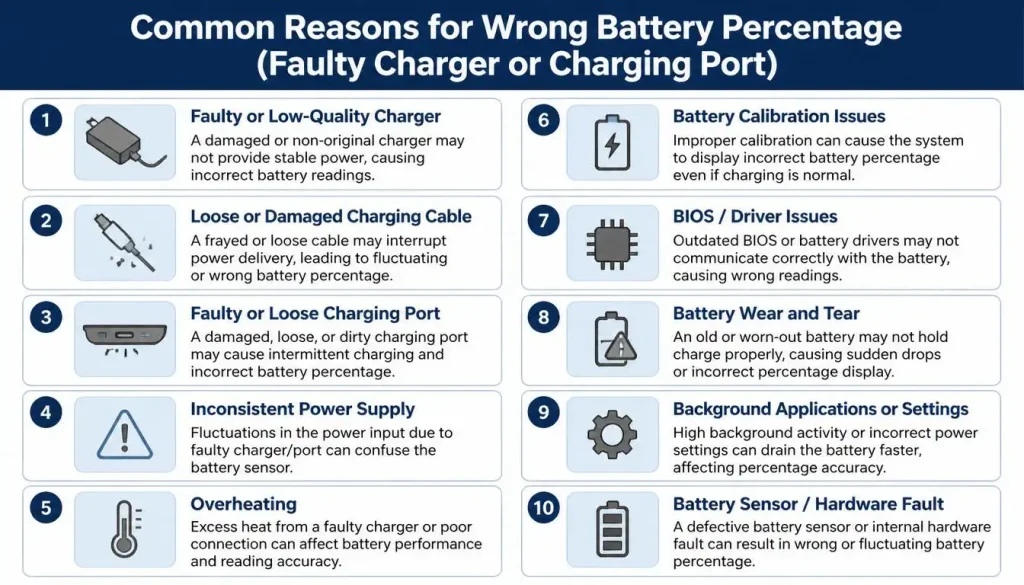
Faulty Charger or Charging Port
If your charger, charging cable, USB-C adapter, or charging port is damaged, your laptop may receive unstable power. This can make the battery percentage stop increasing or update incorrectly.
Battery Protection or Charge Limit Mode
Many modern laptops include battery protection features. These settings may stop charging at 60%, 80%, or 90% to extend battery lifespan. This is not always a fault.
For example, ASUS Battery Health Charging allows users to set a maximum battery charge limit to help extend battery lifespan. If this setting is enabled, the laptop may stop charging before 100%.
Is It a Battery Problem or a Software Reading Problem?
Before replacing the battery, try to understand whether the problem is caused by software or hardware.
It may be a software or calibration issue if:
- The battery still lasts a reasonable amount of time
- The percentage is wrong but the laptop does not shut down suddenly
- The problem started after a Windows update or macOS update
- The battery is new but showing inaccurate readings
- The battery report shows decent full charge capacity
It may be a battery hardware problem if:
- The laptop shuts down suddenly even with battery left
- Battery life is much shorter than before
- The laptop only works when plugged in
- The battery is swollen
- The battery health status says service or replacement is needed
- Full charge capacity is much lower than design capacity
If the battery is swollen, stop using the laptop immediately and contact the manufacturer or a qualified repair professional. A swollen battery can be dangerous.
How to Check Battery Health on Windows
Windows includes a built-in battery report tool. This is one of the best ways to check if your laptop battery is healthy or degraded.
Follow these steps:
- Click the Start button.
- Type “Command Prompt.”
- Right-click Command Prompt and select “Run as administrator.”
- Type this command:
powercfg /batteryreport
- Press Enter.
- Windows will create an HTML battery report file.
- Open the file location shown in Command Prompt.
- Double-click the battery report to open it in your browser.
Microsoft’s official Windows battery guide confirms that the powercfg /batteryreport command creates an HTML battery report and shows the saved file location in Command Prompt.
In the report, check these important details:
- Design Capacity
- Full Charge Capacity
- Cycle Count
- Recent Usage
- Battery Usage
- Battery Life Estimates
The most important comparison is Design Capacity vs Full Charge Capacity.
Design Capacity means how much charge the battery could hold when it was new. Full Charge Capacity means how much charge it can hold now.
If Full Charge Capacity is much lower than Design Capacity, your battery has degraded. In that case, calibration may improve the percentage reading, but it will not restore the original battery life.
How to Check Battery Health on MacBook
If you use a MacBook, you can check battery condition from macOS settings.
Follow these steps:
- Click the Apple menu.
- Open System Settings.
- Click Battery.
- Look for Battery Health.
- Check the battery condition.
Apple explains that “Service Recommended” means the battery’s ability to hold charge is lower than when it was new, or the battery is not functioning normally.
If your MacBook battery says “Normal,” the issue may be software-related, calibration-related, or caused by charging settings. If it says “Service Recommended,” your battery may need professional service, especially if battery life is poor.
How to Fix Wrong Battery Percentage in Windows 10 and Windows 11
If your Windows laptop is showing the wrong battery percentage, try the following methods one by one.
Method 1: Restart and Power Cycle the Laptop
A power cycle can reset temporary power management problems.
Follow these steps:
- Shut down your laptop.
- Unplug the charger.
- Disconnect external devices.
- Press and hold the power button for 15 to 30 seconds.
- Connect the charger again.
- Turn on the laptop.
Now check whether the battery percentage updates normally.
Method 2: Reinstall Battery Drivers
A corrupted battery driver can cause inaccurate battery percentage. Reinstalling it can help Windows detect the battery again.
Follow these steps:
- Right-click the Start button.
- Open Device Manager.
- Expand the Batteries section.
- Right-click Microsoft AC Adapter and choose Uninstall device.
- Right-click Microsoft ACPI-Compliant Control Method Battery and choose Uninstall device.
- Restart your laptop.
Windows should automatically reinstall the battery drivers after restart.
After restarting, plug in the charger and check whether the battery percentage changes correctly.
Method 3: Generate a Windows Battery Report
If reinstalling drivers does not help, generate a battery report using:
powercfg /batteryreport
Open the report and check whether your battery is still healthy.
Look carefully at Full Charge Capacity. If it is much lower than Design Capacity, the battery is physically weaker than before. In that case, wrong percentage readings may be a sign of battery aging.
Method 4: Run the Windows Power Troubleshooter
Windows may detect and fix power-related issues automatically.
Follow these steps:
- Open Settings.
- Go to System.
- Click Troubleshoot.
- Open Other troubleshooters.
- Run the Power troubleshooter if available.
After the troubleshooter finishes, restart your laptop.
Method 5: Reset Power Plan Settings
Incorrect power plan settings may affect charging and battery behavior.
Follow these steps:
- Open Control Panel.
- Go to Hardware and Sound.
- Open Power Options.
- Select your current power plan.
- Click Change plan settings.
- Click Restore default settings for this plan.
You can also open Advanced power settings and reset the settings to default.
Method 6: Update BIOS, Chipset, and Battery Firmware
If the battery percentage is still wrong, visit your laptop manufacturer’s official support website. Search for your exact laptop model and check for:
- BIOS update
- Chipset driver
- Power management driver
- Battery firmware update
- Manufacturer diagnostic tool
Important: Keep your laptop plugged in during BIOS updates. Do not shut down the laptop while the BIOS update is running.
Fix Wrong Battery Percentage After a Windows Update
Sometimes, wrong battery percentage starts after a Windows update. This can happen because of driver changes, power setting changes, or compatibility issues.
Try these fixes:
- Restart your laptop after the update.
- Reinstall battery drivers from Device Manager.
- Install optional Windows updates.
- Update chipset and power management drivers.
- Check the manufacturer’s support website for BIOS updates.
- Reset the power plan to default.
- Generate a battery report to check battery health.
If the issue started immediately after a driver update, you can also try rolling back the driver from Device Manager if the rollback option is available.
How to Calibrate Your Laptop Battery Safely
Battery calibration helps your laptop relearn the correct battery level. It does not repair a damaged battery, but it can improve the accuracy of the battery percentage.
Use calibration only when the battery percentage is clearly inaccurate. Do not fully drain your laptop battery every week, because frequent full discharge is not good for modern laptop batteries.
Here is a safe calibration method:
- Charge your laptop to 100%.
- Keep it plugged in for another 1 to 2 hours.
- Unplug the charger.
- Use the laptop normally until the battery becomes very low.
- Let the laptop shut down or hibernate automatically.
- Leave it off for 30 minutes.
- Plug in the charger.
- Charge it back to 100% without interruption.
- Restart the laptop and check the battery reading.
Dell’s official battery calibration guidance explains that a calibration cycle can help correct battery reporting, and in some cases more than one cycle may be needed.
If calibration improves the reading, the problem was likely a battery gauge issue. If the laptop still shuts down suddenly, the battery may be degraded.
What to Do If Battery Percentage Is Stuck at 0%, 1%, 99%, or 100%
A stuck battery percentage can happen for several reasons.
Battery Stuck at 0% but Laptop Works
If your laptop works on battery but shows 0%, it may be a driver, sensor, or battery communication issue.
Try these steps:
- Restart the laptop
- Reinstall battery drivers
- Run a battery report
- Update BIOS
- Try the original charger
- Run the manufacturer’s battery diagnostic tool
If the battery report cannot read proper battery information, the battery or battery controller may be faulty.
Battery Stuck at 1%
If the battery is stuck at 1%, plug in the original charger and leave it charging for at least 30 to 60 minutes. If it still does not increase, try reinstalling battery drivers and checking the charger.
If the laptop shuts down as soon as the charger is removed, the battery may no longer hold charge.

Battery Stuck at 99% or 100%
If the battery is stuck at 99% or 100%, it may not always be a serious problem. Some laptops slow down or stop charging near full capacity to protect the battery.
Check whether your laptop has battery protection, smart charging, conservation mode, or optimized charging enabled.
If the battery says 100% but drains very quickly, check the battery report or battery health status.
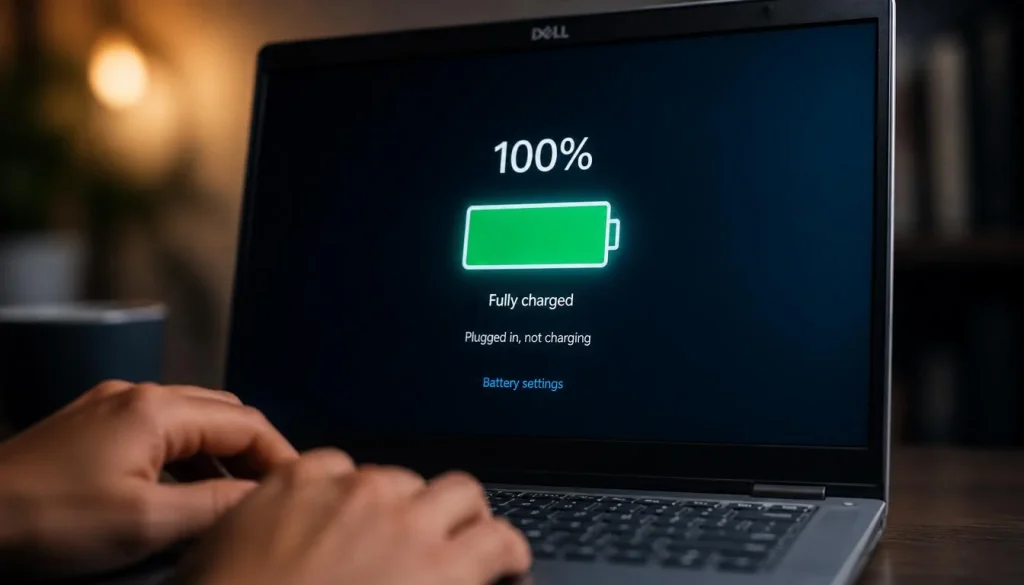
What to Do If Battery Percentage Is Not Increasing While Charging
If your laptop says it is plugged in but the percentage is not increasing, follow these steps.
First, check the charger. Make sure you are using the correct charger for your laptop. Some USB-C chargers can power a laptop but may not provide enough wattage to charge the battery properly.
Second, inspect the charging cable and port. Look for loose connections, bent pins, dust, or physical damage.
Third, check battery charge limit settings. Some laptops stop charging at 60%, 80%, or 90% because battery protection mode is enabled.
Fourth, reinstall battery drivers on Windows.
Fifth, run your manufacturer’s battery diagnostic tool. For example, HP provides Battery Check through its diagnostic tools to test battery health and identify battery problems.
If the percentage still does not increase, the problem may be the battery, charger, charging port, or motherboard charging circuit.
What If Your Laptop Shuts Down Even When Battery Is Left?
If your laptop shuts down at 20%, 30%, 40%, or even 50%, the battery percentage is probably inaccurate. This usually happens because of calibration problems or battery degradation.
Try this order:
- Generate a battery report.
- Check Full Charge Capacity.
- Reinstall battery drivers.
- Calibrate the battery.
- Update BIOS and power management drivers.
- Run manufacturer diagnostics.
- Replace the battery if health is poor.
If the laptop shuts down suddenly during normal use even after calibration, the battery may not be able to deliver stable power anymore.
Wrong Battery Percentage After Battery Replacement
A new replacement battery may show wrong percentage at first. This can happen because the laptop has not learned the new battery’s charge pattern yet.
Try these steps:
- Charge the new battery to 100%.
- Use the laptop normally until the battery is low.
- Charge it back to 100% without interruption.
- Repeat this for 1 to 3 cycles if needed.
- Generate a new battery report.
- Update BIOS if the laptop does not recognize the battery correctly.
If the battery still shows wrong percentage after several cycles, the replacement battery may be incompatible, defective, or low quality.
Always use a genuine or high-quality compatible replacement battery from a trusted seller. Cheap batteries can cause inaccurate readings, poor battery life, charging problems, and safety risks.
Check Battery Charge Limit or Conservation Mode
Many users think their battery percentage is wrong when the laptop is actually using a battery protection feature.
These features may stop charging before 100% to reduce battery wear.
Check for these settings:
- ASUS Battery Health Charging or Battery Care Mode
- Lenovo Conservation Mode or Battery Gauge Reset
- Dell Power Manager battery settings
- HP Adaptive Battery Optimizer
- Acer Care Center battery settings
- MSI Center battery settings
- Mac Optimized Battery Charging
Lenovo also has official guidance for Battery Gauge Reset, which can improve the accuracy of the remaining battery runtime display.
If your laptop stops charging at 60%, 80%, or 90%, open your manufacturer’s app and check whether a charge limit is enabled.
This is not necessarily a problem. In many cases, it is designed to protect battery health.
Brand-Specific Fixes for Dell, HP, Lenovo, ASUS, Acer, and MSI
Different laptop brands include different battery tools. Use the steps below based on your laptop brand.
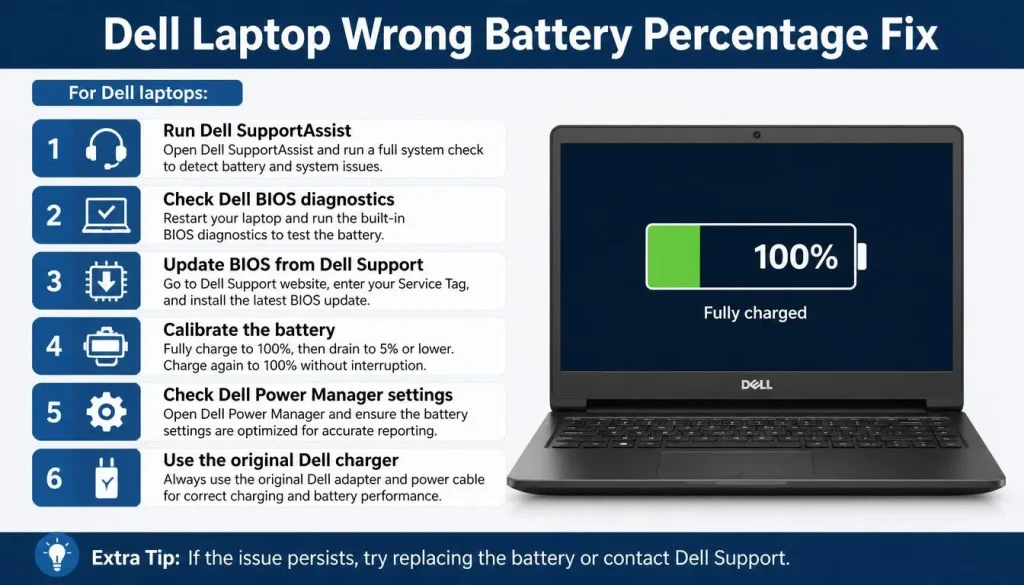
Dell Laptop Wrong Battery Percentage Fix
For Dell laptops:
- Run Dell SupportAssist
- Check Dell BIOS diagnostics
- Update BIOS from Dell Support
- Calibrate the battery
- Check Dell Power Manager settings
- Use the original Dell charger
If the battery is old or diagnostics show a failure, replacement may be needed.
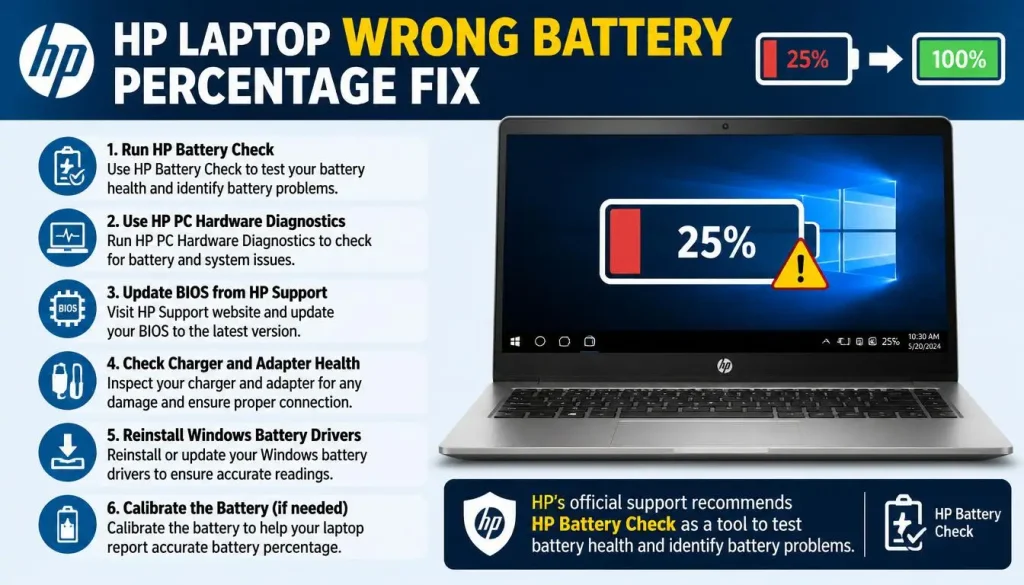
HP Laptop Wrong Battery Percentage Fix
For HP laptops:
- Run HP Battery Check
- Use HP PC Hardware Diagnostics
- Update BIOS from HP Support
- Check charger and adapter health
- Reinstall Windows battery drivers
- Calibrate the battery if needed
HP’s official support recommends HP Battery Check as a tool to test battery health and identify battery problems.
Lenovo Laptop Wrong Battery Percentage Fix
For Lenovo laptops:
- Open Lenovo Vantage if available
- Check Conservation Mode
- Run Battery Gauge Reset if supported
- Update Lenovo Power Management drivers
- Update BIOS
- Check charger compatibility
A Battery Gauge Reset can help improve the accuracy of the battery meter, but it will not increase the actual battery capacity.
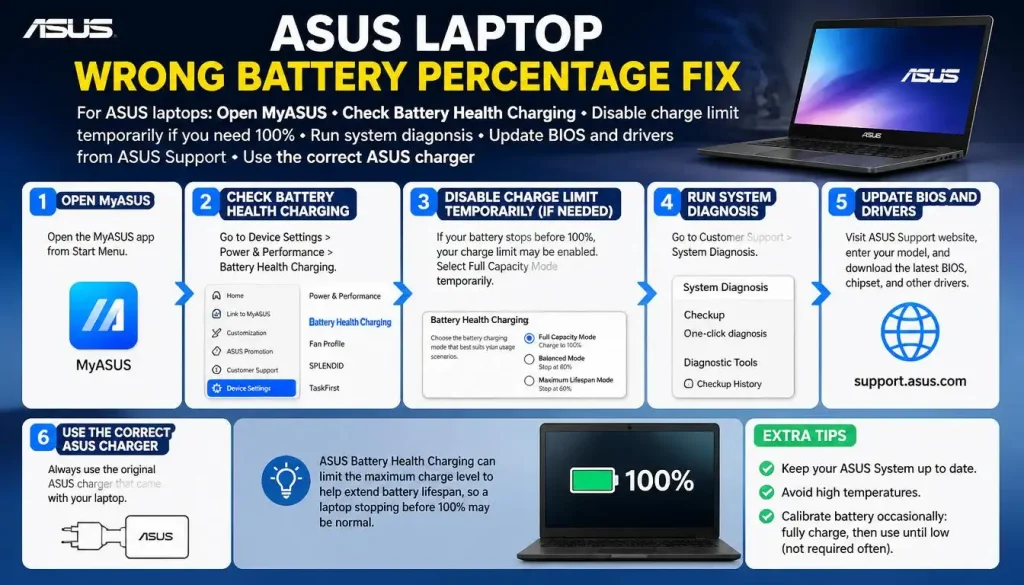
ASUS Laptop Wrong Battery Percentage Fix
For ASUS laptops:
- Open MyASUS
- Check Battery Health Charging
- Disable charge limit temporarily if you need 100%
- Run system diagnosis
- Update BIOS and drivers from ASUS Support
- Use the correct ASUS charger
ASUS Battery Health Charging can limit the maximum charge level to help extend battery lifespan, so a laptop stopping before 100% may be caused by that setting.
Acer Laptop Wrong Battery Percentage Fix
For Acer laptops:
- Open Acer Care Center if available
- Check battery health
- Update BIOS
- Reinstall battery drivers
- Use the original charger
- Run Windows battery report
If the laptop shuts down suddenly even after calibration, test with a known good battery or contact Acer support.
MSI Laptop Wrong Battery Percentage Fix
For MSI laptops:
- Open MSI Center or Dragon Center
- Check battery master settings
- Disable battery charge limit if needed
- Update BIOS and EC firmware
- Reinstall battery drivers
- Run battery calibration if the tool supports it
Gaming laptops often use battery protection settings because many users keep them plugged in for long periods.
When Should You Replace the Laptop Battery?
You should consider replacing the battery if:
- The laptop shuts down suddenly even after calibration
- Battery drains very quickly
- Battery health says service or replacement is recommended
- Full Charge Capacity is much lower than Design Capacity
- The laptop only works when plugged in
- The battery is swollen
- The battery is not detected
- The battery fails manufacturer diagnostics
- A new charger does not fix charging problems
Battery calibration can improve accuracy, but it cannot restore lost battery capacity. If the battery is physically degraded, replacement is the real solution.
How to Prevent Wrong Battery Percentage in the Future
You can reduce battery problems by following good charging habits.
Keep your laptop cool. Heat is one of the biggest enemies of battery health.
Use the original charger or a high-quality charger that matches your laptop’s power requirements.
Avoid fully draining the battery too often. Occasional calibration is okay, but frequent full discharge is not necessary.
Keep Windows, macOS, BIOS, and drivers updated.
Use battery charge limit mode if your laptop stays plugged in most of the time.
Do not ignore battery warnings. If your laptop says the battery needs service, check it as soon as possible.
Avoid cheap replacement batteries. A poor-quality battery may show wrong percentage, charge slowly, or fail early.
Common Mistakes to Avoid
Avoid these mistakes when fixing wrong battery percentage:
- Do not fully drain the battery every day
- Do not use random battery calibration apps from unknown sources
- Do not update BIOS while the battery is low
- Do not ignore a swollen battery
- Do not assume every charging limit is a fault
- Do not replace the battery before checking drivers and battery health
- Do not use a weak USB-C charger for a high-power laptop
- Do not keep using a battery that fails diagnostics
The safest approach is to diagnose first, calibrate if needed, then replace the battery only if the battery health is poor.
FAQ About How to Fix Wrong Battery Percentage in Laptop
Why is my laptop battery percentage wrong?
Your laptop battery percentage may be wrong because of a calibration error, outdated battery driver, BIOS issue, battery degradation, charger problem, or battery protection setting.
How do I reset my laptop battery percentage?
You can reset the battery percentage by power cycling the laptop, reinstalling battery drivers, and calibrating the battery. On Windows, you should also generate a battery report using powercfg /batteryreport.
Why is my laptop battery stuck at 0%?
A battery stuck at 0% may be caused by a faulty battery, corrupted driver, charger problem, BIOS issue, or battery sensor problem. If the laptop shuts down when unplugged, the battery may no longer hold charge.
Why is my laptop battery stuck at 100%?
A battery stuck at 100% can be caused by a reporting delay, calibration issue, or battery driver problem. If it drains quickly after showing 100%, check battery health.
Why is my laptop battery not increasing while charging?
This can happen because of a weak charger, damaged charging port, battery charge limit setting, driver issue, or failing battery. Check your charger first, then battery settings and diagnostics.
Why does my laptop shut down at 30% battery?
This usually means the battery percentage is inaccurate or the battery is degraded. Try battery calibration and check the battery report. If the battery health is poor, replacement may be needed.
Can a Windows update cause wrong battery percentage?
Yes, a Windows update can sometimes affect battery drivers, power settings, or hardware communication. Reinstalling battery drivers, updating chipset drivers, and resetting the power plan can help.
How do I fix wrong battery percentage after battery replacement?
Charge the new battery to 100%, discharge it normally, and charge it back to 100%. Repeat for 1 to 3 cycles if needed. Also update BIOS and check if the replacement battery is compatible.
Is battery calibration safe?
Battery calibration is safe when done occasionally. However, fully draining your battery too often is not recommended. Use calibration only when your battery percentage is clearly inaccurate.
Should I replace my laptop battery if calibration does not work?
If calibration does not work and your battery health is poor, battery life is very short, or the laptop shuts down suddenly, replacing the battery is usually the best solution.
Final Verdict
If your laptop is showing the wrong battery percentage, do not replace the battery immediately. Start with simple fixes like restarting the laptop, checking the charger, reinstalling battery drivers, and updating the system.
Next, check battery health using Windows Battery Report, macOS Battery Health, or your manufacturer’s diagnostic tool. If the battery health looks acceptable, calibration may fix the inaccurate percentage.
However, if your laptop shuts down suddenly, drains too fast, shows poor full charge capacity, or reports that battery service is needed, the battery may be worn out. In that case, replacement is the safest long-term fix.

“Electronics aren’t just gadgets. They’re the invisible threads that connect our work, our play, and our world.”
I’m Julian Reed, and my obsession with tech started at age twelve, when I soldered a defunct gaming console back to life in my bedroom. That tiny green screen taught me that technology isn’t just a black box, it’s a tool you can master.
After fifteen years as a hardware engineer and a decade reviewing consumer tech, I’ve joined this team to cut through the jargon. Whether you’re building a high-end home theater or just need a laptop that won’t lag, I’m here to help you choose the gear that truly powers your life.


