

Quick Answer: To learn how to check laptop battery health on Windows 11 & Windows 10, use the built-in powercfg /batteryreport command. It creates a battery report that shows your battery’s design capacity, full charge capacity, cycle count, usage history, and health condition.
Laptop battery life gets worse slowly. At first, you may not notice it. Then one day your laptop drops from 40% to 10% in minutes, shuts down during work, or refuses to hold charge like before. That is when a proper laptop battery health check becomes important.
The good news is that Windows already has powerful tools for this. You do not need to guess. You can check laptop battery health using Command Prompt, Windows Terminal, PowerShell, battery settings, and trusted hardware tools. These methods work on most modern laptops from Dell, HP, Lenovo, ASUS, Acer, MSI, and Microsoft Surface.
This guide will show you how to check laptop battery health on Windows 11 & Windows 10 step by step. You will learn how to read battery reports, understand battery capacity, spot warning signs, use smart devices and software tools, and decide when your laptop battery needs care or replacement.
Why Laptop Battery Health Matters on Windows 11 and 10
Your laptop battery is not just a power source. It affects performance, portability, charging speed, heat, and long-term reliability. A weak battery can make even a fast laptop feel unreliable.
Many users only notice battery problems when the laptop starts dying too fast. But battery wear starts much earlier. Every charge cycle slowly reduces the battery’s ability to hold power. Heat, cheap chargers, heavy gaming, poor ventilation, and constant charging at 100% can make this happen faster.
A proper laptop battery health check helps you avoid sudden shutdowns. It also helps you plan before the battery becomes useless. For students, freelancers, office workers, gamers, and travelers, this can save time and stress.
Windows 11 and Windows 10 both include battery reporting tools. These tools show the difference between design capacity and full charge capacity. Design capacity means the original battery size when new. Full charge capacity means how much power the battery can hold now.
For example, if your laptop battery was designed for 50,000 mWh but now only charges to 34,000 mWh, the battery has clearly lost capacity. You may still use it, but backup time will be shorter.
Checking laptop battery health also helps when buying a used laptop. Before buying a second-hand ThinkPad, Dell XPS, HP Spectre, ASUS Zenbook, or gaming laptop, you should check the battery report. It can reveal hidden battery wear that the seller may not mention.
Best Ways to Check Laptop Battery Health on Windows
Use Windows Battery Report
Best for: Anyone who wants the most detailed built-in Windows battery health report without installing extra apps.
How to do it:
- Right-click the Start button and open Windows Terminal, PowerShell, or Command Prompt as administrator.
- Type
powercfg /batteryreportand press Enter. - Open the saved HTML file path shown on the screen, usually inside your user folder.
Expected result: You will get a full battery report with installed battery details, recent usage, capacity history, and battery life estimates.
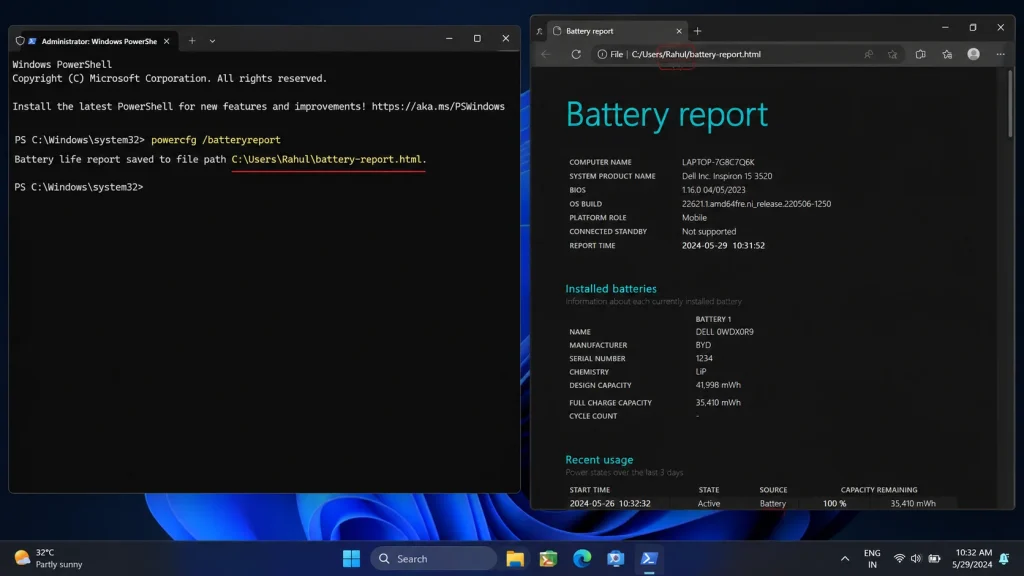
The Windows battery report is the best first step. It works well for windows 11 battery health checks and also helps users who want to know how to check battery health Windows 10.
Look for the Installed batteries section first. Focus on Design Capacity and Full Charge Capacity. If full charge capacity is much lower than design capacity, the battery has aged.
Also check the Cycle Count if available. Some laptops show this clearly. Others may hide it. A higher cycle count usually means more battery wear.
This method is one of the most useful tech essentials for laptop owners. It gives real hardware data instead of guessing from battery percentage only.
Check Battery Usage in Windows Settings
Best for: Users who want a quick look at battery drain by app without using commands.
How to do it:
- On Windows 11, go to Settings > System > Power & battery.
- On Windows 10, go to Settings > System > Battery.
- Review battery usage by app and adjust apps that drain too much power.
Expected result: You will see which apps use the most battery and can reduce unnecessary drain.
This method does not show full battery health like the battery report. But it helps explain why your laptop battery drains fast.
For example, Google Chrome, Microsoft Edge, Adobe Premiere Pro, Steam, Zoom, Microsoft Teams, and background cloud sync apps can use heavy power. If your battery drains quickly only when these apps run, the battery may not be the only problem.
On Windows 11, you can also change Power Mode. Set it to Best power efficiency when working unplugged. On Windows 10, use Battery saver when you need longer backup time.
This is useful for budget electronics and older laptops. You may improve daily battery life without replacing the battery immediately.
Use Manufacturer Battery Tools
Best for: Users with Dell, Lenovo, HP, ASUS, Acer, MSI, or Surface laptops who want brand-specific battery details.
How to do it:
- Open the laptop brand’s support app, such as Lenovo Vantage, Dell Power Manager, HP Support Assistant, MyASUS, Acer Care Center, or MSI Center.
- Go to the battery, power, or hardware health section.
- Run the battery diagnostic or check the battery condition status.
Expected result: You will see battery health status, charging behavior, and sometimes battery protection settings.
Manufacturer apps can show details that Windows may not show clearly. Some tools can also enable smart charging features.
For example, Lenovo Vantage often includes battery conservation mode. Dell Power Manager may offer charging profiles. MyASUS can include battery care mode. Microsoft Surface devices may support smart charging to reduce battery stress.
These tools are useful for modern smart devices because laptop brands now add AI-powered battery care, adaptive charging, and power optimization features. In 2026, more laptops are built around efficiency, USB-C charging, and intelligent battery protection.
Use these apps together with the Windows battery report. The report gives raw data. The brand app gives device-specific recommendations.
Check Battery Health with PowerShell
Best for: Advanced users who want quick battery information directly inside Windows.
How to do it:
- Open PowerShell from the Start menu.
- Run
Get-CimInstance -ClassName Win32_Battery. - Review values like estimated charge, battery status, and device name.
Expected result: You will get quick battery status data without opening the full battery report.
PowerShell is not as detailed as the HTML battery report. Still, it is useful when you need fast battery information.
You can also use PowerShell to generate the same battery report with powercfg /batteryreport. This makes PowerShell a flexible option for both Windows 11 and Windows 10.
For IT support, repair shops, and advanced users, PowerShell is fast. It helps when checking multiple laptops. You can quickly confirm if Windows detects the battery correctly.
If PowerShell does not show expected information, it may mean the battery driver, chipset driver, or firmware needs attention. In that case, update your laptop’s BIOS and power management drivers from the brand’s official support app.
Use HWMonitor or HWiNFO64
Best for: Users who want deeper hardware readings like voltage, wear level, temperature, and charging behavior.
How to do it:
- Install a trusted hardware monitoring tool such as HWMonitor or HWiNFO64.
- Open the app and find the battery section.
- Check wear level, designed capacity, full charged capacity, voltage, and battery temperature.
Expected result: You will get advanced hardware-level battery data that can confirm Windows report findings.
HWMonitor and HWiNFO64 are popular tools among PC users. They are especially helpful for gaming laptops and workstations.
Gaming laptops from ASUS ROG, Lenovo Legion, HP Omen, MSI Raider, and Acer Predator can generate more heat. Heat is one of the biggest enemies of battery health. If your battery temperature stays high during gaming or charging, battery wear may happen faster.
These tools also help when checking charging behavior. If your battery keeps switching between charging and discharging while plugged in, your charger, USB-C port, adapter, or battery may need checking.
For best gadgets and high-performance laptops, this deeper view is helpful. You can combine this with Windows battery settings to control power use more effectively.
Test Real Battery Backup Manually
Best for: Users who want to compare battery report data with real-world battery life.
How to do it:
- Charge your laptop to 100%, then unplug it.
- Set screen brightness to 50%, turn on Wi-Fi, and use normal apps like browser, documents, and video playback.
- Note the start time, shutdown time, and percentage drop every 30 minutes.
Expected result: You will know how long your battery lasts in real use, not just on paper.
A report can show battery health, but real testing shows daily experience. This is important because two laptops with the same battery capacity can perform differently.
A laptop with an Intel Core Ultra chip, AMD Ryzen AI processor, or Apple-style efficiency design may last longer than an older laptop with the same battery size. Display type also matters. OLED screens, high refresh rate panels, and dedicated GPUs can drain more power.
Turn off keyboard RGB lighting, reduce refresh rate from 144Hz to 60Hz, and close heavy background apps during the test. This gives a fair reading.
Manual testing is also useful after replacing a battery. You can compare old and new results to confirm the upgrade worked.
Check Battery Calibration Issues
Best for: Users whose laptop battery percentage jumps, drops suddenly, or shuts down before reaching 0%.
How to do it:
- Charge the laptop fully and keep it plugged in for another 30 minutes.
- Unplug it and use the laptop until it shuts down by itself.
- Charge it back to 100% without interruption, then check the battery report again.
Expected result: Windows may show more accurate battery percentage after calibration.
Battery calibration does not repair a worn battery. It only helps Windows read the charge level more accurately.
This is useful when your laptop says 40% but shuts down suddenly. It may also help if the battery stays stuck at one percentage for a long time.
Do not calibrate too often. Deep discharge can add stress to lithium-ion batteries. Use this only when the battery percentage looks wrong.
For normal use, keep your laptop between moderate charge levels when possible. If your brand app offers battery care mode, enable it. This can reduce long-term wear.
Step-by-Step Guide
- Open Windows Terminal as admin. Right-click the Start button and choose Terminal Admin, PowerShell Admin, or Command Prompt Admin.
- Run the battery report command. Type
powercfg /batteryreportand press Enter. Do not close the window until the file path appears. - Open the HTML report. Copy the file path, paste it into File Explorer, and open the report in Microsoft Edge or Chrome.
- Check Design Capacity. Find the Installed batteries section and write down the original design capacity.
- Check Full Charge Capacity. Compare it with design capacity. A big gap means your laptop battery health has dropped.
- Review Capacity History. Scroll to the capacity history section. Look for steady decline over time, sudden drops, or missing data.
- Check Recent Usage. Review active, suspended, and connected standby usage. This helps find drain during sleep mode.
- Confirm with one extra tool. Use Lenovo Vantage, Dell Power Manager, HP Support Assistant, MyASUS, HWMonitor, or HWiNFO64 to confirm the result.
Expert Tips and Common Mistakes
Pro Tips
- Use the battery report before replacing the battery. Do not buy a new battery only because backup feels short. First compare design capacity and full charge capacity.
- Enable battery care mode when available. Lenovo Vantage, MyASUS, and Dell Power Manager can limit full charging to reduce stress during plugged-in use.
- Lower screen refresh rate on battery. Switching from 144Hz to 60Hz can reduce power use on many gaming laptops and creator laptops.
- Check background apps weekly. Microsoft Teams, OneDrive, Steam, Adobe Creative Cloud, and browser tabs can drain battery even when you are not actively using them.
- Use the correct charger. A weak USB-C charger may charge slowly or cause power switching. Use the wattage recommended for your laptop model.
Common Mistakes to Avoid
- Ignoring heat during charging. Heat speeds up battery wear. Blocking vents on a bed or sofa can damage long-term battery health.
- Keeping the laptop at 100% all day without battery care mode. This can stress the battery, especially if the laptop also runs hot.
- Trusting battery percentage only. A laptop can show 100% but still have poor full charge capacity. Always check the actual report.
- Buying cheap unknown replacement batteries. Low-quality batteries may have poor cells, bad safety circuits, or wrong capacity readings.
FAQs
How to check laptop battery health on Windows 11?
To check windows 11 battery health, open Windows Terminal as administrator and run powercfg /batteryreport. Open the HTML file shown in the result. Check Design Capacity, Full Charge Capacity, and Cycle Count if listed. Then compare capacity history to see how much the battery has degraded over time.
How to check battery health Windows 10 without installing software?
To check battery health Windows 10, use the built-in Command Prompt method. Open Command Prompt as administrator, type powercfg /batteryreport, and press Enter. Windows will create a battery report file. Open it in your browser and review installed battery details, recent usage, and battery life estimates.
What is a good laptop battery health result?
A good result means full charge capacity is still close to design capacity. Some wear is normal after regular use. If full charge capacity is much lower, backup time will be shorter. Also check if the battery drains fast, overheats, or shuts down suddenly. Real-world use matters along with the report.
Can I check laptop battery health without Command Prompt?
Yes. You can use Windows Settings, manufacturer apps, or hardware tools. Lenovo Vantage, Dell Power Manager, HP Support Assistant, MyASUS, HWMonitor, and HWiNFO64 can show helpful battery details. But for the most complete built-in report, the powercfg /batteryreport command is still the best method.
Why is my laptop battery health dropping fast?
Fast battery wear usually comes from heat, heavy charging cycles, gaming while plugged in, cheap chargers, poor ventilation, and keeping the battery full all day. Check battery temperature with HWiNFO64 or HWMonitor. Also enable battery conservation mode if your laptop brand supports it.
Does Windows 11 show battery health like a phone?
Windows 11 does not show one simple battery health percentage like many phones. Instead, it gives detailed battery data through the battery report. You need to compare design capacity and full charge capacity manually. Some laptop brand apps may show a simpler battery condition label.
When should I replace my laptop battery?
Replace the battery when backup time becomes too short for your work, the laptop shuts down suddenly, the battery swells, charging becomes unstable, or full charge capacity is far below design capacity. If you see swelling, stop using the laptop on battery and get it checked safely.
Conclusion
Learning how to check laptop battery health on Windows 11 & Windows 10 helps you understand your laptop instead of guessing. The best method is the Windows battery report because it shows real capacity data, usage history, and battery life estimates.
You can also use Windows Settings, PowerShell, manufacturer apps, HWMonitor, HWiNFO64, and manual backup testing. Together, these tools show whether your battery is healthy, aging, miscalibrated, or ready for replacement.
Good battery care also matters. Keep your laptop cool, avoid poor chargers, reduce background drain, and enable battery protection settings when available. These small steps can improve daily battery life and slow long-term wear.
Run powercfg /batteryreport today and compare your design capacity with full charge capacity before making any battery decision.

“Electronics aren’t just gadgets. They’re the invisible threads that connect our work, our play, and our world.”
I’m Julian Reed, and my obsession with tech started at age twelve, when I soldered a defunct gaming console back to life in my bedroom. That tiny green screen taught me that technology isn’t just a black box, it’s a tool you can master.
After fifteen years as a hardware engineer and a decade reviewing consumer tech, I’ve joined this team to cut through the jargon. Whether you’re building a high-end home theater or just need a laptop that won’t lag, I’m here to help you choose the gear that truly powers your life.


