
A loud fan does not automatically mean something is wrong with your gaming laptop. During a demanding game, the CPU and GPU produce a lot of heat, so the cooling fans have to spin faster to move that heat out of the chassis. The result can be a surprisingly loud rush of air, especially in Performance or Turbo mode.
What deserves attention is a fan that suddenly becomes much louder than before, stays at high speed while the laptop is doing almost nothing, repeatedly speeds up and slows down, or starts making grinding, clicking, rattling, or scraping sounds.
If your gaming laptop fan is too loud, start by checking CPU and GPU usage, temperatures, the selected performance mode, and whether the vents are blocked. Then work through the sections below that match your exact symptoms.
Is It Normal for a Gaming Laptop Fan to Be Loud?
Yes, a gaming laptop fan can be loud without anything being broken.
Gaming laptops pack high-performance processors and graphics chips into a relatively small space. Unlike a desktop, there is limited room for large heatsinks and slow-spinning fans. Small laptop fans often have to spin much faster to remove the same amount of heat.
You should therefore expect more fan noise when:
- Playing demanding games
- Rendering video
- Compiling large projects
- Running CPU or GPU benchmarks
- Streaming while gaming
- Using Turbo or maximum-performance mode
- Gaming in a warm room
- Running the laptop with an uncapped frame rate
ASUS, for example, describes its current Turbo mode as maximizing CPU and GPU power while using maximum fan airflow. Its Silent mode does the opposite by limiting performance to reduce noise.
That performance-versus-noise trade-off exists across many gaming laptop brands, even though the names of the modes differ.
Is a Loud Fan Normal on a Brand-New Gaming Laptop?
It can be.
A new gaming laptop may be noisy during its first few hours or days because Windows and other software can be busy with:
- System updates
- Search indexing
- Antivirus scans
- Game installations
- Driver installations
- Cloud synchronization
- Manufacturer software updates
The laptop may also ship in a high-performance profile.
If the fans become quiet once the laptop is sitting idle and temperatures are under control, there may be no problem.
However, a brand-new laptop should not normally produce grinding, scraping, repeated clicking, or other obvious mechanical noises.
When Is Gaming Laptop Fan Noise Not Normal?
Investigate the fan if you notice any of the following:
- The fan is extremely loud while the laptop is idle.
- Fan noise has suddenly increased compared with normal.
- The fan runs near full speed almost constantly.
- The fan makes grinding or scraping sounds.
- You hear repeated clicking or rattling.
- Airflow from the vents feels weak even though the fan sounds fast.
- The laptop overheats or shuts down.
- One fan sounds dramatically different from the other.
- The fan repeatedly accelerates and slows every few seconds.
- The laptop has become noticeably hotter and louder over time.
MSI specifically separates ordinary high-speed airflow from abnormal clacking or obstruction-related noises and recommends hardware service when the sound appears to come from physical fan interference or failure.
How Loud Should a Gaming Laptop Fan Be?
There is no single decibel number that tells you whether a gaming laptop fan is healthy.
Two perfectly functioning gaming laptops can sound very different because of differences in:
- Chassis thickness
- Fan diameter
- Number of fans
- CPU power limits
- GPU power limits
- Heat-pipe or vapor-chamber design
- Fan profile
- Game workload
- Ambient room temperature
- Measurement distance
The character of the sound is usually more useful than the number.
A strong, smooth whooshing sound during a demanding game can be normal.
A scraping or irregular clicking sound at low load is much more suspicious, even if it is technically quieter.
It is also helpful to compare the laptop with its own previous behavior. If it was relatively quiet for a year and suddenly became much louder while running the same games, something has changed.
Match Your Fan Problem to the Most Likely Cause
Use this table before changing settings or opening the laptop.
| What You Notice | What to Check First |
|---|---|
| Fan loud only while gaming | Temperatures, performance mode, GPU load |
| Fan loud while idle | Task Manager, background processes |
| Fan suddenly got louder | Dust, updates, fan profile, temperatures |
| Fan loud when charger is plugged in | AC performance profile |
| Fan stays loud after closing a game | Remaining CPU/GPU load and temperatures |
| Fan loud despite low CPU usage | GPU activity, temperatures, fan mode |
| Fan gets loud with an external monitor | Dedicated GPU activity and refresh rate |
| Fan loud but laptop is cool | Fan profile, software, firmware |
| Fan loud and laptop is very hot | Airflow, dust, cooling system |
| Fan constantly speeds up and slows down | Load spikes, temperature thresholds, fan curve |
| Grinding or scraping sound | Fan bearing, damage, obstruction |
| Clicking or rattling | Fan or foreign object |
| High-pitched electronic sound | Possibly coil whine rather than the fan |
| One fan much louder than the other | Compare CPU/GPU temperatures and airflow |
| Fan still loud after cleaning | Internal cooling, fan bearing, software, thermal interface |
The goal is to identify the pattern. A fan that is loud during Cyberpunk 2077 at maximum settings has a very different problem from one that runs at full speed while the laptop sits on the Windows desktop.
Is That Noise Really the Fan? Fan Noise vs Coil Whine
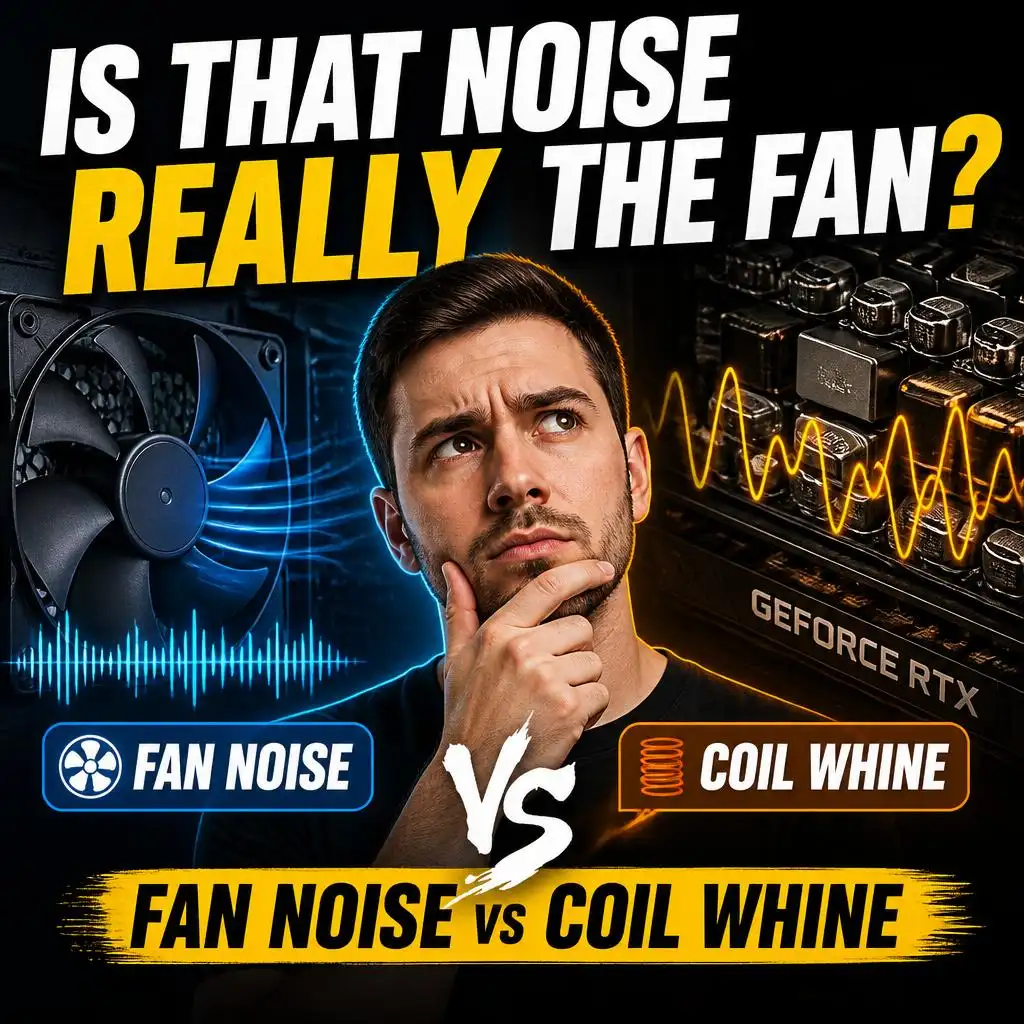
Not every noise from a gaming laptop comes from the cooling fan.
This distinction matters because changing fan settings will not fix an electrical noise.
Normal Fan Airflow
Healthy fans usually make a smooth:
- Whooshing
- Rushing
- Humming
- Airflow sound
The pitch generally rises as fan speed increases.
Coil Whine
Coil whine usually sounds more like a:
- High-pitched squeal
- Electronic buzz
- Whine
- Chirping electrical tone
It may change when:
- Frame rate changes
- You move between game menus and gameplay
- GPU load changes
- The charger is connected
- Power consumption changes
Coil whine and fan noise can occur at the same time.
Grinding, Scraping, or Repeated Clicking
Mechanical noises deserve more attention.
A damaged fan bearing, loose fan assembly, debris, or a cable touching the fan blades can cause irregular sounds.
Do not simply lower the fan speed to hide a grinding fan.
If the sound is clearly mechanical, arrange an inspection—especially if the laptop is still under warranty.
Why Is My Gaming Laptop Fan So Loud?
Several things can cause excessive fan noise. Some are completely normal, while others require maintenance.
Heavy CPU or GPU Usage
This is the most common reason.
As CPU or GPU power rises, temperatures rise. The cooling system responds by increasing fan speed.
ASUS currently notes that resource-intensive workloads such as gaming and video processing raise CPU/GPU temperatures and cause the fan to speed up to move more air through the cooling system.
Background Apps
A game does not need to be running for the CPU to be busy.
Background activity can include:
- Windows Update
- Antivirus scanning
- Browser tabs
- Game launchers
- Discord
- RGB software
- Cloud storage
- Recording software
- Hardware monitoring tools
- Search indexing
A few background programs can be enough to keep a high-performance processor from fully settling down.
Performance or Turbo Mode
Gaming laptops commonly offer multiple thermal profiles.
Depending on the brand, you may see names such as:
- Silent
- Quiet
- Balanced
- Performance
- Turbo
- Extreme Performance
- Overdrive
- Full Speed
Higher-performance profiles allow the CPU and GPU to use more power and usually use a more aggressive fan curve.
For example, current Dell gaming guidance explicitly describes the trade-off between higher-performance modes with greater fan activity and quieter profiles that reduce performance.
Blocked Airflow
Gaming laptops commonly pull air through vents on the bottom and exhaust hot air through the rear or sides.
Placing the laptop on a:
- Bed
- Blanket
- Pillow
- Sofa
- Thick carpet
can partially block the intake vents.
The cooling system then has to work harder.
Dust Buildup
Dust and hair can collect around:
- Intake vents
- Fan blades
- Exhaust openings
- Heatsink fins
MSI and ASUS both identify blocked vents and accumulated dust as causes of cooling and fan problems.
High Room Temperature
A gaming laptop cools itself using room air.
If the room is already very warm, the cooling system has less temperature difference to work with, so the fans may need to spin faster to maintain similar internal temperatures.
Aggressive Fan Curve
Some manufacturer utilities let you control the relationship between component temperature and fan speed.
A custom fan curve may be configured too aggressively.
Cooling System Degradation
On an older laptop, rising temperatures can sometimes be related to:
- Dust inside the heatsink
- Worn fan bearings
- Deteriorated thermal interface material
- Poor contact between the cooling assembly and processor
These should normally be investigated after simpler causes have been ruled out.
How to Make a Gaming Laptop Fan Quieter
Start with the safest fixes first.
Do not immediately disable fans, open the laptop, replace thermal paste, or undervolt the processor.
Check CPU and GPU Usage
Press:
Ctrl + Shift + Esc
to open Task Manager.
Open the Processes tab.
Look at:
- CPU
- GPU
- Memory
Sort by CPU usage.
If the laptop is supposed to be idle but an application is constantly using a significant amount of processing power, that may explain the fan noise.
Do not randomly end Windows processes you do not recognize.
Focus first on applications you installed yourself.
Close Unnecessary Background Applications
Before gaming, consider closing programs you do not need.
Examples include:
- Multiple game launchers
- Large numbers of browser tabs
- Video editing programs
- Cloud-sync software
- Screen recorders
- Unnecessary overlays
This is particularly useful if you game while running Discord, a browser, OBS, RGB software, launcher software, monitoring tools, and several background applications simultaneously.
Switch From Turbo to Balanced Mode
If you do not need maximum performance, this is one of the easiest ways to reduce fan noise.
Try moving from:
Turbo/Extreme/Overdrive → Performance/Balanced
Or, for light work:
Performance → Silent/Quiet
The exact setting depends on your laptop.
ASUS’s current Armoury Crate documentation, for example, describes Performance mode as balancing performance, temperature, and acoustics, while Turbo prioritizes maximum performance and fan airflow.
Expect a trade-off.
Quieter operation may mean:
- Lower CPU power
- Lower GPU power
- Slightly lower frame rates
- Lower sustained boost clocks
That is not necessarily bad. You may prefer a quieter laptop over an extra few frames per second.
Check CPU and GPU Temperatures
Fan noise makes more sense when you know what the temperatures are doing.
You can use:
- Your manufacturer’s gaming utility
- A reputable hardware-monitoring program
- BIOS diagnostics where available
Compare the laptop in three conditions:
- Shortly after boot
- Sitting idle
- During gaming
Avoid using one universal temperature number to decide whether every gaming laptop is overheating.
Different CPUs, GPUs, power limits, cooling designs, and firmware have different intended operating ranges.
Instead, ask:
- Is the temperature suddenly much higher than before?
- Does the system throttle heavily?
- Does it shut down?
- Is fan noise extreme despite very light load?
- Are temperatures remaining high long after the workload ends?
Those patterns are more useful than comparing your laptop with a completely different model.
Gaming Laptop Fan Too Loud While Gaming
A loud fan during gaming is the most likely situation to be normal.
Still, there are ways to reduce the noise without destroying gaming performance.
Use Balanced or Performance Mode Instead of Turbo
Turbo profiles often provide relatively small real-world improvements in some games while increasing power consumption and fan speed noticeably.
Test the same game in Balanced or Performance mode.
If you lose only a few frames per second but the laptop becomes much quieter, the compromise may be worthwhile.
Cap Your Frame Rate
An uncapped frame rate can keep the GPU running close to full load even when you do not need every frame it can produce.
For example, if a game is rendering far more frames than you can practically use, setting a reasonable frame-rate cap may reduce unnecessary workload.
You can often cap FPS through:
- The game
- NVIDIA software
- AMD software
- Manufacturer gaming utilities
The effect varies by game.
Do not assume an FPS cap will always produce a dramatic temperature reduction, but it is an excellent low-risk test.
Reduce the Settings That Create the Most Load
You do not need to turn everything to Low.
Start with expensive options such as:
- Ray tracing
- Excessive rendering resolution
- Very high shadow settings
- Unnecessary supersampling
- CPU-heavy crowd or simulation settings
The best setting to adjust depends on whether your CPU or GPU is the limiting component.
Test Another Game
If your laptop is extremely loud in one game but behaves normally in others, the issue may be game-specific.
Possible reasons include:
- Uncapped menu FPS
- Poor optimization
- Different CPU utilization
- Different GPU utilization
- Game-specific performance profiles
Gaming Laptop Fan Stays Loud After You Stop Gaming
The fans do not necessarily become silent the second you close a game.
The heatsink, heat pipes, GPU, CPU, motherboard, and surrounding chassis may still contain heat.
Allow the cooling system some time to remove it.
However, if the fan remains unusually loud long after the game has closed, open Task Manager.
Check whether:
- The game actually closed
- A launcher is still working
- Shader compilation is continuing
- A recording program is active
- CPU usage remains high
- GPU usage remains high
Also look at temperatures.
If workload and temperatures have returned to normal but the fans remain at unusually high RPM, try changing the performance profile or restarting the laptop.
Persistent behavior may point toward an OEM control-software or firmware problem.
Gaming Laptop Fan Loud Even When Idle
This deserves more attention than fan noise during gaming.
Start by leaving the laptop alone for a few minutes after Windows has fully loaded.
Then open Task Manager.
Look for unexpected CPU or GPU activity.
Common Idle Background Tasks
You may find:
- Windows Update
- Windows Defender
- Search indexing
- Cloud backup
- Steam updates
- Epic Games updates
- Manufacturer utilities
- Browser background processes
Dell’s current thermal troubleshooting documentation also notes that high CPU usage from Windows updates or open applications can keep fans running continuously.
Check Startup Applications
Open:
Task Manager > Startup apps
Disable unnecessary applications from automatically launching with Windows.
Do not disable security, graphics, touchpad, audio, or manufacturer components unless you understand what they do.
Scan for Malware if Usage Looks Suspicious
If CPU or GPU usage remains unexpectedly high and you cannot identify the process, run a reputable security scan.
Malware is not the first explanation for every loud fan, but unwanted background processing can certainly increase heat and fan activity.
Gaming Laptop Fan Loud Despite Low CPU Usage
Low CPU usage does not automatically mean the computer is idle.
Also check:
- GPU usage
- Dedicated GPU power state
- CPU temperature
- GPU temperature
- Performance profile
- Background services
For example, a dedicated GPU that remains active can consume more power than an integrated graphics processor even if Task Manager does not show high CPU usage.
If both CPU and GPU load are low, temperatures are normal, and the fan remains unusually fast for a long time, the fan profile, firmware, embedded controller, or OEM management software becomes more relevant.
Gaming Laptop Fan Loud at Startup
A brief fan surge when the laptop powers on does not necessarily indicate a problem.
Firmware may briefly initialize or test hardware during startup.
What matters is what happens afterward.
If the Fan Calms Down
A short burst followed by normal operation is generally less concerning.
If the Fan Stays at Full Speed
Once Windows has loaded, check:
- Task Manager
- Startup programs
- Updates
- Manufacturer control software
- Current performance profile
If the fan runs at maximum speed before Windows even begins loading and never slows down, consider running the manufacturer’s hardware diagnostics.
Gaming Laptop Fan Suddenly Got Loud
When a familiar laptop suddenly changes behavior, ask one question first:
What changed?
Think about whether you recently:
- Installed a Windows update
- Updated the BIOS
- Updated a GPU driver
- Changed the performance profile
- Installed new gaming software
- Added an external monitor
- Changed the charger
- Started playing a more demanding game
- Moved into a hotter environment
- Changed fan settings
Then compare CPU and GPU temperatures with what you normally see.
A sudden change provides a useful clue.
Gaming Laptop Fan Loud After Windows, Driver, or BIOS Update
Updates can affect fan behavior indirectly.
A Windows update can temporarily increase CPU activity while the system performs background tasks.
A driver update can change GPU behavior.
A BIOS update may change thermal-management behavior on some models.
If fan noise changed immediately after an update:
- Restart the computer.
- Allow Windows update activity to finish.
- Check Task Manager.
- Check your performance profile.
- Update the manufacturer’s control software if appropriate.
- Review the support page for your exact model.
Do not casually downgrade or flash BIOS versions from unofficial sources just because the fan became louder.
BIOS changes should follow the laptop manufacturer’s instructions.
Gaming Laptop Fan Gets Loud When Plugged In
This can be completely normal.
Gaming laptops often allow higher CPU and GPU power limits when the AC adapter is connected.
They may also switch from a battery-focused profile to a performance-focused profile.
For example, ASUS currently makes its high-performance Turbo mode available while the laptop is connected to external power.
If the laptop becomes much louder as soon as you connect the charger:
- Open the manufacturer’s control application.
- Check whether Turbo or Performance mode activated.
- Change to Balanced if you do not need maximum performance.
- Compare CPU and GPU power and temperatures.
Use the correct power adapter for your model.
Gaming Laptop Fan Gets Loud With an External Monitor Connected
This is another situation that can be normal depending on the laptop’s graphics design.
Some gaming laptops route certain HDMI, DisplayPort, or USB-C outputs through the dedicated GPU.
Connecting an external monitor may therefore keep the dedicated GPU active.
That can increase:
- GPU power consumption
- Idle temperature
- Fan activity
A high-refresh-rate external display can also create more graphics work than the laptop’s normal desktop configuration.
If you notice this behavior:
- Compare GPU activity with and without the monitor.
- Try a lower refresh rate temporarily.
- Check your laptop’s graphics mode.
- Test another supported display port if available.
- Check your manufacturer’s documentation for GPU/display routing.
Do not assume the monitor or fan is defective simply because fan behavior changes when a display is connected.
Gaming Laptop Fan Loud but Laptop Is Not Hot
If the laptop feels cool but the fan sounds unusually fast, first verify actual CPU and GPU temperatures instead of relying only on the keyboard or palm-rest temperature.
The outside of the laptop does not always reflect the hottest internal component.
If monitoring confirms low temperatures and light workload, check:
- Fan mode
- Custom fan curve
- OEM software
- BIOS or firmware changes
- Background GPU activity
Try restoring custom fan settings to their default values.
Then restart the laptop.
If the fan remains at unusually high speed even before Windows loads, run hardware diagnostics.
Gaming Laptop Fan Loud and Laptop Is Hot
This combination deserves more attention.
Start with airflow.
Use a Hard, Flat Surface
Do not block the intake vents.
Dell currently recommends gaming on a hard, flat surface and keeping the vents clear so air can flow underneath the system.
Check for Dust
Look at the external vents.
If they are visibly clogged, shut down and unplug the laptop before cleaning.
Follow the manufacturer’s cleaning instructions.
Check CPU and GPU Usage
High temperature may simply be the result of high power consumption.
If the laptop is extremely hot while doing almost nothing, the problem becomes more suspicious.
Watch for Thermal Throttling
Signs may include:
- Sudden frame-rate drops
- Clock speeds decreasing
- Stuttering after several minutes
- Performance recovering after the laptop cools
Watch for Shutdowns
A laptop that repeatedly overheats and turns itself off needs attention.
Do not keep forcing long gaming sessions while it repeatedly thermal-shuts down.
Gaming Laptop Fan Keeps Speeding Up and Slowing Down
This is sometimes described as:
- Fan revving
- Fan pulsing
- Fan hunting
- Fan ramping
It often happens because a temperature is repeatedly crossing the fan-control threshold.
For example:
CPU temperature rises → fan accelerates → temperature falls → fan slows → temperature rises again.
Short CPU workload spikes can cause the same behavior.
Open Task Manager while the fan is pulsing and watch CPU usage.
Look for processes that spike every few seconds.
You can also try:
- Balanced mode
- Default fan curve
- Closing unnecessary background apps
- Updating OEM control software
A smooth custom fan curve may help on laptops that officially support manual fan control, but do not reduce cooling aggressively just to eliminate the sound.
Gaming Laptop Fan Making Grinding, Rattling, Clicking, or Buzzing Noise
The type of sound matters.
Grinding or Scraping
Possible causes include:
- Worn fan bearing
- Damaged fan blade
- Debris touching the fan
- Misaligned fan assembly
Mechanical inspection may be needed.
Repeated Clicking or Rattling
A foreign object or loose internal component may be touching the fan.
MSI advises that clacking or impact-like fan noise can indicate abnormal fan operation or an obstruction.
Buzzing or High-Pitched Whine
Make sure the noise actually comes from the fan.
Electrical components can produce coil whine.
If the sound changes instantly with game frame rate rather than gradually with temperature, coil whine becomes more plausible.
Vibration
If the entire chassis vibrates along with the fan noise, stop treating the issue as ordinary airflow noise.
A fan may be unbalanced or physically damaged.
One Gaming Laptop Fan Is Louder Than the Other
Many gaming laptops have separate CPU and GPU fans.
They do not have to spin at the same speed.
One component can be hotter than the other.
MSI also notes that on some discrete-GPU laptops, the GPU fan may activate only after its temperature reaches a particular threshold.
That means unequal fan behavior can be completely normal.
Investigate further if:
- One side makes mechanical noise.
- One vent has almost no airflow.
- One component runs unusually hot.
- One fan intermittently stops.
- The behavior suddenly changed.
Adjust Your Gaming Laptop Fan Mode
This is usually safer than using random third-party fan-control software.
Check the manufacturer’s utility.
Examples include software from ASUS, MSI, Dell/Alienware, Lenovo, Acer, and HP.
Available modes vary by model.
Silent or Quiet Mode
Best when:
- Browsing
- Watching video
- Writing
- Doing light work
Expect reduced performance under heavy load.
Balanced or Performance Mode
Often the best everyday compromise.
You get reasonable gaming performance without forcing maximum fan speed all the time.
Turbo or Maximum Performance Mode
Useful when performance matters more than noise.
Expect higher fan speeds.
Manual Fan Curve
Use only if your laptop officially supports it and you understand the temperature-to-fan-speed relationship.
Do not create a curve that keeps the fan artificially slow while the CPU or GPU is heavily loaded.
Why Is My Fan Still Loud in Silent Mode?
A mode called Silent does not mean the fan can never run.
If the CPU or GPU gets hot enough, cooling still takes priority.
Check whether:
- A demanding process is running
- The dedicated GPU is active
- An external monitor is connected
- The room is hot
- The vents are blocked
- Temperatures are elevated
If Silent mode previously worked well and suddenly becomes noisy, investigate what changed instead of trying to suppress the fan further.
Should You Disable Turbo Boost to Reduce Fan Noise?
Reducing CPU boost behavior can reduce power consumption and fan noise in some workloads.
But it also reduces performance.
It should not be your first troubleshooting step.
Start with:
- Balanced mode
- FPS cap
- Background-app cleanup
- Airflow
- Temperature checks
If you later decide to tune CPU power behavior, use options officially supported by your laptop or operating system.
Do not make risky firmware changes simply to save a few decibels.
Should You Undervolt a Gaming Laptop to Make It Quieter?
Undervolting can reduce power and heat on some hardware, but it is an advanced optimization rather than a basic fan-noise fix.
Support varies by:
- CPU generation
- BIOS
- Manufacturer
- Laptop model
Incorrect tuning can cause:
- Game crashes
- Freezes
- Blue screens
- Data loss from instability
If you are troubleshooting an abnormal fan, return all custom undervolting and overclocking to stock settings first.
You need a stable baseline before diagnosing the problem.
Will a Cooling Pad Make a Gaming Laptop Quieter?
Sometimes.
A good cooling pad can improve intake airflow on some laptop designs, potentially allowing the internal cooling system to remove heat more effectively.
Dell currently suggests considering a cooling pad for extended gaming sessions.
However, results vary.
A cooling pad will not repair:
- A damaged fan
- A worn bearing
- A clogged internal heatsink
- Bad cooling-system contact
- High background CPU usage
Cooling Pad vs Laptop Stand
A simple stand can also help by raising the bottom of the laptop and giving the intake vents more room.
If your goal is simply to improve airflow, test elevation first.
A cooling pad adds extra fans, which may introduce its own noise.
How to Clean Gaming Laptop Vents Safely
Before cleaning:
- Shut down the laptop.
- Disconnect the charger.
- Disconnect external devices.
Follow the cleaning method recommended by your laptop manufacturer.
Avoid pushing objects through vents.
If the laptop requires internal disassembly for proper cleaning and you are not comfortable working around the battery, fans, cables, and motherboard, use a qualified repair technician.
Opening the laptop may also have warranty implications depending on the manufacturer and region.
Gaming Laptop Fan Still Loud After Cleaning
Cleaning the visible vents does not solve every cooling problem.
If the laptop remains loud, check whether the original problem has actually changed.
Check Temperatures Again
If temperatures dropped but the fan is still loud, software or fan-control behavior may be involved.
Check CPU and GPU Load
The laptop may simply be producing a lot of heat.
Consider Internal Heatsink Buildup
Dust can collect deeper inside the cooling system where it is not visible from outside.
Listen for Bearing Noise
Cleaning cannot repair a worn mechanical bearing.
Check Fan Profiles
Make sure Cooler Boost, Full Speed, Turbo, or another maximum-fan feature is not still enabled.
MSI, for example, recommends checking whether Cooler Boost is active because it intentionally forces high fan speed and louder airflow.
Should You Replace the Thermal Paste?
Thermal paste should not be the first recommendation for every noisy gaming laptop.
Consider it later if:
- The laptop is several years old.
- Temperatures have gradually worsened.
- Fans and heatsinks are clean.
- Performance is throttling.
- Cooling contact is suspected.
- A qualified technician recommends it.
Repasting a modern gaming laptop can require significant disassembly.
Some systems also use:
- Thermal pads
- Thermal putty
- Liquid metal
- Specialized factory-applied compounds
Replacing the wrong material incorrectly can make temperatures worse.
If your laptop is under warranty, check the warranty terms first.
Update BIOS, Drivers, and Gaming Control Software
Thermal behavior is partly controlled by firmware and software.
Depending on the model, relevant updates may include:
- BIOS
- Embedded Controller firmware
- Chipset drivers
- Thermal-management drivers
- OEM gaming software
Current Dell documentation notes that BIOS and platform thermal-management components can affect fan behavior, while MSI’s fan-noise troubleshooting includes an EC reset and BIOS update after simpler checks such as fan mode and vent cleaning.
That does not mean you should update everything blindly.
Use the support page for your exact laptop model.
Do not download BIOS files from unofficial websites.
Should You Reset the Embedded Controller?
The Embedded Controller, often shortened to EC, can be involved in functions such as power and thermal management on some laptops.
An EC reset may be useful when:
- Fan behavior is clearly abnormal
- A manufacturer specifically recommends it
- Fan controls stopped behaving correctly
However, the correct reset procedure varies by brand and model.
For example, MSI currently documents an EC reset as shutting the notebook down, removing power, holding the power button for 30 seconds, and then reconnecting AC power—but that procedure should not automatically be assumed to apply to another manufacturer’s laptop.
Always follow the instructions for your exact device.
Run Your Gaming Laptop’s Built-In Fan Diagnostics
Hardware diagnostics can help separate a physical fan problem from a Windows software problem.
Different manufacturers provide different diagnostic systems.
For example, current Dell systems can run fan-specific preboot diagnostics through the F12 Diagnostics menu on supported models.
Your manufacturer may offer:
- BIOS diagnostics
- Preboot diagnostics
- Hardware diagnostic software
- Fan test
- Support utility
If the Fan Fails the Test
Record any error code and contact the manufacturer or repair provider.
If the Fan Passes
A successful hardware test makes software, workload, fan profiles, and cooling conditions more important suspects.
It does not prove that every possible cooling problem is absent, but it gives you useful information.
When Does a Gaming Laptop Fan Need Replacement?
Consider fan replacement if you have strong evidence of a mechanical failure.
Possible signs include:
- Grinding
- Scraping
- Repeated clicking
- Fan intermittently stopping
- BIOS fan error
- Weak airflow from one side
- Fan diagnostic failure
- Severe vibration
- Physically damaged blades
Normal loud airflow under heavy gaming is not enough evidence to replace a fan.
When Should You Stop Troubleshooting?
Stop using the laptop heavily and arrange professional service if you notice:
- Burning smell
- Smoke
- Swollen battery
- Liquid damage
- Repeated thermal shutdowns
- Severe grinding
- Fan blades scraping
- No airflow despite high temperatures
- Hardware diagnostic errors
Also think carefully before opening a laptop that is still covered by warranty.
A repair center may be able to solve the issue without putting your coverage at risk.
Quick Diagnosis: What Should You Do Next?
| Your Situation | Best First Step |
|---|---|
| Loud only in demanding games | Check temperature and performance mode |
| Loud at idle | Check Task Manager |
| Loud after closing a game | Check remaining CPU/GPU load |
| Loud immediately after plugging in | Check AC performance profile |
| Loud with external monitor | Check dedicated GPU activity |
| Loud despite low CPU usage | Check GPU and temperatures |
| Loud but cool | Check fan mode and firmware |
| Loud and very hot | Check airflow and vents |
| Fan repeatedly revs | Watch workload and temperature spikes |
| Grinding or scraping | Stop and inspect/service |
| Fan still loud after cleaning | Check temperatures, fan bearing, software |
| One fan sounds abnormal | Compare airflow and run diagnostics |
Frequently Asked Questions
Is it normal for a gaming laptop fan to be very loud?
Yes. Loud, smooth airflow can be normal during demanding gaming because the CPU and GPU generate significant heat. Performance and Turbo modes can make the fans especially noticeable. Loud fan noise is more concerning when it occurs during light use or includes grinding, scraping, clicking, or other mechanical sounds.
Why is my gaming laptop fan suddenly so loud?
Think about what changed recently. Common possibilities include higher CPU or GPU usage, a new game, Windows updates, a different performance mode, higher room temperature, dust buildup, an external monitor, or a fan beginning to wear out.
Why is my gaming laptop fan loud even when I am not gaming?
Open Task Manager and look for background CPU and GPU usage. Windows updates, antivirus scans, game launchers, browsers, cloud synchronization, and other programs can keep the processor active even when you are not playing.
Why is my gaming laptop fan constantly running?
A continuously running fan may simply mean the laptop is maintaining its target temperature. However, if it runs at high speed constantly, check workload, temperatures, airflow, dust, and your performance profile.
Why does my gaming laptop fan get louder when I plug in the charger?
Many gaming laptops allow higher CPU and GPU power while connected to AC power. The laptop may also automatically switch to a higher-performance mode, which increases heat and fan speed.
Why is my gaming laptop fan loud but the laptop is not hot?
The internal CPU or GPU may still be warmer than the outside of the chassis feels. Check actual temperature readings. If temperatures and workload are genuinely low, inspect your fan profile, OEM control software, firmware, and dedicated GPU activity.
Why is my gaming laptop fan loud and the laptop is very hot?
The cooling system may be dealing with heavy CPU/GPU load, poor airflow, blocked vents, dust, or another thermal issue. Use the laptop on a hard surface, check temperatures and workload, and inspect the vents.
Why does my gaming laptop fan stay loud after I close a game?
The cooling system may still be removing heat stored in the heatsink and chassis. If it remains loud for an unusually long time, check Task Manager to make sure the game, launcher, or another CPU/GPU-heavy process is not still running.
Why does my gaming laptop fan keep speeding up and slowing down?
The CPU or GPU temperature may repeatedly cross the fan-control threshold, or a background process may be creating short workload spikes. Watch CPU usage while the fan ramps up and try restoring the default fan curve.
Why is one fan louder than the other?
Dual-fan gaming laptops often cool different components. The CPU and GPU do not always produce the same amount of heat, so the fans do not need to run at identical speeds. Investigate if one fan makes mechanical noises, has weak airflow, or behaves very differently than it did before.
Will capping FPS reduce gaming laptop fan noise?
It can. If a game is pushing the GPU to render more frames than you need, setting a reasonable frame-rate cap can reduce GPU workload in some situations. The result varies by game and laptop.
Does a cooling pad reduce gaming laptop fan noise?
It may help if it improves airflow through the laptop’s intake vents, but results depend heavily on the laptop design. A cooling pad cannot repair a faulty fan or heavily blocked internal heatsink.
Can dust make my gaming laptop fan louder?
Yes. Dust and hair can restrict airflow through vents and cooling fins. The cooling system may respond by running the fan faster.
Is a loud fan dangerous for my gaming laptop?
A loud fan by itself is not usually dangerous. The fan may simply be doing its job. The more important warning signs are excessive temperatures, repeated shutdowns, weak airflow, burning smells, or mechanical noises.
Can I lower my gaming laptop fan speed?
Use the manufacturer’s Silent, Balanced, or manual fan-control options if your laptop supports them. Do not force the fans to remain slow while the CPU or GPU is hot.
Can I turn off my gaming laptop fan completely?
You should not disable a cooling fan under load just to eliminate noise. The cooling system protects the CPU, GPU, power components, and other hardware from excessive heat.
If you need quieter operation, reduce the workload or use the laptop’s official Silent or Balanced profile.
Is Turbo mode bad for a gaming laptop?
Not by itself. Turbo or maximum-performance modes are designed to provide higher performance and stronger cooling on supported laptops. They will usually make the system louder and may increase power consumption.
How do I know if my gaming laptop fan is failing?
Grinding, scraping, strong vibration, repeated clicking, weak airflow, intermittent fan operation, or a failed hardware diagnostic are stronger signs of fan failure than ordinary loud airflow.
Should I replace thermal paste because my gaming laptop fan is loud?
Not automatically. First check workload, fan mode, airflow, dust, and temperatures. Thermal-interface maintenance becomes more relevant when an older laptop has gradually become hotter despite having a clean, functioning cooling system.
Final Thoughts
If your gaming laptop fan is too loud, do not start by replacing parts.
First decide whether the noise is actually abnormal.
A strong fan while playing a demanding game in Turbo mode may be exactly what the cooling system is supposed to do. A fan that grinds while browsing the web is a completely different situation.
Check CPU and GPU usage. Look at temperatures. Confirm the performance profile. Give the laptop clear airflow. Clean blocked vents safely. Compare the noise before and after gaming, with and without the charger, and with any external monitor disconnected.
If the sound is smooth and temperatures are controlled, the cooling system may simply be doing its job.
If the fan makes mechanical noises, has weak airflow, fails diagnostics, or the laptop repeatedly overheats, stop trying to make it quieter and focus on getting the cooling problem repaired.

“Electronics aren’t just gadgets. They’re the invisible threads that connect our work, our play, and our world.”
I’m Julian Reed, and my obsession with tech started at age twelve, when I soldered a defunct gaming console back to life in my bedroom. That tiny green screen taught me that technology isn’t just a black box, it’s a tool you can master.
After fifteen years as a hardware engineer and a decade reviewing consumer tech, I’ve joined this team to cut through the jargon. Whether you’re building a high-end home theater or just need a laptop that won’t lag, I’m here to help you choose the gear that truly powers your life.


