

Finding a good laptop on a tight budget is harder than it looks. Some inexpensive laptops handle everyday work surprisingly well, while others become frustrating as soon as you open several browser tabs, join a video call, or try to run a few apps at once.
So, what are the best cheap laptops in 2026?
For most people, the best choice is an affordable Windows laptop with a capable processor, at least 8GB of RAM, a solid-state drive (SSD), and a Full HD display. If you mainly browse the web, study online, stream videos, and use Google Docs, a Chromebook can save you money. If you prefer macOS, you may need to increase your budget or look for a suitable older or refurbished MacBook.
The right choice depends on what you need the laptop to do, how much you can spend, and how long you expect to keep it. In this guide, I’ll explain which budget laptops are worth considering, what specifications matter most, and how to avoid spending money on a device that feels outdated too soon.
Best Cheap Laptops at a Glance
These recommendations are based on current product information and published independent reviews, with an emphasis on everyday use rather than gaming or demanding professional work. Exact configurations, stock, and prices vary by retailer and country, so check the full model specifications before buying.
| Laptop | Best For | What to Look For | Main Trade-Off |
|---|---|---|---|
| HP OmniBook 3 14 (2025) | Overall budget Windows laptop | AMD Ryzen 5 configuration; 16GB RAM if affordable | The display can look dim, and some versions have soldered RAM |
| ASUS Chromebook CX15 (2026) | Basic everyday computing | Prefer 8GB RAM for multitasking | Limited software compatibility and basic display quality |
| ASUS Chromebook Plus CX34 | Students and browser-based productivity | Intel Core i5 configuration with 8GB RAM or more | Battery life may be less competitive than some alternatives |
| Acer Aspire 3 | Affordable Windows alternative | A suitable Ryzen 5 or comparable processor, SSD, and sufficient RAM | Performance and build quality differ between configurations |
For additional comparisons, see RTINGS’ current guide to the best laptops under $500 and PCWorld’s budget laptop recommendations.
One important detail: a laptop family can include several configurations with very different performance. A cheaper version of the same model may use a weaker processor, less memory, or slower storage. Always check the exact configuration rather than relying on the model name alone.
The Best Cheap Laptops Worth Considering
1. HP OmniBook 3 14 (2025): Best Overall Budget Windows Laptop
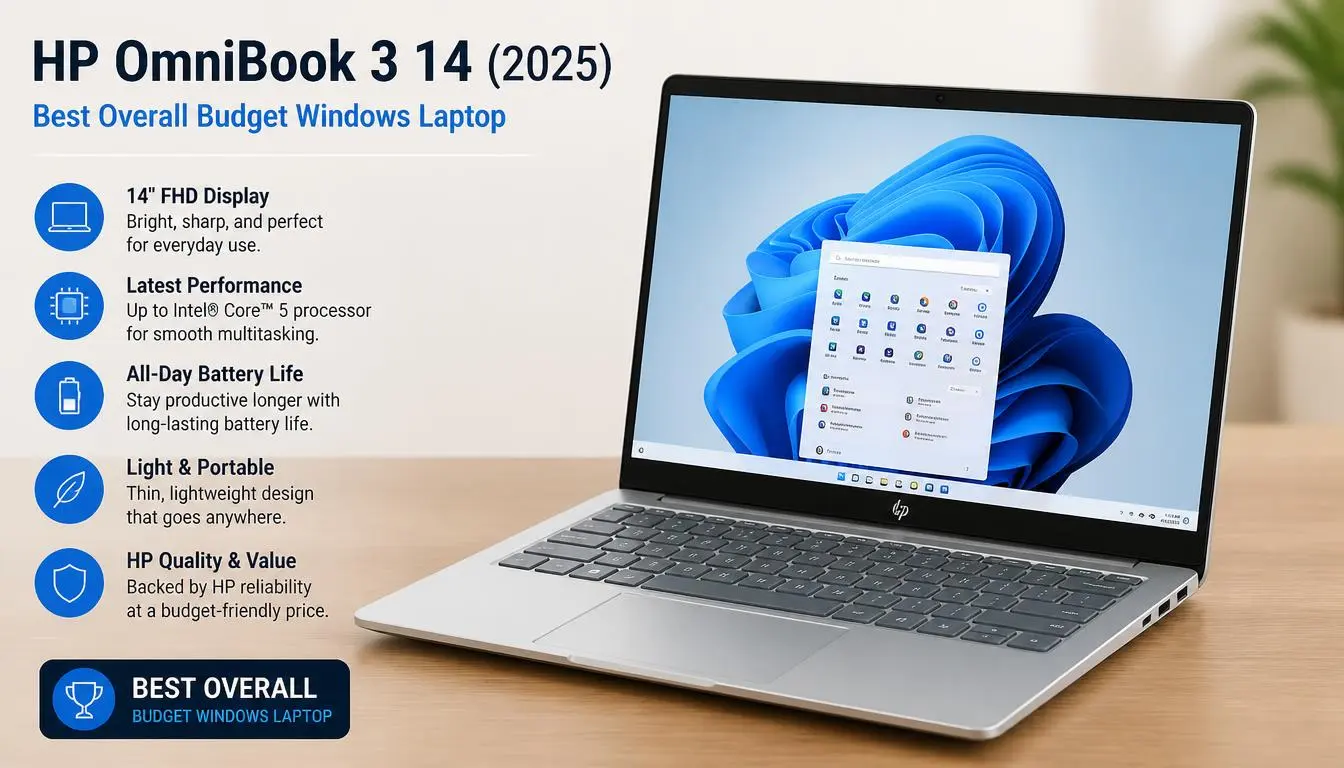
The HP OmniBook 3 14 is worth considering if you need an affordable Windows laptop for everyday tasks, schoolwork, spreadsheets, document editing, and video calls.
Its 14-inch size provides a useful balance between portability and screen space. You can carry it to class, use it at a kitchen table, or take it to work without dealing with a particularly large laptop.
The main thing to watch is the configuration.
In its September 2026 review, RTINGS recommended the Ryzen 5 version as its leading laptop under $500 when discounted. The reviewers highlighted its comfortable keyboard and touchpad, webcam, useful ports, and approximately 11 hours of light-use battery life for that configuration. The review also noted that the display is not especially bright and that the 8GB memory configuration can struggle with heavier multitasking.
What I like about this option:
- It runs Windows, which supports a wide range of desktop applications.
- A suitable Ryzen 5 configuration can handle everyday productivity tasks.
- The 14-inch display is convenient for commuting and studying.
- HDMI and USB ports are useful for connecting external devices.
What to consider before buying:
- Aim for 16GB of RAM if you regularly keep many browser tabs, spreadsheets, and video calls open.
- Check whether the memory is upgradeable. Some configurations have soldered RAM.
- Avoid assuming every OmniBook 3 has the same processor or performance.
- Inspect the screen brightness and display quality if you work outdoors or in bright rooms.
My recommendation: Consider this laptop when you find a well-equipped configuration at a competitive price. A slightly more expensive version with more memory may offer better long-term value than the cheapest listing.
2. ASUS Chromebook CX15 (2026): Best for Basic Everyday Computing
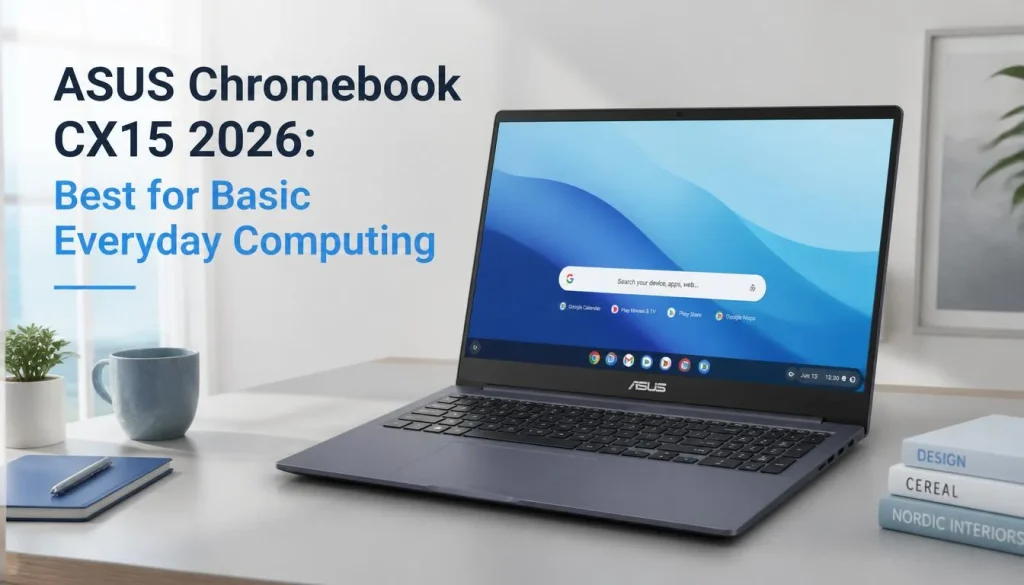
Not everyone needs Windows. If your daily routine revolves around websites, online classes, email, YouTube, Google Docs, and browser-based applications, the ASUS Chromebook CX15 is a budget option worth comparing.
Chromebooks run ChromeOS rather than Windows. They are designed around web-based tasks and can be simple to set up and maintain. Many also support Android applications, although compatibility depends on the app and device.
The Chromebook CX15 comes in different configurations, so pay attention to its RAM and processor.
A 4GB model may be adequate for basic browsing and a small number of open applications. For a more comfortable experience when working with multiple tabs or Android apps, an 8GB version is a better target.
Advantages:
- Suitable for browsing, streaming, email, and online documents.
- The 15.6-inch screen gives you room for documents and spreadsheets.
- ChromeOS is straightforward for users who mainly work online.
- It can cost less than a capable Windows laptop.
Disadvantages:
- You cannot install most traditional Windows desktop software.
- The least expensive configurations are not ideal for demanding multitasking.
- Display quality and touchpad responsiveness may be disappointing.
- Battery life varies, and you should not assume every version will last a full workday.
Before buying, check the exact model and the apps you depend on. A Chromebook is excellent value when it fits your routine, but it can be the wrong purchase if your work requires Windows-only software.
You can compare the ASUS Chromebook CX15 in RTINGS’ under-$500 laptop guide.
3. ASUS Chromebook Plus CX34: Best for More Demanding Chromebook Users
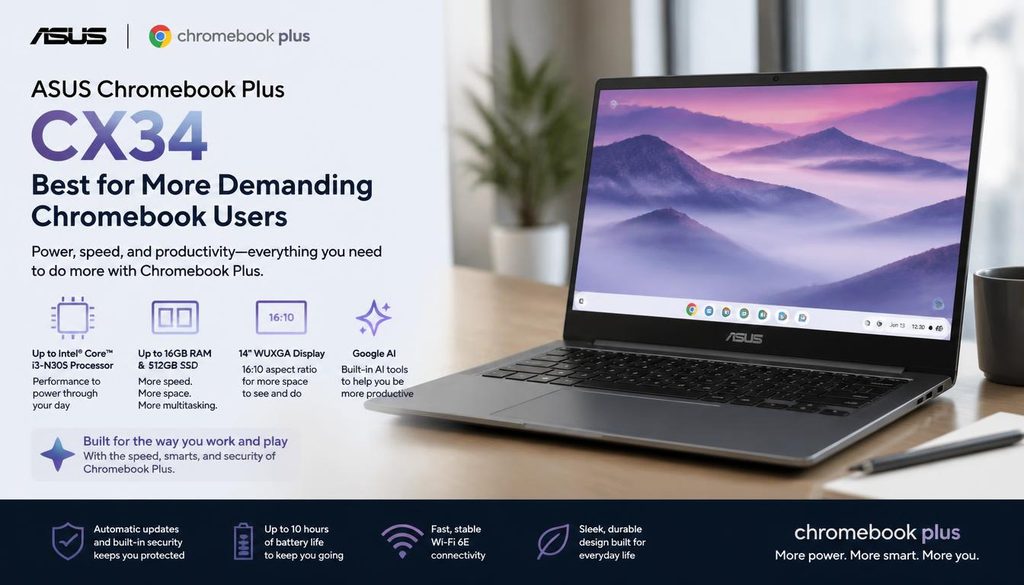
If you like ChromeOS but want more room for multitasking, consider the ASUS Chromebook Plus CX34.
A suitable configuration with an Intel Core i5 processor and 8GB of RAM can provide a more responsive experience when you have multiple browser tabs, a document, and a video meeting open together.
This makes it worth considering for students, remote workers, and people who spend most of their time in web applications.
Advantages:
- A capable processor for browser-based productivity.
- A Full HD display on the reviewed configuration.
- Useful connectivity options.
- A comfortable keyboard for typing and everyday work.
Disadvantages:
- Battery life may not be as competitive as some other budget laptops.
- ChromeOS cannot replace Windows for every application.
- The 16:9 display may feel less spacious for reading long documents than a taller-screen alternative.
The CX34 makes the most sense when its price is close to that of a basic Chromebook but its hardware offers a meaningful improvement. However, it may not be the best choice if you need a long battery life or advanced desktop software.
PCWorld’s current guide to laptops under $500 includes its review findings and explains the trade-offs of this model.
4. Acer Aspire 3: A Budget Windows Alternative
The Acer Aspire 3 is another laptop family worth comparing when shopping for an affordable Windows computer.
It comes in multiple configurations, which is both an advantage and a potential problem. The right version can provide enough performance for browsing, school assignments, online meetings, spreadsheets, and everyday office work. A low-spec version may feel considerably less capable.
When comparing Aspire 3 models, look for a recent, supported processor, an SSD, at least 8GB of RAM, and preferably 16GB if your budget allows. A 512GB SSD is a useful target if you expect to store many documents, applications, and downloaded files.
Advantages:
- Multiple configurations and price points.
- Windows compatibility for everyday applications.
- Potentially strong value when discounted.
- Suitable for students and general-purpose home computing when correctly configured.
Disadvantages:
- Specifications can differ substantially between listings.
- The least expensive configurations may have limited multitasking capacity.
- Display quality, battery life, and upgrade options depend on the exact model.
Before ordering, verify the full model number and the processor generation. Do not assume an Aspire 3 advertised at a very low price has the same hardware as a more expensive version.
You can also compare Acer’s offer against the HP OmniBook 3 14. Choose whichever gives you the better combination of memory, storage, screen quality, warranty, and price in your local market.
How Much Should You Spend on a Cheap Laptop?
The best budget depends on your workload. Spending more does not automatically guarantee a better experience, but choosing the lowest-priced laptop can leave you with important limitations.
Best Laptops Under $300
In this range, you will generally need to be careful about compromises. Basic Chromebooks and entry-level Windows laptops can handle browsing, writing, email, and streaming, but not all configurations offer the same level of responsiveness.
Before buying, check:
- Whether the processor is suitable for your everyday workload.
- Whether the laptop has 8GB of RAM or more.
- Whether the storage is an SSD or a slower, more limited alternative.
- Whether the operating system is supported.
- Whether the device has enough storage for your files and applications.
A Chromebook may offer a better experience than a similarly priced Windows laptop if you primarily use browser-based software. However, if you need a traditional desktop application, compatibility should take priority over the price.
Best Laptops Under $500
For many buyers, this is a more flexible budget.
You may find a suitable Windows laptop with a stronger processor and SSD, or a Chromebook with a comfortable keyboard, a good screen size, and enough memory for daily productivity.
At this price, I would prioritize a balanced configuration instead of paying extra for an unnecessary feature.
For example, a laptop with 16GB of RAM and a 512GB SSD may offer more everyday value than a model with an unnecessarily premium finish but limited memory and storage.
Remember that the prices above use US dollar budget brackets. Buyers in the UK, Canada, and Australia should compare the actual local price, taxes, and available specifications rather than simply converting $500 into another currency.
Is a Laptop Under $200 Worth Buying?
It can be, but you need to be selective.
A laptop under $200 may work well for basic browsing, online documents, streaming, and simple schoolwork. However, many machines at this price have limited memory, modest processors, small storage capacities, or other compromises.
Be particularly cautious with refurbished laptops and older models sold at steep discounts. A low price is not much of a bargain if the device has a worn-out battery, a damaged screen, or an operating system that no longer receives security updates.
If you cannot find a suitable new model within your budget, a professionally refurbished laptop with a clear warranty may be a better option than an extremely weak new device.
What Specifications Should You Look for in a Cheap Laptop?
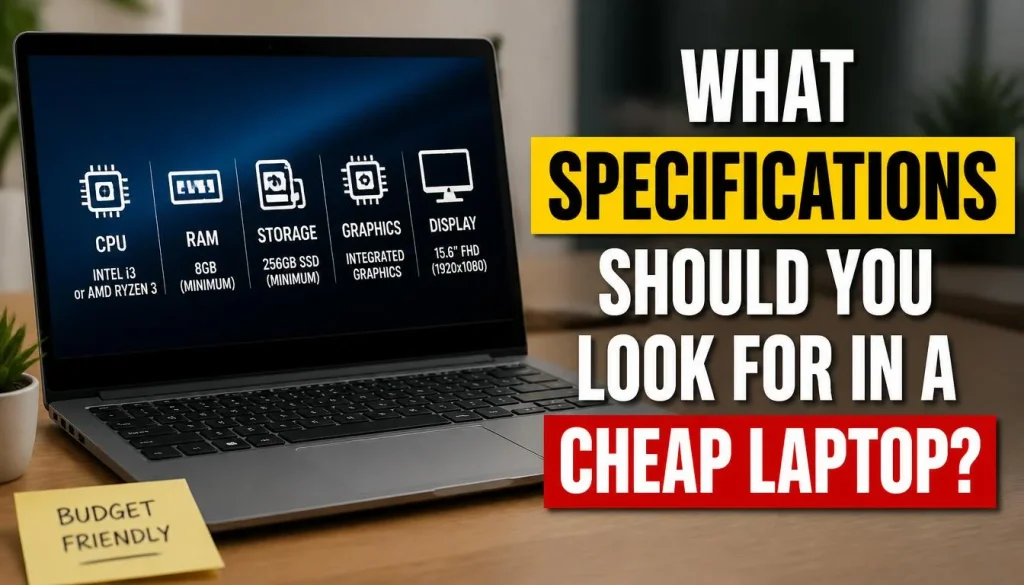
Specifications determine how a laptop behaves after the excitement of buying it wears off. Here is what matters most.
Processor: Choose One That Fits Your Workload
The processor affects how quickly a laptop handles applications, browser tasks, and multitasking.
For general work, writing, browsing, video calls, and spreadsheets, you do not need a high-end processor. A recent entry-level processor may be sufficient for light workloads, while a capable midrange Intel Core or AMD Ryzen processor can provide more headroom.
Do not judge performance by the brand name alone. Two laptops with different processors can perform very differently, even when their prices are similar.
Check the exact processor model and look for independent reviews of that configuration. If you regularly run several applications at once, spending a little more on a stronger processor can make sense.
RAM: Is 8GB Enough, or Should You Get 16GB?
RAM is one of the most important considerations when buying a budget laptop.
8GB RAM: Suitable for light everyday use, such as browsing, word processing, video playback, and basic schoolwork.
16GB RAM: A better choice for heavier multitasking, larger spreadsheets, frequent video meetings, and keeping multiple applications open.
If you plan to keep the laptop for several years, 16GB is a sensible target when affordable. However, some laptops have soldered memory, meaning you cannot upgrade it later.
Before buying, check both the installed RAM and the upgrade options. An inexpensive laptop with 8GB of soldered RAM may be less suitable for your needs than a model with upgradeable memory.
Storage: SSD vs. eMMC
Storage affects boot times, application loading, and how many files you can keep on the device.
An SSD is generally the preferred choice for a Windows laptop. It offers responsive everyday performance and is more suitable for regular work than many older, slower storage solutions.
For most general users, 256GB of SSD storage is a practical starting point. If you download many files, keep a large photo collection, or install numerous applications, 512GB gives you more room.
Some Chromebooks use eMMC storage. This can be acceptable for basic tasks, but capacity and performance vary. Before buying one, consider whether you will have enough room for offline files, Android apps, and downloads.
Display: Why Full HD Matters
A laptop’s display affects everything from reading documents to watching videos.
For most buyers, a 1920 × 1080 Full HD display is a good target. It provides enough detail for everyday work without requiring you to spend money on an expensive high-resolution panel.
Also consider brightness, viewing angles, color quality, and screen size.
A 13- or 14-inch laptop is usually easier to carry. A 15.6-inch model provides more space for spreadsheets, split-screen work, and media.
If you spend hours reading or writing, a comfortable display may be more valuable than a premium feature you rarely use.
Battery Life, Keyboard, Webcam, and Ports
A budget laptop should do more than run applications. It should be comfortable to use throughout the day.
If you commute, attend classes, or work away from a desk, look for independent battery tests rather than relying only on a manufacturer’s estimate. Actual battery life depends on screen brightness, workload, wireless use, and power settings.
The keyboard matters if you type frequently. The webcam and microphone are important for online meetings, while USB ports and HDMI can save you from buying extra adapters.
Think about your actual routine. A lightweight 14-inch laptop with a comfortable keyboard may be a better choice for a student than a heavier machine with a slightly faster processor.
Chromebook vs. Windows Laptop: Which Is Better?
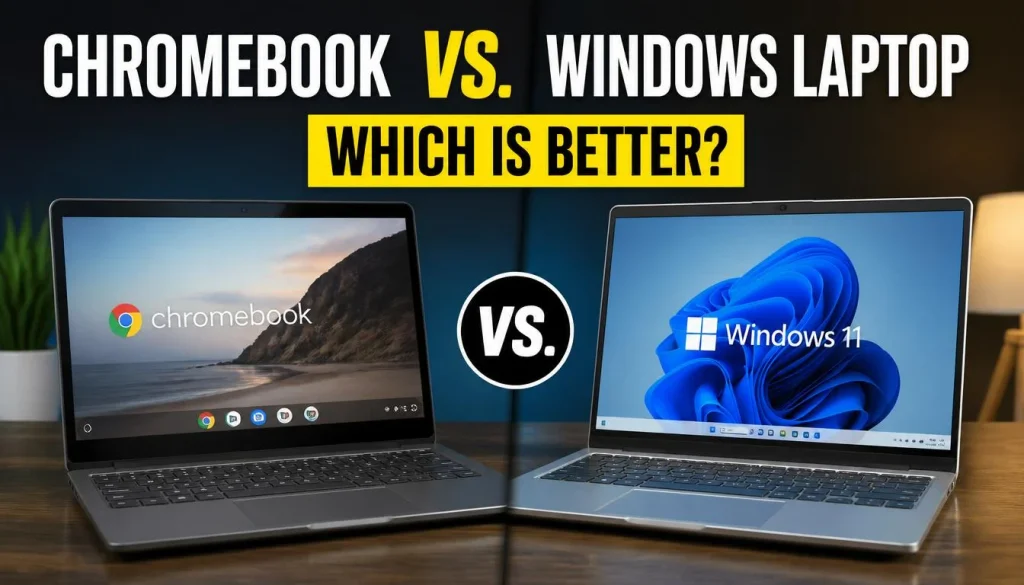
This decision is often more important than the laptop brand.
When a Chromebook Makes More Sense
Choose a Chromebook if you mainly use a browser for your work.
It can be a good fit for Google Docs, web-based email, classroom platforms, streaming, and online collaboration. ChromeOS is also relatively simple to use, making it a sensible option for people who do not want to spend much time maintaining their computer.
However, check the end-of-update date for the exact device. Google’s official ChromeOS Auto Update policy explains how to check update support for individual Chromebook models.
When a Windows Laptop Is the Better Choice
Windows is usually the safer option when you need traditional desktop software, specialized workplace tools, certain educational applications, or broader compatibility with peripherals.
Before choosing a cheap Windows laptop, verify that it can run a supported version of Windows. Microsoft ended standard Windows 10 support on October 14, 2025, so buying an older machine that cannot move to a supported operating system may create unnecessary security and upgrade problems.
Check Microsoft’s Windows 10 end-of-support information and Windows 11 system requirements before buying an older or refurbished laptop.
What About a Cheap MacBook?
A MacBook may be a good choice if you specifically need macOS or already use Apple services and devices. However, it is important to compare the actual cost rather than assuming a used MacBook is automatically better value.
Check the battery condition, supported macOS version, storage, memory, and physical condition of any second-hand unit. A refurbished device with a warranty can be worth considering, but an old model with limited software support may not be a smart long-term purchase.
If your budget is strict, compare its overall condition and expected useful life against a newer Windows laptop or Chromebook.
Common Mistakes to Avoid When Buying a Cheap Laptop
Buying Too Little RAM or Storage
A laptop that meets your needs today may become frustrating if it has too little memory or storage for your normal workload.
Consider what you actually run each day. Several browser tabs, video meetings, office applications, and background programs can use more resources than expected.
If you are unsure, choosing 16GB of RAM and a 512GB SSD when affordable gives you more flexibility.
Choosing an Old or Unsupported Laptop
An old laptop can look like a bargain, especially when a retailer advertises a large discount. But you should not buy one without checking its support status and upgrade possibilities.
An unsupported operating system can expose you to security risks. A used device may also have a battery that holds much less charge than it did when new.
For more information, read this guide on how to check laptop battery health on Windows.
Ignoring Upgrade Limitations
Some budget laptops allow RAM or storage upgrades. Others have memory soldered directly to the motherboard.
If you cannot upgrade the memory later, choosing a sufficient configuration at the time of purchase becomes particularly important.
Check the manufacturer’s specifications or service documentation before assuming you can improve the hardware in the future.
Buying Because of a Discount Alone
A large discount does not necessarily mean a laptop is a good value.
Compare the actual processor, RAM, SSD capacity, screen quality, warranty, and return policy. A more expensive laptop may be worth the extra cost if it provides noticeably better hardware and a longer useful life.
The goal is not simply to spend less. It is to get a computer that meets your needs without paying for features you will never use.
Overlooking Refurbished Laptop Risks
Refurbished laptops can provide good value, especially when professionally inspected and sold with a meaningful warranty.
However, check who refurbished the device, whether the battery has been tested, whether the charger is included, and what happens if the laptop develops a fault.
For used devices, inspect the screen, keyboard, ports, hinges, and charging connection. If possible, test the laptop before the return window closes.
Where to Buy Cheap Laptops in the USA, UK, Canada, and Australia
The best place to buy depends on where you live, which model you want, and whether you prefer a new or refurbished laptop.
USA
Compare manufacturers’ official stores with major retailers such as Best Buy and Walmart. Check the exact processor, RAM, storage, and return policy rather than comparing prices alone.
UK
Compare the price in pounds from manufacturer stores and established electronics retailers. Check whether the keyboard layout is suitable, whether delivery is included, and how warranty service works.
Canada
Compare local prices in Canadian dollars and confirm whether the particular configuration is sold in Canada. Also check tax, shipping, return costs, and warranty coverage.
Australia
Compare Australian dollar pricing, local availability, and warranty support. A laptop advertised at an attractive overseas price may be less appealing once shipping, import costs, and repair arrangements are considered.
Across all four markets, refurbished and open-box devices may offer savings, but only when the condition and return terms are clear.
Do not assume that a particular laptop is the cheapest in every country. Availability changes, and a model that is excellent value in one market may be overpriced or difficult to find in another.
How to Make a Cheap Laptop Last Longer
Buying the right laptop is only half the job. Looking after it can help you avoid unnecessary repairs and get more value from your purchase.
Start by installing operating-system updates and removing unnecessary preinstalled applications. Use a reliable backup method, keep your files organized, and avoid installing software from unfamiliar sources.
Give the laptop adequate ventilation. Clean the screen and keyboard carefully, and avoid blocking cooling vents when using the computer on a bed or soft surface.
Battery care also matters. Avoid exposing the laptop to excessive heat, and use its manufacturer’s recommended charging features where available. If your laptop stays plugged in most of the time, this guide explains whether limiting a laptop battery to 80% is worthwhile.
When your new laptop arrives, follow this practical guide to the first things to do with a new laptop to set it up properly.
For broader buying, maintenance, and troubleshooting advice, visit the Complete Laptop Guide: From Buying to Maintenance and Troubleshooting.
How We Selected These Budget Laptop Options
For this guide, I focused on practical everyday needs, the value of each configuration, software compatibility, and findings from current independent reviews.
The goal is to help readers understand what each laptop is suited for rather than claim that one model is universally best.
The recommendations rely on published product information and independent review findings, not a claim that every configuration has been tested in our own laboratory. A laptop’s exact processor, memory, storage, display, and battery can vary by region and retailer.
Before purchasing, check the latest specifications and price for the device being sold in your country. If an exact model is unavailable or no longer offers good value, compare current alternatives with similar specifications.
Frequently Asked Questions
What Are the Best Cheap Laptops in 2026?
The HP OmniBook 3 14 is worth considering for budget Windows use, while the ASUS Chromebook CX15 is suitable for basic web-based tasks. The ASUS Chromebook Plus CX34 is another option for people who want a more capable Chromebook. The best choice depends on the exact configuration, local price, and applications you need.
What Is the Best Laptop Under $300?
The answer depends on current local deals. At this budget, compare basic Chromebooks and entry-level Windows laptops carefully. Prioritize supported software, an SSD where possible, sufficient RAM, and a clear return policy instead of choosing the lowest advertised price.
Is 8GB of RAM Enough for a Cheap Laptop?
Yes, 8GB can be enough for browsing, document editing, streaming, and other light tasks. However, 16GB is preferable if you regularly run several applications or keep many browser tabs open. Also check whether the laptop’s RAM can be upgraded.
Are Cheap Laptops Good for Work and School?
Yes. A well-chosen budget laptop can handle assignments, presentations, email, video calls, and common office tasks. Before buying, check the system requirements for the software used by your school, employer, or training program.
Should I Buy a Chromebook or a Windows Laptop?
Choose a Chromebook if most of your work happens in a browser and your applications support ChromeOS. Choose Windows if you require traditional desktop applications or broader compatibility. Check software requirements before making your decision.
How Long Should a Budget Laptop Last?
There is no guaranteed lifespan. It depends on build quality, workload, battery wear, software support, and maintenance. Choosing adequate specifications and a device with a clear support policy can improve the chances of keeping it useful for several years.
Is a Refurbished Laptop Worth Buying?
It can be worthwhile if the device has been properly inspected, has a healthy battery, receives software updates, and comes with a clear warranty and return policy. Compare the total cost with a new budget laptop before deciding.
Final Verdict: Which Cheap Laptop Should You Buy?
The best cheap laptop is the one that handles your everyday work without making you pay for features you do not need.
If you want Windows, start by comparing a properly configured HP OmniBook 3 14 and Acer Aspire 3. If you mainly browse the web, attend online classes, and work with cloud-based applications, the ASUS Chromebook CX15 may be enough. If you want a more capable Chromebook for multitasking, compare the ASUS Chromebook Plus CX34.
Before paying, check the processor, RAM, SSD capacity, display, battery performance, software support, and warranty. Compare the exact configuration and current local price instead of relying on a model name or discount.
You do not need the most expensive laptop to get a good everyday computing experience. You need the right laptop for your budget, your workload, and the way you plan to use it.

“Electronics aren’t just gadgets. They’re the invisible threads that connect our work, our play, and our world.”
I’m Julian Reed, and my obsession with tech started at age twelve, when I soldered a defunct gaming console back to life in my bedroom. That tiny green screen taught me that technology isn’t just a black box, it’s a tool you can master.
After fifteen years as a hardware engineer and a decade reviewing consumer tech, I’ve joined this team to cut through the jargon. Whether you’re building a high-end home theater or just need a laptop that won’t lag, I’m here to help you choose the gear that truly powers your life.


