

If your laptop spends most of the day connected to a charger, limiting the battery to around 80% can be a smart way to reduce long-term battery wear. But that does not mean you should never charge your laptop to 100%.
The right choice depends on how you actually use the laptop.
If you work at a desk and stay near an outlet, an 80% charge limit gives you plenty of usable battery while reducing the amount of time the battery sits at a very high state of charge. If you travel, attend long classes, work away from power, or simply need every minute of battery life, charging to 100% makes more sense.
The important thing is to treat 80% as a practical battery-care setting, not a strict rule.
Modern laptop manufacturers have taken a similar approach. Microsoft, ASUS, HP, Acer, MSI, Lenovo, Dell, and Apple all offer some form of smart charging, charging threshold, battery care mode, or charge-limit control on at least some devices.
Should You Limit Your Laptop Battery to 80%? The Short Answer
For many laptop owners, yes—especially if the laptop stays plugged in for hours at a time.
Here is the simplest way to decide:
| How You Use Your Laptop | Recommended Charging Approach |
|---|---|
| Plugged in most of the working day | Consider an 80% charge limit |
| Gaming mainly while connected to AC power | 80% can be a useful everyday limit |
| Working from home or at a desk | 80% is usually practical |
| Frequently working away from an outlet | 90% or 100% may be more convenient |
| Traveling or taking a long flight | Charge to 100% before leaving |
| Using the laptop for long meetings or classes | Charge to 100% if you need the runtime |
| Mixed plugged-in and mobile use | Use smart/adaptive charging or change the limit when needed |
An 80% limit is therefore not about making your laptop battery last longer on a single charge. In fact, you are deliberately giving up roughly the top portion of the available charge.
The goal is to reduce how much time the battery spends fully charged when that extra capacity is not needed.
Microsoft explains that keeping lithium-ion batteries at 100% for extended periods can contribute to faster deterioration, which is why some manufacturers use Smart Charging to keep the battery at a lower level when appropriate. Microsoft’s Smart Charging guidance
Why Can Limiting a Laptop Battery to 80% Help?
Most modern laptops use lithium-ion or lithium-polymer batteries. These batteries are consumable components: their ability to hold energy gradually declines with age and use.
Battery aging is influenced by several factors, including charging patterns, temperature, time, and how the laptop is used.
Keeping a battery at a high state of charge for long periods can contribute to chemical aging. Heat can make the situation worse. That is one reason battery-management systems increasingly try to avoid keeping a laptop at 100% unnecessarily.
Apple, for example, says battery chemical aging depends partly on temperature history and charging patterns, while Microsoft says Smart Charging can help prevent a device from remaining at 100% for extended periods.
If you want to improve more than just your charging habits, our guide to best practices for extending laptop battery life covers power settings, heat, background apps, battery health, and other factors that affect both daily runtime and long-term battery condition.
Is the 20–80 Battery Rule Real?
You may have heard that you should always keep a laptop between 20% and 80%.
There is some practical logic behind avoiding extreme charge levels, but “20–80” should not be treated as an unbreakable rule.
You do not need to panic if your laptop reaches 100%. You also do not need to unplug the charger the second it shows 80%.
Manufacturers themselves use different ranges.
ASUS has documented modes that stop charging around 80% or 60%, depending on how the laptop is used. MSI offers similar 80% and 60% modes on supported models. Apple now allows supported Apple silicon Macs to use charge limits between 80% and 100%.
That tells us something important: 80% is a useful compromise, not a magical number.
80% vs 100% Laptop Charging: Which Is Better?
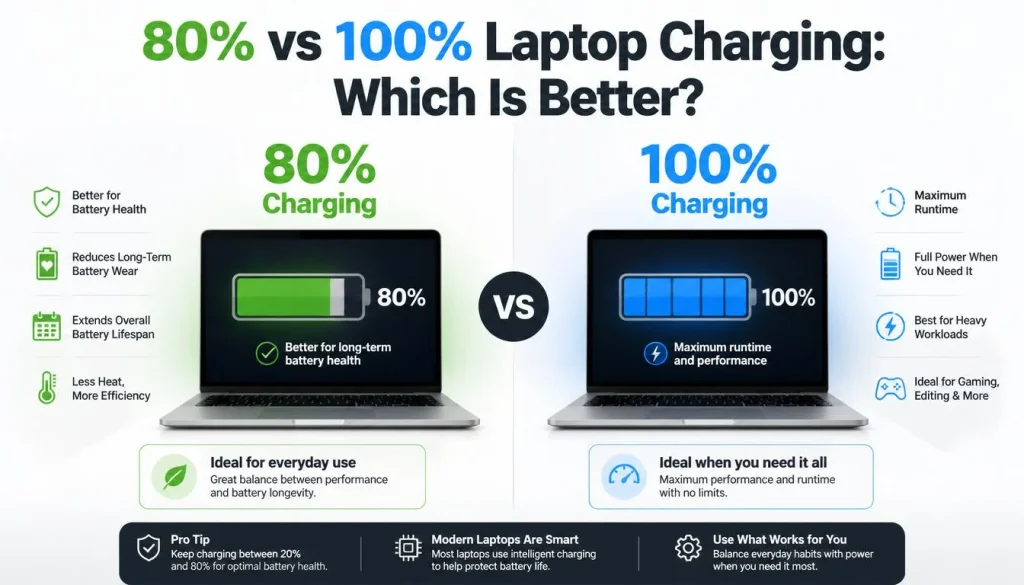
Neither setting is automatically better in every situation.
An 80% limit prioritizes long-term battery care. Charging to 100% prioritizes maximum runtime right now.
| Factor | 80% Charge Limit | 100% Charge |
|---|---|---|
| Available unplugged runtime | Lower | Maximum |
| Good for all-day desk use | Yes | Usually unnecessary |
| Good before travel | Sometimes limiting | Better |
| Time spent at very high charge | Reduced | Higher |
| Convenience away from outlets | Lower | Higher |
| Long-term plugged-in use | Often preferable | Less ideal if constantly held full |
Think about what the battery is supposed to do for you.
If the laptop rarely leaves your desk, keeping another 20% of capacity unused may have almost no effect on your day.
If you work on trains, airplanes, university campuses, construction sites, coffee shops, or anywhere else where outlets are unreliable, that additional 20% can be far more valuable than optimizing the charging percentage.
Who Should Consider an 80% Laptop Battery Limit?
People Who Keep Their Laptop Plugged In Most of the Day
This is the clearest use case.
If your laptop effectively functions like a desktop computer and stays connected to AC power for six, eight, or ten hours at a time, there is little benefit in keeping the battery at 100% every minute of the day.
A supported 80% charge limit lets you continue using the laptop normally without manually connecting and disconnecting the charger.
Remote and Office Workers
If your normal routine is desk, charger, monitor, keyboard, and mouse, you probably do not need maximum battery capacity during every working hour.
Keeping the limit enabled on ordinary workdays and temporarily charging to 100% before travel is a practical middle ground.
Gamers Who Usually Play While Plugged In
Gaming laptops often spend a lot of time connected to power because CPU and GPU performance can be higher when the correct AC adapter is attached.
That makes battery-care settings particularly useful on supported gaming laptops.
Heat also deserves attention here. Gaming, charging, and poor ventilation can combine to create high temperatures. If your machine becomes unusually hot while connected to power, see our guide on laptop overheating while charging before assuming the charging percentage alone is the problem.
People Planning to Keep the Same Laptop for Several Years
If you upgrade every year or two, battery longevity may not be your biggest concern.
If you plan to keep the laptop for four, five, or more years, taking advantage of the manufacturer’s battery-care features becomes more worthwhile.
When Should You Charge Your Laptop to 100%?
An 80% limit should never prevent you from using your laptop properly.
Charge to 100% whenever the extra runtime is useful.
Common examples include:
- Before a flight
- Before a long train or bus journey
- Before a full day of university classes
- Before an off-site meeting
- Before working somewhere without reliable outlets
- During a power outage
- Before a presentation or event where charging may not be available
Microsoft specifically notes that users may want to turn off Smart Charging when traveling or when they expect to work away from an outlet for a long period.
So if you normally use an 80% limit, temporarily allowing a full charge before a mobile day is completely reasonable.
What Is a Laptop Battery Charge Threshold?
A battery charge threshold tells the laptop when charging should start or stop.
Some systems give you only a maximum limit. Others allow both a start threshold and a stop threshold.
For example:
- Start charging at 60%
- Stop charging at 80%
With that setup, your laptop does not constantly bounce between 79% and 80%. It can remain connected to power while charging only resumes after the battery falls to the lower threshold.
Dell supports custom charging thresholds on compatible systems, allowing users to define separate start and stop values. Dell’s documentation for custom battery charging settings
ASUS uses a similar idea in some battery-health modes. Its documented Balanced Mode stops charging above 80% and resumes when the level drops below 78%.
This is why your battery may sometimes remain at 78%, 79%, or 80% while the charger is connected. The behavior can be intentional.
Smart Charging vs an 80% Charge Limit
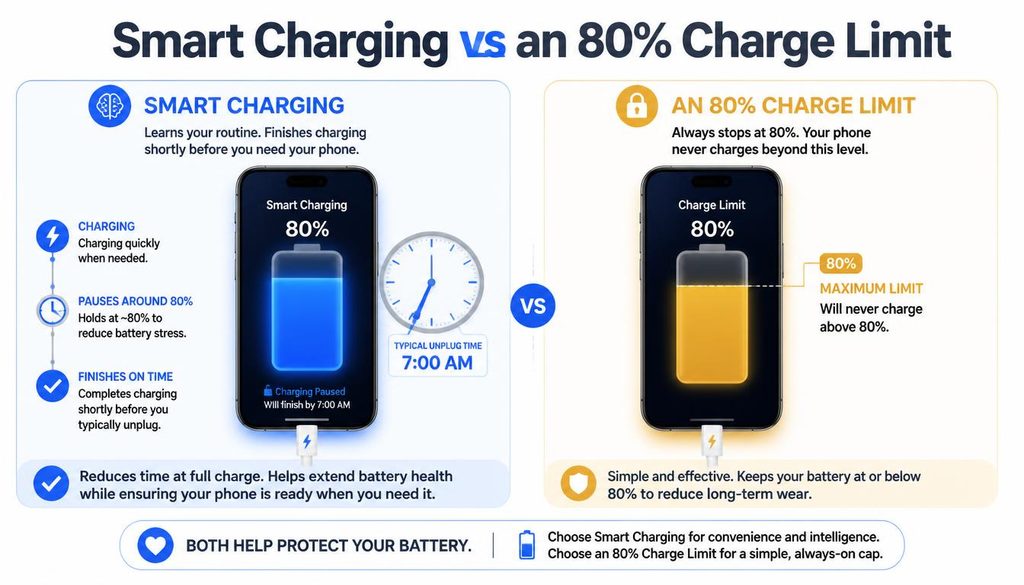
These terms are often used as if they mean the same thing, but they can describe different systems.
Manual Charge Limit
A manual charge limit stays at the percentage you choose until you change it.
For example, you select 80%, and the laptop continues treating 80% as its maximum charge during normal use.
Smart or Adaptive Charging
Smart charging makes the decision automatically.
The system may look at your usage pattern, how long the laptop stays connected to power, temperature conditions, and other device-specific information.
Microsoft says manufacturers implement Smart Charging differently, so there is no single behavior shared by every Windows laptop.
Optimized Battery Charging
Apple uses the term Optimized Battery Charging for a system that learns charging habits and can delay charging beyond 80% when it expects the Mac to remain connected to power.
On supported Apple silicon Macs running macOS Tahoe 26.4 or later, Apple also provides a separate manual Charge Limit setting between 80% and 100%. Apple’s guide to Optimized Battery Charging and Charge Limit
In short:
Charge limit = you choose the ceiling.
Smart/adaptive charging = the device decides when charging protection is useful.
Is It Safe to Keep a Laptop Plugged In at 80%?
Yes, when the laptop manufacturer provides an official charge-limit feature, leaving the device plugged in after it reaches that limit is normal.
You do not need to disconnect and reconnect the charger every time the battery moves by one percentage point.
Once the charging threshold has been reached, the device’s battery-management system controls when charging should resume.
Microsoft Surface Smart Charging, for example, can limit charging to 80% when the system detects prolonged plugged-in use or elevated temperatures. Some Surface models also provide a manual “Limit to 80%” charging mode. Microsoft’s Surface Smart Charging documentation
The bigger issue is usually heat.
Keep the vents clear, use the laptop on a hard surface, and avoid leaving it in hot environments for long periods.
Why Does My Laptop Stop Charging at 80%?
If your laptop suddenly refuses to charge beyond 80%, do not assume the battery or charger has failed.
An active battery-protection setting is one of the first things to check.
Your laptop may be using:
- Battery Charge Limit
- Smart Charging
- Conservation Mode
- Battery Care Mode
- Balanced Mode
- Battery Health Manager
- Optimized Battery Charging
- A custom charging threshold
Acer, for example, documents an 80% Battery Charge Limit on supported notebooks, while MSI’s Balanced battery mode stops charging at 80% on compatible systems.
If no charging limit is enabled and the laptop still refuses to charge properly, move on to normal charging troubleshooting.
Our laptop plugged in but not charging guide walks through charger checks, manufacturer battery settings, Windows battery drivers, BIOS updates, and other common causes.
How to Limit Laptop Battery Charging to 80%
There is no single menu path that works across every laptop.
On Windows devices, charging protection is commonly implemented by the manufacturer through its own utility, firmware, or BIOS options. Microsoft specifically notes that Smart Charging implementation varies by manufacturer.
Here are the main options to check.
Microsoft Surface
Open the Surface app and look under Battery & charging.
Supported models may provide a Limit to 80% charging mode. Other Surface devices may rely on automatic Smart Charging instead.
Microsoft also lets supported users temporarily choose a full charge when extra runtime is needed.
Lenovo
Check Lenovo Vantage for battery charging or threshold controls.
Lenovo documents a Battery Charge Threshold feature in Lenovo Vantage that can be used to help extend battery life. Lenovo’s Battery Charge Threshold guidance
The exact options vary by model, so do not assume every Lenovo laptop offers identical percentages.
Dell
On supported Dell systems, check MyDell, Dell Power Manager, Dell Optimizer, or your system BIOS.
Dell’s Custom charging mode can provide separate start and stop charging thresholds. For example, a supported system could be configured to begin charging at one percentage and stop at another.
Some Dell systems also provide adaptive or primarily-AC charging modes.
HP
Supported HP business notebooks may include HP Battery Health Manager or related battery-management settings.
HP documents a Maximize Battery Health Management setting that can limit available full charge capacity to 80% on supported systems intended to spend substantial time connected to AC power. HP’s Battery Health Manager documentation
Availability varies significantly between HP product lines and models.
ASUS
On supported ASUS laptops, look in MyASUS or the ASUS Battery Health Charging utility.
ASUS documents a Balanced Mode that stops charging above 80% and a Maximum Lifespan Mode that uses a lower threshold for laptops that remain connected to AC power most of the time. ASUS Battery Health Charging documentation
Acer
Supported Acer notebooks may provide Battery Charge Limit through Acer ControlCenter, Acer Care Center, AcerSense, or another model-specific Acer utility.
Acer’s current support documentation states that the Battery Charge Limit feature on supported notebooks caps charging at 80%. Acer’s Battery Charge Limit instructions
If the option is missing, your exact model may not support it.
MSI
On supported MSI laptops, open MSI Center and look for Battery Master or battery health settings.
MSI’s documented Balanced mode starts charging below 70% and stops at 80%. Its Best for Battery mode uses a lower range for laptops that spend most of their time connected to power. MSI Center Battery Master guidance
MacBook
On supported Apple silicon Macs running macOS Tahoe 26.4 or later:
- Open System Settings
- Select Battery
- Open the information button next to Charging
- Choose a Charge Limit between 80% and 100%
Apple notes that a Mac using Charge Limit may occasionally charge to 100% to maintain accurate battery state-of-charge estimates.
That occasional full charge does not mean the feature has failed.
What If Your Laptop Does Not Have an 80% Charge Limit?
First, make sure you are looking in the right place.
Check:
- Your laptop manufacturer’s utility
- BIOS or UEFI battery settings
- The manufacturer’s support page for your exact model
- Available BIOS and firmware updates
- Updated versions of the manufacturer’s control software
Do not assume a feature exists simply because another laptop from the same brand has it.
Two models with the same logo on the lid can have completely different battery-management options.
If the manufacturer does not support a charging threshold, there may be no reliable software-only way to force the hardware to stop at exactly 80%.
Some third-party battery applications can notify you when the charge reaches a selected level, but an alert is not the same thing as a firmware-controlled charging limit.
In that situation, focus on things you can control: heat, power settings, reasonable charging habits, and overall battery condition.
Is 60%, 80%, 90%, or 100% Better?
There is no single percentage that is ideal for every laptop owner.
| Charge Limit | Practical Use Case |
|---|---|
| 60% | Laptop is almost always connected to power |
| 80% | Good balance for desk use plus occasional mobility |
| 90% | More unplugged runtime without routinely sitting at 100% |
| 100% | Maximum runtime when you need it |
60%
A lower threshold can make sense for a machine that rarely leaves a desk.
ASUS and MSI both document battery-care modes around 60% on supported devices intended for frequent AC-powered use.
The obvious drawback is reduced battery runtime if you unexpectedly need to unplug.
80%
For many people, 80% is the most convenient compromise.
You retain most of the usable capacity while avoiding unnecessary time at a completely full charge.
90%
A 90% threshold can work well for mixed use if your laptop allows custom limits.
You gain more mobile runtime than at 80% while still avoiding a permanent 100% state.
100%
Use 100% whenever maximum battery runtime matters more than charge limiting.
There is nothing wrong with using the battery capacity you paid for.
The problem is not an occasional full charge. The reason charge-limit features exist is to reduce unnecessary prolonged high-charge conditions when you do not need that capacity.
Does Limiting a Laptop Battery to 80% Affect Performance?
An 80% battery charge limit is designed to control battery charging, not directly limit CPU or GPU performance.
So enabling a battery charge threshold should not be confused with:
- Windows Battery Saver
- Windows Energy Saver
- Low Power Mode
- Silent mode
- Eco mode
- CPU power limits
- GPU performance modes
Those settings can affect performance. A charge threshold serves a different purpose.
On a gaming laptop, for example, you may have an 80% Battery Master setting and a separate performance profile controlling CPU/GPU behavior.
If your laptop suddenly becomes slower after changing battery settings, check the manufacturer’s performance mode and your operating system power settings before assuming the 80% charge cap is responsible.
Battery Saver Is Not the Same as a Battery Charge Limit
This distinction causes a lot of confusion.
Battery Saver or Energy Saver tries to reduce how quickly the laptop consumes power.
It may adjust background activity, screen behavior, or other energy-related settings.
Battery Charge Limit controls how far the battery is allowed to charge.
You could therefore have:
- Battery charge limited to 80%
- Performance mode still enabled
- Charger connected
- Battery Saver turned off
These settings can coexist because they solve different problems.
Does an 80% Limit Reduce Battery Cycles?
Not in the simple way people sometimes assume.
Battery aging is more complicated than counting how many times you plug in the charger.
A charge cycle generally represents cumulative battery use equivalent to a full battery’s capacity, even when that usage happens across several partial discharges.
More importantly, cycle count is only one part of battery aging. Temperature, age, charging patterns, and high states of charge also matter.
If you want to see whether your battery has already lost significant capacity, follow our guide on how to check laptop battery health in Windows.
You can also use the methods in our laptop battery testing guide to compare design capacity, full-charge capacity, runtime, and other battery information.
Is 80% Charge the Same as 80% Battery Health?
No. These are completely different measurements.
80% charge means the battery currently contains about 80% of the energy it can presently hold.
80% battery health usually means the battery’s maximum usable capacity has declined to around 80% of what it could hold when new.
For example, imagine a battery originally designed to hold 60Wh.
After years of use, its full-charge capacity might fall to 48Wh.
If you charge that worn battery to 100%, the laptop can still show “100%,” but the actual maximum capacity is only 48Wh.
If you then apply an 80% charge limit, you are limiting the battery to roughly 80% of its current available full-charge capacity—not restoring or changing its underlying battery health.
This difference is important when diagnosing short runtime.
What If the Battery Percentage Is Wrong or Jumps Suddenly?
A charging limit does not fix an inaccurate battery gauge.
If your laptop:
- Drops suddenly from 40% to 10%
- Shuts down while charge remains
- Shows obviously incorrect battery percentages
- Reports inconsistent remaining time
you may be dealing with a battery reporting or calibration issue rather than a charge-limit problem.
Our guide on how to calibrate a laptop battery explains when calibration can help and when it cannot.
Calibration should not be confused with repairing battery wear. It can improve inaccurate reporting in some situations, but it does not restore lost battery capacity.
Common Myths About the 80% Laptop Battery Rule
Myth 1: Charging to 100% Once Will Damage the Battery
No.
A full charge before a trip, meeting, class, or long workday is a normal use of the battery.
Charge limits are mainly about reducing unnecessary prolonged time at high charge levels.
Myth 2: You Must Unplug the Charger at Exactly 80%
Not if your laptop has an official charging threshold.
The battery-management system is specifically designed to manage charging after the selected limit is reached.
Myth 3: 80% Is the Perfect Number for Every Laptop
It is not.
Some manufacturers use 60%, 80%, adaptive charging, custom thresholds, or other approaches.
Your own usage matters just as much as the number.
Myth 4: If the Laptop Stops at 80%, the Battery Is Broken
Not necessarily.
Always check your battery-care settings before replacing anything.
An intentional charging threshold can make a healthy laptop appear to be “stuck” at 80%.
Myth 5: Battery Saver and an 80% Charge Limit Are the Same Feature
They are not.
Battery Saver reduces power consumption. A charge limit controls maximum charging level.
Practical Charging Recommendations Based on Your Usage
You do not need to micromanage your battery every hour.
Use a simple routine.
If Your Laptop Is Plugged In Most of the Day
Enable the manufacturer’s 80% or battery-health mode if your model supports it.
Leave the laptop connected normally and let the battery-management system do its job.
If You Use the Laptop on Battery Every Day
Choose a higher threshold—or charge to 100%—if the extra runtime makes your day easier.
Battery longevity is useful, but so is having enough power to finish your work.
If Your Usage Changes From Day to Day
An adaptive or Smart Charging feature is convenient because it can adjust charging behavior automatically.
Alternatively, keep an 80% limit during desk days and temporarily allow 100% before mobile days.
If You Own a Gaming Laptop
Use the manufacturer’s battery-health feature when you normally game on AC power, but also pay close attention to temperature and ventilation.
If Your Laptop Has No Charging Limit
Do not obsess over manually unplugging it at exactly 80%.
Focus instead on avoiding excessive heat, using the correct charger, keeping firmware updated, and checking battery health periodically.
How to Know When an 80% Limit Is No Longer the Real Issue
A charging limit protects a functioning battery. It cannot repair one that is already heavily degraded or physically damaged.
Pay attention if your laptop:
- Loses charge unusually fast
- Shuts down unexpectedly
- Works only when plugged in
- Has dramatically reduced full-charge capacity
- Becomes unusually hot around the battery
- Has a swollen or deformed battery
If you are seeing those symptoms, read our guide to the signs a laptop battery needs replacement rather than trying to solve the problem by changing the maximum charge percentage.
A swollen battery should be treated as a hardware safety issue, not a charging-setting problem.
Frequently Asked Questions
Should I charge my laptop to 80% or 100%?
Use around 80% when your laptop stays plugged in for long periods and your manufacturer provides a supported charge-limit feature. Charge to 100% whenever you need maximum battery runtime away from an outlet.
Is it bad to charge a laptop to 100% every day?
An occasional 100% charge is normal. The concern is keeping a battery at a high state of charge for extended periods when you do not actually need the full capacity. Smart charging and charge-limit features are designed to reduce that unnecessary time.
Should I unplug my laptop when it reaches 80%?
Not if you are using an official 80% charging threshold. You can normally leave the laptop connected and allow its battery-management system to control when charging stops and resumes.
Can I leave my laptop plugged in at 80% all day?
Yes, that is one of the main situations where an official 80% charging limit can be useful. Keep the laptop properly ventilated and avoid excessive heat.
Why won’t my laptop charge past 80%?
A battery-care feature may be enabled. Check your manufacturer’s utility, BIOS/UEFI settings, Smart Charging, Conservation Mode, Battery Care Mode, Battery Master, or another charge-limit setting before assuming that the battery is faulty.
Why does my laptop say “plugged in, not charging” at 80%?
If an 80% charging threshold is active, that message can be normal. The laptop has reached its configured maximum and is intentionally waiting before charging again.
If no charge limit is enabled, troubleshoot the charger, battery, drivers, firmware, and hardware.
Is the 20–80 rule necessary for laptop batteries?
No. It is better treated as a battery-care guideline than a strict requirement. Manufacturer charging systems use different thresholds, and your ideal setting depends on how much battery runtime you actually need.
Is 80% charging good for a gaming laptop?
It can be useful if the gaming laptop spends most of its time connected to AC power and the manufacturer supports a battery-care limit. Good cooling is also important because gaming laptops can generate substantial heat under load.
Does limiting a laptop battery to 80% improve performance?
The charge limit itself is intended to manage battery charging rather than increase CPU or GPU performance. Performance is usually controlled by separate power and thermal settings.
Should I use 60% or 80% if my laptop is always plugged in?
A lower supported limit such as 60% may suit a laptop that almost never runs on battery. An 80% limit gives you more flexibility if you occasionally need to unplug and move around.
Is 90% better than 80%?
It depends on your priorities. An 80% limit spends less time at a very high state of charge, while 90% gives you additional mobile runtime. If your laptop supports custom thresholds, either can be reasonable.
Can I temporarily turn off the 80% battery limit?
On many supported laptops, yes. The exact procedure depends on the manufacturer. Surface and supported Macs, for example, provide ways to temporarily allow charging to 100% when you need additional runtime.
Why is the 80% battery limit option missing?
Your exact laptop model may not support a configurable charge threshold. The feature can depend on the battery controller, firmware, BIOS, manufacturer utility, and model generation.
Check the support documentation for your exact model rather than assuming every laptop from the same brand has the feature.
Should I use a third-party app to stop charging at 80%?
Use the manufacturer’s supported battery-control feature whenever possible. Some third-party applications can only alert you when the battery reaches a percentage and cannot actually tell unsupported hardware to stop charging.
Bottom Line
For most people who keep their laptop plugged in for much of the day, limiting the battery to around 80% is a sensible way to reduce unnecessary time at a very high state of charge.
But 80% is not a rule you need to follow at all costs.
If you need maximum battery life for travel, school, meetings, or a day away from outlets, charge to 100% and use the battery normally. When you return to desk-based use, you can switch the battery-care limit back on.
The best approach is simple:
Mostly plugged in? Use an 80% or manufacturer-recommended battery-health mode.
Need maximum runtime? Charge to 100%.
Mixed use? Smart or adaptive charging is often the easiest option.
And if your laptop does not offer a charging limit, do not spend your day watching the battery percentage. Keeping the laptop cool, using proper charging equipment, monitoring battery health, and following the manufacturer’s battery-management features will matter far more than hitting exactly 80% every single time.

“Electronics aren’t just gadgets. They’re the invisible threads that connect our work, our play, and our world.”
I’m Julian Reed, and my obsession with tech started at age twelve, when I soldered a defunct gaming console back to life in my bedroom. That tiny green screen taught me that technology isn’t just a black box, it’s a tool you can master.
After fifteen years as a hardware engineer and a decade reviewing consumer tech, I’ve joined this team to cut through the jargon. Whether you’re building a high-end home theater or just need a laptop that won’t lag, I’m here to help you choose the gear that truly powers your life.


