

If your laptop refuses to turn on, don’t panic yet. In many cases, the problem is caused by a drained battery, faulty charger, loose memory module, display issue, or startup error rather than a dead motherboard. By following the troubleshooting steps in this guide, you can often identify the cause and get your laptop running again without paying for repairs.
Quick Answer: If your laptop won’t turn on, start by checking the charger, power outlet, and charging indicator light. Next, perform a hard reset, disconnect external devices, and test whether the issue is related to the screen or Windows startup process. If the laptop still shows no signs of life, the battery, RAM, charging circuit, or motherboard may require repair.
What Does “Laptop Not Turning On” Actually Mean?
Many users describe different problems using the same phrase. Identifying your exact symptoms is the first step toward fixing the issue.
No Signs of Power
- No lights
- No fan noise
- No charging indicator
- Completely unresponsive
Laptop Turns On but Screen Stays Black
- Power light is on
- Keyboard lights work
- Fan spins
- Nothing appears on the display
Laptop Turns On but Windows Won’t Load
- Manufacturer logo appears
- Windows loading screen freezes
- Endless spinning circle
Laptop Turns On and Shuts Off Immediately
- Power comes on briefly
- Laptop shuts down after a few seconds
- Repeated restart loop
Why Your Laptop Won’t Turn On
Several hardware and software problems can prevent a laptop from starting.
Common causes include:
- Completely drained battery
- Faulty charging adapter
- Damaged charging port
- Loose or faulty RAM
- Corrupted BIOS
- Failed SSD or hard drive
- Overheating protection shutdown
- Motherboard failure
- Windows startup corruption
- Power button malfunction

1. Check the Charger and Power Adapter
Before assuming the laptop itself is faulty, verify that power is actually reaching the device.
Check for:
- Frayed cables
- Bent connectors
- Burn marks
- Loose charging tips
If possible:
- Try another wall outlet.
- Test another compatible charger.
- Ensure the charger wattage matches your laptop’s requirements.
Many modern laptops require 45W, 65W, or even 100W USB-C chargers. Using a lower-powered charger may prevent startup.
2. Perform a Hard Reset
Residual electrical charge can sometimes prevent the system from powering on.
For laptops with removable batteries:
- Disconnect the charger.
- Remove the battery.
- Hold the power button for 30 seconds.
- Reconnect power without the battery.
- Try turning the laptop on.
For laptops with internal batteries:
- Disconnect the charger.
- Hold the power button for 30 to 60 seconds.
- Reconnect the charger.
- Attempt to start the laptop.
This simple procedure fixes many no-power situations.

3. Leave the Laptop Charging for 30 Minutes
A deeply discharged battery may require time before the charging circuit becomes active again.
Connect the charger and wait:
- 30 minutes for most laptops
- Up to 60 minutes for older batteries
Avoid repeatedly pressing the power button during this period.
4. Check the Charging Indicator Light
Charging LEDs provide important clues.
| Indicator Status | Possible Meaning |
|---|---|
| No light | Charger or motherboard issue |
| White light | Charging normally |
| Amber light | Low battery or charging |
| Blinking light | Hardware error or battery problem |
Consult your manufacturer’s documentation if your laptop uses diagnostic blinking patterns.
5. Make Sure the Display Isn’t the Problem
Sometimes the laptop is running perfectly but the screen is not displaying an image.
Look carefully for:
- Very dim images
- Faint manufacturer logo
- Backlight failure
Increase screen brightness and try pressing:
- Windows + P
- Fn + display toggle key

6. Connect an External Monitor
If an external display works normally, your internal screen, display cable, or graphics system may be responsible.
Connect:
- HDMI monitor
- TV
- USB-C display
If video appears externally, the laptop itself is likely functioning.
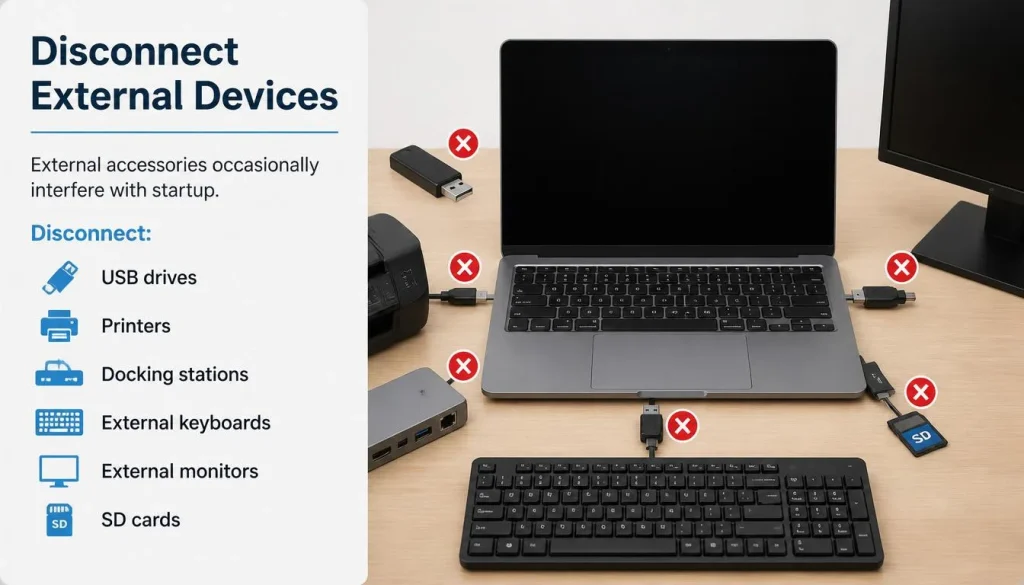
7. Disconnect External Devices
External accessories occasionally interfere with startup.
Disconnect:
- USB drives
- Printers
- Docking stations
- External keyboards
- External monitors
- SD cards
After removing all peripherals, try powering on again.
8. Reseat the RAM Modules
Loose memory modules are a surprisingly common cause of startup failures.
Symptoms include:
- Black screen
- Beeping sounds
- Power cycling
- Fans spinning without display
Steps:
- Turn off the laptop.
- Disconnect power.
- Open the memory compartment.
- Remove RAM sticks carefully.
- Reinsert them securely.
- Test one module at a time if multiple sticks are installed.
9. Listen for Beep Codes or LED Error Codes
Many manufacturers provide diagnostic signals.
Examples include:
- HP blinking caps lock codes
- Dell diagnostic LEDs
- Lenovo beep patterns
These indicators often reveal whether the issue involves RAM, CPU, GPU, or motherboard components.
10. Attempt BIOS Recovery
A failed BIOS update can make a laptop appear completely dead.
Some manufacturers support recovery shortcuts:
- Windows + B for many HP laptops
- Ctrl + Esc for certain Dell systems
Check your manufacturer’s support documentation for exact instructions.

11. Reset the CMOS Battery
The CMOS battery stores BIOS settings.
If BIOS corruption occurs:
- Remove the CMOS battery temporarily if accessible.
- Wait five minutes.
- Reinstall the battery.
- Restart the system.
This resets firmware settings to factory defaults.
12. Check for Overheating Damage
Overheating can trigger automatic protection shutdowns.
Warning signs include:
- Laptop became extremely hot before failure
- Sudden shutdown while gaming
- Fan running at maximum speed
- Burning smell
Allow the laptop to cool completely before retrying startup.

13. Boot Into Windows Recovery Environment
If the laptop powers on but Windows fails to load:
- Force shutdown during startup three times.
- Windows should enter recovery mode automatically.
- Select Startup Repair.
You can also use:
- System Restore
- Safe Mode
- Uninstall Updates
14. Test Battery Health
A failed battery can prevent startup on certain models.
Try:
- Removing the battery if possible.
- Running only on AC power.
- Using battery diagnostics tools after startup.
Common battery symptoms include:
- Sudden shutdowns
- Rapid battery drain
- Failure to charge
15. Consider Motherboard Failure
If the laptop shows absolutely no signs of life after all troubleshooting steps, the motherboard may be damaged.
Possible causes include:
- Power surge
- Liquid damage
- Failed charging circuit
- Shorted components
Professional diagnosis is usually required.

Laptop Won’t Turn On but Charging Light Is On
This situation often points to:
- RAM issues
- Display failure
- BIOS corruption
- Motherboard faults
Start by performing a hard reset and testing with an external monitor.
Laptop Turns On but Screen Stays Black
If fans spin and lights appear but the screen remains blank:
- Increase brightness.
- Connect an external display.
- Reseat RAM.
- Reset BIOS settings.
Display cable failures are especially common after drops or impacts.
Laptop Turns On but Windows Won’t Boot
Typical causes include:
- Corrupted Windows files
- Failed updates
- SSD failure
- Startup repair issues
Using Windows Recovery Environment often resolves software-related startup failures.
Laptop Turns On Then Shuts Off Immediately
Possible causes include:
- Overheating
- Faulty RAM
- CPU problems
- Motherboard power faults
Repeated immediate shutdowns generally indicate hardware issues rather than software problems.
Laptop Won’t Turn On After a Windows Update
If the issue started after an update:
- Enter recovery mode.
- Remove recent updates.
- Use System Restore.
- Perform Startup Repair.
Windows update corruption is more common than many users realize.
Laptop Won’t Turn On After Overheating
Gaming sessions, blocked vents, or dust buildup can trigger thermal protection shutdown.
Allow the laptop to cool completely before retrying.
Clean:
- Cooling vents
- Fans
- Heat sinks
Improving airflow may prevent future failures.
How to Tell Whether the Charger, Battery, or Motherboard Is the Problem
Charger Problem
- No charging light
- Charger remains cold
- Physical damage visible
Battery Problem
- Laptop works only when plugged in
- Battery refuses to charge
- Sudden shutdowns
Motherboard Problem
- No response with known-good charger
- Burn smell
- Visible component damage
- No charging indicators
Repair Cost: Is It Worth Fixing?
Average repair costs in North America, the UK, and Australia:
| Repair Type | Typical Cost |
|---|---|
| Charger replacement | $20-$80 |
| Battery replacement | $50-$180 |
| RAM replacement | $40-$150 |
| Screen replacement | $100-$300 |
| Motherboard repair | $250-$600 |
If the laptop is more than six years old and requires motherboard replacement, purchasing a new device may be more cost-effective.
How to Prevent Laptop Power Problems
Follow these practices to reduce future issues:
- Keep battery charge between 20% and 80%.
- Avoid low-quality chargers.
- Clean vents regularly.
- Keep BIOS updated.
- Use surge protection.
- Avoid blocking cooling vents while gaming.
Preventive maintenance often extends laptop lifespan by several years.
Frequently Asked Questions About How to Fix a Laptop That Won’t Turn On
Why won’t my laptop turn on even when plugged in?
The charger, charging port, motherboard, or battery may be faulty.
Can a dead battery stop a laptop from turning on?
Yes. Some laptops refuse to start if the battery or charging system fails.
Why is my laptop screen black but the power light is on?
This usually indicates display issues, RAM problems, or graphics failures.
Can overheating prevent a laptop from turning on?
Yes. Severe overheating can trigger protective shutdowns and hardware damage.
How do I know if my motherboard is dead?
No charging light, no fan activity, and no response with a known-good charger often indicate motherboard failure.
Is it safe to reseat laptop RAM?
Yes, provided the laptop is powered off and disconnected from all power sources.
Should I repair or replace my laptop?
If repair costs exceed half the value of the device, replacement is often the better long-term investment.
Final Thoughts
A laptop that won’t turn on does not automatically mean expensive repairs or permanent damage. In many cases, simple fixes such as checking the charger, performing a hard reset, reseating RAM, or using Windows recovery tools solve the problem quickly.
Start with the easiest solutions first and work toward more advanced troubleshooting steps. If the laptop remains completely unresponsive after trying these methods, professional hardware diagnosis is the safest next step.

“Electronics aren’t just gadgets. They’re the invisible threads that connect our work, our play, and our world.”
I’m Julian Reed, and my obsession with tech started at age twelve, when I soldered a defunct gaming console back to life in my bedroom. That tiny green screen taught me that technology isn’t just a black box, it’s a tool you can master.
After fifteen years as a hardware engineer and a decade reviewing consumer tech, I’ve joined this team to cut through the jargon. Whether you’re building a high-end home theater or just need a laptop that won’t lag, I’m here to help you choose the gear that truly powers your life.



1 thought on “How to Fix a Laptop That Won’t Turn On: 15 Proven Solutions That Actually Work (2026 Guide)”