

Laptop battery problems are frustrating, especially when your device drains too fast during work, study, travel, or video calls. The good news is that you do not always need a new battery right away. In many cases, the right charging habits, power settings, app management, and heat control can help your laptop run longer on a single charge and protect the battery for the long term.
This guide explains the best practices to extend laptop battery life for Windows laptops, MacBooks, gaming laptops, students, remote workers, and everyday users. You will also learn how to reduce battery drain, improve laptop battery health, avoid common charging mistakes, and know when battery replacement may be necessary.
Battery Life vs Battery Health: What Is the Difference?
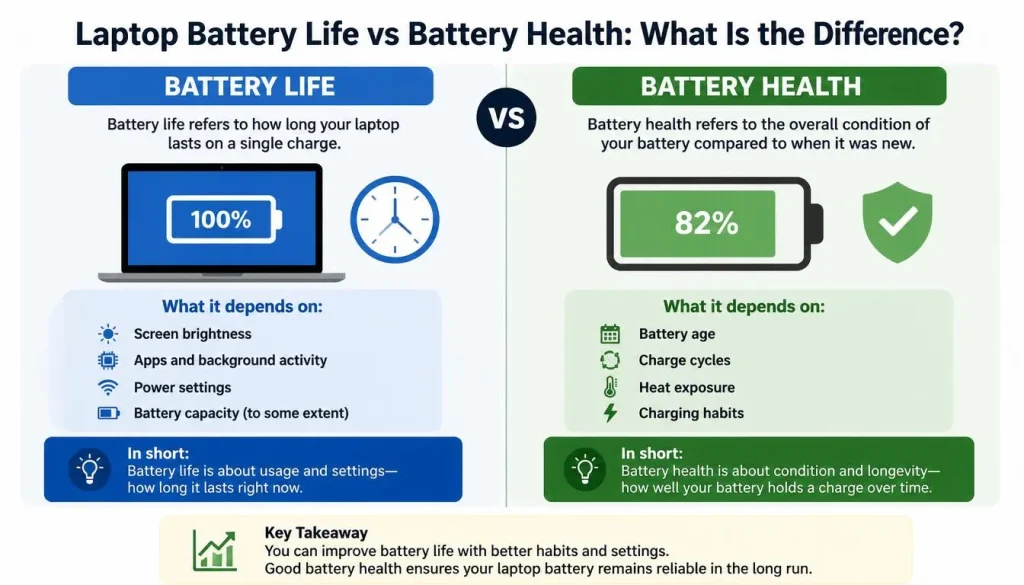
Before optimizing your laptop, it is important to understand the difference between battery life and battery health.
Battery life means how long your laptop runs after a full charge. For example, if your laptop lasts six hours on battery, that is your battery life.
Battery health means the condition of the battery compared to when it was new. A battery with poor health may still charge to 100%, but it may drain much faster because its actual capacity has dropped.
For example, a new laptop battery may hold 50Wh of energy, but after years of use, it may only hold 35Wh. In that case, your laptop may show 100% charge, but the real usable power is much lower.
To extend laptop battery life properly, you need to focus on both:
- Short-term battery life: how long your laptop lasts today
- Long-term battery health: how well the battery performs over months and years
Why Laptop Batteries Drain Faster Over Time
Laptop batteries naturally age. Most modern laptops use lithium-ion or lithium-polymer batteries, and these batteries lose capacity with time, heat, charging cycles, and heavy use.
Common reasons your laptop battery drains quickly include:
- High screen brightness
- Too many browser tabs open
- Background apps running silently
- Video calls and streaming
- Gaming or editing on battery power
- Old drivers or outdated software
- Poor ventilation and overheating
- External devices connected through USB
- Battery aging and reduced capacity
- Incorrect power settings
If your battery suddenly drains much faster than before, the issue may also come from a recent software update, a new app, malware, browser extensions, or a failing battery.
Quick Best Practices to Extend Laptop Battery Life
Here is a simple checklist you can apply right away:
- Keep your battery between 20% and 80% when possible
- Lower screen brightness
- Turn on Battery Saver on Windows or Low Power Mode on Mac
- Close unused apps and browser tabs
- Avoid using your laptop on beds, pillows, or soft surfaces
- Keep your laptop cool
- Turn off Bluetooth when not needed
- Disconnect unnecessary USB devices
- Use the original or correct-wattage charger
- Update your operating system and drivers
- Use battery health tools from your laptop brand
- Avoid letting the battery drop to 0% frequently
Microsoft recommends keeping battery levels between 20% and 80% several times a week to help extend battery life and performance, and using Smart Charging when supported.
Use the Right Charging Habit
Charging habits have a big impact on long-term battery health. Many users think they must always charge to 100% or fully drain the battery before charging again. That is not necessary for modern laptops.
Should You Charge Your Laptop to 100%?
Charging to 100% is fine when you need maximum battery life for travel, classes, meetings, or a long workday. However, keeping your laptop at 100% all the time may increase battery wear over time, especially if the device stays plugged in for long periods.
For daily use, try to keep the battery around 20% to 80% when possible. You do not need to be perfect every day. The goal is to avoid keeping the battery at extreme levels too often.
Is It Bad to Keep Your Laptop Plugged In?
Keeping a laptop plugged in is not automatically dangerous. Modern laptops have charging systems that stop overcharging. However, staying at 100% for long periods, especially with heat, can speed up battery aging.
If your laptop has a battery charge limit feature, turn it on. This is especially useful if you mostly use your laptop at a desk.
Use Smart Charging or Battery Charge Limit
Some Windows laptops support Smart Charging. Microsoft explains that Smart Charging helps stop the device from staying charged at 100% for long periods, and on Surface devices, Smart Charging can limit maximum charge to 80% when active.
MacBooks also support Optimized Battery Charging. Apple says this feature reduces battery wear by reducing the time your Mac spends fully charged. On supported Apple silicon Macs, Charge Limit can also set what the Mac considers a full charge.
Lenovo laptops may include Conservation Mode or battery charge threshold settings through Lenovo Vantage. Lenovo states that Conservation Mode may keep the battery around 75% to 80% to benefit long-term battery health.
Adjust Power Settings on Windows and macOS
Power settings are one of the easiest ways to improve laptop battery life.
Best Windows Battery Settings
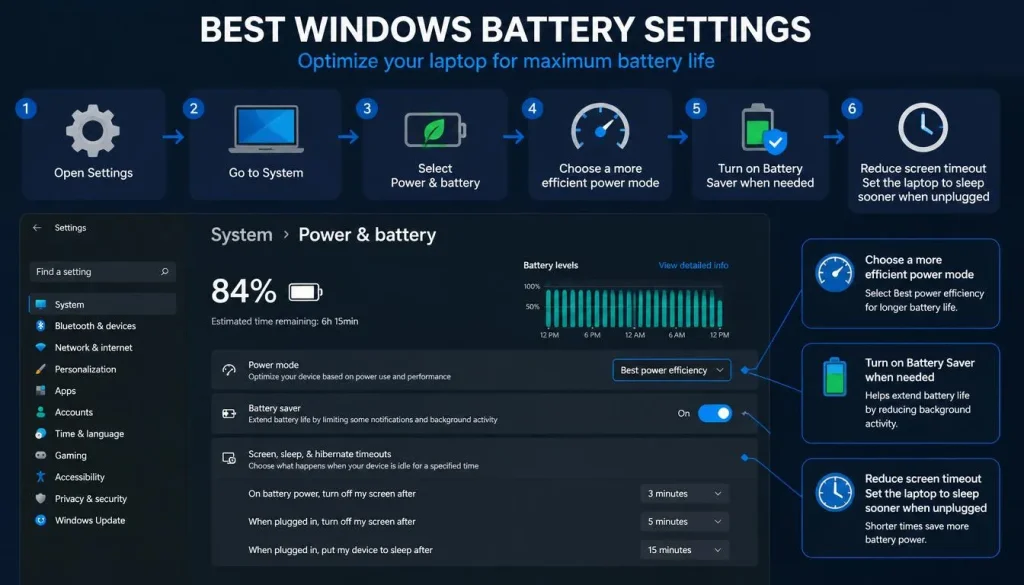
For Windows laptops, use these settings:
- Open Settings
- Go to System
- Select Power & battery
- Choose a more efficient power mode
- Turn on Battery Saver when needed
- Reduce screen timeout
- Set the laptop to sleep sooner when unplugged
You can also check battery usage by app. This helps you identify which apps are draining your battery the most.
Useful Windows settings include:
- Battery Saver
- Best power efficiency mode
- Lower screen brightness
- Shorter screen timeout
- Background app limits
- Startup app control
- Smart Charging if available
Best MacBook Battery Settings
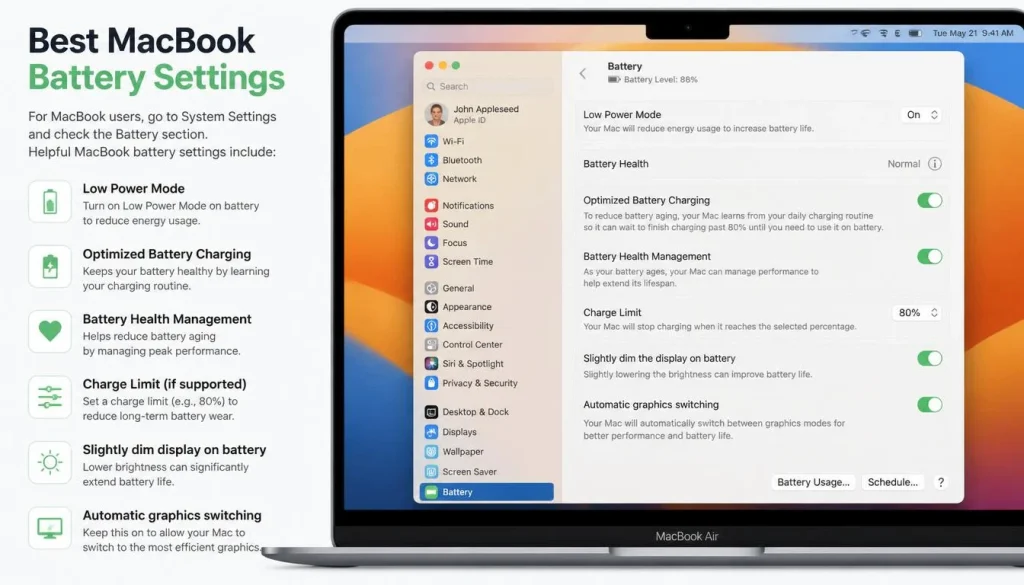
For MacBook users, go to System Settings and check the Battery section.
Helpful MacBook battery settings include:
- Low Power Mode
- Optimized Battery Charging
- Battery Health Management
- Charge Limit if supported
- Slightly dim display on battery
- Automatic graphics switching on supported models
Apple states that battery health management helps improve battery lifespan by reducing the rate of chemical aging, based on temperature history and charging patterns.
Reduce Screen and Display Battery Drain
The display is one of the biggest power users on a laptop. Reducing screen power can quickly improve battery life.
Lower Screen Brightness
You do not need maximum brightness indoors. Reducing brightness to 40%–60% can make a noticeable difference, especially during writing, browsing, or office work.
Use Dark Mode If It Helps
Dark mode can reduce eye strain and may save power on laptops with OLED displays. On regular LCD screens, the battery saving may be smaller, but it can still improve comfort.
Lower Refresh Rate When Unplugged
Some laptops have 90Hz, 120Hz, 144Hz, or higher refresh rate displays. These look smoother but use more power. If you are not gaming, lower the refresh rate to 60Hz while on battery.
Turn Off Keyboard Backlight
Keyboard backlighting is useful in dark rooms, but it also uses battery. Turn it off or reduce brightness when you do not need it.
Avoid Extra Monitors on Battery
External monitors, especially high-resolution displays, can increase power use. If you need longer battery life, disconnect external displays when unplugged.
Close Battery-Draining Apps and Background Processes
Many laptops lose battery quickly because too many apps run in the background.
Common battery-draining apps include:
- Chrome, Edge, or Firefox with many tabs
- Video calling apps
- Cloud sync tools
- Gaming launchers
- Design and editing software
- Antivirus scans
- Messaging apps
- Auto-start programs
Intel recommends closing applications, adjusting graphics, ensuring ventilation, and checking battery health to improve laptop battery life. Intel also notes that browsers such as Chrome and Edge include power-saving options like sleeping unused tabs.
How to Find Battery-Draining Apps on Windows
On Windows:
- Go to Settings
- Select System
- Click Power & battery
- Open Battery usage
- Review app battery usage
If one app uses too much power, close it, update it, limit background activity, or replace it with a lighter alternative.
How to Check Energy Usage on Mac
On Mac:
- Open Activity Monitor
- Click the Energy tab
- Check Energy Impact
- Close apps with high energy usage
This is especially helpful if your MacBook fan is loud or the battery drains quickly.
Fix Browser Battery Drain
Browsers are one of the biggest causes of laptop battery drain. Many users keep 20, 30, or even 50 tabs open without realizing how much power they use.
To reduce browser battery drain:
- Close unused tabs
- Remove unnecessary extensions
- Turn on sleeping tabs in Edge
- Use Memory Saver or Energy Saver in Chrome
- Stop auto-playing videos
- Avoid too many browser-based apps at the same time
- Close tabs running dashboards, ads, or live chats
- Use one browser window instead of many windows
If your laptop battery drains fast while browsing, the browser may be the main problem, not the battery.
Manage Wi-Fi, Bluetooth, and Connected Devices
Wireless connections and accessories can also reduce battery life.
To save battery:
- Turn off Bluetooth when not using it
- Disconnect external hard drives
- Remove unused USB devices
- Avoid charging your phone from your laptop battery
- Turn off Wi-Fi only when you do not need internet
- Use airplane mode when working offline
Video calls, cloud backup, and file syncing can also drain battery because they use Wi-Fi, CPU, camera, microphone, and speakers at the same time.
Keep Your Laptop Cool
Heat is one of the biggest enemies of laptop battery health. A hot laptop uses more power and may age faster over time.
- Use it on a hard, flat surface
- Avoid beds, blankets, and pillows
- Keep air vents open
- Clean dust from vents
- Avoid direct sunlight
- Do not leave your laptop in a hot car
- Use a cooling pad for gaming or heavy editing
- Stop heavy tasks if the laptop becomes too hot
If your laptop is hot even during simple tasks, check for background apps, malware, blocked vents, or old thermal paste.
Update Software, Drivers, and Firmware
Updates can improve battery performance because they often include power management fixes, driver improvements, and security patches.
You should update:
- Windows or macOS
- Graphics drivers
- Chipset drivers
- BIOS or firmware
- Browser apps
- Battery management software
- Manufacturer utility apps
For Windows laptops, check the support app from your brand, such as Dell SupportAssist, HP Support Assistant, Lenovo Vantage, ASUS MyASUS, or Acer Care Center.
For MacBooks, keep macOS updated from System Settings.
Use the Correct Charger and Cable
Using the wrong charger can cause slow charging, poor performance, heat, or battery issues. If your laptop needs a 65W charger and you use a weak USB-C charger, the battery may still drain while plugged in.
Best practices for laptop chargers:
- Use the original charger when possible
- Match the required wattage
- Use certified USB-C Power Delivery chargers
- Avoid cheap, unknown chargers
- Replace damaged cables immediately
- Do not use loose or overheating adapters
A charger does not need to be from the same brand in every case, but it must meet the correct power and safety requirements.
Sleep, Hibernate, or Shut Down: Which Saves More Battery?
Many users lose battery overnight because the laptop is sleeping but still running background tasks.
Sleep Mode
Sleep mode is good for short breaks. Your laptop wakes quickly, but it still uses some battery.
Use sleep when you will return soon.
Hibernate Mode
Hibernate saves your session to storage and uses much less power than sleep. It is useful if you will not use your laptop for several hours.
Use hibernate when you want to save battery overnight.
Shut Down
Shut down is best when you will not use the laptop for a long time or when the laptop is acting slow.
Use shutdown when you want a fresh start or maximum battery saving.
Should You Calibrate Your Laptop Battery?
Battery calibration can help when your laptop shows the wrong battery percentage, shuts down suddenly, or jumps from one percentage to another.
Calibration does not repair a worn-out battery. It only helps the system read the battery percentage more accurately.
You may consider calibration if:
- Battery percentage is wrong
- Laptop shuts down at 20% or 30%
- Battery drops suddenly
- Battery estimate is very inaccurate
Do not fully drain your laptop battery frequently just for calibration. Only do it occasionally when there is a real percentage problem.
Best Practices for Gaming, Editing, and Heavy Work
Gaming, video editing, 3D design, and rendering use much more battery than browsing or writing.
To extend battery life during heavy work:
- Plug in when gaming or editing
- Lower graphics settings on battery
- Use integrated graphics when possible
- Reduce screen refresh rate
- Close recording or streaming software
- Avoid high-performance mode for simple tasks
- Keep the laptop cool
- Lower resolution if needed
Gaming laptops often have shorter battery life because they use powerful CPUs, GPUs, and high-refresh displays. For best performance and battery safety, use the correct charger during heavy workloads.
Best Battery Practices for Travel, College, and Remote Work
Different users need different battery strategies.
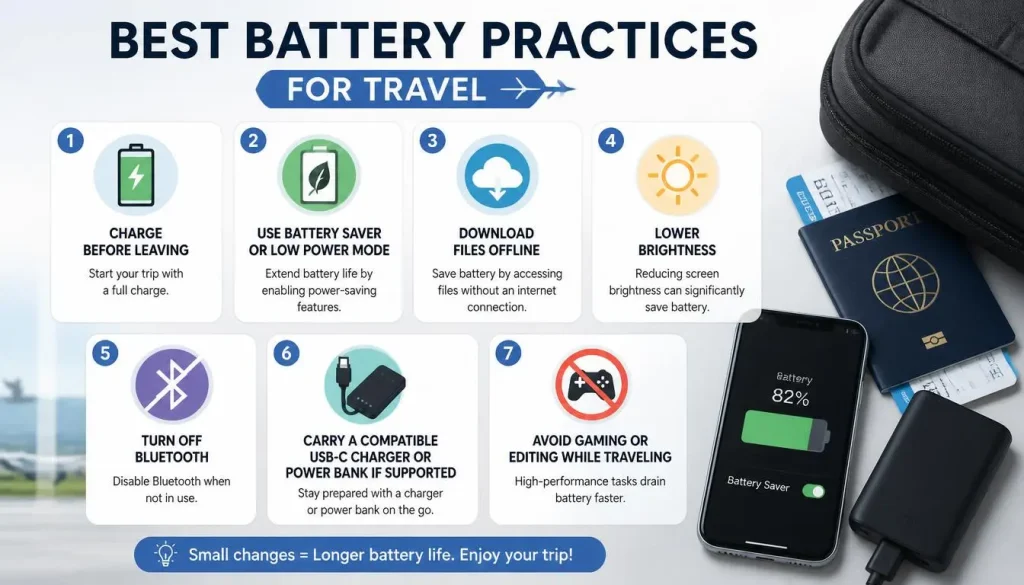
For Travel
- Charge before leaving
- Use Battery Saver or Low Power Mode
- Download files offline
- Lower brightness
- Turn off Bluetooth
- Carry a compatible USB-C charger or power bank if supported
- Avoid gaming or editing while traveling
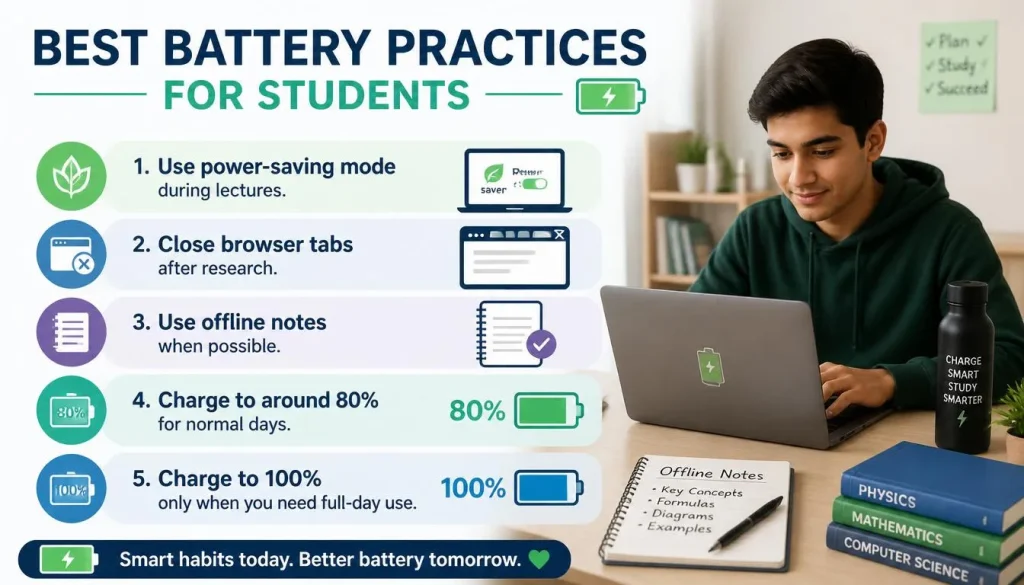
For Students
- Use power-saving mode during lectures
- Close browser tabs after research
- Use offline notes when possible
- Charge to around 80% for normal days
- Charge to 100% only when you need full-day use
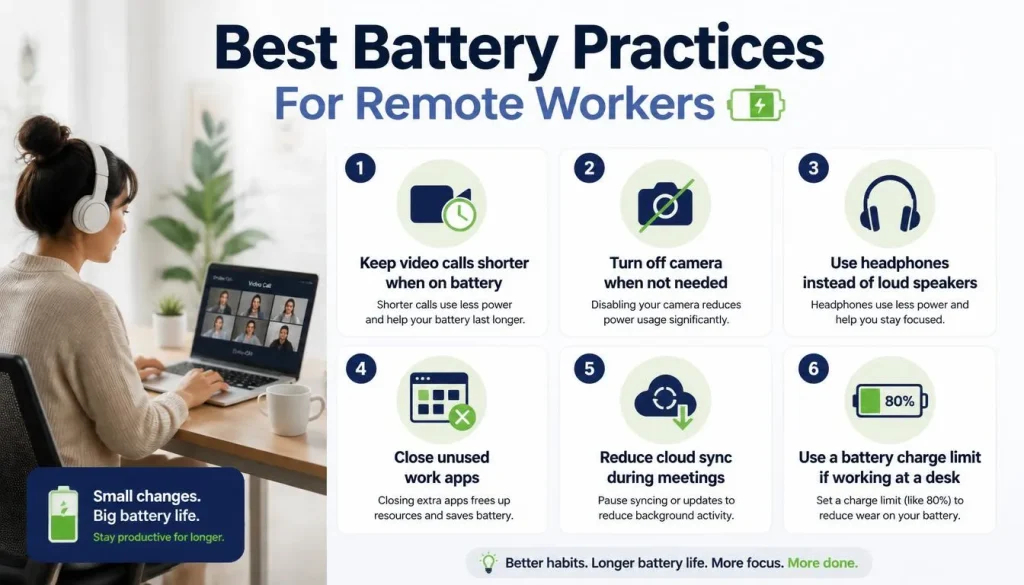
For Remote Workers
- Keep video calls shorter when on battery
- Turn off camera when not needed
- Use headphones instead of loud speakers
- Close unused work apps
- Reduce cloud sync during meetings
- Use a battery charge limit if working at a desk
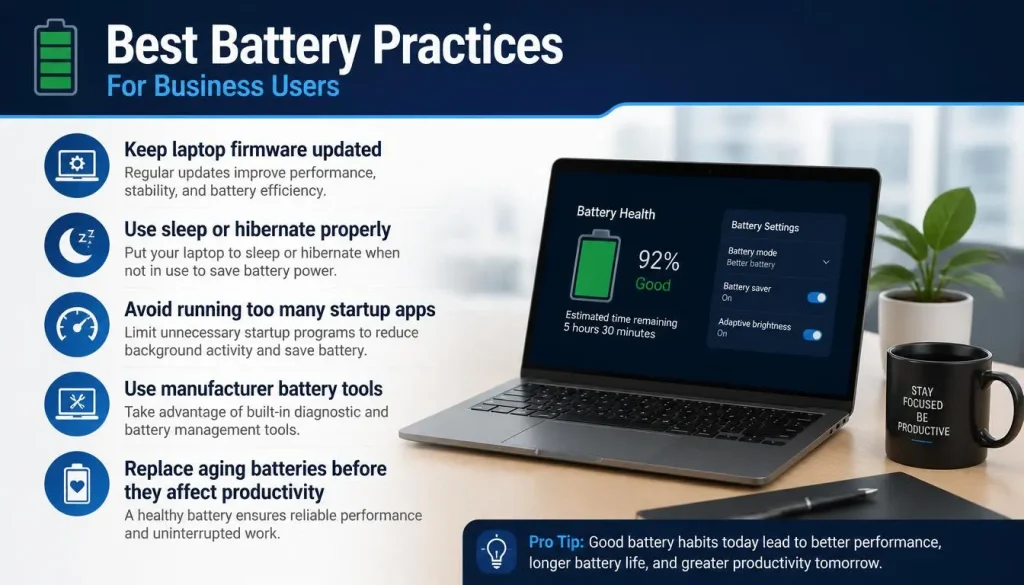
For Business Users
- Keep laptop firmware updated
- Use sleep or hibernate properly
- Avoid running too many startup apps
- Use manufacturer battery tools
- Replace aging batteries before they affect productivity
How to Check Laptop Battery Health
If your laptop still drains fast after optimization, check battery health.
Check Battery Health on Windows
You can generate a Windows battery report:
- Right-click Start
- Open Terminal or Command Prompt as administrator
- Type: powercfg /batteryreport
- Press Enter
- Open the battery report file
- Compare Design Capacity and Full Charge Capacity
If the Full Charge Capacity is much lower than Design Capacity, your battery has aged.
Check Battery Health on MacBook
On Mac:
- Open System Settings
- Go to Battery
- Click Battery Health
- Check condition and maximum capacity
If your Mac says Service Recommended, the battery may need replacement.
Common Mistakes That Reduce Laptop Battery Life
Avoid these battery-draining habits:
- Keeping brightness at 100% all the time
- Leaving too many apps open
- Using the laptop on a bed or pillow
- Letting the battery hit 0% often
- Keeping the laptop hot for long periods
- Ignoring battery saver mode
- Using cheap or weak chargers
- Running gaming mode for normal work
- Leaving Bluetooth on all day
- Never checking battery health
- Keeping too many startup apps enabled
Small mistakes can add up over time. Fixing them can improve both daily battery life and long-term battery health.
Laptop Battery Myths You Should Ignore
Myth 1: You Must Fully Drain the Battery Before Charging
This was more relevant for older battery types. Modern laptop batteries do not need frequent full discharge.
Myth 2: Charging Overnight Always Destroys the Battery
Modern laptops stop overcharging, but staying at 100% for long periods may still increase battery wear. Use a charge limit if available.
Myth 3: Battery Saver Makes the Laptop Useless
Battery Saver may reduce background activity and performance slightly, but it is very useful when you need longer battery life.
Myth 4: Every USB-C Charger Is the Same
USB-C chargers have different wattage levels. A phone charger may not provide enough power for a laptop.
Myth 5: A New Battery Is Always the First Solution
Sometimes settings, apps, heat, or software issues cause battery drain. Check those before replacing the battery.
When Should You Replace Your Laptop Battery?
Optimization can help, but it cannot fix a battery that is badly worn.
You may need a replacement battery if:
- Battery health is poor
- Full Charge Capacity is very low
- Laptop shuts down suddenly
- Battery drains in less than one hour
- Battery is swollen
- Laptop only works when plugged in
- The system says service is recommended
If the battery is swollen, stop using the laptop and contact professional support. A swollen battery can be dangerous.
Best Daily Routine to Extend Laptop Battery Life
Here is a simple daily routine:
Morning:
- Charge to around 80% for normal use
- Charge to 100% only if you need maximum runtime
During work:
- Use balanced or power-saving mode
- Keep brightness comfortable but not too high
- Close unused apps and tabs
- Keep the laptop on a hard surface
During meetings:
- Use headphones
- Turn off camera when possible
- Close background apps
- Keep the charger nearby for long calls
At night:
- Use hibernate or shutdown if not using the laptop
- Avoid leaving it in hot places
- Keep it unplugged or use charge limit if supported
Weekly:
- Check updates
- Review startup apps
- Clean unused browser extensions
- Check battery usage by app
FAQs About Extending Laptop Battery Life
What is the best way to extend laptop battery life?
The best way to extend laptop battery life is to lower screen brightness, turn on battery saver mode, close unused apps, avoid heat, keep battery levels between 20% and 80% when possible, and use a battery charge limit if your laptop supports it.
Should I charge my laptop to 100%?
You can charge your laptop to 100% when you need maximum battery life. For daily desk use, charging to around 80% is usually better for long-term battery health.
Is it okay to use a laptop while charging?
Yes, it is okay to use a laptop while charging. However, avoid heavy tasks if the laptop becomes very hot, because heat can affect battery health.
Why does my laptop battery drain so fast?
Your laptop battery may drain fast because of high brightness, too many apps, browser tabs, video calls, background processes, old drivers, overheating, or an aging battery.
Does Battery Saver mode really work?
Yes, Battery Saver mode can help by reducing background activity, lowering power use, and extending runtime when your laptop is unplugged.
Is 20% to 80% charging good for laptop batteries?
Yes, keeping the battery between 20% and 80% when possible can help reduce battery stress and support long-term battery health.
Should I shut down or sleep my laptop to save battery?
Sleep is good for short breaks, but hibernate or shutdown saves more battery if you will not use the laptop for several hours or overnight.
How do I check laptop battery health?
On Windows, use the powercfg /batteryreport command. On MacBook, check Battery Health in System Settings. Compare current capacity with original capacity to understand battery condition.
Can the wrong charger damage laptop battery life?
A low-quality or incorrect charger can cause charging problems, heat, slow charging, or performance issues. Always use the correct wattage and a reliable charger.
When should I replace my laptop battery?
Replace your battery if health is poor, runtime is extremely short, the laptop shuts down suddenly, the battery is swollen, or the system recommends service.
Conclusion
The best practices to extend laptop battery life are simple but powerful. You need to manage charging habits, reduce screen and app power usage, keep the laptop cool, use the correct charger, update software, and check battery health regularly.
For daily use, keep your battery between 20% and 80% when possible, turn on Battery Saver or Low Power Mode, close unused apps, and avoid heat. If your laptop still drains too fast after applying these steps, check the battery report or battery health settings. In some cases, replacing an old battery may be the best solution.
By following these laptop battery saving tips, you can make your laptop last longer on each charge and protect battery health for the future.

“Electronics aren’t just gadgets. They’re the invisible threads that connect our work, our play, and our world.”
I’m Julian Reed, and my obsession with tech started at age twelve, when I soldered a defunct gaming console back to life in my bedroom. That tiny green screen taught me that technology isn’t just a black box, it’s a tool you can master.
After fifteen years as a hardware engineer and a decade reviewing consumer tech, I’ve joined this team to cut through the jargon. Whether you’re building a high-end home theater or just need a laptop that won’t lag, I’m here to help you choose the gear that truly powers your life.



1 thought on “Best Practices to Extend Laptop Battery Life”