
If you’re wondering how to increase laptop battery life, start by lowering screen brightness, enabling battery optimization features, reducing background apps, updating drivers, and using efficient power settings. These simple adjustments can noticeably extend runtime while also helping preserve your battery’s long-term health.
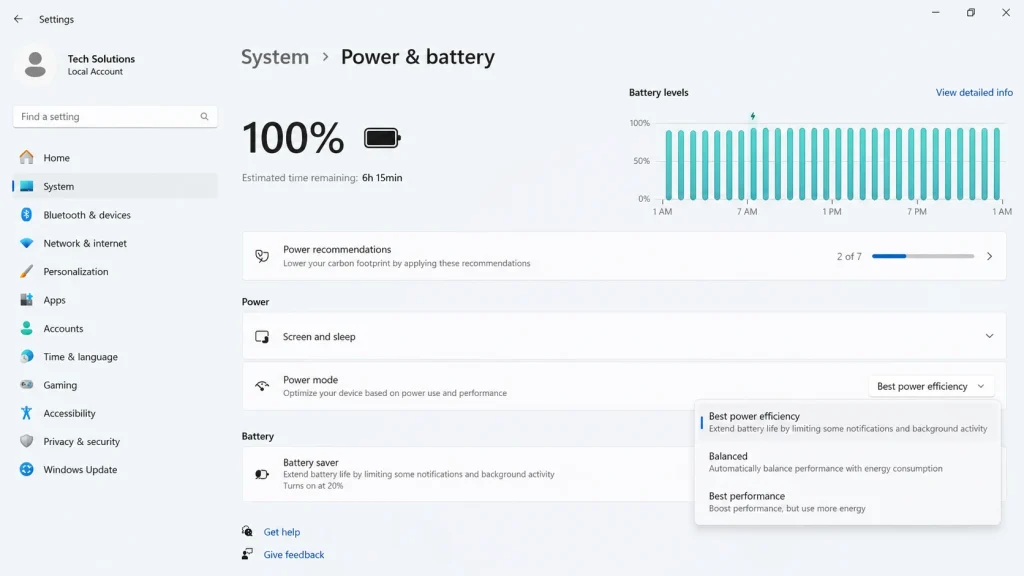
To increase laptop battery life immediately lower screen brightness to 50%, enable Battery Saver mode (Settings → System → Power & Battery), close unused background apps from Task Manager, and switch your power mode to “Best Power Efficiency.
Modern laptops are more powerful than ever, but many users still struggle with disappointing battery performance. Whether you’re working remotely, attending online classes, traveling, or gaming occasionally, running out of power at the wrong time can be frustrating.
The good news is that most battery drain isn’t caused by the battery itself. High display brightness, unnecessary startup apps, outdated drivers, poor charging habits, and inefficient power settings often consume more energy than necessary.
This guide explains exactly how to increase laptop battery life using practical methods that work on modern Windows laptops in 2026. You’ll also learn battery optimization techniques, common mistakes to avoid, and expert tips that help your battery stay healthy for years.
Why Laptop Battery Life Matters
A short battery life affects productivity, mobility, and even hardware longevity. Constantly searching for a power outlet limits where and how you work.
Hardware testing consistently shows that excessive heat, high CPU usage, maximum screen brightness, and continuous background activity significantly increase battery consumption.
Modern processors from Intel, AMD, and Qualcomm are far more efficient than previous generations, but software settings still determine how efficiently that hardware operates.
Improving laptop battery life offers several benefits:
- Longer working sessions away from chargers
- Better battery health over time
- Lower operating temperatures
- Less fan noise
- Improved portability
- Reduced power consumption
Fortunately, most improvements require only a few minutes to configure.
Best Solutions to Increase Laptop Battery Life
Enable Battery Optimization Mode
Best for: Anyone who wants instant improvements without installing extra software.
How to do it:
- Open Settings → System → Power & Battery.
- Enable Battery Saver or Recommended Power Mode.
- Choose Best Power Efficiency when unplugged.
Expected Result: Reduced background activity and noticeably longer battery runtime.
Reduce Display Brightness
Best for: Users who work indoors.
How to do it:
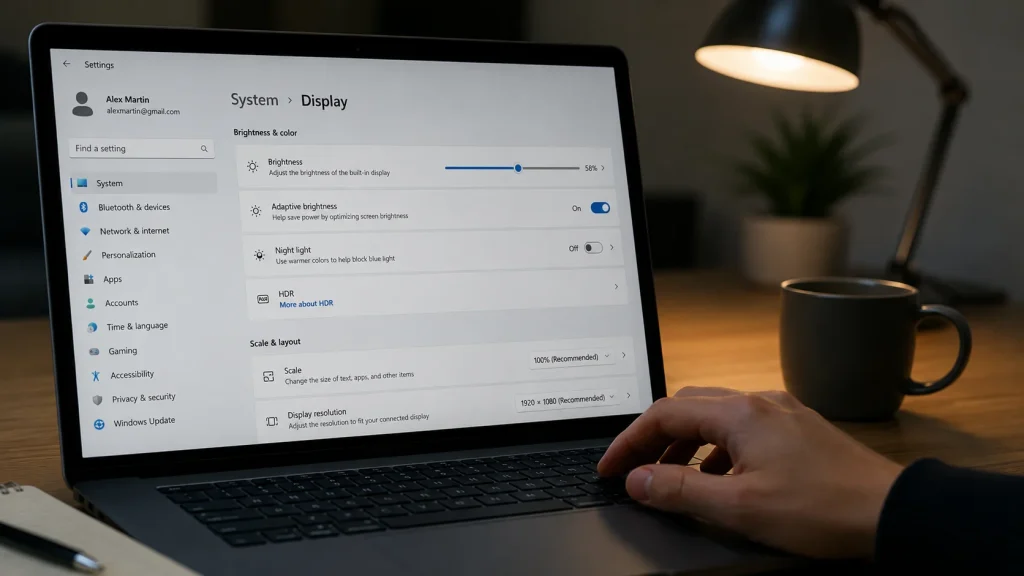
- Lower brightness to around 40–60%.
- Enable adaptive brightness if available.
- Reduce keyboard backlight brightness or disable it.
Expected Result: Lower display power consumption with minimal impact on usability.
Close Background Applications
Best for: Users experiencing unexplained battery drain.
How to do it:
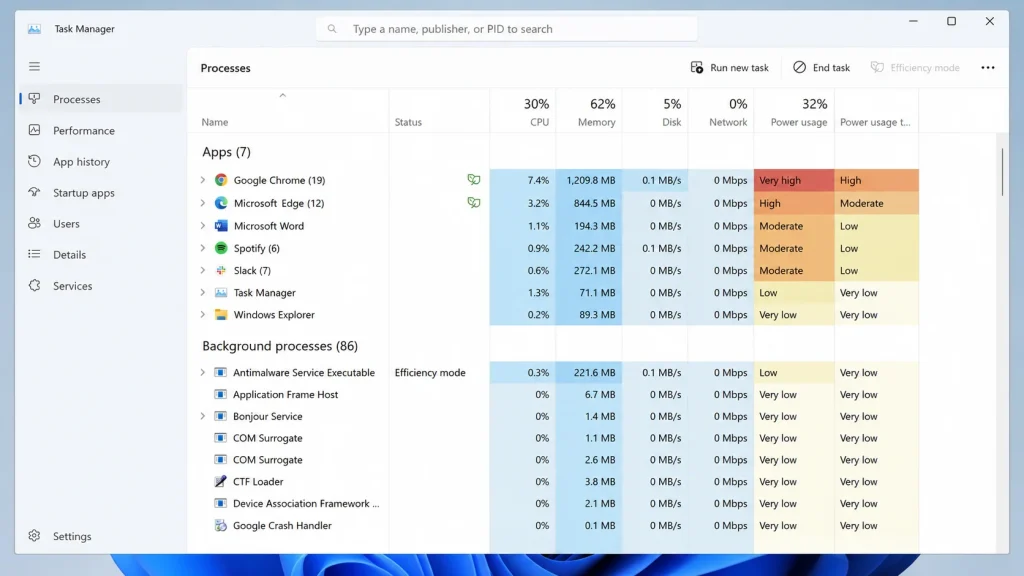
- Open Task Manager.
- Sort by CPU and Power Usage.
- Close apps you don’t currently need.
Expected Result: Lower processor workload and reduced battery usage.
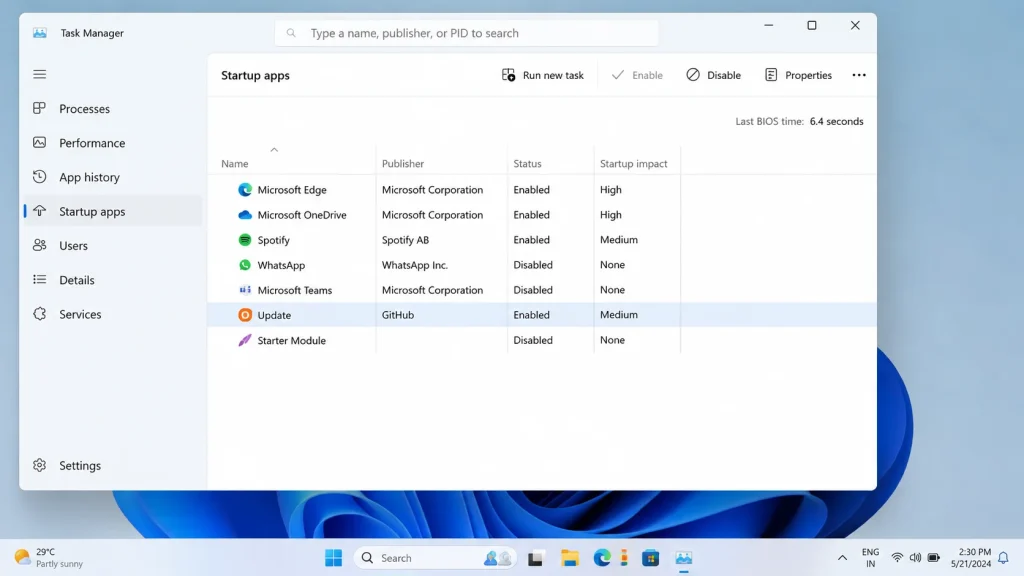
Optimize Startup Programs
Best for: Faster boot times and improved battery optimization.
How to do it:
- Open Task Manager.
- Select the Startup Apps tab.
- Disable unnecessary applications like launchers or update utilities.
Expected Result: Less memory usage and lower idle power consumption.
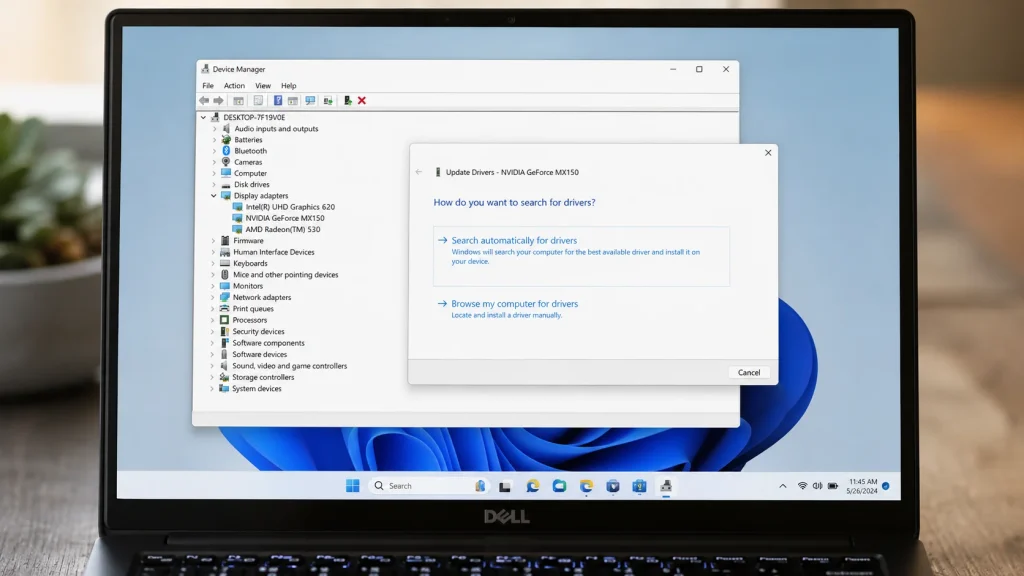
Update Drivers and BIOS
Best for: Users with older laptops or recent battery issues.
How to do it:
- Open Device Manager.
- Install the latest graphics, chipset, and power management drivers.
- Update BIOS using your laptop manufacturer’s official utility.
Expected Result: Improved hardware efficiency and better power management.
Use Battery Monitoring Tools
Best for: Advanced users tracking battery health.
How to do it:
- Install HWMonitor.
- Generate a Windows Battery Report using:
powercfg /batteryreport - Review battery wear level and charging history.
Expected Result: Better understanding of battery condition and optimization opportunities.
Disconnect Unnecessary Devices
Best for: Mobile users.
How to do it:
- Remove unused USB accessories.
- Turn off Bluetooth when not needed.
- Disable Wi-Fi during offline work.
Expected Result: Reduced background power consumption.
Adjust Display Refresh Rate
Best for: Users with high-refresh-rate displays (120Hz or higher).
How to do it:
- Open Settings → System → Display → Advanced Display.
- Change refresh rate from 120Hz or 144Hz down to 60Hz when unplugged.
- Switch back to high refresh rate only when needed for gaming or video.
Expected Result: Reduced GPU workload and noticeably longer battery runtime on high-refresh displays.
Enable Storage Sense and Manage Disk Activity
Best for: Users with traditional hard drives or heavy SSD usage.
How to do it:
- Open Settings → System → Storage → Storage Sense.
- Enable automatic cleanup of temporary files.
- Avoid running large file transfers or downloads on battery power.
Expected Result: Lower disk activity means less background power consumption during normal use.
Adjust Sleep and Hibernate Settings
Best for: Users who frequently step away from their laptop.
How to do it:
- Open Settings → System → Power & Battery → Screen and Sleep.
- Set screen off time to 2–3 minutes when unplugged.
- Enable Hibernate after 15–20 minutes of inactivity instead of Sleep for deeper power savings.
Expected Result: Significantly reduced power draw during idle periods, especially on longer breaks.
Use a Lightweight Browser and Limit Open Tabs
Best for: Users who spend most of their time browsing the internet.
How to do it:
- Switch to Microsoft Edge or Firefox instead of Chrome when on battery power.
- Limit open tabs to 5–10 at a time.
- Enable Edge’s built-in “Efficiency Mode” under Settings → System when unplugged.
Expected Result: Lower RAM and CPU usage from the browser, one of the biggest hidden battery drains on most laptops.
Step-by-Step Guide
- Fully update Windows and install the latest drivers.
- Switch Windows Power Mode to Best Power Efficiency.
- Lower display brightness below 60%.
- Set screen timeout to 3–5 minutes.
- Configure sleep mode after 10–15 minutes of inactivity.
- Disable unnecessary startup applications.
- Use HWMonitor or Windows Battery Report to monitor battery health.
- Recharge before battery reaches extremely low levels and avoid prolonged exposure to excessive heat.
Following these steps provides an effective strategy for how to improve laptop battery life while maintaining excellent performance.
Expert Tips and Common Mistakes
Pro Tips
- Use Battery Saver automatically below 30%.
- Keep Windows and drivers updated regularly.
- Avoid using maximum brightness unless necessary.
- Use dark mode on OLED laptops to reduce power usage.
- Maintain good airflow to reduce battery-draining heat.
Common Mistakes to Avoid
- Keeping the laptop plugged in continuously under heavy heat. High temperatures accelerate battery aging.
- Running unnecessary background software. Hidden apps quietly consume CPU resources.
- Ignoring battery health reports. Monitoring tools reveal declining battery capacity early.
- Using High Performance mode constantly. It increases power consumption even during light tasks.
FAQs on How to Increase Laptop Battery Life
How can I increase laptop battery life quickly?
Lower the screen brightness, enable Battery Saver, close unnecessary background apps, disconnect unused devices, and use the Best Power Efficiency power mode. These changes usually provide immediate improvements.
What is the best battery optimization method?
Combining Windows Battery Saver, efficient power settings, reduced brightness, and regular driver updates provides the most effective battery optimization for most users.
Does charging to 100% damage a laptop battery?
Modern laptops include charging management systems that protect batteries. However, keeping the battery at full charge under high temperatures for extended periods may reduce long-term lifespan.
How do I make my laptop battery last longer every day?
Reduce screen brightness, avoid unnecessary multitasking, disable startup apps, use sleep mode instead of leaving the laptop idle, and keep the cooling vents clean.
Can software improve laptop battery life?
Yes. Windows Power Management, Battery Saver, updated drivers, and monitoring tools like HWMonitor help reduce battery usage and improve efficiency.
Why is my battery draining so fast?
Common causes include high display brightness, demanding applications, outdated drivers, browser tabs, poor ventilation, and aging batteries.
Conclusion
Learning how to increase laptop battery life doesn’t require expensive upgrades. Most improvements come from smarter settings, better charging habits, efficient software management, and regular maintenance.
Battery optimization is an ongoing process rather than a one-time fix. By reducing unnecessary power consumption, monitoring battery health, and using modern Windows power management features, you can significantly extend runtime while preserving long-term battery capacity.
Start today by lowering your screen brightness, enabling Battery Saver, and reviewing your startup applications. These small changes can make a noticeable difference in everyday laptop use.

“Electronics aren’t just gadgets. They’re the invisible threads that connect our work, our play, and our world.”
I’m Julian Reed, and my obsession with tech started at age twelve, when I soldered a defunct gaming console back to life in my bedroom. That tiny green screen taught me that technology isn’t just a black box, it’s a tool you can master.
After fifteen years as a hardware engineer and a decade reviewing consumer tech, I’ve joined this team to cut through the jargon. Whether you’re building a high-end home theater or just need a laptop that won’t lag, I’m here to help you choose the gear that truly powers your life.


