

If you’re asking, “why is my laptop so hot?”, the most common causes include dust buildup, blocked vents, demanding software, aging hardware, and poor airflow. A laptop running hot occasionally is normal, but excessive heat can reduce performance, shorten component lifespan, and even damage internal hardware if left unchecked.
Laptops are more powerful than ever in 2026. Modern devices handle AI-powered applications, 4K video editing, gaming, and multitasking with ease. However, all that power generates heat. If your laptop gets hot during normal use, it may be signaling a cooling problem that needs attention.
Many users notice their laptop hot to touch after streaming videos, attending virtual meetings, or running multiple browser tabs. Others find their laptop heating up even while performing basic tasks. While some warmth is expected, excessive temperatures should never be ignored.
Understanding why your laptop is hot can help you prevent costly repairs, improve performance, and extend your device’s lifespan. In this guide, you’ll learn the most common causes of overheating, warning signs to watch for, proven fixes, and expert tips to keep your laptop cool and efficient.
Why Is My Laptop So Hot? Understanding the Problem
A laptop generates heat whenever its processor, graphics chip, memory, and storage devices are active. Manufacturers design cooling systems to manage this heat, but several factors can overwhelm these systems.
When a laptop running hot cannot efficiently remove heat, temperatures rise inside the chassis. This can lead to performance throttling, battery degradation, random shutdowns, and long-term hardware damage.
Common signs your laptop is overheating include:
- Loud or constantly spinning fans
- Sluggish performance
- Unexpected restarts
- Hot keyboard or palm rest
- Excessive heat near air vents
- Reduced battery life
- Frequent application crashes
A laptop very hot to touch should always be investigated. Studies from hardware manufacturers show that sustained high temperatures can significantly reduce the lifespan of processors, batteries, and SSDs.
Gaming laptops, ultrathin notebooks, and older devices are especially vulnerable because they often operate in tighter thermal conditions.
Ignoring heat problems may lead to expensive repairs later. Fortunately, most overheating issues can be fixed with simple maintenance and smarter usage habits.
Best Solutions for a Laptop Heating Up
If you’re wondering why does my laptop get so hot, these practical solutions can help reduce temperatures and improve performance.
1. Clean Dust from Air Vents
Pros
- Improves airflow immediately
- Low cost
Cons
- Requires regular maintenance
How to do it:
- Power off your laptop completely and unplug it from any power source
- Purchase a can of compressed air from any electronics store
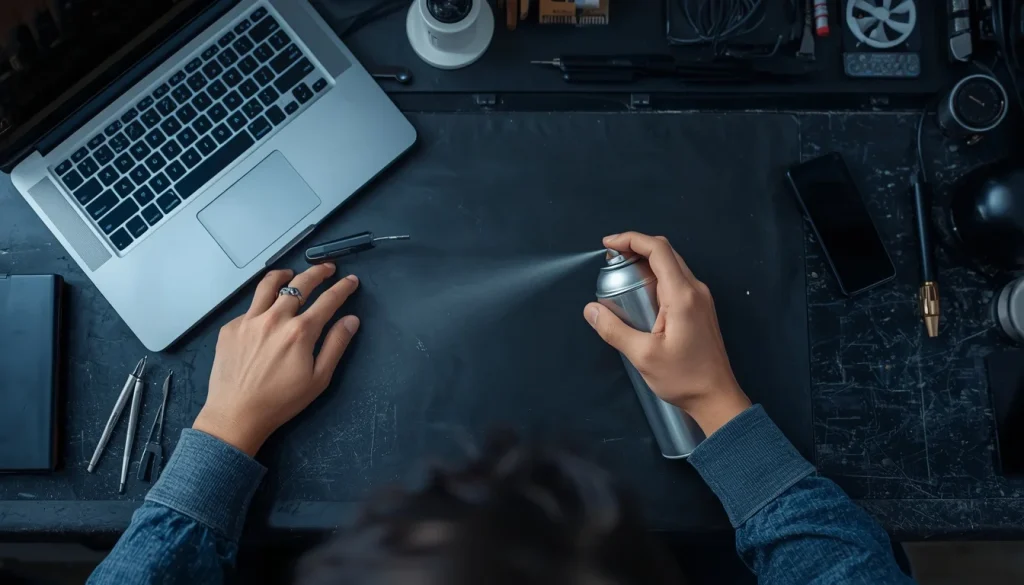
- Hold the can upright and spray short 2-second bursts into all visible vents
- Work from the intake vents on the bottom toward the exhaust vents on the sides or rear
- Repeat this process every 3 to 6 months to maintain optimal airflow
Dust is one of the biggest reasons a laptop gets hot. Compressed air can remove buildup from cooling vents and fans.
2. Use a Laptop Cooling Pad
Pros
- Better airflow
- Affordable accessory
Cons
- Extra item to carry
Many of the best gadgets for laptop users include cooling pads with adjustable fan speeds.
3. Close Resource-Heavy Applications
Pros
- Instant temperature reduction
- Improves battery life
Cons
- Limits multitasking
How to do it:
- Press Ctrl + Shift + Esc to open Task Manager
- Click the CPU column header to sort processes by usage (highest first)
- Right-click any process using more than 20% CPU that you do not recognize or need
- Select End Task to close it immediately
- Go to the Startup tab and disable programs you do not need running at boot
Check Task Manager for apps consuming excessive CPU or memory.
4. Update Drivers and Software
Pros
- Better efficiency
- Improved compatibility
Cons
- Occasional update issues
Modern smart devices and operating systems often include thermal optimization improvements.
5. Avoid Soft Surfaces
Pros
- Free solution
- Improves ventilation
Cons
- Requires workspace adjustment
Beds, couches, and blankets block airflow and make a laptop too hot.
6. Upgrade Aging Components
Pros
- Better performance
- Improved efficiency
Cons
- Additional cost
Replacing old thermal paste or upgrading storage can help older systems stay cooler.
7. Optimize Power Settings
Pros
- Lower temperatures
- Extended battery life
Cons
- Slightly reduced performance
How to do it:
- Press Windows + R, type powercfg.cpl, and press Enter
- Select Balanced (Recommended) from the list of power plans
- Click Change plan settings, then Change advanced power settings
- Expand Processor power management and then Maximum processor state
- Set the value to 80% for everyday use to reduce heat without noticeable performance loss
This is especially useful for budget electronics and older laptops.
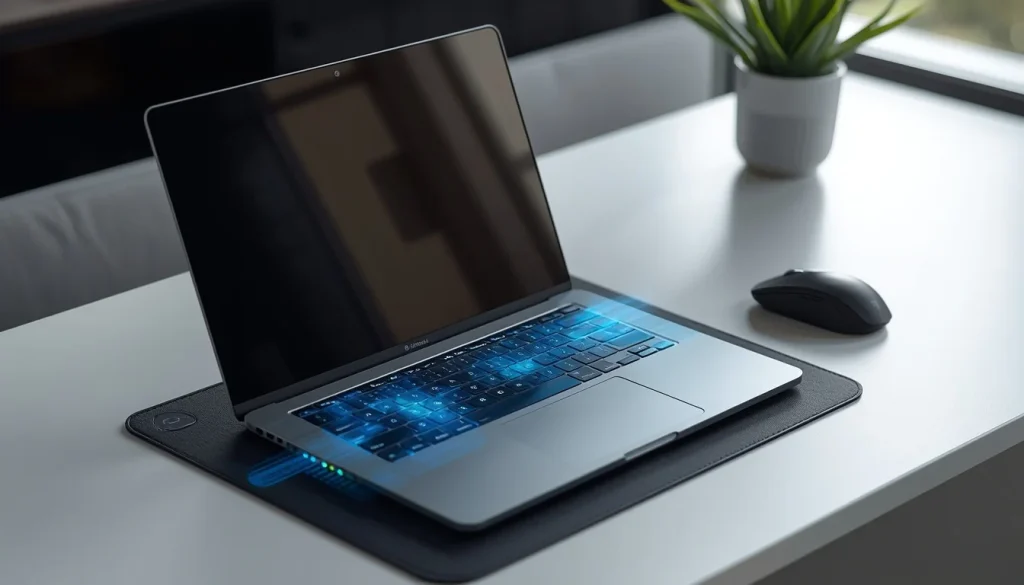
Step-by-Step Guide to Cool Down an Overheating Laptop
Step 1
Place the laptop on a hard, flat surface.
Step 2
Inspect all vents for dust accumulation.
Step 3
Use compressed air to clean cooling openings.
Step 4
Close unnecessary applications and browser tabs.
Step 5
Check CPU usage through Task Manager.
Step 6
Install operating system and driver updates.
Step 7
Adjust power settings to balanced mode.
Step 8
Test temperatures using monitoring software and verify improvements.
Following these steps can significantly reduce heat levels and improve overall system responsiveness. Most users notice immediate improvements after cleaning vents and reducing background processes.
Expert Tips & Common Mistakes
Pro Tips
- Clean cooling vents every 3-6 months.
- Monitor temperatures regularly using diagnostic software.
- Use cooling pads during gaming or intensive workloads.
- Keep software and firmware updated.
- Invest in quality accessories and tech essentials that improve airflow.
Common Mistakes to Avoid
- Using laptops on beds or blankets.
- Ignoring loud fan noise.
- Blocking side or rear ventilation ports.
- Running demanding programs continuously without breaks.
A laptop hot to touch is often a warning sign rather than a normal condition. Small preventive measures today can save you from expensive repairs later.
Proper thermal management is part of good device design and ownership. Taking a proactive approach helps maintain performance and reliability.

FAQs
Why is my laptop so hot even when I’m not using it?
Background applications, software updates, malware, and startup programs can consume resources even when the laptop appears idle. Checking Task Manager often reveals hidden activity causing excess heat.
Why does my laptop get so hot while charging?
Charging naturally generates heat. However, excessive heat may indicate battery wear, poor ventilation, or simultaneous heavy workload usage.
Is it normal for a laptop to get hot while gaming?
Yes. Gaming stresses both the CPU and GPU. Moderate heat is expected, but temperatures that cause throttling or shutdowns require attention.
Can a laptop running hot damage internal components?
Yes. Prolonged overheating can shorten the lifespan of processors, batteries, storage drives, and other sensitive components.
Why is my laptop hot underneath?
Most cooling systems exhaust heat through the bottom or sides. Blocked vents or dust buildup can make the underside feel excessively hot.
How can I tell if my laptop is overheating?
Warning signs include loud fans, slow performance, random shutdowns, application crashes, and a laptop very hot to touch.
Should I replace my laptop if it keeps overheating?
Not necessarily. Cleaning the cooling system, replacing thermal paste, updating software, or using a cooling pad often resolves the issue without needing a new device.
Did You Know? According to hardware research, sustained CPU temperatures above 90°C can reduce processor lifespan by up to 30% over time. Regular maintenance is not optional — it is essential for protecting your investment.
Conclusion
If you’ve been wondering why is my laptop so hot, the answer usually comes down to airflow restrictions, dust accumulation, heavy workloads, outdated software, or aging hardware. While occasional warmth is normal, a laptop heating up excessively should never be ignored.
Taking care of your laptop’s cooling system today means fewer problems, better performance, and a longer lifespan tomorrow. Start with the simplest fixes first — clean the vents, adjust your power settings, and monitor your temperatures regularly.
By cleaning vents, optimizing software, monitoring temperatures, and improving airflow, you can dramatically reduce heat and improve system longevity. These simple steps help prevent performance throttling, protect valuable hardware, and create a better user experience.
Whether your laptop gets hot during gaming, work, or everyday browsing, proactive maintenance remains the best defense against overheating. Try these proven fixes today and keep your device running cooler, faster, and more reliably in 2026 and beyond.
If overheating continues after trying all solutions in this guide, consider visiting a certified laptop repair technician. In many cases, a professional cleaning and thermal paste replacement can completely restore normal operating temperatures at a fraction of the cost of a new device.

“Electronics aren’t just gadgets. They’re the invisible threads that connect our work, our play, and our world.”
I’m Julian Reed, and my obsession with tech started at age twelve, when I soldered a defunct gaming console back to life in my bedroom. That tiny green screen taught me that technology isn’t just a black box, it’s a tool you can master.
After fifteen years as a hardware engineer and a decade reviewing consumer tech, I’ve joined this team to cut through the jargon. Whether you’re building a high-end home theater or just need a laptop that won’t lag, I’m here to help you choose the gear that truly powers your life.


