
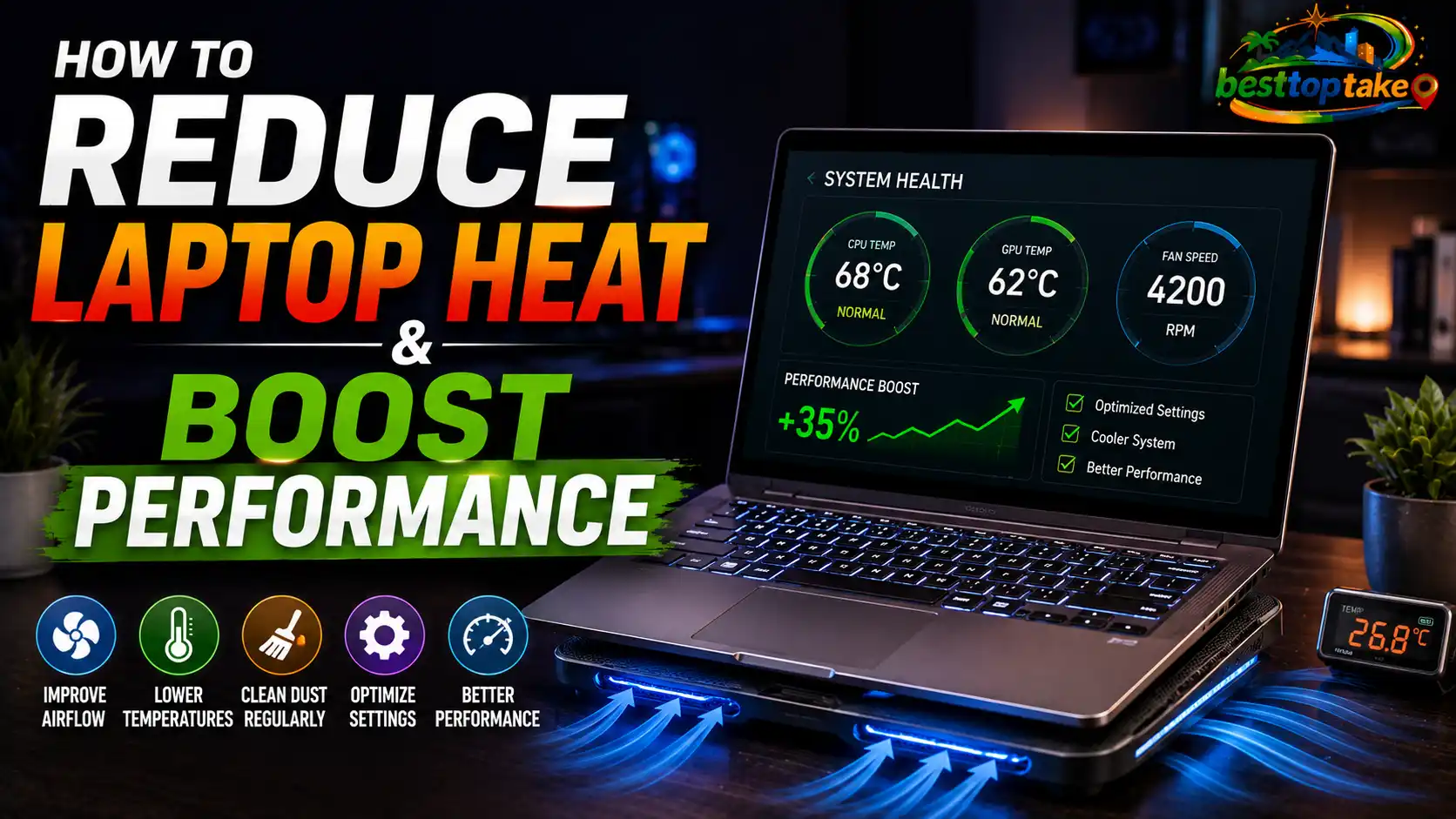
Laptops are more powerful than ever in 2026, but overheating is still one of the biggest problems users face. Whether you’re gaming, editing videos, attending online classes, or multitasking with AI-powered apps, excessive laptop heat can slow performance, drain battery life, damage internal components, and even shorten your device’s lifespan.
If your laptop feels hot to the touch, the fan runs loudly all the time, or apps suddenly lag during normal use, you’re not alone. Modern slim laptops pack high-performance processors and GPUs into compact designs, which often limits airflow. Add dust buildup, poor ventilation, outdated drivers, or demanding software, and heat problems quickly become frustrating.
The good news is that learning how to reduce laptop heat doesn’t require advanced technical skills. With the right cooling techniques, smart device setup, maintenance habits, and performance optimization strategies, you can dramatically lower temperatures and improve your laptop’s speed and reliability.
In this guide, you’ll learn the most effective ways to reduce laptop heat, optimize airflow, improve energy efficiency, choose the right cooling accessories, and avoid common mistakes that make overheating worse.
Why Laptop Overheating Matters
Laptop overheating is more than just an inconvenience. Excess heat affects nearly every part of your device, including battery health, processor performance, storage reliability, and overall responsiveness.
According to reports from trusted tech sources like CNET and PCMag, sustained high temperatures can trigger thermal throttling. This safety feature automatically slows down your CPU and GPU to prevent damage, which causes lag, FPS drops, freezing, and reduced multitasking performance.
Common signs of overheating include:
- Loud or constantly spinning fans
- Hot keyboard or bottom panel
- Sudden shutdowns or restarts
- Reduced battery life
- Slow application performance
- Screen freezing during gaming or video editing
Modern AI-powered laptops and gaming systems generate more heat because they process heavier workloads. Applications using real-time AI tools, 4K editing, cloud synchronization, and smart home integration platforms continuously stress laptop hardware.
Poor cooling can also damage internal components over time. Lithium-ion batteries degrade faster under high temperatures, and SSD performance may drop during prolonged heat exposure.
Many users unknowingly worsen the issue by:
- Using laptops on beds or couches
- Blocking ventilation ports
- Running dozens of browser tabs
- Ignoring dust buildup
- Charging constantly at 100%
Understanding these problems is the first step toward creating a cooler, more efficient electronics setup.
Best Ways to Reduce Laptop Heat Effectively
Reducing laptop heat requires a mix of hardware care, airflow optimization, and smart usage habits.
1. Use a Cooling Pad
Cooling pads improve airflow underneath your laptop and help dissipate heat faster.
Pros:
- Better airflow
- Reduced surface temperatures
- Helpful for gaming laptops
Cons:
- Extra accessory to carry
- Cheap models can be noisy
Trusted brands like Cooler Master, Thermaltake, and KLIM offer reliable cooling solutions.
2. Clean Dust from Vents and Fans
Dust buildup blocks airflow and traps heat inside the laptop.
Use:
- Compressed air
- Soft electronics brush
- Anti-static cleaning kit
Cleaning every 3–6 months can significantly improve thermal performance and energy efficiency.
3. Optimize Power Settings
Windows and macOS both allow performance optimization through power management.
Recommended adjustments:
- Enable balanced mode
- Lower maximum processor state to 95%
- Reduce background startup apps
- Disable unnecessary animations
This decreases CPU strain and lowers operating temperatures.
4. Avoid Soft Surfaces
Beds, blankets, and cushions block ventilation systems.
Always place your laptop on:
- A desk
- Laptop stand
- Flat cooling surface
Proper airflow is critical for modern smart devices and thin ultrabooks.
5. Update Drivers and BIOS
Manufacturers regularly release thermal management improvements.
Check updates from:
- Dell
- HP
- Lenovo
- ASUS
- Acer
- Apple
Updated firmware can improve fan curves, battery optimization, and cooling behavior.
6. Replace Thermal Paste
Older laptops may suffer from dried thermal paste between the CPU and heatsink.
Replacing thermal paste:
- Improves heat transfer
- Lowers CPU temperatures
- Enhances gaming stability
High-quality options include Arctic MX-6 and Thermal Grizzly Kryonaut.
7. Reduce Background Workloads
Too many apps running simultaneously increase heat output.
Close:
- Unused browser tabs
- Cloud sync apps
- Heavy startup programs
- Idle gaming launchers
AI-powered applications and browser extensions can quietly consume resources in the background.
Step-by-Step Guide
- Shut down your laptop completely.
- Disconnect chargers and accessories.
- Inspect air vents for dust buildup.
- Use compressed air to clean cooling vents.
- Place the laptop on a hard, flat surface.
- Adjust system power settings to balanced mode.
- Update GPU, chipset, and BIOS drivers.
- Monitor temperatures using tools like HWMonitor or Core Temp.
Following these steps weekly helps maintain stable temperatures and better long-term performance.
Expert Tips & Common Mistakes
Pro Tips
- Use a laptop stand to improve airflow underneath the device.
- Enable battery optimization settings for improved energy efficiency.
- Invest in USB-C cooling accessories compatible with modern electronics setups.
- Monitor temperatures regularly using trusted software tools.
- Choose eco-friendly electronics with efficient cooling systems and AI thermal management.
Many 2026 laptops now include:
- AI-powered fan optimization
- Smart thermal sensors
- Vapor chamber cooling
- Advanced wireless heat management
- Intelligent battery charging limits
Common Mistakes to Avoid
- Blocking air vents while gaming
- Using laptops on beds or couches
- Ignoring loud fan noise
- Running demanding apps while charging continuously
Gamers often make the mistake of enabling maximum performance mode at all times, which creates unnecessary heat during light workloads.
Another major issue is neglecting BIOS updates. Manufacturers frequently improve thermal control through firmware updates.
Laptop Cooling Products and Buying Guide
Choosing the right cooling accessories can dramatically improve thermal performance.
Cooling Pads
Price Range: $20–$70
Best For: Gaming laptops and heavy multitasking
Top options:
- Cooler Master Notepal
- KLIM Wind
- Thermaltake Massive
These provide excellent airflow and additional USB connectivity.
Laptop Stands
Price Range: $15–$60
Best For: Office productivity and remote work
Benefits:
- Better ergonomics
- Improved ventilation
- Cleaner workspace setup
Aluminum stands also help dissipate heat naturally.
External Vacuum Coolers
Price Range: $25–$80
Best For: Older gaming laptops
These attach near exhaust vents and actively pull hot air out.
Thermal Paste Kits
Price Range: $8–$25
Best For: Advanced users
Recommended if your laptop is over 2–3 years old and overheating frequently.
Smart Cooling Software
Some brands offer AI-powered thermal software that automatically adjusts fan speeds and power delivery.
Examples include:
- ASUS Armoury Crate
- Lenovo Vantage
- Dell Power Manager
These tools improve performance optimization without requiring manual tuning.
For buying advice and testing comparisons, trusted resources include:
FAQs on How to Reduce Laptop Heat and Boost Performance
How to reduce laptop heat while gaming?
Use a cooling pad, lower graphics settings, clean vents regularly, and avoid gaming on soft surfaces. Updating GPU drivers and limiting background applications also helps reduce temperatures during long gaming sessions.
Is laptop overheating dangerous?
Yes. Excessive heat can damage internal components, reduce battery lifespan, trigger thermal throttling, and cause sudden shutdowns. Long-term overheating may permanently affect CPU and GPU performance.
Why does my laptop get hot even when idle?
Background apps, malware, cloud syncing, outdated drivers, or dust buildup may cause unnecessary CPU activity. Check Task Manager or Activity Monitor to identify resource-heavy processes.
Does a cooling pad really work?
Yes. Quality cooling pads improve airflow and can reduce laptop temperatures by several degrees, especially during gaming, video editing, or AI-related workloads.
How often should I clean my laptop fan?
Most users should clean laptop vents and fans every 3–6 months. Dusty environments may require more frequent maintenance.
Can thermal paste reduce laptop heat?
Replacing old thermal paste can significantly lower CPU temperatures, especially in older laptops where the original paste has dried out.
What temperature is too hot for a laptop?
Most laptops should stay below 85°C during heavy use. Temperatures consistently above 90°C may indicate cooling problems or poor airflow.
Conclusion
Knowing how to reduce laptop heat is essential for maintaining fast performance, better battery life, and long-term device reliability. Overheating affects everything from gaming FPS and productivity to hardware durability and energy efficiency.
Simple upgrades like cleaning dust, improving airflow, using cooling pads, and optimizing power settings can dramatically lower temperatures. Modern 2026 innovations such as AI-powered cooling systems, smart thermal management, and eco-friendly electronics also make it easier than ever to maintain a cooler laptop setup.
Whether you use your laptop for gaming, remote work, streaming, or creative projects, taking proactive steps today can prevent costly repairs and frustrating slowdowns later.
For even better performance optimization, consider exploring related topics like laptop fan noise fixes, battery health improvement tips, and smart electronics setup guides to build a faster, cooler, and more efficient tech workspace.

“Electronics aren’t just gadgets. They’re the invisible threads that connect our work, our play, and our world.”
I’m Julian Reed, and my obsession with tech started at age twelve, when I soldered a defunct gaming console back to life in my bedroom. That tiny green screen taught me that technology isn’t just a black box, it’s a tool you can master.
After fifteen years as a hardware engineer and a decade reviewing consumer tech, I’ve joined this team to cut through the jargon. Whether you’re building a high-end home theater or just need a laptop that won’t lag, I’m here to help you choose the gear that truly powers your life.


