
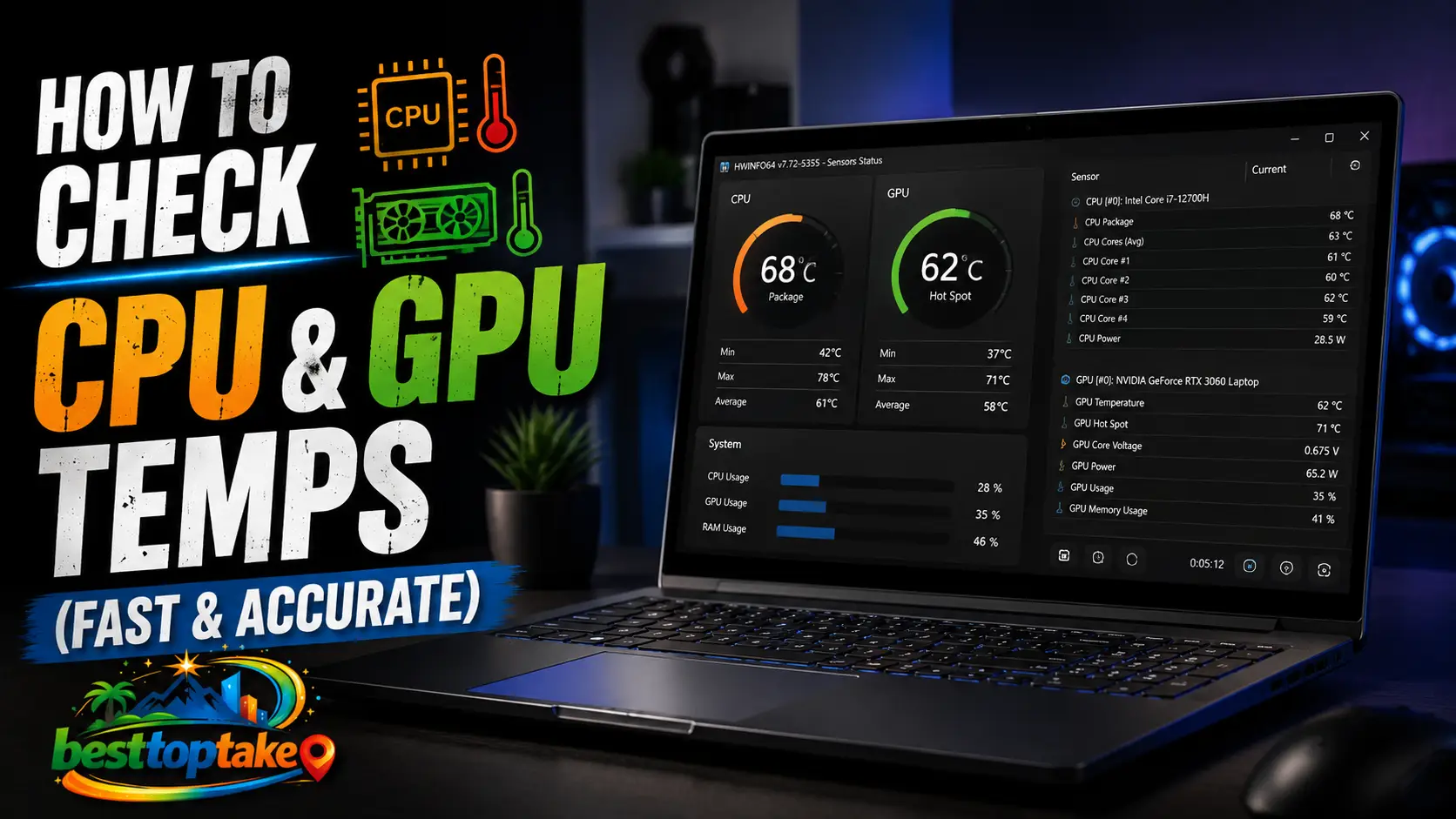
You can check your CPU and GPU temperatures using free tools like HWMonitor, MSI Afterburner, or Core Temp for Windows, TG Pro for Mac, or built‑in overlays in gaming software. For a quick check, reboot into your BIOS/UEFI to see CPU temp. Most CPUs run safely under 85°C, GPUs under 90°C during heavy loads.
Modern PCs are powerful, but heat is their silent enemy. You might notice sudden game stutters, unexpected shutdowns, or fan noise like a jet engine. These are classic signs of overheating CPUs and GPUs. Without knowing your actual temperatures, you’re flying blind and that can shorten your hardware’s life or cause crashes at the worst moment.
In this guide, you’ll learn the easiest, most reliable ways to monitor your CPU and GPU temperatures on Windows and Mac. We’ll cover free software, built‑in tools, and pro tips to keep your rig cool and stable. By the end, you’ll never wonder “is my PC too hot?” again.
Why Checking Your CPU & GPU Temps Matters (Don’t Ignore It)
Every electronic component generates heat. Your CPU (central processor) and GPU (graphics card) are the two hottest runners in your system. When they overheat, they automatically slow down (thermal throttling) to protect themselves. That means lower FPS in games, longer video renders, and random blue screens.
According to a 2025 survey by Puget Systems, over 32% of unexplained PC crashes trace back to overheating CPUs or GPUs. Worse, sustained high temperatures (above 90°C for CPUs, 95°C for GPUs) can permanently degrade silicon, cutting your hardware’s lifespan by years.
Common pain points:
- You installed a new game, but after 20 minutes it becomes a slideshow.
- Your PC shuts off while editing video — no warning, no error.
- You hear fans spinning at maximum even when doing simple tasks like browsing.
Checking temperatures is the first diagnostic step. It tells you if your cooler is working, if your thermal paste has dried out, or if your case airflow is poor. And it takes less than two minutes.
“Heat is the number one killer of electronics. Most gamers and creators don’t realize their CPU or GPU is throttling until performance tanks. Monitoring temps should be as routine as checking your car’s dashboard.”— Steve Burke, Founder of Gamers Nexus (hardware testing expert)
Best Tools & Methods to Check CPU & GPU Temps (Windows & Mac)
Here are 7 reliable ways to monitor temperatures, from quick glances to in‑depth logging. Choose based on your comfort level and operating system.
- HWMonitor (Windows – Free)
Pros: Shows every sensor (CPU core, GPU, SSD, motherboard). No install required (portable version). Cons: No in‑game overlay.
Best for: Detailed system check. - MSI Afterburner + RivaTuner (Windows – Free)
Pros: Legendary in‑game overlay with CPU/GPU temp, usage, FPS. Supports overclocking. Cons: Slightly complex setup first time.
Best for: Gamers who want on‑screen data while playing. - Core Temp (Windows – Free)
Pros: Lightweight, shows each CPU core’s temp in system tray. Cons: GPU temp not shown.
Best for: Quick CPU‑only monitoring. - HWiNFO64 (Windows – Free)
Pros: Most detailed sensor data. Can log temps to a file. Cons: Overwhelming for beginners.
Best for: Enthusiasts and troubleshooting. - Open Hardware Monitor (Windows/Linux – Free)
Pros: Open source, simple interface, supports fan speeds. Cons: Development slower than others.
Best for: Privacy‑conscious users. - TG Pro (Mac – Paid, free trial)
Pros: Shows CPU/GPU die temps, controls Mac fans manually. Cons: Not free for full features.
Best for: Mac users with Intel or Apple Silicon. - BIOS/UEFI (No OS needed – Free)
Pros: Most accurate idle temperature. Works even if Windows won’t boot. Cons: Only shows idle temps (no load), and you must reboot.
Best for: Initial hardware check or if your PC crashes immediately.
2026 tip: New AI‑powered monitoring tools like Fan Control v200 (free) can automatically adjust fan curves based on GPU and CPU temps simultaneously — much smarter than BIOS presets.
Step‑by‑Step: How to Check Temps While Gaming or Working
Follow these 8 easy steps to get real‑time temperatures on Windows using the most popular method: MSI Afterburner.
- Download MSI Afterburner from the official MSI website (free). Install it.
- Download RivaTuner Statistics Server (usually bundled – say yes to install).
- Open MSI Afterburner – you’ll see a main window with sliders for core clock, memory clock, and fan speed.
- Click the Settings icon (gear) → go to the Monitoring tab.
- In the “Active hardware monitoring graphs” list, find “GPU temperature” and “CPU temperature” (or “CPU1 temperature”).
- Click each one, then check “Show in On‑Screen Display” below.
- (Optional) Enable “CPU usage” and “Framerate” – helpful for gaming.
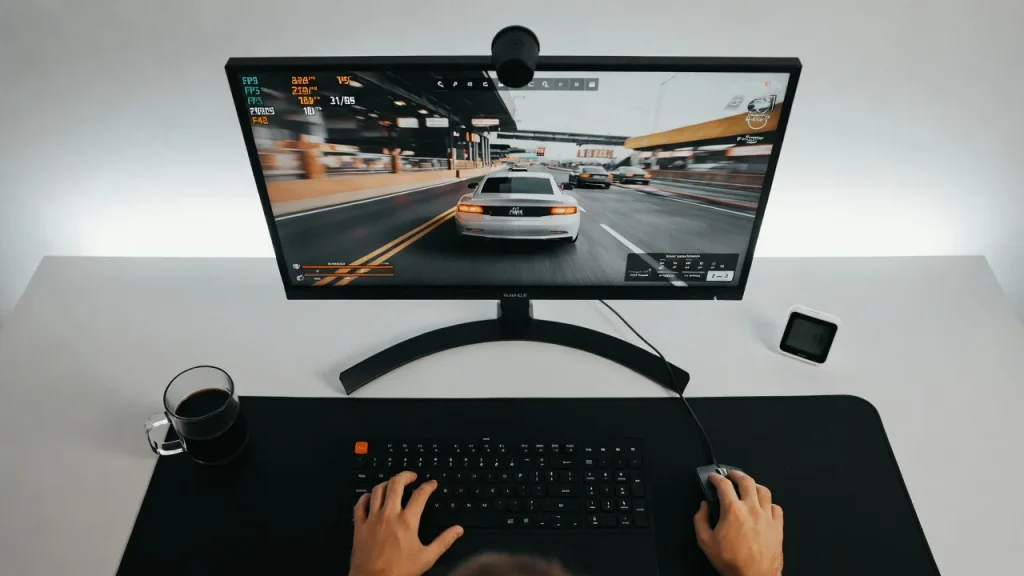
- Click OK, then launch any game or heavy app. The temperature overlay will appear in a corner (default top‑left).
For a quick check without any software:
- Restart your PC and press Del, F2, or F10 (varies by motherboard) to enter BIOS/UEFI.
- Look for “Hardware Monitor,” “PC Health Status,” or “H/W Monitor” – CPU temperature is displayed there.
Expert Tips & Common Mistakes (Avoid Killing Your Hardware)
Pro Tips:
- Set a temperature warning – In HWMonitor or Afterburner, enable an alert (sound or notification) when CPU >85°C or GPU >90°C.
- Log temps during a long session – Use HWiNFO64’s logging feature to save a CSV file. Review it later to see if overheating happens after 2 hours.
- Check idle vs. load – At idle (desktop, nothing running), CPU should be 30–50°C, GPU 30–55°C. Under 100% load (games, rendering), CPU up to 85°C, GPU up to 90°C is safe for modern chips.
- For laptops: Elevate the rear by 1–2 inches – this can drop temps by 5–10°C instantly.
- Use per‑application profiles – Some tools (like Fan Control) let you ramp fans aggressively only when gaming, keeping noise low during office work.
Common Mistakes to Avoid:
- Checking temps only after a crash – By then, heat may have already damaged the chip. Monitor proactively.
- Believing “my PC feels cool” – External case temperature is meaningless. Your CPU can hit 95°C while the case feels room temperature.
- Using too many monitoring apps at once – They conflict and sometimes report wrong values. Pick one primary tool.
- Ignoring GPU hotspot/junction temperature – Many tools only show “GPU temperature” (edge sensor). Check “GPU Hotspot” or “Junction Temp” – that’s the real danger zone. AMD GPUs, for example, allow up to 110°C on hotspot.
“The biggest mistake I see is people using only Task Manager for performance and wondering why their PC throttles. Task Manager does not show temperatures. You need dedicated sensor software. It’s like driving without a temperature gauge – you’ll only know there’s a problem when steam comes out of the hood.”— Linus Sebastian, CEO of Linus Media Group (LTT)
FAQs: How to Check CPU & GPU Temps
What is the normal CPU and GPU temperature range?
At idle (no heavy apps), CPU: 30–50°C, GPU: 30–55°C. Under gaming or rendering load, CPU: 70–85°C, GPU: 65–85°C. Laptops run 5–10°C hotter. Above 95°C for CPU or 105°C for GPU is dangerous.
Can I check CPU and GPU temps without downloading software?
Yes. On Windows 11, you can use the Xbox Game Bar (Win+G) → Performance widget → show FPS and basic GPU temp (not CPU). For full CPU temp, reboot into BIOS/UEFI. No built‑in Windows tool shows both easily.
How do I check temps on a Mac?
Use free apps like Macs Fan Control or TG Pro (trial). On Apple Silicon Macs, the built‑in powermetrics terminal command works but is technical. There is no system‑wide temperature display in macOS settings.
Why does my CPU temp jump from 45°C to 80°C instantly when I open a game?
That is normal. Modern CPUs boost power aggressively for milliseconds (transient spikes). Check the average temperature over 10 seconds of gaming – spikes alone are harmless.
My GPU temp is fine, but my game still crashes. Could it be the CPU?
Yes. The CPU can overheat independently. Also check your VRM (voltage regulator module) temperatures – some motherboards have sensors in HWiNFO. Overheated VRMs cause sudden shutdowns without CPU throttling warnings.
Does high temperature reduce CPU or GPU lifespan permanently?
Yes. For every 10°C above 80°C under constant load, silicon electromigration accelerates roughly 2x. But “constant” means 24/7 – occasional gaming heat won’t kill it. Sustained 95°C+ for months will.
What’s the best free all‑in‑one temperature monitor for beginners?
HWMonitor (simple list of all temps) or Open Hardware Monitor (shows in system tray). Neither has an in‑game overlay, but they’re the easiest to read.
Conclusion: Take Control of Your PC’s Health Today
Knowing how to check your CPU and GPU temperatures is like having a health monitor for your computer. You’ll catch cooling problems before they cause crashes, extend the life of expensive hardware, and enjoy smoother gaming or creative work. Start with a free tool like HWMonitor to get a baseline at idle, then run a game or benchmark and watch how high the temps climb. If you see numbers over 85°C for CPU or 90°C for GPU, improve case airflow, clean dust filters, or consider repasting your cooler.
Try these electronics tips today: install MSI Afterburner for in‑game monitoring, set a temperature warning, and check your temps once a week. Your PC will thank you with years of reliable performance.
“The most overlooked upgrade isn’t a faster CPU – it’s proper thermal monitoring. You can’t optimize what you don’t measure. Every serious PC user should have a temperature tool running in the background.” — Dr. Ian Cutress, former Chief Editor at AnandTech (semiconductor analyst)
For more expert guidance on PC hardware troubleshooting, cooling solutions, and component reviews, check out Tom’s Hardware’s comprehensive guide to CPU temperature — one of the most trusted resources for real‑world testing and actionable advice.

“Electronics aren’t just gadgets. They’re the invisible threads that connect our work, our play, and our world.”
I’m Julian Reed, and my obsession with tech started at age twelve, when I soldered a defunct gaming console back to life in my bedroom. That tiny green screen taught me that technology isn’t just a black box, it’s a tool you can master.
After fifteen years as a hardware engineer and a decade reviewing consumer tech, I’ve joined this team to cut through the jargon. Whether you’re building a high-end home theater or just need a laptop that won’t lag, I’m here to help you choose the gear that truly powers your life.


