

Quick Answer: If your apostrophe key (') is not working on your laptop keyboard, the problem is usually caused by an incorrect keyboard layout, a Windows language setting, accessibility features such as Filter Keys, driver issues, or physical keyboard damage. In many cases, switching back to the correct keyboard layout or reinstalling the keyboard driver fixes the issue within minutes.
Why Is the Apostrophe Key Not Working on Your Laptop Keyboard?
When a single key stops working, most people assume the keyboard is damaged. However, that is often not the case.
The apostrophe key can stop working because of:
- Incorrect keyboard layout selection
- US International keyboard settings
- Corrupted keyboard drivers
- Accessibility features interfering with input
- Dust or debris under the key
- Third-party software conflicts
- Physical keyboard damage
- Liquid spills or worn key switches
Finding the real cause first can save you time and money.

First Check: Is Only the Apostrophe Key Affected?
Before trying any fixes, determine the scope of the issue.
Scenario 1: Only the Apostrophe Key Doesn’t Work
This usually points to:
- Keyboard layout problems
- Dead key behavior
- Physical key damage
Scenario 2: Multiple Nearby Keys Are Failing
If keys near the apostrophe key also fail, you may have:
- Dust buildup
- Ribbon cable issues
- Liquid damage
Scenario 3: The Entire Keyboard Is Acting Strange
This often indicates:
- Driver corruption
- Windows updates causing issues
- Third-party software conflicts
Fix 1: Restart Your Laptop
It sounds simple, but a restart often clears temporary driver glitches.
Windows:
- Save your work.
- Click Start.
- Select Power.
- Click Restart.
After the restart, test the apostrophe key again.
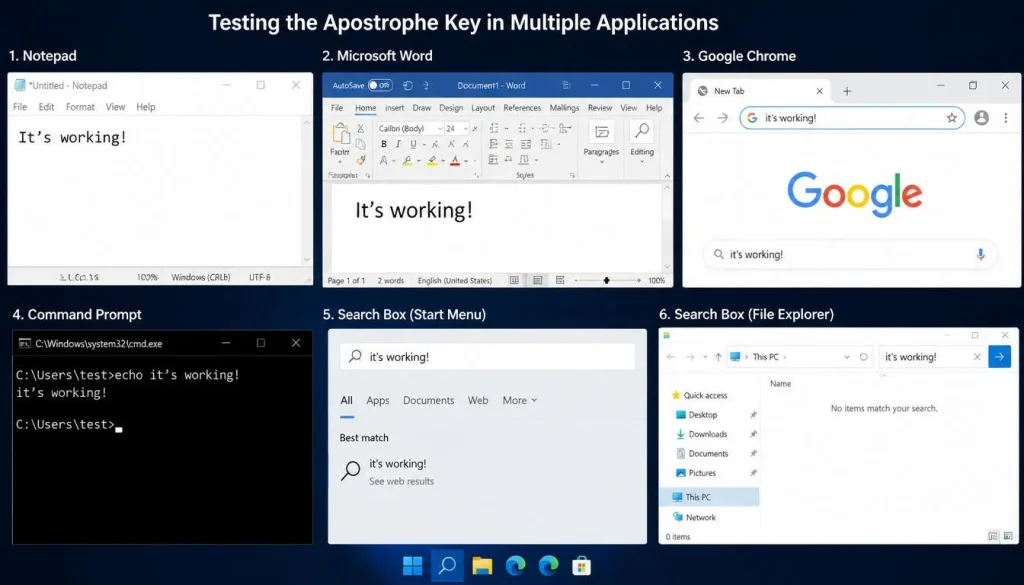
Fix 2: Test the Key in Multiple Applications
Sometimes the issue only appears inside one application.
Test the apostrophe key in:
- Notepad
- Microsoft Word
- Google Chrome
- Command Prompt
- Search boxes
If it works in some apps but not others, the problem is likely application-related rather than hardware-related.
Fix 3: Check Your Keyboard Layout
This is one of the most common causes in the United States, United Kingdom, Canada, and Australia.
On Windows 11:
- Open Settings.
- Select Time & Language.
- Click Language & Region.
- Choose your preferred language.
- Select Language Options.
- Verify that the correct keyboard layout is installed.
Recommended Layouts:
- United States → US Keyboard
- United Kingdom → UK Keyboard
- Canada → Canadian English
- Australia → Australian Keyboard
An incorrect layout can cause the apostrophe key to type unexpected characters or stop responding completely.
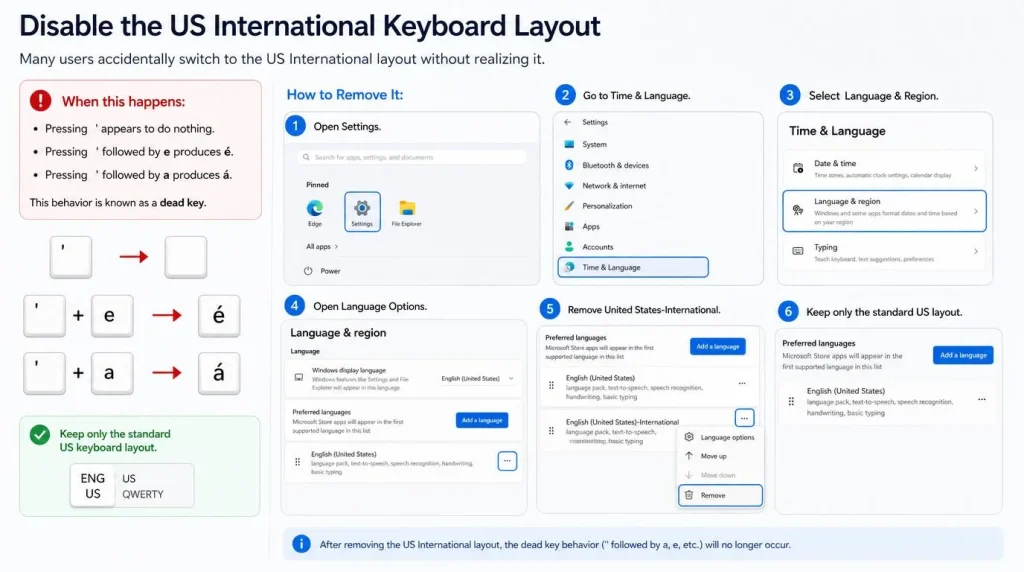
Fix 4: Disable the US International Keyboard Layout
Many users accidentally switch to the US International layout without realizing it.
When this happens:
- Pressing
'appears to do nothing. - Pressing
'followed byeproducesé. - Pressing
'followed byaproducesá.
This behavior is known as a dead key.
How to Remove It:
- Open Settings.
- Go to Time & Language.
- Select Language & Region.
- Open Language Options.
- Remove United States-International.
- Keep only the standard US keyboard layout.
For many users, this immediately solves the issue.
What Is a Dead Key?
A dead key waits for another key press before producing a character.
For example:
'+e=é'+a=á
This feature is useful for multilingual typing but confusing if enabled accidentally.
Understanding dead keys prevents unnecessary hardware replacements.
Fix 5: Disable Filter Keys and Sticky Keys
Accessibility settings can sometimes delay or ignore keyboard inputs.
Disable Filter Keys:
- Open Settings.
- Select Accessibility.
- Click Keyboard.
- Turn off:
- Filter Keys
- Sticky Keys
- Toggle Keys
Test the key again afterward.
Fix 6: Update or Reinstall Keyboard Drivers
Driver corruption can cause individual keys to stop responding.
Reinstall the Keyboard Driver:
- Press Windows + X.
- Open Device Manager.
- Expand Keyboards.
- Right-click your keyboard.
- Select Uninstall Device.
- Restart the laptop.
Windows will automatically reinstall the driver during startup.
Fix 7: Run the Windows Keyboard Troubleshooter
Windows includes built-in troubleshooting tools that can detect configuration problems.
Steps:
- Open Settings.
- Go to System.
- Select Troubleshoot.
- Open Other Troubleshooters.
- Run the keyboard troubleshooter if available.
Follow the suggested repairs.
Fix 8: Check for Gaming Software or Macro Conflicts
Gaming software can remap keys without warning.
Common examples include:
- Logitech G Hub
- Razer Synapse
- Corsair iCUE
- SteelSeries GG
- Macro utilities
Temporarily disable these applications and test the apostrophe key again.
Fix 9: Test Using the On-Screen Keyboard
The On-Screen Keyboard helps determine whether the issue is software or hardware related.
Open It:
- Press Windows + Ctrl + O.
Now click the apostrophe key on the virtual keyboard.
Results:
- Virtual key works → likely hardware problem.
- Virtual key also fails → likely software issue.
Fix 10: Connect an External Keyboard
This is one of the fastest diagnostic tests.
Connect a USB or Bluetooth keyboard and test the apostrophe key.
If the external keyboard works:
The laptop keyboard itself may be damaged.
If the external keyboard also fails:
The issue is probably related to Windows settings or drivers.
Fix 11: Test the Key in Safe Mode
Safe Mode loads Windows with only essential services.
Enter Safe Mode:
- Open Settings.
- Select System.
- Click Recovery.
- Choose Advanced Startup.
- Restart into Safe Mode.
If the apostrophe key works in Safe Mode, third-party software is likely causing the problem.

Fix 12: Run SFC and DISM Scans
Corrupted Windows files can affect keyboard functionality.
Open Command Prompt as Administrator and run:
SFC Scan
sfc /scannow
After it finishes, run:
DISM Scan
DISM /Online /Cleanup-Image /RestoreHealth
Restart your computer after both scans complete.
Test the Key Inside BIOS
Testing in BIOS helps determine whether the issue is hardware-related.
If the key fails in BIOS:
You are likely dealing with:
- Physical switch damage
- Ribbon cable problems
- Liquid damage
If the key works in BIOS:
Windows or software settings are probably responsible.
Test Another Windows User Account
Occasionally, keyboard issues only affect one user profile.
Create a temporary Windows account and test the key.
If the apostrophe key works normally in the new account, the issue is likely tied to profile settings rather than hardware.
Clean the Key Carefully
Dust and debris are surprisingly common causes.
Safe Cleaning Steps:
- Shut down the laptop.
- Disconnect the charger.
- Use compressed air around the key.
- Use a soft brush to remove debris.
Avoid using excessive force or sharp tools.
How to Type an Apostrophe When the Key Isn’t Working
Until you solve the problem, you still need a way to type.
Option 1: Use the On-Screen Keyboard
Press:
Windows + Ctrl + O
Option 2: Use Character Map
Search for Character Map in Windows.
Option 3: Copy and Paste
Simply copy this character:
'
Option 4: Use ALT Codes
Hold Alt and type:
39
Then release Alt.
Does This Problem Affect Certain Laptop Brands More Often?
The issue can occur on any laptop brand, including:
- Dell
- HP
- Lenovo
- ASUS
- Acer
- MSI
- Microsoft Surface
In most cases, the root cause is software configuration rather than a manufacturing defect.
How to Prevent Keyboard Keys from Failing Again
A few habits can significantly reduce keyboard problems.
- Keep food and drinks away from your laptop.
- Clean the keyboard regularly.
- Avoid excessive force while typing.
- Install Windows updates promptly.
- Keep drivers updated.
- Use a keyboard cover if you work in dusty environments.
Preventive maintenance is much cheaper than replacing a keyboard.
Frequently Asked Questions About Apostrophe Key Not Working on Laptop Keyboard
Why is only my apostrophe key not working?
Usually because of keyboard layout settings, dead key behavior, dirt under the key, or hardware wear.
Why does my apostrophe key type another symbol?
This typically happens because the wrong keyboard layout is selected.
Why does the apostrophe key produce accented letters?
The US International keyboard layout is likely enabled.
Why does my external keyboard work but my laptop keyboard doesn’t?
This usually indicates physical damage or failure in the laptop keyboard itself.
Can a Windows update break keyboard functionality?
Although uncommon, driver conflicts after updates can occasionally affect keyboard behavior.
Is this a hardware problem or a software problem?
Testing an external keyboard and using the On-Screen Keyboard can quickly identify which category the issue falls into.
Why does the key work in Word but not in Chrome?
This often points to browser extensions, language settings, or application-specific conflicts.
Final Verdict
For most users, the apostrophe key is not actually broken.
The most common fixes are:
- Switching back to the correct keyboard layout.
- Removing the US International keyboard.
- Reinstalling keyboard drivers.
- Disabling Filter Keys.
- Checking for software conflicts.
If an external keyboard works perfectly while the laptop keyboard does not, hardware repair becomes much more likely.
By following the troubleshooting steps above, most users can restore the apostrophe key without replacing their laptop keyboard.

“Electronics aren’t just gadgets. They’re the invisible threads that connect our work, our play, and our world.”
I’m Julian Reed, and my obsession with tech started at age twelve, when I soldered a defunct gaming console back to life in my bedroom. That tiny green screen taught me that technology isn’t just a black box, it’s a tool you can master.
After fifteen years as a hardware engineer and a decade reviewing consumer tech, I’ve joined this team to cut through the jargon. Whether you’re building a high-end home theater or just need a laptop that won’t lag, I’m here to help you choose the gear that truly powers your life.


