

Quick Answer: Laptop screen flickering is usually caused by outdated graphics drivers, incorrect refresh rate settings, software conflicts, GPU issues, or hardware problems such as a damaged display cable or failing screen panel. In most cases, updating your graphics driver, adjusting the refresh rate, or removing problematic software fixes the issue quickly.
A flickering laptop screen can turn simple tasks into frustrating experiences. Whether you’re working remotely, attending online meetings, gaming, editing videos, or simply browsing the web, a flashing or blinking display makes your laptop difficult to use and can even cause eye strain and headaches.
The good news is that screen flickering is often fixable without replacing your laptop. In my experience troubleshooting Windows laptops over the years, most flickering problems come down to driver issues, software conflicts, display settings, or overheating rather than expensive hardware failures.
This guide walks you through the exact steps to diagnose and fix laptop screen flickering on Windows 11 and Windows 10.
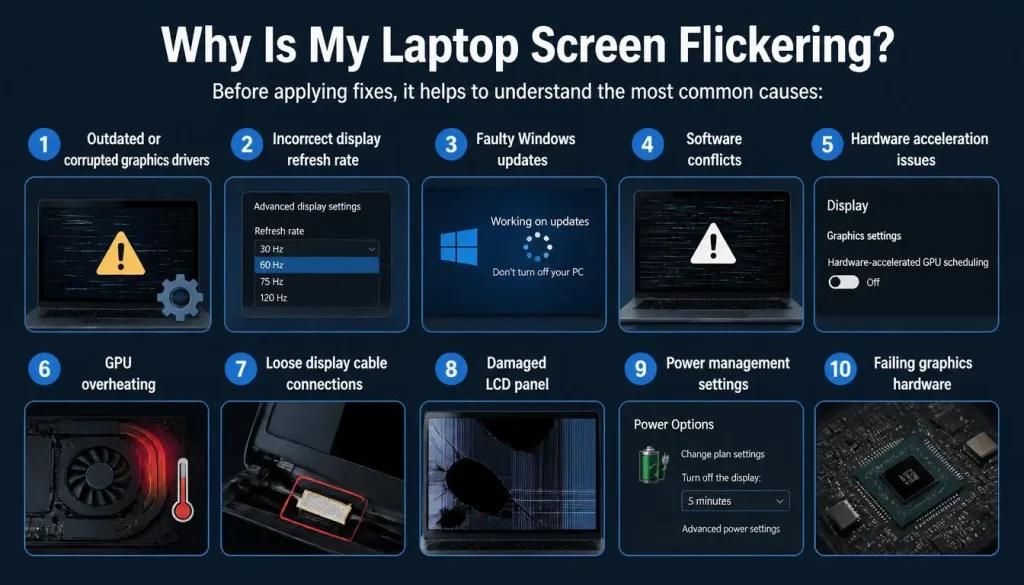
Why Is My Laptop Screen Flickering?
Before applying fixes, it helps to understand the most common causes:
- Outdated or corrupted graphics drivers
- Incorrect display refresh rate
- Faulty Windows updates
- Software conflicts
- Hardware acceleration issues
- GPU overheating
- Loose display cable connections
- Damaged LCD panel
- Power management settings
- Failing graphics hardware
Finding the root cause first will save you time and prevent unnecessary repairs.
First: Determine Whether the Problem Is Software or Hardware
Open Task Manager by pressing:
Ctrl + Shift + Esc
Watch carefully.
If Task Manager Flickers
The issue is usually related to:
- Graphics drivers
- GPU problems
- Hardware issues
- Display cable issues
If Task Manager Does Not Flicker
The issue is more likely caused by:
- A specific application
- Browser hardware acceleration
- Software conflicts
This simple test is one of the fastest ways to narrow down the cause.
Fix 1: Restart Your Laptop
Temporary software glitches often disappear after a restart.
- Save your work.
- Click Start.
- Select Power.
- Choose Restart.
If the flickering disappears, the issue was likely caused by a temporary system error.
Fix 2: Update Your Graphics Driver
Graphics drivers are responsible for displaying everything on your screen. Corrupted or outdated drivers are one of the leading causes of flickering.
For Intel Graphics
- Open Device Manager.
- Expand Display Adapters.
- Right-click Intel Graphics.
- Select Update Driver.
For NVIDIA Graphics
- Open Device Manager.
- Expand Display Adapters.
- Right-click NVIDIA Graphics.
- Choose Update Driver.
For AMD Graphics
Follow the same process for AMD Radeon graphics.
After updating, restart your laptop and test again.
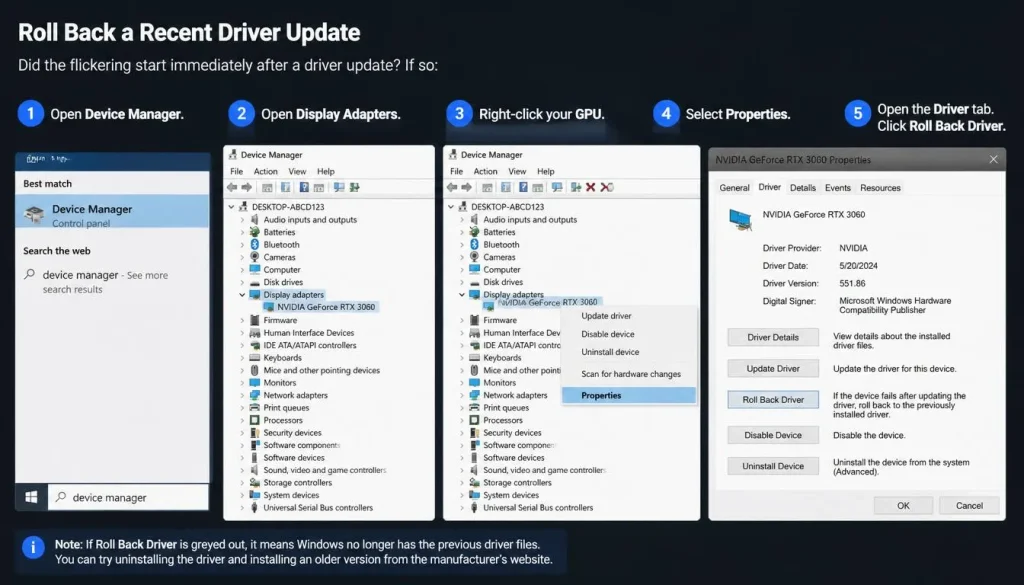
Fix 3: Roll Back a Recent Driver Update
Did the flickering start immediately after a driver update?
If so:
- Open Device Manager.
- Open Display Adapters.
- Right-click your GPU.
- Select Properties.
- Open the Driver tab.
- Click Roll Back Driver.
Many flickering problems begin after problematic driver releases.
Fix 4: Change the Display Refresh Rate
An incorrect refresh rate can cause flickering or flashing.
Windows 11
- Open Settings.
- Select System.
- Choose Display.
- Click Advanced Display.
- Select a different refresh rate.
Windows 10
- Open Settings.
- Click System.
- Select Display.
- Open Advanced Display Settings.
- Change the refresh rate.
For most laptops, 60Hz is the safest option.
Fix 5: Disable Variable Refresh Rate
Variable Refresh Rate can occasionally cause instability.
- Open Settings.
- Select System.
- Choose Display.
- Open Graphics Settings.
- Turn off Variable Refresh Rate.
This is especially useful for gaming laptops.

Fix 6: Disable Hardware Acceleration
Hardware acceleration causes flickering in browsers and communication apps more often than many users realize.
Common offenders include:
- Google Chrome
- Microsoft Edge
- Discord
- Zoom
- Microsoft Teams
- Spotify
Disable hardware acceleration in the application settings and test again.
Fix 7: Update Windows
Microsoft frequently releases fixes for graphics-related bugs.
- Open Settings.
- Click Windows Update.
- Install all available updates.
- Restart your computer.

Fix 8: Run System File Checker
Corrupted Windows files can create display issues.
Open Command Prompt as Administrator and run:
sfc /scannow
After it finishes, run:
DISM /Online /Cleanup-Image /RestoreHealth
Restart your laptop afterward.
Fix 9: Check for GPU Overheating
Overheating can cause screen flickering, visual artifacts, and sudden crashes.
Typical safe temperatures:
- Idle: 35°C to 55°C
- Normal use: 50°C to 75°C
- Gaming: 70°C to 85°C
If temperatures exceed 90°C regularly, overheating is likely contributing to the problem.
Clean dust from vents and improve airflow.
Fix 10: Change Power Settings
Aggressive power-saving features sometimes trigger display instability.
- Open Control Panel.
- Select Power Options.
- Choose High Performance or Best Performance.
Intel laptops may also benefit from disabling Panel Self Refresh.
Fix 11: Disconnect External Monitors
External displays help identify the source of the issue.
| Laptop Screen | External Monitor | Likely Cause |
|---|---|---|
| Flickers | Flickers | Driver or GPU |
| Flickers | Normal | Display cable or screen |
| Normal | Flickers | External monitor issue |
This test can quickly narrow down the diagnosis.
Fix 12: Boot Into Safe Mode
Safe Mode loads only essential Windows components.
If flickering disappears in Safe Mode, software conflicts are the most likely cause.
Fix 13: Check the Display Cable
If the screen flickers when moving the lid, the display cable may be loose or damaged.
Common signs include:
- Flickering while opening or closing the lid
- Display turning black at certain angles
- Horizontal lines appearing temporarily
This issue is common on older laptops.
Fix 14: Use the Graphics Driver Reset Shortcut
Windows includes a built-in graphics reset shortcut.
Press:
Windows + Ctrl + Shift + B
The screen will briefly go black and then refresh.
This simple trick fixes many temporary graphics glitches instantly.
Fix 15: Replace the Screen or GPU Hardware
If none of the fixes work, hardware failure becomes more likely.
Common warning signs include:
- Flickering in BIOS
- Flickering during startup logo
- Colored vertical lines
- White flashes
- Permanent display artifacts
These symptoms usually indicate:
- Failing LCD panel
- Damaged display cable
- Failing GPU
Professional repair may be necessary.
Why Does My Laptop Screen Flicker After a Windows Update?
Windows updates occasionally install incompatible graphics drivers.
If the problem appeared immediately after updating:
- Roll back the graphics driver.
- Uninstall the recent update.
- Install the latest driver directly from the GPU manufacturer.
Why Does My Laptop Screen Flicker During Startup?
Flickering before Windows loads often points to hardware issues such as:
- Failing GPU
- Damaged display cable
- Defective screen panel
Software fixes are less likely to solve startup flickering.
Why Does My Laptop Screen Flicker in BIOS?
If the issue appears inside BIOS, the problem is almost always hardware-related.
The most common causes are:
- LCD panel failure
- Loose display connection
- GPU hardware issues
Why Does My Laptop Screen Flicker While Gaming?
Gaming places heavy load on the graphics card.
Possible causes include:
- GPU overheating
- Overclock instability
- Driver issues
- G-Sync or FreeSync conflicts
Lower graphics settings temporarily to test stability.
Why Does My Laptop Screen Flicker Only When Charging?
Charging-related flickering often results from:
- Faulty charger
- Poor grounding
- Power delivery issues
- Incorrect power profiles
Testing another charger is a good starting point.
Why Does My Laptop Screen Flicker Only on Battery Power?
Battery mode activates aggressive power-saving features.
Possible causes include:
- Battery saver mode
- Panel Self Refresh
- Dynamic refresh rate settings
Switch to Best Performance mode and test again.
Why Does My Laptop Screen Flicker in Chrome?
Chrome flickering is commonly caused by hardware acceleration.
To disable it:
- Open Chrome Settings.
- Open System.
- Disable Use Hardware Acceleration When Available.
- Restart the browser.
Laptop Brand-Specific Tips
HP Laptop Screen Flickering
Update HP graphics drivers and BIOS.
Dell Laptop Screen Flickering
Check Dell Power Manager settings and refresh rate configuration.
Lenovo Laptop Screen Flickering
Disable Hybrid Graphics temporarily to test for conflicts.
ASUS Laptop Screen Flickering
Update Armoury Crate and graphics drivers.
Acer Laptop Screen Flickering
Install the latest display drivers and BIOS updates.
MSI Laptop Screen Flickering
Monitor GPU temperatures carefully during gaming sessions.
Surface Pro Screen Flickering
Install the latest firmware updates through Windows Update.
MacBook Screen Flickering
Check True Tone settings and install the latest macOS updates.
How to Prevent Laptop Screen Flickering
You can reduce the chances of future problems by following these practices:
- Keep graphics drivers updated.
- Install Windows updates regularly.
- Avoid overheating.
- Use original chargers whenever possible.
- Keep air vents clean.
- Avoid dropping or bending the laptop.
- Monitor GPU temperatures during gaming.
Frequently Asked Questions About How to Fix Laptop Screen Flickering
Can a bad graphics driver cause screen flickering?
Yes. Graphics drivers are one of the most common causes of laptop display flickering.
Can overheating cause screen flickering?
Yes. Excessive GPU temperatures can trigger flickering, crashes, and visual artifacts.
Is screen flickering a sign of GPU failure?
Sometimes. Flickering in BIOS or during startup is more concerning and may indicate hardware failure.
Can RAM cause screen flickering?
Although uncommon, faulty RAM can occasionally contribute to graphical issues.
How much does laptop screen replacement cost?
Costs vary by model but typically range from $80 to $300 in the United States.
Conclusion
Laptop screen flickering may look serious, but most cases are caused by software issues rather than hardware failures.
Start with the simplest fixes:
- Restart the laptop.
- Update graphics drivers.
- Change the refresh rate.
- Disable hardware acceleration.
- Check temperatures.
If flickering continues in BIOS or during startup, professional hardware diagnosis is the next step.
By following the troubleshooting steps in this guide, most users can restore a stable, flicker-free display without replacing their laptop.

“Electronics aren’t just gadgets. They’re the invisible threads that connect our work, our play, and our world.”
I’m Julian Reed, and my obsession with tech started at age twelve, when I soldered a defunct gaming console back to life in my bedroom. That tiny green screen taught me that technology isn’t just a black box, it’s a tool you can master.
After fifteen years as a hardware engineer and a decade reviewing consumer tech, I’ve joined this team to cut through the jargon. Whether you’re building a high-end home theater or just need a laptop that won’t lag, I’m here to help you choose the gear that truly powers your life.



1 thought on “How to Fix Laptop Screen Flickering: 15 Proven Solutions That Actually Work (2026 Guide)”