
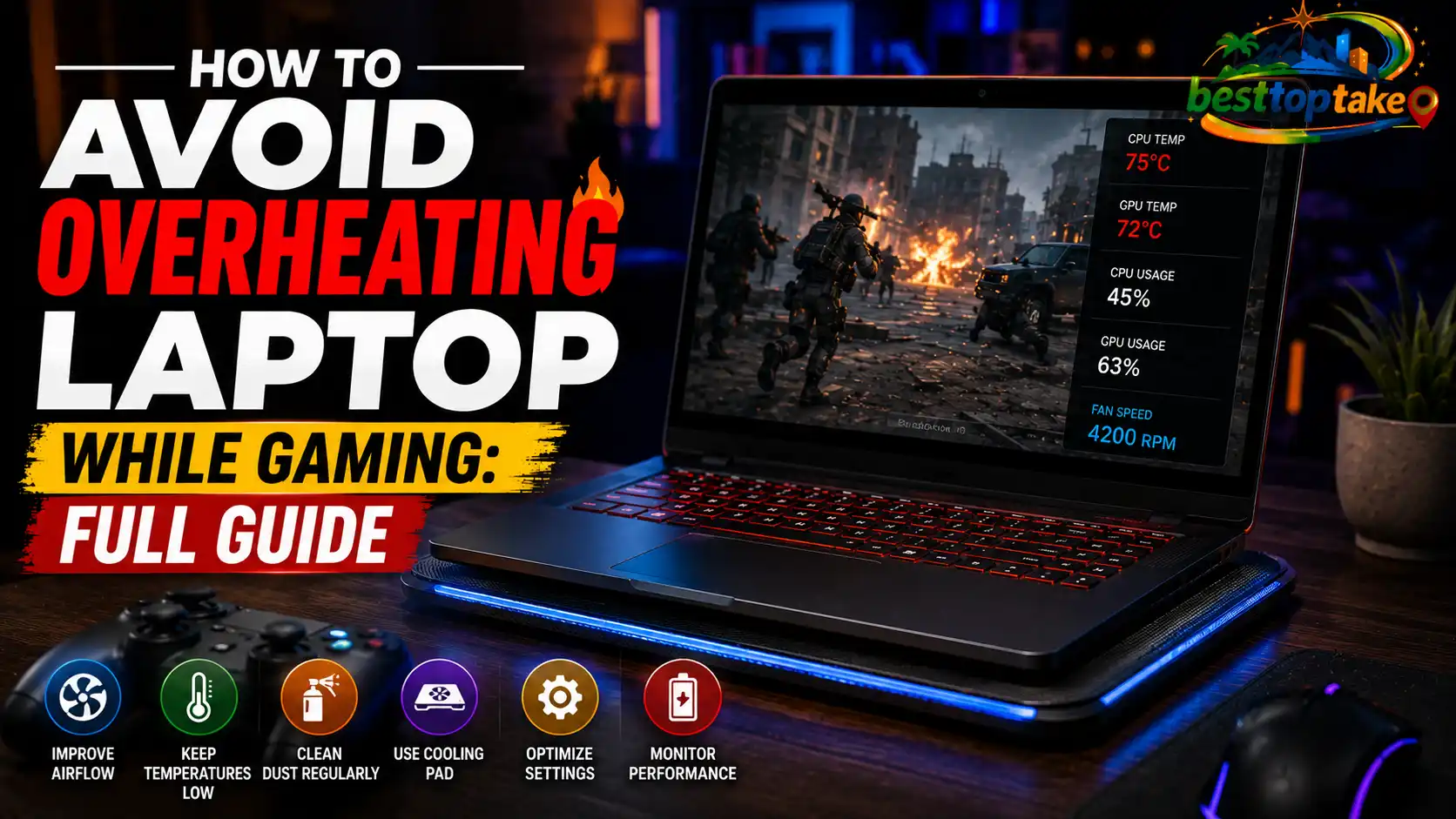
To avoid overheating your laptop while gaming, you need to improve airflow, manage background processes, and keep your hardware clean and properly maintained. Ignoring heat during gaming sessions is one of the fastest ways to shorten your laptop’s lifespan.
Your Laptop Sounds Like a Jet Engine — And It’s Starting to Worry You
You’re mid-match. Your laptop fan is screaming. The keyboard is warm enough to cook on. Then the frame rate tanks, the screen stutters, and your machine shuts itself off without warning.
If this sounds familiar, you’re not alone. Laptop overheating while gaming is one of the most common issues I hear about — and one of the most misunderstood. Most people assume it means their laptop is dying or underpowered. In most cases, that’s not true at all.
I’ve spent years helping gamers squeeze more life and performance out of their machines, and I can tell you: most overheating problems are completely fixable without spending a cent on new hardware. This guide will show you exactly how to avoid overheating your laptop while gaming — step by step, no technical background required.
The 3 Biggest Reasons Gaming Laptops Overheat (And What to Do Right Now)
Problem 1: You’re Gaming on a Soft Surface
This is the single most common cause of overheating — and the easiest to fix.
Most laptops pull cool air in through vents on the bottom panel. When you game on a bed, couch, carpet, or even a thick desk mat, those vents get partially or fully blocked. The laptop suffocates. Heat builds up almost immediately.
It feels harmless, but even 20 minutes of gaming with blocked vents can push your CPU and GPU temperatures into dangerous territory — often above 90°C.
What to do today: Move your gaming sessions to a hard, flat surface. A wooden desk is ideal. If you prefer gaming from your bed or couch in Australia, Canada, or the UK, a lap desk (widely available at Kmart, IKEA, and Amazon for $20–$40) keeps vents clear while still being comfortable. This single change can drop temperatures by 10–15°C immediately.
Problem 2: Dust Is Choking Your Cooling System
Inside your laptop sits a fan — sometimes two — that draws air across metal heat pipes connected to the CPU and GPU. Over time, dust collects on these components like a filter, reducing airflow dramatically.
A dust-clogged laptop running demanding games is like running a marathon with a cloth over your face. The hardware works harder, generates more heat, and has no efficient way to release it.
This builds up gradually, which is why many gamers don’t notice it until temperatures are already out of control. I’ve cleaned laptops for friends where the dust pad sitting on the fan was almost 1cm thick — and they had no idea.
What to do today: Use a can of compressed air (available at Officeworks in Australia, Staples in the US and Canada, and Currys in the UK — typically $8–$15) to blow dust out of your laptop’s exhaust vents. Hold the can upright, use short bursts, and aim at the exhaust vent (usually on the side or rear). Do this every 3–6 months if you game regularly. For a deeper clean, a local repair technician can open the chassis and clean the fan and heat pipes directly for around $40–$80.
Problem 3: Your Power and Graphics Settings Are Set Too High
Modern gaming laptops have performance profiles — and many are set to “High Performance” or “Turbo” by default. These modes push the CPU and GPU to run at maximum clock speeds constantly, even during loading screens, menus, or less demanding game scenes.
The result? Your hardware runs hot all the time, not just during intense gameplay moments. This wastes thermal headroom for when you actually need it and contributes to sustained high temperatures across the entire session.
What to do today: Use your laptop’s manufacturer software to set a balanced or custom performance profile. Lenovo laptops have Lenovo Vantage. ASUS has Armoury Crate. MSI uses Dragon Center. Each lets you cap fan speeds, CPU limits, and GPU power draw. Setting your profile to “Balanced” for less demanding games and “Performance” only for graphically intensive titles makes a significant difference — and you often won’t notice any drop in visual quality.
How to Avoid Overheating Laptop While Gaming: The Full Playbook
Use a Laptop Cooling Pad — But Pick the Right One
A cooling pad sits under your laptop and uses built-in fans to push additional cool air into the bottom vents. They’re not magic, but when used correctly, they genuinely reduce temperatures by 5–15°C during extended gaming sessions.
The key word there is “correctly.” A cooling pad only works if it aligns with your laptop’s air intake vents. Most laptops draw air from the bottom centre or front edge — so your cooling pad fans should point upward from below, matching that location.
Look for a pad with at least two fans, an adjustable height angle, and USB-powered operation (so it doesn’t need a separate power source). In the US, brands like Kootek, TopMate, and Havit offer solid options for $25–$50 on Amazon. In Australia, JB Hi-Fi and Umart stock similar options. Avoid ultra-cheap $10 pads — the fans are often too weak to make a meaningful difference.
“A quality cooling pad used consistently can extend the effective gaming lifespan of a mid-range laptop by a year or more,” says Jarred Walton, Senior Editor at Tom’s Hardware. “It’s one of the few cheap upgrades that delivers real, measurable results.”
Manage What’s Running in the Background
While you’re gaming, other programs are often quietly running in the background — browser tabs, Discord, antivirus scans, cloud backup tools like OneDrive or Dropbox, Windows Update. Each of these consumes CPU resources and generates additional heat.
Before you launch a game, close everything you don’t need:
- Right-click the taskbar and open Task Manager (Windows) or Activity Monitor (Mac)
- Sort by CPU usage and close anything above 5% that isn’t your game
- Pause cloud sync tools like OneDrive, iCloud, and Google Drive during gaming sessions
- Disable Windows Update from running during scheduled gaming hours — you can set “active hours” in Windows Settings to prevent this
This isn’t about getting more frames (though you might). It’s about keeping your CPU from dealing with unnecessary workloads that add heat without contributing to your gaming experience.
Repaste Your Laptop’s CPU and GPU
This tip is more advanced, but it’s one of the most effective fixes for laptops that are 2–3 years old and running noticeably hotter than they used to.
Between your laptop’s CPU/GPU and its metal heat pipe sits a thin layer of thermal paste — a heat-conducting compound that transfers heat from the chip to the cooling system. Over time (typically 2–4 years), this paste dries out, cracks, and loses its effectiveness.
Replacing it is called “repasting.” A fresh application of quality thermal paste can drop gaming temperatures by 10–20°C on older laptops — one of the most dramatic improvements you can make.
“Thermal paste degradation is real and significantly underestimated by most laptop owners,” says Linus Sebastian, CEO of Linus Media Group and tech content creator. “Repasting a three-year-old gaming laptop is often more effective than buying a cooling pad.”
If you’re comfortable opening your laptop, high-quality thermal paste like Arctic MX-4 or Thermal Grizzly Kryonaut costs $8–$15 and is available online. If you’re not confident doing it yourself, a repair shop will typically charge $40–$70 for the job — a worthwhile investment for a laptop you intend to keep.
Adjust Your In-Game Graphics Settings Strategically
You don’t need to play at ultra settings on every game. High graphics settings force your GPU to render more detail every frame — and more work means more heat.
Here are the settings that have the biggest impact on GPU temperature:
- Shadow quality: Drop from Ultra to High or Medium — huge temperature impact, minimal visual difference
- Anti-aliasing: Switch from MSAA 8x to FXAA or TAA — saves significant GPU load
- Draw distance and foliage: Reduce by one step — trees and grass eat GPU resources
- Frame rate cap: Capping your frame rate at 60 or 90 fps prevents your GPU from running at 100% load unnecessarily. Many games render 200+ fps on easy scenes, which generates heat for no visual benefit. Use NVIDIA Control Panel, AMD Radeon Software, or in-game settings to set a cap.
Capping frames is particularly effective. According to research published through the Australian Computer Society’s technical resources, unnecessary GPU overloading during non-intensive game segments accounts for a significant portion of sustained thermal stress in portable gaming hardware.
A friend in Vancouver dropped his gaming laptop temperatures from a consistent 94°C to 78°C by simply capping frames at 60fps and reducing shadow quality from Ultra to High. Same game. Same laptop. Just smarter settings.
Monitor Your Temperatures in Real Time
You can’t fix what you can’t measure. Free tools let you see exactly how hot your CPU and GPU are running during gaming sessions — and knowing your temperatures helps you understand whether your fixes are actually working.
- HWMonitor (Windows, free) — shows real-time CPU, GPU, and system temperatures
- MSI Afterburner (Windows, free) — overlays temperatures on screen while you play, works on all laptops not just MSI
- iStatMenus (Mac, $12 AUD / $10 USD) — comprehensive system monitoring for MacBook gamers
Safe gaming temperature ranges to aim for:
- CPU under load: Below 85°C is ideal; 90–95°C is borderline; above 95°C consistently is a problem
- GPU under load: Below 85°C is ideal; sustained above 90°C warrants action
If you’re regularly hitting 95°C+ on either component, work through this guide’s steps until you bring those numbers down. Thermal throttling — where the laptop slows itself down to reduce heat — typically kicks in at 95–100°C, which explains the sudden performance drops many gamers experience.
“Monitoring your temperatures is the first step every serious laptop gamer should take,” says Digital Foundry’s John Linneman, technical analyst and hardware reviewer. “You can’t optimise what you’re not measuring.”
Keep Your Software and Drivers Updated
Outdated GPU drivers can cause your graphics card to run inefficiently — consuming more power and generating more heat than a properly optimised driver would for the same task.
NVIDIA and AMD both release driver updates that improve thermal management for specific games. If you’re playing a recently released title and your temperatures seem unusually high, check whether a new driver is available.
- NVIDIA: Download GeForce Experience and enable automatic driver updates
- AMD: Use AMD Software: Adrenalin Edition for driver management
- Intel Arc: Use Intel Arc Control
Beyond GPU drivers, keep Windows or macOS updated. Operating system updates sometimes include power management improvements that directly affect how your laptop handles heat during intensive tasks.
Frequently Asked Questions
Is it normal for a gaming laptop to get hot?
Yes, some heat is expected. Gaming laptops push powerful hardware into compact chassis, which means thermal management is always a balancing act. What’s normal: warm keyboard, audible fan noise, chassis temperatures between 35–45°C to the touch. What’s not normal: random shutdowns, frame rate drops after 10 minutes, or skin discomfort from holding the laptop.
Can overheating permanently damage my gaming laptop?
Yes, repeated overheating can cause permanent damage over time. Sustained high temperatures degrade the battery faster, weaken solder joints on the motherboard, and reduce the lifespan of the CPU and GPU. A single thermal shutdown event is unlikely to cause permanent harm — but consistent overheating over weeks and months absolutely does.
Does undervolting a gaming laptop help with heat?
Yes, undervolting reduces the voltage supplied to the CPU without affecting its speed, which directly reduces heat output. Tools like Intel XTU (for Intel processors) allow this on compatible laptops. It’s an intermediate-level fix that can drop CPU temperatures by 5–15°C. Note that some newer laptops have this option locked by the manufacturer — check your model’s specifications before attempting it.
Should I leave my gaming laptop plugged in all the time?
For most gaming sessions, yes — gaming on battery power forces the CPU and GPU to throttle performance anyway. However, keeping the battery at 100% while plugged in generates some additional heat. Many gaming laptops (Lenovo, ASUS ROG, Razer) have a battery charge limiter feature that stops charging at 80%, which reduces heat and extends battery health over time. It’s worth enabling if your laptop supports it.
How often should I clean my gaming laptop’s vents?
Every 3–6 months for regular gamers. If you have pets, live in a dusty environment, or game for more than 2–3 hours daily, lean toward every 3 months. A quick compressed air clean takes under 5 minutes and makes a consistent difference in temperatures. A full internal clean (opening the chassis) is worth doing every 12–18 months.
The Three Things That Will Actually Make a Difference
Let’s bring it all together.
If you only do three things from this guide, make them these. First, get your laptop off soft surfaces and onto a hard, flat desk — this one change costs nothing and immediately improves airflow. Second, cap your frame rate in-game and switch to a balanced performance profile — your GPU doesn’t need to run at 100% load to render 200fps in a menu screen. Third, clean your vents with compressed air every 3–6 months — dust accumulation is silent, slow, and one of the most damaging things that happens to a gaming laptop over time.
Knowing how to avoid overheating your laptop while gaming isn’t about spending more money. It’s about working smarter with the machine you already have.
Your laptop is capable of more than it’s currently delivering. Start with step one today, and notice the difference by your next gaming session.

“Electronics aren’t just gadgets. They’re the invisible threads that connect our work, our play, and our world.”
I’m Julian Reed, and my obsession with tech started at age twelve, when I soldered a defunct gaming console back to life in my bedroom. That tiny green screen taught me that technology isn’t just a black box, it’s a tool you can master.
After fifteen years as a hardware engineer and a decade reviewing consumer tech, I’ve joined this team to cut through the jargon. Whether you’re building a high-end home theater or just need a laptop that won’t lag, I’m here to help you choose the gear that truly powers your life.


