
Quick Answer: If your laptop touchpad is not working, the most common causes are an accidentally disabled touchpad, outdated drivers, a recent Windows update, incorrect settings, or hardware issues. In most cases, you can restore functionality by enabling the touchpad, reinstalling drivers, or adjusting Windows settings without professional repair.
Whether you use a Dell, HP, Lenovo, ASUS, Acer, Surface, MSI, or Samsung laptop, this guide walks you through proven solutions that actually work in 2026.
Why Is My Laptop Touchpad Not Working?
A touchpad can stop working for many reasons. Identifying the cause first saves time and helps you apply the right fix.
Common causes include:
- The touchpad was accidentally disabled using a keyboard shortcut.
- Windows updates created a driver conflict.
- The touchpad driver became corrupted.
- An external mouse disabled the touchpad automatically.
- BIOS settings changed unexpectedly.
- Physical damage affected the touchpad hardware.
- Liquid spills caused internal issues.
- A swollen battery placed pressure on the touchpad assembly.

Before You Start: Identify Your Symptoms
Your symptoms often reveal the actual problem.
The cursor does not move at all
Usually caused by a disabled touchpad, missing driver, or hardware failure.
The cursor moves but clicking does not work
Often related to touchpad settings or physical damage.
Right-click no longer works
This is commonly caused by gesture settings or driver issues.
Two-finger scrolling stopped working
Usually indicates missing Precision Touchpad drivers.
The touchpad works after restarting
This often points to software conflicts.
The touchpad works in BIOS but not in Windows
This strongly suggests a Windows or driver issue rather than hardware failure.
Fix #1: Check Whether the Touchpad Was Accidentally Disabled
Many users disable the touchpad without realizing it.
Most laptop manufacturers use keyboard shortcuts:
- HP: Fn + F5
- Dell: Fn + F3 or Fn + F5
- Lenovo: Fn + F6 or Fn + F8
- ASUS: Fn + F9
- Acer: Fn + F7
- MSI: Fn + F3
Press the shortcut once and test the touchpad again.
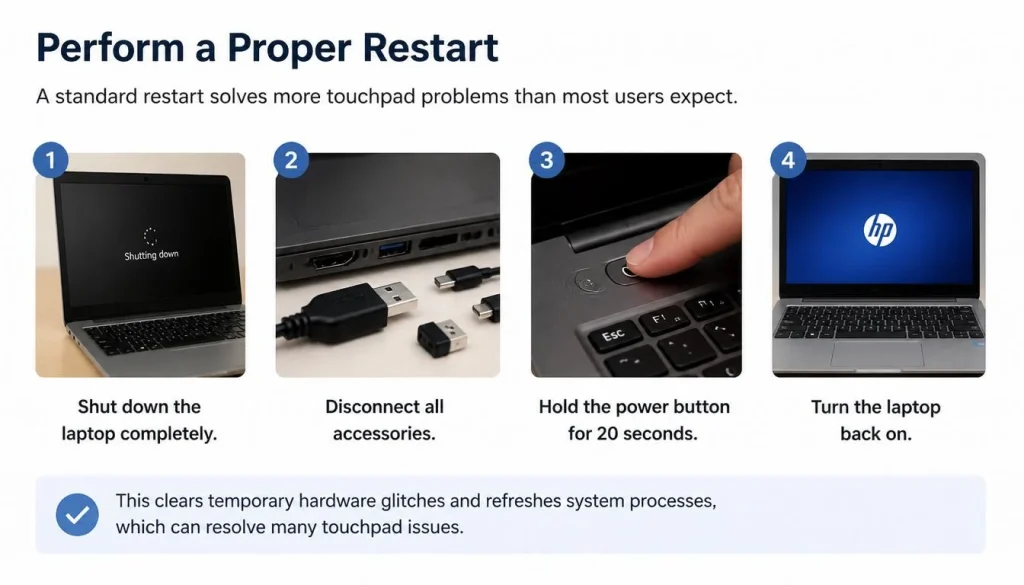
Fix #2: Perform a Proper Restart
A standard restart solves more touchpad problems than most users expect.
- Shut down the laptop completely.
- Disconnect all accessories.
- Hold the power button for 20 seconds.
- Turn the laptop back on.
This clears temporary hardware states that may prevent the touchpad from loading correctly.
Fix #3: Enable the Touchpad in Windows Settings
Windows 11
- Open Settings.
- Select Bluetooth & devices.
- Click Touchpad.
- Ensure the touchpad is enabled.
Windows 10
- Open Settings.
- Select Devices.
- Choose Touchpad.
- Turn the touchpad on.
If the touchpad option is missing entirely, continue to the driver fixes below.
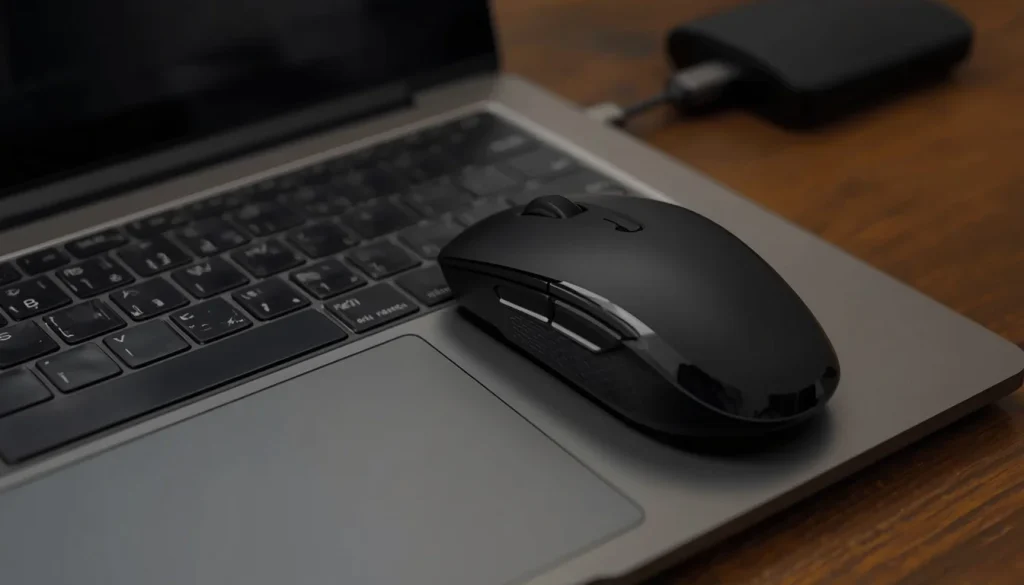
Fix #4: Disconnect Any External Mouse
Many laptops automatically disable the touchpad when an external mouse is connected.
Disconnect:
- USB mice
- Wireless receivers
- Bluetooth mice
- Docking stations
Restart your laptop and check again.
Fix #5: Update or Reinstall Touchpad Drivers
Corrupted drivers are one of the biggest causes of touchpad failures.
To update the driver:
- Right-click the Start menu.
- Open Device Manager.
- Expand Mice and other pointing devices.
- Right-click your touchpad driver.
- Select Update Driver.
To reinstall the driver:
- Right-click the touchpad device.
- Choose Uninstall Device.
- Restart the laptop.
Windows usually reinstalls the driver automatically during startup.
Common touchpad drivers include:
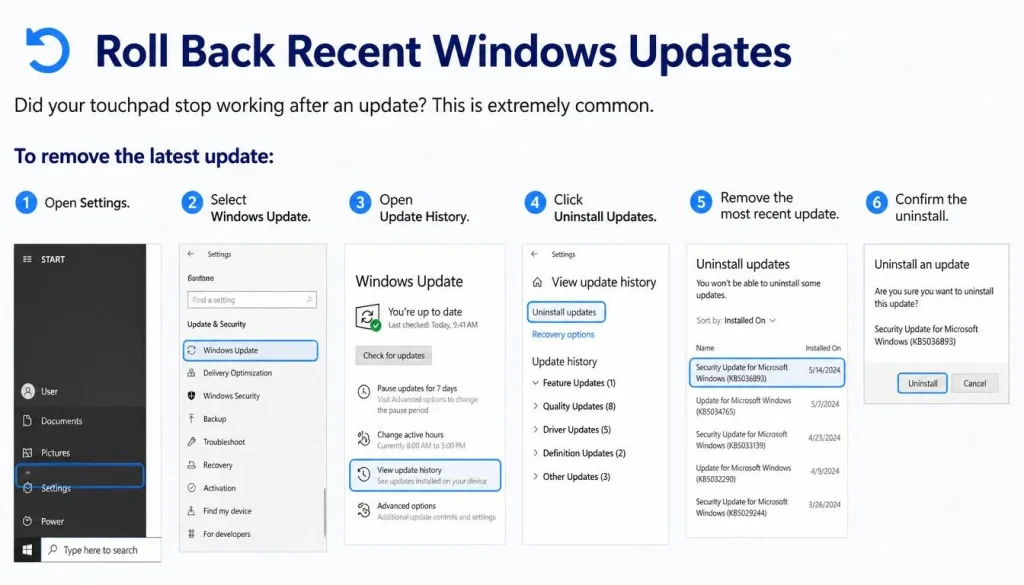
Fix #6: Roll Back Recent Windows Updates
Did your touchpad stop working after an update?
This is extremely common.
To remove the latest update:
- Open Settings.
- Select Windows Update.
- Open Update History.
- Click Uninstall Updates.
- Remove the most recent update.
Restart the system and test again.
Fix #7: Enable the Touchpad in BIOS or UEFI
Some laptops allow users to disable the touchpad at the firmware level.
- Restart the laptop.
- Enter BIOS or UEFI setup.
- Locate the internal pointing device option.
- Ensure it is enabled.
- Save and exit.
If the touchpad is missing in BIOS, hardware failure becomes more likely.
Fix #8: Run the Windows Hardware Troubleshooter
Windows includes diagnostic tools that may detect configuration issues.
- Open Settings.
- Navigate to Troubleshoot.
- Run available hardware diagnostics.
This may automatically repair missing settings or configuration errors.

Fix #9: Disable Tablet Mode
Convertible laptops often disable the touchpad automatically when entering tablet mode.
This is especially common on:
- Surface devices
- Lenovo Yoga models
- HP Spectre x360 laptops
- Dell Inspiron 2-in-1 devices
Switch back to laptop mode and test the touchpad again.
Fix #10: Repair Corrupted System Files
Corrupted Windows files can prevent touchpad drivers from loading.
Open Command Prompt as Administrator and run:
sfc /scannow
After it finishes, run:
DISM /Online /Cleanup-Image /RestoreHealth
Restart your laptop after both scans complete.
Fix #11: Update Chipset Drivers
Many users update the touchpad driver but ignore chipset drivers.
This is a mistake.
Chipset drivers control communication between hardware components and Windows.
Update:
- Intel chipset drivers
- AMD chipset drivers
This fix is surprisingly effective on newer laptops.
Fix #12: Test the Touchpad in Safe Mode
Safe Mode loads only essential drivers.
If your touchpad works in Safe Mode but fails in normal Windows, a third-party application or driver conflict is responsible.
Boot into Safe Mode and test the touchpad.
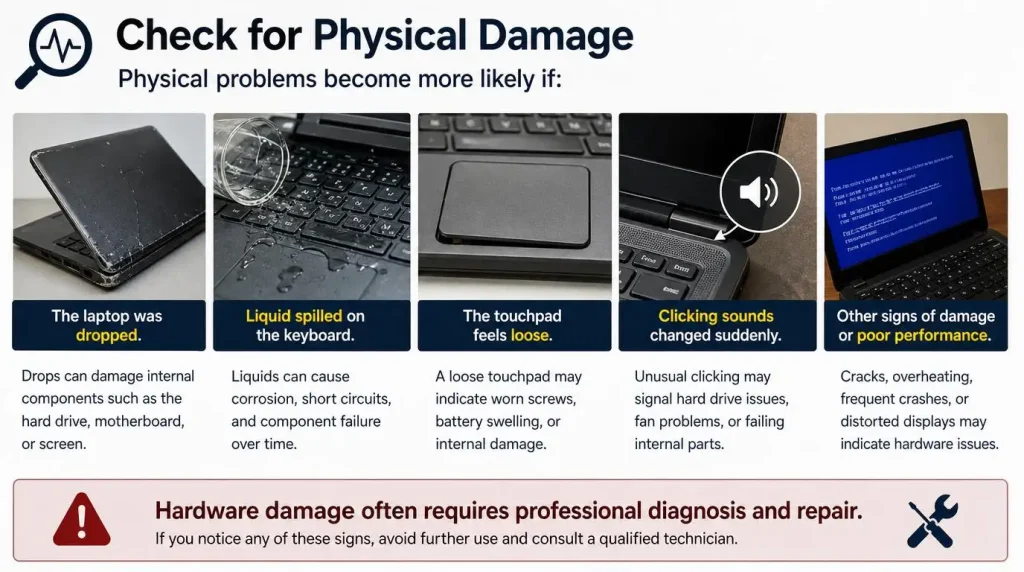
Fix #13: Check for Physical Damage
Physical problems become more likely if:
- The laptop was dropped.
- Liquid spilled on the keyboard.
- The touchpad feels loose.
- Clicking sounds changed suddenly.
Hardware damage often requires professional repair.
Fix #14: Use an External Mouse Temporarily
If you need immediate productivity, connect:
- A USB mouse
- A Bluetooth mouse
- A wireless mouse
This allows you to continue working while troubleshooting the touchpad issue.
Fix #15: Replace the Touchpad
If every software fix fails, replacement may be necessary.
Average repair costs in 2026:
| Country | Typical Cost |
|---|---|
| United States | $50–$150 |
| United Kingdom | £40–£120 |
| Canada | CAD 70–180 |
| Australia | AUD 80–220 |
Premium laptops may cost more.
Laptop Touchpad Not Working After a Windows Update
This is one of the most searched touchpad problems in 2026.
If your touchpad stopped working immediately after updating Windows:
- Roll back the update.
- Reinstall touchpad drivers.
- Install the latest manufacturer drivers.
- Check optional updates in Windows Update.
Touchpad Not Showing in Device Manager
If your touchpad does not appear in Device Manager:
- Enable hidden devices.
- Check BIOS settings.
- Install chipset drivers.
- Update BIOS firmware.
A missing device may indicate a hardware problem.
Touchpad Not Showing in Windows Settings
If the Touchpad menu disappears entirely:
- Reinstall drivers.
- Install manufacturer software packages.
- Update chipset drivers.
This issue is usually software related.
Touchpad Works in BIOS but Not in Windows
This is actually good news.
It means the hardware is probably healthy.
The cause is usually:
- Driver corruption
- Windows update conflicts
- Third-party software interference
Touchpad Stopped Working Suddenly
Sudden failures are often caused by:
- Driver crashes
- Recent updates
- Accidental keyboard shortcuts
- External mouse conflicts
Start with the simplest fixes first.
Two-Finger Scroll or Gestures Not Working
If only gestures stopped working:
- Update Precision Touchpad drivers.
- Re-enable gestures in settings.
- Install manufacturer touchpad software.
Common symptoms include:
- Scrolling not working
- Pinch to zoom not working
- Three-finger gestures missing
- Tap-to-click disabled
Dell Touchpad Not Working
Dell laptops commonly experience:
- BIOS touchpad settings issues
- Driver conflicts after updates
- Missing Dell support drivers
Updating Dell-specific drivers usually resolves the problem.
HP Touchpad Not Working
HP laptops frequently use touchpad toggle gestures or dedicated buttons.
Double-tapping the touchpad corner may re-enable it.
Lenovo Touchpad Not Working
Lenovo devices often disable the touchpad using:
- Fn + F6
- Fn + F8
Lenovo Vantage software may also control touchpad settings.
ASUS Touchpad Not Working
ASUS laptops often require:
- Precision driver updates
- ASUS System Control Interface updates
Acer Touchpad Not Working
Acer devices commonly disable the touchpad automatically after major Windows updates.
Updating drivers typically resolves the issue.
MSI Touchpad Not Working
MSI gaming laptops sometimes disable the touchpad while gaming peripherals are connected.
Disconnect external devices and test again.
Surface Touchpad Not Working
Surface devices often experience touchpad issues after firmware updates.
Installing the latest Surface firmware package usually fixes the problem.
How to Tell Whether the Problem Is Software or Hardware
| Symptom | Most Likely Cause |
|---|---|
| Stops after Windows update | Driver issue |
| Works in BIOS only | Windows issue |
| Gestures stopped working | Driver issue |
| Missing in Device Manager | Driver or hardware issue |
| Not detected anywhere | Hardware failure |
| Physical clicking feels different | Hardware issue |
When Should You Seek Professional Repair?
Consider professional repair if:
- Liquid entered the laptop.
- The battery is swollen.
- BIOS cannot detect the touchpad.
- The touchpad cable is damaged.
- Physical clicks no longer register.
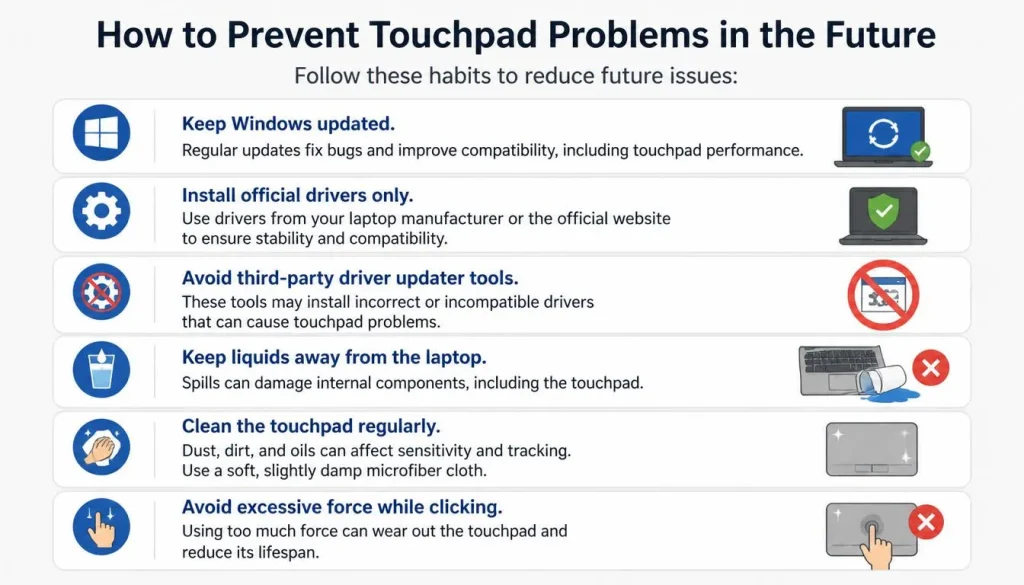
How to Prevent Touchpad Problems in the Future
Follow these habits to reduce future issues:
- Keep Windows updated.
- Install official drivers only.
- Avoid third-party driver updater tools.
- Keep liquids away from the laptop.
- Clean the touchpad regularly.
- Avoid excessive force while clicking.
Frequently Asked Questions
Why is my laptop touchpad not moving?
The most common reasons are disabled settings, driver problems, or hardware failure.
Why did my touchpad stop working suddenly?
Windows updates, driver conflicts, and accidental keyboard shortcuts are the most common causes.
Can a Windows update disable a touchpad?
Yes. Many touchpad issues begin immediately after Windows installs a major update.
Why does my touchpad work in BIOS but not in Windows?
This usually indicates a software or driver problem rather than hardware failure.
How much does touchpad replacement cost?
Most repairs cost between $50 and $150 in the United States, although premium laptops may cost more.
Can a swollen battery affect the touchpad?
Yes. A swollen battery can push against internal components and interfere with touchpad operation.
Final Verdict
A non-working touchpad does not automatically mean your laptop needs repair.
Start with these five steps:
- Check the touchpad shortcut key.
- Enable the touchpad in Windows settings.
- Reinstall touchpad drivers.
- Test the touchpad in BIOS.
- Consider professional repair if hardware damage is suspected.
In most cases, one of these solutions restores your touchpad within minutes and gets you back to work without spending money on repairs.

“Electronics aren’t just gadgets. They’re the invisible threads that connect our work, our play, and our world.”
I’m Julian Reed, and my obsession with tech started at age twelve, when I soldered a defunct gaming console back to life in my bedroom. That tiny green screen taught me that technology isn’t just a black box, it’s a tool you can master.
After fifteen years as a hardware engineer and a decade reviewing consumer tech, I’ve joined this team to cut through the jargon. Whether you’re building a high-end home theater or just need a laptop that won’t lag, I’m here to help you choose the gear that truly powers your life.


