
Quick Answer: If your laptop keyboard keys are not working, the problem is usually caused by dust buildup, outdated drivers, Windows update issues, Filter Keys settings, liquid damage, or keyboard hardware failure. Start by restarting your laptop, testing an external keyboard, and checking whether the keyboard works in BIOS. These quick checks can help you identify whether the issue is software-related or hardware-related.
Few computer problems are more frustrating than pressing a key and getting no response.
Whether only one key stopped working, an entire row became unresponsive, or the whole keyboard suddenly died, the issue can make your laptop nearly impossible to use.
The good news is that many keyboard problems can be fixed without replacing the laptop or paying for expensive repairs.
This guide covers proven solutions for Windows 11 and Windows 10 laptops, including Dell, HP, Lenovo, ASUS, Acer, MSI, Surface, and gaming laptops. By the end, you’ll know exactly how to diagnose the problem and choose the right fix.
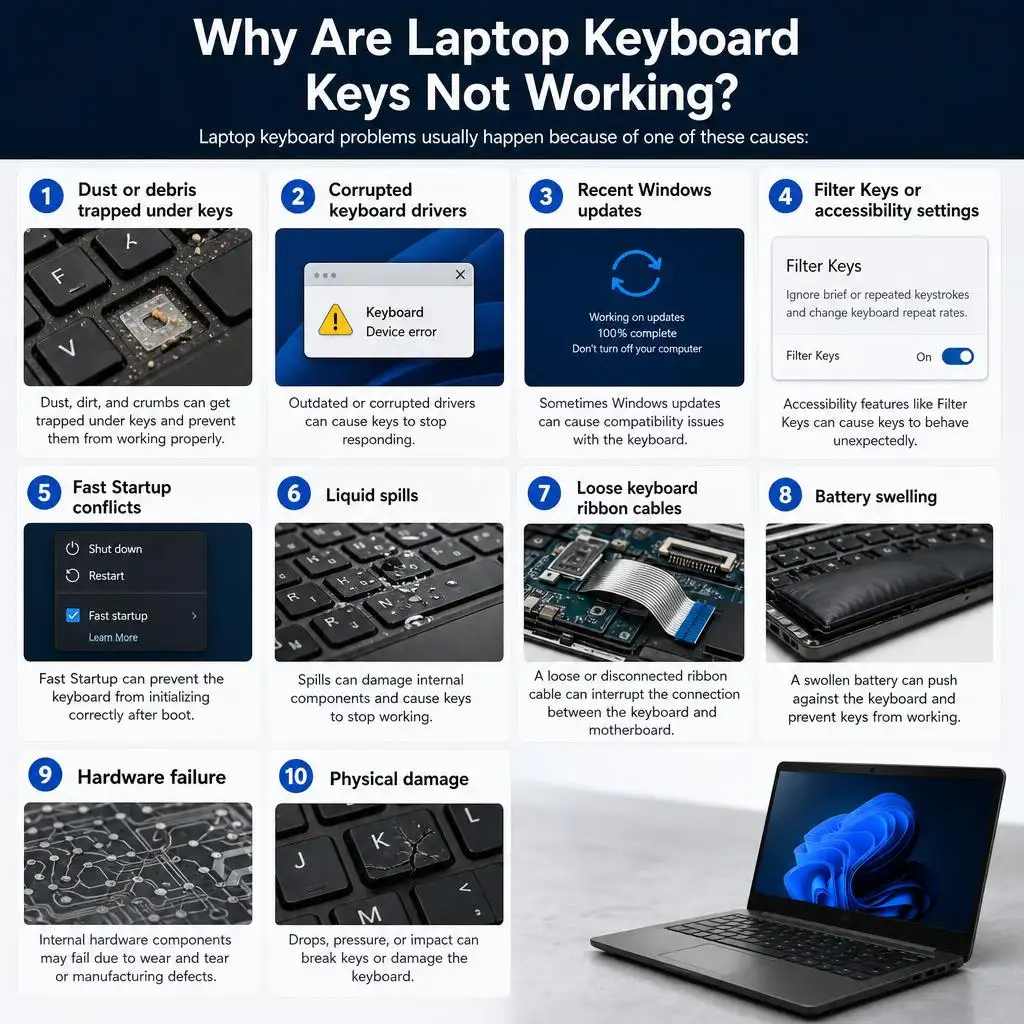
Why Are Laptop Keyboard Keys Not Working?
Laptop keyboard problems usually happen because of one of these causes:
- Dust or debris trapped under keys
- Corrupted keyboard drivers
- Recent Windows updates
- Filter Keys or accessibility settings
- Fast Startup conflicts
- Liquid spills
- Loose keyboard ribbon cables
- Battery swelling
- Hardware failure
- Physical damage
Finding the real cause is the fastest path to a solution.
First: Identify Your Keyboard Problem Type
Before trying fixes, identify which situation matches your issue.
Only One Key Is Not Working
This usually points to dirt, debris, or physical damage.
A Full Row of Keys Is Not Working
This often indicates a ribbon cable issue or hardware problem.
The Entire Keyboard Stopped Working
Driver corruption, Windows updates, or motherboard problems are common causes.
Keys Type the Wrong Characters
Examples include:
- Pressing M types 0
- Pressing J types 1
- Numbers appear when typing letters
This is often caused by Num Lock or regional keyboard settings.
The Keyboard Works in BIOS but Not in Windows
This almost always indicates a software issue rather than hardware failure.
How to Tell Whether the Problem Is Hardware or Software
| Symptom | Most Likely Cause |
|---|---|
| Keyboard works in BIOS | Software issue |
| External keyboard works | Internal keyboard issue |
| Entire row is dead | Ribbon cable problem |
| Nearby keys stopped working together | Liquid damage |
| Keyboard stopped after Windows update | Driver conflict |
| One key only is affected | Dirt or physical damage |
This simple test can save hours of troubleshooting.
Fix 1: Restart Your Laptop
Temporary software glitches can disable keyboard input.
Steps
- Save your work.
- Shut down the laptop completely.
- Wait 30 seconds.
- Turn the laptop back on.
Many users are surprised how often this solves the issue.

Fix 2: Check for Dirt and Debris
Crumbs, dust, and pet hair can prevent keys from registering.
What to do
- Turn off the laptop.
- Hold it at a slight angle.
- Use compressed air around affected keys.
- Gently clean with a soft brush.
Avoid using sharp objects under the keys.
Fix 3: Disable Filter Keys
Filter Keys can ignore brief or repeated key presses.
Windows 11
- Open Settings.
- Select Accessibility.
- Choose Keyboard.
- Turn Filter Keys off.
Windows 10
- Open Settings.
- Go to Ease of Access.
- Select Keyboard.
- Disable Filter Keys.
Fix 4: Update Keyboard Drivers
Corrupted drivers frequently cause keyboard failures.
Steps
- Right-click Start.
- Open Device Manager.
- Expand Keyboards.
- Right-click your keyboard.
- Select Update Driver.
Restart your laptop after installation.

Fix 5: Reinstall Keyboard Drivers
If updating doesn’t help, reinstall the driver.
Steps
- Open Device Manager.
- Expand Keyboards.
- Right-click the keyboard device.
- Select Uninstall Device.
- Restart the laptop.
Windows will automatically reinstall the driver.
Fix 6: Run the Windows Keyboard Troubleshooter
Windows includes a built-in troubleshooting tool.
Steps
- Open Settings.
- Select System.
- Open Troubleshoot.
- Choose Other Troubleshooters.
- Run the Keyboard Troubleshooter.
Fix 7: Disable Fast Startup
Fast Startup sometimes prevents the keyboard from initializing properly.
Steps
- Open Control Panel.
- Select Power Options.
- Choose “Choose what the power buttons do.”
- Click “Change settings that are currently unavailable.”
- Disable Fast Startup.
- Save changes.
Restart the laptop and test the keyboard again.

Fix 8: Check Num Lock and Function Lock
Many laptops use shared keyboard layouts.
If pressing letter keys types numbers, Num Lock may be enabled.
Try pressing:
- Num Lock
- Fn + Num Lock
- Fn + Esc
The exact combination depends on the laptop manufacturer.
Fix 9: Test the Keyboard in BIOS
This is one of the most important diagnostic tests.
How to test
- Restart the laptop.
- Enter BIOS or UEFI settings.
- Try using arrow keys and menus.
Results
- Works in BIOS = software issue.
- Doesn’t work in BIOS = hardware issue.
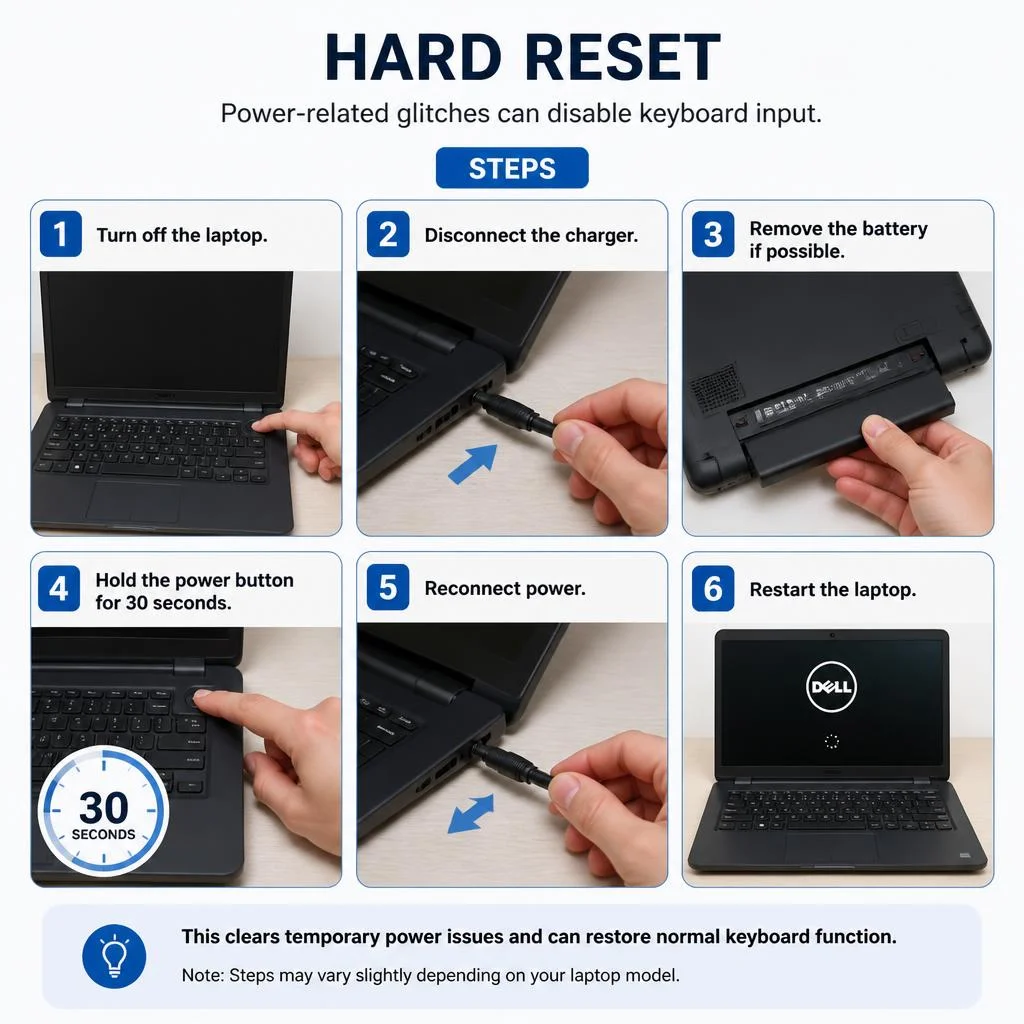
Fix 10: Perform a Hard Reset
Power-related glitches can disable keyboard input.
Steps
- Turn off the laptop.
- Disconnect the charger.
- Remove the battery if possible.
- Hold the power button for 30 seconds.
- Reconnect power and restart.
Fix 11: Uninstall Recent Windows Updates
Many keyboard issues begin immediately after updates.
Steps
- Open Settings.
- Go to Windows Update.
- Select Update History.
- Choose Uninstall Updates.
- Remove the most recent update.
Restart the system afterward.
Fix 12: Boot Into Safe Mode
Safe Mode loads only essential drivers.
If the keyboard works in Safe Mode, third-party software is likely responsible.
Fix 13: Test an External Keyboard
Connect a USB or Bluetooth keyboard.
If the external keyboard works:
- Windows is functioning properly.
- The internal keyboard likely has a hardware problem.
If the external keyboard also fails:
- The issue is probably software related.
Fix 14: Check for Liquid Damage
Spills are one of the leading causes of keyboard failure.
Warning signs
- Sticky keys
- Multiple nearby keys not working
- Random typing
- Delayed input
If liquid damage occurred recently, stop using the keyboard immediately.

Fix 15: Replace the Keyboard
Sometimes replacement is the only realistic solution.
Typical Repair Costs
| Country | Average Cost |
|---|---|
| United States | $50-$150 |
| United Kingdom | £40-£120 |
| Canada | CAD 60-$180 |
| Australia | AUD 70-$200 |
Costs vary depending on the laptop model.
Laptop Keyboard Not Working After Windows Update
This is one of the most common complaints among Windows users.
Try these fixes:
- Roll back keyboard drivers.
- Uninstall the latest update.
- Run System Restore.
- Reinstall keyboard drivers.
Laptop Keyboard Not Working After Sleep Mode
If the keyboard fails after waking from sleep:
- Disable Fast Startup.
- Update chipset drivers.
- Update BIOS firmware.
- Change power management settings.
Laptop Keyboard Not Working but External Keyboard Works
This usually indicates:
- Internal keyboard failure
- Loose ribbon cable
- Liquid damage
- Physical wear
In most cases, replacing the internal keyboard solves the issue.
Laptop Keyboard Types Wrong Characters
Possible causes include:
- Wrong keyboard layout
- Num Lock enabled
- Language settings changed
Verify your keyboard language settings inside Windows.
Laptop Keyboard Double Typing or Repeating Keys
Common causes include:
- Debris under keys
- Accessibility settings
- Mechanical wear
- Driver problems
Cleaning and reinstalling drivers often resolves the issue.
How to Unlock a Laptop Keyboard
If your keyboard appears locked:
- Restart the laptop.
- Disable Filter Keys.
- Check Fn Lock.
- Check manufacturer keyboard lock shortcuts.
Brand-Specific Keyboard Fixes
Dell Laptop Keyboard Not Working
Update BIOS and chipset drivers first.
HP Laptop Keyboard Not Working
Perform a hard reset and check keyboard diagnostics.
Lenovo Laptop Keyboard Not Working
Check Lenovo Vantage updates.
ASUS Laptop Keyboard Not Working
Install ASUS System Control Interface drivers.
Acer Laptop Keyboard Not Working
Update BIOS and keyboard firmware.
MSI Laptop Keyboard Not Working
Verify SteelSeries software settings.
Surface Laptop Keyboard Not Working
Install Surface firmware updates.
Gaming Laptop Keyboard Issues
Gaming laptops often experience:
- WASD keys not working
- RGB keyboard failures
- Function key conflicts
Updating gaming software and keyboard firmware usually helps.
Can Battery Swelling Cause Keyboard Problems?
Yes.
A swollen battery can push against internal components and cause:
- Stuck keys
- Unresponsive rows
- Intermittent keyboard failures
If your laptop bottom panel appears bulged, stop using the device and seek repair immediately.
When Should You Replace Instead of Repair?
Replacement is usually the better option if:
- The keyboard suffered liquid damage.
- Multiple rows stopped working.
- BIOS testing fails.
- The ribbon cable is damaged.
- The keyboard is physically broken.
Tips to Prevent Future Keyboard Problems
- Clean the keyboard monthly.
- Avoid eating over your laptop.
- Keep drinks away from the keyboard.
- Update drivers regularly.
- Use a protective carrying case.
- Shut down properly after updates.
Preventive maintenance is much cheaper than repairs.
Frequently Asked Questions About How to Fix Laptop Keyboard Keys Not Working
Why are only some laptop keys not working?
Dust, debris, or physical damage are the most common reasons.
Can a Windows update break a laptop keyboard?
Yes. Driver conflicts after updates are surprisingly common.
Why does my keyboard work in BIOS but not in Windows?
This usually indicates software or driver problems.
Can I replace my laptop keyboard myself?
Many models allow replacement, although some ultrabooks require professional service.
Why does my keyboard work intermittently?
Loose ribbon cables and failing hardware are common causes.
Is replacing a laptop keyboard expensive?
Most replacements cost significantly less than replacing the entire laptop.
Final Verdict
Laptop keyboard issues can look serious, but many are surprisingly easy to fix.
Start with the basics:
- Restart the laptop.
- Clean the keyboard.
- Disable Filter Keys.
- Update or reinstall drivers.
- Test the keyboard in BIOS.
- Try an external keyboard.
If the keyboard works in BIOS, you’re likely dealing with software. If it fails in BIOS and an external keyboard works, the internal keyboard probably needs repair or replacement.
Following these steps will solve the vast majority of laptop keyboard problems and help you get back to work quickly.

“Electronics aren’t just gadgets. They’re the invisible threads that connect our work, our play, and our world.”
I’m Julian Reed, and my obsession with tech started at age twelve, when I soldered a defunct gaming console back to life in my bedroom. That tiny green screen taught me that technology isn’t just a black box, it’s a tool you can master.
After fifteen years as a hardware engineer and a decade reviewing consumer tech, I’ve joined this team to cut through the jargon. Whether you’re building a high-end home theater or just need a laptop that won’t lag, I’m here to help you choose the gear that truly powers your life.


