
Quick Answer: If your laptop WiFi is not working, the most common causes are a disabled wireless adapter, outdated drivers, incorrect network settings, Windows update issues, router problems, or a failing WiFi card. In most cases, you can fix the problem by restarting your router, updating your WiFi driver, resetting network settings, or reinstalling the wireless adapter.
Whether you use a Dell, HP, Lenovo, ASUS, Acer, or MSI laptop running Windows 11 or Windows 10, this guide walks you through the exact steps that solve the majority of WiFi problems.
Few laptop problems are more frustrating than losing your WiFi connection in the middle of work, online classes, gaming sessions, video meetings, or streaming. One minute everything works perfectly, and the next minute your laptop suddenly cannot find your network, says “Connected, No Internet,” or refuses to connect entirely.
The good news is that most WiFi issues are software-related and can be fixed without replacing hardware or paying for repairs.
I have organized this guide from the simplest fixes to more advanced troubleshooting steps so you can quickly find the solution that matches your situation.
This guide works for:
- Windows 11
- Windows 10
- Dell laptops
- HP laptops
- Lenovo laptops
- ASUS laptops
- Acer laptops
- MSI laptops
Why Is My Laptop WiFi Not Working?
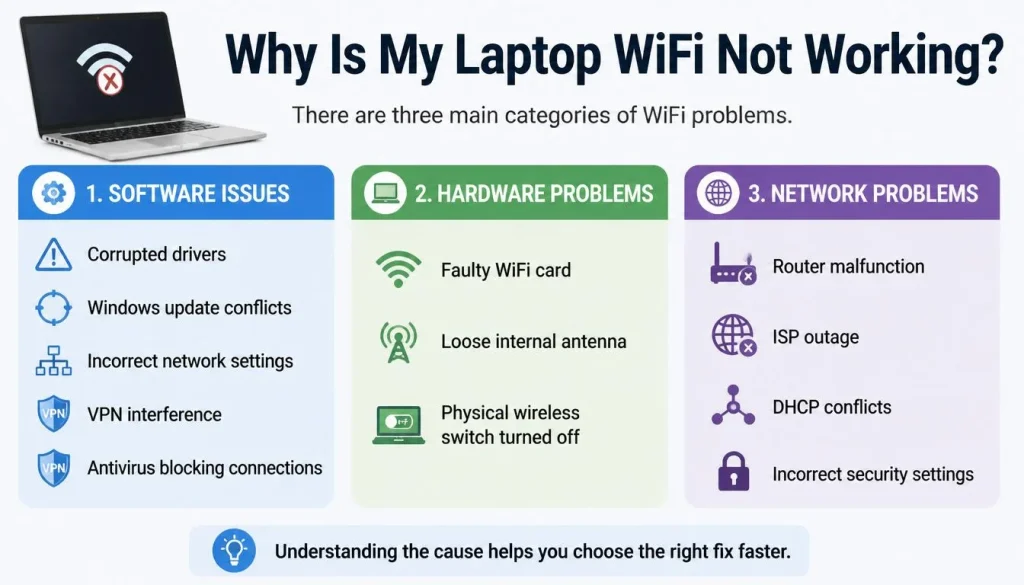
There are three main categories of WiFi problems.
Software Issues
- Corrupted drivers
- Windows update conflicts
- Incorrect network settings
- VPN interference
- Antivirus blocking connections
Hardware Problems
- Faulty WiFi card
- Loose internal antenna
- Physical wireless switch turned off
Network Problems
- Router malfunction
- ISP outage
- DHCP conflicts
- Incorrect security settings
Understanding the cause helps you choose the right fix faster.
Fix #1: Make Sure Airplane Mode Is Turned Off
Airplane Mode disables all wireless communications, including WiFi.
How to check:
- Press Windows + A.
- Look for the Airplane Mode icon.
- If it is enabled, click it to turn it off.
- Wait a few seconds for WiFi networks to appear.
Fix #2: Restart Your Laptop and Router
Temporary glitches are often fixed with a simple restart.
Restart your router:
- Unplug the router power cable.
- Wait 60 seconds.
- Plug it back in.
- Wait until all lights stabilize.
Restart your laptop:
- Click Start.
- Select Power.
- Choose Restart.
Fix #3: Make Sure WiFi Is Turned On
Many laptops include a keyboard shortcut that can disable wireless networking.
Common examples include:
- HP: Fn + F12
- Lenovo: Fn + F7
- ASUS: Fn + F2
- Acer: Fn + F3
- Dell: Fn + PrtScr
Look for a key with a wireless icon.
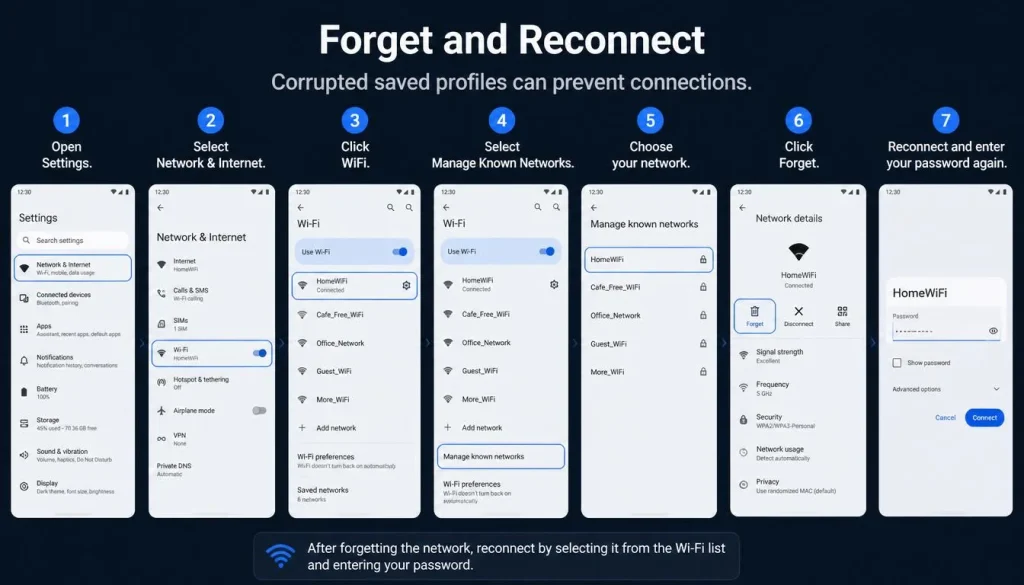
Fix #4: Forget the Network and Reconnect
Corrupted saved profiles can prevent connections.
Steps:
- Open Settings.
- Select Network & Internet.
- Click WiFi.
- Select Manage Known Networks.
- Choose your network.
- Click Forget.
- Reconnect and enter your password again.
Fix #5: Run the Windows Network Troubleshooter
Windows includes built-in diagnostic tools.
Windows 11:
Settings → System → Troubleshoot → Other Troubleshooters → Network and Internet
Windows 10:
Settings → Update & Security → Troubleshoot → Additional Troubleshooters
Follow the on-screen instructions.
Fix #6: Enable the Wireless Adapter
Sometimes the adapter becomes disabled.
Steps:
- Press Windows + X.
- Open Device Manager.
- Expand Network Adapters.
- Find your WiFi adapter.
- Right-click it.
- Select Enable Device if available.
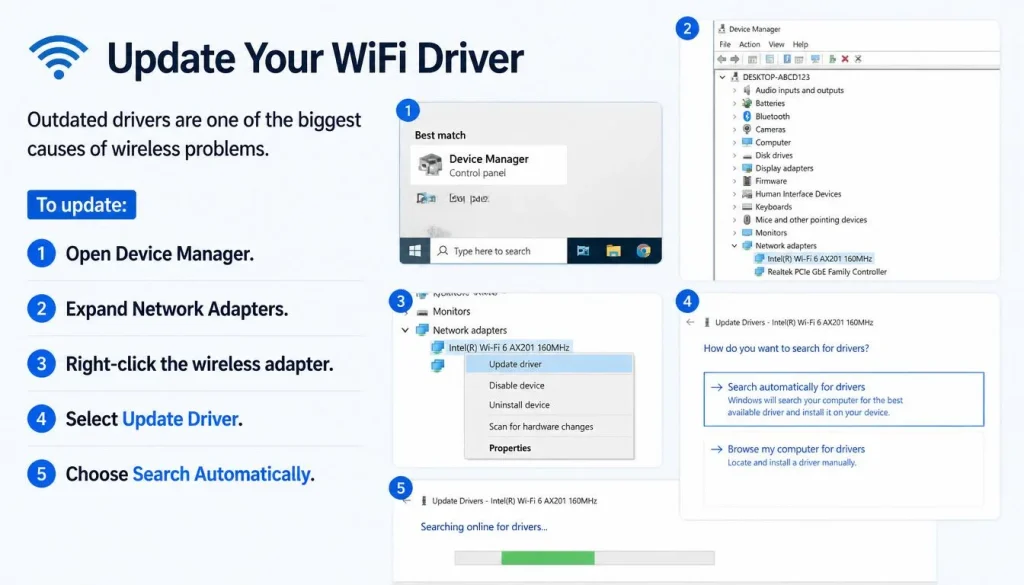
Fix #7: Update Your WiFi Driver
Outdated drivers are one of the biggest causes of wireless problems.
To update:
- Open Device Manager.
- Expand Network Adapters.
- Right-click the wireless adapter.
- Select Update Driver.
- Choose Search Automatically.
For best results, download drivers directly from your laptop manufacturer’s support page.
Fix #8: Roll Back a Recent Driver Update
If WiFi stopped working after an update, rolling back may solve the issue.
Steps:
- Open Device Manager.
- Open your WiFi adapter properties.
- Select the Driver tab.
- Click Roll Back Driver if available.
Fix #9: Reinstall the Wireless Driver
A clean installation often resolves stubborn issues.
Steps:
- Open Device Manager.
- Right-click the wireless adapter.
- Choose Uninstall Device.
- Restart the laptop.
- Windows will reinstall the driver automatically.
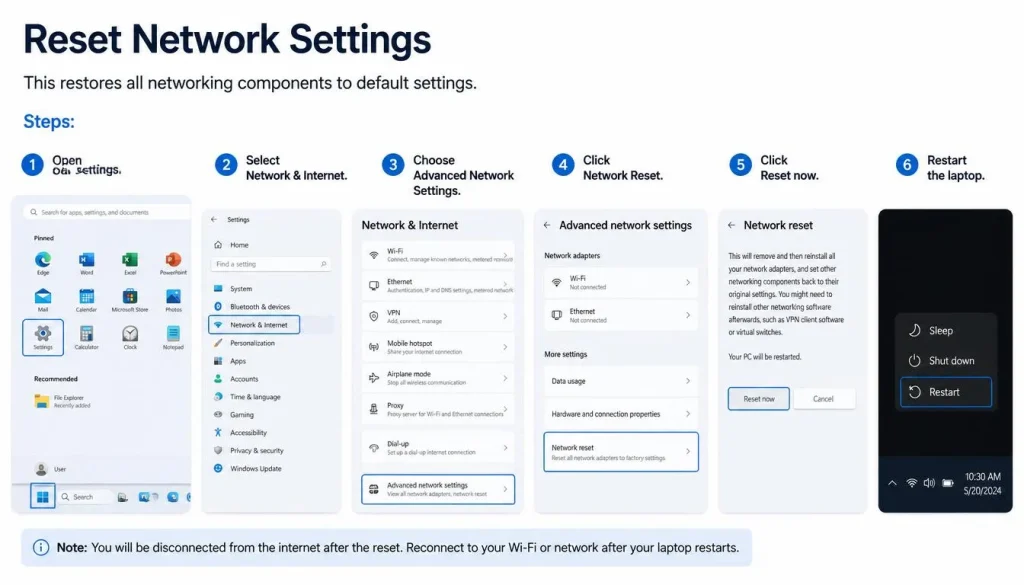
Fix #10: Reset Network Settings
This restores all networking components to default settings.
Steps:
- Open Settings.
- Select Network & Internet.
- Choose Advanced Network Settings.
- Click Network Reset.
- Restart the laptop.
Note that saved WiFi passwords and VPN settings will be removed.
Fix #11: Disable VPN and Third-Party Antivirus Software
VPN applications and security software can interfere with network connections.
Temporarily disable:
- VPN clients
- Third-party firewall software
- Antivirus network protection features
Then test your connection again.
Fix #12: Flush DNS and Reset TCP/IP
Open Command Prompt as Administrator and run:
ipconfig /flushdns
netsh winsock reset
netsh int ip reset
Restart your computer after running the commands.
Fix #13: Check Whether the Router Is the Problem
Ask yourself these questions:
- Does your phone connect successfully?
- Does another laptop connect?
- Does Ethernet work?
- Is your internet provider experiencing an outage?
If other devices also fail to connect, your router or ISP is likely responsible.
Fix #14: Install the Latest Windows Updates
Microsoft frequently releases fixes for networking bugs.
To update:
- Open Settings.
- Select Windows Update.
- Click Check for Updates.
- Install available updates.
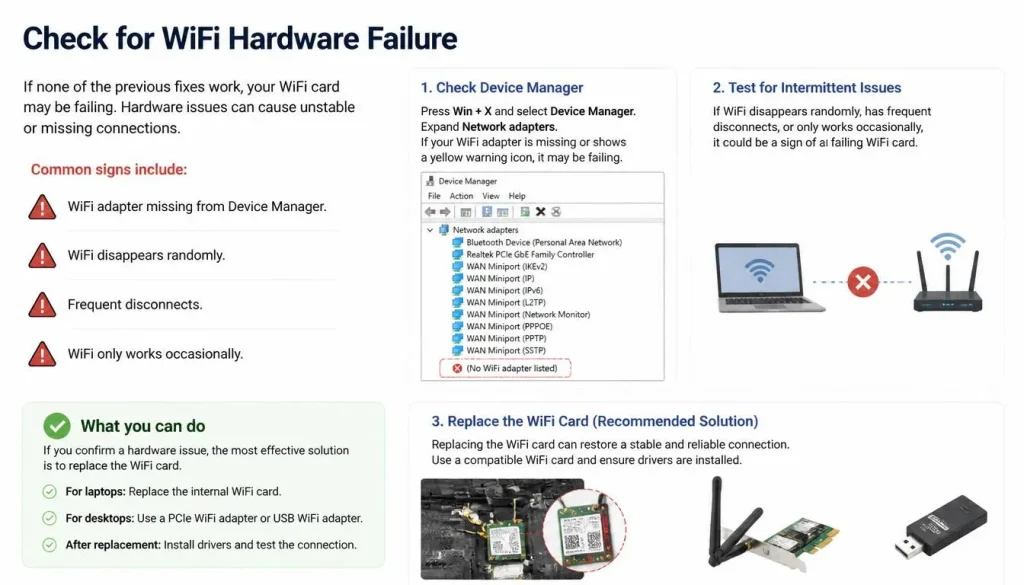
Fix #15: Check for WiFi Hardware Failure
If none of the previous fixes work, your WiFi card may be failing.
Common signs include:
- WiFi adapter missing from Device Manager.
- WiFi disappears randomly.
- Frequent disconnects.
- WiFi only works occasionally.
In this situation, replacing the WiFi card or using a USB WiFi adapter may be necessary.
Laptop Connected But No Internet
This usually points to:
- ISP outages
- DNS problems
- Router issues
- DHCP conflicts
Try restarting your router and resetting DNS settings.
Laptop Cannot Find Any WiFi Networks
Possible causes include:
- Disabled adapter
- Driver corruption
- Hardware failure
- Airplane Mode enabled
Check Device Manager first.
WiFi Option Missing Completely
If the WiFi button disappears:
- Reinstall drivers.
- Check BIOSsettings.
- Verify the adapter appears in Device Manager.
Laptop Says “No Internet, Secured”
This error commonly indicates:
- Router problems
- DNS issues
- ISP outages
Restarting both the laptop and router often fixes it.
Laptop Says “Can’t Connect to This Network”
Try these solutions:
- Forget the network.
- Re-enter the password.
- Restart the router.
- Update drivers.
Laptop Works on Ethernet But Not WiFi
This usually indicates:
- Wireless adapter problems
- Driver corruption
- Incorrect WiFi settings
Laptop Connects to Other Networks But Not Home WiFi
Possible causes include:
- Router security settings
- MAC filtering
- Incorrect passwords
- Router firmware bugs
Laptop Cannot Connect to 5GHz WiFi
Older WiFi cards may only support 2.4GHz networks.
Check your adapter specifications to confirm 5GHz support.
Laptop Connects to 2.4GHz But Not 5GHz
Common reasons include:
- Driver incompatibility
- Router channel settings
- Distance from router
Laptop WiFi Stops Working After Windows Update
Recent updates occasionally cause compatibility issues.
Try:
- Rolling back the driver.
- Installing manufacturer drivers.
- Using System Restore.
Laptop WiFi Disconnects After Sleep
Windows power-saving features sometimes disable wireless adapters.
Fix:
- Open Device Manager.
- Open WiFi adapter properties.
- Select Power Management.
- Uncheck:
“Allow the computer to turn off this device to save power.”
Laptop Won’t Connect to Mobile Hotspot
Check:
- Hotspot password
- Compatibility settings
- Mobile data availability
- Device limits on connected users
Laptop Won’t Connect to Hotel or Public WiFi
Public WiFi often requires opening a login portal.
Open your browser and visit:
http://neverssl.com
This usually forces the sign-in page to appear.
Brand-Specific Troubleshooting
Dell Laptop WiFi Not Working
Update drivers using Dell Support tools.
HP Laptop WiFi Not Working
Check the wireless function key and HP Connection Optimizer settings.
Lenovo Laptop WiFi Not Working
Verify Lenovo Vantage network settings.
ASUS Laptop WiFi Not Working
Update ASUS System Control Interface drivers.
Acer Laptop WiFi Not Working
Install the latest wireless drivers from Acer support.
MSI Laptop WiFi Not Working
Check MSI Center network optimization features.
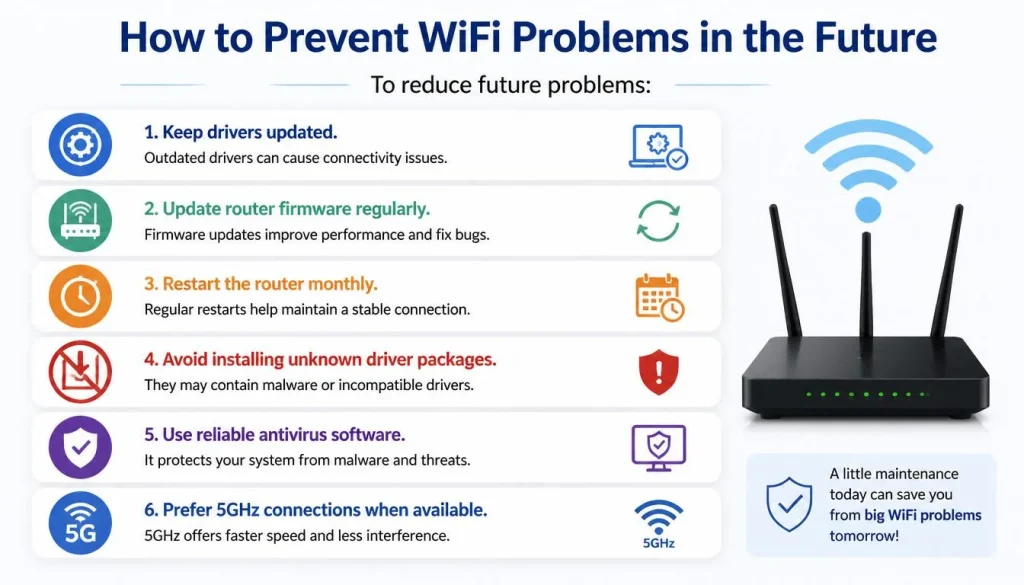
How to Prevent WiFi Problems in the Future
To reduce future problems:
- Keep drivers updated.
- Update router firmware regularly.
- Restart the router monthly.
- Avoid installing unknown driver packages.
- Use reliable antivirus software.
- Prefer 5GHz connections when available.
Common Mistakes Users Make
Avoid these mistakes:
- Reinstalling Windows too early.
- Ignoring router issues.
- Downloading drivers from unofficial websites.
- Assuming the laptop hardware is damaged immediately.
Frequently Asked Questions
Why did my laptop WiFi suddenly stop working?
The most common reasons are driver corruption, Windows updates, router problems, or accidental disabling of the wireless adapter.
Why is my laptop connected to WiFi but has no internet?
This usually indicates a router, DNS, or ISP issue rather than a laptop problem.
How do I reset my laptop WiFi adapter?
Use the Network Reset option inside Windows settings.
Can Windows updates break WiFi?
Yes. Driver conflicts after updates occasionally cause wireless issues.
How do I know if my WiFi card is failing?
Missing adapters, random disconnects, and disappearing networks are common symptoms.
Should I replace the WiFi card or use a USB adapter?
USB adapters are affordable and easy to install, while replacing the internal card offers better long-term performance.
Conclusion
Most laptop WiFi problems can be solved without professional repairs.
Start with the simple fixes first:
- Check Airplane Mode.
- Restart your laptop and router.
- Update or reinstall drivers.
- Reset network settings.
- Test your router and internet connection.
If none of those solutions work, the issue is likely related to hardware failure, and replacing the WiFi card or using a USB WiFi adapter may be the best option.
By following the troubleshooting steps in this guide, you can solve nearly every common WiFi issue affecting Windows laptops in 2026.

“Electronics aren’t just gadgets. They’re the invisible threads that connect our work, our play, and our world.”
I’m Julian Reed, and my obsession with tech started at age twelve, when I soldered a defunct gaming console back to life in my bedroom. That tiny green screen taught me that technology isn’t just a black box, it’s a tool you can master.
After fifteen years as a hardware engineer and a decade reviewing consumer tech, I’ve joined this team to cut through the jargon. Whether you’re building a high-end home theater or just need a laptop that won’t lag, I’m here to help you choose the gear that truly powers your life.


