
A speaker not working on a laptop can turn a simple video call, movie, class, or work task into a frustrating problem. You may see the volume moving, yet hear nothing. Your headphones may work while the built-in speakers stay silent. In other cases, the laptop may show “No audio output device is installed.”
The good news is that most laptop sound problems come from a wrong output setting, muted app, stopped audio service, or damaged audio driver. You can often fix them without opening the laptop or replacing any parts.
This guide starts with quick checks and moves toward advanced fixes. Follow the steps in order and test the sound after each one.
Important: The Windows steps focus on Windows 11. Most also work on Windows 10, although some menu names may differ. Microsoft ended standard support for Windows 10 on October 14, 2025.
Why Is My Laptop Speaker Not Working?
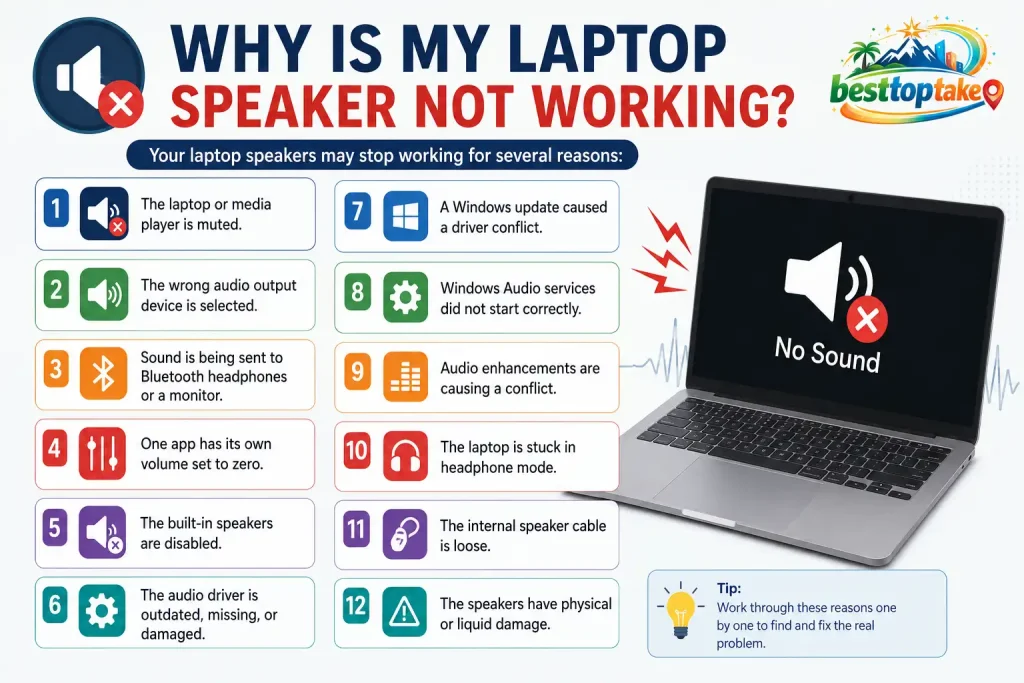
Your laptop speakers may stop working for several reasons:
- The laptop or media player is muted.
- The wrong audio output device is selected.
- Sound is being sent to Bluetooth headphones or a monitor.
- One app has its own volume set to zero.
- The built-in speakers are disabled.
- The audio driver is outdated, missing, or damaged.
- A Windows update caused a driver conflict.
- Windows Audio services did not start correctly.
- Audio enhancements are causing a conflict.
- The laptop is stuck in headphone mode.
- The internal speaker cable is loose.
- The speakers have physical or liquid damage.
Start with the easiest checks. Avoid changing drivers or system settings until you rule out basic volume and output problems.
Quick Diagnosis: What Type of Speaker Problem Do You Have?
Use this table to identify the best place to start.
| Symptom | Likely Cause | First Step |
|---|---|---|
| No sound from any app | Mute, output, driver, or service issue | Check volume and output |
| Headphones work but speakers do not | Wrong output, jack sensor, or speaker damage | Disconnect headphones |
| Sound works in only one app | App volume or app output setting | Check Volume Mixer |
| Speakers are missing from Settings | Missing or disabled audio driver | Open Device Manager |
| Sound stopped after an update | Driver conflict | Update or roll back driver |
| Sound goes through a monitor | HDMI or USB-C selected as output | Select internal speakers |
| Sound is low or distorted | Enhancement, format, or speaker issue | Disable enhancements |
| One speaker is silent | Balance setting or damaged speaker | Check left-right balance |
| Sound returns after restarting | Driver, power, or audio service issue | Restart audio services |
Try These Quick Checks First
Before changing advanced settings, complete these basic tests.
Make Sure the Laptop Is Not Muted
Select the speaker icon on the taskbar and raise the volume to at least 50%.
Also check:
- The keyboard mute key
- The
Fnkey and speaker key - The volume control inside YouTube, Spotify, Zoom, or another app
- Any physical volume control on connected equipment
A laptop can have several separate volume controls. Raising the main Windows volume will not help when the browser tab or app itself is muted.
Restart the Laptop
A normal restart can reload the audio driver and restart background sound services.
Select:
Start > Power > Restart
Use Restart rather than closing and reopening the lid. Sleep mode does not fully reload the operating system.
Disconnect All External Audio Devices
Remove or disconnect:
- Wired headphones
- USB headsets
- Bluetooth earbuds
- Bluetooth speakers
- HDMI cables
- USB-C monitors
- Docking stations
- External audio interfaces
Your laptop may still be sending sound to one of these devices.
Test More Than One Audio Source
Test the speakers with:
- A YouTube video
- A local music or video file
- A Windows notification sound
- A different browser
- A different app
When one source works, the built-in speakers are probably fine. The issue is more likely inside the affected app or website.
Check the Speaker Openings
Make sure the speaker grilles are not covered by:
- A laptop case
- Dust
- Stickers
- Fabric
- A screen protector or accessory
Do not push pins, metal tools, or liquid cleaners into the speaker openings.
How to Fix Laptop Speakers Not Working on Windows 11
Work through these fixes in order. Test your laptop speakers after each step.
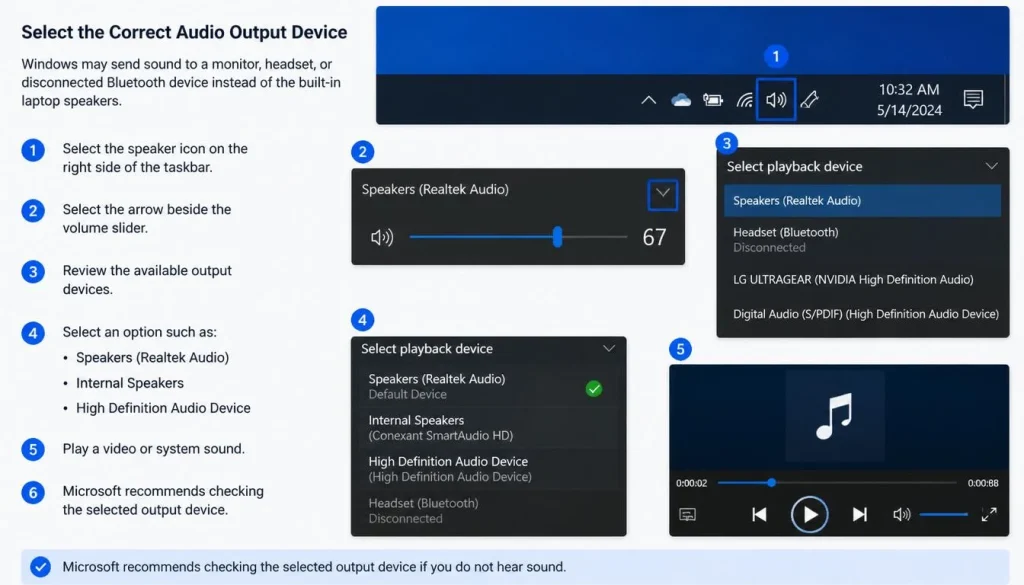
1. Select the Correct Audio Output Device
Windows may send sound to a monitor, headset, or disconnected Bluetooth device instead of the built-in laptop speakers.
- Select the speaker icon on the right side of the taskbar.
- Select the arrow beside the volume slider.
- Review the available output devices.
- Select an option such as:
- Speakers
- Internal Speakers
- Realtek Audio
- High Definition Audio Device
- Play a video or system sound.
Microsoft recommends checking the selected output device early in the troubleshooting process because sound may be routed to another connected device.
2. Check the Windows Volume Mixer
An individual app can remain muted even when the main laptop volume is high.
- Open Settings.
- Select System > Sound.
- Select Volume mixer.
- Find the app with no sound.
- Make sure it is not muted.
- Raise its volume.
- Confirm that the app is using your laptop speakers as its output.
Windows allows apps to use different audio devices from the main system output. Microsoft advises checking both the app volume and its assigned output device when system sounds work but one app remains silent.
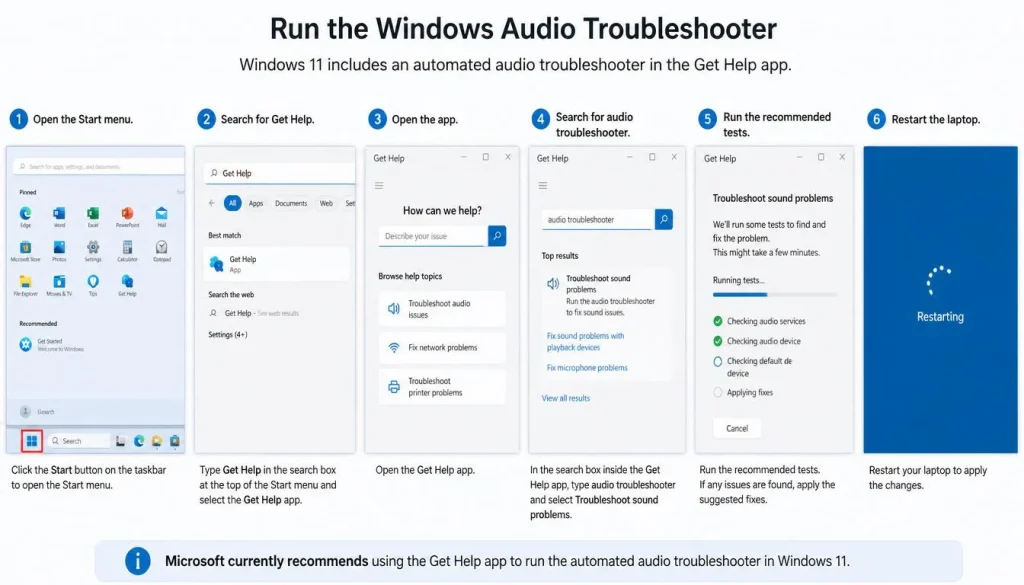
3. Run the Windows Audio Troubleshooter
Windows 11 includes an automated audio troubleshooter in the Get Help app.
- Open the Start menu.
- Search for Get Help.
- Open the app.
- Search for audio troubleshooter.
- Run the recommended tests.
- Apply any suggested fixes.
- Restart the laptop.
Microsoft currently recommends starting Windows 11 audio troubleshooting with the automated tool in Get Help.
4. Make Sure the Speakers Are Enabled
Your internal speakers may be installed but disabled.
- Open Settings > System > Sound.
- Select All sound devices.
- Choose your internal speakers.
- Look for an Allow or Enable option.
- Enable the device if required.
- Use the Test button.
You can also check the classic sound panel:
- Open Settings > System > Sound.
- Select More sound settings.
- Open the Playback tab.
- Right-click an empty area.
- Turn on Show Disabled Devices.
- Right-click your speakers and select Enable.
5. Set the Speakers as the Default Playback Device
Some apps use the Windows default device instead of your current taskbar selection.
- Open More sound settings.
- Select the Playback tab.
- Right-click Speakers.
- Select Set as Default Device.
- Select Apply, then OK.
Restart the affected app and test the sound again.
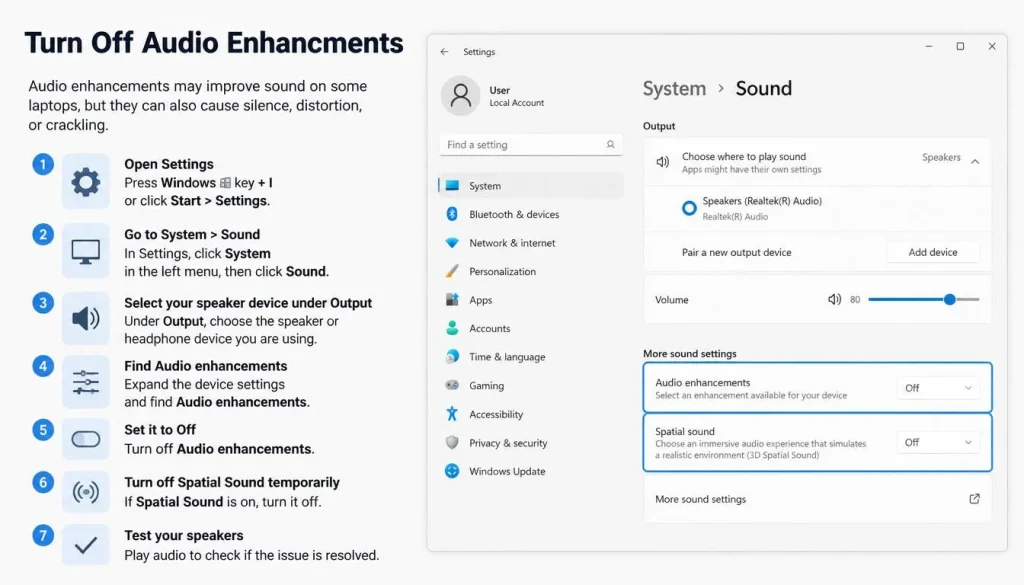
6. Turn Off Audio Enhancements
Audio enhancements may improve sound on some laptops, but they can also cause silence, distortion, or crackling.
- Open Settings > System > Sound.
- Select your speaker device under Output.
- Find Audio enhancements.
- Set it to Off.
- Turn off Spatial Sound temporarily.
- Test your speakers.
Microsoft lists disabling audio enhancements as a recommended fix for Windows sound problems.
7. Check the Left and Right Audio Balance
A balance setting can mute one side of the laptop.
- Open More sound settings.
- Select the Playback tab.
- Double-click your speakers.
- Open Levels.
- Select Balance.
- Make sure the left and right channels have similar values.
Set both channels to the same level, such as 80 and 80, before testing again.
8. Restart Windows Audio Services
Sound may stop when a required Windows service fails to start.
- Press
Windows + R. - Type
services.msc. - Press Enter.
- Find Windows Audio.
- Right-click it and select Restart.
- Find Windows Audio Endpoint Builder.
- Right-click it and select Restart.
- Test the speakers.
Microsoft recommends restarting both Windows Audio and Windows Audio Endpoint Builder when audio stops after an update or fails inside certain apps.
9. Enable the Audio Device in Device Manager
- Right-click the Start button.
- Select Device Manager.
- Expand Sound, video and game controllers.
- Find your audio device.
- Right-click it.
- Select Enable device if that option appears.
Also expand Audio inputs and outputs and check whether Speakers is disabled there.
Common device names include:
- Realtek Audio
- Intel Smart Sound Technology
- Conexant Audio
- AMD High Definition Audio
- High Definition Audio Device
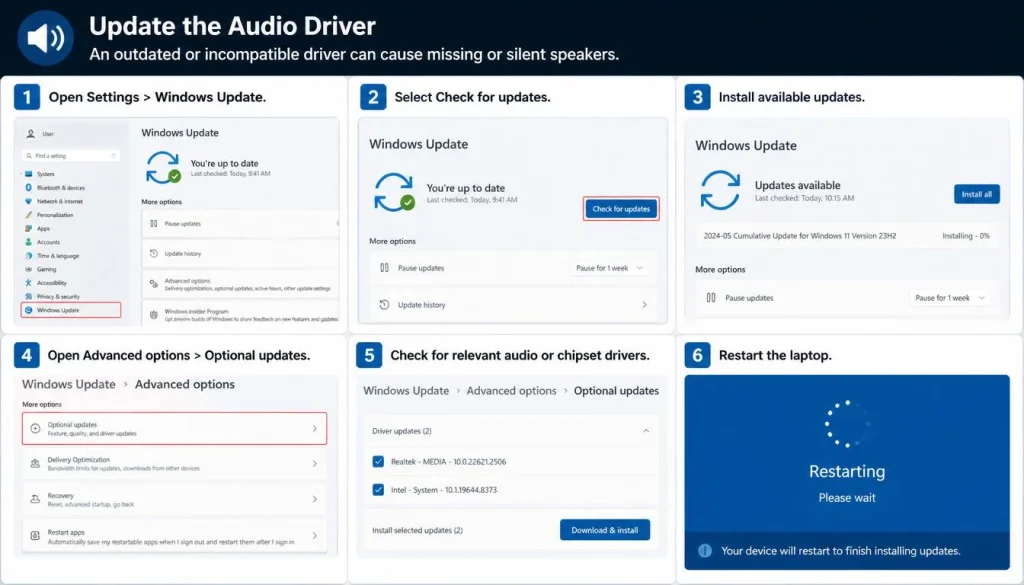
10. Update the Audio Driver
An outdated or incompatible driver can cause missing or silent speakers.
Update Through Windows Update
- Open Settings > Windows Update.
- Select Check for updates.
- Install available updates.
- Open Advanced options > Optional updates.
- Check for relevant audio or chipset drivers.
- Restart the laptop.
Update Through Device Manager
- Open Device Manager.
- Expand Sound, video and game controllers.
- Right-click your audio device.
- Select Update driver.
- Select Search automatically for drivers.
- Restart Windows.
Microsoft recommends Windows Update first, followed by Device Manager or the laptop maker’s support site when needed.
11. Download the Driver From the Laptop Manufacturer
A generic Windows driver may not support every feature of your laptop.
Visit the official support page for your laptop brand. Search with the exact model number and download the latest compatible:
- Audio driver
- Chipset driver
- Intel Smart Sound driver
- BIOS or firmware update, when specifically related
Avoid random third-party driver websites and automatic driver updater programs. An incorrect driver may create more problems.
12. Reinstall the Audio Driver
Reinstalling can repair an incomplete or damaged driver installation.
- Open Device Manager.
- Expand Sound, video and game controllers.
- Right-click the main audio device.
- Select Uninstall device.
- Confirm the removal.
- Restart your laptop.
Windows normally reinstalls the device after restarting. If it does not, install the official driver from your laptop manufacturer. Microsoft recommends reinstalling the audio driver when updating it does not solve the problem.
13. Roll Back the Audio Driver
Use this fix when the speaker stopped working soon after a driver or Windows update.
- Open Device Manager.
- Expand Sound, video and game controllers.
- Right-click the audio device.
- Select Properties.
- Open the Driver tab.
- Select Roll Back Driver.
- Choose a reason and confirm.
- Restart the laptop.
The Roll Back option is available only when Windows still has an older driver version stored. Microsoft specifically recommends this step when sound stops after a recent update.
14. Change the Default Audio Format
An unsupported or unstable audio format may cause silence, low volume, or distorted sound.
- Open More sound settings.
- Double-click Speakers.
- Open the Advanced tab.
- Change the Default Format.
- Try a common option such as:
- 16 bit, 44100 Hz
- 16 bit, 48000 Hz
- Select Test.
- Keep the format that works best.
Do not assume the highest available format will produce the best result.
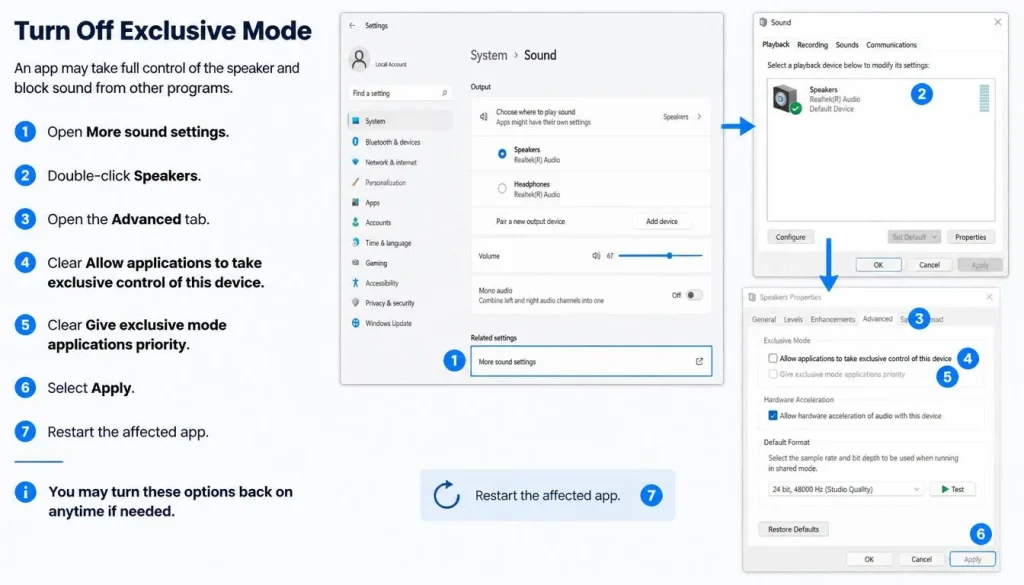
15. Turn Off Exclusive Mode
An app may take full control of the speaker and block sound from other programs.
- Open More sound settings.
- Double-click Speakers.
- Open the Advanced tab.
- Clear Allow applications to take exclusive control of this device.
- Clear Give exclusive mode applications priority.
- Select Apply.
- Restart the affected app.
You may turn these options back on when disabling them does not help.
16. Repair Windows System Files
Use this advanced fix only after completing the driver and service checks.
- Search for Command Prompt.
- Right-click it.
- Select Run as administrator.
- Enter:
DISM.exe /Online /Cleanup-Image /RestoreHealth
- Wait for the process to finish.
- Then enter:
sfc /scannow
- Do not close the window before the scan reaches 100%.
- Restart the laptop.
DISM and System File Checker can repair missing or corrupted Windows components that may affect system functions.
Laptop Speakers Not Showing in Sound Settings
You may see one of these symptoms:
- “No audio output device is installed”
- “No output devices found”
- Sound settings are greyed out
- Speakers are missing from the output list
- A red X appears on the speaker icon
- The audio device is missing from Device Manager
Microsoft states that Windows may fail to detect an output device when the audio driver is missing, outdated, disabled, incompatible, or not loading correctly.
Show Hidden Audio Devices
- Open Device Manager.
- Select View.
- Select Show hidden devices.
- Expand Sound, video and game controllers.
- Right-click a faded audio device.
- Select Enable device or Update driver.
Scan for Hardware Changes
- Open Device Manager.
- Select Action.
- Select Scan for hardware changes.
- Wait for Windows to detect the audio hardware.
- Restart the laptop.
Microsoft recommends showing hidden devices and scanning for hardware changes when no audio output device appears.
Reinstall the Official Audio Driver
When no device appears after scanning:
- Find the laptop model number.
- Visit the manufacturer’s official support website.
- Download the correct audio and chipset drivers.
- Install the chipset driver first when instructed.
- Install the audio driver.
- Restart the laptop.
Check BIOS or UEFI Audio Settings
Some laptops include an onboard audio setting in BIOS or UEFI.
Only check this setting when:
- The audio device is completely missing
- Driver installation cannot detect it
- The laptop was recently repaired
- BIOS settings were reset or changed
Look for a setting such as:
- Onboard Audio
- HD Audio
- Integrated Audio
- Audio Controller
Make sure it is enabled. Do not change unrelated BIOS settings.
Laptop Speakers Not Working but Headphones Work
When headphones work but the internal speakers do not, the sound card and operating system are usually producing audio. The problem is more likely related to output selection, headphone detection, the speaker connection, or the speakers themselves.
Try these steps:
- Unplug the headphones.
- Disconnect all Bluetooth audio devices.
- Select Internal Speakers as the output.
- Set Speakers as the default playback device.
- Disable audio enhancements.
- Restart Windows Audio services.
- Reinstall the laptop maker’s audio driver.
- Run the manufacturer’s hardware test.
Fix a Laptop Stuck in Headphone Mode
Your laptop may still think headphones are connected after you remove them.
- Gently insert and remove the headphone plug once or twice.
- Check the jack for visible dust or debris.
- Restart the laptop with the headphones removed.
- Manually select Speakers in the output menu.
- Open the laptop maker’s audio control app and review jack detection settings.
- Reinstall the audio driver.
Do not place liquid, metal pins, or sharp tools inside the headphone jack.
When the system always detects headphones even after a driver reinstall, the jack sensor may require professional repair.
Laptop Speaker Not Working After a Windows Update
A Windows update may install a new driver or create a temporary conflict with the current driver.
Follow this order:
- Restart the laptop.
- Check for another Windows update.
- Update the audio driver.
- Restart Windows Audio services.
- Roll back the audio driver.
- Install the official laptop manufacturer driver.
- Use System Restore if the issue began immediately after a major change.
Microsoft advises updating or rolling back the audio driver and restarting audio services when sound stops following a Windows update.
Avoid uninstalling security updates as your first response. Use driver repair options before removing a Windows update.
Laptop Speaker Stops Working After Sleep or Closing the Lid
A power-state or driver issue may prevent the audio device from waking correctly.
Try these steps:
- Restart the laptop instead of placing it back into sleep.
- Restart Windows Audio and Windows Audio Endpoint Builder.
- Install all Windows updates.
- Update the audio driver.
- Update the laptop chipset driver.
- Install a BIOS update only from the official manufacturer.
- Test whether the issue occurs after Sleep, Hibernate, or both.
You can also temporarily disable Fast Startup:
- Open Control Panel.
- Select Hardware and Sound > Power Options.
- Select Choose what the power buttons do.
- Select Change settings that are currently unavailable.
- Clear Turn on fast startup.
- Save the change.
- Restart and test.
Turn Fast Startup back on when disabling it makes no difference.
Laptop Speakers Not Working After Connecting a Monitor or Dock
HDMI, DisplayPort, and USB-C connections can carry audio. Windows may automatically select the monitor or docking station as the output device.
Switch Sound Back to the Laptop Speakers
- Select the speaker icon on the taskbar.
- Open the output list.
- Select Speakers or Internal Speakers.
- Test the sound.
Check Whether the Monitor Has Speakers
Many monitors accept an audio signal but do not have built-in speakers. Windows may still select the monitor as the output, leaving you with no sound.
Disconnect the Dock or Hub
Disconnect:
- HDMI
- DisplayPort
- USB-C dock
- Thunderbolt dock
- USB audio adapter
Restart the laptop and test the internal speakers.
Disable an Unused Display Audio Device
- Open More sound settings.
- Open the Playback tab.
- Right-click the unused monitor audio device.
- Select Disable.
Only disable devices you do not use. You can enable them again later.
Laptop Speaker Not Working After Using Bluetooth Headphones
Windows may continue sending audio to Bluetooth earbuds or headphones after you stop using them.
- Turn off the Bluetooth device.
- Open the Windows output menu.
- Select the internal speakers.
- Open Settings > Bluetooth & devices.
- Disconnect or remove the audio device if needed.
- Restart Bluetooth.
- Restart the laptop.
When the Bluetooth device is connected but produces no sound, run the Bluetooth troubleshooter in the Get Help app. Microsoft recommends the Get Help Bluetooth diagnostic as the first automated step on Windows 11.
Sound Works in Some Apps but Not Chrome, YouTube, Zoom, or Teams
When system sounds work but one app is silent, the laptop speakers are probably not damaged.
Check the App Volume
Open:
Settings > System > Sound > Volume mixer
Make sure the affected app:
- Is not muted
- Has enough volume
- Uses the correct output device
Check the Website or Media Player
For YouTube or another video player:
- Unmute the video
- Raise the player volume
- Reload the page
- Test another video
For Chrome or another browser:
- Check whether the tab is muted
- Test a private or incognito window
- Disable audio-related browser extensions
- Test another browser
For Zoom, Teams, or another meeting app:
- Open the app’s audio settings
- Select the laptop speakers
- Use the built-in speaker test
- Leave and rejoin the meeting
Microsoft confirms that app-level volume and output settings can override the main Windows sound settings.
How to Fix Crackling, Distorted, or Very Low Laptop Sound
When the speakers produce sound but it is weak or damaged, try these fixes:
- Lower the volume from 100% to about 70%.
- Disable audio enhancements.
- Turn off spatial sound.
- Change the default audio format.
- Update or reinstall the audio driver.
- Restart Windows Audio services.
- Test a different audio file.
- Compare the sound with headphones.
- Check the speaker grilles for blockage.
Audio enhancements, unsupported audio formats, driver problems, and stopped audio services can contribute to distorted or crackling sound in Windows.
If crackling appears only at high volume, the speakers may be overloaded or physically worn. Continued use at maximum volume may make the problem worse.
How to Fix One Laptop Speaker Not Working
First, check the left-right balance:
- Open More sound settings.
- Double-click Speakers.
- Open Levels > Balance.
- Set both channels to equal values.
Next, test stereo audio from several sources.
When the same side remains silent in every app, but headphones play both channels correctly, one internal speaker or its cable may be damaged.
How to Fix MacBook Internal Speakers Not Working
Apple recommends checking app volume, disconnecting external audio equipment, and selecting the built-in speakers in macOS sound settings.
Check the App Volume
Test more than one app or website.
Make sure:
- The media player is not muted
- The Safari tab is not muted
- The website volume is turned up
- Another app can play sound
When one app plays sound, the built-in speakers are working and the issue is app-specific.
Disconnect External Audio Devices
Disconnect:
- Headphones
- USB speakers
- USB audio interfaces
- Thunderbolt devices
- HDMI displays
- USB-C displays
Select the Built-In Speakers
- Open the Apple menu.
- Select System Settings.
- Select Sound.
- Open Output.
- Select the built-in Mac speakers.
- Raise the output volume.
- Make sure Mute is off.
Restart and Update the Mac
Restart macOS and install available system updates.
When the built-in speakers remain silent after checking output, volume, apps, and external devices, Apple advises arranging service.
What If the Speaker Is Not Working on a Chromebook?
Start with ChromeOS Quick Settings.
- Select the time in the bottom-right corner.
- Raise the volume.
- Make sure the speaker is not muted.
- Open Audio Settings beside the volume slider.
- Select the internal speaker under Output.
- Disconnect headphones, Bluetooth devices, and monitors.
- Restart the Chromebook.
- Check for a ChromeOS update.
Google recommends checking mute and volume, selecting the correct audio output, disconnecting external audio devices, and resetting the Chromebook when sound does not work.
Use a Chromebook hardware reset only after simpler steps fail. Google notes that a hardware reset restarts hardware components and may affect some files in the Downloads folder.
How to Tell Whether the Problem Is Software or Hardware
Signs of a Software Problem
The issue is more likely software-related when:
- Sound stopped after an update
- The speakers work after restarting
- Sound works in some apps
- The device appears in Device Manager
- Reinstalling the driver restores sound
- Bluetooth or HDMI output works
- The problem changes with Windows settings
Signs of a Hardware Problem
The issue may be physical when:
- Headphones always work but speakers never do
- One built-in speaker is permanently silent
- The laptop was dropped
- Liquid entered the laptop
- The speaker produces harsh buzzing at every volume
- The manufacturer’s speaker test fails
- The speaker grille or laptop body is damaged
- The internal speaker is not detected after proper driver installation
A working headphone output does not prove the internal speakers are healthy. Headphones and built-in speakers use different physical output components.
Brand-Specific Diagnostic Tools
Many laptop brands provide their own support apps or hardware tests.
Dell
Use Dell SupportAssist or the pre-boot hardware diagnostic to test the speakers. Install drivers only for the correct Dell Service Tag or model.
HP
Use HP Support Assistant or HP PC Hardware Diagnostics. Run the audio test before replacing drivers or parts.
Lenovo
Use Lenovo Vantage to check updates and run a hardware scan. Confirm the exact model before installing Realtek or Intel audio packages.
ASUS
Use MyASUS System Diagnosis. Review audio, driver, and noise-cancellation settings.
Acer
Use Acer’s official support page and Acer Care Center where available. Download drivers for the full model number.
A failed manufacturer hardware test is a strong reason to contact an authorised repair provider.
When Should You Contact a Repair Technician?
Professional repair may be needed when:
- Every software fix has failed
- The built-in speaker test fails
- One speaker remains dead
- The laptop has liquid damage
- The laptop was dropped
- The headphone jack sensor remains stuck
- The audio device disappears repeatedly
- There is a burning smell or unusual heat
- The laptop is still covered by warranty
Do not open a laptop that is under warranty unless the manufacturer tells you to do so. Internal speakers may sit near the battery, cables, motherboard, or other sensitive parts.
How to Prevent Future Laptop Speaker Problems
Use these habits to reduce future audio issues:
- Install drivers from Windows Update or the laptop manufacturer.
- Avoid untrusted driver updater software.
- Restart the laptop regularly.
- Do not use maximum speaker volume for long periods.
- Keep liquids away from the laptop.
- Keep speaker grilles clean and uncovered.
- Disconnect headphones carefully.
- Create a restore point before major driver changes.
- Back up important data before advanced repairs.
- Keep Windows, macOS, or ChromeOS updated.
Frequently Asked Questions on Speaker Not Working on Laptop
Why Is My Laptop Speaker Not Working Even Though the Volume Is On?
The wrong output device may be selected. Sound may also be muted inside the app, sent to Bluetooth headphones, or blocked by a driver or audio service problem. Select the internal speakers, check Volume Mixer, and restart the laptop.
Why Do Headphones Work but My Laptop Speakers Do Not?
The laptop may be stuck in headphone mode, the internal speakers may be disabled, or the speaker hardware may be damaged. Select Speakers as the default output, reinstall the audio driver, and run a hardware test.
How Do I Enable the Built-In Speakers on My Laptop?
Open Settings > System > Sound > All sound devices, select the speakers, and choose Allow or Enable. You can also enable them through the Playback tab in More sound settings or through Device Manager.
Why Does Windows Say “No Audio Output Device Is Installed”?
The audio device may be disabled, hidden, missing its driver, or not loading correctly. Show hidden devices in Device Manager, scan for hardware changes, and install the latest official audio driver.
Why Did My Laptop Sound Stop Working After an Update?
The update may have installed an incompatible driver or prevented the audio services from starting correctly. Update or roll back the audio driver, restart Windows Audio services, and check for newer Windows updates.
How Do I Restart the Audio Driver?
Open Device Manager, expand Sound, video and game controllers, disable the audio device, and then enable it again. You can also uninstall the device and restart Windows to reinstall the driver.
Why Is My Laptop Stuck in Headphone Mode?
A jack sensor, audio control app, or driver may still detect headphones. Restart with the headphones removed, select Speakers manually, reinstall the audio driver, and have the jack inspected if the issue continues.
Why Is Only One Laptop Speaker Working?
The left-right balance may be incorrect, or one speaker may be damaged. Check the balance settings and test different audio sources. When the same side remains silent, hardware repair may be required.
Why Is My Laptop Speaker Crackling?
Common causes include high volume, audio enhancements, an unsupported audio format, driver problems, blocked speaker grilles, or physical speaker damage. Lower the volume and disable enhancements before testing the hardware.
Will Resetting Windows Fix the Laptop Sound?
A Windows reset may fix severe software corruption, but it should be a last resort. Try output settings, the troubleshooter, services, driver repair, DISM, and SFC first.
Can Laptop Speakers Be Replaced?
Yes. Most built-in laptop speakers can be replaced, although access and part availability depend on the model. Professional repair is safer when the laptop is under warranty or contains a built-in battery.
Final Troubleshooting Checklist
Before arranging a repair, confirm that you have:
- Checked mute and volume
- Selected the internal speakers
- Disconnected Bluetooth, HDMI, and USB-C audio devices
- Tested more than one app or website
- Checked Windows Volume Mixer
- Run the Get Help audio troubleshooter
- Enabled the speakers
- Set them as the default device
- Disabled audio enhancements
- Restarted Windows Audio services
- Updated or reinstalled the audio driver
- Rolled back a recent driver when needed
- Scanned for hardware changes
- Run the laptop manufacturer’s hardware test
Final Thoughts
When a speaker is not working on a laptop, begin with the volume, mute, and output device. These simple settings cause many no-sound problems. Next, test another app, disconnect external audio devices, and run the Windows audio troubleshooter.
When the speakers are missing, focus on Device Manager and the official audio driver. When headphones work but the internal speakers do not, check the output selection, headphone jack detection, and speaker hardware.
Move to system repairs or professional service only after completing the safer software fixes. A careful step-by-step test will help you solve the problem without making unnecessary changes or replacing working parts.

“Electronics aren’t just gadgets. They’re the invisible threads that connect our work, our play, and our world.”
I’m Julian Reed, and my obsession with tech started at age twelve, when I soldered a defunct gaming console back to life in my bedroom. That tiny green screen taught me that technology isn’t just a black box, it’s a tool you can master.
After fifteen years as a hardware engineer and a decade reviewing consumer tech, I’ve joined this team to cut through the jargon. Whether you’re building a high-end home theater or just need a laptop that won’t lag, I’m here to help you choose the gear that truly powers your life.


