

Quick Answer: If your laptop turns on but the screen stays black, the issue is usually caused by a display problem, faulty RAM, graphics driver corruption, Windows update errors, overheating, or hardware failure. In many cases, you can fix the problem yourself in less than 30 minutes using the troubleshooting steps below.
Few laptop problems are more frustrating than pressing the power button and seeing nothing but a black screen.
Maybe the power light is on. Maybe the fan is spinning. Perhaps you can hear Windows startup sounds or see the keyboard lights glowing. Yet the display remains completely black.
The good news is that a black screen does not always mean your laptop is dead. In fact, many black screen issues are caused by software glitches, display settings, driver conflicts, or memory problems that can be fixed without replacing any hardware.
This guide walks you through the most effective solutions for Windows laptops, including Dell, HP, Lenovo, ASUS, Acer, MSI, Surface, and other popular brands.
What Does a Laptop Black Screen Mean?
A laptop black screen means your computer powers on but fails to display the image correctly.
Common symptoms include:
- Laptop turns on but the screen stays black.
- Power light is on but there is no display.
- Keyboard lights work but the screen remains dark.
- The fan spins normally but nothing appears.
- The screen shows only a mouse cursor.
- The display goes black after a Windows update.
- The laptop becomes stuck on a black screen after login.
The exact symptom often provides clues about the real cause.
Why Does a Laptop Screen Go Black?
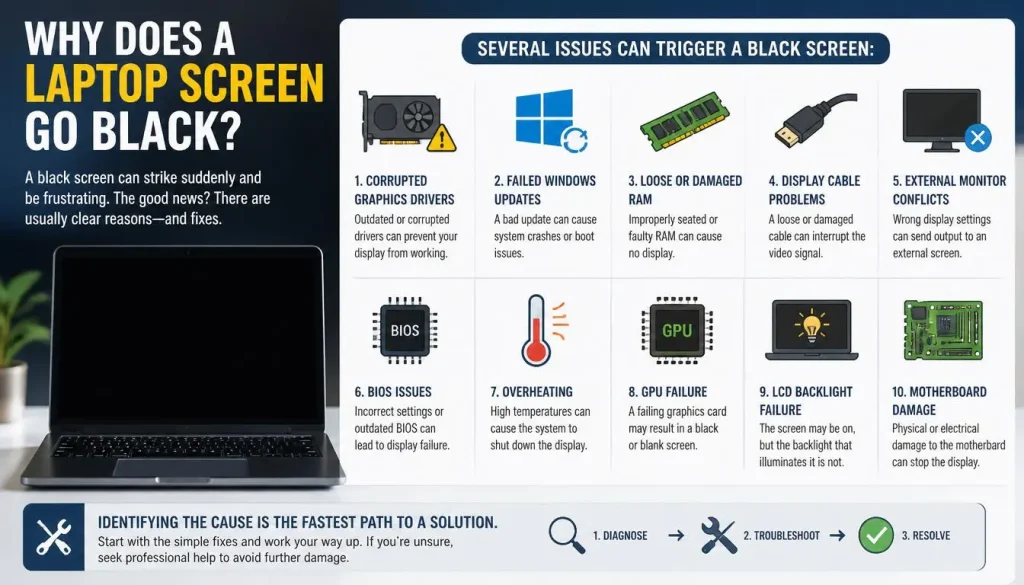
Several issues can trigger a black screen:
- Corrupted graphics drivers
- Failed Windows updates
- Loose or damaged RAM
- Display cable problems
- External monitor conflicts
- BIOS issues
- Overheating
- GPU failure
- LCD backlight failure
- Motherboard damage
Identifying the cause is the fastest path to a solution.
Before You Start Troubleshooting
Check these signs before trying any fix:
- Is the power indicator on?
- Can you hear the fan running?
- Does Caps Lock respond when pressed?
- Do keyboard backlights work?
- Can you hear startup sounds?
- Does an external monitor show an image?
These observations help determine whether the issue is related to Windows, the display, or internal hardware.
Fix 1: Force Restart Your Laptop
Temporary system crashes often cause black screens.
Steps
- Hold the power button for 15 seconds.
- Disconnect the charger.
- Remove the battery if it is removable.
- Wait one minute.
- Reconnect power and start the laptop again.
Many users solve startup black screens with this simple reset.

Fix 2: Increase Screen Brightness
It sounds obvious, but accidental brightness changes happen more often than people realize.
Try pressing:
- Fn + Brightness Up
- The brightness key specific to your laptop model
If the display is extremely dim, shine a flashlight at the screen to check whether a faint image appears.
Fix 3: Reset the Graphics Driver
Windows includes a built-in graphics reset shortcut.
Press:
Windows + Ctrl + Shift + B
If successful, you will hear a beep and the screen may flicker briefly before returning to normal.
This fix is especially useful after driver crashes.

Fix 4: Disconnect External Displays
Windows occasionally sends video output to an external display instead of your laptop screen.
Disconnect:
- HDMI cables
- USB-C monitors
- Docking stations
- Thunderbolt adapters
- DisplayPort connections
Restart your laptop after disconnecting all external displays.
Fix 5: Reseat the RAM
Improperly seated memory modules frequently cause black screens.
Common symptoms
- Power light on
- Fan running
- No display
- Caps Lock blinking repeatedly
If you are comfortable opening your laptop:
- Turn off the device.
- Disconnect power.
- Remove the RAM modules.
- Clean the contacts gently.
- Reinstall the memory firmly.
If multiple RAM sticks are installed, test them one at a time.
Fix 6: Boot Into Safe Mode
If Windows is causing the problem, Safe Mode may still work.
Enter Safe Mode
- Force shutdown the laptop three times during startup.
- Windows Recovery Environment should appear.
- Select Troubleshoot.
- Open Advanced Options.
- Choose Startup Settings.
- Press 4 to start Safe Mode.
If the display works in Safe Mode, the issue is usually software-related.
Fix 7: Reinstall Graphics Drivers
Corrupted graphics drivers are one of the most common causes of black screens.
Steps
- Open Device Manager.
- Expand Display Adapters.
- Right-click your graphics card.
- Select Uninstall Device.
- Restart Windows.
Windows will automatically reinstall the basic driver during startup.

Fix 8: Roll Back Recent Windows Updates
Many black screen problems begin immediately after updates.
Steps
- Open Recovery Environment.
- Select Troubleshoot.
- Open Advanced Options.
- Choose Uninstall Updates.
- Remove the latest quality update.
Fix 9: Disable Fast Startup
Fast Startup sometimes creates driver conflicts.
Steps
- Open Control Panel.
- Select Power Options.
- Choose what the power buttons do.
- Click Change settings currently unavailable.
- Disable Fast Startup.
Fix 10: Perform a System Restore
If the problem appeared recently, System Restore may undo the changes.
Choose a restore point created before the black screen started appearing.
Fix 11: Reset BIOS Settings
Incorrect BIOS settings occasionally prevent the display from working.
Common reset method
- Turn off the laptop.
- Enter BIOS during startup.
- Select Load Default Settings.
- Save changes and restart.
Fix 12: Test With an External Monitor
Connecting an external monitor helps isolate the problem.
If the external monitor works:
The issue is likely related to:
- LCD panel failure
- Display cable damage
- Backlight failure
- Internal display connector problems
If the external monitor also stays black:
The issue may involve:
- GPU failure
- RAM problems
- Motherboard damage
Fix 13: Remove Recently Installed Hardware
Did the problem begin after an upgrade?
Possible causes include:
- New RAM
- SSD upgrades
- Wi-Fi card replacement
- Internal repairs
Remove the recently installed component and test again.
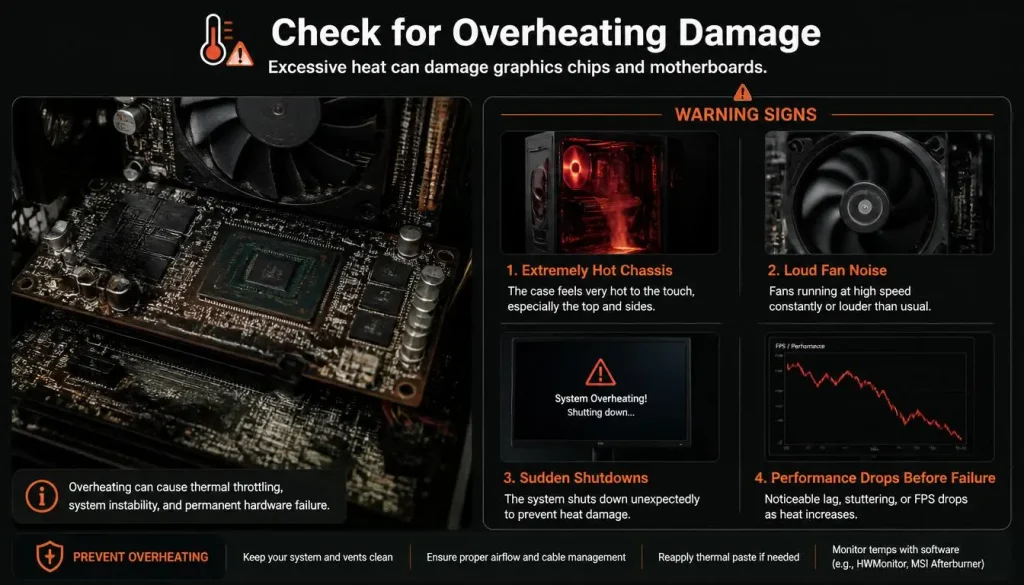
Fix 14: Check for Overheating Damage
Excessive heat can damage graphics chips and motherboards.
Warning signs
- Extremely hot chassis
- Loud fan noise
- Sudden shutdowns
- Performance drops before failure
Clean dust from cooling vents and ensure the fans operate properly.
Fix 15: Seek Professional Repair
If none of the previous solutions work, hardware failure becomes more likely.
Common hardware repairs include:
- LCD replacement
- Display cable replacement
- GPU repair
- Motherboard repair
- Backlight replacement
Laptop Black Screen but Keyboard Lights Are On
This usually means the laptop itself is running but cannot display the image.
The most common causes are:
- Faulty RAM
- Failed display cable
- LCD issues
- GPU problems
Testing with an external monitor is the best next step.
Laptop Black Screen but Fan Running
A spinning fan indicates the motherboard is receiving power.
Possible causes include:
- RAM failure
- Graphics issues
- BIOS corruption
- Display problems

Laptop Black Screen and Caps Lock Blinking
Many HP laptops use blinking Caps Lock lights as diagnostic codes.
The blinking pattern often identifies:
- RAM problems
- BIOS corruption
- Motherboard faults
Consult your laptop manufacturer’s support documentation for the blink code meaning.
Laptop Turns On but No Display
This issue differs slightly from a traditional black screen.
The computer may complete the startup process normally but fail to output video.
The most common causes are:
- Failed GPU
- Damaged LCD
- Loose display cable
- Incorrect display output settings
Laptop Black Screen After Sleep Mode
Windows occasionally fails to wake the display after sleep.
Try:
- Pressing the power button once.
- Using Windows + Ctrl + Shift + B.
- Updating graphics drivers.
- Disabling Fast Startup.
Laptop Black Screen After Windows Update
Recent updates can introduce display driver conflicts.
Recommended solutions include:
- Startup Repair
- Safe Mode
- Rolling back updates
- System Restore
Laptop Black Screen With Cursor Only
If you can move the mouse pointer but see nothing else, Windows Explorer may have failed to start.
Fix
- Press Ctrl + Shift + Esc.
- Open Task Manager.
- Select Run New Task.
- Type:
explorer.exe
- Press Enter.
Laptop Black Screen With No Cursor
This often points toward a deeper software or hardware issue.
Possible causes include:
- Corrupted boot files
- Driver failures
- BIOS issues
- Hardware failure
Laptop Screen Is Black but Sound Still Works
If you hear startup sounds but see no image, the display system becomes the main suspect.
Potential causes include:
- Backlight failure
- LCD failure
- Damaged display cable
Laptop Black Screen After BIOS Update
A failed BIOS update can prevent video output entirely.
Possible solutions include:
- BIOS recovery mode
- USB BIOS recovery
- Manufacturer recovery procedures
Run Startup Repair
Windows Startup Repair can automatically fix boot-related issues.
Steps
- Open Windows Recovery Environment.
- Select Troubleshoot.
- Open Advanced Options.
- Choose Startup Repair.
Allow Windows several minutes to complete the process.
How to Tell if the LCD, Backlight, or Display Cable Has Failed
Signs of LCD failure
- Cracks
- Ink-like spots
- Flickering images
Signs of backlight failure
- Very dim image
- Screen visible only under a flashlight
Signs of cable failure
- Display works only when opening or closing the lid
- Flickering while moving the screen
Can You Recover Files From a Laptop With a Black Screen?
Yes.
Your files are usually safe even if the display stops working.
Options include:
- Connecting the drive to another computer
- Using an external monitor
- Booting from recovery software
- Visiting a professional recovery service
How to Prevent Laptop Black Screen Problems
You can reduce future issues by:
- Updating graphics drivers regularly.
- Avoiding overheating.
- Using genuine chargers.
- Cleaning dust from cooling systems.
- Creating restore points before updates.
- Shutting down Windows properly.
When Should You Visit a Repair Center?
Professional repair is recommended if:
- The laptop suffered liquid damage.
- You smell burning components.
- The motherboard is damaged.
- The GPU has failed.
- The display remains black on external monitors.
Frequently Asked Questions About How to Fix Laptop Black Screen Problem
Why is my laptop on but the screen is black?
The most common causes are RAM problems, graphics driver issues, display failures, and Windows startup errors.
Can bad RAM cause a black screen?
Yes. Faulty or loose RAM is one of the leading causes of black screen problems.
Can overheating cause a black screen?
Yes. Excessive heat can damage graphics chips and motherboard components.
Why did my laptop show a black screen after an update?
Driver conflicts and failed updates frequently trigger black screen problems.
Can a dead battery cause a black screen?
Yes, especially if the charger is faulty or unable to provide enough power.
How much does it cost to repair a laptop black screen?
Repair costs vary widely depending on whether the problem involves the display, motherboard, graphics chip, or RAM.
Final Thoughts
A laptop black screen can feel alarming, but most cases are fixable without replacing the entire device.
Start with simple solutions such as force restarting, resetting the graphics driver, disconnecting external displays, and checking RAM. If those steps fail, move toward Safe Mode, recovery tools, and hardware diagnostics.
By following the troubleshooting process in the correct order, you can often restore your laptop and avoid unnecessary repair costs.

“Electronics aren’t just gadgets. They’re the invisible threads that connect our work, our play, and our world.”
I’m Julian Reed, and my obsession with tech started at age twelve, when I soldered a defunct gaming console back to life in my bedroom. That tiny green screen taught me that technology isn’t just a black box, it’s a tool you can master.
After fifteen years as a hardware engineer and a decade reviewing consumer tech, I’ve joined this team to cut through the jargon. Whether you’re building a high-end home theater or just need a laptop that won’t lag, I’m here to help you choose the gear that truly powers your life.


