
Your laptop was running games normally, Windows 11 installed an update, and suddenly the experience changed. Maybe your average FPS is lower. Maybe the game starts smoothly and begins stuttering after a few minutes. Or perhaps the FPS counter still looks fine, but movement feels choppy and inconsistent.
That does not automatically mean the Windows update itself is broken.
An update can coincide with a graphics driver change, a different power profile, background maintenance, shader recompilation, a switch to integrated graphics, or a compatibility issue with another driver. Microsoft has even documented cases where gaming problems appeared after a Windows update but were later traced to third-party device drivers rather than Windows itself.
The best approach is therefore not to uninstall Windows updates immediately. Start with the easy checks, identify what actually changed, and only roll back an update when the evidence points in that direction.
This guide walks through that process step by step.
Quick Answer: What Should You Check First?
If your laptop started losing FPS immediately after a Windows 11 update, try these steps in this order:
- Restart the laptop and make sure Windows Update has finished installing everything.
- Connect the original or properly rated charger.
- Switch the laptop to a performance-oriented power mode.
- Confirm that your game is using the dedicated GPU instead of integrated graphics.
- Update, reinstall, or roll back the graphics driver.
- Check whether the problem affects one game or every game.
- Watch CPU and GPU temperatures while playing.
- Test Windows graphics settings such as Game Mode and Hardware-accelerated GPU scheduling.
- Check shader-related stuttering if average FPS is normal but frame delivery feels rough.
- Look at the exact Windows update and KB number that was installed.
- Repair Windows system files if other parts of the OS are also behaving strangely.
- Uninstall the recent update only if the problem clearly started with it and other fixes fail.
If your whole laptop became slower after the update, not just your games, see our guide to fixing a laptop that runs slowly after an update as well.
First, Confirm That the Windows 11 Update Is Actually Related
Before changing ten different settings, establish a baseline.
Think about what changed.
Was the game running at 120 FPS before the update and 70 FPS immediately afterward? Did several games become slower at the same time? Did the problem begin after a graphics driver was also installed? Does performance return to normal when the laptop is connected to power?
Those details matter because different symptoms point to different causes.
Open:
Settings > Windows Update > Update history
Note the date of the most recent update and its KB number.
Then press Windows + R, type:
winver
and press Enter.
This tells you which Windows 11 version and build you are using.
It is also worth checking Microsoft’s Windows 11 release health information before assuming your laptop has a unique problem. Microsoft uses these pages to document known issues, affected builds, workarounds, and resolved problems.
As of September 2026, Microsoft lists Windows 11 version 25H2 as the latest generally available Windows 11 version, while 24H2 systems are still common.
FPS Drop, Stuttering, and Micro-Stutter Are Not the Same Problem
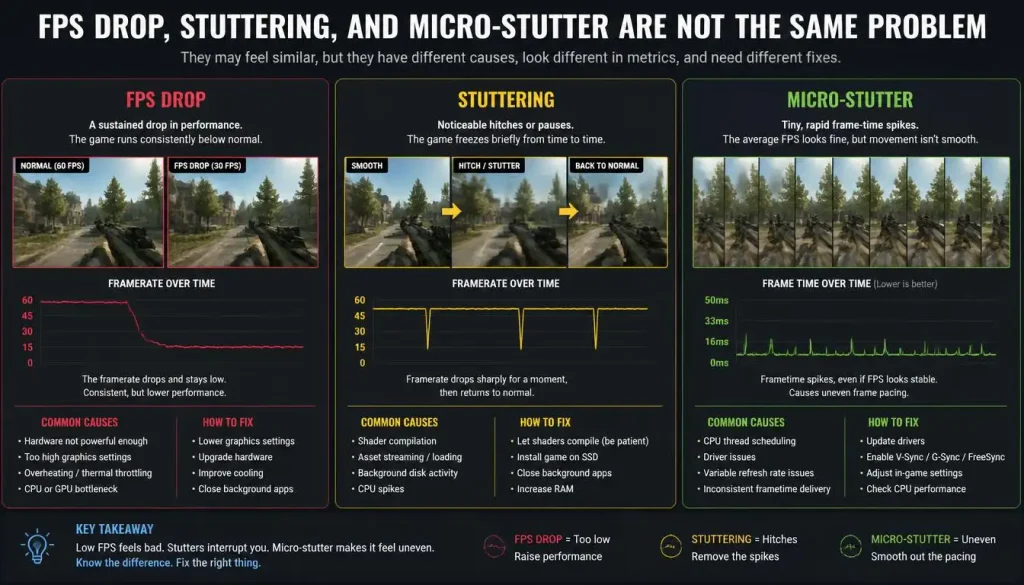
This distinction is important.
A lower average FPS means the laptop is rendering fewer frames overall. For example, a game that previously averaged 110 FPS may now average 70 FPS.
An FPS drop is often more temporary. You may be running at 100 FPS and suddenly drop to 45 FPS during combat, when entering a new area, or after the laptop heats up.
Micro-stutter is different again. Your FPS counter might show 90 or even 120 FPS, but individual frames are not delivered evenly. The game therefore feels rough even though the average FPS number looks healthy.
Frame-time problems often point toward:
- shader compilation,
- background tasks,
- overlays,
- driver behavior,
- VRR or display settings,
- CPU spikes,
- storage activity,
- or game-specific issues.
That is why chasing average FPS alone can send you in the wrong direction.
Is Windows 11 24H2 or 25H2 Causing the FPS Drop?
Users often search for phrases such as “Windows 11 25H2 FPS drop” or “24H2 gaming stutter” immediately after a major update.
Sometimes the update is involved. Sometimes it is only the event that exposed another compatibility issue.
For example, Microsoft documented a 2026 problem where certain games could become unresponsive after updates released on or after August 11. Microsoft’s investigation later determined that the affected systems had a conflicting driver associated with some RGB-equipped peripherals or internal components, rather than the Windows update itself being the underlying cause.
That is a useful reminder: timing alone does not prove causation.
If you are on 24H2, 25H2, or a newer Windows 11 build, check three things before making major changes:
Check Your Windows Version
Use winver or go to:
Settings > System > About > Windows specifications
Check the Installed KB Update
Open:
Settings > Windows Update > Update history
Write down the KB number installed immediately before the gaming problem started.
Check Microsoft’s Known-Issue Information
Search the Microsoft release-health page for your version and KB number.
If Microsoft has acknowledged a graphics, gaming, driver, or stability issue affecting your build, follow that guidance before experimenting with random registry tweaks from forums.
Common Reasons FPS Drops After a Windows 11 Update
Here is a practical way to narrow the problem down.
| Symptom | More Likely Cause | What to Check First |
|---|---|---|
| Average FPS is lower in every game | GPU driver, power mode, wrong GPU | Driver and graphics preference |
| FPS is low only when unplugged | Laptop power limits | Charger and power settings |
| Game starts fast, then slows after 10–30 minutes | Thermal or power throttling | CPU/GPU temperature and clock speed |
| FPS looks normal but the game stutters | Frame-time, shader, overlay, background task | Shader behavior and overlays |
| Only one game is affected | Game update, game configuration, shader issue | Game patch and graphics driver |
| Every game became slower after the same update | System-level driver or Windows configuration | Update history and drivers |
| GPU usage is unexpectedly low | CPU limit, wrong GPU, power limit | GPU preference and power profile |
| Stutter started after a graphics-driver update | Driver or shader cache | Driver reinstall/rollback and shader rebuild |
Now work through the fixes from the safest and most common to the more advanced.
Fix 1: Restart Windows and Finish Pending Updates
This sounds basic, but it should be your first step.
Windows updates can involve several stages. Some components are replaced during installation, while others do not fully switch over until after a restart.
Go to:
Settings > Windows Update
Install any pending updates, then restart the laptop manually.
Do not simply shut the lid and reopen it. Use:
Start > Power > Restart
After the restart, wait a few minutes before launching your game. Windows may still be finishing background tasks.
Microsoft also notes that Windows updates can include fixes and performance improvements, so checking for a newer update can sometimes solve a problem introduced in an earlier release.
Test the same game again before changing anything else.
Fix 2: Connect the Charger and Check Your Performance Mode
Gaming laptops can behave very differently on battery power.
A high-performance CPU and dedicated GPU can consume far more power than the battery is designed to provide continuously. Manufacturers therefore reduce CPU and GPU power limits when the charger is disconnected.
Even when your laptop is plugged in, a power profile may have changed after an update or software reset.
Open:
Settings > System > Power & battery
Look for Power mode.
If available, select a performance-oriented option such as Best performance while troubleshooting.
Microsoft documents these Windows 11 power controls in its Windows 11 power settings guide.
Gaming laptops may also have a second performance setting inside manufacturer software.
Examples include:
- Lenovo Vantage
- ASUS Armoury Crate
- MSI Center
- Acer NitroSense or PredatorSense
- HP OMEN Gaming Hub
- Alienware Command Center
Make sure you have not accidentally switched from Performance or Turbo mode to Quiet, Eco, Battery Saver, or a similar low-power profile.
If you want to tune the rest of the system after solving the update problem, our gaming laptop optimization guide covers power, cooling, drivers, storage, and graphics settings in more detail.
Fix 3: Make Sure the Game Is Using the Dedicated GPU
This is one of the most important checks on laptops with both integrated and dedicated graphics.
Many gaming laptops contain two GPUs:
- an integrated Intel or AMD GPU for power-efficient everyday use,
- and a dedicated NVIDIA or AMD GPU for demanding applications.
If Windows or a graphics profile sends your game to the integrated GPU, performance can collapse.
Open:
Settings > System > Display > Graphics
Find your game.
If it is not listed, add its executable file.
Select the game, open Options, and choose the High performance GPU when appropriate.
Microsoft’s graphics settings allow systems with multiple GPUs to choose between power-saving and high-performance graphics preferences for individual applications.
Restart the game after making the change.
You can confirm which GPU is working through Task Manager:
Task Manager > Performance
or by enabling the GPU engine column in the Processes or Details view.
If your dedicated GPU barely shows activity while the game is running, investigate the graphics preference, MUX configuration, driver, and laptop power mode.
Fix 4: Update, Reinstall, or Roll Back the Graphics Driver
A Windows update and graphics-driver problem often appear together.
Windows can install recommended hardware drivers through Windows Update, and optional drivers may also be available separately.
Start by identifying your GPU.
Open:
Device Manager > Display adapters
You may see NVIDIA GeForce, AMD Radeon, Intel Graphics, or a combination.
For NVIDIA Laptops
Download your driver from the official NVIDIA driver download page.
For gaming systems, Game Ready Drivers are normally the relevant branch.
Install the driver, restart, and test the game again.
If the FPS problem started immediately after a new NVIDIA driver rather than the Windows update itself, rolling back to the previously stable driver can also be worth testing.
For AMD Laptops
Use the official AMD Drivers and Support page.
AMD provides current Radeon graphics software and drivers for supported hardware.
Restart after installation before benchmarking.
For Intel Graphics
Intel users can check the Intel Driver & Support Assistant for supported Intel graphics and other hardware.
On laptops with hybrid graphics, also check your laptop manufacturer’s support page. Some notebooks rely on OEM-specific graphics, chipset, power-management, or switching components.
What If the Latest Driver Makes Things Worse?
Newer is not automatically better for every game and every laptop.
If performance dropped immediately after a driver update:
- Note the current driver version.
- Install the previous known-good version.
- Restart.
- Benchmark the same game under the same conditions.
Avoid changing Windows settings, game settings, and drivers simultaneously. Otherwise you will not know which change actually fixed the problem.
Fix 5: Check Optional Drivers, Chipset Drivers, and Laptop Firmware
Graphics drivers get most of the attention, but they are not the only drivers that matter.
Open:
Settings > Windows Update > Advanced options > Optional updates
If Windows offers relevant driver updates, review them carefully.
Microsoft confirms that optional driver updates are not necessarily installed automatically and can be installed manually from this area.
You should also visit the support page for your exact laptop model and look for newer versions of:
- chipset drivers,
- Intel Management Engine components,
- AMD chipset software,
- graphics switching components,
- system-control interfaces,
- firmware,
- and BIOS updates.
Do not flash a BIOS merely because a newer file exists. Read the manufacturer’s change notes first.
A BIOS update is most useful when the manufacturer specifically mentions stability, power management, CPU behavior, GPU compatibility, or Windows-version support relevant to your machine.
Fix 6: Rebuild the DirectX Shader Cache When Stuttering Is the Main Problem
Shader compilation is a common source of PC gaming stutter.
Games use shaders for effects such as lighting, materials, shadows, and other rendering work. Those shaders may need to be compiled into a GPU-specific format.
Microsoft’s DirectX team explains that runtime shader compilation can cause disruptive stuttering and that compiled shaders are normally cached for future use. A graphics-driver update can also invalidate previously compiled shader data.
That makes shader behavior particularly relevant when your complaint is:
- “FPS is high but the game keeps hitching,”
- “It stutters when I enter a new area,”
- or “the problem started after updating my graphics driver.”
If you suspect a corrupted or outdated cache, you can rebuild it.
Go to:
Settings > System > Storage > Temporary files
If DirectX Shader Cache appears, select it and remove the cached data.
Restart the laptop and launch the game again.
Do not panic if the first run is temporarily less smooth. The game may need to compile shaders again.
Also, do not treat shader-cache deletion as a routine “FPS boost.” If the existing cache is healthy, deleting it can simply force the system to rebuild work that had already been completed.
Fix 7: Test Game Mode and Hardware-Accelerated GPU Scheduling
Windows 11 includes several gaming-related settings, but there is no reason to assume one configuration is perfect for every laptop.
Check Game Mode
Open:
Settings > Gaming > Game Mode
If it is off, test the game with it enabled.
Restarting is usually not necessary for Game Mode itself, but close and reopen the game before comparing performance.
Test Hardware-Accelerated GPU Scheduling
Open:
Settings > System > Display > Graphics
Look under default graphics settings for Hardware-accelerated GPU scheduling, if your hardware and driver expose the option.
If your FPS or stuttering problem began after an update, test the opposite of your current setting.
For example:
- if HAGS is enabled, test with it disabled;
- if it is disabled, test with it enabled.
Restart Windows after changing it.
The important part is testing rather than following a universal “always on” or “always off” rule.
Use the same game, map, graphics preset, resolution, and power conditions before and after the change.
Fix 8: Test Fullscreen, Borderless, and Windowed Game Optimizations
A game can behave differently depending on how frames are presented to Windows.
If the problem mainly affects borderless or windowed gaming, check Windows’ Optimizations for windowed games feature.
Microsoft says this setting improves the presentation model used by compatible DirectX 10 and DirectX 11 games running in windowed and borderless-windowed modes. It can reduce frame latency and enable features such as variable refresh rate on supported systems.
You can find it under:
Settings > System > Display > Graphics
Then look under the default graphics settings.
For troubleshooting, compare:
- Exclusive Fullscreen, when the game supports it
- Borderless Fullscreen
- Windowed mode
Do not compare them in completely different scenes. Load the same save, benchmark, or training area whenever possible.
If only one mode stutters badly, you have narrowed the problem considerably.
Fix 9: Check Memory Integrity and VBS Carefully
You may come across guides telling you to disable Memory Integrity or virtualization-based security features for more FPS.
Treat that advice carefully.
Memory Integrity, also known as Hypervisor-protected Code Integrity, is a Windows security feature designed to make it harder for malicious low-level drivers to compromise the system. Microsoft explains how the feature works in its Windows Security device-security documentation.
That means disabling it is not a harmless cosmetic tweak.
If you are investigating a serious performance regression and have already ruled out the GPU driver, power mode, wrong GPU, thermals, and background software, you may temporarily test whether your system behaves differently with the setting changed.
You can find it in:
Windows Security > Device security > Core isolation
If you test with Memory Integrity disabled, understand the security trade-off and turn it back on afterward unless you have a documented compatibility reason to leave it disabled.
Do not present this setting as a guaranteed gaming performance boost. Results depend on hardware, drivers, game workload, and system configuration.
Fix 10: Disable Overlays and Background Apps Temporarily
An update can make an existing background-software problem more noticeable.
Temporarily close software that injects overlays, records gameplay, monitors hardware, controls RGB devices, or hooks into games.
Examples may include:
- game recording tools,
- Discord overlays,
- Steam overlays,
- NVIDIA overlays,
- monitoring utilities,
- RGB control applications,
- laptop optimization software,
- and third-party antivirus or “game booster” tools.
The goal is not to permanently uninstall everything.
Close unnecessary software, run the game, and see whether the behavior changes.
You should also open Task Manager and sort by CPU, Memory, Disk, and GPU usage.
If a background task suddenly consumes 20–40% CPU during gameplay, that information is more valuable than blindly toggling ten Windows settings.
If Windows itself feels sluggish outside games, our guide on speeding up a slow Windows 11 laptop covers startup programs, storage, background activity, and broader system performance.
Fix 11: Check CPU and GPU Temperatures for Thermal Throttling
One of the easiest mistakes is blaming Windows for a thermal problem that happened at roughly the same time as an update.
A classic thermal-throttling pattern looks like this:
The game launches at 110 FPS.
After 15 minutes, performance falls to 70 FPS.
A few minutes later, it drops into the 50s.
Closing the game and allowing the laptop to cool restores performance temporarily.
That pattern is very different from an update-related driver regression where performance is already low from the moment the game starts.
Monitor:
- CPU temperature
- GPU temperature
- CPU clock speed
- GPU clock speed
- GPU power
- GPU utilization
If temperature rises while clock speed and power suddenly fall, thermal or power throttling becomes a strong possibility.
Make sure the laptop is sitting on a hard surface and that the intake and exhaust vents are clear.
For a deeper walkthrough, see our guide on fixing a laptop that overheats while gaming.
If the cooling system is visibly clogged with dust, our step-by-step laptop cooling fan cleaning guide may also help.
Do not open a laptop that is under warranty unless you understand the manufacturer’s service terms and are comfortable working around delicate internal components.
Fix 12: Repair Windows System Files With DISM and SFC
If the FPS problem is accompanied by other strange behavior—Settings crashes, Windows features failing, random freezing, or system errors—it may be worth checking Windows system files.
Microsoft recommends running DISM before System File Checker when repairing damaged Windows components.
Open Command Prompt as Administrator.
Run:
DISM.exe /Online /Cleanup-image /Restorehealth
Wait for it to finish.
Then run:
sfc /scannow
Allow the scan to reach 100%.
Restart Windows afterward.
Microsoft’s System File Checker instructions provide more detail about what the commands do and how to interpret the results.
These tools are not dedicated “FPS boosters.” Their purpose is to repair corrupted Windows components. They are most relevant when gaming performance problems appear alongside wider operating-system instability.
Should You Uninstall the Windows 11 Update?
Treat update removal as a later-stage troubleshooting step, not the first reaction.
Consider it when all of these are true:
- the FPS problem began immediately after a specific Windows update,
- several games or workloads are affected,
- GPU-driver troubleshooting did not help,
- power and thermal problems have been ruled out,
- and the update can be clearly identified in Windows Update history.
Before removing a security update, understand that you may also remove security fixes.
Microsoft specifically warns users to understand the risks before uninstalling a security update.
If you decide the rollback is justified, open:
Settings > Windows Update > Update history > Uninstall updates
Select the relevant update and choose Uninstall, if Windows allows it.
Microsoft provides the full procedure in its guide to uninstalling Windows updates.
After rebooting, test the same game again.
If performance immediately returns to normal, you now have much stronger evidence that the update, or something installed with it, was involved.
Check Windows Update and Microsoft release-health information regularly afterward so you can install a fixed or superseding update rather than remaining on an older security level indefinitely.
How to Test Whether the FPS Problem Is Actually Fixed
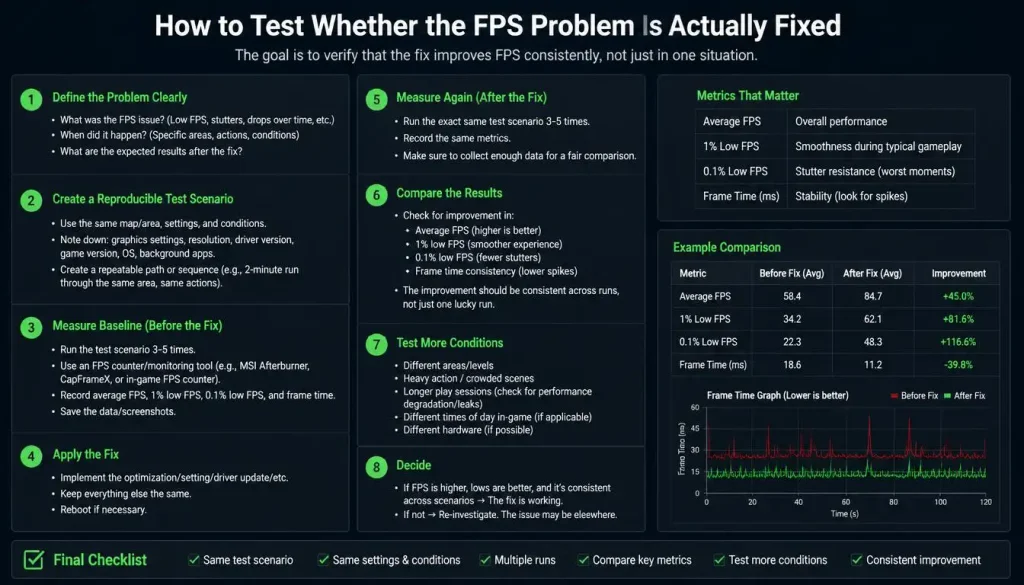
A troubleshooting result is only useful if you compare it fairly.
Do not test one configuration in a quiet training area and another during a huge multiplayer battle.
Use the same:
- game,
- graphics preset,
- resolution,
- map or benchmark,
- charger,
- laptop performance mode,
- and approximate room conditions.
Record more than average FPS.
For example:
| Metric | Before Fix | After Fix |
|---|---|---|
| Average FPS | 72 FPS | 101 FPS |
| 1% Low FPS | 34 FPS | 68 FPS |
| GPU Usage | 62% | 96% |
| GPU Temperature | 78°C | 79°C |
| GPU Clock | 1,100 MHz | 1,850 MHz |
The 1% low result can be particularly useful when troubleshooting stuttering.
Two systems may both average 100 FPS, but the one repeatedly falling into very low frame rates will feel far less smooth.
Frame-time graphs can tell an even clearer story. Large spikes usually match the moment you feel a hitch or micro-stutter.
What If the FPS Is Still Low?
If none of the fixes above change anything, narrow the scope further.
Test a second game.
If only one title is affected, the issue may be specific to that game, engine, patch, anti-cheat system, or graphics configuration.
If every game is affected, check:
- the laptop manufacturer’s newest chipset and system drivers,
- BIOS or firmware updates,
- storage health,
- free SSD space,
- RAM usage,
- CPU clock behavior,
- GPU clock behavior,
- and whether a manufacturer utility has placed the laptop in a low-power profile.
Also consider whether the update simply happened around the same time as another change.
Did the game itself update?
Did NVIDIA, AMD, or Intel install a new driver?
Did your laptop control software update?
Did a new RGB, peripheral, monitoring, or antivirus program get installed?
Separating those events is often the difference between fixing the problem in 20 minutes and spending an entire weekend changing settings that were never broken.
Frequently Asked Questions About Windows 11 Update FPS Drop on Laptop
Why did my FPS drop after a Windows 11 update?
The most common possibilities include a graphics-driver change, a different power setting, the game using the wrong GPU, background activity, thermal throttling, shader recompilation, or an actual update-related compatibility problem.
Check the exact KB update, GPU driver version, power mode, GPU usage, and temperature before deciding which one is responsible.
Can a Windows 11 update cause lower gaming FPS?
It is possible for operating-system changes to affect gaming behavior, but a performance problem appearing after an update does not prove that Windows itself is the cause.
Microsoft’s release-health history includes examples where problems appeared after an update but investigation later identified another device driver as the underlying cause.
Why is my gaming laptop suddenly getting low FPS?
If Windows was not recently updated, check power mode, GPU selection, graphics drivers, temperatures, background applications, and in-game settings first.
If the laptop gets slower only after it heats up, cooling and throttling deserve particular attention.
Why does laptop FPS drop when it is unplugged?
Gaming laptops usually reduce CPU and GPU power consumption on battery to improve battery life and prevent the battery from being drained too aggressively.
For demanding games, use the correct charger whenever possible.
Can Windows Update install graphics drivers?
Yes. Windows Update can install recommended hardware drivers, while some optional driver updates are available separately through Advanced options.
If performance changes after an update, compare your current graphics-driver version with the one you were previously using.
Should I clear the DirectX Shader Cache after every update?
No.
Clear or rebuild the cache when you have a specific reason to suspect shader-related corruption or persistent stuttering. Shader caches exist to avoid repeating compilation work unnecessarily, and Microsoft explains that cached shaders may need to change when graphics drivers change.
Should I disable Memory Integrity to increase FPS?
Not as a default optimization.
Memory Integrity is a Windows security feature. If you are troubleshooting an unusual performance issue, you can test it carefully, but permanently disabling security features just for a possible FPS increase is not a sensible first step.
Should I uninstall the latest Windows 11 update?
Only after simpler troubleshooting fails and the timing strongly points to that update.
Driver problems, power profiles, wrong-GPU selection, background software, and thermals should usually be investigated first.
How do I know if Windows is using my integrated GPU?
Open Task Manager while the game is running and check GPU activity, or open:
Settings > System > Display > Graphics
Select the game and confirm its graphics preference.
On laptops with multiple GPUs, Windows can provide a High performance option for individual applications.
Why is my FPS high but the game still stutters?
High average FPS does not guarantee smooth frame delivery.
You may be experiencing poor 1% lows, shader compilation, frame-time spikes, CPU stalls, storage activity, overlay conflicts, or background tasks.
Monitor frame time instead of watching average FPS alone.
Final Checklist
If your laptop developed an FPS drop after a Windows 11 update, start by confirming what actually changed.
Check the Windows version and KB number. Make sure the laptop is plugged in and running in the correct performance mode. Confirm that your game is using the dedicated GPU. Update or roll back the graphics driver. Check temperatures. Investigate shader and frame-time issues if the FPS counter looks normal but gameplay feels rough.
Only move to advanced fixes after the basics have been ruled out.
And most importantly, change one thing at a time.
If you change the Windows update, GPU driver, power plan, BIOS settings, Game Mode, shader cache, and graphics preset all at once, you may fix the problem—but you will never know what caused it.
A controlled test takes a little longer, but it gives you an answer you can trust.

“Electronics aren’t just gadgets. They’re the invisible threads that connect our work, our play, and our world.”
I’m Julian Reed, and my obsession with tech started at age twelve, when I soldered a defunct gaming console back to life in my bedroom. That tiny green screen taught me that technology isn’t just a black box, it’s a tool you can master.
After fifteen years as a hardware engineer and a decade reviewing consumer tech, I’ve joined this team to cut through the jargon. Whether you’re building a high-end home theater or just need a laptop that won’t lag, I’m here to help you choose the gear that truly powers your life.


