
That faint electrical squeal coming from your gaming laptop can be surprisingly irritating. It may become louder when a game launches, change pitch as your frame rate rises, or disappear the moment you unplug the charger.
In most cases, that sound is coil whine.
Coil whine is a high-frequency electrical noise caused by tiny vibrations in components such as inductors in the GPU, CPU power circuitry, motherboard, or power-delivery system. It can sound worrying, but coil whine by itself usually does not mean your laptop is failing.
The good news is that you can often make it much less noticeable.
If you want the fastest gaming laptop coil whine fix, start by limiting your FPS, enabling V-Sync, switching from Turbo or Performance mode to Balanced mode, and comparing the laptop on AC power versus battery power.
Intel specifically recommends limiting frame rate and enabling V-Sync as possible ways to reduce coil-whine intensity on affected graphics hardware.
This guide walks through the fixes in the order I would try them, starting with the safest and easiest options.
Quick Fixes to Try First
Before changing BIOS settings or experimenting with advanced power controls, try these simple steps.
| Fix | Difficulty | Possible Performance Impact |
|---|---|---|
| Cap your FPS | Easy | Little to none if set sensibly |
| Enable V-Sync | Easy | May add some input latency |
| Switch to Balanced mode | Easy | Small performance reduction possible |
| Compare AC power vs battery | Easy | None during testing |
| Update BIOS and GPU drivers | Easy | Usually none |
| Reduce unnecessary GPU load | Easy | Depends on settings |
| Change display refresh rate temporarily | Easy | Lower visual smoothness |
| Adjust CPU/GPU power behavior | Medium | Possible performance reduction |
| Undervolt supported hardware | Advanced | Minimal if configured correctly |
Start with FPS limiting. It is one of the easiest tests because coil whine often changes with GPU load and frame rate.
You do not need to immediately drop a 165Hz laptop to 60 FPS. Start near your display refresh rate and see whether the sound changes.
For example:
- 60Hz display → test around 60 FPS
- 120Hz display → test around 120 FPS
- 144Hz display → test around 144 FPS
- 165Hz display → test around 165 FPS
- 240Hz display → test around 240 FPS, then try a lower value if necessary
If your laptop is producing 500 FPS in a simple game menu, there is usually little benefit to letting it continue doing so.
NVIDIA also provides a Max Frame Rate option in its graphics settings for supported hardware. NVIDIA Max Frame Rate settings
How to Tell If the Noise Is Actually Coil Whine
Before trying to fix coil whine, make sure that is actually what you are hearing.
Gaming laptops produce several types of noise, and they are easy to confuse.
Coil whine usually sounds like:
- a sharp electrical buzz
- a thin high-pitched squeal
- faint chirping
- electronic humming
- a noise that changes instantly with FPS
- a tone that changes when GPU or CPU load changes
MSI describes notebook coil whine as a high-frequency sound caused by vibration in electrical components such as inductors, particularly around high-power components such as the CPU and GPU.
Coil Whine vs Fan Noise
Fan noise normally sounds like rushing air, whirring, or a low mechanical hum.
Coil whine is usually sharper and more electrical.
| Coil Whine | Fan Noise |
|---|---|
| High-pitched or electrical | Airflow or mechanical sound |
| Can change instantly with FPS | Usually changes with temperature |
| May happen while fans are quiet | Requires fan movement |
| Often sounds like buzzing or squealing | Often sounds like blowing or spinning |
A grinding, scraping, clicking, or rattling sound is more likely to indicate a fan problem than traditional coil whine.
If your laptop is also becoming unusually hot, that is a separate problem worth investigating. BestTopTake’s guide to keeping a gaming laptop cool while gaming covers airflow, temperatures, and cooling-related performance issues in more detail.
Coil Whine vs Speaker Noise
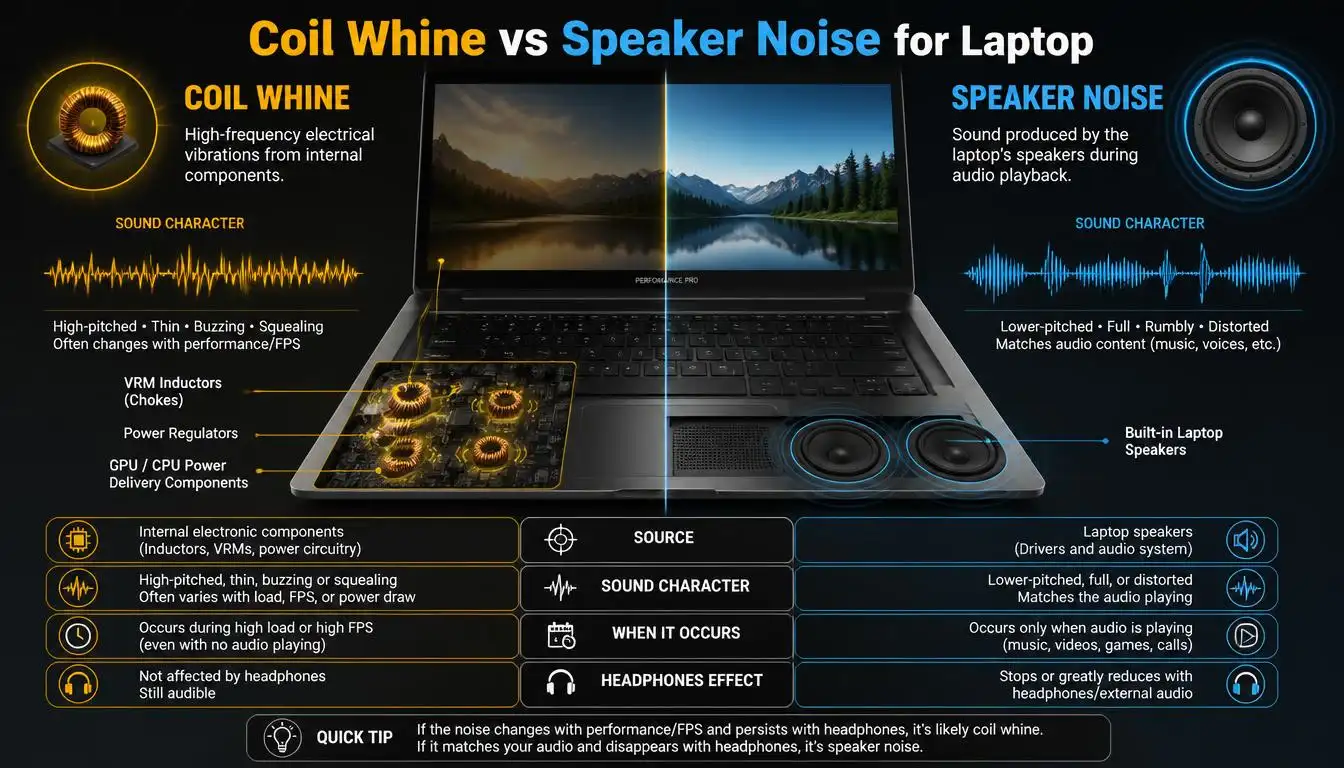
Mute the speakers completely.
Then change the Windows volume from high to zero.
If the sound stays exactly the same, it is unlikely to be normal speaker output.
You can also disconnect headphones, USB audio devices, and external speakers while testing.
Coil Whine vs Charger Buzzing
Sometimes the laptop itself is quiet and the power brick is making the noise.
Place the charger a reasonable distance away from the laptop and listen to each device separately.
If the sound clearly comes from the adapter, you are dealing with charger or power-adapter noise rather than laptop coil whine.
Is Gaming Laptop Coil Whine Normal or Dangerous?
Usually, coil whine is annoying rather than dangerous.
ASUS states that this kind of high-frequency noise can occur in high-power electronic products and does not necessarily represent a hardware defect or affect the device.
MSI gives similar guidance, describing coil whine as a normal physical phenomenon associated with electronic components.
That does not mean every strange laptop noise should be ignored.
Coil whine deserves further investigation if it appears together with:
- a burning smell
- smoke
- sudden shutdowns
- repeated crashes
- GPU artifacts
- abnormal charger temperatures
- electrical sparking
- severe instability
- grinding or rattling fans
Those symptoms point to something more serious than ordinary coil whine.
If your machine is overheating or shutting down under load, see the BestTopTake laptop overheating troubleshooting guide rather than assuming coil whine is responsible.
Where Is the Coil Whine Coming From?
Finding the source helps you choose the right fix.
GPU Coil Whine
The GPU is one of the most common places where people notice coil-whine-like noise during gaming.
You may notice that:
- the sound starts when a game launches
- higher FPS makes it louder
- game menus sound worse than actual gameplay
- changing graphics settings changes the pitch
- limiting FPS reduces the noise quickly
Intel notes that coil whine can become noticeable when graphics hardware is running workloads at high frame rates.
CPU and VRM Coil Whine
The CPU itself is not necessarily the part physically making the noise.
Power-delivery components around the CPU can produce high-frequency resonance as electrical load changes.
This is why you might hear buzzing while:
- opening programs
- compiling files
- scrolling through pages
- moving the mouse
- switching power modes
- running CPU-heavy software
Motherboard Coil Whine
A laptop motherboard contains several power-regulation components.
Because everything is packed into a small chassis, sound originating from the motherboard can seem as if it is coming from the keyboard, palm rest, or rear vents.
Charger or Power Adapter Noise
If the noise comes from the power brick, do not automatically assume the laptop is defective.
Some power supplies produce audible electrical resonance under specific loads.
However, a charger that becomes abnormally hot, smells burnt, crackles, or behaves erratically should stop being used until it has been checked or replaced with an appropriate manufacturer-approved unit.
How to Fix or Reduce Gaming Laptop Coil Whine
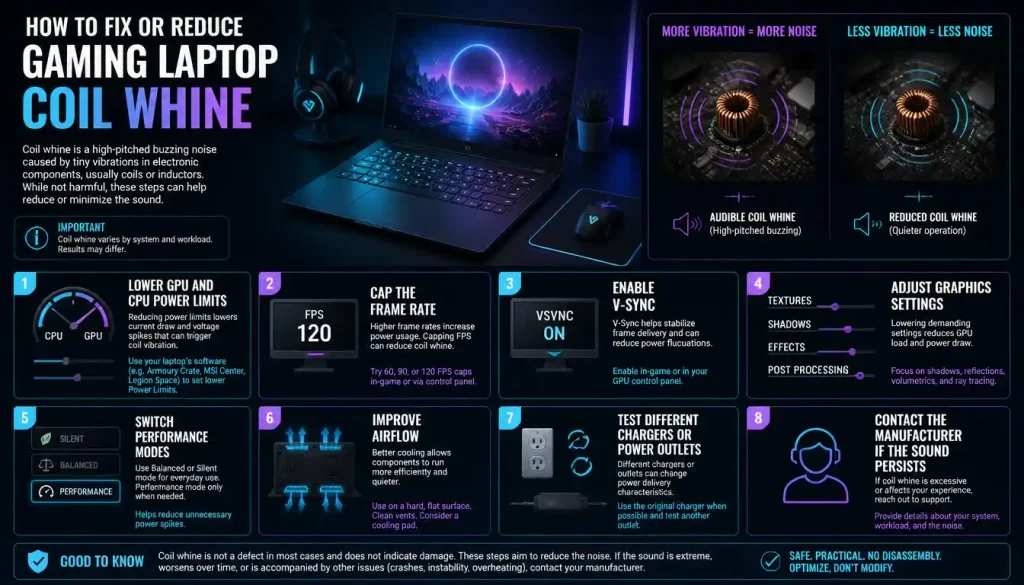
There is no single universal setting that eliminates coil whine on every laptop.
The aim is to find the condition that makes your particular machine quieter without unnecessarily sacrificing performance.
1. Cap Your Frame Rate
This should be your first serious test.
High frame rates can increase or change power activity inside the GPU. In certain systems, that can make electrical resonance easier to hear.
Try this simple test:
- Launch a game where the noise is easy to reproduce.
- Run it with an uncapped frame rate.
- Listen to the noise.
- Set a 60 FPS cap.
- Listen again.
- Test 120 FPS, 144 FPS, or your panel’s refresh rate.
If the whine becomes dramatically quieter at a lower frame rate, you have found a strong clue that GPU load is influencing the noise.
You do not necessarily need to stay at 60 FPS.
For a 165Hz laptop, for example, a cap around 160–165 FPS may give you smooth gameplay without allowing the GPU to generate hundreds of unnecessary frames.
For NVIDIA laptops, you can usually use the game itself or supported NVIDIA frame-rate controls.
AMD and Intel graphics software may offer similar application-level controls depending on your hardware and driver version.
If you are also trying to improve frame consistency and general gaming performance, BestTopTake’s gaming laptop optimization guide covers performance settings in more depth.
2. Enable V-Sync
V-Sync can prevent a game from running far beyond the display’s refresh rate.
That can be useful when coil whine becomes loud during uncapped rendering.
Intel lists V-Sync as one of its suggested ways to reduce coil-whine intensity on affected graphics hardware.
V-Sync is not perfect for everyone.
Competitive players sometimes avoid it because it can affect input latency depending on the game and system.
If latency matters to you, try a manual FPS cap first.
You can read more about how V-Sync works in Intel’s V-Sync documentation.
3. Switch From Turbo or Performance Mode to Balanced Mode
Gaming laptops often allow their CPU and GPU to draw more power in Turbo, Extreme, or Performance modes.
More power can mean:
- higher clock speeds
- greater heat output
- faster fans
- different electrical behavior
That can also change coil whine.
Try switching to a less aggressive profile.
Depending on your laptop, the setting may appear inside:
- ASUS Armoury Crate
- Lenovo Vantage
- MSI Center
- Alienware software
- HP OMEN Gaming Hub
- Acer NitroSense
- Acer PredatorSense
- Razer Synapse
You can also test Windows power mode.
In Windows 11, go to:
Settings → System → Power & battery → Power mode
Try Balanced instead of Best performance.
Microsoft confirms that Windows power modes allow users to choose between power efficiency, balanced behavior, and maximum performance.
A small performance reduction may be worth it if the laptop becomes noticeably quieter.
4. Compare Battery Power With AC Power
This is one of the most useful diagnostic tests.
Run the same workload twice:
Test A: laptop connected to the charger
Test B: laptop running on battery
Do not compare two completely different games or settings. Keep the workload as consistent as possible.
If the coil whine is much louder while plugged in, the change may be related to:
- increased GPU power limits
- increased CPU power limits
- charging circuitry
- AC adapter behavior
- the laptop’s plugged-in performance profile
Gaming laptops commonly reduce performance while running on battery, so a quieter result does not automatically mean the charger is faulty.
It may simply mean the laptop is drawing less power.
5. Update BIOS, Firmware, and GPU Drivers
Do not expect a BIOS update to magically fix every case of coil whine.
Still, keeping your system firmware and drivers current is sensible because manufacturers occasionally change power-management behavior through updates.
Check your laptop manufacturer’s official support page for:
- BIOS updates
- firmware updates
- chipset drivers
- GPU drivers
- power-management software
- manufacturer control-center updates
For example, Lenovo provides system and BIOS updates through Lenovo Vantage on supported systems. Lenovo’s official Vantage update guidance
If you own an NVIDIA laptop, use official NVIDIA or laptop-manufacturer drivers where appropriate rather than downloading random driver packages from third-party websites.
6. Reduce Unnecessary GPU Load
Sometimes coil whine is not caused by a demanding game at all.
It can appear because an application is rendering far more frames than necessary.
Check for:
- uncapped game menus
- background games
- animated launchers
- browser hardware acceleration
- GPU-heavy wallpaper software
- recording tools
- overlays
- benchmark utilities
As a quick test, close everything except the application producing the noise.
If the sound changes, reopen programs one at a time.
This will not always eliminate coil whine, but it can help you identify what workload triggers it.
7. Test a Lower Display Refresh Rate
Frame rate and refresh rate are different things, but they often interact.
If your gaming laptop has a 240Hz display, temporarily try:
240Hz → 165Hz → 144Hz → 60Hz
You are not committing to the lower refresh rate permanently.
This is simply a diagnostic test.
In Windows 11, display refresh settings are generally available under:
Settings → System → Display → Advanced display
If the electrical noise changes dramatically, refresh behavior may be influencing system power use.
You can then decide whether the quieter mode is worth the reduction in smoothness.
8. Try a Less Aggressive CPU Power Setting
Some laptops produce high-frequency electrical noise as CPU power states rapidly change.
Switching to Balanced mode should be your first approach.
An additional troubleshooting experiment sometimes used by laptop owners is lowering the Windows Maximum processor state from 100% to 99%.
However, there is an important trade-off.
On some systems, doing this can prevent or reduce CPU boost behavior and noticeably lower performance.
That is why I would treat it as a diagnostic test, not a default fix.
If the sound disappears at 99%, you have learned that CPU power behavior may be involved. You can then decide whether the performance trade-off is acceptable.
9. Consider Undervolting Only as an Advanced Option
Undervolting can change power consumption and may reduce electrical noise on certain systems.
But it should not be your first fix.
Modern gaming laptops vary widely:
- some allow CPU undervolting
- some lock it
- some support GPU voltage tuning
- some have manufacturer-controlled power limits
- some can become unstable when voltage is reduced too far
There is no universal voltage value that is safe for every laptop.
If your system officially supports tuning, make small changes and stability-test them carefully.
If you are not comfortable recovering from crashes or unstable settings, skip this step.
Gaming Laptop Coil Whine When Plugged In or Charging
A laptop that whines only while connected to AC power is not unusual.
Gaming laptops often use completely different power limits when plugged in.
On battery, the CPU and GPU may run at restricted wattages.
Once the charger is connected, the laptop can:
- raise GPU power
- boost CPU clocks
- charge the battery
- switch performance profiles
- change display behavior
- increase background activity
Any of these changes can affect electrical resonance.
Test the Charger Separately
Put the power brick away from the laptop and listen carefully.
If the brick is producing the noise, the fix may have nothing to do with GPU settings.
Try Another Wall Outlet
This is a harmless diagnostic step.
Connect the original charger directly to another appropriate wall outlet instead of a questionable extension strip or overloaded power board.
Do not use an incompatible third-party charger just to test coil whine.
Check Whether the Noise Changes at Full Charge
Listen when the battery is:
- actively charging
- above 80%
- fully charged
If the sound changes as the charging load changes, power delivery may be part of the behavior.
That still does not prove a defect.
Coil Whine at Idle, While Scrolling, or Moving the Mouse
One of the stranger versions of this problem is coil whine that happens when the laptop is barely doing anything.
You may hear a faint electrical chirp while:
- moving the mouse
- scrolling a webpage
- opening a window
- switching browser tabs
- dragging something across the desktop
This can happen because even tiny actions change CPU, GPU, display, or power-management activity.
The sound may respond almost instantly.
Try These Tests
Close all unnecessary applications.
Then:
- Sit on the desktop for 30 seconds.
- Move the mouse continuously.
- Stop moving it.
- Scroll a long webpage.
- Disconnect external USB devices.
- Test with the charger unplugged.
- Switch between Balanced and Performance mode.
If a particular action consistently triggers the sound, you have narrowed down the source.
Do not automatically assume the mouse itself is defective.
It may simply be causing the laptop to change power states or render activity.
Why High FPS Can Make Coil Whine Louder
A graphics processor does not consume exactly the same amount of power every second.
Its electrical load changes with the work it is doing.
An uncapped game menu may produce hundreds or even thousands of frames per second because the scene is easy to render.
That is why a laptop can sometimes sound louder in a menu than during actual gameplay.
Intel’s coil-whine guidance specifically notes that the phenomenon commonly appears when graphics hardware operates under high-frame-rate workloads.
That is also why frame limiting is one of the most practical fixes.
You are not repairing the physical component.
You are changing the workload that makes its vibration audible.
Fixes You Should Not Try
The internet contains plenty of extreme coil-whine fixes.
Most are inappropriate for a gaming laptop.
Do Not Physically Stop the Fans
Do not stick an object into a running laptop fan to figure out whether the sound is coming from the fan.
You can damage the blades, motor, or electronics.
Use software diagnostics provided by the manufacturer if fan testing is available.
Do Not Apply Glue, Epoxy, or Nail Polish Inside the Laptop
Some desktop enthusiasts attempt to dampen vibrating components with adhesives.
That is not a sensible DIY fix for a modern gaming laptop.
Opening the system may affect warranty coverage, and applying material to motherboard components can cause damage.
Do Not Flash Random BIOS Files
Use BIOS and firmware packages intended for your exact laptop model.
An unofficial or incorrect firmware file can create a far bigger problem than coil whine.
Do Not Block the Air Vents
Do not place the laptop on a blanket, pillow, couch, or other soft surface just because it makes the sound less noticeable.
That can restrict airflow.
If heat is becoming a problem, follow proper cooling practices instead. The BestTopTake guide to cooling down a laptop quickly explains safer ways to lower temperatures.
Do Not Replace a Charger With an Incompatible One
Gaming laptops can require high-wattage power adapters.
Using the wrong voltage, connector, wattage, or unsupported USB-C charger can create performance or safety problems.
Use a charger approved for your specific system.
Should You Return or RMA a Gaming Laptop With Coil Whine?
This is where personal tolerance matters.
A faint electrical sound that can only be heard with your ear close to the keyboard in a silent room is very different from a piercing whine you can hear from across the desk.
Consider contacting the seller or manufacturer if:
- the laptop is brand new and the noise is extremely loud
- the sound disrupts normal use
- it is audible from a normal seating position
- the charger appears to be the source
- the noise is accompanied by crashes or instability
- you smell overheating electronics
- you are still inside the retailer’s return period
Warranty treatment varies by manufacturer, retailer, model, and country.
Do not assume that every brand treats audible coil whine as an automatic warranty defect.
If you recently bought the laptop and are considering exchanging it, BestTopTake’s new laptop setup guide can help you configure the replacement properly from day one.
And if you decide the machine simply is not right for you, the gaming laptop buying guide explains the specifications and features worth checking before choosing another model.
Brand-Specific Troubleshooting
The basic troubleshooting process is similar across gaming laptop brands, but the software names are different.
ASUS ROG and TUF
Check:
- Armoury Crate performance mode
- MyASUS updates
- BIOS updates
- GPU drivers
- FPS caps
ASUS also publishes official information explaining high-frequency notebook coil whine. ASUS notebook coil-whine support article
Lenovo Legion and LOQ
Check:
- Lenovo Vantage
- Thermal Mode
- BIOS updates
- GPU mode
- Windows power settings
- FPS limits
MSI Gaming Laptops
Check:
- MSI Center
- User Scenario or performance mode
- BIOS/firmware
- GPU drivers
- frame-rate behavior
MSI has a dedicated explanation of notebook coil whine and notes that it can become more noticeable during CPU- or GPU-intensive workloads. MSI notebook coil-whine guidance
Alienware and Dell Gaming Laptops
Check:
- Alienware performance profiles
- Windows power settings
- Dell BIOS updates
- Dell driver updates
- NVIDIA/AMD graphics drivers
Dell provides model-specific updates through its official driver portal. Dell Drivers and Downloads
Acer Nitro and Predator
Check:
- NitroSense or PredatorSense
- power profiles
- BIOS updates
- refresh rate
- GPU driver settings
Razer Blade
Check:
- Razer Synapse performance settings
- Windows power mode
- BIOS/firmware updates
- GPU drivers
- FPS caps
Regardless of brand, avoid applying a fix intended for a different laptop model unless the manufacturer confirms compatibility.
What If the Noise Is Coming From the Display?
Not every high-frequency sound near the screen is traditional GPU coil whine.
This is particularly relevant with some Mini-LED laptops.
MSI notes that certain Mini-LED laptop displays can produce faint high-frequency electrical resonance from components around the display assembly.
If the noise clearly comes from the bottom edge of the display rather than the keyboard or rear vents, test:
- different brightness levels
- different refresh rates
- HDR on and off
- local dimming options, if available
- AC vs battery power
If the display noise is unusually loud, contact the laptop manufacturer rather than opening the display assembly.
Does Coil Whine Go Away Over Time?
Sometimes users report that the sound changes after weeks or months.
Others notice no difference at all.
There is no reliable rule that says coil whine will disappear after a specific number of hours.
That means buying a noisy laptop and hoping it will definitely become silent after a “break-in period” is risky.
If the sound bothers you today and you are still inside a return window, make your decision based on how the laptop behaves now rather than assuming the sound will disappear later.
How to Make Coil Whine Less Noticeable
Sometimes the laptop is working perfectly and none of the practical fixes eliminates the sound completely.
In that case, you can reduce how noticeable it is.
Try:
- moving the laptop slightly farther from your ears
- using a laptop stand
- keeping the rear vents unobstructed
- using headphones during gaming
- avoiding a completely silent room
- moving the laptop away from walls that reflect high-frequency sound
- using Balanced mode during light work
Do not sacrifice airflow just to hide the sound.
A quieter laptop is not useful if it starts overheating.
Frequently Asked Questions About Gaming Laptop Coil Whine Fix
Is coil whine bad for a gaming laptop?
Usually not. Coil whine by itself is generally an acoustic effect caused by vibration in electrical components. Manufacturers such as ASUS and MSI describe it as a phenomenon that can occur without indicating hardware damage.
Can coil whine damage a GPU?
Ordinary coil whine does not usually indicate that a GPU is being damaged. Intel states that coil whine on affected graphics hardware should not damage the card or affect its functionality.
Why does my gaming laptop have coil whine at high FPS?
Very high frame rates can change GPU load and electrical behavior. That can make vibration in components more audible. Limiting FPS is therefore one of the first things worth testing.
Can V-Sync reduce coil whine?
It can in some situations because V-Sync can prevent unnecessary frame rates above the display refresh rate. Intel includes enabling V-Sync among its recommendations for reducing coil-whine intensity.
Why is coil whine louder when my laptop is plugged in?
Gaming laptops usually allow higher CPU and GPU power limits while connected to AC power. Charging and power-delivery behavior can also change, so the electrical noise may become more noticeable.
Why does my laptop make coil whine when I move the mouse?
Mouse movement can trigger small changes in CPU, GPU, display, USB, and power-management activity. Those changes can alter the pitch or intensity of existing electrical resonance.
Is laptop coil whine the same as fan noise?
No. Fan noise comes from a mechanical fan moving air. Coil whine is a high-frequency electrical resonance. Fan noise usually follows temperature, while coil whine can change almost instantly with FPS or electrical load.
Can undervolting fix coil whine?
It may reduce the sound on some systems because it changes power behavior, but results vary. Undervolting is an advanced option and is not supported on every gaming laptop.
Can a laptop charger cause coil whine?
Yes. Power adapters contain electrical components that can produce audible high-frequency noise. Listen to the charger and laptop separately before assuming the laptop itself is responsible.
Should I return a new gaming laptop because of coil whine?
It depends on how loud and distracting the sound is. A faint noise in a silent room may be tolerable, while a loud whine audible during normal use may justify contacting the retailer or manufacturer while you are still within the applicable return period.
Does coil whine affect gaming performance?
Coil whine itself generally does not reduce gaming performance. However, some methods used to make it quieter—such as reducing power limits, lowering refresh rate, or capping FPS—can affect performance depending on the settings you choose.
Does coil whine mean my laptop is overheating?
Not necessarily. Coil whine and overheating are different issues. A laptop can have coil whine at normal temperatures, and an overheating laptop may not have coil whine at all.
Final Checklist
If your gaming laptop is making a high-pitched electrical noise, work through the problem in this order:
- Confirm that the sound is not coming from the fan or speakers.
- Cap the game’s frame rate.
- Enable V-Sync and compare the result.
- Switch from Turbo or Performance mode to Balanced mode.
- Test the laptop on battery and AC power.
- Listen to the charger separately.
- Update official BIOS, firmware, chipset, and GPU drivers.
- Test a lower display refresh rate.
- Close unnecessary GPU-heavy applications.
- Consider advanced CPU/GPU power adjustments only if the easy fixes fail.
For most people, the goal is not to “repair” a broken laptop. It is to find the workload or power state that makes an otherwise normal electrical vibration audible and then reduce it without ruining gaming performance.
If FPS limiting or Balanced mode makes the laptop quiet enough, there is usually little reason to start experimenting with risky hardware modifications.
And if the whine is extremely loud, suddenly appears alongside crashes or electrical smells, or makes a brand-new laptop unpleasant to use, stop chasing software tweaks and contact the retailer or manufacturer instead.

“Electronics aren’t just gadgets. They’re the invisible threads that connect our work, our play, and our world.”
I’m Julian Reed, and my obsession with tech started at age twelve, when I soldered a defunct gaming console back to life in my bedroom. That tiny green screen taught me that technology isn’t just a black box, it’s a tool you can master.
After fifteen years as a hardware engineer and a decade reviewing consumer tech, I’ve joined this team to cut through the jargon. Whether you’re building a high-end home theater or just need a laptop that won’t lag, I’m here to help you choose the gear that truly powers your life.


