

Your HP laptop battery will not stay perfect forever. Over time, every laptop battery loses some of its original capacity. That can lead to shorter battery life, wrong battery percentage readings, sudden shutdowns, charging problems, or battery warning messages.
This HP battery health check and calibration guide will show you how to test your HP laptop battery, understand the results, generate a Windows battery report, calibrate the battery, fix common charging problems, and decide whether you need a replacement.
This guide is written for HP laptop users in the USA, UK, Canada, Australia, and other regions who want a clear, practical solution without confusing technical language.
Quick Answer: How to Check and Calibrate an HP Laptop Battery
The best way to check an HP laptop battery is to run HP Battery Check through HP Support Assistant or HP PC Hardware Diagnostics. You can also create a Windows battery report using the command powercfg /batteryreport to compare your battery’s design capacity and full charge capacity. Microsoft documents this Windows battery report command as a built-in way to view battery usage and capacity details.
If HP Battery Check says the battery needs calibration, follow HP’s recommended calibration process. Calibration can help fix inaccurate battery percentage readings, but it will not repair a physically worn-out, swollen, or failing battery.
What Is HP Battery Health?
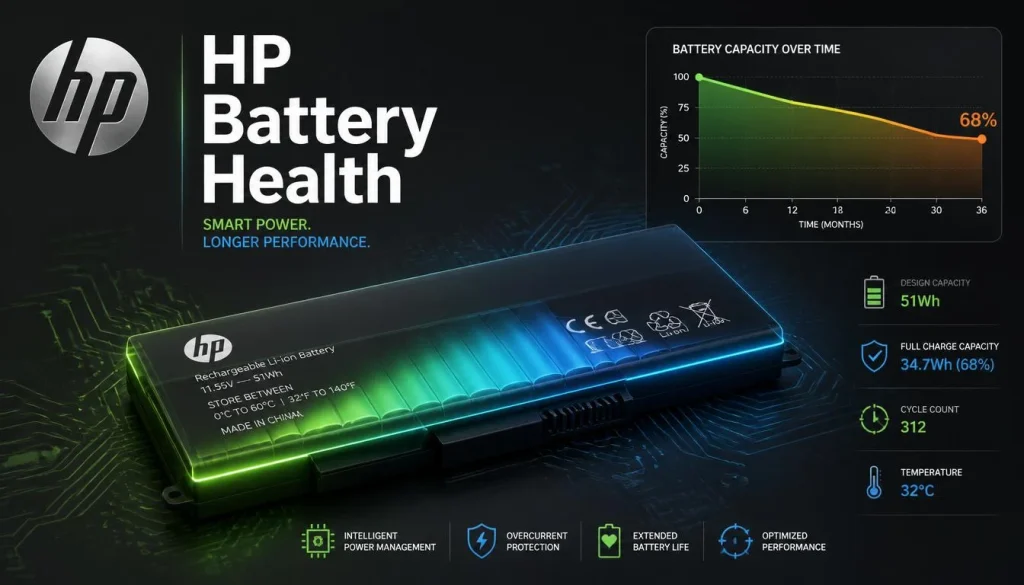
HP battery health refers to the current condition of your laptop battery compared to when it was new. A healthy battery can hold a good amount of charge and power your laptop normally. A weak or aging battery may drain quickly, charge slowly, shut down unexpectedly, or only work when the charger is plugged in.
Battery health is different from battery life.
Battery life means how long your laptop runs on one charge.
Battery health means how much capacity your battery has left compared to its original design.
For example, if your HP laptop originally had a design capacity of 50,000 mWh and now only charges up to 35,000 mWh, the battery has lost part of its original capacity.
Common Signs Your HP Laptop Battery Has a Problem
You should check your HP laptop battery health if you notice any of these problems:
- The battery drains much faster than before.
- The laptop shuts down even when the battery percentage is not 0%.
- The battery percentage jumps from high to low suddenly.
- Windows shows “plugged in, not charging.”
- The laptop only works when connected to the charger.
- HP Battery Check says “Calibrate,” “Weak,” “Replace,” or “Failure.”
- You see HP Battery Alert 601 or a 60X battery error during startup.
- The battery is not detected in Windows.
- The bottom case or touchpad area looks swollen.
- The laptop becomes unusually hot while charging.
Some of these problems can be fixed with calibration or software troubleshooting. Others mean the battery may need to be replaced.
How to Check HP Battery Health Using HP Support Assistant
HP Support Assistant is one of the easiest ways to test your HP laptop battery inside Windows. HP also recommends using its Battery Check tool to test battery health and identify battery or charging issues. If a battery problem is diagnosed, HP may provide a failure ID code for repair support.
Step 1: Open HP Support Assistant
In Windows, click the Start menu and search for HP Support Assistant. Open the app.
If it is not installed, download it from HP’s official support website.
Step 2: Select Your Device
After opening HP Support Assistant, choose your HP laptop from the device list.
Step 3: Go to Battery or Diagnostics
Look for a section such as:
- Battery
- Troubleshooting
- Diagnostics
- Fixes & Diagnostics
- Battery Check
The wording may vary depending on your HP model and app version.
Step 4: Run HP Battery Check
Start the battery test and wait for the result. Keep the laptop connected to the correct HP charger if the tool asks you to do so.
Step 5: Read the Result
HP Battery Check may show results such as:
| Result | Meaning | What to Do |
|---|---|---|
| OK / Normal | The battery is working normally | No replacement needed |
| Calibrate | The battery meter may be inaccurate | Calibrate the battery |
| Weak | The battery capacity has reduced | Consider replacement |
| Replace | Battery has reached poor condition | Replace the battery |
| Failure ID | Hardware issue detected | Save the code and contact HP support |
If you see a failure ID, write it down or take a screenshot. HP may ask for this code during warranty or repair support.
How to Check HP Battery Health Using HP PC Hardware Diagnostics
HP PC Hardware Diagnostics is useful when you want a deeper hardware-level battery test. HP’s battery testing documentation explains that HP PC Hardware Diagnostics UEFI can test the battery before Windows starts and can also calibrate the battery when needed.
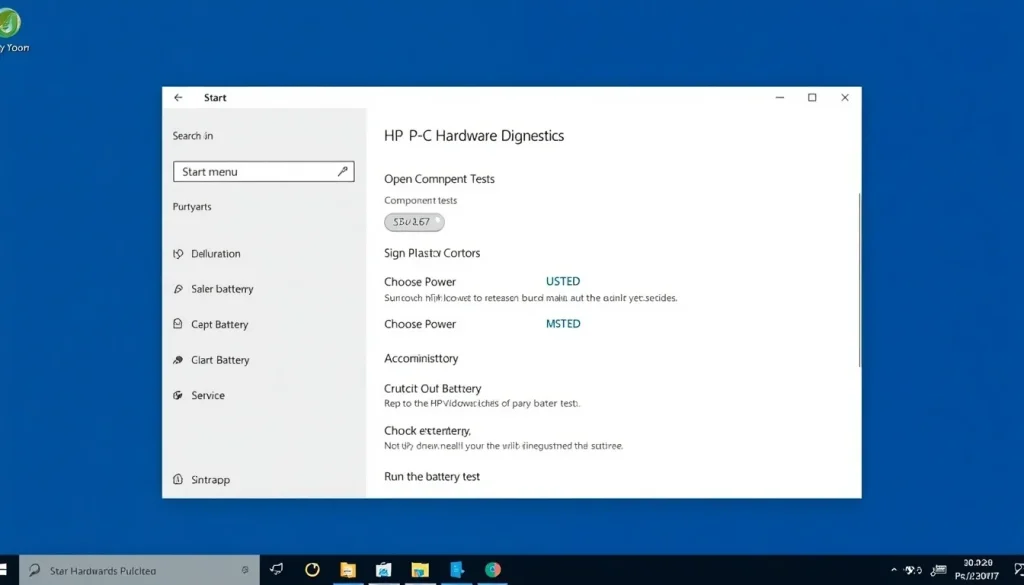
Method 1: Run HP Diagnostics Inside Windows
- Click the Start menu.
- Search for HP PC Hardware Diagnostics Windows.
- Open the app as administrator.
- Select Component Tests.
- Choose Power.
- Select Battery.
- Run the battery test.
After the test, read the result carefully. If the result says the battery needs calibration, follow the calibration steps later in this guide.
Method 2: Run HP Diagnostics Before Windows Starts
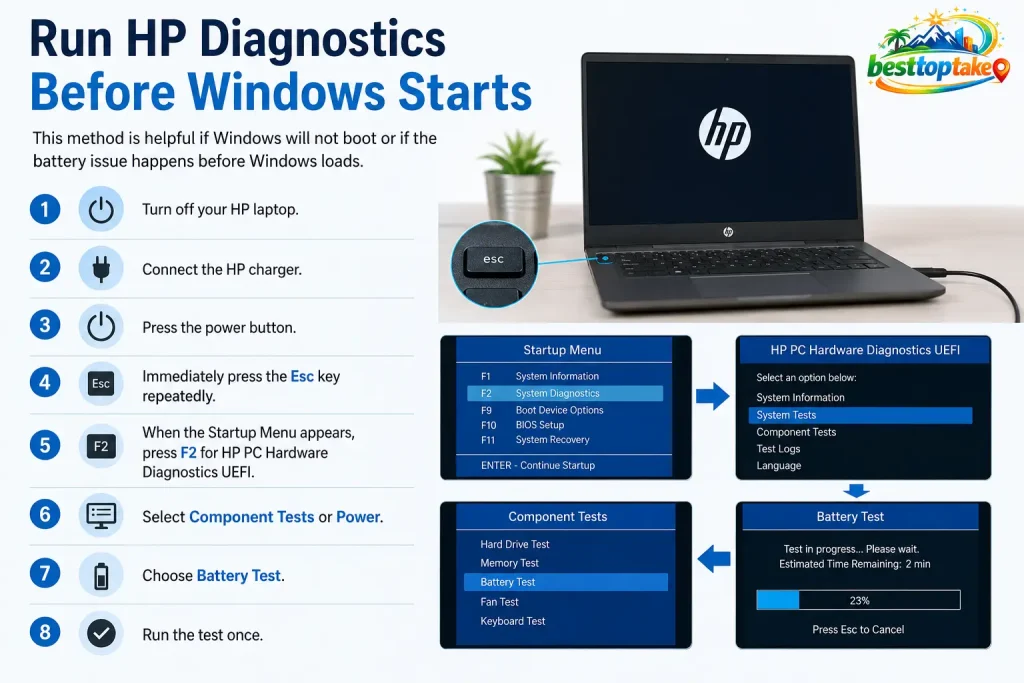
This method is helpful if Windows will not boot or if the battery issue happens before Windows loads.
- Turn off your HP laptop.
- Connect the HP charger.
- Press the power button.
- Immediately press the Esc key repeatedly.
- When the Startup Menu appears, press F2 for HP PC Hardware Diagnostics UEFI.
- Select Component Tests or Power.
- Choose Battery Test.
- Run the test once.
This test can help identify whether the problem is related to the battery hardware instead of Windows settings.
How to Generate a Windows Battery Report on an HP Laptop
A Windows battery report is very useful because it shows technical battery details such as design capacity, full charge capacity, cycle history, and estimated battery life.
Microsoft recommends using the built-in powercfg /batteryreport command to generate an HTML battery report in Windows 11. The file location appears in the Command Prompt window after the command runs.
Steps for Windows 11 and Windows 10
- Click the Start menu.
- Type Command Prompt.
- Right-click Command Prompt.
- Select Run as administrator.
- Type this command:
powercfg /batteryreport
- Press Enter.
- Windows will create an HTML battery report.
- Copy the file path shown in Command Prompt.
- Open File Explorer and paste the path.
- Open the battery report in your browser.
How to Read the Windows Battery Report
The Windows battery report can look technical at first, but you only need to focus on a few sections.
Installed Batteries
This section shows details about your HP laptop battery, including:
- Battery name
- Manufacturer
- Serial number if available
- Chemistry
- Design capacity
- Full charge capacity
- Cycle count if available
Design Capacity
Design capacity is the original capacity of the battery when it was new.
Full Charge Capacity
Full charge capacity is the amount of charge the battery can currently hold.
If full charge capacity is much lower than design capacity, your battery has lost health.
Battery Capacity History
This section shows how the full charge capacity has changed over time.
A slow decline is normal. A sudden drop may suggest battery wear, calibration issues, or a reporting problem.
Battery Life Estimates
This section estimates how long your HP laptop may run on battery based on recent usage.
If the estimate is much lower than before, your battery may be aging or your laptop may be using more power than usual.
How to Calculate HP Laptop Battery Health Percentage
You can estimate your HP battery health percentage by comparing full charge capacity with design capacity.
Use this formula:
Battery Health % = (Full Charge Capacity ÷ Design Capacity) × 100
Example
If your HP battery report shows:
- Design Capacity: 50,000 mWh
- Full Charge Capacity: 40,000 mWh
Then:
40,000 ÷ 50,000 × 100 = 80%
That means the battery health is about 80%.
Battery Health Percentage Guide
| Battery Health | Condition | What It Means |
|---|---|---|
| 90%–100% | Excellent | Battery is close to new condition |
| 80%–89% | Good | Normal wear, usually fine |
| 70%–79% | Fair | Battery life is reduced |
| 60%–69% | Weak | Replacement may be needed soon |
| Below 60% | Poor | Replacement is usually recommended |
This is only a general guide. HP Battery Check results should also be considered.
What Is HP Battery Calibration?
Battery calibration is the process of helping your laptop measure battery charge more accurately.
Calibration does not make an old battery new again. It does not restore lost chemical capacity. Instead, it helps reset the battery meter so Windows and HP diagnostics can report the charge level more correctly.
Calibration may help if:
- The battery percentage is inaccurate.
- The laptop shuts down before reaching 0%.
- The battery jumps from 50% to 10%.
- HP Battery Check says “Calibrate.”
- Windows battery estimates look wrong.
Calibration usually will not help if:
- The battery is swollen.
- HP Battery Check says “Replace.”
- The battery does not charge at all.
- The laptop only works when plugged in.
- The battery has a hardware failure ID.
- The full charge capacity is extremely low.
How to Calibrate an HP Laptop Battery
Before calibrating, save your work and back up important files. Calibration may take several hours, and your laptop may shut down during the process.
HP’s battery testing and calibration support documentation explains that HP PC Hardware Diagnostics can test and calibrate the battery when needed.
Step 1: Fully Charge the Battery
Plug in the original HP charger and charge the laptop to 100%.
If the battery will not reach 100%, wait until it reaches the highest level it can and then continue only if HP Battery Check recommends calibration.
Step 2: Run HP Battery Check
Open HP Support Assistant or HP PC Hardware Diagnostics and run a battery test.
If the result says Calibrate, continue with the calibration process.
Step 3: Use HP Automatic Calibration If Available
Some HP diagnostic tools offer an automatic calibration option. If you see this option, use it.
Automatic calibration is usually better than guessing manually because it follows HP’s recommended diagnostic process.
Step 4: Let the Battery Discharge
During calibration, the battery needs to discharge. Keep the laptop on a safe, flat surface with good airflow.
Do not use the laptop for heavy gaming, video rendering, or other high-heat tasks during calibration.
Step 5: Recharge the Battery Fully
After the battery discharges and the laptop shuts down or reaches the required level, reconnect the charger and charge it back to 100%.
Step 6: Run Battery Check Again
After charging, run HP Battery Check again.
If the result changes from Calibrate to OK, the calibration worked.
If it still says Calibrate, Weak, Replace, or shows a failure ID, the battery may be worn out or faulty.
Manual HP Battery Calibration Method
Use manual calibration only if HP automatic calibration is not available.
Manual Calibration Steps
- Charge the HP laptop to 100%.
- Keep it plugged in for another 30–60 minutes.
- Disconnect the charger.
- Use the laptop normally until the battery becomes low.
- Let the laptop shut down by itself.
- Leave it off for at least 30 minutes.
- Reconnect the charger.
- Charge it back to 100% without interruption.
- Turn it on and run HP Battery Check again.
Important Safety Notes
Do not manually calibrate too often. Frequent full discharges can add stress to lithium-ion batteries. Microsoft recommends avoiding frequent deep discharges and keeping the battery in a moderate charge range when possible.
Do not calibrate a swollen, overheating, leaking, or physically damaged battery.
HP Battery Calibration Failed, Stuck, or Not Working
Sometimes calibration does not solve the problem. This usually means the issue is more than just an inaccurate battery meter.
Why HP Battery Calibration May Fail
Calibration may fail because:
- The battery is too old.
- The battery capacity is too low.
- The charger is not working correctly.
- The laptop shuts down too early.
- Windows power settings interrupt the process.
- The battery has a hardware fault.
- The battery sensor is not reporting correctly.
What to Do If Calibration Is Stuck
If calibration seems stuck:
- Keep the laptop on a flat, cool surface.
- Make sure the charger is connected when required.
- Avoid using heavy apps during the process.
- Wait longer if HP Diagnostics is still running.
- If the laptop is frozen, restart and run HP Battery Check again.
If calibration repeatedly fails, replacement may be the better option.
HP Battery Alert 601 or 60X Error: What It Means
HP Battery Alert 601 or 60X usually appears on a black screen during startup. It means the system has detected a battery-related issue.
HP’s support page for 601 or 60X errors recommends updating the BIOS and then performing the Battery Test in HP PC Hardware Diagnostics UEFI to resolve or diagnose the battery alert message.
What You Should Do
- Write down the exact error message.
- Start the laptop.
- Update the BIOS from HP Support if available.
- Restart the laptop.
- Press Esc during startup.
- Press F2 to open HP PC Hardware Diagnostics UEFI.
- Run the Battery Test.
- Follow the result.
Can Calibration Fix HP Battery Alert 601?
Sometimes calibration may help if the battery is still functional but reporting incorrectly.
However, if the battery has very low capacity or HP Diagnostics shows a failure, calibration will not fix it. In that case, you should replace the battery.
HP Laptop Plugged In But Not Charging: Quick Fixes
If your HP laptop says “plugged in, not charging,” the problem may be the battery, charger, charging port, BIOS, Windows driver, or battery protection setting.
Fix 1: Check the Charger and Power Outlet
Make sure you are using the correct HP charger for your laptop model. A low-wattage or damaged charger may power the laptop but fail to charge the battery properly.
Try another wall outlet. Avoid using a damaged power strip.
Fix 2: Inspect the Charging Cable
Check for:
- Bent connector
- Loose cable
- Burn marks
- Exposed wire
- Damaged adapter brick
- Loose charging port
If the charger feels unusually hot or smells burnt, stop using it.
Fix 3: Perform a Hard Reset
A hard reset can clear temporary power issues.
- Turn off the laptop.
- Disconnect the charger.
- Remove external devices.
- Hold the power button for about 15 seconds.
- Reconnect the charger.
- Turn the laptop on.
Fix 4: Run HP Battery Check
Use HP Support Assistant or HP PC Hardware Diagnostics to test the battery. HP’s battery support page says HP Battery Check can identify battery problems and provide a failure ID code when a battery problem is found.
Fix 5: Update BIOS and Drivers
Go to HP Support and check for BIOS, chipset, and power management updates for your exact HP model.
A BIOS update may improve battery detection or charging behavior.
Fix 6: Check Battery Protection Settings
Some HP laptops may limit charging to protect battery health. This can make it look like the laptop is not charging to 100%.
Check BIOS settings, HP Power Manager, or HP battery health settings if available.
How to Test Your HP Laptop Charger or AC Adapter
Not every charging issue is caused by the battery. Sometimes the charger or AC adapter is the real problem.
Signs of a Charger Problem
- The laptop charges only when the cable is held at an angle.
- The charging light turns on and off.
- The charger gets extremely hot.
- The laptop charges slowly.
- The laptop works plugged in but the battery does not charge.
- HP Diagnostics reports an adapter issue.
What to Check
- Use the original HP charger when possible.
- Check the wattage printed on the adapter.
- Make sure the connector fits securely.
- Test another compatible HP charger if available.
- Run HP hardware diagnostics if your model includes an AC adapter test.
If another compatible HP charger works, your original charger may need replacement.
HP Battery Not Detected in Windows
If Windows says no battery is detected, the issue may be caused by a driver problem, BIOS issue, loose internal battery connection, or battery hardware failure.
HP has a support document specifically for HP notebook batteries not being detected in Windows, and it recommends using HP PC Hardware Diagnostics Windows as a preferred method for testing.
Try These Fixes
- Restart the laptop.
- Disconnect external devices.
- Perform a hard reset.
- Open Device Manager.
- Expand Batteries.
- Right-click Microsoft ACPI-Compliant Control Method Battery.
- Select Uninstall device.
- Restart the laptop.
- Run HP Battery Check.
- Update BIOS if needed.
If the battery is still not detected, contact HP support or a qualified technician.
Should You Keep Your HP Laptop Plugged In All the Time?
Keeping your laptop plugged in occasionally is normal. Many people use HP laptops as desk computers. However, keeping a lithium-ion battery at high charge and high temperature for long periods can contribute to faster aging.
Microsoft recommends avoiding frequent deep discharges and keeping lithium-ion batteries within a moderate charge range when possible. It also warns that excessive heat can speed up battery deterioration.
Best Charging Habits
- Avoid letting the battery hit 0% often.
- Avoid heat while charging.
- Use the correct HP charger.
- Do not block air vents.
- Use battery health features if your HP laptop supports them.
- Store the laptop around 40%–60% battery if you will not use it for a long time.
HP Adaptive Battery Optimizer, Battery Health Manager, and HP Power Manager
Some HP laptops include battery protection features that help reduce battery wear.
HP Adaptive Battery Optimizer
HP Adaptive Battery Optimizer is available on some HP laptops, especially gaming models. HP describes it as a feature that monitors battery temperature, charging status, and usage patterns to help reduce battery wear.
If this feature is active, your laptop may manage charging behavior automatically.
HP Battery Health Manager
HP Battery Health Manager is available on many HP business notebooks. HP describes it as a BIOS-level setting designed to optimize battery health by reducing exposure to conditions that speed up battery aging, such as staying at a high state of charge for long periods.
This feature is especially useful for HP EliteBook, ProBook, and other business laptops that stay plugged in most of the day.
HP Power Manager
HP Power Manager allows users or IT administrators to monitor battery health status and change battery settings from the operating system on supported HP business notebooks.
If your HP laptop includes HP Power Manager, check it before assuming your battery is faulty.
How to Improve HP Laptop Battery Life After Calibration
After checking and calibrating your battery, use these tips to improve daily battery life.
Reduce Screen Brightness
The display is one of the biggest battery users. Lowering brightness can improve battery life quickly.
Turn On Battery Saver
In Windows, go to:
Settings > System > Power & battery
Turn on Battery Saver or Energy Saver when needed.
Close Background Apps
Apps running in the background can drain power. Close unused browsers, games, editing tools, and startup apps.
Disconnect Unused Devices
External hard drives, USB devices, RGB accessories, and wireless receivers can use extra power.
Keep the Laptop Cool
Heat is bad for battery health. Use your laptop on a flat surface and avoid blocking vents.
Update Windows and HP Drivers
Driver and BIOS updates may improve power management and battery reporting.
Use Sleep and Hibernate Correctly
If you will not use the laptop for a few hours, use sleep. If you will not use it for a longer time, hibernate or shut it down.
When Should You Replace Your HP Laptop Battery?
Calibration is not always the answer. Sometimes replacement is the correct solution.
Replace your HP laptop battery if:
- HP Battery Check says “Replace.”
- HP Diagnostics gives a battery failure ID.
- Battery health is very low.
- The laptop shuts down suddenly after calibration.
- The laptop only works when plugged in.
- Full charge capacity is much lower than design capacity.
- The battery is swollen.
- The laptop overheats while charging.
- Battery life is too short for normal use.
If your HP laptop is still under warranty, contact HP support before buying a battery yourself.
HP Battery Calibration vs Battery Replacement
| Problem | Calibration May Help | Replacement May Be Needed |
|---|---|---|
| Wrong battery percentage | Yes | Sometimes |
| Battery jumps from 50% to 5% | Yes | Sometimes |
| HP Battery Check says Calibrate | Yes | Not always |
| Battery drains quickly | Sometimes | Often |
| Plugged in but not charging | Sometimes | Sometimes |
| Battery not detected | Rarely | Often |
| HP Battery Alert 601 | Sometimes | Often |
| Swollen battery | No | Yes |
| Battery failure ID | No | Yes |
| Very low full charge capacity | No | Yes |
Swollen HP Laptop Battery: Do Not Calibrate It
A swollen battery is a safety issue. Do not calibrate it. Do not press on it. Do not keep using the laptop as normal.
Microsoft warns that a visibly expanded battery should be handled with caution and that the device should stop being used if the battery expands beyond the device enclosure.
Signs of a Swollen Battery
- Touchpad lifting upward
- Keyboard bulging
- Bottom cover separating
- Laptop not sitting flat
- Trackpad clicking poorly
- Strange gaps in the case
- Battery area feels unusually tight or raised
What to Do
- Turn off the laptop.
- Unplug the charger.
- Do not press or puncture the battery.
- Do not attempt calibration.
- Contact HP support or a professional repair service.
- Replace the battery safely.
A swollen battery should be replaced, not calibrated.
HP Battery Health Check by Laptop Model
The general battery health check process is similar across most HP laptops, but some features vary by model.
HP Pavilion Battery Health Check
Use HP Support Assistant or HP PC Hardware Diagnostics to run Battery Check. Pavilion laptops may not include all business battery management features, but Windows battery report still works.
HP Envy Battery Calibration
HP Envy users can use HP Battery Check first. If the result says “Calibrate,” use HP automatic calibration if available or follow the manual calibration process.
HP Spectre Battery Health Check
HP Spectre laptops often have slim designs and internal batteries. If battery life drops sharply or the case starts swelling, stop using it and get professional support.
HP EliteBook Battery Health Manager
Many HP EliteBook models include HP Battery Health Manager or HP Power Manager. Check these settings if your laptop stops charging before 100% or stays plugged in most of the time.
HP Omen Battery Draining Fast
HP Omen and other gaming laptops use more power than standard laptops. Fast battery drain during gaming is normal, but sudden shutdowns, battery warnings, or major capacity loss should be checked with HP Diagnostics.
Common Mistakes to Avoid
Avoid these mistakes when checking or calibrating your HP battery:
- Calibrating a swollen battery
- Using a non-compatible charger
- Ignoring HP Battery Alert 601 or 60X
- Repeating full discharge cycles too often
- Assuming every charging issue is a battery problem
- Ignoring BIOS updates
- Blocking laptop vents during charging
- Buying a cheap unknown replacement battery
- Ignoring a failure ID from HP Battery Check
FAQ: HP Battery Health Check and Calibration Guide
How do I check my HP laptop battery health?
Use HP Support Assistant or HP PC Hardware Diagnostics to run HP Battery Check. You can also generate a Windows battery report using powercfg /batteryreport and compare design capacity with full charge capacity.
Does HP have a battery health check tool?
Yes. HP provides Battery Check through HP Support Assistant and HP PC Hardware Diagnostics. HP says this tool can help test battery health and identify battery problems.
How do I check battery health in Windows 11 on an HP laptop?
Open Command Prompt as administrator, type powercfg /batteryreport, press Enter, and open the HTML report file. Microsoft explains that the report includes battery usage and capacity details.
How do I calculate HP laptop battery health percentage?
Use this formula:
Battery Health % = (Full Charge Capacity ÷ Design Capacity) × 100
You can find both numbers in the Windows battery report.
What does HP Battery Check “Calibrate” mean?
It means the battery may still work, but the battery meter may not be reporting charge accurately. Calibration can help reset the battery reading.
Can calibration fix a bad HP battery?
No. Calibration can fix inaccurate readings, but it cannot restore lost battery capacity or repair a failing battery.
How often should I calibrate my HP laptop battery?
You should not calibrate often. Only calibrate when HP Battery Check recommends it or when the battery percentage is clearly inaccurate.
Why is my HP laptop plugged in but not charging?
Possible causes include a faulty charger, loose charging port, weak battery, BIOS issue, driver issue, or battery protection setting. Start by checking the charger, running HP Battery Check, and updating BIOS.
What does HP Battery Alert 601 mean?
HP Battery Alert 601 usually means the system detected a battery issue during startup. HP recommends updating BIOS and running the Battery Test in HP PC Hardware Diagnostics UEFI for 601 or 60X errors.
Can I calibrate a swollen HP battery?
No. Do not calibrate or continue using a swollen battery. Turn off the laptop, unplug it, and get the battery replaced safely.
Why does my HP laptop stop charging at 80%?
Some HP laptops use battery health settings that limit charging to reduce battery wear. Check BIOS, HP Battery Health Manager, HP Power Manager, or Adaptive Battery Optimizer settings if your model supports them.
Should I keep my HP laptop plugged in all the time?
It is okay sometimes, but long-term heat and high charge levels can contribute to battery aging. Use HP battery health features if available and avoid overheating.
Should I replace my HP laptop battery or calibrate it?
Calibrate if the battery percentage is inaccurate and HP Battery Check recommends calibration. Replace the battery if HP Battery Check says “Replace,” shows a failure ID, the battery is swollen, or the full charge capacity is very low.
Final Verdict
The best way to handle HP battery problems is to diagnose first, then act.
Start with HP Battery Check in HP Support Assistant or HP PC Hardware Diagnostics. Then generate a Windows battery report to compare design capacity and full charge capacity. If HP says the battery needs calibration, calibrate it carefully. If HP shows a failure ID, the battery is swollen, or the capacity is very low, replacement is the safer and more practical solution.
Calibration can fix wrong battery readings, but it cannot make an old battery new again. For the best result, keep your HP laptop cool, use the correct charger, avoid frequent full discharges, update BIOS and drivers, and use HP battery health features when available.

“Electronics aren’t just gadgets. They’re the invisible threads that connect our work, our play, and our world.”
I’m Julian Reed, and my obsession with tech started at age twelve, when I soldered a defunct gaming console back to life in my bedroom. That tiny green screen taught me that technology isn’t just a black box, it’s a tool you can master.
After fifteen years as a hardware engineer and a decade reviewing consumer tech, I’ve joined this team to cut through the jargon. Whether you’re building a high-end home theater or just need a laptop that won’t lag, I’m here to help you choose the gear that truly powers your life.


