
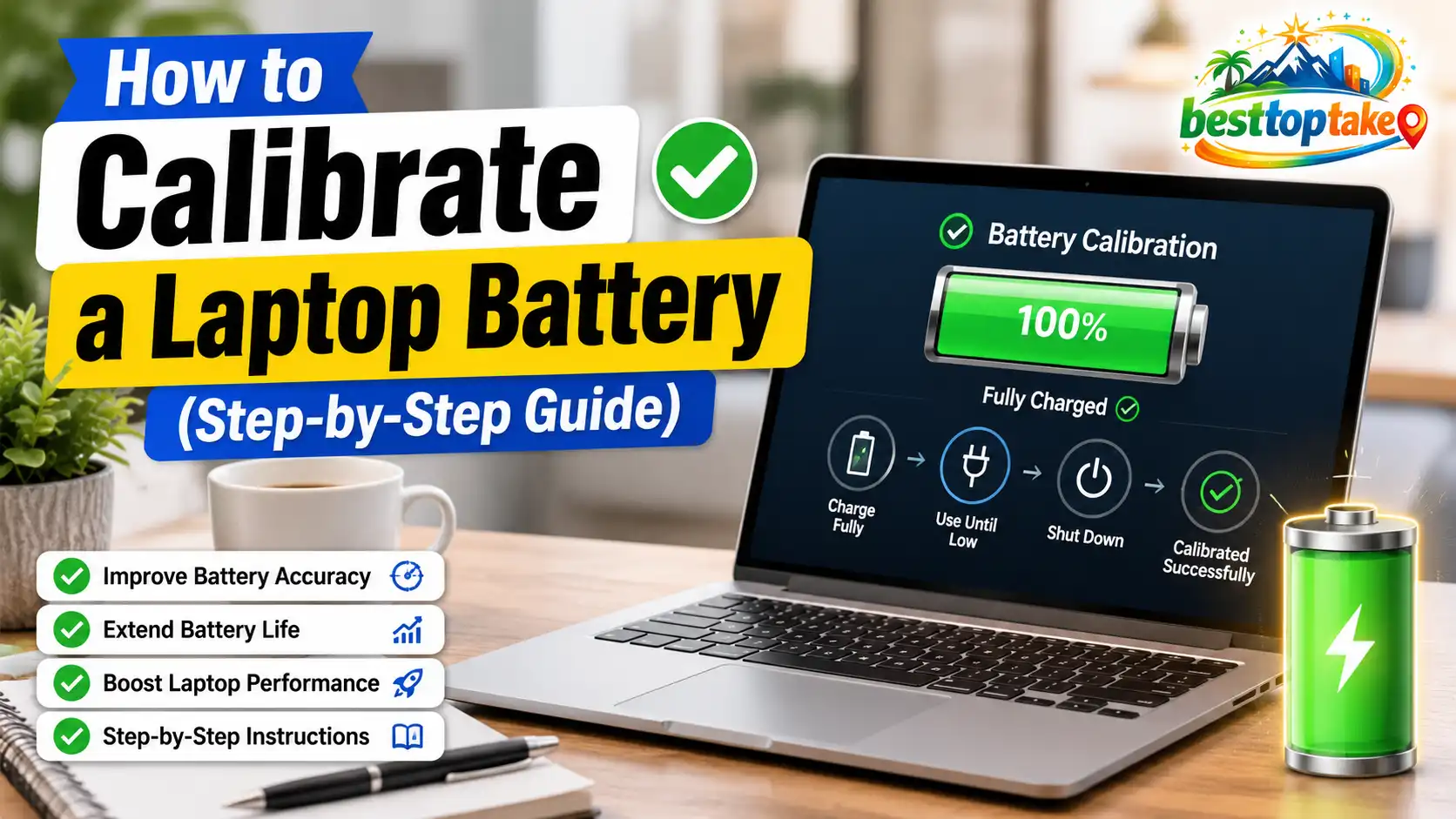
Is your laptop battery percentage wrong, stuck, or dropping suddenly from 40% to 10%? Does your laptop shut down before the battery reaches 0%? If yes, your battery may not be reporting its charge level accurately.
Laptop battery calibration can help fix inaccurate battery percentage readings by helping your operating system understand the real battery level more correctly. However, calibration does not repair a damaged battery or increase the battery’s actual capacity. If your battery is old, swollen, overheating, or draining very quickly, you may need a battery health check or replacement instead.
In this guide, you will learn how to calibrate a laptop battery step by step on Windows 11, Windows 10, and MacBook. You will also learn when calibration helps, when it does not, and how to check battery health after the process.
What Does Laptop Battery Calibration Mean?
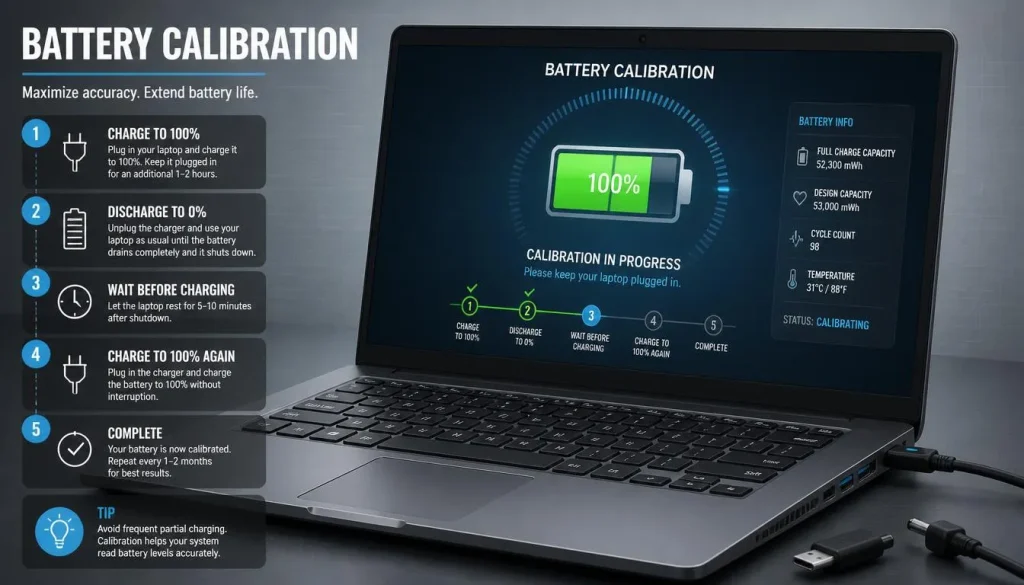
Laptop battery calibration is the process of charging the battery to full, letting it discharge to a very low level, and then charging it back to 100% without interruption.
This process helps your laptop’s battery meter estimate the remaining charge more accurately. Over time, your laptop may show the wrong percentage because the battery management system and the actual battery capacity are no longer perfectly aligned.
For example, your laptop may show 30% battery remaining but suddenly shut down. Or it may stay at 100% for a long time and then drop quickly. Calibration helps correct this type of battery percentage mismatch.
Battery calibration does not make an old battery new again. It does not increase the real battery capacity. It only helps your laptop read and display the battery level more accurately.
Why Is My Laptop Battery Percentage Wrong?
Your laptop battery percentage can become inaccurate for several reasons. The most common reason is that the battery gauge has lost accuracy over time.
Here are some common signs:
- The laptop shuts down before reaching 0%.
- The battery suddenly drops from 50% to 20%.
- The battery percentage gets stuck at one number.
- The laptop says it is fully charged, but the battery drains quickly.
- The estimated battery time changes too much.
- You recently replaced the battery.
- The battery report shows a big difference between design capacity and full charge capacity.
Sometimes, the issue is not calibration. It may be caused by battery wear, a faulty charger, a battery care mode, outdated BIOS, background apps, or a battery that needs replacement.
When Should You Calibrate Your Laptop Battery?
You should calibrate your laptop battery only when there is a clear reason to do it. Calibration is useful when the battery percentage looks inaccurate.
You may need to calibrate your laptop battery if:
- Your laptop shuts down at 10%, 20%, or 30%.
- The battery percentage jumps suddenly.
- The battery meter is stuck.
- Windows shows the wrong remaining battery time.
- You installed a new replacement battery.
- Your laptop charges to 100% but drains faster than expected.
- Your battery report looks inconsistent.
- Your laptop has not been calibrated for a long time and the readings seem wrong.
You do not need to calibrate your battery every week. Modern laptop batteries are usually lithium-ion or lithium-polymer batteries, and frequent deep discharge is not recommended.
Before You Calibrate: Important Safety Checks
Before starting battery calibration, check these important safety points.
Do not calibrate the battery if:
- The battery is swollen.
- The laptop feels unusually hot.
- The battery is leaking.
- The laptop smells like burning plastic or chemicals.
- The charger sparks or disconnects frequently.
- The battery is physically damaged.
- The laptop only works when plugged in.
If you notice any of these signs, stop using the laptop on battery power and contact the manufacturer or a qualified repair technician.
Before calibration, you should also:
- Save your important work.
- Close unnecessary apps.
- Use the original or correct wattage charger.
- Avoid gaming or heavy video editing during calibration.
- Keep the laptop in a cool, ventilated place.
- Temporarily change sleep and hibernation settings.
- Make sure you have enough time because the process can take several hours.
How to Calibrate a Laptop Battery on Windows 11
Follow these steps to calibrate a laptop battery on Windows 11.
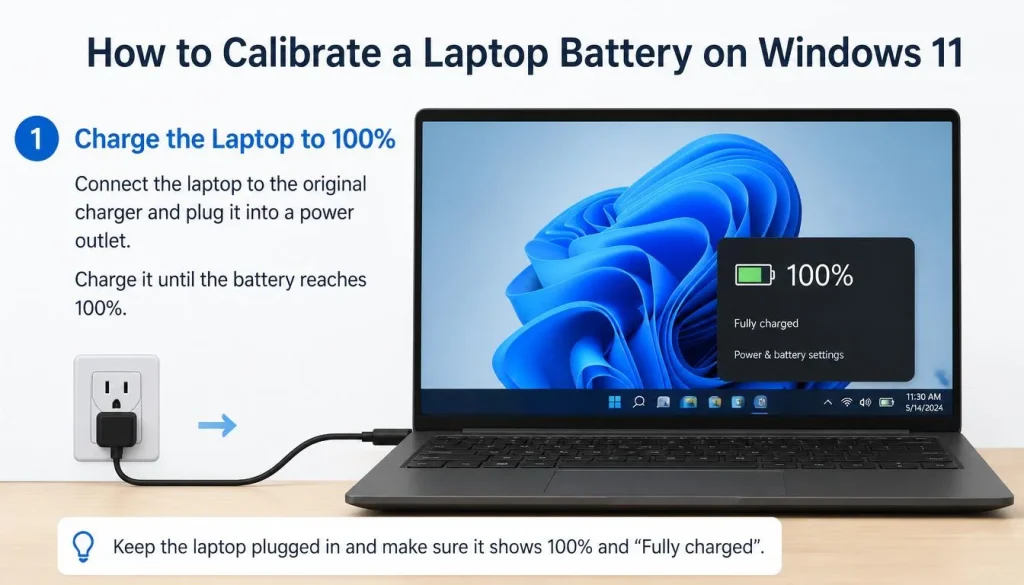
Step 1: Charge the Laptop to 100%
Plug your laptop into the charger and charge it until the battery reaches 100%.
After it reaches 100%, keep it plugged in for another 30 to 60 minutes. This helps make sure the battery is fully charged before you begin the discharge process.
You can use the laptop lightly while it is charging, but avoid heavy tasks that create heat.
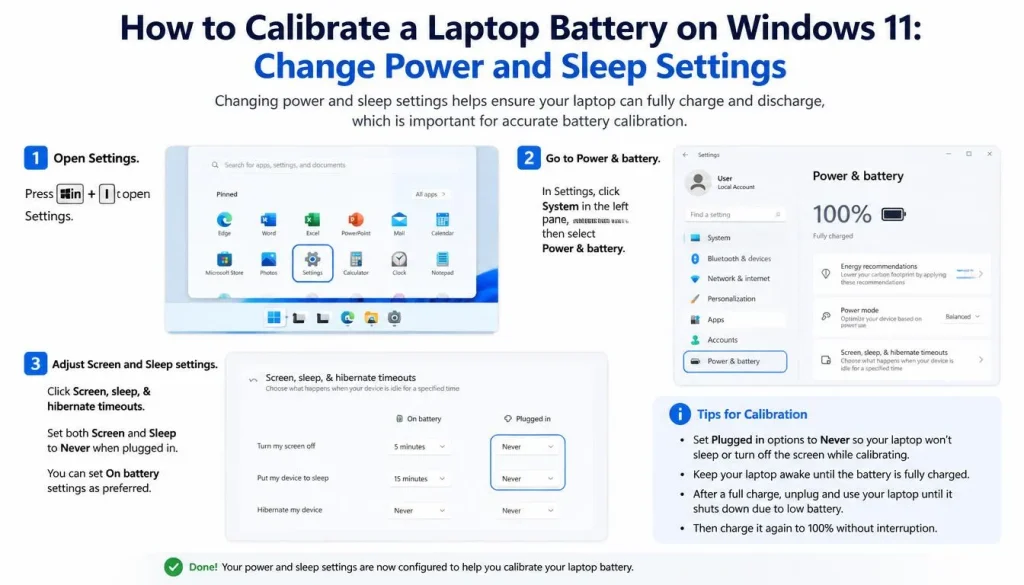
Step 2: Change Power and Sleep Settings
Before draining the battery, temporarily change the power settings so the laptop does not sleep too early.
To do this on Windows 11:
- Open Settings.
- Go to System.
- Click Power & battery.
- Open Screen and sleep.
- Set sleep options to Never while running on battery.
- Set the screen timeout to a longer time if needed.
You can restore these settings after calibration is complete.
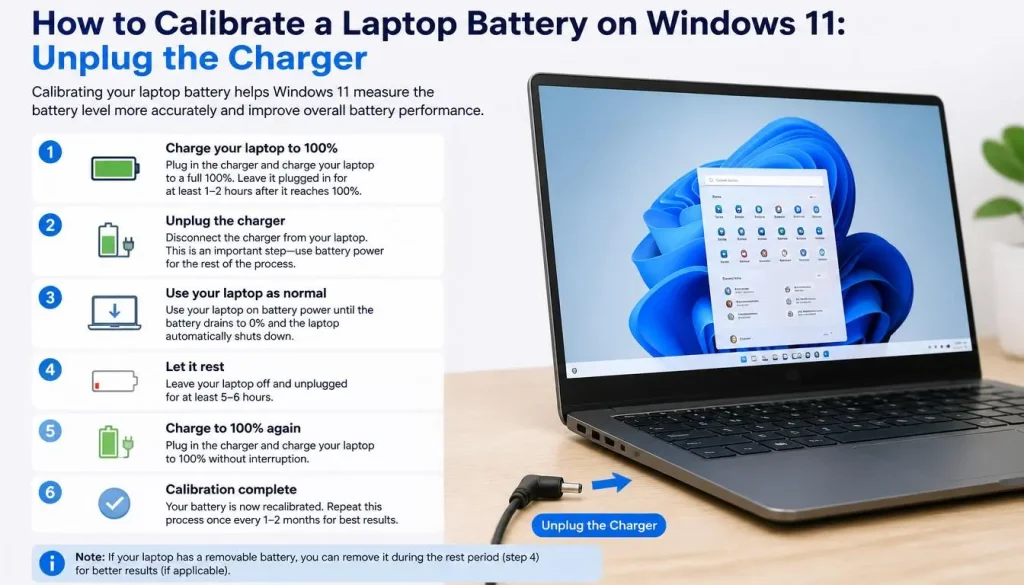
Step 3: Unplug the Charger
Once the laptop is fully charged, unplug the charger.
Use the laptop normally and let the battery drain naturally. You can browse the web, write documents, watch videos, or do light tasks. Avoid heavy gaming or editing because too much heat can affect battery health.
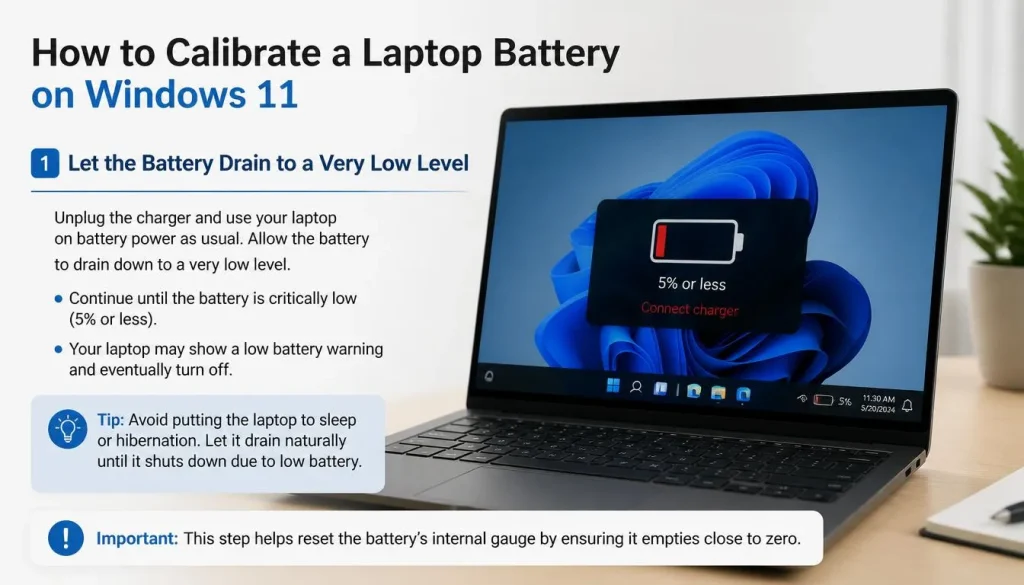
Step 4: Let the Battery Drain to a Very Low Level
Let the battery drain until it reaches a very low level. In many cases, the laptop may shut down automatically when the battery becomes critically low.
If your laptop shows a low battery warning, save your work. The goal is to allow the battery to reach its low point safely.
Do not force the laptop to keep running if it becomes unstable.
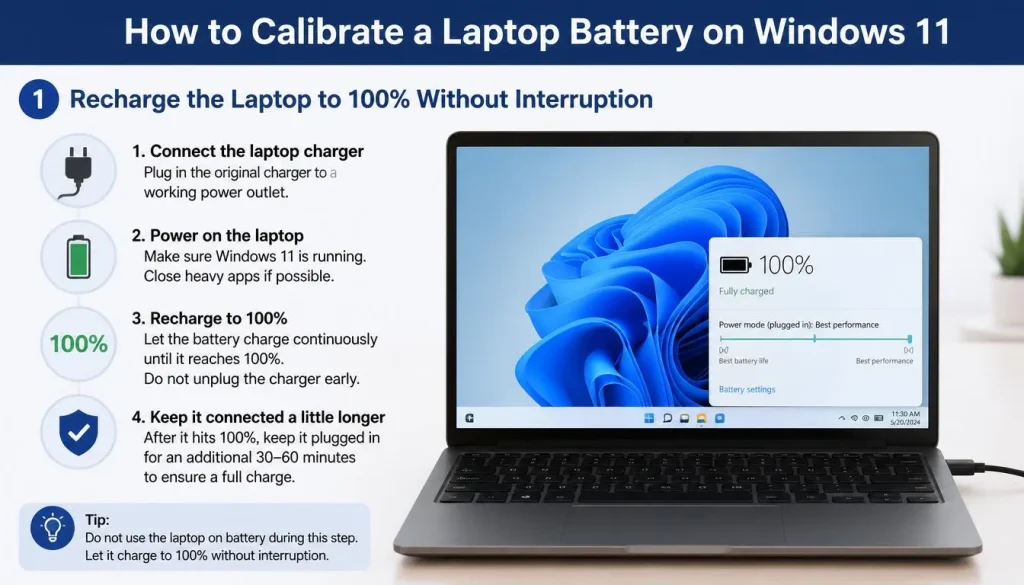
Step 5: Recharge the Laptop to 100% Without Interruption
After the laptop shuts down or reaches a very low battery level, plug the charger back in.
Now charge the laptop back to 100% without unplugging it. Try not to interrupt the charging process. Once it reaches 100%, keep it plugged in for another 30 minutes.
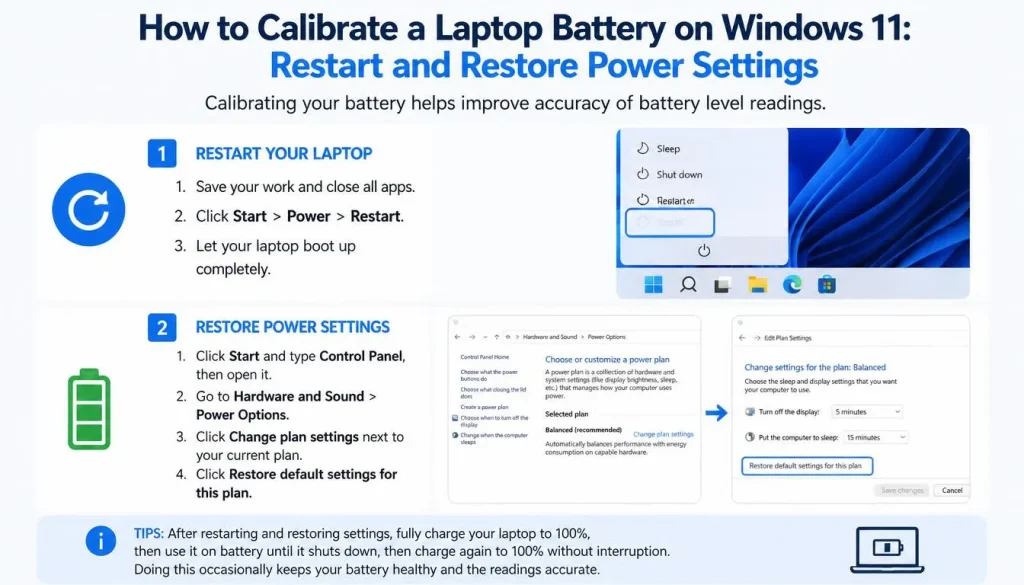
Step 6: Restart and Restore Power Settings
After the battery reaches 100%, restart your laptop.
Then go back to the Power & battery settings and restore your normal screen, sleep, and power mode settings.
Your Windows 11 laptop battery should now report the percentage more accurately.
How to Calibrate a Laptop Battery on Windows 10
The Windows 10 battery calibration process is almost the same as Windows 11, but the settings menu looks slightly different.
Step 1: Fully Charge the Battery
Plug in the charger and let your laptop charge to 100%.
After it reaches 100%, leave it plugged in for another 30 to 60 minutes.
Step 2: Adjust Power Plan Settings
To prevent the laptop from sleeping during calibration:
- Open Control Panel.
- Go to Hardware and Sound.
- Click Power Options.
- Click Change plan settings.
- Set Put the computer to sleep to Never for battery mode.
- Save the changes.
You can also search for Power & sleep settings from the Start menu and adjust the sleep timer from there.
Step 3: Drain the Battery Naturally
Unplug the charger and use your laptop normally.
Let the battery drain until it reaches a very low level or shuts down automatically. Save your work when the low battery warning appears.
Step 4: Charge Back to 100%
Plug the charger back in and charge the battery to 100% without interruption.
After it reaches full charge, restart your laptop and restore your previous power settings.
How to Reset Laptop Battery Percentage
Many users search for how to reset laptop battery percentage when the battery number is wrong. In most cases, this means the laptop battery gauge needs calibration.
To reset the battery percentage reading, you can try these steps:
- Fully charge the laptop to 100%.
- Keep it plugged in for 30 to 60 minutes.
- Unplug the charger.
- Let the battery drain to a very low level.
- Recharge it back to 100% without interruption.
- Restart the laptop.
- Check the battery reading again.
On Windows, you can also refresh the battery driver:
- Right-click the Start button.
- Click Device Manager.
- Expand Batteries.
- Right-click Microsoft ACPI-Compliant Control Method Battery.
- Choose Uninstall device.
- Restart the laptop.
Windows will reinstall the battery driver automatically after restart.
This does not repair the physical battery, but it can help if the battery percentage reading is caused by a software or driver issue.
How to Check Battery Health with Battery Report
After calibration, you should check your laptop battery health. On Windows, you can use the built-in battery report tool.
Microsoft documents the powercfg /batteryreport command, which creates an HTML battery report stored on your PC. The report location appears in the Command Prompt window after running the command.
To create a battery report:
- Click the Start button.
- Search for Command Prompt.
- Right-click it and choose Run as administrator.
- Type this command:
powercfg /batteryreport
- Press Enter.
- Open the battery report file shown in the Command Prompt window.
In the battery report, look for:
- Design Capacity
- Full Charge Capacity
- Cycle Count
- Battery capacity history
- Battery life estimates
If the full charge capacity is much lower than the design capacity, calibration may not solve the problem. That usually means the battery has aged and cannot hold as much charge as it did when new.
Laptop Battery Not Charging to 100%: Is It a Calibration Problem?
If your laptop battery is not charging to 100%, it may not be a calibration issue.
Many modern laptops include battery protection features that stop charging at 80%, 60%, or another limit to help reduce battery wear. This is common on ASUS, Lenovo, Dell, HP, and MacBook models.
For example, ASUS Battery Health Charging includes modes that can stop charging above 80% or 60%, depending on the selected mode.
Your laptop may not charge to 100% because of:
- Battery care mode
- Conservation mode
- Optimized charging
- Charge limit settings
- Wrong charger
- Weak power adapter
- Overheating
- Battery wear
- BIOS or firmware issue
- Faulty battery
Before calibrating, check your manufacturer’s battery software. Look for settings such as Battery Care Mode, Conservation Mode, Battery Health Charging, Optimized Battery Charging, or Charge Limit.
If one of these settings is enabled, your laptop may intentionally stop charging before 100%.
Brand-Specific Battery Calibration Methods
Different laptop brands may offer their own battery calibration or battery health tools. The general process is similar, but the software names can be different.
Dell Laptop Battery Calibration Cycle
Dell provides an official battery calibration cycle for Dell laptops. The process includes charging the battery to 100%, unplugging the AC adapter, allowing the battery to discharge, and then plugging the adapter back in when the battery reaches 6% or less. Dell also notes that up to three calibration cycles may be recommended to fully calibrate the battery.
For Dell laptops, you can also use Dell SupportAssist to check battery health and detect hardware issues.
HP Battery Calibration and HP Battery Check
HP laptops may include HP PC Hardware Diagnostics or HP Battery Check. These tools can test the battery and show whether it is working normally or needs replacement.
If your HP laptop battery percentage is wrong, first run HP Battery Check. If the battery health is good but the percentage is inaccurate, then calibration may help.
Lenovo Battery Gauge Reset
Lenovo uses the term Battery Gauge Reset in some support tools. Lenovo’s official support page explains how to perform a battery gauge reset using Energy Management on systems that include the software. The process may take several hours, and Lenovo advises users not to use or cancel the computer while it is running.
On newer Lenovo laptops, check Lenovo Vantage for battery health, conservation mode, and battery settings.
ASUS Battery Health Charging
ASUS laptops may include Battery Health Charging or Battery Care Mode. These features can limit charging to help extend battery lifespan.
If your ASUS laptop stops charging at 80% or 60%, check MyASUS or ASUS Battery Health Charging before assuming the battery needs calibration. The laptop may be following a battery lifespan protection setting.
Should You Calibrate a MacBook Battery?
Modern MacBooks manage battery health automatically, so manual battery calibration is usually not necessary in the same way it was for older laptops.
If your MacBook battery is not charging to 100%, first check whether Optimized Battery Charging or Charge Limit is enabled. Apple explains that Optimized Battery Charging can delay charging past 80%, and newer macOS versions may allow a charge limit on supported Apple silicon Macs.
To check MacBook battery health:
- Click the Apple menu.
- Open System Settings.
- Click Battery.
- Look for Battery Health.
Apple says Battery Health may show Normal or Service Recommended. Service Recommended means the battery holds less charge than when it was new or is not functioning normally.
You can also check battery cycle count on Mac. Apple says the cycle count is listed under Power in the System Information window, and cycle count can help determine when a battery may need replacement.
If your MacBook says Service Recommended, calibration is unlikely to fix the issue. You should consider Apple service or battery replacement.
Battery Calibration vs Battery Health vs Battery Replacement
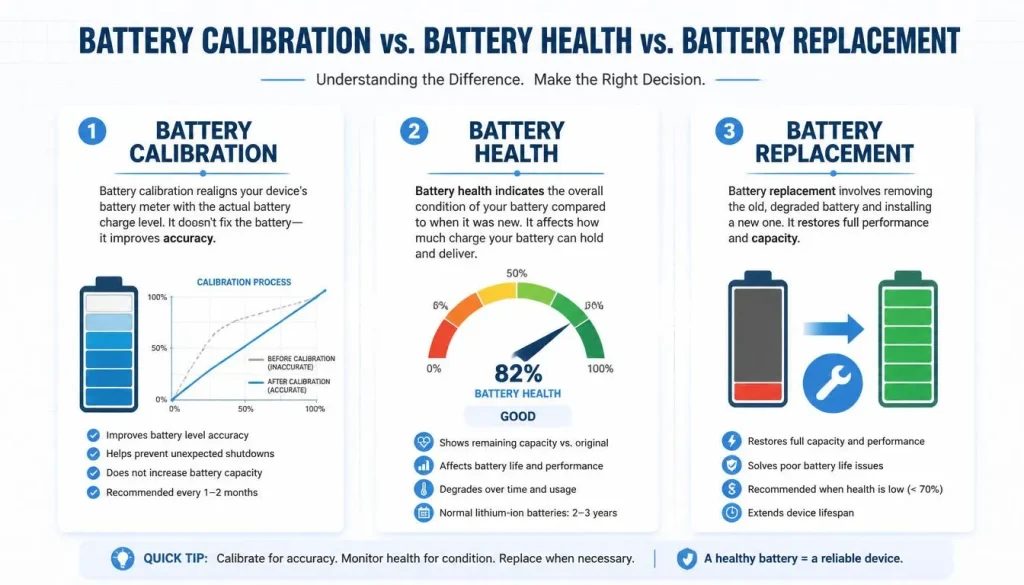
Battery calibration, battery health, and battery replacement are different things.
Battery calibration helps correct the displayed battery percentage. Battery health shows how much real capacity the battery still has. Battery replacement is needed when the battery can no longer hold enough charge or is unsafe to use.
Calibration May Help If:
- The battery percentage is inaccurate.
- The laptop shuts down before 0%.
- The battery jumps from one percentage to another.
- A new battery was installed.
- The battery report seems inconsistent.
- The laptop battery meter is stuck.
Calibration Will Not Help If:
- The battery is swollen.
- The battery is overheating.
- The full charge capacity is very low.
- The laptop turns off immediately when unplugged.
- The battery diagnostics show failure.
- The charger or charging port is faulty.
- The battery is old and worn out.
Battery Replacement May Be Needed If:
- Full charge capacity is much lower than design capacity.
- The battery drains very quickly after full charge.
- The laptop only works while plugged in.
- The battery percentage is still wrong after calibration.
- The battery health tool shows poor battery condition.
- The battery is physically damaged.
Common Battery Calibration Mistakes to Avoid
Battery calibration is simple, but some mistakes can cause confusion or even harm battery health.
Avoid these mistakes:
- Calibrating too often
- Fully draining the battery every day
- Using a low-quality charger
- Ignoring overheating
- Ignoring a swollen battery
- Interrupting the recharge process
- Running heavy games while calibrating
- Expecting calibration to increase battery capacity
- Downloading random “battery repair” software
- Forgetting to restore power settings after calibration
Calibration should be done only when needed. It is not a regular battery maintenance routine for every week or every month.
What to Do If Calibration Does Not Work
If your laptop battery is still wrong after calibration, try these troubleshooting steps.
Check Battery Health Again
Run the Windows battery report or your manufacturer’s battery diagnostic tool. Look at the full charge capacity and battery health status.
If the battery capacity is very low, calibration will not solve the issue.
Update Battery Drivers
On Windows:
- Open Device Manager.
- Expand Batteries.
- Uninstall Microsoft ACPI-Compliant Control Method Battery.
- Restart your laptop.
Windows should reinstall the battery driver automatically.
Update BIOS or Firmware
Battery charging and reporting can be affected by BIOS or firmware issues. Visit your laptop manufacturer’s official support website and check for BIOS, firmware, and chipset updates for your exact model.
Do not download BIOS files from unofficial websites.
Check Charging Limit Settings
Look for battery protection settings such as:
- Battery Care Mode
- Conservation Mode
- Battery Health Charging
- Optimized Battery Charging
- Charge Limit
- Smart Charging
If a charge limit is enabled, your laptop may stop charging before 100% by design.
Test the Charger
A weak or incorrect charger can cause slow charging, unreliable charging, or battery percentage issues.
Use the correct charger for your laptop model. If possible, test with another official or compatible charger.
Check Background Battery Drain
Fast battery drain may be caused by software, not battery calibration.
Check for:
- Too many startup apps
- Browser tabs using high power
- High screen brightness
- Background updates
- Gaming apps running in the background
- Video editing software
- Malware or unwanted apps
- Sleep mode battery drain
On Windows, go to Settings > System > Power & battery and check battery usage by app.
Quick Summary: Laptop Battery Calibration Steps
Here is the simple version:
- Charge your laptop to 100%.
- Keep it plugged in for 30 to 60 minutes.
- Change sleep settings temporarily.
- Unplug the charger.
- Use the laptop until the battery becomes very low.
- Let the laptop shut down or reach the low-battery state.
- Plug the charger back in.
- Recharge to 100% without interruption.
- Restart the laptop.
- Restore your normal power settings.
- Check battery health with a battery report or diagnostic tool.
FAQs About Laptop Battery Calibration
Does calibrating a laptop battery increase battery life?
No. Battery calibration does not increase the real battery capacity. It only helps the laptop show a more accurate battery percentage.
How do I calibrate my laptop battery in Windows 11?
Charge the laptop to 100%, adjust sleep settings, unplug the charger, let the battery drain to a very low level, then recharge it to 100% without interruption. After that, restart the laptop and restore your normal power settings.
How do I calibrate my laptop battery in Windows 10?
Charge the laptop fully, change the power plan so it does not sleep too early, unplug it, let the battery drain naturally, then recharge it to 100% without interruption.
How do I reset my laptop battery percentage?
You can reset the battery percentage reading by calibrating the battery. Fully charge it, drain it to a low level, recharge it to 100%, and restart the laptop. On Windows, you can also refresh the Microsoft ACPI-Compliant Control Method Battery driver.
Why does my laptop shut down before 0% battery?
This usually happens when the battery percentage is inaccurate or the battery is worn out. Calibration may help if the battery gauge is wrong. If the battery health is poor, replacement may be needed.
Why is my laptop battery percentage wrong?
The battery gauge may be out of sync with the actual battery capacity. It can also happen because of battery wear, driver issues, BIOS problems, charging limits, or a failing battery.
Why is my laptop battery stuck at 80%?
Your laptop may have a battery protection feature enabled. Many laptops include charge limit settings that stop charging around 80% to help extend battery lifespan.
Why is my laptop not charging to 100%?
A laptop may not charge to 100% because of battery care mode, optimized charging, charge limit settings, overheating, a weak charger, or battery wear. Check your manufacturer’s battery software before calibrating.
What is battery gauge reset?
Battery gauge reset is a process used by some laptop brands, especially Lenovo, to recalibrate the battery meter. It helps the system estimate battery percentage more accurately.
Should I calibrate a new laptop battery?
You usually do not need to calibrate a new laptop battery unless the percentage reading seems inaccurate. If a new replacement battery shows wrong percentages, calibration may help.
Does battery calibration fix fast battery drain?
Not always. Calibration can fix inaccurate battery readings, but it does not repair battery wear. If the battery drains quickly because the capacity is low, you may need a battery replacement.
Is battery calibration safe?
Battery calibration is generally safe when done occasionally and correctly. However, you should not frequently drain lithium-ion batteries to 0%. Do not calibrate a swollen, overheating, or damaged battery.
How often should I calibrate my laptop battery?
Only calibrate when the battery percentage appears inaccurate. For most users, calibration is not needed regularly. Avoid doing it too often.
How do I know if my laptop battery is bad?
Check the battery health report, full charge capacity, cycle count, and diagnostic results. If the full charge capacity is much lower than the design capacity, the battery may be worn out.
When should I replace my laptop battery instead of calibrating it?
Replace the battery if it is swollen, overheating, failing diagnostics, draining very quickly, or showing very low full charge capacity. Calibration cannot fix a physically worn-out or unsafe battery.
Final Thoughts
Learning how to calibrate a laptop battery can help when your laptop shows the wrong percentage, shuts down too early, or gives unreliable battery estimates. The process is simple: fully charge the battery, let it drain to a very low level, and recharge it back to 100% without interruption.
However, calibration is not a battery repair method. It only improves battery percentage accuracy. If your battery health is poor, the full charge capacity is low, or the battery is physically damaged, replacement is the better solution.
For the best result, check your battery health before and after calibration, use the correct charger, keep your laptop cool, and avoid frequent deep discharges.

“Electronics aren’t just gadgets. They’re the invisible threads that connect our work, our play, and our world.”
I’m Julian Reed, and my obsession with tech started at age twelve, when I soldered a defunct gaming console back to life in my bedroom. That tiny green screen taught me that technology isn’t just a black box, it’s a tool you can master.
After fifteen years as a hardware engineer and a decade reviewing consumer tech, I’ve joined this team to cut through the jargon. Whether you’re building a high-end home theater or just need a laptop that won’t lag, I’m here to help you choose the gear that truly powers your life.


