
When your laptop USB ports stop working, you may be unable to use a mouse, keyboard, flash drive, phone, printer, external hard drive, or docking station. Sometimes one USB port fails, while other times every port stops responding at once.
The good news is that a non-working USB port does not always mean your laptop needs repair. A faulty cable, temporary power error, damaged driver, power-saving setting, incompatible USB-C feature, or blocked storage device can cause the same problem.
This guide explains how to fix laptop USB ports not working on Windows 11, Windows 10, MacBooks, and Chromebooks. Start with the quick checks before changing drivers, power settings, or BIOS options.
Important: If a USB drive contains important files, do not format, initialize, erase, or repartition it during troubleshooting. The USB port may be working even when the drive does not appear in File Explorer.
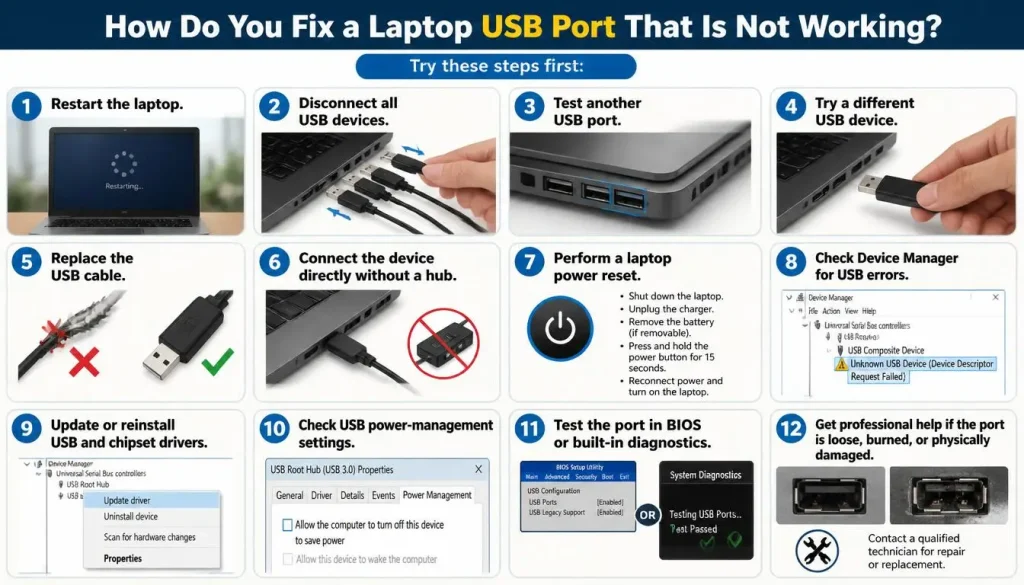
Quick Answer: How Do You Fix a Laptop USB Port That Is Not Working?
Try these steps first:
- Restart the laptop.
- Disconnect all USB devices.
- Test another USB port.
- Try a different USB device.
- Replace the USB cable.
- Connect the device directly without a hub.
- Perform a laptop power reset.
- Check Device Manager for USB errors.
- Update or reinstall USB and chipset drivers.
- Check USB power-management settings.
- Test the port in BIOS or built-in diagnostics.
- Get professional help if the port is loose, burned, or physically damaged.
Testing another device and another port helps determine whether the problem is with the laptop, USB accessory, cable, adapter, or hub. Microsoft also recommends reconnecting the device and testing a different port when troubleshooting USB keyboards and mice.
Why Are My Laptop USB Ports Not Working?
Laptop USB ports can stop working for several reasons:
- A USB device or cable is faulty.
- Dust or debris is blocking the connection.
- The USB port has bent or damaged contacts.
- The laptop’s USB controller is temporarily frozen.
- A USB driver is missing, outdated, or corrupted.
- Windows installed an incompatible driver or update.
- USB power-saving settings turned off the device.
- The device requires more power than the port can provide.
- A USB hub or docking station is overloaded.
- The USB controller is disabled in BIOS or UEFI.
- A work or school security policy blocks removable storage.
- A USB-C port or cable does not support the requested feature.
- The laptop has an internal I/O board or motherboard fault.
The correct fix depends on the symptoms. For example, a port that charges your phone but cannot transfer files has a different problem from a port that provides no power at all.
First, Identify What Is Actually Not Working
Before changing any settings, find out whether the problem affects the port, device, cable, operating system, or laptop hardware.
Is One USB Port Not Working or Are All USB Ports Not Working?
If only one USB port is not working, possible causes include:
- Dirt inside that port
- Bent or worn contacts
- A loose connector
- Physical impact
- A damaged internal USB board
- A failed motherboard solder joint
If all USB ports stopped working at once, possible causes include:
- A USB controller error
- A chipset driver problem
- A power-management issue
- A BIOS setting
- An operating-system update
- A motherboard-level fault
If several ports on one side of the laptop fail while ports on the other side work, those ports may share the same internal controller or I/O board.
Does the USB Port Supply Power?
Connect a basic device such as:
- A wired mouse with a light
- A phone charging cable
- A USB drive with an activity light
- A low-power USB keyboard
Use the result to narrow down the cause:
No power and no device detection: The port, controller, BIOS setting, power circuit, or motherboard may be at fault.
Power but no device detection: The cable may support charging but not data, the data contacts may be damaged, or Windows may have a driver problem.
Windows plays a connection sound but the drive is missing: The USB port probably works. The storage device may need a drive letter, a supported file system, or data recovery.
Does the Device Work on Another Computer?
Connect the same USB device to another laptop or desktop.
- If it also fails on the second computer, the device or cable is probably faulty.
- If it works normally, continue troubleshooting your laptop.
- If possible, test a second known-working device in the affected laptop port.
This simple cross-test prevents you from spending time repairing a laptop port when the real issue is a damaged accessory.
Does the Port Work Before Windows Starts?
Try using a USB keyboard in the BIOS or UEFI menu. You can also test whether the laptop recognizes a bootable USB device in its boot menu.
- If USB works before Windows starts but fails inside Windows, a driver, setting, update, or software conflict is more likely.
- If USB does not work in BIOS or hardware diagnostics, a firmware setting or hardware problem becomes more likely.
Do not change unrelated BIOS settings. Incorrect BIOS changes can cause boot or security problems.
Did the Problem Start After a Specific Event?
Think about what happened before the USB ports failed:
- Windows or driver update
- BIOS update
- New docking station
- New USB device
- Laptop drop
- Liquid spill
- Power surge
- Battery fully discharged
- Sleep or hibernation
- Company security-policy update
This information can help you choose the right section of this guide.
Is the USB Port Broken or Is the USB Device the Problem?
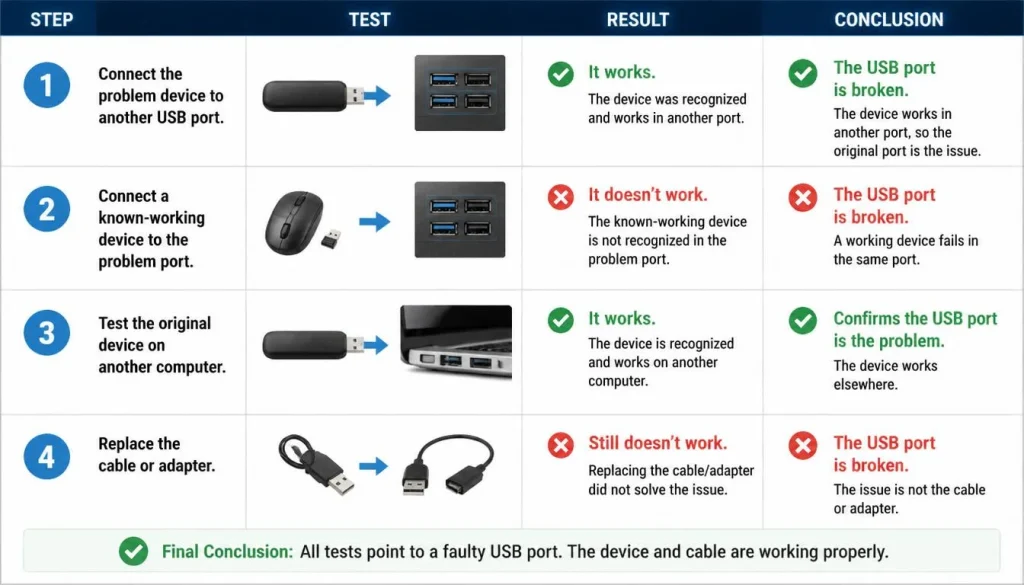
Use this four-step test:
- Connect the problem device to another USB port.
- Connect a known-working device to the problem port.
- Test the original device on another computer.
- Replace the cable or adapter.
You probably have a port problem if several known-working devices fail in the same port.
You probably have a device problem if the same accessory fails on multiple computers.
You probably have a cable problem if charging works but file transfer, video, or device detection does not.
You may have a hub or dock problem if the device works when connected directly to the laptop.
1. Restart the Laptop
Restarting Windows or macOS can reset a temporary USB controller or driver problem.
Use the operating system’s Restart option rather than simply closing the laptop lid. Sleep mode does not fully reload every driver.
After restarting:
- Sign in normally.
- Connect one USB device directly.
- Wait several seconds.
- Check whether the laptop detects it.
Do not reconnect every hub, drive, and accessory at the same time.
2. Disconnect All USB Devices
A faulty device can sometimes affect other devices connected to the same USB controller or hub.
Disconnect:
- Flash drives
- External hard drives
- Printers
- Phones
- Webcams
- USB hubs
- Docking stations
- Game controllers
- Wireless receivers
Restart the laptop with nothing connected. Then reconnect one device at a time.
If the ports stop working after you connect a specific device, stop using that device until you test its cable, power supply, and condition.
3. Try Another USB Port
Test ports on both sides of the laptop. Some laptop ports may use different controllers or support different features.
Also note the port type:
- USB-A
- USB-C
- Thunderbolt
- USB4
- Charging-only USB-C
- USB port with PowerShare or sleep-and-charge support
Not every port performs the same job. A USB-C port may support charging and data but not an external display. Another port may support display output but have different charging limits.
4. Try Another USB Device and Cable
Use a simple, known-working device such as a basic wired mouse.
If the mouse works but an external drive does not, the port may be fine. The drive may have a power, file-system, storage, or cable problem.
Replace the cable even if it looks undamaged. Internal cable wires can break without visible damage.
This is especially important for USB-C. Cables with the same connector can support different combinations of charging, data speed, display output, and Thunderbolt features. Microsoft specifically notes that not all USB-C-compatible cables support every feature.
5. Remove the USB Hub, Adapter, or Dock
Connect the device directly to the laptop.
If it works directly, the problem may be:
- An unpowered hub
- A damaged dock
- An overloaded adapter
- An incompatible USB-C hub
- Outdated dock firmware
- Insufficient power
- A low-quality cable
For high-power devices such as external hard drives, audio equipment, or multiple accessories, use a powered hub or the device’s original power adapter.
Microsoft recommends direct connection when troubleshooting USB-C hubs and docks. It also advises using the cable supplied with the device when possible.
6. Clean the USB Port Safely
Shut down the laptop and disconnect the charger.
Use a flashlight to inspect the port for:
- Dust
- Lint
- Bent contacts
- Corrosion
- Burn marks
- Foreign objects
Use short bursts of compressed air to remove loose debris.
Do not use:
- Metal pins
- Paper clips
- Wet cotton swabs
- Water
- Excessive force
- Sharp tools
If a contact is bent or the port feels loose, stop inserting devices. Continued use can cause more damage.
7. Perform a Laptop Power Reset
A power reset can clear a temporary embedded-controller or USB power problem.
For Most Windows Laptops
- Shut down the laptop.
- Disconnect the charger.
- Remove all USB devices.
- Remove the battery only if it is designed to be removable.
- Hold the power button for 15 to 30 seconds.
- Reconnect the charger.
- Turn on the laptop.
- Test one USB device.
Do not open the laptop or disconnect a built-in battery unless the manufacturer provides instructions for your exact model.
Some manufacturers use a different key combination or emergency reset hole. Check the official support page for your laptop model.
How to Fix Laptop USB Ports Not Working in Windows 11
The following Windows fixes also apply to many Windows 10 laptops. However, Microsoft ended standard Windows 10 support on October 14, 2025, so Windows 10 no longer receives normal free security updates and technical support.
8. Check Device Manager for USB Errors
Device Manager shows whether Windows can see the USB controller and connected devices.
- Right-click Start.
- Select Device Manager.
- Expand Universal Serial Bus controllers.
- Also check Other devices, Portable Devices, and Disk drives.
- Look for a yellow warning symbol or down-arrow icon.
- Right-click the problem device.
- Select Properties.
- Read the message under Device status.
Possible entries include:
- Unknown USB Device
- USB Root Hub
- Generic USB Hub
- USB Composite Device
- USB xHCI Compliant Host Controller
- Device Descriptor Request Failed
- Port Reset Failed
Microsoft states that the Device status area displays the error code reported for a problem device.
9. Fix Common Unknown USB Device Errors
Device Descriptor Request Failed
This means Windows could not read basic identification information from the device.
Try:
- Disconnect the device.
- Restart the laptop.
- Replace the cable.
- Test a different port.
- Remove any hub.
- Uninstall the Unknown USB Device entry.
- Restart Windows.
- Update the chipset and USB controller drivers.
Port Reset Failed
Disconnect all USB devices and perform a full power reset. Then uninstall the affected Unknown USB Device entry and restart Windows.
Code 10
Code 10 usually means the device cannot start correctly. Update, reinstall, or roll back its driver. Also test the hardware on another computer.
Code 31
Code 31 indicates that Windows cannot load the required driver correctly. Reinstall the device driver and check the laptop manufacturer’s support page.
Code 43
Code 43 means a device driver reported that the device has a problem. The cause may be the hardware, cable, firmware, or driver. Follow the recommendation displayed for that code and test the device on another computer.
10. Disable and Re-enable the USB Controller
A disabled or frozen controller may start working after being re-enabled.
- Open Device Manager.
- Expand Universal Serial Bus controllers.
- Right-click the affected USB Root Hub or controller.
- Select Disable device.
- Wait a few seconds.
- Right-click it again.
- Select Enable device.
- Restart the laptop.
Your USB keyboard or mouse may stop working temporarily. Use the laptop’s built-in keyboard and touchpad when possible.
Do not disable every controller at once.
11. Update, Roll Back, or Reinstall USB Drivers
Update the Driver
- Open Device Manager.
- Expand Universal Serial Bus controllers.
- Right-click the problem device or controller.
- Select Update driver.
- Select Search automatically for drivers.
Windows can also provide optional hardware drivers through:
Settings → Windows Update → Advanced options → Optional updates
Optional drivers may not install automatically, so check this section manually.
Roll Back the Driver
Use this option if the USB ports stopped working immediately after a driver update.
- Right-click the controller.
- Select Properties.
- Open the Driver tab.
- Select Roll Back Driver, if available.
- Choose a reason.
- Restart the laptop.
Reinstall USB Controllers
- Open Device Manager.
- Expand Universal Serial Bus controllers.
- Right-click the affected USB Root Hub, Generic USB Hub, or Host Controller.
- Select Uninstall device.
- Restart Windows.
Windows should reinstall the controller automatically. If it does not, open Device Manager and select:
Action → Scan for hardware changes
Microsoft’s driver guidance confirms that drivers can be updated through Device Manager.
Show Hidden USB Devices
Old or disconnected USB entries can remain hidden.
- Open Device Manager.
- Select View.
- Select Show hidden devices.
- Expand the USB categories.
- Remove only clearly related, inactive entries.
Do not remove devices you do not recognize unless you have a recovery plan.
12. Install Chipset, USB4, and Thunderbolt Drivers
A laptop USB port may depend on more than the standard USB device driver.
Visit your laptop manufacturer’s official support page and search by the exact model or serial number.
Install relevant updates such as:
- Chipset driver
- USB controller driver
- Serial IO driver
- Thunderbolt driver
- USB4 driver
- Docking-station driver
- Dock firmware
- BIOS or UEFI update
Avoid random third-party driver-download websites. Incorrect chipset or controller drivers can create more problems.
Windows can supply many drivers through Windows Update, but laptop manufacturers may provide model-specific firmware or controller packages.
13. Change USB Root Hub Power Management
Windows may turn off a USB hub to reduce power use.
- Open Device Manager.
- Expand Universal Serial Bus controllers.
- Right-click USB Root Hub or Generic USB Hub.
- Select Properties.
- Open the Power Management tab.
- Clear Allow the computer to turn off this device to save power.
- Select OK.
- Repeat for other relevant hubs.
- Restart the laptop.
The Power Management tab may not appear on every laptop or controller. Microsoft has documented clearing this option as a workaround for affected USB devices or root hubs.
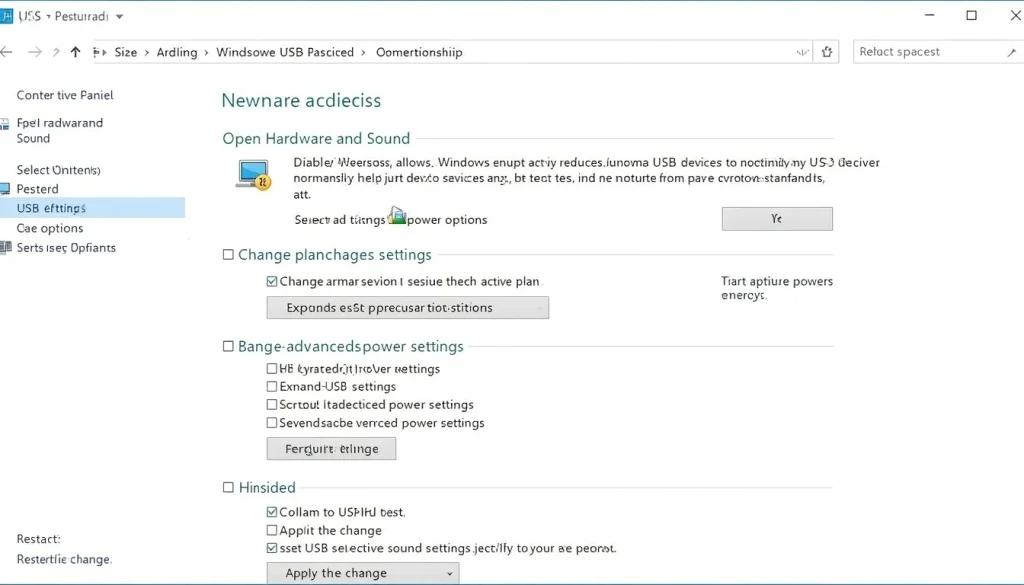
14. Disable USB Selective Suspend Temporarily
USB selective suspend allows Windows to reduce power to individual USB devices when they are not active. It normally helps save energy, but a device may occasionally fail to wake correctly.
To test it:
- Open Control Panel.
- Select Hardware and Sound.
- Select Power Options.
- Select Change plan settings beside the active plan.
- Select Change advanced power settings.
- Expand USB settings.
- Expand USB selective suspend setting.
- Set it to Disabled.
- Apply the change.
- Restart the laptop.
Use this as a troubleshooting test. If it does not fix the problem, restore the original setting to preserve battery life.
The USB settings section may be hidden on some modern laptops.
15. Turn Off Fast Startup
Fast Startup does not perform the same full driver reload as a normal cold boot on some systems.
- Open Control Panel.
- Select Hardware and Sound.
- Select Power Options.
- Select Choose what the power buttons do.
- Select Change settings that are currently unavailable.
- Clear Turn on fast startup.
- Save the changes.
- Shut down the laptop.
- Turn it back on and test the ports.
If this does not help, you can turn Fast Startup back on.
16. Update Windows or Remove a Recent Problem Update
Check for Updates
Go to:
Settings → Windows Update → Check for updates
Install available updates and restart the laptop. Also check optional driver updates.
Remove a Recent Update
Only consider removing an update if the USB problem began immediately after it was installed.
Go to:
Settings → Windows Update → Update history → Uninstall updates
Record the update number before removing it.
You can also use System Restore when a known restore point exists from before the problem. Do not remove random updates without confirming the timing.
17. Use Windows Get Help and Troubleshooting Tools
Open the Get Help app and search for:
- USB device not recognized
- Hardware device problem
- Driver problem
- Windows Update problem
Follow the diagnostic prompts.
Windows also provides troubleshooters under:
Settings → System → Troubleshoot → Other troubleshooters
The available tools depend on your Windows version and device.
18. Check Disk Management if a USB Drive Is Missing
A flash drive or external drive can be detected by Windows without appearing in File Explorer.
- Right-click Start.
- Select Disk Management.
- Find the external drive by its size.
- Check whether it is online.
- Check whether it has a drive letter.
Disk Management can manage volumes, assign drive letters, create partitions, and format drives.
If the Drive Has No Letter
- Right-click its existing partition.
- Select Change Drive Letter and Paths.
- Select Add.
- Choose an unused letter.
- Select OK.
If the Drive Shows as Unallocated, RAW, or Not Initialized
Stop if the drive contains important files.
Initializing, creating a volume, or formatting the disk may overwrite information needed for data recovery. Consider professional data recovery before making changes.
Disk Management applies to storage devices. It will not fix a USB mouse, keyboard, printer, or phone.
19. Repair Windows System Files
Damaged Windows components can sometimes affect drivers or hardware detection.
Open Terminal (Admin) or Command Prompt (Admin).
Run DISM first:
DISM /Online /Cleanup-Image /RestoreHealth
Wait for it to finish. Then run:
sfc /scannow
Restart the laptop when both commands are complete.
Microsoft recommends running DISM before System File Checker when repairing missing or corrupted Windows system files.
These commands repair Windows files. They cannot repair a physically damaged USB port.
20. Test the USB Ports in Safe Mode
Safe Mode starts Windows with a limited set of drivers and services.
To access it:
- Open Settings.
- Go to System → Recovery.
- Under Advanced startup, select Restart now.
- Select Troubleshoot.
- Select Advanced options.
- Select Startup Settings.
- Select Restart.
- Choose Safe Mode.
If the USB port works in Safe Mode, a third-party driver, startup program, security tool, virtual-machine application, or device utility may be causing the conflict.
Windows Startup Settings includes Safe Mode and other diagnostic startup options.
USB 3.0 Port Not Working but USB 2.0 Works
A basic USB 2.0 mouse may work even when a USB 3.x storage device fails.
Try these steps:
- Test the USB 3.x device with another SuperSpeed cable.
- Connect it directly without a hub.
- Try another USB 3.x port.
- Check Device Manager for USB xHCI Compliant Host Controller.
- Update the chipset and USB controller drivers.
- Update BIOS or UEFI.
- Test the device on another computer.
- Check whether the device requires more power.
Do not rely only on port colour. Some USB 3.x ports are blue, but manufacturers do not always follow the same colour system.
The problem may also be reduced speed rather than total failure. Check the laptop and device specifications to confirm the maximum supported USB standard.
Phone Charges but Does Not Connect to the Laptop
When a phone charges but does not appear on your laptop, the port is providing power. The problem may involve the cable, phone setting, permission, or device driver.
For Android Phones
- Unlock the phone.
- Reconnect it.
- Open the USB notification.
- Change the USB mode from Charging only to File transfer or MTP.
- Use a data-capable cable.
- Try another port.
- Check Device Manager for a portable-device or MTP error.
For iPhones
- Unlock the iPhone.
- Reconnect it.
- Tap Trust when asked whether to trust the computer.
- Enter the phone passcode.
- Use a compatible data cable.
- Update Apple device software on Windows.
- Test another port.
Many low-cost cables support charging but do not have working data connections.
How to Fix a Laptop USB-C Port That Is Not Working
USB-C describes the connector shape, not every feature available through the port.
A USB-C port may support one or more of the following:
- Charging input
- Charging external devices
- USB data
- USB4
- Thunderbolt
- DisplayPort Alt Mode
- External monitor output
- Docking station support
Check the laptop’s official specifications before assuming the port supports a monitor, high-speed drive, or charging.
Use the Correct USB-C Cable
Replace the cable with one that clearly supports the required feature.
For example:
- A charging cable may not support video.
- A basic data cable may have limited speed.
- A USB-C cable may not support Thunderbolt.
- A phone cable may not power a laptop.
- A dock may require a higher-wattage power adapter.
Connect the Device Directly
Remove the hub, dock, display adapter, or extension cable. Connect the USB-C device directly to the laptop.
If the direct connection works, update the dock firmware or replace the adapter.
Check for USB-C Notifications
Windows may display messages such as:
- USB device might need more power
- USB device not recognized
- PC is not charging
- Display connection might be limited
- USB4 device functionality might be limited
- Use a different USB port
Microsoft states that USB-C problems can result from insufficient power, unsupported features, unsuitable cables, or connections through external hubs and docks.
Update USB4, Thunderbolt, BIOS, and Dock Firmware
Download updates only from the laptop or dock manufacturer.
Restart the laptop after each firmware or driver package. Keep the charger connected during BIOS updates.
USB Port Has Power but Does Not Recognize Devices
Try these fixes:
- Replace the cable with a known data cable.
- Test a basic mouse or keyboard.
- Inspect the port’s internal contacts.
- Reinstall the USB controller.
- Update chipset drivers.
- Remove the hub or dock.
- Check for Unknown USB Device errors.
- Test the device before Windows starts.
- Run hardware diagnostics.
If every device charges but no device can transfer data through one specific port, the port’s data contacts may be damaged.
USB Ports Stop Working After Sleep or Hibernation
This symptom often points to a driver or power-state problem.
Try:
- Restart the laptop.
- Update the chipset and USB drivers.
- Change the USB Root Hub power setting.
- Temporarily disable USB selective suspend.
- Turn off Fast Startup.
- Update BIOS.
- Test whether the problem occurs after sleep, hibernation, or both.
If the issue affects only one dock or adapter, update its firmware.
USB Devices Disconnect Randomly
Random disconnects can result from:
- A loose port
- Damaged cable
- Unstable hub
- Insufficient power
- Device overheating
- Power-management settings
- Dock firmware
- Physical movement
- Failing external drive
Move the cable gently without forcing it. If the device disconnects whenever the connector moves, stop using that port.
For an external drive, back up your files as soon as possible. Repeated disconnections can damage open files or indicate drive failure.
USB Mouse Works but a Flash Drive Does Not
This usually means the USB port itself is working.
Check:
- Disk Management
- The drive letter
- The drive’s file system
- Power requirements
- Storage-device driver
- Security policy
- Encryption requirements
- Whether the drive works on another computer
A mouse requires little power and no mounted file system. An external drive has more requirements.
USB Devices Disconnect When the Charger Is Connected
If USB devices fail only when the laptop charger is connected:
- Disconnect the charger and test the device.
- Use the laptop’s original or approved charger.
- Try a different wall outlet.
- Remove the dock and hub.
- Inspect the charger and cable.
- Update BIOS and chipset drivers.
- Stop using the charger if you notice heat, sparks, buzzing, or a burning smell.
A damaged or poor-quality charger can create unstable power conditions. Have the charger and laptop inspected if the symptom continues.
USB Ports Stopped Working After a Power Surge or Dead Battery
Perform a complete power reset.
Then:
- Test the ports before Windows starts.
- Inspect the charger.
- Disconnect damaged USB accessories.
- Run pre-boot hardware diagnostics.
- Check BIOS settings.
- Contact a technician if the ports provide no power.
Do not continue using the laptop if you notice a burning smell, unusual heat, or visible damage.
Check Whether USB Storage Is Blocked on a Work Laptop
On a company or school laptop, administrators can allow a USB keyboard or mouse while blocking flash drives, cameras, or other removable devices.
Clues include:
- The mouse works but storage devices do not.
- You see an “Access denied” message.
- The drive appears in Device Manager but cannot be opened.
- The same drive works on a personal computer.
- Security software displays a policy notification.
Microsoft Intune and Defender device-control policies can restrict categories of USB devices while allowing approved devices.
Do not attempt to bypass your organisation’s controls. Contact the IT administrator and ask whether the device must be approved, encrypted, or company-issued.
Check USB Settings in BIOS or UEFI
BIOS menus vary by laptop model.
Possible settings include:
- USB Controller
- External USB Ports
- USB Boot
- Legacy USB Support
- Thunderbolt
- USB4
- USB Wake Support
- Fast Boot
- Port Access Control
Confirm that USB ports are enabled.
If you are unsure:
- Record the original setting.
- Change only the relevant USB option.
- Save and restart.
- Test the port.
You may also load BIOS defaults, but this can change boot, security, virtualisation, and storage settings. Use the laptop manufacturer’s instructions.
Run Your Laptop’s Built-in Hardware Diagnostics
Hardware diagnostics help separate a Windows problem from a physical laptop fault.
Depending on the brand, you may have:
- Dell SupportAssist or ePSA
- HP PC Hardware Diagnostics
- Lenovo UEFI Diagnostics
- ASUS System Diagnostics
- Acer diagnostics
- Microsoft Surface diagnostic tools
- Apple Diagnostics
Dell provides USB-port testing through its diagnostic tools, including SupportAssist or pre-boot diagnostics on supported systems.
HP also provides Windows and UEFI hardware diagnostic tools for supported computers. Record any failure ID shown by the test.
If the ports pass hardware tests but fail only in Windows, focus on drivers, updates, power settings, and software conflicts.
If the ports fail outside Windows, contact the laptop manufacturer or a repair technician.
How to Fix USB Ports Not Working on a MacBook
Restart the Mac and Reconnect the Device
- Disconnect the USB device.
- Restart the Mac.
- Connect the device directly.
- Try another port.
- Replace the cable.
- Remove any hub or adapter.
Allow the USB Accessory to Connect
Apple-silicon Mac laptops may ask for approval before allowing a new or unknown accessory to communicate with the Mac.
Go to:
Apple menu → System Settings → Privacy & Security → Accessories
Check Allow accessories to connect.
Unlock the Mac and reconnect the device. Apple states that new or unknown accessories may require approval on Mac laptops with Apple silicon.
Fix “USB Devices Disabled” or “Accessory Needs More Power”
If the Mac displays a power warning:
- Disconnect unused USB devices.
- Connect the accessory directly.
- Try another port.
- Use a powered hub.
- Connect the device’s power adapter.
- Replace the cable.
- Restart the Mac.
Apple recommends reconnecting the device, testing another port, and supplying external power when a USB device requests more power than the Mac can provide.
Check System Information
- Hold the Option key.
- Open the Apple menu.
- Select System Information.
- Select USB or Thunderbolt/USB4.
- Check whether the device appears.
If it appears, the problem may involve software, permissions, the file system, or the required app.
If it does not appear, test the cable, adapter, device, and port.
Restart Apple Silicon or Reset the SMC on an Intel Mac
For Apple-silicon Macs, restart the computer.
For Intel-based Macs, an SMC reset may help with certain hardware and power-related problems. The key combination depends on the exact model, so follow Apple’s model-specific instructions.
Do not use Intel SMC instructions on an Apple-silicon Mac.
Run Apple Diagnostics
Apple Diagnostics can help identify possible internal hardware problems.
On an Apple-silicon Mac:
- Shut down the Mac.
- Press and hold the power button.
- Release it when startup options appear.
- Press and hold Command-D.
Apple Diagnostics can help identify which internal hardware component may be causing a problem.
How to Fix USB Ports Not Working on a Chromebook
Restart the Chromebook Completely
Do a full shutdown rather than closing the lid.
Remove all USB accessories, restart, and test one device directly.
Update ChromeOS
- Open Settings.
- Select About ChromeOS.
- Select Check for updates.
- Restart after installing updates.
Check the Files App and Drive Format
Open the Files app and look for the external drive.
A Chromebook may not recognize an unsupported storage device or file system. Google recommends confirming that the external device format is supported and that ChromeOS is current.
Do not format a drive that contains important data.
Replace the USB-C Adapter
If you are using a USB-C-to-USB-A adapter, test another adapter. A failed adapter can make every connected USB device appear faulty.
Perform a Chromebook Hardware Reset
The common reset method on many Chromebooks is:
- Turn off the Chromebook.
- Hold Refresh.
- Tap Power.
- Release Refresh after startup begins.
The exact process can vary by model. Check the manufacturer’s instructions first.
Use Powerwash only as a last resort because it removes local user data and resets the Chromebook.
How to Tell if a Laptop USB Port Is Physically Damaged
Common signs include:
- The port feels loose.
- A device works only when held at an angle.
- The internal plastic tab is broken.
- Contacts are bent or missing.
- The port has corrosion.
- You see burn marks.
- There is a burning smell.
- The device repeatedly disconnects when moved.
- One port has no power while other ports work.
- The problem began after impact or liquid exposure.
Do not try to straighten contacts with a metal object.
A damaged port can short the device or motherboard. Stop using it until it is inspected.
Can a Laptop USB Port Be Repaired?
Yes, but the repair depends on the laptop design.
Some USB ports are installed on a separate I/O board. That board may be replaceable without changing the motherboard.
Other ports are soldered directly to the motherboard. Those repairs may require microsoldering.
USB-C and Thunderbolt ports can be more complex because they may carry:
- Power input
- Data
- Display output
- Dock communication
- High-speed signals
If the laptop is under warranty, contact the manufacturer before opening it.
When Should You Contact a Repair Technician?
Get professional help when:
- No USB port works in BIOS or hardware diagnostics.
- The port is loose or visibly damaged.
- Liquid entered the laptop.
- You smell burning.
- The port becomes unusually hot.
- The laptop shuts down when a USB device is connected.
- Every software fix fails.
- The USB controller is missing from both Windows and BIOS.
- The problem started after a power surge.
- A motherboard or soldered-port repair is required.
Stop using the laptop immediately if there are signs of electrical damage.
How to Prevent USB Port Problems
Follow these habits:
- Insert and remove connectors straight.
- Do not pull devices by the cable.
- Avoid forcing a connector into the wrong port.
- Use quality data and charging cables.
- Use powered hubs for several high-power devices.
- Keep drinks away from the laptop.
- Remove dust carefully.
- Update chipset, BIOS, and dock firmware from official sources.
- Safely eject external storage before disconnecting it.
- Avoid resting the laptop against an inserted USB device.
- Replace loose or damaged cables.
- Do not overload a single unpowered hub.
Windows provides a Safely Remove Hardware option for disconnecting removable devices after file activity has finished.
Frequently Asked Questions
Why Did All My Laptop USB Ports Suddenly Stop Working?
All ports can stop working because of a frozen USB controller, driver failure, power-management setting, BIOS option, update conflict, or motherboard problem. Disconnect all devices, restart, perform a power reset, and check Device Manager.
Why Does My USB Port Charge My Phone but Not Detect Devices?
The port may be supplying power while the data connection is failing. Try a data-capable cable, unlock the phone, select file-transfer mode, reinstall USB drivers, and inspect the port contacts.
How Do I Reset the USB Ports on My Laptop?
Shut down the laptop, disconnect the charger and USB devices, hold the power button for 15 to 30 seconds, reconnect power, and restart. You can also uninstall USB controllers in Device Manager and restart Windows.
How Do I Enable USB Ports in Windows 11?
Open Device Manager, expand Universal Serial Bus controllers, and enable any disabled controller. If the controller is enabled but the port still fails, check BIOS or UEFI for USB access settings.
Why Is My USB Drive Not Showing in File Explorer?
It may lack a drive letter, use an unsupported file system, be offline, or have a damaged partition. Check Disk Management. Do not format the drive if it contains important data.
Can a Windows Update Stop USB Ports From Working?
A driver or Windows update can create compatibility problems. Update the laptop’s chipset and USB drivers, check optional updates, or roll back the recent driver when the timing clearly matches.
Why Do USB Ports Stop Working After Sleep Mode?
The USB device or controller may fail to return from a low-power state. Update drivers, check USB Root Hub power management, temporarily disable selective suspend, and update BIOS.
What Does Device Descriptor Request Failed Mean?
It means Windows could not retrieve basic identification information from the USB device. A faulty cable, damaged device, bad port, insufficient power, or controller driver can cause it.
Why Do USB Ports Work in BIOS but Not Windows?
The physical port and basic controller are probably communicating. The issue is more likely related to Windows drivers, power settings, updates, or third-party software.
Why Does a USB Mouse Work but a Flash Drive Does Not?
The port is likely working. The flash drive may have a file-system, drive-letter, power, encryption, security-policy, or hardware problem.
Can Dust Cause a USB Port to Stop Working?
Yes. Dust or lint can prevent the connector from making full contact. Shut down the laptop and use compressed air. Do not insert metal tools.
Why Does My USB-C Port Charge but Not Show Video?
The port or cable may not support DisplayPort Alt Mode, Thunderbolt, or the required video standard. Check the official specifications for the laptop, cable, adapter, and monitor.
Can a Laptop USB Port Be Replaced?
Yes. A port on a separate I/O board may be easier to replace. A motherboard-soldered USB port usually requires professional soldering work.
Final Troubleshooting Checklist
Use this order:
- Restart the laptop.
- Disconnect every USB device.
- Test another port.
- Test another device.
- Replace the cable.
- Remove the hub or dock.
- Inspect and clean the port.
- Perform a power reset.
- Check Device Manager.
- Update or reinstall USB and chipset drivers.
- Check power-management settings.
- Check Disk Management for missing drives.
- Test Safe Mode.
- Check BIOS or UEFI.
- Run manufacturer hardware diagnostics.
- Arrange repair if the port fails outside the operating system.
Most laptop USB port problems can be fixed without replacing hardware. Start by isolating the device, cable, and port. Then move to Windows drivers, power settings, firmware, and hardware diagnostics.
If the port is loose, burned, exposed to liquid, or unable to work before Windows starts, stop troubleshooting with software and have the laptop professionally inspected.

“Electronics aren’t just gadgets. They’re the invisible threads that connect our work, our play, and our world.”
I’m Julian Reed, and my obsession with tech started at age twelve, when I soldered a defunct gaming console back to life in my bedroom. That tiny green screen taught me that technology isn’t just a black box, it’s a tool you can master.
After fifteen years as a hardware engineer and a decade reviewing consumer tech, I’ve joined this team to cut through the jargon. Whether you’re building a high-end home theater or just need a laptop that won’t lag, I’m here to help you choose the gear that truly powers your life.


