
Quick Answer: Most laptop battery problems are caused by battery aging, overheating, outdated drivers, incorrect power settings, faulty chargers, or calibration issues. In many cases, updating drivers, checking battery health, adjusting power settings, and recalibrating the battery can solve the problem without replacing the battery.
Laptop battery issues can be frustrating, especially when your device shuts down unexpectedly during work, classes, meetings, or travel. Whether your battery drains too quickly, refuses to charge, gets stuck at a certain percentage, or causes your laptop to turn off as soon as you unplug the charger, these problems can seriously affect productivity.
The good news is that many battery problems are software-related and can be fixed at home without professional repair.
In this guide, I will walk you through the most effective solutions that work for Windows 11 and Windows 10 laptops, including Dell, HP, Lenovo, ASUS, Acer, MSI, and Microsoft Surface devices.
Signs Your Laptop Has a Battery Problem
Before troubleshooting, identify the symptoms you are experiencing.
Common signs include:
- Battery drains unusually fast.
- Laptop says “Plugged in, not charging.
- Battery percentage jumps suddenly.
- Battery gets stuck at 0%, 80%, or 99%.
- Laptop shuts down immediately after unplugging the charger.
- Battery is not detected by Windows.
- Charging takes much longer than usual.
- Battery health warning messages appear.
- Laptop becomes excessively hot while charging.
- The battery physically swells or pushes against the laptop chassis.

What Causes Laptop Battery Issues?
Understanding the cause helps you apply the right fix faster.
The most common causes include:
- Natural battery wear over time.
- Excessive heat exposure.
- Damaged charging cable or adapter.
- Corrupted battery drivers.
- Outdated BIOS firmware.
- Background applications consuming power.
- Incorrect power settings.
- Battery calibration errors.
- Faulty charging ports.
- Defective battery cells.
Fix #1: Check Your Charger and Power Adapter
A faulty charger is one of the most common causes of battery problems.
Follow these steps:
- Inspect the charging cable for cuts or bends.
- Ensure the charging brick is not overheating.
- Verify that the charger wattage matches your laptop requirements.
- Test with another compatible charger if possible.
- For USB-C laptops, confirm that the charger supports Power Delivery (PD).
Using an underpowered charger may result in slow charging or the “Plugged in, not charging” message.
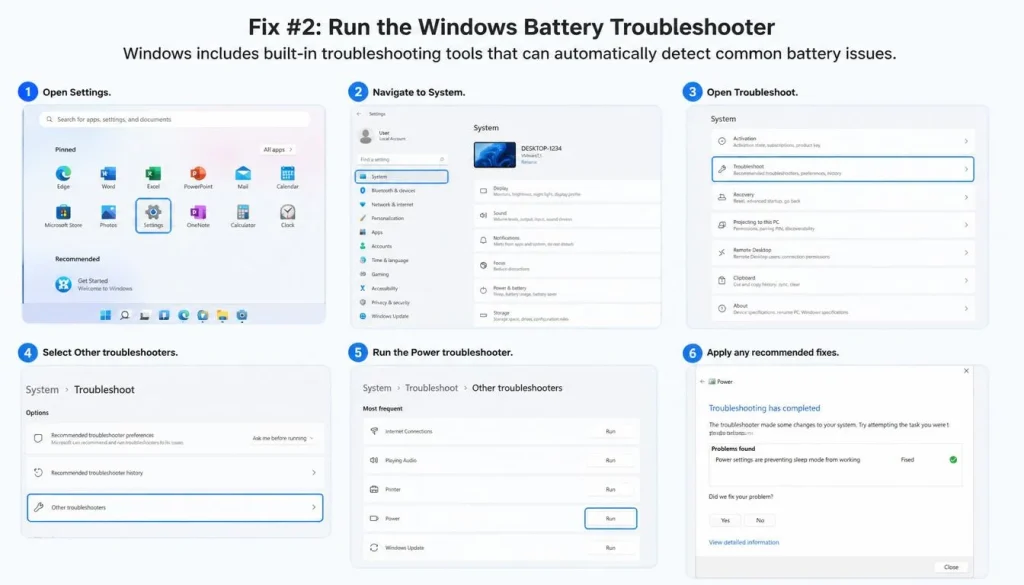
Fix #2: Run the Windows Battery Troubleshooter
Windows includes built-in troubleshooting tools that can automatically detect common battery issues.
Steps:
- Open Settings.
- Navigate to System.
- Open Troubleshoot.
- Select Other troubleshooters.
- Run the Power troubleshooter.
- Apply any recommended fixes.
Fix #3: Check Your Laptop Battery Health
Battery health determines how much capacity your battery has lost over time.
To generate a battery report:
- Open Command Prompt as Administrator.
- Type:
powercfg /batteryreport
- Press Enter.
- Open the generated report.
Pay attention to:
- Design Capacity
- Full Charge Capacity
- Cycle Count
If your Full Charge Capacity is significantly lower than the Design Capacity, your battery may be nearing the end of its lifespan.
Fix #4: Reinstall Battery Drivers
Corrupted battery drivers often cause charging problems.
Steps:
- Press Windows + X.
- Open Device Manager.
- Expand Batteries.
- Right-click Microsoft AC Adapter.
- Select Uninstall device.
- Repeat for Microsoft ACPI-Compliant Control Method Battery.
- Restart the laptop.
Windows will automatically reinstall the drivers.

Fix #5: Update BIOS and Chipset Drivers
Laptop manufacturers regularly release firmware updates that improve charging behavior and battery management.
Update:
- BIOS firmware
- Chipset drivers
- Power management drivers
Always install updates directly from your laptop manufacturer’s support page.
Fix #6: Calibrate Your Laptop Battery
Battery calibration helps Windows display the correct battery percentage.
Steps:
- Charge the battery to 100%.
- Keep the charger connected for another hour.
- Disconnect the charger.
- Use the laptop until the battery reaches approximately 5%.
- Turn the laptop off.
- Recharge it to 100% without interruption.
This process recalibrates the battery monitoring system.
Fix #7: Reduce Background Battery Usage
Many applications continue consuming power even when you are not actively using them.
Common battery-draining applications include:
- Web browsers with many tabs open
- Discord
- Steam
- RGB software
- Cloud synchronization services
- Video conferencing applications
Close unnecessary applications to improve battery life.

Fix #8: Optimize Windows Power Settings
Power settings directly affect battery performance.
Recommended settings:
- Enable Best Power Efficiency mode.
- Reduce screen timeout duration.
- Shorten sleep timer settings.
- Disable unnecessary startup applications.
These changes often provide noticeable improvements.
Fix #9: Lower Display Brightness and Refresh Rate
Modern displays consume a large amount of power.
Reducing brightness from 100% to 60% can significantly improve battery life.
Gaming laptops with:
- 120Hz displays
- 144Hz displays
- 165Hz displays
- 240Hz displays
can save additional power by switching to 60Hz when running on battery.
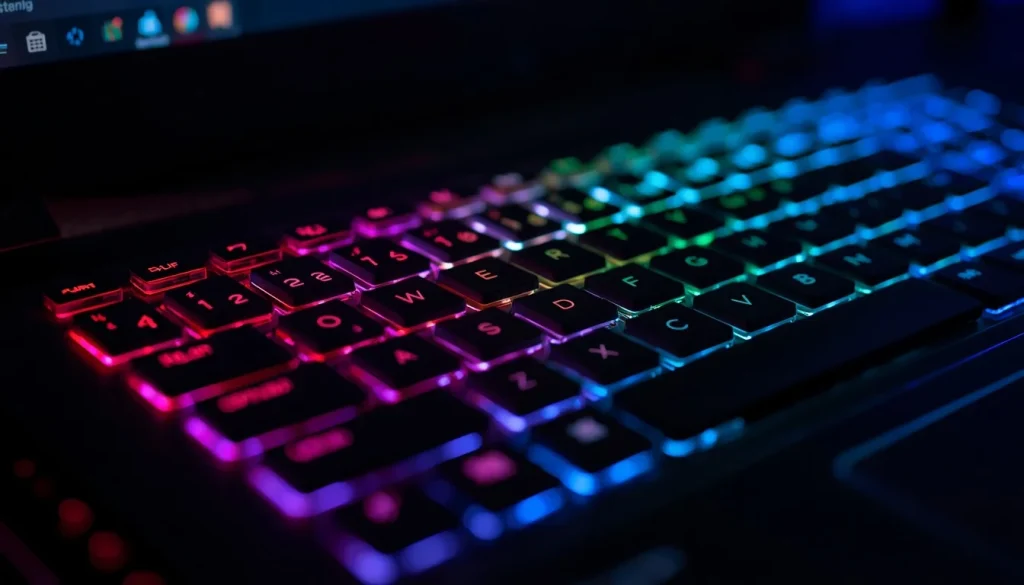
Fix #10: Disable RGB Lighting and Unused Hardware
Gaming laptops often lose battery quickly because of extra hardware features.
Disable when not needed:
- Keyboard RGB lighting
- Bluetooth
- External USB devices
- Unused wireless accessories
These small changes add up over time.
Fix #11: Fix Laptop Overheating
Heat is one of the biggest enemies of lithium-ion batteries.
To reduce heat:
- Clean air vents regularly.
- Remove dust buildup.
- Use the laptop on hard surfaces.
- Consider a cooling pad.
- Avoid blocking ventilation openings.
Lower temperatures improve both battery lifespan and overall performance.
Fix #12: Fix the “Plugged In, Not Charging” Error
This is one of the most searched battery problems.
Try the following:
- Shut down the laptop.
- Disconnect the charger.
- Hold the power button for 30 seconds.
- Reconnect the charger.
- Turn the laptop back on.
If the issue remains, reset the BIOS to default settings.

Fix #13: Fix the “Battery Not Detected” Error
If Windows cannot detect the battery:
- Reinstall battery drivers.
- Update BIOS firmware.
- Perform a power reset.
- Check for loose internal battery connections.
If none of these steps work, the battery itself may have failed.
Fix #14: Fix a Laptop That Turns Off When Unplugged
If your laptop works only while connected to the charger, your battery may no longer hold a charge.
Possible causes include:
- Dead battery cells
- Severe battery wear
- Faulty battery controller
Check the battery report for health information.
In most cases, battery replacement is the permanent solution.
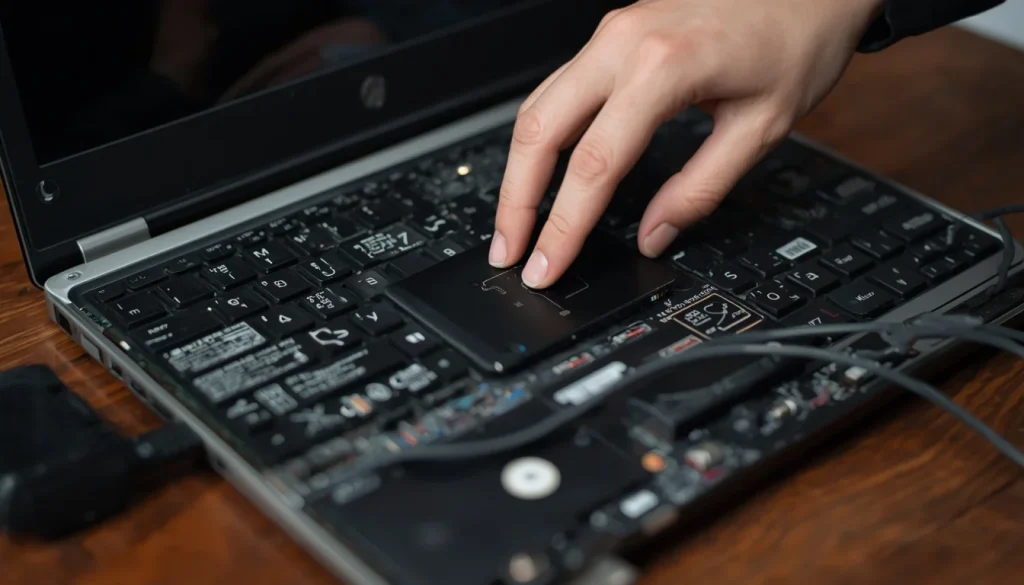
Fix #15: Replace a Worn-Out Battery
Laptop batteries do not last forever.
You should consider replacement if:
- Battery health falls below 60%.
- Full Charge Capacity is much lower than Design Capacity.
- Cycle count exceeds manufacturer recommendations.
- The battery swells.
- The laptop shuts down unexpectedly.
Replacing the battery often restores original battery life performance.
Brand-Specific Battery Fixes
Different manufacturers use different battery management systems.
Dell Laptops
Check Dell Power Manager for charging settings and battery health options.
HP Laptops
Review HP Battery Health Manager settings inside the BIOS.
Lenovo Laptops
Disable Conservation Mode if your battery stops charging at 60% or 80%.
ASUS Laptops
Verify battery charging limits inside MyASUS.
Acer Laptops
Update Acer Care Center and battery firmware.
MSI Laptops
Review charging limits inside MSI Center.
Microsoft Surface Devices
Install the latest Surface firmware updates using Windows Update.
How to Fix Battery Issues on Windows 11
Windows 11 includes several battery optimization tools.
Use:
- Battery Saver mode
- Energy Recommendations
- Startup App Management
- Background App Restrictions
These settings can noticeably extend battery life.
How to Fix Battery Issues on Windows 10
Windows 10 users should:
- Enable Battery Saver mode.
- Disable unnecessary startup applications.
- Keep drivers updated.
- Use balanced power plans.
The troubleshooting process remains similar to Windows 11.
When Should You Replace Your Laptop Battery?
| Situation | Replace Battery? |
|---|---|
| Battery health above 90% | No |
| Battery health around 75% | Possibly |
| Battery health below 60% | Yes |
| Battery swelling | Immediately |
| Laptop shuts down when unplugged | Usually Yes |
| Battery not detected after troubleshooting | Yes |
How to Prevent Future Battery Problems
Following good charging habits can extend battery lifespan significantly.
Best practices include:
- Keep charge levels between 20% and 80% whenever possible.
- Avoid extreme heat.
- Use original chargers.
- Keep BIOS updated.
- Avoid complete battery drain cycles.
- Enable battery conservation modes when available.
Frequently Asked Questions About How to Fix Battery Issues in Laptop
Why is my laptop battery draining so fast?
High screen brightness, background applications, overheating, and battery wear are the most common reasons.
Why is my laptop plugged in but not charging?
This is usually caused by a faulty charger, battery driver issues, charging limits, or battery wear.
Why is my laptop battery stuck at 0%?
Battery calibration errors, driver problems, or a failing battery can cause this issue.
Why does my laptop turn off when unplugged?
This usually indicates severe battery degradation or failed battery cells.
How long should a laptop battery last?
Most laptop batteries last between three and five years depending on usage habits and charging cycles.
Is it safe to keep a laptop plugged in all the time?
Modern laptops include battery management systems, but keeping the battery constantly at 100% may accelerate wear over time.
Can a laptop battery be repaired?
Battery repairs are uncommon. In most situations, replacing the battery is the safest and most effective solution.
Conclusion
Laptop battery problems can appear serious, but many of them can be fixed with simple troubleshooting steps. Checking battery health, updating drivers, optimizing power settings, and recalibrating the battery solve a large percentage of cases.
However, if your battery health is extremely low, the battery is swollen, or your laptop shuts down whenever you unplug the charger, replacing the battery is usually the best long-term solution.
By following the methods in this guide, you can improve battery performance, extend battery lifespan, and keep your laptop running reliably for years to come.

“Electronics aren’t just gadgets. They’re the invisible threads that connect our work, our play, and our world.”
I’m Julian Reed, and my obsession with tech started at age twelve, when I soldered a defunct gaming console back to life in my bedroom. That tiny green screen taught me that technology isn’t just a black box, it’s a tool you can master.
After fifteen years as a hardware engineer and a decade reviewing consumer tech, I’ve joined this team to cut through the jargon. Whether you’re building a high-end home theater or just need a laptop that won’t lag, I’m here to help you choose the gear that truly powers your life.


