

Quick Answer: The best way to extend laptop battery lifespan is to keep the battery between 20% and 80% whenever possible, avoid excessive heat, reduce unnecessary charging cycles, use battery health features provided by your laptop manufacturer, and optimize your power settings. With proper care, many laptop batteries can remain healthy for four to six years instead of needing replacement after only two to three years.
Laptop batteries are one of the most expensive components to replace in modern laptops. Whether you own a Dell XPS, Lenovo ThinkPad, MacBook, HP Spectre, ASUS ZenBook, or a gaming laptop, battery degradation begins the moment the battery starts being used.
The good news is that battery aging is not completely unavoidable. Your charging habits, temperatures, power settings, and daily usage patterns can significantly affect how long your battery stays healthy.
Many users unknowingly reduce battery life by keeping the laptop plugged in around the clock, exposing it to excessive heat, or repeatedly draining the battery to 0%.
This guide explains exactly how to extend laptop battery lifespan using proven methods that work for students, office workers, remote employees, gamers, creators, and business users.
How Long Does a Laptop Battery Usually Last?
Most modern laptops use lithium-ion batteries designed to last between 300 and 1,000 charge cycles.
In real-world usage, this usually translates to:
| Usage Type | Average Lifespan |
|---|---|
| Light office use | 5-6 years |
| Student use | 4-5 years |
| Heavy productivity use | 3-5 years |
| Gaming laptops | 2-4 years |
A battery does not suddenly stop working after reaching its rated cycle count. Instead, its maximum capacity gradually decreases.
For example:
- New battery capacity: 60Wh
- After several years: 45Wh
- Battery health remaining: 75%
This means your laptop still works but lasts fewer hours away from the charger.
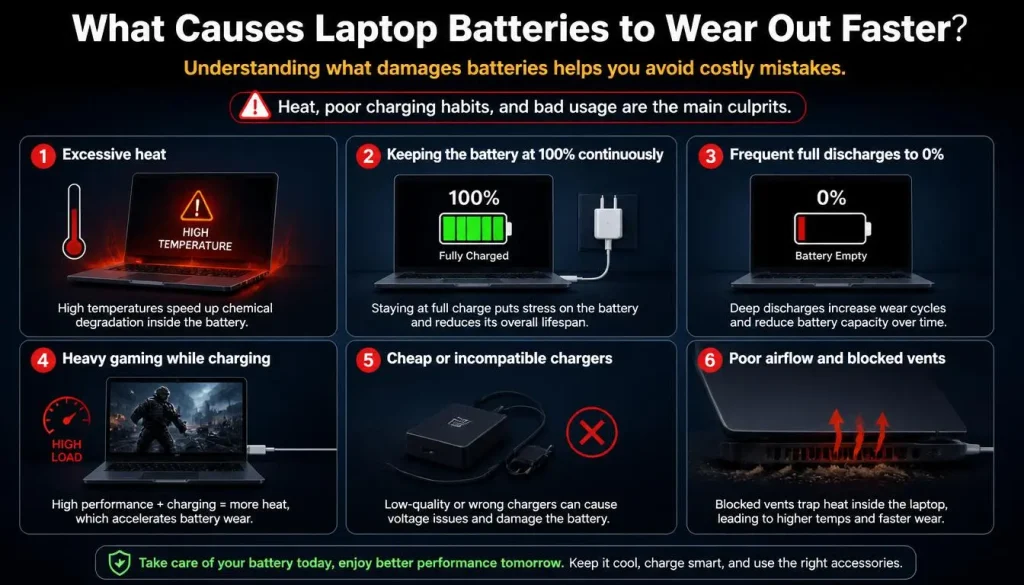
What Causes Laptop Batteries to Wear Out Faster?
Understanding what damages batteries helps you avoid costly mistakes.
The biggest causes include:
- Excessive heat
- Keeping the battery at 100% continuously
- Frequent full discharges to 0%
- Heavy gaming while charging
- Cheap or incompatible chargers
- Poor airflow and blocked vents
Among these factors, heat is usually the biggest battery killer.
Keep Your Battery Between 20% and 80%
Battery experts widely recommend the 20-80 rule.
Instead of:
- Charging to 100%
- Draining to 0%
Try to:
- Start charging around 20-30%
- Disconnect around 80-85%
This reduces stress on lithium-ion cells and can significantly slow battery degradation.
If you occasionally need maximum battery life for travel or work, charging to 100% is perfectly acceptable. The problem occurs when the battery remains at 100% for weeks or months at a time.
Should You Charge Your Laptop to 80% or 100%?
For most users, charging to 80% is ideal for long-term battery health.
Choose 80% if:
- You mainly use your laptop at home.
- Your laptop stays plugged in often.
- You prioritize battery longevity.
Choose 100% if:
- You travel frequently.
- You work away from power outlets.
- You need maximum runtime.
Many modern laptops allow users to set charging limits automatically.
Use Battery Health or Conservation Mode
Most manufacturers now include battery protection features.
Examples include:
- Dell Battery Extender
- Lenovo Conservation Mode
- ASUS Battery Health Charging
- HP Adaptive Battery Optimizer
- Acer Care Center Battery Limit
- MSI Battery Master
- MacBook Optimized Battery Charging
These tools often stop charging around 80% automatically, helping reduce battery wear.
Avoid Heat — The Biggest Battery Killer
Heat damages battery chemistry faster than almost anything else.
Ideal temperatures include:
- Idle use: 30°C to 40°C
- Productivity tasks: 40°C to 60°C
- Gaming sessions: below 85°C CPU temperatures whenever possible
To reduce heat:
- Clean vents regularly.
- Avoid using laptops on beds or blankets.
- Use hard surfaces for airflow.
- Consider a cooling pad for gaming laptops.
- Reduce unnecessary background tasks.
A cooler laptop almost always means a healthier battery.
Reduce Unnecessary Charge Cycles
A charge cycle does not mean plugging in your charger once.
One cycle equals using a total of 100% battery capacity.
Example:
- Use 50% today.
- Recharge to full.
- Use another 50% tomorrow.
That equals one complete cycle.
Reducing unnecessary charging and discharging can significantly increase battery lifespan.
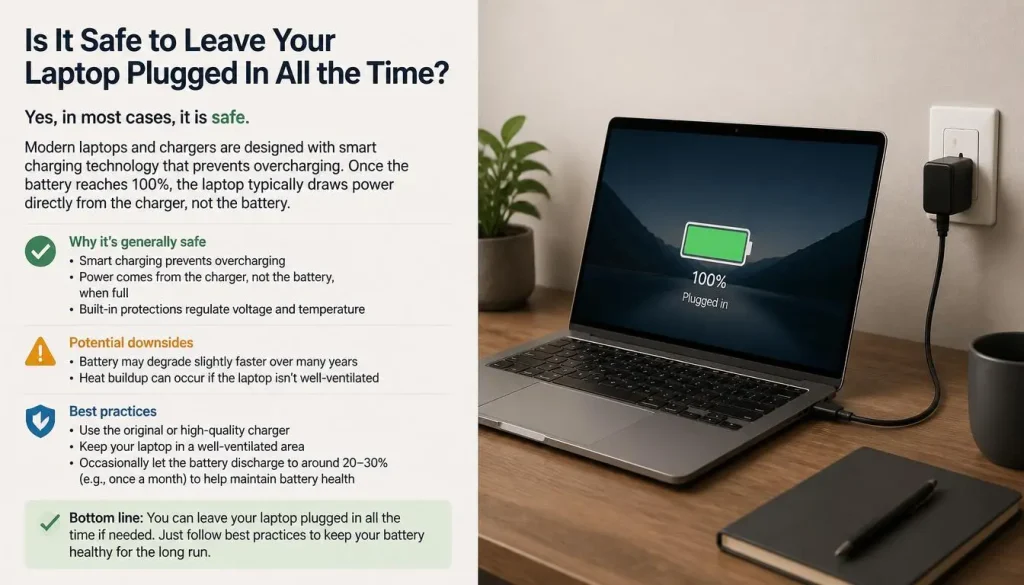
Is It Safe to Leave Your Laptop Plugged In All the Time?
Modern laptops are smarter than older models.
Once fully charged, most devices stop charging the battery and run directly from wall power.
However, problems occur when:
- The battery remains at 100% continuously.
- Internal temperatures remain high.
- Gaming generates additional heat.
If your laptop supports battery conservation mode, keeping it plugged in becomes much safer.
Is Overnight Charging Safe?
For modern laptops, overnight charging is generally safe.
Manufacturers include protections against overcharging.
However, there are still good practices:
- Avoid sleeping with laptops on beds or blankets.
- Ensure proper ventilation.
- Use original chargers whenever possible.
Heat remains the primary concern rather than overcharging itself.
Use the Correct Charger and Wattage
Using low-quality chargers can create unstable power delivery and excessive heat.
Always:
- Use manufacturer-approved chargers.
- Match the recommended wattage.
- Verify USB-C chargers support Power Delivery (PD).
Many thin laptops require at least 45W to 65W chargers, while gaming laptops often require much more.
Optimize Windows Power Settings
Small changes can make a big difference.
Recommended settings include:
- Enable Battery Saver mode.
- Lower display brightness.
- Reduce screen timeout duration.
- Disable unnecessary startup applications.
- Turn off keyboard lighting when not needed.
These changes reduce battery strain and improve daily battery runtime.
Reduce Battery Drain From Chrome and Edge
Web browsers are among the largest battery consumers.
To reduce browser-related battery usage:
- Close unused tabs.
- Remove unnecessary extensions.
- Enable sleeping tabs in Edge.
- Enable memory saver in Chrome.
- Avoid running dozens of tabs simultaneously.
Many users are surprised to discover their browser consumes more power than productivity applications.
Lower Your Refresh Rate When Battery Matters
High refresh rate displays improve smoothness but increase power consumption.
Examples:
- 60Hz consumes less power.
- 120Hz uses more power.
- 144Hz and 165Hz drain batteries faster.
When traveling or working remotely, switching from 144Hz to 60Hz can noticeably improve battery life.
Avoid Heavy Gaming While Charging
Gaming laptops produce substantial heat during intensive workloads.
The combination of:
- High CPU temperatures
- High GPU temperatures
- Continuous charging
creates ideal conditions for battery wear.
If possible:
- Limit charging to 80%.
- Improve cooling.
- Use performance modes only when necessary.
Remove Unnecessary Background Apps
Many applications continue running without users realizing it.
Common offenders include:
- RGB software
- Game launchers
- Cloud synchronization tools
- Messaging applications
- Browser processes
Reducing background activity lowers power usage and internal temperatures.
Update BIOS and Drivers Regularly
Manufacturers frequently release updates that improve:
- Charging behavior
- Power efficiency
- Thermal management
- Battery reporting accuracy
Keeping firmware current can improve both battery life and overall stability.
Store Your Laptop Properly During Long Periods of Inactivity
If you plan to store your laptop for weeks or months:
- Charge the battery to approximately 50%.
- Store it in a cool, dry environment.
- Avoid fully charging before storage.
- Avoid leaving it completely empty.
Long-term storage at either 0% or 100% can accelerate battery aging.

Should You Use Sleep or Hibernate?
For short breaks, Sleep mode is convenient.
For longer periods, Hibernate is usually better because:
- It consumes almost no battery power.
- It generates less heat.
- It reduces unnecessary battery drain.
If you leave your laptop unused overnight, Hibernate is often the smarter choice.
Does Fast Charging Reduce Battery Lifespan?
Fast charging generates additional heat, which can slightly increase battery wear over time.
However, modern laptops are designed to manage fast charging safely.
For most users:
- Occasional fast charging is perfectly fine.
- Constant high-speed charging in hot environments should be avoided.
Heat remains the deciding factor.
Check Battery Health Regularly
Monitoring battery health allows you to detect problems early.
Windows users can generate a battery report using:
powercfg /batteryreport
This report shows:
- Design capacity
- Full charge capacity
- Cycle count
- Battery usage history
MacBook users can check battery health through system settings.
What Is Battery Cycle Count and Why Does It Matter?
Cycle count measures battery usage over time.
Typical expectations:
| Cycle Count | Battery Condition |
|---|---|
| 0-200 | Excellent |
| 200-500 | Good |
| 500-800 | Normal aging |
| 800-1000+ | Replacement may be approaching |
Tracking cycle count helps estimate remaining lifespan.
Common Laptop Battery Myths
Myth: Keeping your laptop plugged in destroys the battery.
Modern laptops prevent overcharging. Heat is usually the real issue.
Myth: You must discharge to 0% every month.
Modern lithium-ion batteries do not require regular deep discharges.
Myth: Fast charging immediately ruins batteries.
Modern charging systems manage fast charging safely.
Myth: Closing one application doubles battery life.
Battery savings come from cumulative improvements rather than a single change.
When Should You Replace Your Laptop Battery?
Battery replacement may be necessary if you notice:
- Rapid battery drain
- Unexpected shutdowns
- Battery swelling
- Extremely low full-charge capacity
- Less than one hour of runtime during light use
Ignoring a swollen battery can become a safety risk and should be addressed immediately.
Frequently Asked Questions About How to Extend Laptop Battery Lifespan
Is it bad to leave a laptop plugged in all day?
Usually no, especially if battery conservation features are enabled.
How many years should a laptop battery last?
Most batteries last between three and six years depending on usage habits.
Is charging to 80% really better?
Yes. Limiting charge levels reduces stress on lithium-ion cells.
Does gaming reduce battery lifespan?
Heavy gaming mainly affects batteries through increased heat generation.
Is overnight charging safe?
Yes, provided the laptop has proper airflow and uses a quality charger.
Does lowering brightness help battery health?
Yes. Lower power consumption reduces charging frequency and cycle count.
Can BIOS updates improve battery performance?
In some cases, yes. Manufacturers often improve power management through firmware updates.
Final Verdict
If you only remember five things from this guide, remember these:
- Keep your battery between 20% and 80% whenever possible.
- Avoid excessive heat.
- Enable your laptop’s battery protection mode.
- Use the correct charger and wattage.
- Monitor battery health regularly.
Battery aging cannot be stopped completely, but smart charging habits and proper thermal management can dramatically slow the process.
With good care, many laptop users can extend battery lifespan by several years and delay expensive battery replacements far longer than expected.

“Electronics aren’t just gadgets. They’re the invisible threads that connect our work, our play, and our world.”
I’m Julian Reed, and my obsession with tech started at age twelve, when I soldered a defunct gaming console back to life in my bedroom. That tiny green screen taught me that technology isn’t just a black box, it’s a tool you can master.
After fifteen years as a hardware engineer and a decade reviewing consumer tech, I’ve joined this team to cut through the jargon. Whether you’re building a high-end home theater or just need a laptop that won’t lag, I’m here to help you choose the gear that truly powers your life.


