

Is your laptop battery draining too fast, charging slowly, or shutting down before it reaches 0%? These are common signs that your battery may be losing capacity. The good news is that you do not need to guess. You can test your laptop battery using built-in tools on Windows, macOS, ChromeOS, and Linux.
The easiest way to test a laptop battery is to check its battery health, full charge capacity, design capacity, cycle count, and real-world runtime. On Windows, you can create a battery report using the powercfg /batteryreport command. On a MacBook, you can check Battery Health and Cycle Count in macOS.
Chromebook users can use the Diagnostics app, and Linux users can check battery data through system settings or terminal commands. Microsoft officially lists the Windows battery report command as a built-in way to get detailed battery information, and Apple provides battery cycle count information through System Information on Mac laptops.
In this guide, you will learn several easy methods to test your laptop battery, understand the results, troubleshoot battery problems, and decide whether your laptop battery needs replacement.
Battery Health vs Battery Life: What Is the Difference?
Before testing your battery, it is important to understand the difference between battery health and battery life.
Battery health means how much capacity your battery can still hold compared to when it was new. For example, if your battery was originally designed to hold 50,000 mWh but can now only hold 37,500 mWh, its battery health is around 75%.
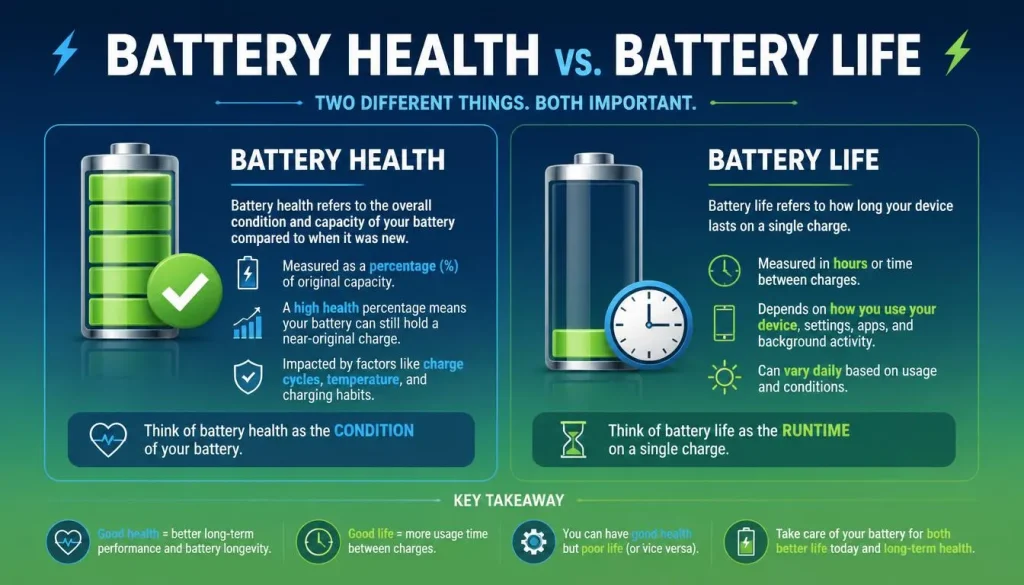
Battery life means how long your laptop runs on a single charge. A laptop with good battery health usually lasts longer, but battery life also depends on screen brightness, background apps, Wi-Fi, Bluetooth, browser tabs, gaming, video editing, and power settings.
Battery performance is the complete picture. It includes battery health, charging speed, runtime, temperature, power usage, and whether the laptop stays stable while unplugged.
Common Signs Your Laptop Battery May Be Failing
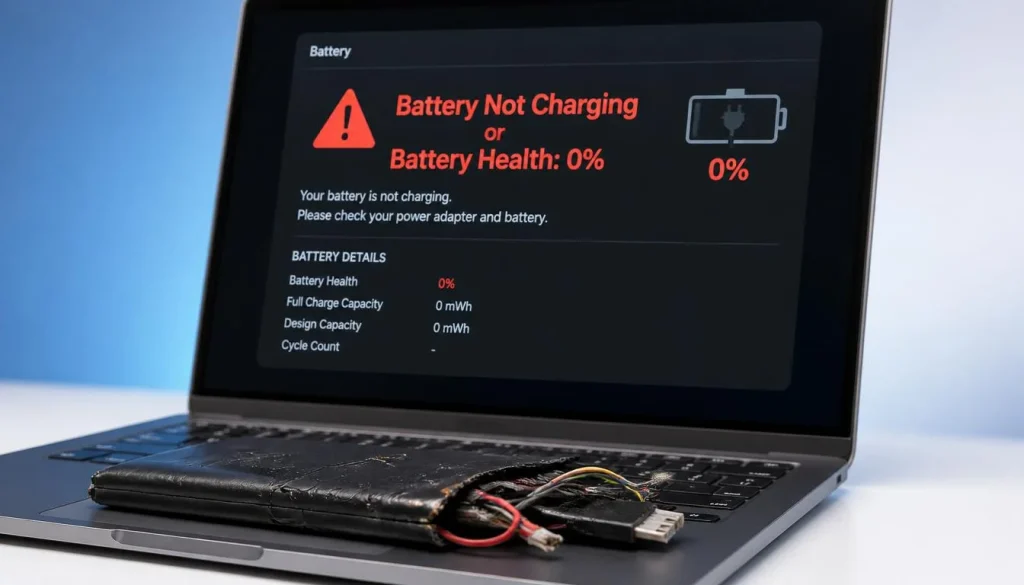
A weak laptop battery does not always fail suddenly. Most of the time, it slowly gets worse. Here are the most common warning signs:
Your laptop battery drains much faster than before.
The battery percentage drops suddenly, for example from 40% to 10%.
The laptop shuts down even when the battery still shows charge.
The laptop only works when plugged into the charger.
The battery takes too long to charge.
The laptop says “plugged in, not charging.”
The system says “no battery detected.”
The laptop gets unusually hot near the battery area.
The battery looks swollen or pushes against the laptop case.
If your laptop battery is swollen, stop using the laptop on battery power and contact the manufacturer or a repair professional. A swollen battery can be unsafe and should not be pressed, punctured, or ignored.
Before You Test Your Laptop Battery
To get a more accurate battery test result, prepare your laptop first.
Fully charge your laptop to 100%.
Use the original charger or a certified replacement charger.
Restart the laptop before testing.
Close heavy apps such as games, video editors, and too many browser tabs.
Update your operating system and drivers.
Let the laptop cool down if it feels hot.
Disconnect unnecessary USB devices.
A battery test done while the laptop is overheated or running heavy software may give a misleading result. For best accuracy, test the battery under normal daily-use conditions.
How to Test a Laptop Battery on Windows 10 or Windows 11
Windows has a built-in battery report tool. This is one of the easiest and most useful ways to check laptop battery health.
Step 1: Open Command Prompt
Click the Start button and type Command Prompt.
Right-click Command Prompt and choose Run as administrator.
Step 2: Run the Battery Report Command
Type this command and press Enter:
powercfg /batteryreport
Windows will create an HTML battery report and show the file location in the Command Prompt window. Microsoft confirms that the battery report is saved as an HTML file, and the location appears after running the command.
Step 3: Open the Battery Report
Copy the file path shown in Command Prompt.
Paste it into File Explorer or your browser.
Open the battery report file.
Step 4: Check the Most Important Battery Details
Inside the Windows battery report, focus on these sections:
Installed batteries
Recent usage
Battery usage
Usage history
Battery capacity history
Battery life estimates
The most important values are Design Capacity and Full Charge Capacity.
Design Capacity is the original capacity of your battery when it was new.
Full Charge Capacity is how much charge the battery can currently hold.
If the full charge capacity is much lower than the design capacity, your battery has lost health.
Simple Battery Health Formula
You can calculate battery health with this formula:
Battery Health % = Full Charge Capacity ÷ Design Capacity × 100
Example:
Design Capacity: 50,000 mWh
Full Charge Capacity: 38,000 mWh
Calculation:
38,000 ÷ 50,000 × 100 = 76%
That means the battery health is about 76%.
How to Understand Windows Battery Report Results
The Windows battery report may look technical, but you only need to understand a few key terms.
Design Capacity
This is the battery’s original maximum capacity. A new laptop battery should usually be close to this number.
Full Charge Capacity
This shows the battery’s current maximum capacity. As the battery ages, this number goes down.
Cycle Count
Cycle count shows how many charge cycles the battery has used. One full cycle means the battery has used an amount equal to 100% of its capacity. Some Windows laptops show cycle count in the battery report, but some do not. If cycle count is missing, use your manufacturer’s diagnostic tool.
Battery Life Estimates
This section estimates how long your laptop may run on battery. It compares current battery life with the battery’s original design capacity.
Battery Capacity History
This section shows how your battery capacity has changed over time. If the full charge capacity drops sharply, your battery may be aging quickly or may have a problem.
How to Create a Windows Energy Report
The Windows battery report checks battery capacity and usage history. But if your laptop battery drains fast because of software, background activity, or power settings, the Windows energy report can also help.
Open Command Prompt as administrator and run:
powercfg /energy /duration 120
This creates a report about power efficiency problems. It may show issues such as sleep problems, high background power usage, or settings that reduce battery life.
Use the battery report to check battery health. Use the energy report to check power efficiency problems.
How to Test Laptop Battery Using BIOS or UEFI
If Windows is not working properly, you can sometimes check battery health through BIOS or UEFI. This is especially useful for Dell, HP, Lenovo, and other Windows laptops.
Dell’s official support page explains that users can check battery health in BIOS/UEFI by restarting the laptop, pressing F2, and reviewing the Battery Health option under sections such as Overview or General.
General BIOS Battery Test Steps
Restart your laptop.
Press the BIOS key while the laptop starts. Common keys include F2, F10, Esc, Del, or F12.
Look for sections like Battery Health, Power, Diagnostics, System Health, or Overview.
Check the battery status.
Exit BIOS without changing settings unless you know what you are doing.
When Should You Use a BIOS Battery Test?
Use BIOS or UEFI battery testing when:
Windows does not boot.
The battery report does not work.
The laptop shuts down randomly.
You are checking a used laptop before buying.
The manufacturer recommends a hardware-level test.
BIOS battery tests are helpful because they can check the battery outside Windows, reducing the chance that a software issue affects the result.
How to Test a MacBook Battery
MacBooks include built-in battery health information. You can check both battery condition and cycle count.
Check Battery Health on macOS
Open the Apple menu.
Go to System Settings.
Click Battery.
Look for Battery Health.
Apple’s Mac Help guide says Mac users can view battery condition from System Settings > Battery, where the battery may show conditions such as Normal.
If your Mac says Normal, the battery is working as expected.
If your Mac says Service Recommended, the battery may need service or replacement. Apple’s support page explains that “Service Recommended” appears when the battery may need attention.
Check MacBook Battery Cycle Count
To check cycle count on a MacBook:
Hold the Option key.
Click the Apple menu.
Choose System Information.
Under Hardware, select Power.
Look for Cycle Count under Battery Information.
Apple officially lists this method for checking the battery cycle count on Mac laptops.
What Does MacBook Cycle Count Mean?
Cycle count tells you how many charge cycles the battery has completed. A higher cycle count usually means more battery wear. However, cycle count alone does not tell the full story. Battery condition, runtime, charging behavior, and performance also matter.
How to Test a Chromebook Battery
Chromebook users can test battery health through the built-in Diagnostics app. Google says the Diagnostics app can check Chromebook hardware and connection problems, including battery issues. Google also explains that the discharge test measures charge and discharge rate over a fixed period.
Method 1: Use the Chromebook Diagnostics App
Click the time in the bottom-right corner.
Open Settings.
Go to About ChromeOS.
Select Diagnostics.
Open the Battery section.
Run the discharge test.
Check battery health and discharge rate.
If the discharge rate is unusually high under light use, your battery may be weak or something may be using too much power in the background.
Method 2: Use Crosh Battery Test
Some Chromebook users also use Crosh for battery testing.
Press:
Ctrl + Alt + T
Then run:
battery_test
or:
battery_test 300
This runs a battery test for a set time. Dell also provides Chromebook Crosh battery health check instructions using Ctrl + Alt + T and the battery_test command.
How to Read Chromebook Battery Results
Battery health above 80% is usually good.
Battery health between 60% and 80% means the battery is aging.
Battery health below 60% may mean the battery needs replacement soon.
These are general guidelines. Actual replacement timing depends on how long the Chromebook lasts, whether it shuts down, and whether it charges normally.
How to Test a Laptop Battery on Linux
Linux users can check battery information through system settings or terminal commands. The exact method depends on your Linux distribution and desktop environment.
Method 1: Check Power Settings
Open Settings.
Go to Power or Battery.
Look for battery percentage, health, capacity, or power statistics.
Some Linux distributions show battery health directly. Others only show charge level and estimated runtime.
Method 2: Use the Terminal
Open Terminal and run:
upower -i /org/freedesktop/UPower/devices/battery_BAT0
Look for values such as:
energy-full
energy-full-design
capacity
percentage
state
You can also try:
cat /sys/class/power_supply/BAT0/capacity
cat /sys/class/power_supply/BAT0/energy_full
cat /sys/class/power_supply/BAT0/energy_full_design
If your battery is listed as BAT1 instead of BAT0, replace BAT0 with BAT1.
How to Calculate Linux Battery Health
Use this formula:
Battery Health % = energy_full ÷ energy_full_design × 100
If energy_full_design is 50Wh and energy_full is 40Wh, the battery health is about 80%.
Use Manufacturer Tools to Test Laptop Battery Health
Built-in operating system tools are useful, but manufacturer tools can provide more specific results for your laptop model.
Dell Battery Test Tools
Dell laptop users can check battery health through BIOS/UEFI, Dell SupportAssist, Dell Power Manager, and Windows battery report. Dell’s support content explains BIOS/UEFI battery health checking and other battery health methods for Dell laptops.
Use Dell tools if:
You own a Dell laptop.
Windows battery report looks confusing.
Your laptop shows charging problems.
You want a hardware-level battery test.
HP Battery Check
HP users can test battery health with HP Battery Check and HP PC Hardware Diagnostics. HP says its Battery Check tool can test battery health, find the cause of battery issues, and identify maintenance that may be required.
HP also offers PC Hardware Diagnostics for diagnosing hardware issues in Windows or outside the operating system.
Use HP Battery Check if:
Your HP laptop is not charging.
The battery drains quickly.
Windows says no battery detected.
You need a failure ID for support or repair.
Lenovo Battery Health Check
Lenovo users can use Lenovo Vantage to check battery health. Lenovo support says the Lenovo Vantage application can be used to check the health of the battery.
Use Lenovo Vantage if:
You have a ThinkPad, IdeaPad, Yoga, or Legion laptop.
You want to check battery health quickly.
You want battery conservation or charging settings.
ASUS Battery Health Check
ASUS users can use MyASUS for battery diagnosis and battery care settings. ASUS support says users can check battery health through the battery diagnosis tool in the MyASUS app, and ASUS Battery Health Charging/Battery Care Mode can help protect battery lifespan by limiting charge level on supported models.
Use MyASUS if:
You have an ASUS, ROG, or VivoBook laptop.
Your battery cannot charge normally.
You want to check battery health status.
You want to enable Battery Care Mode if supported.
Acer Battery Tools
Some Acer laptops support battery calibration and charge limit options through Acer Care Center. Acer explains that some notebooks allow users to calibrate the battery and set charge limits in Acer Care Center when the model supports these features.
Use Acer Care Center if:
You have an Acer Aspire, Swift, Spin, or Predator laptop.
Your battery percentage looks inaccurate.
Your model supports battery calibration.
You want to check battery care options.
Run a Real-World Battery Drain Test
A battery report shows technical data, but a real-world drain test shows how your laptop performs in daily use.
Step-by-Step Drain Test
Fully charge the laptop to 100%.
Restart the laptop.
Set screen brightness to a normal level.
Turn on Wi-Fi.
Open the apps you normally use.
Unplug the charger.
Use the laptop normally until it reaches 10% to 15%.
Write down the total runtime.
If your laptop used to last 7 hours but now lasts only 90 minutes with the same type of use, the battery may be heavily worn.
Real-World Runtime Guide
| Usage Type | Healthy Battery Runtime | Weak Battery Runtime |
|---|---|---|
| Light browsing and writing | 5–10 hours | Under 2–3 hours |
| Video streaming | 4–8 hours | Under 2 hours |
| Office work | 5–9 hours | Under 2–3 hours |
| Gaming | 1–3 hours | Short runtime can be normal |
| Video editing | 1–3 hours | Short runtime can be normal |
Gaming laptops and high-performance workstations naturally drain faster. A short battery life during gaming does not always mean the battery is bad.
Battery Health Percentage Chart
Use this chart to understand your battery health result.
| Battery Health | Meaning | What to Do |
|---|---|---|
| 90%–100% | Excellent | No action needed |
| 80%–89% | Good | Normal battery aging |
| 70%–79% | Fair | Monitor battery life |
| 60%–69% | Weak | Consider replacement if runtime is poor |
| Below 60% | Poor | Replacement may be needed soon |
This chart is a general guide. A battery at 75% health may still be usable if the laptop lasts long enough for your needs. A battery at 85% may still be a problem if it shuts down suddenly or does not charge properly.
What If Your Laptop Battery Test Shows a Problem?
If your battery test result looks bad, do not replace the battery immediately. First, identify the exact problem.
Full Charge Capacity Is Much Lower Than Design Capacity
This usually means the battery has aged. If the full charge capacity is below 60% to 70% of design capacity, battery life may feel much shorter than before.
Battery Drains Fast Even After Full Charge
Check background apps, screen brightness, browser tabs, startup programs, and power mode. If the battery health is also low, the battery may be worn out.
Battery Percentage Drops Suddenly
This can happen because of poor calibration, aging battery cells, or a failing battery. Try battery calibration if the battery is not swollen and the laptop works normally.
Laptop Says “Plugged In, Not Charging”
This may be caused by a charger problem, charging port issue, battery driver issue, battery protection setting, or failing battery. Try a different compatible charger if possible and check the manufacturer diagnostic tool.
Laptop Says “No Battery Detected”
This may happen because of a loose internal battery connection, driver issue, BIOS issue, or battery failure. HP lists “battery not detected” as one of the support areas connected with battery and adapter troubleshooting.
Laptop Shuts Down Randomly on Battery Power
If your laptop shuts down suddenly while unplugged, the battery may no longer deliver stable power. Check battery health, run a real-world test, and use your manufacturer diagnostic tool.
Should You Calibrate Your Laptop Battery?
Battery calibration can help when the battery percentage is inaccurate. It does not repair a worn-out battery.
Calibration May Help If:
The battery percentage jumps suddenly.
The laptop shuts down before 0%.
The battery stays stuck at one percentage.
The laptop shows 100% but drains very quickly.
Calibration Will Not Help If:
The battery is swollen.
The battery health is very low.
The laptop only works when plugged in.
The battery is physically damaged.
The charger or charging port is faulty.
Basic Battery Calibration Method
Fully charge the laptop to 100%.
Keep it plugged in for another 30–60 minutes.
Unplug the charger.
Use the laptop until the battery is low.
Let the laptop shut down or reach around 5% if safe.
Charge it back to 100% without interruption.
After calibration, check whether the battery percentage behaves more accurately.
Do not calibrate too often. Deep discharging can add stress to lithium-ion batteries. Calibration is only useful when the battery reading seems inaccurate.
How to Test a Used Laptop Battery Before Buying
If you are buying a used or refurbished laptop, testing the battery is very important. A laptop may look good but still have a weak battery.
Used Laptop Battery Checklist
Ask the seller to fully charge the laptop.
Check the battery report on Windows or battery cycle count on Mac.
Compare full charge capacity with design capacity.
Check the battery condition in BIOS or manufacturer tools.
Run a 20–30 minute drain test.
Make sure the battery percentage drops normally.
Check for sudden shutdowns.
Inspect the laptop body for swelling.
Check whether the laptop charges properly.
Avoid buying a used laptop if the battery is swollen, the laptop shuts down when unplugged, or the battery health is extremely low unless you are ready to replace the battery.
When Should You Replace a Laptop Battery?
You should consider replacing your laptop battery if:
Battery health is below 60% to 70%.
The laptop shuts down suddenly on battery power.
The battery drains too fast for your daily work.
The laptop only works while plugged in.
The battery is swollen.
The laptop says no battery detected.
The manufacturer diagnostic tool reports battery failure.
The battery cannot hold a charge.
Replacement is usually better than buying a new laptop if the laptop is still fast, the screen and keyboard are good, and the battery is the only major problem.
How to Improve Laptop Battery Performance
Testing your battery is only part of the solution. You can also improve battery performance with better settings and habits.
Lower screen brightness.
Turn on Battery Saver or Low Power Mode.
Close unused apps and browser tabs.
Disable Bluetooth when not needed.
Turn off keyboard backlight when not needed.
Use sleep or hibernate properly.
Avoid leaving the laptop in hot places.
Use the original or certified charger.
Keep your operating system updated.
Check startup apps.
Use manufacturer battery care settings if available.
For Chromebook users, Google says Optimized Charging can help extend battery health by delaying full charge when the device spends long periods at full charge.
For ASUS users, Battery Care Mode can limit charging on supported models to help improve battery lifespan.
Common Laptop Battery Testing Mistakes
Avoid these mistakes when testing your laptop battery.
Do not judge battery health only by the percentage icon.
Do not test while gaming unless you are testing gaming battery life.
Do not ignore full charge capacity.
Do not ignore design capacity.
Do not use an unknown or faulty charger.
Do not test while the laptop is overheating.
Do not assume short battery life always means a bad battery.
Do not ignore background apps.
Do not ignore BIOS or manufacturer diagnostic tools.
A laptop battery test is most useful when you combine technical data with real-world runtime.
Quick Comparison: Best Battery Test Method by Laptop Type
| Laptop Type | Best Test Method |
|---|---|
| Windows laptop | powercfg /batteryreport |
| Dell laptop | BIOS/UEFI + Dell SupportAssist |
| HP laptop | HP Battery Check |
| Lenovo laptop | Lenovo Vantage |
| ASUS laptop | MyASUS Battery Diagnosis |
| MacBook | Battery Health + Cycle Count |
| Chromebook | Diagnostics app or Crosh battery test |
| Linux laptop | Power settings or terminal commands |
FAQ: Laptop Battery Testing
How do I test if my laptop battery is bad?
Check battery health, full charge capacity, design capacity, cycle count, and real-world runtime. If full charge capacity is much lower than design capacity and the laptop drains quickly, the battery may be bad.
How do I check laptop battery health on Windows?
Open Command Prompt as administrator and run powercfg /batteryreport. Then open the HTML report and compare Full Charge Capacity with Design Capacity. Microsoft lists this as the built-in Windows method for generating a detailed battery report.
How do I check MacBook battery health?
Open System Settings, go to Battery, and check Battery Health. You can also check cycle count from System Information > Hardware > Power. Apple provides official instructions for checking Mac laptop cycle count in System Information.
How do I test a Chromebook battery?
Open Settings, go to About ChromeOS, select Diagnostics, and run a battery discharge test. Google says the Diagnostics app can check Chromebook battery issues and measure charge/discharge rate.
What is a good laptop battery health percentage?
A battery health percentage above 80% is generally good. Between 70% and 80% is usable but aging. Below 60% to 70%, you may notice poor runtime and may need a replacement.
Is 80% battery health good for a laptop?
Yes, 80% battery health is usually still usable. However, if the laptop shuts down suddenly or does not last long enough for your work, you may still consider replacement.
What does full charge capacity mean?
Full charge capacity means how much power your battery can currently hold when fully charged. It usually decreases as the battery gets older.
What does design capacity mean?
Design capacity means the original maximum battery capacity when the battery was new.
Why is cycle count missing in my Windows battery report?
Some laptops do not report cycle count to Windows. If cycle count is missing, use BIOS/UEFI or the manufacturer’s battery diagnostic tool.
Can I test a laptop battery with a multimeter?
A multimeter can test battery voltage, but it cannot easily show full battery health, capacity, cycle count, or real-world performance. For most users, built-in software tools are safer and more useful.
Why does my laptop battery drain so fast?
Fast battery drain may be caused by an aging battery, high screen brightness, too many background apps, browser tabs, gaming, poor power settings, outdated drivers, or overheating.
Should I replace my laptop battery or buy a new laptop?
Replace the battery if the laptop still performs well and only the battery is weak. Consider a new laptop if the device is slow, damaged, unsupported, or too expensive to repair.
Does keeping a laptop plugged in damage the battery?
Modern laptops have charging protection, but heat and staying at high charge for long periods can still reduce battery lifespan over time. Many brands offer battery care or charge limit features to help extend battery life.
How do I test a used laptop battery before buying?
Check the battery report, cycle count, full charge capacity, design capacity, charging behavior, and real-world drain rate. Also inspect the laptop for swelling or sudden shutdowns.
Final Verdict
The best way to test a laptop battery is to combine a built-in battery health report with a real-world battery drain test. Windows users should start with powercfg /batteryreport. MacBook users should check Battery Health and Cycle Count. Chromebook users should use the Diagnostics app. Linux users can check battery information through system settings or terminal commands.
For the most accurate result, also use your manufacturer’s battery diagnostic tool, especially if you have a Dell, HP, Lenovo, ASUS, or Acer laptop. If your battery health is low, full charge capacity has dropped heavily, or your laptop shuts down suddenly while unplugged, the battery may need replacement.
A good battery test helps you understand the real problem. Sometimes the battery is failing. Sometimes the issue is a charger, software, background apps, or power settings. Once you know the result, you can make the right decision and improve your laptop’s battery performance.

“Electronics aren’t just gadgets. They’re the invisible threads that connect our work, our play, and our world.”
I’m Julian Reed, and my obsession with tech started at age twelve, when I soldered a defunct gaming console back to life in my bedroom. That tiny green screen taught me that technology isn’t just a black box, it’s a tool you can master.
After fifteen years as a hardware engineer and a decade reviewing consumer tech, I’ve joined this team to cut through the jargon. Whether you’re building a high-end home theater or just need a laptop that won’t lag, I’m here to help you choose the gear that truly powers your life.



1 thought on “How to Test a Laptop Battery: Easy Methods to Check Battery Performance”