
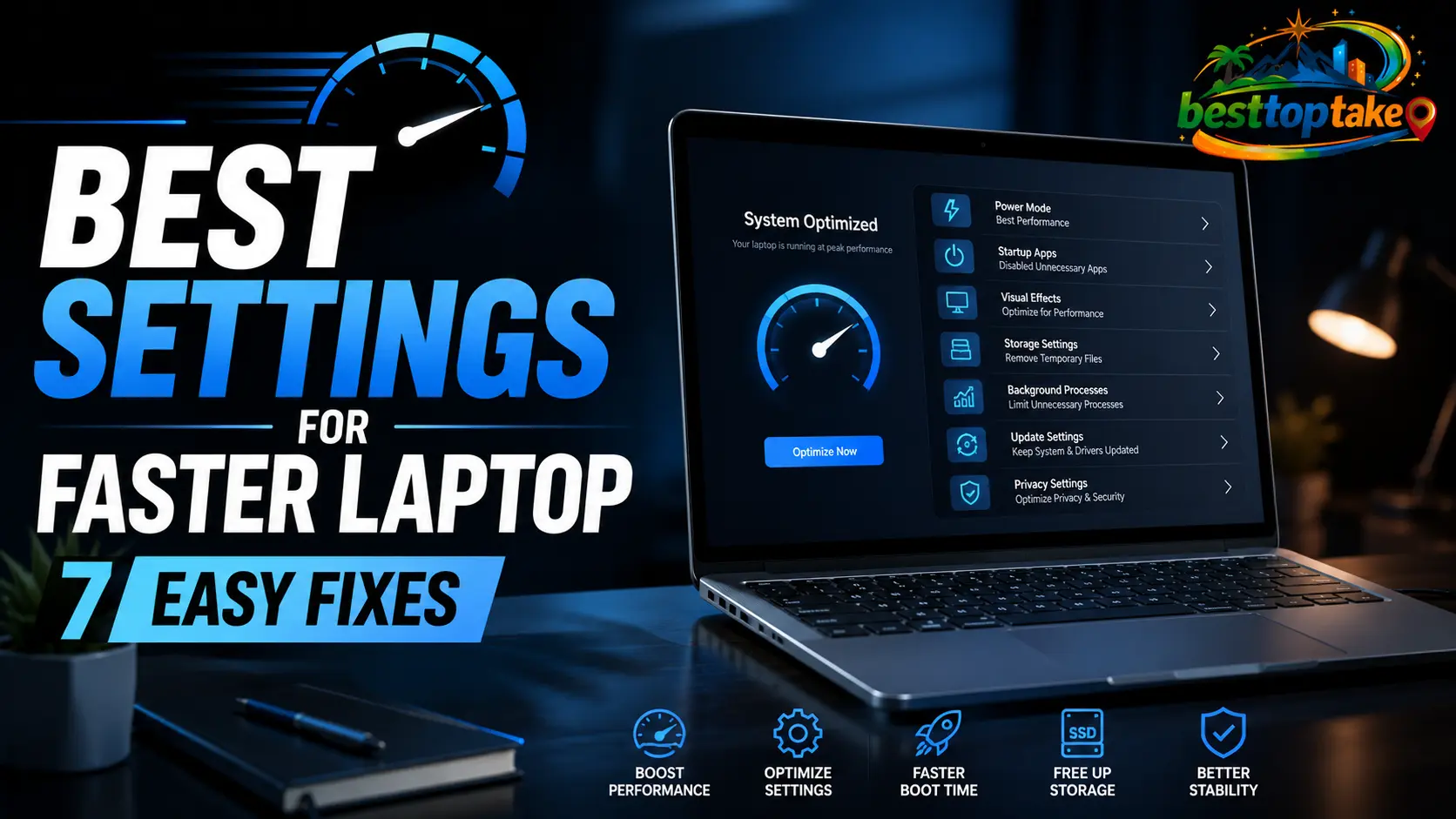
The best settings for faster laptop performance are switching your power mode to “Best Performance,” disabling unnecessary startup programs, and turning off visual effects. These three changes alone can make your laptop feel like new again.
Why Your Laptop Feels Slower Than It Should
My heart sinks every time I hear someone say, “I think I just need to buy a new laptop.” Because nine times out of ten, that’s not true. I’ve been helping people fix slow computers for over a decade, and the same pattern shows up again and again: a perfectly capable laptop gets bogged down by a handful of bad default settings.
The good news? You don’t need technical skills or expensive software to fix it. In this guide, I’ll walk you through the best settings for faster laptop performance. These are the exact tweaks I use on my own machines and recommend to friends, family, and clients.
Let’s get your laptop running the way it’s supposed to.
3 Frustrating Problems (And Exactly How to Fix Them)
Before we get into the full list, let’s tackle the three biggest complaints I hear most often. Pick your pain point and jump straight to the fix.
Problem #1: “It takes forever to start up”
Why it happens: Dozens of programs are quietly loading in the background every time you turn on your laptop. Many of them you didn’t even know existed.
The fix: Open Task Manager (press Ctrl + Shift + Esc). Click the Startup apps tab. You’ll see a list of everything that launches when your laptop boots. Right-click anything you don’t absolutely need and select Disable. Leave your antivirus running, but feel free to disable everything else. Restart your laptop and enjoy a boot time that feels like lightning.
Problem #2: “Everything feels sluggish and laggy”
Why it happens: Your laptop is using its processing power on fancy animations and visual effects instead of your actual work. Those fading menus and transparent windows look nice, but they slow you down.
The fix: Press the Windows key, type “Adjust the appearance and performance of Windows” , and hit Enter. In the window that pops up, select “Adjust for best performance” . Click Apply, then OK. Your laptop will look a little more basic, but the speed improvement is immediately noticeable. (Don’t worry, your wallpaper stays exactly the same.)
Problem #3: “My laptop feels slow even when I’m just browsing the web”
Why it happens: Your power settings are likely set to “Balanced” or “Power Saver” mode. These are designed to save battery life, not to give you speed. When you’re plugged into the wall, there’s no reason to hold back.
The fix: Go to Settings > System > Power & battery. Under Power mode, select “Best Performance” . On most laptops, you’ll see separate options for when you’re plugged in versus when you’re on battery. Set the “Plugged in” option to Best Performance, and leave the “On battery” option at Balanced. Best of both worlds.
The Complete Checklist: Best Settings for Faster Laptop Performance
Now let’s go through every setting worth changing. Apply these one by one, and you’ll feel the difference.
1. Clean Up Your Startup Programs
I mentioned this above, but it’s worth repeating because it’s that important. Every program that launches at startup eats up memory and processor time before you’ve even opened your first browser tab.
How to do it: Task Manager > Startup apps. Disable anything that isn’t essential software like antivirus or backup tools. Common offenders include Spotify, Adobe updaters, printer software, and game launchers.
Pro Tip: If you’re not sure what a startup program does, right-click it and select “Search online.” A quick search will tell you whether it’s safe to disable.
2. Set Your Power Mode to Best Performance (When Plugged In)
Windows defaults to “Balanced” power mode on most laptops. That’s fine for battery life, but when you’re working at your desk with the charger plugged in, you’re leaving speed on the table.
How to do it: Settings > System > Power & battery. Under Power mode, choose Best Performance. If you want maximum speed on battery as well, you can do that too, but expect battery life to take a hit.
3. Turn Off Unnecessary Visual Effects
Those smooth animations and fading effects use your GPU and CPU. On older laptops or budget machines, the performance cost is real.
How to do it: Search for “Adjust the appearance and performance of Windows.” Select “Adjust for best performance” or manually uncheck the effects you don’t want. I personally keep “Smooth edges of screen fonts” checked because I like crisp text, but everything else can go.
“Windows provides free, built-in tools to improve its speed that are accessible to everyone — you just need to know where to find them.” — Craig Donaldson, Technology Reporter at Pocket-lint
4. Turn On Storage Sense
Over time, your hard drive fills up with temporary files, old downloads, and junk you don’t need. A nearly full drive is a slow drive.
How to do it: Settings > System > Storage. Turn on Storage Sense. Click into it and set it to run every day. You can also tell it to automatically delete files from your Recycle Bin and Downloads folder after a set number of days.
5. Disable Background Apps
Many apps continue running in the background even after you close them. They check for updates, sync data, and send notifications. All of this consumes resources.
How to do it: Settings > Apps > Apps & features. Click the three dots next to any app and select Advanced options. Look for “Background apps permissions” and set it to Never. Do this for apps you rarely use, especially social media apps, news apps, and weather apps.
6. Update Your Drivers (Especially Graphics and Storage)
Outdated drivers can cause all sorts of performance headaches. Microsoft automatically pushes many driver updates through Windows Update, but it doesn’t always get the latest versions.
How to do it: Right-click the Start button and select Device Manager. Expand “Display adapters” and right-click your graphics driver, then select Update driver > Search automatically for drivers. Repeat for “Storage controllers” and “Network adapters.” If Windows doesn’t find anything, visit your laptop manufacturer’s website (Dell, HP, Lenovo, etc.) and check for driver updates there.
7. Run Disk Cleanup (Especially If You Have an HDD)
If your laptop still uses an old-school mechanical hard drive (HDD) instead of an SSD, regular cleanup is essential. SSDs are much faster and don’t need defragmentation, but HDDs benefit greatly from a little maintenance.
How to do it: Search for “Disk Cleanup” in the Start menu. Select your C: drive. Check every box in the list, especially “Temporary files” and “Recycle Bin.” Click OK. For HDD users, also search for “Defragment and Optimize Drives” and run the optimization on your system drive.
Pro Tip: If your laptop is more than three years old and still has an HDD, upgrading to an SSD is hands down the single biggest speed upgrade you can make. Even a budget SSD will transform your laptop.
Settings Comparison: Which Changes Make the Biggest Difference?
| Setting Effect | Speed Impact | Effort (1–5) |
|---|---|---|
| Switch Power Mode to Best Performance | High | 1 |
| Disable Startup Programs | High | 2 |
| Turn Off Visual Effects | Medium | 2 |
| Turn On Storage Sense | Medium | 1 |
| Disable Background Apps | Medium | 2 |
| Update Drivers | Variable | 3 |
| Run Disk Cleanup (HDD only) | Low–Medium | 2 |
What the Experts Say
Most laptop optimization advice focuses on hardware upgrades, but the experts agree that the right settings can make a surprising difference.
“Sometimes, a few adjustments within Windows itself can help it run like new again.” — Craig Donaldson, Technology Reporter at Pocket-lint
“If you want to see what your PC is truly capable of, it’s time to head over to Settings → System → Power & battery and select Best Performance from the Power Mode drop-down menus.” — Roger Fingas, Tech Journalist at Pocket-lint
“I conclude that almost all Windows tweaks are fairly useless when it comes to speeding up your computer. To achieve significant results, you’ll need to buy a new computer or upgrade your existing system.” — Igor Leyko, Microsoft MVP – Windows System & Performance
Note from me: Igor’s quote sounds discouraging, and I respectfully disagree. His article is from 2010, and Windows has changed enormously since then. The tweaks in this guide are effective because they target specific, proven bottlenecks that still exist in modern Windows. Don’t let an old quote stop you from trying these fixes.
For more official guidance, MIT’s Information Systems & Technology department recommends checking startup programs, running disk cleanup, and updating drivers as part of their basic performance troubleshooting checklist.
Frequently Asked Questions
Will these settings damage my laptop or shorten its lifespan?
No. “Best Performance” power mode can cause your laptop to run a bit warmer and use more power, but modern laptops are designed to handle this. Your fans will spin up more often, and your battery may wear slightly faster over years of heavy use. That’s the tradeoff for speed.
Do I need to download special “PC cleaner” software to speed up my laptop?
Absolutely not. Most of those programs are scams or at best, pointless. Every setting I’ve shown you is built into Windows and free to use.
Why did my laptop slow down so much right after I bought it?
This is incredibly common. Most new laptops come loaded with “bloatware” — trial software, manufacturer utilities, and other programs you didn’t ask for. Many of these run at startup and eat resources. Use the startup program and background app steps above to clean them out.
I have a Mac. Do these settings work for me?
Some principles apply — like limiting startup programs and clearing space — but the exact steps are different. This guide focuses on Windows laptops.
How often should I check these settings?
I recommend revisiting this list every 3–6 months. New apps love to add themselves to startup, and Windows updates sometimes reset your power preferences. A quick check every season keeps things running smoothly.
Putting It All Together
Here’s what I want you to take away from this guide:
- The best settings for faster laptop performance are already built into Windows. You don’t need to buy anything or download anything special.
- Start with just three changes: Best Performance power mode, disable startup programs, and turn off visual effects. These alone will give you about 80% of the speed benefit.
- Make maintenance a habit. Spend five minutes every few months checking your storage, startup programs, and updates. That small time investment keeps your laptop feeling fast for years.
I’ve watched people go from ready to throw their laptop in the trash to genuinely enjoying using it again. It never gets old. Now it’s your turn.
Which of these settings made the biggest difference on your laptop? Drop a comment below and let me know — I read every single one.

“Electronics aren’t just gadgets. They’re the invisible threads that connect our work, our play, and our world.”
I’m Julian Reed, and my obsession with tech started at age twelve, when I soldered a defunct gaming console back to life in my bedroom. That tiny green screen taught me that technology isn’t just a black box, it’s a tool you can master.
After fifteen years as a hardware engineer and a decade reviewing consumer tech, I’ve joined this team to cut through the jargon. Whether you’re building a high-end home theater or just need a laptop that won’t lag, I’m here to help you choose the gear that truly powers your life.


