
A gaming laptop with high ping on WiFi can turn an otherwise smooth game into a frustrating mess. Your internet speed may look excellent, videos may stream without buffering, and downloads may finish quickly, yet your game still jumps from 25 ms to 150 ms, 300 ms, or even higher.
That happens because internet speed and gaming latency are not the same thing.
High ping on a gaming laptop can be caused by weak WiFi, interference, background downloads, a congested router, Windows network settings, a problematic WiFi driver, ISP routing, or simply connecting to a game server that is too far away.
The fastest way to troubleshoot the problem is not to change random settings. Instead, find out where the latency starts, then apply the fix that matches the cause.
If you are having basic connection problems in addition to gaming lag, our guide on how to connect a laptop to WiFi and troubleshoot connection problems may also help.
Quick answer: If your gaming laptop has high ping on WiFi, first restart the router and laptop, connect to 5 GHz or 6 GHz if available, move closer to the router, stop background downloads, and temporarily disable any VPN. Then compare WiFi with Ethernet. If Ethernet is smooth but WiFi is not, focus on the wireless connection. If both are bad, investigate your router, ISP, or game server.
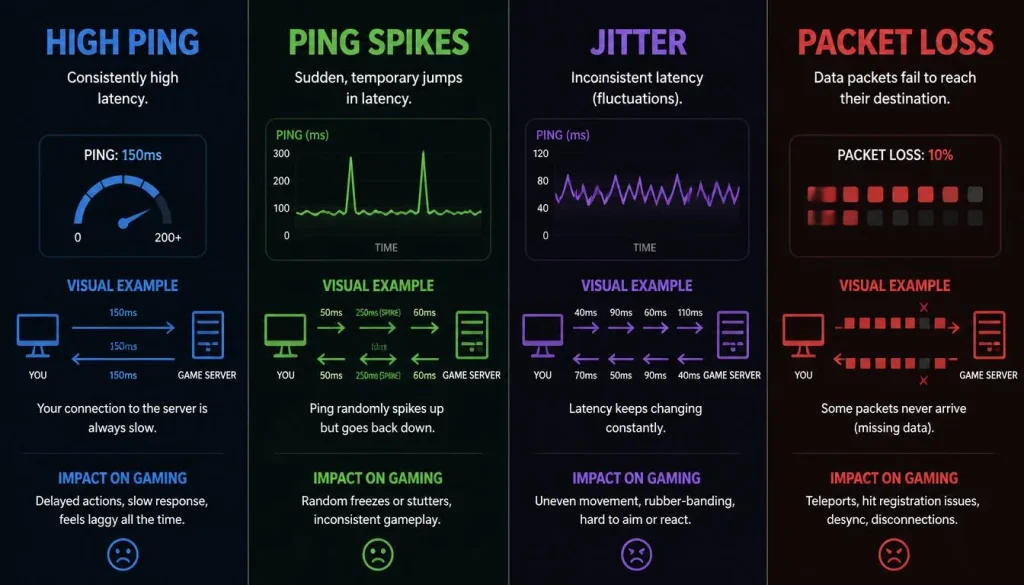
High Ping vs Ping Spikes vs Jitter vs Packet Loss
Before changing anything, make sure you know what problem you are actually experiencing.
Gamers often use the word “ping” for every type of network lag, but several different problems can make a game feel delayed or unstable.
According to Cloudflare’s explanation of network latency, latency is the time required for data to travel from one point on a network to another. In games, that delay is commonly represented in milliseconds.
Here is the practical difference:
| Problem | What It Looks Like While Gaming | Common Causes |
|---|---|---|
| High ping | Controls consistently feel delayed | Distant server, ISP routing, VPN |
| Ping spikes | Ping suddenly jumps from low to very high | WiFi interference, congestion, background traffic |
| High jitter | Ping keeps changing rapidly | Unstable wireless connection |
| Packet loss | Rubberbanding, freezing, missing actions | Weak WiFi, router problems, ISP issues |
| Low ping but lagging | Ping appears normal but gameplay stutters | Packet loss, jitter, FPS drops, overheating |
This distinction matters.
If your ping stays around 120 ms all the time, you are troubleshooting a different problem from someone whose ping moves between 20 ms and 250 ms every few seconds.
And if your network statistics are normal but the game still stutters, the problem may not be the network at all. Thermal throttling can also cause serious gameplay stutter. Our gaming laptop overheating fix guide explains how to identify that problem.
What Is a Good Ping for Gaming?
There is no single ping number that applies to every game, but the following ranges are useful as a general reference.
| Ping | Typical Gaming Experience |
|---|---|
| Under 30 ms | Excellent |
| 30–60 ms | Very good |
| 60–100 ms | Usually playable |
| 100–150 ms | Noticeable delay |
| Above 150 ms | Poor for many real-time games |
Competitive shooters such as Valorant, Counter-Strike 2, Fortnite, Apex Legends, and Call of Duty are more sensitive to latency than slower games.
Do not focus only on the average number, either. A steady 50 ms connection can feel better than a connection that averages 30 ms but regularly spikes to 200 ms.
Consistency matters.
Why Is My Gaming Laptop Ping So High on WiFi?
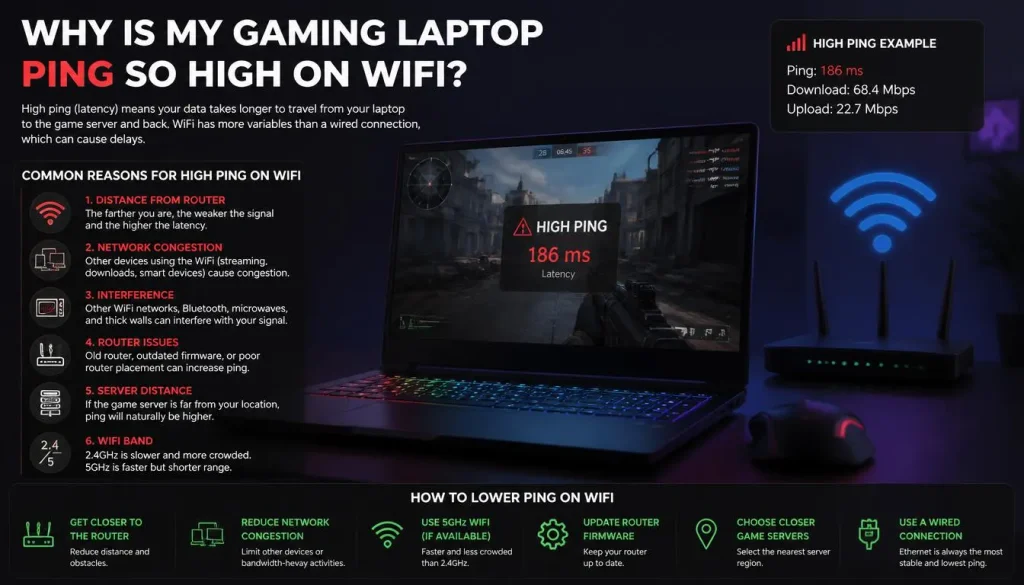
There are several possible reasons, and more than one may be happening at the same time.
Weak WiFi Signal
The farther your laptop is from the router, the harder it becomes to maintain a clean wireless connection.
Walls, floors, furniture, metal objects, appliances, and even the position of your laptop can weaken the signal.
A weak signal can force wireless packets to be retransmitted. Those retries can increase latency even when the internet connection itself is fast.
You Are Using the Wrong WiFi Band
Many routers offer 2.4 GHz and 5 GHz, while newer WiFi 6E and WiFi 7 equipment may also use the 6 GHz band.
The bands behave differently.
2.4 GHz generally reaches farther and passes through walls better, but it is often more congested.
5 GHz usually offers better performance and more available channels when you are reasonably close to the router.
6 GHz can provide very low congestion and strong performance when both your laptop and router support it, but its range is shorter.
Microsoft’s guide to WiFi bands and home network layout notes that 5 GHz is well suited to demanding tasks such as gaming, while a strong 6 GHz connection can provide lower congestion and latency on compatible hardware.
WiFi Interference
Your laptop is sharing wireless spectrum with other devices.
Interference can come from:
- Nearby WiFi networks
- Bluetooth devices
- Wireless accessories
- Smart-home devices
- Other computers and phones
- Certain household electronics
- Overlapping router channels
This problem is especially common in apartments, dorms, shared houses, and densely populated neighborhoods.
Background Downloads Are Using the Connection
Your game may not be the only program transferring data.
Common examples include:
- Steam downloads
- Epic Games updates
- Xbox app downloads
- Windows Update
- OneDrive
- Google Drive
- Dropbox
- Browser downloads
- Discord streaming
- Cloud backups
- Game launchers updating in the background
You may have plenty of download bandwidth and still experience latency when the connection becomes heavily loaded.
If your gaming laptop also feels sluggish outside games, see our guide on optimizing a gaming laptop for maximum performance.
Your WiFi Driver Has a Problem
Drivers control communication between Windows and your wireless hardware.
An outdated, corrupted, or incompatible driver can cause:
- Random disconnects
- Ping spikes
- Reduced WiFi speed
- High latency
- Connection instability
- Problems after a Windows update
Gaming laptops commonly use wireless adapters from Intel, MediaTek, Realtek, Qualcomm, or Intel Killer.
Power-Saving Settings Are Affecting the WiFi Adapter
Because laptops are designed to conserve battery power, Windows or the manufacturer may reduce power to certain devices.
On some systems, aggressive WiFi power saving can contribute to inconsistent wireless performance.
This is one reason a laptop can have worse ping than a desktop connected to the same network.
Your Router Is Congested
A router has to manage traffic from every connected device.
If several people are streaming, downloading large files, uploading backups, joining video calls, or gaming at the same time, latency can increase dramatically.
This is especially noticeable on connections with limited upload capacity.
Your Network Has Bufferbloat
Bufferbloat happens when network equipment keeps too much traffic queued during heavy usage.
The result is a connection that looks fast in a traditional speed test but becomes extremely laggy when someone starts downloading or uploading.
The Bufferbloat.net project describes bufferbloat as latency caused by excessive buffering during network traffic.
It is one of the most overlooked causes of gaming ping spikes.
Your VPN Is Changing the Network Route
A VPN sends your game traffic through an additional server.
Sometimes that route can be efficient. Other times it adds substantial latency.
If you use a VPN, disconnect it temporarily and compare your in-game ping.
You Are Connected to a Distant Game Server
Server location matters.
If you live in the United States but connect to a European server, or live in Australia and connect to a North American server, distance alone can create substantial latency.
Always check the game’s region or server-selection setting.
Your ISP or the Game Server Has a Routing Problem
Sometimes nothing inside your home is wrong.
Your ISP may be routing traffic inefficiently, the game provider may be experiencing problems, or the route between your ISP and the game’s data center may be congested.
That is why diagnosis should come before changing dozens of Windows settings.
Find Out Where the High Ping Is Coming From
The most useful thing you can do is isolate the problem.
Do these tests before trying advanced fixes.
Step 1: Record Your Normal In-Game Ping
Launch the game and note:
- Normal ping
- Highest ping during spikes
- Whether packet loss is shown
- Whether the problem is constant or random
- Whether it happens at certain times of day
Do not rely on one short test.
Play long enough to see the pattern.
Step 2: Find Your Router Address
Open Command Prompt and enter:
ipconfig
Look for Default Gateway under your active WiFi adapter.
It may look similar to:
192.168.1.1
or:
192.168.0.1
Use the address shown on your own laptop rather than assuming your router uses one of these examples.
Step 3: Ping Your Router
Run:
ping YOUR-DEFAULT-GATEWAY -n 30
For example:
ping 192.168.1.1 -n 30
Because this test stays inside your local network, it can help identify WiFi problems.
If the ping to your router is normally 1–5 ms but suddenly jumps to 100 ms, 500 ms, or times out, your wireless connection is a strong suspect.
Possible causes include:
- Interference
- Weak signal
- Adapter problems
- Router congestion
- Driver issues
Step 4: Test an Internet Destination
Next, try:
ping 1.1.1.1 -n 30
You can also use another reliable destination.
Compare the result with the router test.
If router latency is stable but internet latency is high, the problem is more likely to be outside the laptop-to-router WiFi link.
Remember that ping tests use ICMP traffic, which can sometimes be treated differently from game traffic, so they are useful diagnostic clues rather than perfect measurements of a game’s network path.
Step 5: Compare WiFi With Ethernet
If possible, connect your gaming laptop directly to the router using Ethernet.
Then launch the same game, choose the same server, and test again.
For example:
WiFi: 25 ms with spikes to 250 ms
Ethernet: steady 22–30 ms
That result strongly points toward a WiFi-side problem.
If both WiFi and Ethernet show roughly the same high latency, start investigating:
- ISP routing
- Router congestion
- Server region
- Bufferbloat
- The game server itself
Step 6: Test Another Device
Connect another laptop or PC to the same network.
Microsoft also recommends testing the same network with another device as part of its Windows WiFi troubleshooting process.
The results can tell you a lot.
| Test Result | Most Likely Area to Investigate |
|---|---|
| Only gaming laptop has high ping | Laptop adapter, driver, Windows settings |
| Every WiFi device has high ping | Router, interference, ISP |
| Ethernet is fine but WiFi is bad | Wireless network |
| Only one game has high ping | Game server or route |
| Every game has high ping | Laptop, router, or ISP |
| Ping rises only during downloads | Congestion or bufferbloat |
Step 7: Check for Packet Loss
Run a longer test:
ping 1.1.1.1 -n 100
At the end, Windows reports how many packets were sent, received, and lost.
Ideally, you want no packet loss during normal conditions.
If you see repeated timeouts or significant packet loss, investigate the connection further.
How to Fix High Ping on a Gaming Laptop Over WiFi
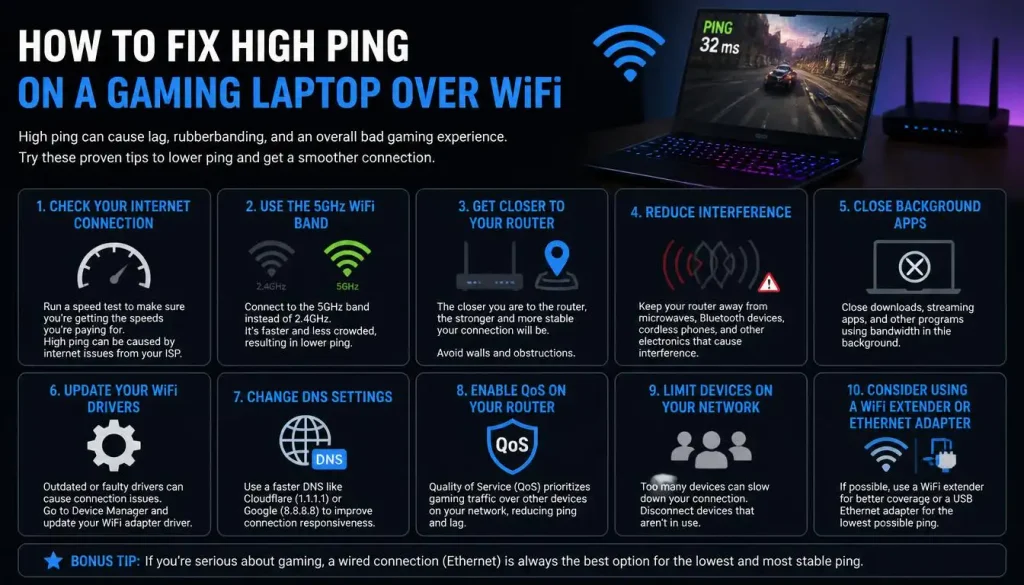
Once you have a basic idea of where the problem is coming from, start with the least disruptive fixes.
1. Restart the Laptop and Router
It sounds simple, but it is worth doing.
Restart the gaming laptop normally.
Then restart your modem and router according to the manufacturer’s instructions.
A restart can clear temporary router problems, reconnect your ISP session, and reset a misbehaving network adapter.
2. Switch From 2.4 GHz to 5 GHz or 6 GHz
If you are close enough to the router, test the higher-frequency network.
5 GHz is often the best starting point for gaming because it usually has less congestion than 2.4 GHz while still offering practical household range.
If you have WiFi 6E or compatible WiFi 7 equipment, test 6 GHz as well.
Do not assume that the highest frequency is automatically best.
A weak 6 GHz signal through several walls can perform worse than a strong 5 GHz connection.
Test each available band from your normal gaming location.
3. Move Closer to the Router
Temporarily move your laptop into the same room as the router.
Then repeat the ping test.
If your latency suddenly becomes stable, signal strength or interference is probably contributing to the problem.
This simple test can save you from changing Windows settings that were never broken.
4. Stop Background Network Activity
Press:
Ctrl + Shift + Esc
to open Task Manager.
Check which applications are using the network.
Pause or close unnecessary:
- Downloads
- Cloud synchronization
- Game updates
- Browser downloads
- Streaming software
- File transfers
- Backup tools
Do the same on other devices in the house if possible.
If ping becomes normal when heavy traffic stops, investigate QoS or bufferbloat later in this guide.
5. Update Your WiFi Driver
Open:
Device Manager > Network adapters
Find your wireless adapter.
Before changing anything, write down the adapter model.
Then check for a current driver from:
- Your gaming laptop manufacturer’s support page
- Intel, when appropriate
- Your adapter manufacturer’s official support page
For gaming laptops, the OEM driver can sometimes be preferable because manufacturers may customize drivers for specific hardware.
Avoid downloading network drivers from random third-party driver websites.
6. Reinstall the WiFi Driver if the Problem Started After an Update
If latency problems started suddenly after a Windows or driver update, reinstalling the network adapter driver may help.
Microsoft’s WiFi troubleshooting documentation recommends uninstalling and reinstalling the network adapter when connection problems begin after an update.
Before uninstalling the driver, download a backup copy from your laptop manufacturer’s website if possible.
Then:
- Open Device Manager.
- Expand Network adapters.
- Right-click the WiFi adapter.
- Select Uninstall device.
- Restart the laptop.
Windows may reinstall the adapter automatically after rebooting.
7. Check WiFi Power-Saving Settings
Open:
Control Panel > Hardware and Sound > Power Options
Depending on your laptop and Windows configuration, you may find:
Wireless Adapter Settings > Power Saving Mode
For gaming on AC power, test Maximum Performance if that option is available.
Some newer laptops and WiFi adapters do not expose the same power settings, so do not worry if your system looks different.
You can also check:
Device Manager > Network adapters > WiFi adapter > Properties
If there is a Power Management tab, look for an option that allows Windows to turn off the device to save power.
Test the connection after changing a setting rather than changing multiple options at once.
8. Check the Preferred WiFi Band
Open:
Device Manager > Network adapters > your WiFi adapter > Properties > Advanced
Depending on the adapter, you may see options such as:
- Preferred Band
- Wireless Mode
- 802.11 mode
- Channel Width
If Preferred Band is available, you can test preferring 5 GHz when your router supports it.
Do not copy random advanced adapter settings from internet forums. Adapter options vary by manufacturer, and a setting that improves one network may hurt another.
9. Forget and Reconnect to the WiFi Network
In Windows 11:
Settings > Network & internet > Wi-Fi > Manage known networks
Select your network and choose Forget.
Reconnect using your WiFi password.
This can help when a saved network profile has become problematic.
10. Temporarily Disable Your VPN
If a VPN is active, disconnect it and retest the same game and server.
If ping drops significantly, the VPN route was adding latency.
If there is no meaningful difference, reconnect the VPN if you still need it.
11. Select the Closest Game Server
Many competitive games allow you to select a server or region.
Choose the location with the lowest measured latency rather than simply selecting the first region in the list.
This is especially important if you:
- Recently moved
- Travel with your gaming laptop
- Use a VPN
- Play with friends in another country
- Changed ISP
How to Fix High Ping on WiFi in Windows 11
If the problem appears to be specific to your gaming laptop, Windows troubleshooting is the next step.
Run the Windows Network Troubleshooter
Windows 11 includes network diagnostics through the Get Help and Settings experience.
Use Microsoft’s official Windows WiFi troubleshooting guide if you want the current menu path for your Windows version.
A troubleshooter will not solve every latency problem, but it can detect obvious adapter or configuration issues.
Reset Winsock and TCP/IP
Open Command Prompt as Administrator.
Run these commands in order:
netsh winsock reset
netsh int ip reset
ipconfig /release
ipconfig /renew
ipconfig /flushdns
Restart the laptop afterward.
Microsoft includes these commands in its own WiFi troubleshooting sequence for resetting the network stack and refreshing IP configuration.
Do not expect them to fix a distant game server, weak WiFi signal, or ISP routing problem. They are most useful when Windows networking itself has become misconfigured.
Use Network Reset as a Last Resort
If nothing else helps:
Settings > Network & internet > Advanced network settings > Network reset
Use this later in the troubleshooting process rather than as your first fix.
Network Reset removes and reinstalls network adapters and returns related settings to their defaults.
You may need to reconfigure:
- VPN software
- Virtual network adapters
- Custom network settings
after the restart.
Generate a Windows Wireless Network Report
Windows has a useful built-in diagnostic report that many gamers never use.
Open Command Prompt as Administrator and run:
netsh wlan show wlanreport
Windows creates an HTML wireless report containing information about recent WiFi sessions, adapters, connection events, and errors.
This can be useful when the laptop disconnects or behaves inconsistently without an obvious reason.
Check Whether the Problem Started After Windows Update
If high ping started immediately after an operating system or driver update, pay attention to timing.
Possible actions include:
- Restarting the laptop fully
- Checking for a newer WiFi driver
- Reinstalling the adapter driver
- Checking the laptop manufacturer’s support page
- Testing whether the issue exists in multiple games
If the entire laptop became slow after an update rather than just the network, our guide to fixing a laptop running slow after an update covers the broader performance side of the problem.
Check Intel Killer Network Software on Gaming Laptops
Some gaming laptops use Intel Killer network adapters and the Intel Killer Performance Suite.
The software is designed to prioritize latency-sensitive traffic. Intel explains that its Killer Prioritization Engine can prioritize games and other low-latency applications.
However, troubleshooting should be based on results rather than assumptions.
Intel has also documented high ping problems affecting certain Killer WiFi hardware configurations, including reports of large random latency spikes on the Killer WiFi 6E AX1675.
If your gaming laptop uses Killer networking:
- Update the laptop BIOS if the manufacturer recommends it.
- Install the appropriate current WiFi driver.
- Update the Killer Performance Suite.
- Check that your game is receiving the expected priority.
- Test the connection with prioritization enabled and disabled.
Riot Games also recommends temporarily disabling Killer prioritization features during certain connection problems.
Do not permanently remove networking software simply because your laptop contains the word “Killer.” Test before and after making changes.
Fix Router Problems That Cause Gaming Ping Spikes
If multiple devices are affected, the router deserves more attention.
Improve Router Placement
Try to place the router:
- In an open location
- Away from large metal objects
- Away from enclosed cabinets
- Closer to the main gaming area
- Higher rather than directly on the floor when practical
Do not place the router behind a television, inside a cupboard, or at the farthest corner of the house if you can avoid it.
Check WiFi Channel Congestion
Nearby networks may be using the same channels.
This is especially common on 2.4 GHz.
Microsoft notes that 2.4 GHz has fewer non-overlapping channels and is typically more congested than higher-frequency bands.
Many routers handle channel selection automatically, but automatic selection is not perfect on every model.
If your router supports WiFi analysis or channel controls, compare performance before and after changing anything.
Update Router Firmware
Router manufacturers sometimes release firmware updates that improve:
- Stability
- Compatibility
- Security
- Wireless performance
Check the support page for your exact router model.
Never install firmware intended for a different model or hardware revision.
Use QoS Carefully
Quality of Service, or QoS, can prioritize gaming traffic or prevent one device from consuming all available bandwidth.
This can be useful when:
- Someone is downloading while you play
- Cloud backups run regularly
- Multiple people share the connection
- Upload traffic causes severe ping spikes
The quality of QoS varies widely between routers, so do not assume that turning on a setting called “Gaming QoS” will automatically reduce ping.
Test it.
Does Your Ping Spike When Someone Downloads? Check Bufferbloat
This is one of the most important tests for a household gaming connection.
Imagine your normal ping is:
25 ms
Then someone uploads photos, starts a cloud backup, or downloads a large game, and your ping becomes:
180 ms
Your connection may be experiencing bufferbloat or severe network congestion.
A normal speed test can miss this because raw download speed may still look impressive.
Bufferbloat.net recommends comparing latency when the connection is idle with latency while the connection is under load.
Possible solutions depend on your router and connection, but may include:
- Properly configured QoS
- Smart Queue Management
- Limiting large background transfers
- Improving router configuration
- Updating router firmware
- Replacing poorly performing network equipment when necessary
Do not automatically buy a “gaming router.” First confirm that your current router is actually part of the problem.
Why Is My Ping High Even Though My Internet Speed Is Fast?
Because bandwidth and latency measure different things.
A 1 Gbps internet connection tells you that the connection can transfer a large amount of data per second under suitable conditions.
It does not guarantee that each small packet reaches the game server quickly or consistently.
You could have:
- 1 Gbps download speed
- 20 ms idle ping
- 200 ms loaded latency
- Packet loss on WiFi
and still have a poor gaming experience.
Likewise, someone with a stable 100 Mbps connection and clean network path may enjoy much better online gaming.
For gaming, pay attention to:
- Latency
- Jitter
- Packet loss
- Loaded latency
- Server location
- Connection stability
—not only download speed.
Why Is My Ping High Only on My Gaming Laptop?
If your phone, console, and another computer work normally on the same WiFi, concentrate on the gaming laptop.
Check:
- WiFi driver
- Adapter settings
- Preferred band
- Power-saving settings
- Windows network configuration
- Killer or other network-management software
- Background apps
- VPN software
You should also compare the laptop on another network if possible.
For example, test it briefly using another trusted WiFi connection.
If the same laptop shows severe latency on multiple networks while other devices work normally, that strengthens the case for a laptop-specific problem.
Why Does My Gaming Laptop Get Ping Spikes Every Few Seconds?
Regular ping spikes are often more frustrating than consistently high ping.
Common causes include:
- WiFi interference
- Weak signal
- Background synchronization
- Automatic downloads
- Congested router
- Unstable WiFi driver
- Network-management software
- Bufferbloat
- ISP congestion
Start by keeping a Command Prompt ping running while gaming:
ping YOUR-DEFAULT-GATEWAY -t
Watch what happens when the in-game spike occurs.
If the router ping spikes at the same moment, focus on the local WiFi connection.
If the router remains stable but the game spikes, investigate the internet route or game server.
Press:
Ctrl + C
to stop the continuous ping test.
Why Is My Ping High in Games but Normal Everywhere Else?
This can happen even when websites and streaming services feel completely normal.
Streaming applications buffer data ahead of time.
Online games cannot do that in the same way because player actions need to be exchanged in real time.
If only one game has high ping:
- Check its server status
- Confirm your region
- Try another server
- Test another multiplayer game
- Disable your VPN temporarily
If every game has high ping, investigate the laptop, router, and ISP.
Also remember that a browser speed test may connect to a nearby test server, while your game may connect to a data center hundreds or thousands of miles away.
The two ping numbers are not necessarily measuring the same route.
Ethernet vs WiFi for Gaming: Will Ethernet Fix High Ping?
Ethernet is one of the best diagnostic tools for this problem.
It removes most of the wireless variables between your laptop and router.
That means no:
- WiFi interference
- Wireless channel congestion
- Weak wireless signal
- Band-selection problem
If Ethernet immediately eliminates your ping spikes, you have strong evidence that the wireless part of the network needs attention.
However, Ethernet cannot fix every cause of high ping.
It will not solve:
- A distant game server
- ISP congestion
- Poor ISP routing
- Server outages
- Severe upstream network problems
Modern 5 GHz, 6 GHz, WiFi 6, WiFi 6E, and WiFi 7 networks can provide excellent gaming performance when configured properly.
Ethernet is simply more predictable because it removes wireless interference from the equation.
What If You Cannot Use Ethernet?
Running a cable across your home is not practical for everyone.
If Ethernet is not an option, try these alternatives in order:
- Use 5 GHz or 6 GHz when signal strength is good.
- Move the router closer to the gaming area.
- Move the laptop closer to the router.
- Improve router placement.
- Reduce wireless congestion.
- Use a well-designed mesh system when appropriate.
- Consider wired backhaul between mesh nodes where possible.
- Test whether your laptop’s WiFi adapter needs a driver update.
- Consider a compatible replacement WiFi adapter only after confirming that the existing adapter is the problem.
Do not spend money before testing.
A free router-placement change can sometimes make more difference than buying new hardware.
When Is the Problem Your ISP or Game Server?
The problem is more likely to be outside your home network when:
- Ethernet also has high ping
- Multiple devices are affected
- Your router ping is stable
- Ping becomes bad at certain times every day
- Only specific destinations are affected
- Multiple nearby users of the same ISP report similar problems
- One game region is bad while another is normal
Run a Traceroute
Windows includes the tracert command.
For example:
tracert example.com
Ideally, test a hostname associated with the relevant service when the game provider documents one.
Traceroute shows the network hops between your laptop and the destination.
However, interpreting it requires care.
A router in the middle of the path may respond slowly to traceroute while still forwarding actual traffic normally. Do not assume that one high number automatically identifies the problem.
Look for patterns instead.
What to Give Your ISP
If you contact your internet provider, provide useful details:
- Date and time of the problem
- WiFi test result
- Ethernet test result
- Normal ping
- Ping during the problem
- Packet-loss result
- Games affected
- Whether every device is affected
- Traceroute information if requested
“Gaming is laggy” is difficult for support staff to investigate.
“Ethernet ping rises from 22 ms to 180 ms every evening between 7 PM and 10 PM across three devices” is far more useful.
Quick Gaming Laptop High-Ping Troubleshooting Checklist
| Problem | First Thing to Test |
|---|---|
| High ping only on WiFi | Compare with Ethernet |
| Ping spikes every few seconds | Ping the router continuously |
| High ping on every device | Check router and ISP |
| Only gaming laptop affected | Driver and adapter settings |
| Phone is fine but laptop is bad | Laptop WiFi configuration |
| High ping during downloads | Test for bufferbloat |
| Using 2.4 GHz | Test 5 GHz |
| Strong compatible 6 GHz available | Test 6 GHz |
| Only one game affected | Check game server/region |
| VPN active | Test without VPN |
| Problem began after Windows update | Reinstall/update WiFi driver |
| Killer adapter installed | Test Killer software settings |
| Fast speed but bad gaming | Check latency, jitter and packet loss |
| WiFi and Ethernet are both bad | Investigate ISP/server routing |
Frequently Asked Questions About Gaming Laptop High Ping on WiFi
Why is my gaming laptop ping so high on WiFi?
The most common causes are weak WiFi signal, wireless interference, background downloads, router congestion, WiFi driver problems, power-saving settings, a distant game server, bufferbloat, or ISP routing.
Start by comparing WiFi with Ethernet and by pinging your router.
Why do I have high ping with fast WiFi?
A fast internet connection provides high bandwidth, but gaming depends heavily on latency and consistency.
You can have excellent download speed while still experiencing high jitter, packet loss, bufferbloat, or poor routing.
Is 100 ms ping bad for gaming?
A stable 100 ms connection can be playable in many games, but the delay is noticeable, especially in competitive shooters.
Lower latency is generally preferable.
Why does my ping spike every few seconds?
Regular spikes are commonly caused by WiFi interference, background traffic, router congestion, unstable drivers, or poor signal.
Run a continuous ping to your router while gaming to see whether the spikes begin inside your local network.
Does 5 GHz WiFi reduce gaming ping?
It can.
5 GHz usually experiences less congestion than 2.4 GHz and can provide a cleaner connection when you are reasonably close to the router.
However, signal strength matters. A weak 5 GHz connection may not outperform a strong 2.4 GHz connection at long range.
Is 6 GHz WiFi better for gaming?
A strong 6 GHz connection can be excellent for gaming because the band generally has lower congestion.
However, you need compatible hardware, and 6 GHz does not travel through walls as well as lower frequencies.
Can a WiFi adapter cause high ping?
Yes.
A faulty adapter, outdated driver, incorrect advanced setting, compatibility issue, or aggressive power saving can contribute to high latency or random ping spikes.
Does updating my WiFi driver reduce ping?
It can help when the old driver has a bug, stability problem, or compatibility issue.
A driver update will not reduce latency caused by physical distance to the game server or poor ISP routing.
Why is my laptop ping high but my phone is fine?
That usually points toward a device-specific issue.
Check the laptop’s WiFi band, driver, power settings, adapter configuration, VPN, background software, and network-management utilities.
Why is Ethernet ping low but WiFi ping high?
That strongly suggests the wireless link is contributing to the problem.
Investigate signal strength, interference, frequency band, WiFi channels, drivers, and the laptop’s wireless adapter.
Can a VPN cause high ping?
Yes.
A VPN can add another server and network route between you and the game server.
Temporarily disable it and compare the same game and region.
Does changing DNS reduce gaming ping?
Usually not by a meaningful amount once the game connection has already been established.
DNS helps translate domain names into IP addresses. It normally does not change the network route used for continuous in-game traffic.
Changing DNS may help with certain name-resolution or connectivity problems, but it should not be treated as a universal gaming-ping fix.
Can WiFi 6 or WiFi 7 automatically fix high ping?
No.
Newer WiFi standards can improve efficiency, capacity, and wireless performance when the entire setup supports them, but they cannot fix a distant game server, poor ISP routing, or an overloaded internet connection by themselves.
Should I buy a new router to fix gaming ping?
Not until you test the current setup.
First compare WiFi with Ethernet, test router latency, stop background traffic, test different WiFi bands, check signal strength, and investigate bufferbloat.
Replace the router only when there is evidence that it is a limiting factor.
Final Thoughts
If your gaming laptop has high ping on WiFi, resist the temptation to change every network setting you can find.
Start by identifying where the latency begins.
Ping your router. Test an internet destination. Compare WiFi with Ethernet. Try another device and another game.
If Ethernet works perfectly while WiFi produces spikes, focus on signal strength, interference, your wireless band, drivers, adapter settings, and router configuration.
If WiFi and Ethernet are both bad across multiple devices, the problem is more likely to involve congestion, bufferbloat, your ISP, or the game server.
And if only your gaming laptop is affected, Windows settings, the WiFi driver, power management, or network-management software deserve closer attention.
The goal is not simply to make a speed-test number look better. It is to build a connection that stays low-latency, stable, and predictable while you are actually playing.

“Electronics aren’t just gadgets. They’re the invisible threads that connect our work, our play, and our world.”
I’m Julian Reed, and my obsession with tech started at age twelve, when I soldered a defunct gaming console back to life in my bedroom. That tiny green screen taught me that technology isn’t just a black box, it’s a tool you can master.
After fifteen years as a hardware engineer and a decade reviewing consumer tech, I’ve joined this team to cut through the jargon. Whether you’re building a high-end home theater or just need a laptop that won’t lag, I’m here to help you choose the gear that truly powers your life.


