
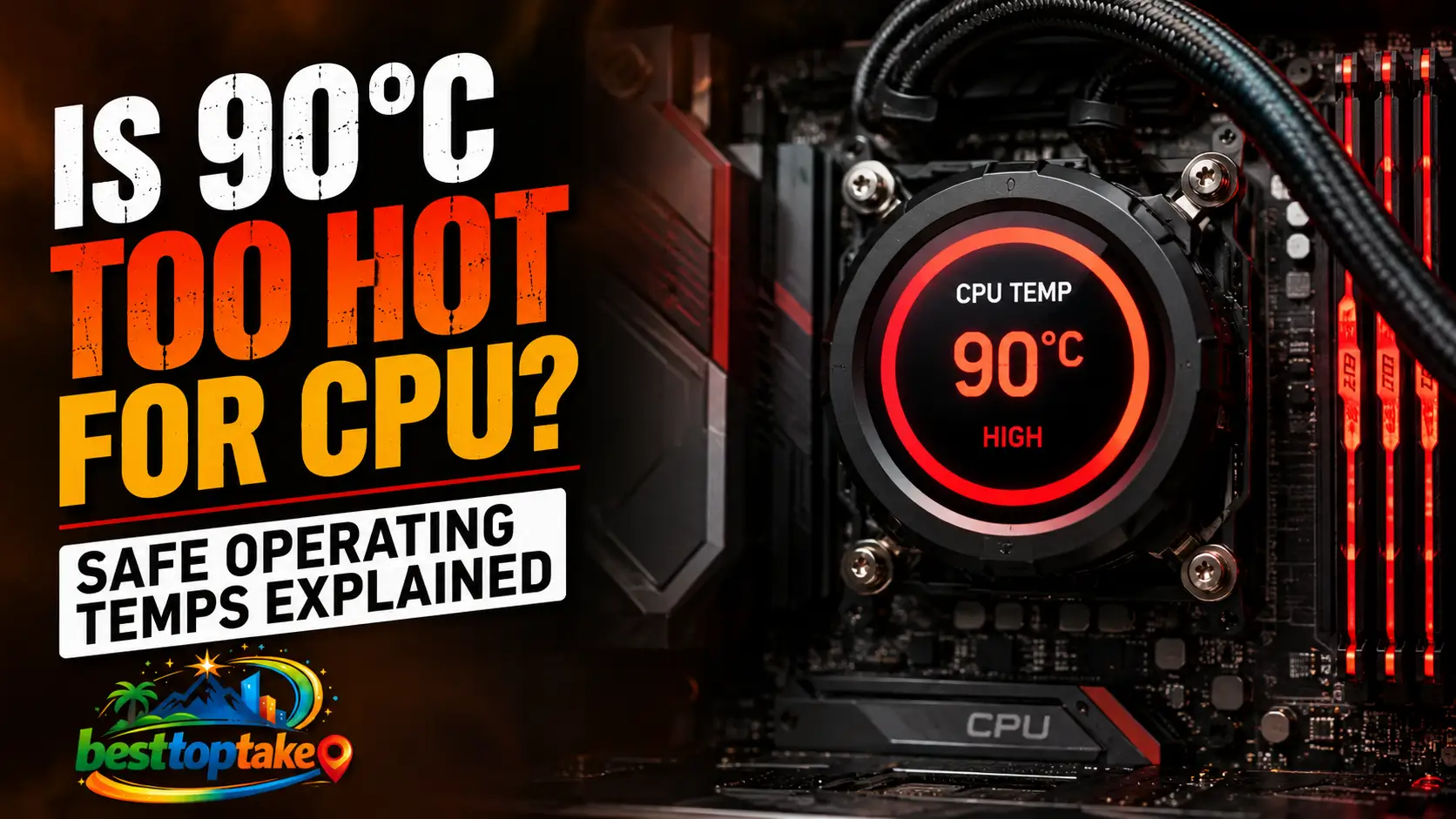
No, 90°C is generally not too hot for a modern CPU operating under heavy processing loads like AAA gaming or high-end video rendering.
However, while modern silicon is designed to safely handle brief thermal spikes up to 95°C or 100°C by utilizing intentional performance scaling, sustained operation at or above 90°C signals constrained internal airflow or worn-out thermal components that require your attention.
Imagine sitting down for an intense gaming session or exporting a massive 4K video project, only to notice your hardware monitoring tool flashing bright red text. You check the system telemetry panel and freeze: your processor temperature has pegged itself straight to 90°C.
Instantly, a wave of anxiety kicks in as you wonder if your expensive custom rig or premium work laptop is slowly melting from the inside out. One urgent question dominates your mind: Is 90 C too hot for CPU operation, or are today’s high-performance electronics simply built to sweat under pressure?
Historically, keeping semiconductor silicon running below 70°C was considered the gold standard for long-term system longevity. However, the engineering paradigms of modern consumer hardware have drastically evolved over the last few years. Today’s silicon architectures are purposefully designed to aggressively boost clock frequencies until they run straight into their factory thermal limits, maximizing every single ounce of processing power. This creates a challenging paradox for computer builders who are accustomed to cooler, older eras of computing.
In this comprehensive guide, we will break down exactly how modern thermal management systems function under pressure. You will learn the threshold difference between safe operating parameters and destructive overheating, discover why your internal temperatures are climbing so high, and acquire actionable solutions to drop your system’s thermals instantly. Let’s dive deep into the science of computer cooling to give your hardware the breathing room it deserves.
Why High CPU Temperatures Limit Gaming and System Performance
When your computer system consistently reads near the 90°C mark, it isn’t just a harmless statistic on your monitoring dashboard; it represents a fierce physical struggle between intense thermal generation and your cooling solution.
While modern desktop and mobile chips feature built-in safety parameters to prevent immediate melting, running continuously at the edge of their maximum thermal limits triggers significant penalties in your daily user experience. The primary issue stems from a hardware defense mechanism known as thermal throttling.
When internal sensors detect that a processor is approaching its maximum junction temperature ($T_j\text{Max}$), the motherboard’s firmware automatically forces a drop in core voltage and clock speeds to safeguard the silicon from catastrophic physical failure.
Consequently, this protective reduction in processing power leads to sudden stuttering frame rates in games, extended rendering times in productivity apps, and sluggish desktop responsiveness. Beyond the loss of real-world processing speed, sustained high thermal environments cause severe peripheral component wear.
Intense heat radiates outward across the printed circuit board (PCB), stressing nearby voltage regulator modules (VRMs), deteriorating solid-state capacitors, and causing the chemical compounds inside your thermal paste to prematurely dry out, crack, and lose efficiency.
If you are operating a dense mini-PC or an ultra-thin gaming laptop, localized thermal pockets can even heat up your battery cells or storage drives, accelerating the overall degradation of your entire electronics ecosystem.
“AMD views temps up to 90C and 95C as typical and by design for full load conditions. Having a higher maximum temperature supported by the silicon and firmware allows the CPU to pursue higher and longer boost performance before the algorithm pulls back for thermal reasons.”— Robert Hallock, Former Director of Technical Marketing at AMD
Best Methods to Reduce CPU Heat and Prevent Overheating
If your chip is routinely approaching the limits of safe operation, upgrading your cooling architecture with the right best gadgets and diagnostic workflows is essential. Resolving high thermal loads doesn’t always necessitate buying a completely new computer; frequently, subtle adjustments to your surrounding environment or internal infrastructure can provide dramatic thermal relief.
Below are the most successful strategies used by tech enthusiasts to restore optimal operating temperatures.
- Upgrade to an Advanced All-in-One (AIO) Liquid Cooler
- Pros: Exceptional thermal dissipation capacity for high-TDP chips; keeps noise profiles whisper-quiet under mid-tier gaming loads.
- Cons: Higher price premium than standard air systems; small risk of mechanical pump failure over several years of continuous operation.
- Deploy Premium Phase-Change Thermal Pads or High-Thermal Paste
- Pros: Significantly enhances immediate heat transfer from the integrated heat spreader (IHS) to the cooler base plate; highly affordable budget electronics fix.
- Cons: Requires manual disassembly of the processor cooling mount, which can intimidate beginner system builders.
- Incorporate High-Static-Pressure Air Exhaust Fans
- Pros: Sweeps trapped hot air out of your chassis rapidly, transforming restrictive enclosures into efficient aerodynamic systems; absolute tech essentials.
- Cons: Adds a minor acoustic hum to your room; relies heavily on your PC chassis having an open mesh panel design to breathe.
- Invest in Ergonomic Laptop Cooling Stands with Active Blowers
- Pros: These specialized smart devices force cool air directly into restrictive bottom intake vents; great for portable gaming laptops.
- Cons: Bulkier footprint makes mobile commuting cumbersome; relies on external USB power ports from your machine.
- Apply Software Undervolting Profiles via OEM Utilities
- Pros: Reduces core voltage to lower thermal output without sacrificing any processing frequency; entirely free optimization tool.
- Cons: Requires systematic trial-and-error testing to ensure absolute system stability under mixed productivity workloads.
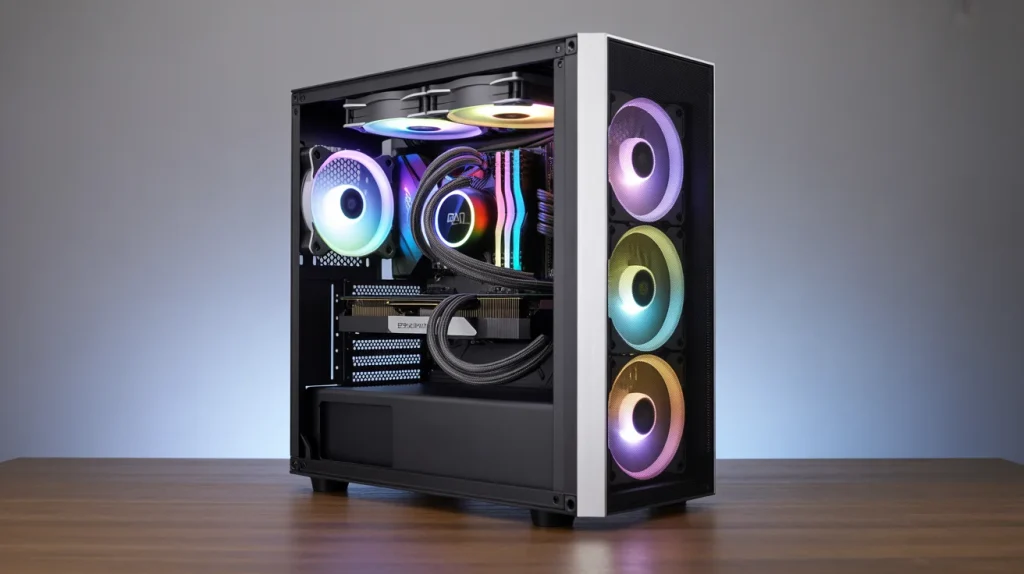
How to Fix High CPU Temperatures: A Step-by-Step Maintenance Guide
Follow these sequential steps to rapidly lower your system’s operating temperatures and eliminate performance-robbing thermal restriction.
- Shut down and cut power: Power down your operating system completely, flip the rear power supply rocker switch to off, and unplug the main power cable from the wall outlet.
- Open the side chassis panel: Loosen the thumbscrews securing your desktop’s side tempered glass panel, or place your laptop upside down on a static-safe work surface.
- Clear accumulated dust blocks: Use a specialized can of compressed air to clear out dust rabbits lodged deep within aluminum radiator fins and rotating intake fan blades.
- Dismount the cooling block: Carefully unscrew the CPU cooler retention brackets in a cross-diagonal pattern to distribute tension evenly across the motherboard layout.
- Clean expired thermal compound: Wipe away dry, crusty compound from the metal surfaces using a lint-free microfiber cloth lightly saturated with 99% isopropyl alcohol.
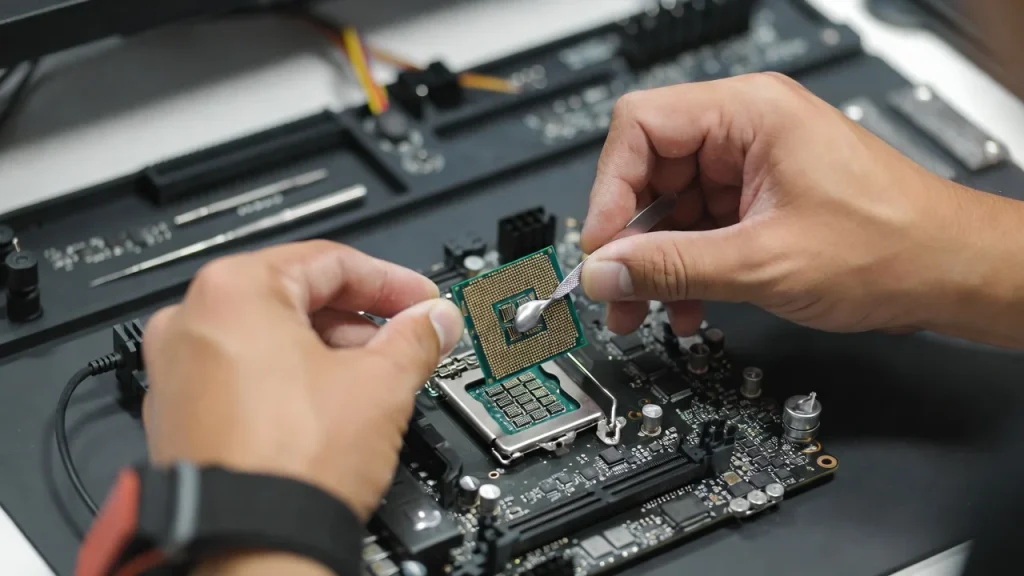
- Apply fresh thermal interface material: Place a pea-sized dot or an X-shape pattern of premium thermal paste directly onto the center of the clean processor integrated heat spreader.
- Reseat and secure the cooler: Position your cooler flush against the processor socket and lock down the retention screws firmly without over-tightening them.
- Optimize your BIOS fan curves: Reboot your machine, enter the UEFI BIOS menu, and configure your system fans to reach 100% speed once temperatures hit 80°C.
Pro Thermal Management Tips and Dangerous Cooling Mistakes to Avoid
To achieve ultimate system stability, you must balance active hardware cooling practices with proper behavioral operating habits. Implementing professional tips while avoiding common user errors ensures your processing hardware continues to perform at its peak potential for years to come.
Pro Tips for Exceptional Thermal Control:
- Utilize a push-pull fan configuration on liquid cooling radiators to accelerate air velocity across dense aluminum structural pathways.
- Always maintain a positive pressure environment inside your computer frame by installing more intake fans than exhaust fans to naturally keep dust out of your hardware slots.
- Cap your frame rates using in-game settings or graphic control panels to prevent your components from over-rendering frames endlessly.
- Regularly clear out hidden background applications that silently leech system resources and keep your processor cores out of energy-efficient sleep states.
- Position your computer desk setup in a climate-controlled room away from direct solar radiation or restrictive household heating vents.
Common Mistakes to Strenuously Avoid:
- Leaving the protective plastic peel on the copper block of a brand-new CPU cooler before bolting it down to the motherboard socket.
- Forgetting to verify pump speed telemetry within your software dashboard, causing liquid AIO systems to passively heat up without active fluid circulation.
- Placing your high-performance tower computer directly on thick carpeting, which completely suffocates lower power supply air intakes and catches loose debris.
- Mixing different brands of thermal paste or applying a layer that is far too thick, which actually creates an insulating thermal blanket rather than a conductor.
“A processor’s operating temperature will depend on its workload. While the occasional spikes of peak temperatures to 194°F (90°C) are okay in isolated bursts, prolonged exposure can impact performance, and even damage the longevity of the chipset over time.”
— TechRadar Computing Editorial Team, Hardware Performance Analysis

Frequently Asked Questions About CPU Thermals
Is 90 C too hot for CPU gaming sessions?
While 90°C is technically within the safe factory operating limits defined by major chip manufacturers for intensive workloads, it is warmer than ideal for continuous, everyday gaming sessions. Most well-cooled desktop configurations keep gaming loads balanced between 70°C and 85°C.
If you regularly sustain 90°C while playing modern video games, consider cleaning your system’s integrated dust filters or adjusting your case fan curves to improve total air displacement.
What temperature should a CPU sit at when idling?
When your computer is sitting idle on your desktop with no heavy application workflows running, your processor temperature should ideally rest between 35°C and 50°C.
If your idle temperatures are consistently hovering near 70°C or higher without any task running, it points directly to a rogue background application, dried-out thermal paste, or an improperly seated water cooling block.
Can a processor sustain permanent damage from hitting 95 degrees?
No, modern processors will not sustain instantaneous physical damage at 95°C because they feature built-in digital thermal sensor protections. The silicon will actively throttle down its clock speeds and lower its operating voltage automatically to stay safe.
However, running at these extreme levels for months at a time can accelerate the breakdown of neighboring motherboard components.
Why does my laptop run much hotter than my desktop PC?
Laptops run hotter due to severe physical design constraints. Compact laptop enclosures lack the spacious interior volume and massive aluminum cooling towers found in desktop rigs.
Because mobile cooling assemblies share thin copper heat pipes between the GPU and CPU, high heat concentration is normal, often pushing laptop chips to 90°C under moderate everyday strain.
Will lowering my processor’s temperature increase my in-game FPS?
Lowering your temperatures will directly increase your frame rates only if your processor was previously experiencing thermal throttling. If your chip was dropping its clock frequency at 90°C to stay cool, installing a better cooling solution will allow it to sustain its maximum turbo frequencies, resulting in smoother gameplay and fewer lag spikes.
How often should I reapply thermal paste to keep temperatures low?
For optimal thermal conductivity, it is highly recommended to replace your thermal interface material every two to three years. Over time, the volatile organic compounds within standard paste dry out due to repeated heat cycles, transforming the material into an inefficient thermal barrier that severely restricts heat transfer out to the cooler.
Conclusion
Encountering high temperature readouts on your system dashboard can be incredibly jarring, but understanding how modern silicon behaves helps remove the panic entirely. So, is 90 C too hot for CPU long-term health? While modern architectures from Intel and AMD are expertly engineered to safely handle these high-thermal loads during intense rendering or gaming sessions, maintaining this level of heat constantly will restrict your performance through thermal throttling.
By implementing strategic upgrades like installing optimized airflow fans, replacing aging thermal compounds, and keeping a clean chassis environment, you can protect your financial investment and unlock the full performance potential of your hardware. Take control of your machine’s cooling ecosystem and optimize your system thermals today!
“The consensus among highly experienced system builders and overclockers is that cooler is better for ultimate stability, performance and longevity. Experts agree it’s prudent to observe a reasonable thermal margin below maximum junction thresholds.”
— Tom’s Hardware System Architecture Consensus
For more expert guidance, visit The Verge — one of the most trusted resources for electronics reviews, buying guides, and tech news. You can review detailed performance benchmarks and testing methodologies by exploring their expert hardware reviews and buying guides to see how the latest processing units handle extreme thermal limits under real-world testing constraints.

“Electronics aren’t just gadgets. They’re the invisible threads that connect our work, our play, and our world.”
I’m Julian Reed, and my obsession with tech started at age twelve, when I soldered a defunct gaming console back to life in my bedroom. That tiny green screen taught me that technology isn’t just a black box, it’s a tool you can master.
After fifteen years as a hardware engineer and a decade reviewing consumer tech, I’ve joined this team to cut through the jargon. Whether you’re building a high-end home theater or just need a laptop that won’t lag, I’m here to help you choose the gear that truly powers your life.


