
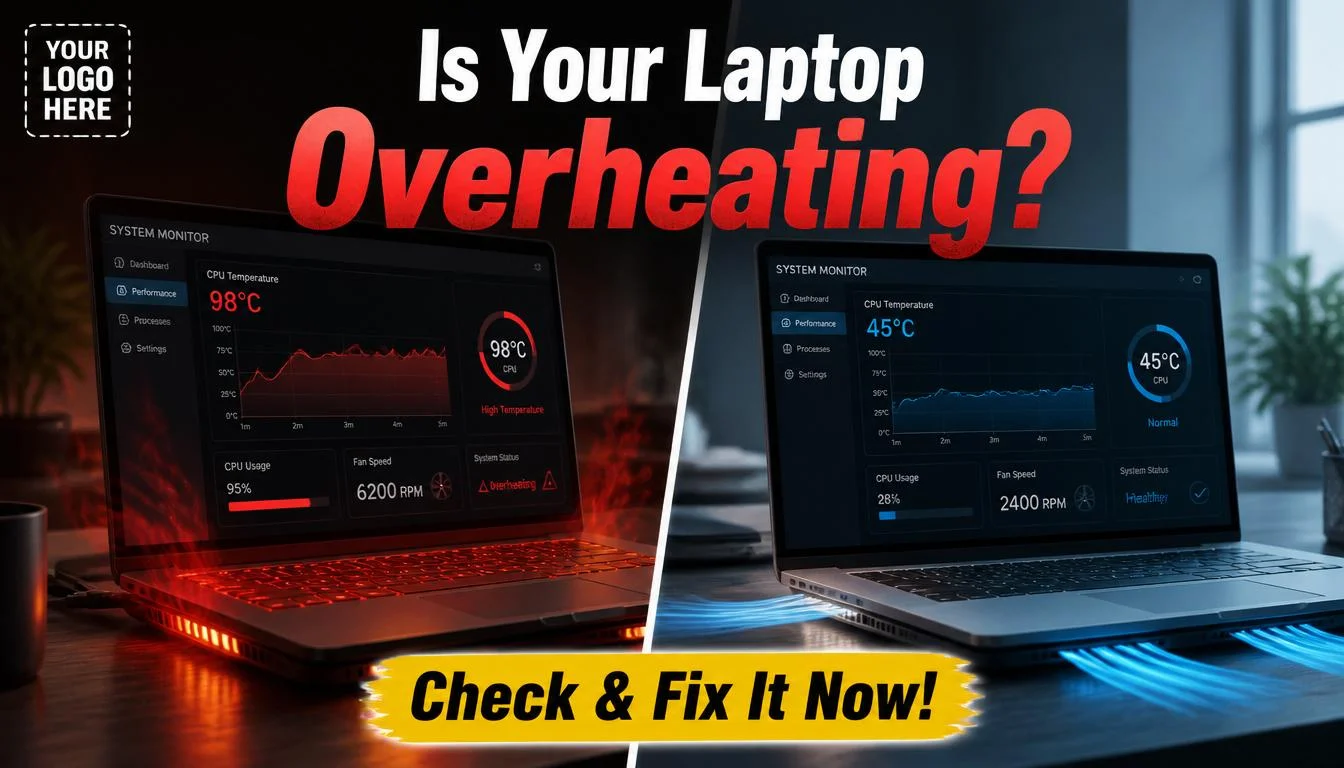
To check if your laptop is overheating, use free tools like HWMonitor, Core Temp, or MSI Afterburner to read real-time CPU and GPU temperatures. If your CPU regularly exceeds 90°C under load, your laptop is overheating. Common fixes include cleaning the vents, replacing thermal paste, and adjusting power settings.
Your laptop suddenly slows down mid-task. The fan sounds like a jet engine. The bottom gets uncomfortably hot. Sound familiar? Laptop overheating is one of the most common and most ignored performance problems that home users and professionals face every day.
Heat is the silent enemy of computer hardware. Unlike a desktop tower with generous airflow, laptops pack powerful components into slim, tightly sealed chassis. That means every degree matters. Left unchecked, chronic overheating can throttle your CPU to a crawl, corrupt storage, reduce battery life, or permanently damage your motherboard.
The good news? You do not need to be a technician to diagnose this. In this guide, you will learn exactly how to check your laptop’s temperature using free software, identify dangerous heat levels, pinpoint the root cause, and apply proven fixes from quick software tweaks to simple hardware maintenance.
Why Laptop Overheating Is a Serious Problem
Modern laptops are engineered to handle demanding workloads, but their compact design creates a fundamental heat management challenge. According to a 2023 industry report by Pass Mark Software, over 34% of laptop performance complaints are directly tied to thermal throttling the automatic slowdown your processor triggers when it gets too hot.
Here is what happens in a real scenario: you open your browser with twenty tabs, launch a video call, and start a document export. Your CPU usage spikes to 90%. Without proper airflow, heat builds up inside the chassis faster than the fans can expel it. Within minutes, your CPU throttles from 3.5 GHz down to 1.2 GHz — your laptop feels sluggish, the video call drops frames, and you have no idea why.
Dust buildup is the number one culprit. Over 12 to 18 months, fine particles accumulate on the heat sink fins and fan blades, cutting airflow by up to 60%. Dried-out thermal paste the compound between the CPU die and heat sink also dramatically reduces heat transfer efficiency over two to three years of use.
Other triggers include running a laptop on a soft surface like a bed or pillow (which blocks intake vents), resource-heavy background apps, outdated drivers, and aggressive factory power profiles that push hardware beyond its thermal design point.
“Heat is the number one hardware killer in portable computing. Most failures I see in laptops could have been prevented with basic thermal maintenance every 12 to 18 months.”— Louis Rossmann, Independent Electronics Repair Technician & YouTuber
Best Tools and Methods to Check Laptop Overheating
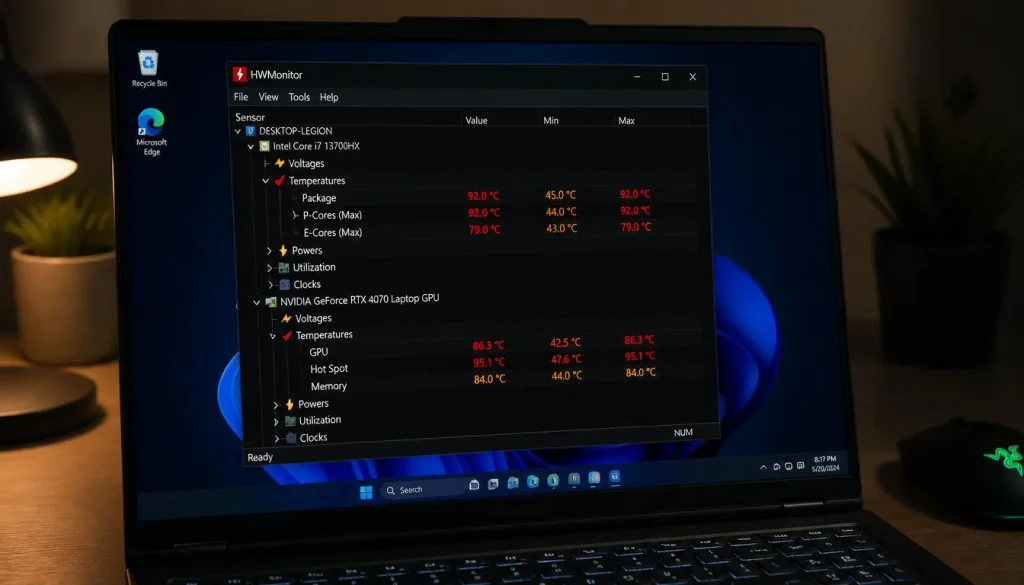
HWMonitor (Free, Windows) — Reads real-time temperatures for CPU, GPU, storage, and motherboard sensors. Shows minimum, maximum, and current values. Simple interface, no install required for the portable version.
- Pros: Comprehensive sensor data, completely free
- Cons: Windows only, no alerts or logging by default
Core Temp (Free, Windows) — Lightweight utility focused specifically on CPU core temperatures. Excellent for quick checks and sits quietly in the system tray.
- Pros: Minimal resource use, real-time per-core data
- Cons: Does not monitor GPU or storage
MSI Afterburner (Free, Windows/Linux) — Originally a GPU overclocking tool, it includes a full hardware monitoring overlay ideal for gamers.
- Pros: On-screen display during gaming, fan curve control
- Cons: Overkill for casual users, slight learning curve
iStatMenus / Activity Monitor (macOS) — Apple’s built-in Activity Monitor shows CPU load; iStatMenus adds temperature sensors and fan speeds to the menu bar.
- Pros: Native macOS integration
- Cons: iStatMenus is paid ($11.99)
CPU-Z + GPU-Z (Free, Windows) — Detailed hardware information tools that also surface thermal data. Great for users who want full system specs alongside temperature.
- Pros: Extremely detailed, trusted by enthusiasts
- Cons: Data-heavy interface, not beginner-friendly
HWiNFO64 (Free, Windows) — The most advanced free monitoring suite available. Supports thousands of sensor types and can log data over time — useful for identifying thermal patterns.
- Pros: Deep sensor support, logging, custom alerts
- Cons: Overwhelming for new users
SpeedFan (Free, Windows — legacy) — Older but still functional. Controls fan speeds manually on compatible laptops and reads sensor data.
- Pros: Fan speed control
- Cons: No longer actively developed, limited modern hardware support
Step-by-Step Guide: How to Check Your Laptop Temperature
- Download a monitoring tool. For Windows, download HWMonitor from CPUID.com. For macOS, open Activity Monitor or install iStatMenus.
- Install and launch the software. Run it as administrator on Windows for full sensor access.
- Locate the temperature readings. Look for sections labeled CPU, GPU, or Processor. Note the “Current,” “Min,” and “Max” columns.
- Check idle temperatures first. Close all apps and wait two minutes. A healthy idle CPU temperature is 35–55°C. Above 65°C at idle is a warning sign.
- Run a stress test. Open your browser with multiple tabs, launch a video, or run a benchmark like Cinebench R23 (free). Watch temperatures live.
- Note peak temperatures under load. A safe maximum for most CPUs is 85–90°C. If readings exceed 95°C consistently, thermal throttling is occurring.
- Check GPU temperature separately. Under gaming or video rendering load, GPU temps should stay below 90°C. NVIDIA and AMD both expose safe operating maximums in their documentation.
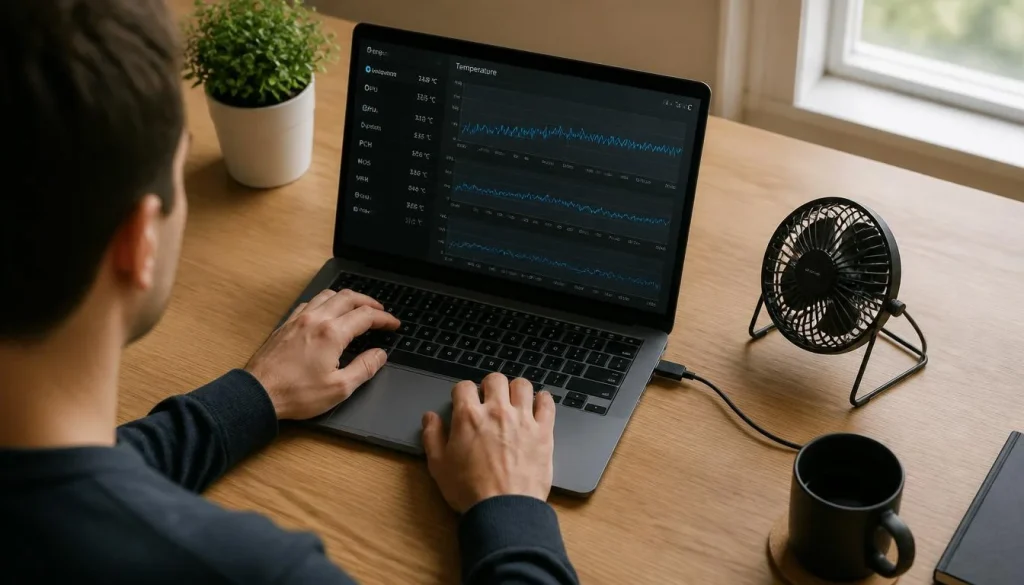
- Log and compare. Use HWiNFO64’s logging feature to capture data over 10–15 minutes. This shows whether heat builds continuously or stabilizes — a continuous climb means the cooling system is overwhelmed.
Expert Tips and Common Mistakes to Avoid
Pro tips from experienced technicians:
- Clean your vents every 6 months. Use compressed air through the exhaust vents — not the intake. Short bursts prevent fan over-spin.
- Use alaptop cooling pad. Quality pads with active fans (like Thermaltake MASSIVE or Cooler Master NotePal) can reduce CPU temps by 8–15°C.
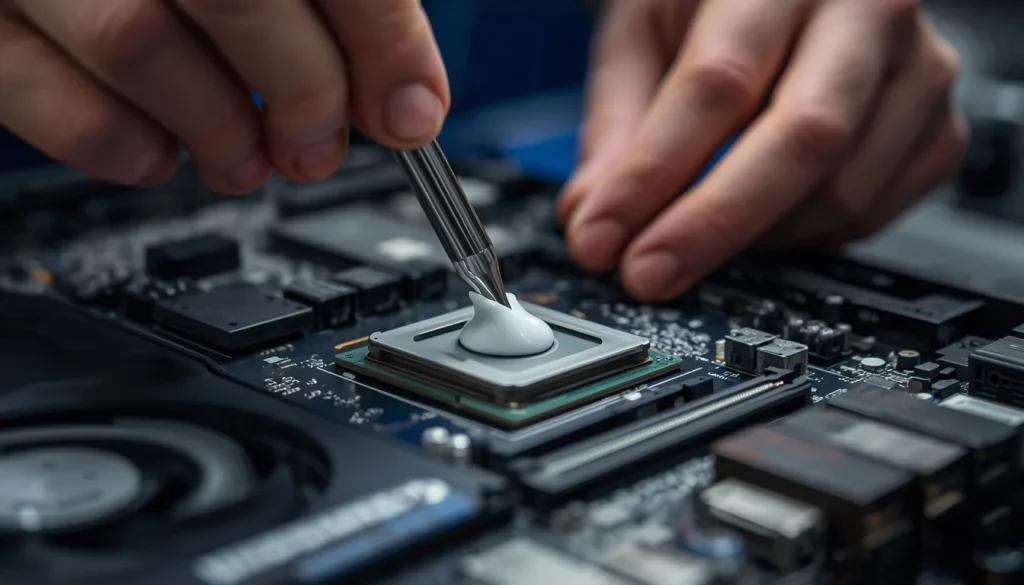
- Repaste the CPU every 2–3 years. High-quality thermal compounds like Thermal Grizzly Kryonaut dramatically improve heat transfer. This single step can drop temperatures by 15–20°C on older laptops.
- Switch to “Balanced” power mode. High-performance power plans push the CPU to run at maximum frequency constantly. Balanced mode reduces heat without a noticeable performance drop for most tasks.
- Undervolt your CPU (advanced). Tools like Intel XTU or ThrottleStop allow conservative voltage reductions of 50–100mV, cutting heat output without stability risk on most chips. Always research your specific processor model first.
Common mistakes to avoid:
- Using your laptop on a bed, sofa, or pillow — this blocks the bottom vents entirely and can raise temps by 20°C or more.
- Ignoring the fan noise. Sudden loud fans are your laptop asking for help — investigate immediately, not weeks later.
- Blowing compressed air into intake vents — this pushes dust deeper into the heatsink fins, making the problem worse.
- Assuming a hot bottom means normal operation. Mild warmth is fine; burning heat is not. Use a monitoring tool to verify.
“Thermal paste is like engine oil — people know to change their car’s oil but somehow forget that computers need maintenance too. Dried paste is one of the most common and easiest-to-fix causes of laptop throttling.”— Linus Sebastian, CEO of Linus Media Group / LinusTechTips
Frequently Asked Questions on How to Check if Your Laptop Is Overheating
What temperature is too hot for a laptop CPU?
For most modern CPUs, anything above 90°C under sustained load is considered hot, and above 95°C means throttling is likely occurring. At 100°C or more, the processor activates emergency shutdown to protect itself. Aim to keep peak temperatures below 85°C during normal use for long-term hardware health.
How do I check my laptop temperature without installing software?
On Windows, you can check the BIOS/UEFI for a hardware monitor screen — accessible by pressing F2, F10, or DEL at startup depending on your manufacturer. Some laptops (like Dell with SupportAssist or HP with HP Support) also have built-in diagnostics with temperature data. For real-time monitoring, a lightweight tool like Core Temp is highly recommended.
Why is my laptop fan constantly running at full speed?
A continuously maxed-out fan means the cooling system is struggling to keep up with heat output. Common causes include dust-clogged heatsink fins, dried thermal paste, a background process consuming excessive CPU resources, or inadequate ventilation from the laptop’s placement. Check Task Manager (Windows) or Activity Monitor (Mac) for runaway processes while monitoring temperatures.
Can overheating permanently damage a laptop?
Yes. Chronic overheating degrades solder joints on the motherboard, accelerates SSD wear, shortens battery lifespan, and can cause permanent CPU or GPU failure. Most laptops have thermal protection that shuts down before catastrophic failure, but repeated thermal stress over months causes cumulative damage that is not immediately visible.
Does a laptop cooling pad actually work?
For laptops with bottom-mounted intakes, active cooling pads with fans can reduce temperatures by 8–15°C in real-world conditions. They are most effective on older or thinner laptops where internal airflow is restricted. For well-cooled modern machines, the improvement may be smaller but the elevated angle alone improves airflow and ergonomics.
How often should I clean my laptop vents?
Every 6 to 12 months for typical home use. If you have pets, smoke indoors, or work in dusty environments, clean every 3 to 6 months. A five-minute compressed air session costs nothing and can recover several degrees Celsius of thermal headroom immediately.
Can software updates fix laptop overheating?
Sometimes, yes. Manufacturers often release BIOS and firmware updates that improve fan curve profiles, fix power management bugs, and refine thermal algorithms. Always keep your laptop’s BIOS, chipset drivers, and GPU drivers up to date. A single firmware patch has been known to resolve throttling on specific models entirely.
Conclusion
Knowing how to check if your laptop is overheating is one of the most valuable maintenance skills any user can develop. With free tools like HWMonitor, Core Temp, or the macOS Activity Monitor, you can see exactly what is happening inside your machine in minutes. Safe CPU temperatures stay below 85–90°C under load — anything consistently higher demands action.
Start with the basics: clean the vents, check power settings, and avoid soft surfaces. If temperatures remain high, consider a quality cooling pad or a professional reapplication of thermal paste. Staying ahead of heat issues protects your investment, keeps your laptop performing at its best, and prevents the kind of gradual hardware damage that shows up as an unexpected repair bill months later. Try these laptop cooling tips today — your hardware will thank you.
“The best maintenance is preventive maintenance. A laptop that runs cool runs fast, runs long, and rarely needs repair.”— Kyle Wiens, CEO of iFixit, Repair Advocate
For deeper dives into laptop hardware, testing methodology, and thermal benchmarks across specific models, NotebookCheck’s comprehensive benchmark database is one of the most trusted technical resources available — covering real-world thermal performance data for thousands of laptop configurations.

“Electronics aren’t just gadgets. They’re the invisible threads that connect our work, our play, and our world.”
I’m Julian Reed, and my obsession with tech started at age twelve, when I soldered a defunct gaming console back to life in my bedroom. That tiny green screen taught me that technology isn’t just a black box, it’s a tool you can master.
After fifteen years as a hardware engineer and a decade reviewing consumer tech, I’ve joined this team to cut through the jargon. Whether you’re building a high-end home theater or just need a laptop that won’t lag, I’m here to help you choose the gear that truly powers your life.


