Why is my laptop very slow on startup?
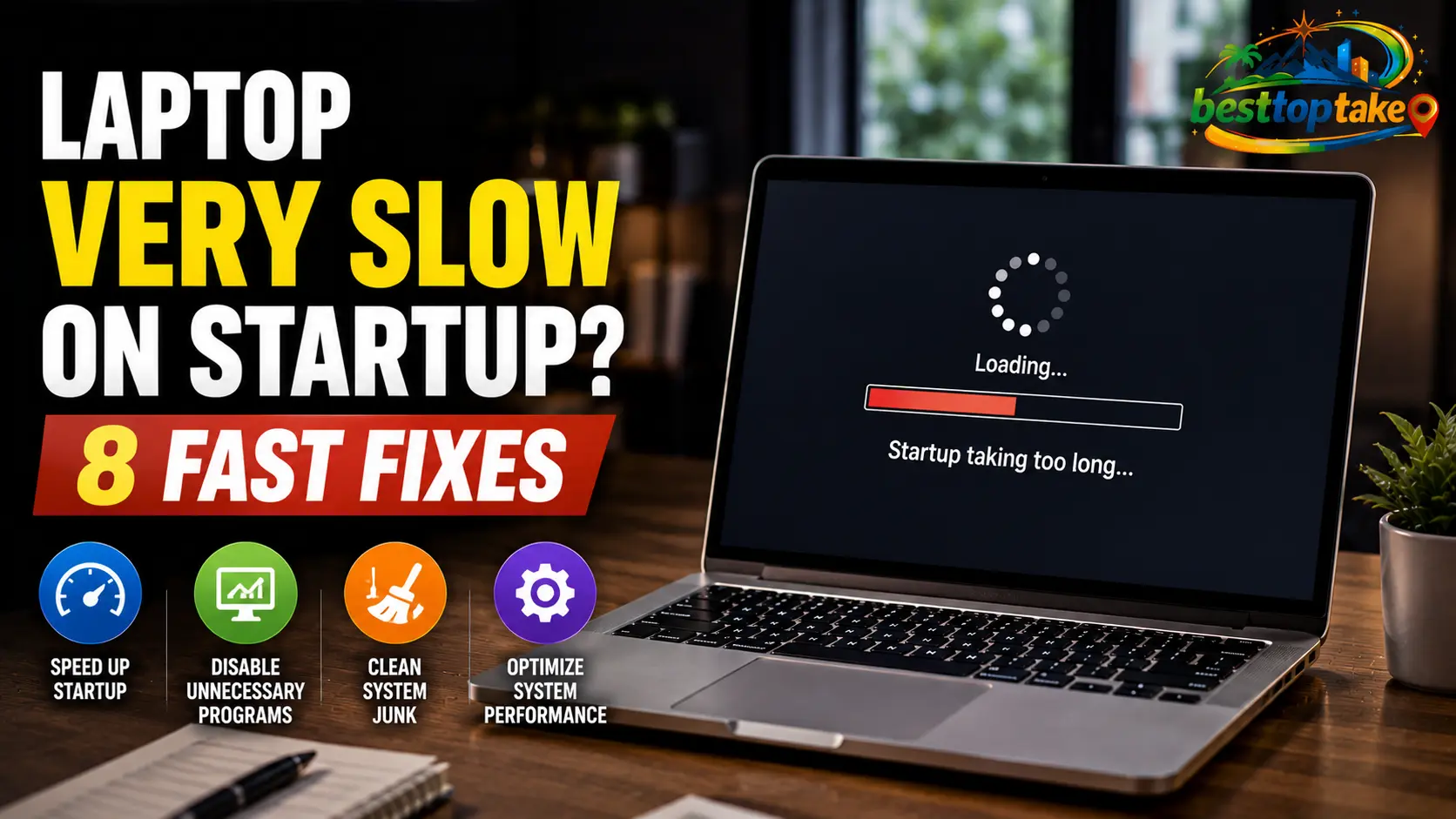
The most common reasons include too many programs launching automatically, a failing or nearly-full hard drive, malware infections, or outdated Windows/drivers. The simplest fix: press Ctrl+Shift+Esc → go to Startup tab → right-click and disable everything non‑essential, then restart your laptop.
I know the feeling. You open your laptop, hit the power button, and wait. And wait. And wait some more. The login screen finally appears minutes later, but your browser still crawls. What was supposed to be a two‑minute email check turns into a full‑blown frustration session.
I’ve been troubleshooting slow computers for over a decade, helping thousands of people just like you take control of their machines. In this guide, I’ll walk you through exactly why your laptop very slow on startup and show you, step by step, how to fix it for good.
Pain Points & Solutions
When a laptop is very slow on startup, it’s usually one of three problems. Let’s tackle them head‑on.
1. “My laptop is very slow on startup even though I just bought it”
Why this happens: Many new laptops come packed with “trialware” and manufacturer apps that launch automatically the moment you turn the machine on. Each extra program eats up your processor and memory, turning a swift startup into a slog.
The fix: Open Task Manager with Ctrl+Shift+Esc, click the Startup tab, and disable anything that isn’t essential (like your antivirus or audio drivers). You’d be surprised how much faster your laptop feels right away.
2. “It takes 3–4 minutes just to see my desktop”
Why this happens: Your laptop is likely running on an old mechanical hard drive (HDD). Modern computers use solid state drives (SSDs), which are 5–10× faster. An aging or nearly‑full HDD can make your system crawl.
The fix: First, free up at least 15–20% of your drive by deleting temporary files, old downloads, and unused programs. Open Settings → System → Storage to see what’s taking up space. If your budget allows, swapping the HDD for an SSD is the single biggest speed boost you can buy.
3. “My laptop was fast last week, now it’s painfully slow”
Why this happens: Malware often steals your system’s resources in the background. A sudden, unexplained slowdown is one of the classic signs of an infection. Also, a Windows update might have turned on extra background services or changed power settings.
The fix: Run a full virus scan using Windows Security (built‑in Defender is excellent). Go to Windows Security → Virus & threat protection → Scan options → Full scan. While that runs, check for pending Windows updates and install them. Many slow startup problems vanish after a simple update.
What Actually Happens During Startup? (And Why It Slows Down)
When you press the power button, your laptop loads its operating system, drivers, and a list of automatically starting programs. Everything competes for your CPU cores, memory, and storage speed. Think of it like a single‑lane highway at rush hour – too many vehicles trying to merge at once.
The good news? You control almost every part of this process.
Fix #1: Stop Unnecessary Startup Programs (The 5‑Minute Miracle)
This is the #1 cause of a laptop very slow on startup. Here’s how to clean it up:
- Press
Ctrl + Shift + Escto open Task Manager - Click the Startup tab (if you don’t see it, click “More details”)
- Look at the Startup impact column – programs marked “High” are the biggest offenders
- Right‑click each item you don’t need immediately (Spotify, Zoom, Adobe updaters, game launchers) and select Disable
Pro Tip: Don’t disable your antivirus, audio drivers, or graphics card software. Everything else is fair game. You can always open these programs manually when you need them.
Fix #2: Free Up Disk Space
When your storage drive is over 85% full, Windows struggles to find room for temporary files and virtual memory. This directly slows down boot times.
Steps to clean your drive:
- Type “Disk Cleanup” in the Windows search bar and open it
- Select your main drive (usually C:)
- Check boxes for “Temporary files,” “Recycle Bin,” and “Delivery Optimization Files”
- Click OK to delete them
For a deeper clean, click Clean up system files and remove old Windows update caches.
Fix #3: Run System File & Hardware Checks
Corrupted system files can cause a laptop very slow on startup without any other warning signs.
Run these two commands:
- Open Command Prompt as Administrator (right‑click Start and choose “Terminal (Admin)”)
- Type
sfc /scannowand press Enter – wait for it to finish - Then type
DISM /Online /Cleanup-Image /RestoreHealthand press Enter
Both tools automatically repair damaged Windows files that might be dragging down your boot time.
Fix #4: Disable Fast Startup (Yes, Really)
Fast Startup sounds helpful, but on some machines, it causes more problems than it solves. It’s a hybrid mode that doesn’t fully reboot your system. Over time, this can lead to driver conflicts and memory leaks that actually make your laptop very slow on startup.
To turn it off:
- Go to Control Panel → Hardware and Sound → Power Options
- Click Choose what the power buttons do
- Click Change settings that are currently unavailable
- Uncheck Turn on fast startup (recommended)
- Click Save changes
Then restart your laptop normally. Many users report noticeably faster boots after disabling this feature.
Pro Tip: After disabling Fast Startup, make it a habit to restart your laptop at least once a week. A full restart clears out memory and temporary files that accumulate during daily use.
Fix #5: Check for Malware (Even If You Think You’re Safe)
Malware often hides in startup entries, consuming CPU cycles the moment your desktop appears. Run a full scan using Windows Security:
- Open Windows Security from the Start menu
- Click Virus & threat protection
- Under “Current threats,” click Scan options
- Select Full scan and click Scan now
This takes 30–60 minutes but can find infections that quick scans miss. If malware is found, let Windows remove it, then restart.
Fix #6: Update Windows & Drivers
Outdated drivers – especially chipset, storage, and graphics drivers – can cause boot‑time conflicts. Windows Update handles most of this automatically, but it’s worth checking manually.
To update:
- Go to Settings → Windows Update → click Check for updates
- Install everything available, then restart
- Under Advanced options → Optional updates, install any driver updates listed
Should You Upgrade Your Hardware?
Sometimes software tweaks aren’t enough. If your laptop is veryslow on startup and other fixes haven’t helped, your hardware might be the bottleneck.
Here’s a quick comparison to help you decide:
| Symptom | Likely Culprit | Typical Fix | Time to Fix |
|---|---|---|---|
| Boot takes 2+ minutes, loud spinning noise | Old HDD | Upgrade to SSD (2.5” or M.2) | 30–60 minutes |
| Laptop feels sluggish after opening 3–4 browser tabs | Not enough RAM | Add more RAM (8GB minimum, 16GB ideal) | 15 minutes |
| Boot is slow AND you see “disk 100%” in Task Manager | Failing drive | Back up data immediately, replace drive | ASAP |
| Stops responding for 10–20 seconds after login | Too many startup programs | Disable startup items (Fix #1) | 5 minutes |
A 2025 PCMag performance report found that laptops using SSDs boot to the desktop in just 18–30 seconds, while older HDD-equipped models often take 90–120 seconds or longer. If you’re still on a mechanical hard drive, that upgrade alone will transform your machine.
What the Experts Say
Don’t just take my word for it. Here’s what other trusted voices in the industry have to say:
“If your system boots very quickly in Diagnostic mode, you’ll likely improve performance by reducing the load at startup. If it’s still really slow, you may have a hardware problem.”
— Ken Colburn, Computer Technician & Consumer Tech Columnist
“A major red flag is when your system starts freezing, crashing, or running unusually slow. Malware can consume your device’s memory and processing power, leaving fewer resources for everyday tasks.”
— Sparklight Security Team, One2One Tech Support
“The most significant of the benefits of solid-state drive vs hard drive is raw speed. An enterprise PC equipped with an SSD boots up in seconds, not minutes.”
— TeamViewer Engineering Team, Remote Access & IT Management Platform
For official guidance, Microsoft recommends checking the “Startup impact” column in Task Manager to identify heavy startup programs and suggests running sfc /scannow to repair corrupt system files that can cause slow boots – you can find these steps on the official Microsoft Q&A and Windows support pages.
FAQ
How long should a laptop take to start up?
A modern laptop with an SSD (solid state drive) should boot in 10–30 seconds. Older laptops with HDDs may take 60–90 seconds. If you’re waiting longer than two minutes consistently, something needs fixing.
Will resetting Windows make my laptop faster?
Yes, a clean Windows reset removes bloatware, malware, and years of digital clutter. Back up your personal files first, then go to Settings → System → Recovery → Reset this PC. Choose “Keep my files” if you want to save your data.
Why is my laptop very slow on startup after an update?
Updates sometimes reset power settings, turn on new background services, or install drivers that conflict with your hardware. Try disabling Fast Startup (Fix #4) or roll back recent driver updates in Device Manager.
Can a virus cause slow startup without other symptoms?
Absolutely. Many modern malware strains are designed to run quietly in the background, using your processor for crypto mining or sending spam without showing pop‑ups or obvious crashes. A slow startup is often the first sign.
Do I need to defrag my hard drive?
Only if you have an HDD (mechanical hard drive). Never defragment an SSD – it reduces its lifespan. Windows defragments HDDs automatically every week, but you can manually run it by searching for “Defragment and Optimize Drives.”
Conclusion
Let’s wrap up what we’ve covered:
- Startup programs are almost always the first culprit – disable everything non‑essential in Task Manager.
- Hardware matters – upgrading from an HDD to an SSD is the best investment you can make for speed.
- Maintenance keeps things fast – run occasional malware scans, free up disk space, and restart your laptop fully each week.
You don’t need to be a tech expert to fix a laptop very slow on startup. Just follow these steps in order, and you’ll shave minutes off your morning wait.
Now it’s your turn: Which part of your startup feels the slowest? Drop a comment below – I read every one and love helping folks get their laptops back in shape.
Disclaimer: Always back up your important files before making major system changes. When in doubt, consult a local repair professional.

“Electronics aren’t just gadgets. They’re the invisible threads that connect our work, our play, and our world.”
I’m Julian Reed, and my obsession with tech started at age twelve, when I soldered a defunct gaming console back to life in my bedroom. That tiny green screen taught me that technology isn’t just a black box, it’s a tool you can master.
After fifteen years as a hardware engineer and a decade reviewing consumer tech, I’ve joined this team to cut through the jargon. Whether you’re building a high-end home theater or just need a laptop that won’t lag, I’m here to help you choose the gear that truly powers your life.