
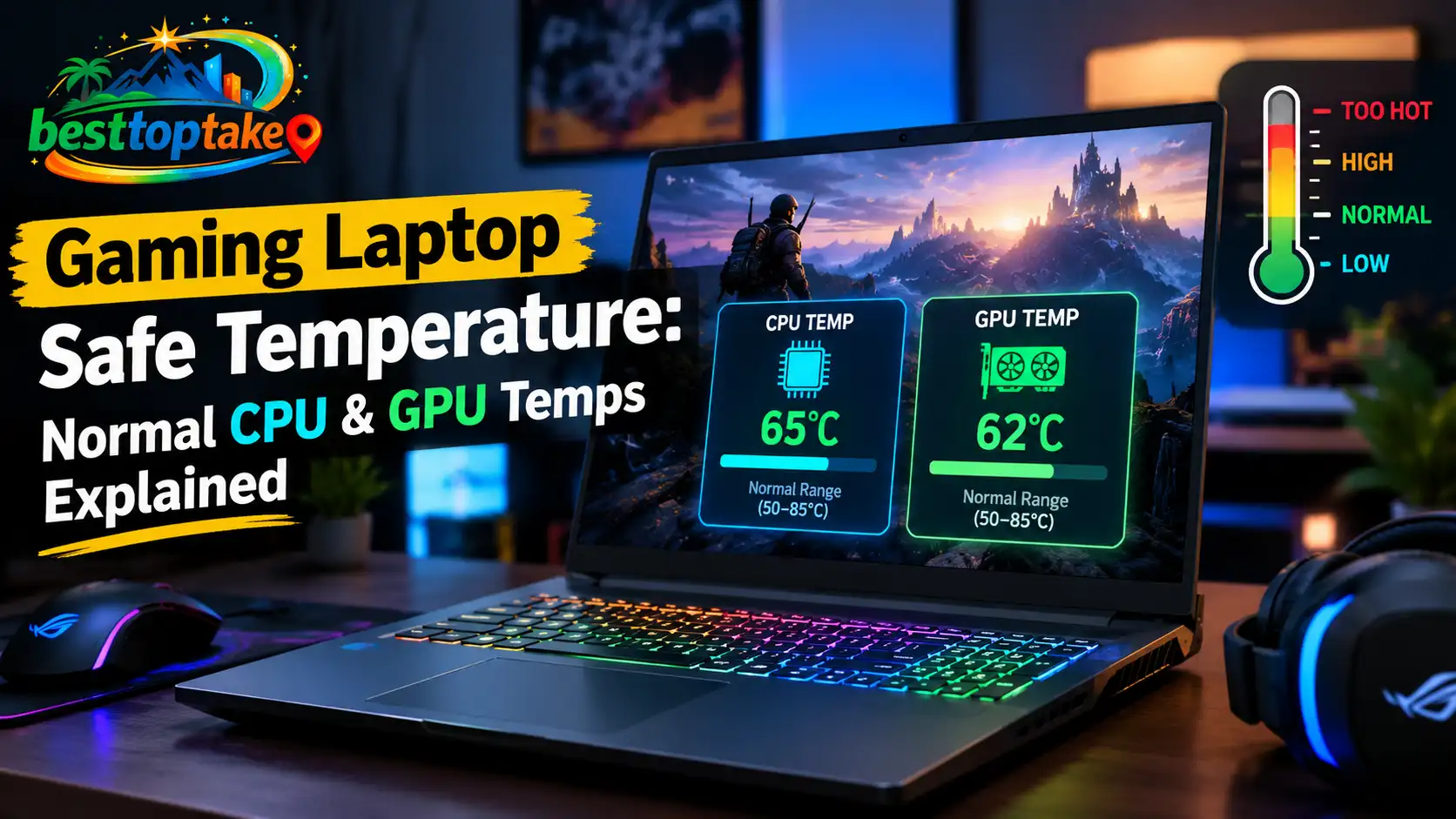
Seeing 85°C, 90°C, or even 95°C on a gaming laptop can be alarming. You may wonder whether the laptop is overheating, whether the CPU or GPU is being damaged, or whether you should stop playing immediately.
The important thing to understand is that gaming laptops are designed to run much hotter than desktop computers. Their high-performance CPUs and GPUs operate inside a compact chassis, so temperatures that look unusually high can still be normal under a demanding gaming load.
As a practical starting point, many gaming laptops operate with the CPU somewhere around 70–90°C (158–194°F) during gaming, while the GPU often runs around 65–85°C (149–185°F). However, those numbers are guidelines rather than universal safety limits.
The exact safe temperature depends on your processor, graphics chip, laptop design, cooling profile, room temperature, and workload. Intel, for example, states that the maximum junction temperature varies by processor and is commonly in the 100–110°C range. Some current AMD mobile processors list a 100°C maximum operating temperature, while other AMD models have different limits.
So instead of asking only, “What temperature is safe?”, a better question is:
Is my laptop maintaining normal performance without constantly hitting its thermal limit?
That distinction will help you diagnose the problem correctly.
Quick Answer: What Is a Safe Gaming Laptop Temperature?
The following ranges are useful as general reference points, not fixed limits for every laptop.
| Usage | CPU Temperature | GPU Temperature | What It Usually Means |
|---|---|---|---|
| Idle | 35–60°C / 95–140°F | 35–55°C / 95–131°F | Usually normal |
| Light use | 45–70°C / 113–158°F | 40–65°C / 104–149°F | Normal |
| Gaming | 70–90°C / 158–194°F | 65–85°C / 149–185°F | Common under load |
| Heavy gaming/load | 85–95°C / 185–203°F | 80–90°C / 176–194°F | Monitor closely |
| Near chip thermal limit | Around 95–110°C depending on hardware | Model-specific | Check exact manufacturer specification |
A short temperature spike is not the same as sitting at the thermal limit for an entire gaming session.
Some modern gaming laptops are specifically designed to allow the CPU to boost aggressively until it approaches its thermal-management threshold. Dell documents gaming laptops where CPU temperatures can exceed 99°C or even 100°C under heavy loading before the system’s thermal controls reduce performance.
That is why you should always consider the temperature together with clock speed, performance, fan behavior, and the manufacturer’s thermal specification.
What Is a Normal and Safe Temperature for a Gaming Laptop?
A normal gaming laptop temperature changes depending on what the laptop is doing.
A machine sitting on the desktop with a browser open should not normally behave the same way as one running Cyberpunk 2077, Call of Duty, Fortnite, or another demanding game at high settings.
During gaming, both the CPU and GPU consume significantly more power. More power means more heat, and the cooling system responds by increasing fan speed.
ASUS explains that when resource-intensive programs such as games increase CPU and GPU temperature, fan speed rises to move more air through the cooling system.
So a laptop getting noticeably warmer and louder during gaming is not automatically a sign of overheating.
Normal CPU Temperature for a Gaming Laptop
For many gaming laptops, a CPU temperature in the 70–90°C range during gameplay is not unusual.
Some laptops will stay closer to the lower end. Others, especially thin performance-oriented models, may spend considerable time in the upper 80s or low 90s.
ASUS has published guidance noting gaming temperatures around 85–90°C as expected on some gaming systems, while newer ASUS guidance emphasizes that even CPU temperatures around 95–100°C are not automatically evidence of overheating if the processor is operating within its designed thermal limits and the system remains stable.
The exact processor matters more than a generic number.
Normal GPU Temperature for a Gaming Laptop
Laptop GPUs often run somewhat cooler than laptop CPUs.
A GPU in the 65–85°C range during gaming is common across many designs, although this varies significantly according to GPU model, power limit, cooling system, game, frame rate, and laptop chassis.
Do not assume your GPU should stay as cool as it does when browsing or watching videos. When the GPU is operating near full utilization, a substantial increase in temperature is expected.
The critical value is the thermal limit specified for your exact GPU and laptop design.
Normal Gaming Laptop Temperature at Idle
Idle temperatures vary more than people expect.
Background Windows tasks, antivirus scans, software updates, browser processes, charging, RGB software, game launchers, and manufacturer utilities can temporarily increase CPU activity.
That means seeing a quick spike into the 60s or even higher does not necessarily indicate a cooling problem.
Dell specifically notes that a computer described as “idle” is not necessarily doing nothing. Background tasks can briefly increase CPU frequency and produce short temperature peaks before temperatures fall again.
What matters more is the sustained idle temperature.
If the laptop remains extremely hot for long periods with almost no workload, the fans are constantly running at maximum speed, or performance is poor, further troubleshooting is worthwhile.
Normal Temperature While Gaming
Under gaming load, CPU temperatures around 70–90°C and GPU temperatures around 65–85°C are reasonable general expectations.
However, modern mobile CPUs can run hotter.
A high-performance laptop CPU touching 90–95°C does not automatically mean something is wrong. A processor repeatedly hitting its maximum thermal limit while losing clock speed, stuttering, or shutting down is more concerning.
If you are worried because your laptop feels extremely hot during games, read the BestTopTake guide on whether it is normal for a laptop to get hot while gaming. Is it normal for a laptop to get hot while gaming?
Gaming Laptop Temperature Chart: Idle, Gaming, and Heavy Load
Here is a simple way to interpret the numbers you see in temperature-monitoring software.
| Component | Idle | Typical Gaming | Heavy Load | What Deserves Attention |
|---|---|---|---|---|
| CPU | 35–60°C | 70–90°C | 85–95°C+ | Repeated throttling, instability, or sustained operation near Tjmax |
| GPU core | 35–55°C | 65–85°C | 80–90°C | Sustained operation near the model’s thermal limit |
| GPU hotspot | Higher than GPU core | Higher than GPU core | Can rise substantially | Compare against manufacturer limits rather than GPU-core temperature |
Remember that these are practical ranges, not guaranteed specifications.
One gaming laptop might run its CPU at 88°C without any problem, while another processor may have a different power target or thermal limit.
The best reference is always the exact specification for your CPU, GPU, and laptop model.
What Temperature Is Too Hot for a Gaming Laptop?
There is no single temperature at which every gaming laptop becomes “too hot.”
A better definition is this:
A gaming laptop is running too hot when temperature repeatedly reaches the component’s thermal-management limit and begins causing throttling, instability, unexpected shutdowns, or abnormal behavior.
Intel defines Tjunction max as the maximum junction temperature before internal thermal-control mechanisms begin reducing power to limit temperature. The exact value varies by processor.
That means 90°C could be acceptable for one CPU under a heavy load, while another component may have a lower thermal limit.
ASUS also notes that sustained CPU or GPU temperatures around 90–95°C can indicate that a system is approaching its throttling range, although the exact threshold depends on the hardware and chassis.
Instead of judging by one number, look for combinations such as:
- Temperature repeatedly sitting at the thermal limit
- FPS dropping after several minutes of gaming
- CPU or GPU clock speeds falling sharply
- Severe stuttering
- Fans failing to spin properly
- Games crashing repeatedly
- Unexpected shutdowns
- Burning smells or unusual physical heat in areas that normally remain cool
If several of these appear together, you should investigate the cooling system.
Is 70°C, 80°C, 85°C, 90°C, 95°C, or 100°C Safe While Gaming?
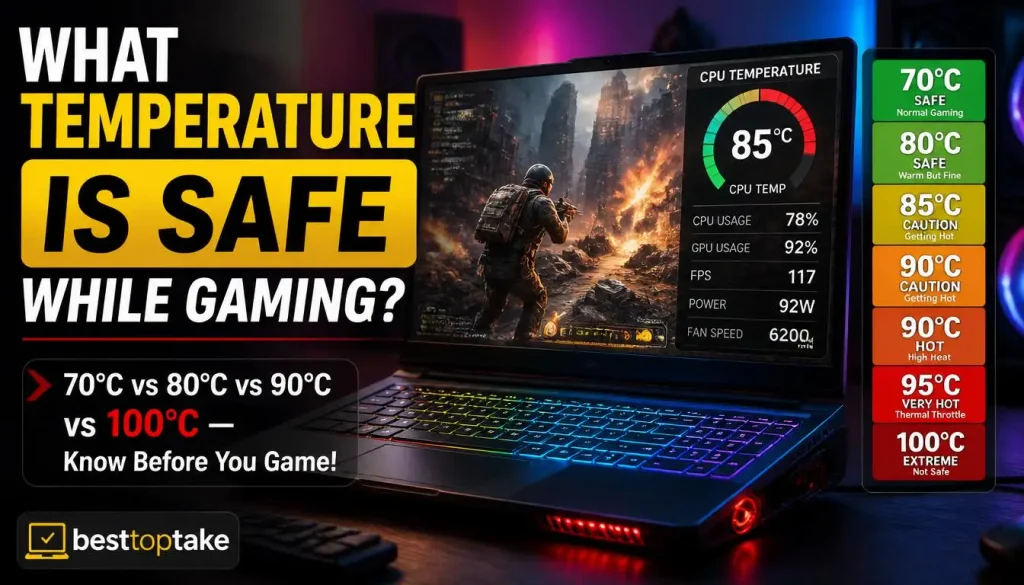
Temperature questions are easier to answer when you separate normal gaming heat from the actual maximum operating temperature of the component.
Is 70°C Safe for a Gaming Laptop?
In most gaming situations, 70°C is not an alarming temperature for either a CPU or GPU.
For a laptop under meaningful gaming load, 70°C may actually indicate that the cooling system is handling the workload comfortably.
Is 80°C Safe While Gaming?
For most modern gaming laptop CPUs, 80°C during gameplay is generally within a reasonable operating range.
An 80°C GPU may also be normal under sustained load depending on the GPU and laptop design.
You should still compare the result with your hardware’s specifications, but 80°C by itself is usually not a reason to panic.
Is 85°C Safe While Gaming?
85°C is common on many gaming laptops, especially for the CPU.
At this point, it becomes more useful to watch whether the temperature stays stable and whether the laptop continues delivering expected performance.
If your CPU sits around 85°C during a demanding game while frame rates and clock speeds remain steady, that is very different from a laptop that climbs past 85°C and immediately begins losing performance.
Is 90°C Too Hot for a Gaming Laptop?
Not necessarily.
90°C is high, but high does not automatically mean unsafe.
Many modern laptop CPUs are designed to operate in the 90°C range under demanding workloads. Your exact Tjmax value determines how close 90°C is to the processor’s limit.
A GPU at 90°C deserves closer attention because laptop GPU thermal limits can differ substantially from CPU limits.
If your laptop regularly reaches this range, monitor performance and check the exact hardware specifications.
Is 95°C Too Hot for a Gaming Laptop?
95°C is close enough to the thermal ceiling of many mobile processors that you should pay attention to what the system is doing.
If 95°C appears as an occasional CPU spike during boosting and immediately drops, it may be normal.
If the CPU remains at 95°C throughout a long gaming session while clock speeds decrease, fans remain at maximum speed, and FPS gradually falls, the laptop may be thermally constrained.
That distinction matters more than the number alone.
Is 100°C Too Hot for a Gaming Laptop?
100°C requires context.
For some processors, 100°C is at or around the designed maximum junction temperature. Intel states that its maximum junction temperature varies by product and is usually between 100°C and 110°C.
Several current AMD laptop processors also list Tjmax at 100°C, although AMD models exist with lower limits such as 95°C.
So reaching 100°C does not automatically mean your CPU has been damaged.
However, repeatedly sitting at that level means the processor may have little thermal headroom remaining. Check for throttling and compare the reading with the official specification for your exact CPU.
Which Gaming Laptop Temperature Reading Should You Monitor?
Temperature-monitoring tools often display several sensors at once.
That can make troubleshooting confusing because you may see CPU Package, CPU Core, GPU Temperature, GPU Hotspot, memory temperature, and several other readings.
They do not all represent the same thing.
CPU Package Temperature vs. Core Temperature
Individual CPU core temperatures show the readings associated with specific processor cores.
CPU Package is a broader reading that represents the processor package and is often the most convenient number to watch during gaming.
It is normal for individual cores to differ slightly.
One core may temporarily run hotter because a game or background process places more work on it.
Rather than becoming concerned about a one-second peak on a single core, look at the overall pattern:
- Current temperature
- Average temperature
- Maximum temperature
- Clock speed
- Thermal-throttling status
GPU Temperature vs. GPU Hotspot Temperature
GPU temperature normally refers to a more general core temperature reading.
GPU hotspot temperature represents one of the hottest measured areas of the graphics processor.
Because it measures a hotter point on the chip, the hotspot reading can be significantly higher than the ordinary GPU temperature.
That difference is normal.
Do not compare a GPU hotspot temperature directly with a generic “safe GPU temperature” chart without checking what the number represents.
NVIDIA’s monitoring documentation distinguishes multiple temperature measurements and specifications, including GPU target temperature and supported memory-temperature limits.
Average Temperature vs. Maximum Temperature
Maximum temperature is useful, but it can also create unnecessary concern.
Suppose your CPU averages 82°C during a 30-minute gaming session but briefly records a maximum of 96°C.
That does not mean the processor spent 30 minutes at 96°C.
It may have reached that temperature for only a second during a boost event.
Average and sustained temperatures often tell you more about the cooling system than one isolated maximum reading.
How to Find Your CPU or GPU’s Maximum Safe Temperature
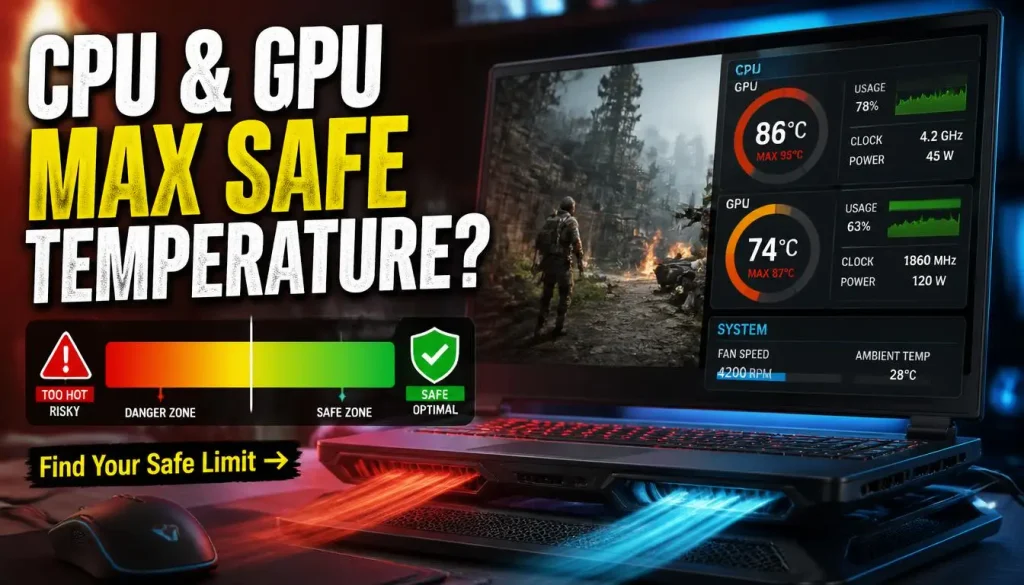
Instead of relying entirely on generic temperature charts, check the specification for your exact hardware.
What Is Tjunction or Tjmax?
Tjunction max, usually shortened to Tjmax, is the maximum junction temperature defined for the processor.
Intel explains that when its processor approaches this threshold, thermal-control mechanisms can reduce frequency and power to control heat.
The number is not identical across every processor.
How to Check an Intel CPU Temperature Limit
First identify the exact processor model installed in your laptop.
On Windows, you can usually find it through:
Settings > System > About
or:
Task Manager > Performance > CPU
Once you know the CPU model, check Intel’s official product specification page and look for the processor’s Package Specifications section.
Intel recommends checking the processor-specific Tjunction or Tcase value rather than assuming every Intel processor has the same limit.
How to Check an AMD CPU Temperature Limit
Find your exact AMD CPU model, then look up its official processor specification.
For example, AMD lists a maximum operating temperature of 100°C for several current Ryzen mobile chips. However, some models list different limits, demonstrating why model-specific information matters.
How to Check Your GPU Thermal Limit
Identify the exact laptop GPU first.
Remember that laptop GPUs can use different power configurations even when they share a similar product name.
Check NVIDIA, AMD, and your laptop manufacturer’s specifications and support documentation whenever possible.
Your laptop manufacturer may also configure cooling behavior around the chassis design rather than relying only on the GPU’s theoretical maximum.
Why Do Gaming Laptops Run So Hot?
Gaming laptops combine powerful hardware with very limited internal space.
That creates an unavoidable thermal challenge.
Powerful CPU and GPU
Games can place a heavy simultaneous load on both the processor and graphics chip.
The more power those components consume, the more heat the cooling system must remove.
Compact Cooling System
A desktop gaming PC may have large heatsinks, multiple case fans, and plenty of internal airflow.
A laptop has to cool similar high-performance components using small fans, heat pipes or vapor chambers, and narrow exhaust paths.
High FPS and Graphics Settings
The harder your CPU and GPU work, the more heat they normally generate.
If your laptop is rendering 200 FPS even though your display only needs a fraction of that performance, limiting frame rate can sometimes reduce unnecessary power consumption and heat.
Turbo and Performance Modes
Gaming laptops often include Balanced, Performance, Turbo, Overdrive, or similar profiles.
Higher-performance modes may allow the CPU or GPU to use more power and sustain higher boost frequencies.
Dell documents this trade-off clearly: more aggressive thermal modes can run the fans harder and allow higher performance for longer periods.
Dust and Blocked Airflow
Dust gradually collects around cooling fans, intake vents, and heatsink fins.
As airflow decreases, temperatures can rise even though your gaming habits have not changed.
If your laptop has become noticeably hotter over time, BestTopTake’s step-by-step guide to cleaning a laptop cooling fan can help you inspect and clean the cooling system safely. How to clean a laptop cooling fan
Does Room Temperature Affect Gaming Laptop Temperature?
Absolutely.
A laptop cannot cool itself below the temperature of the air being used to remove heat.
Gaming in a warm room therefore gives the cooling system less thermal headroom.
ASUS recommends appropriate ventilation and notes an ambient operating range of 5–35°C (41–95°F) for applicable devices, while Dell also advises checking whether environmental temperature is contributing to higher laptop temperatures.
This is one reason your gaming laptop may run several degrees warmer during summer than it does during winter.
Are Sudden CPU Temperature Spikes While Gaming Normal?
Short CPU temperature spikes can be normal.
Modern processors continuously adjust frequency and power based on workload, temperature, available power, and performance demand.
Opening a game, loading a new level, compiling shaders, entering a busy area, or processing a sudden burst of background activity can temporarily increase CPU power.
Intel notes that processors using Turbo Boost can operate at very high frequency for short periods and may approach maximum temperature without this automatically indicating a problem.
Focus on the pattern.
A brief spike to 95°C followed by a return to 80–85°C is different from remaining at 95°C continuously while performance falls.
How to Tell If Your Gaming Laptop Is Overheating
Temperature alone does not always tell the whole story.
Look for these warning signs together with high readings:
- FPS starts high but falls after 10–30 minutes
- Games begin stuttering as the laptop heats up
- CPU or GPU clock speed drops sharply
- Fans remain at maximum speed constantly
- The laptop repeatedly freezes or crashes
- Unexpected shutdowns occur under gaming load
- Fan noise changes from normal airflow to grinding or rattling
- A cooling fan stops working
- You notice a burning smell
- The laptop becomes dramatically hotter than it used to under the same workload
Dell describes FPS and clock-speed reductions as expected outcomes when thermal-management systems reduce CPU or GPU speed and power to prevent overheating.
If overheating is already affecting your games, use the more detailed BestTopTake troubleshooting guide on how to fix laptop overheating while gaming. How to fix laptop overheating while gaming
How to Check Gaming Laptop CPU and GPU Temperature
The best time to check temperature is during an actual gaming workload.
A five-second reading on the Windows desktop does not tell you how your laptop behaves after 30 minutes of gaming.
Monitoring tools can display CPU temperature, GPU temperature, power usage, clock speed, fan information, and thermal-throttling indicators.
Depending on your hardware, useful options include:
- HWiNFO
- MSI Afterburner
- NVIDIA monitoring tools
- AMD software
- Armoury Crate on supported ASUS laptops
- Alienware Command Center on supported Dell/Alienware systems
- Lenovo Vantage on supported Lenovo laptops
- Other manufacturer utilities
A simple test looks like this:
- Start your monitoring software.
- Reset minimum, average, and maximum values if the tool supports it.
- Launch a game you regularly play.
- Play normally for around 20–30 minutes.
- Check CPU average and maximum temperature.
- Check GPU core and hotspot temperature if available.
- Check CPU and GPU clock speeds.
- Look for thermal-throttling indicators.
- Compare the results with the official specifications for your hardware.
This tells you far more than checking one temperature number immediately after opening a game.
What Is Thermal Throttling?
Thermal throttling is a protective mechanism that reduces performance when hardware reaches a thermal threshold.
Intel describes throttling as reducing processor clock speed when temperature reaches its thermal limit.
From a gamer’s perspective, thermal throttling can appear as:
- Lower CPU frequency
- Lower GPU frequency
- Reduced power consumption
- Sudden FPS loss
- Uneven frame times
- Stuttering
Thermal throttling does not automatically mean your laptop is damaged.
It means the system is actively managing heat.
However, if your laptop throttles heavily during normal gaming every time you use it, you may be leaving performance on the table.
BestTopTake’s gaming-laptop optimization guide covers additional performance settings that can help when heat, background apps, power settings, or configuration are limiting gaming performance. How to optimize your gaming laptop for maximum performance
How to Lower Gaming Laptop Temperature
If your temperatures are higher than expected, start with simple fixes before attempting advanced modifications.
1. Use the Laptop on a Hard, Flat Surface
Avoid gaming on:
- Beds
- Blankets
- Pillows
- Couches
- Thick carpets
These surfaces can partially or completely block bottom intake vents.
ASUS and Dell both recommend placing laptops on firm, flat surfaces so cooling airflow is not obstructed.
2. Raise the Back of the Laptop
Slightly elevating the rear can improve airflow underneath laptops with bottom-mounted intake vents.
A stable laptop stand can work well.
Just make sure the stand does not block the vents.
3. Clean Dust From the Vents and Fans
If temperatures have gradually become worse over several months, dust may be restricting airflow.
Cleaning external vents may help, while deeper buildup around fans and heatsinks may require opening the bottom panel.
Do not disassemble the laptop unless you are comfortable doing so and understand the warranty implications.
For a detailed cleaning procedure, see BestTopTake’s laptop fan cleaning guide. Step-by-step laptop cooling fan cleaning guide
4. Check Your Fan and Performance Mode
Your manufacturer’s software may provide profiles such as:
- Quiet
- Balanced
- Performance
- Turbo
- Overdrive
A Quiet profile may intentionally limit fan speed and performance.
Performance-oriented modes may use higher fan speeds to sustain more power.
Choose the profile that matches what you are doing instead of assuming one profile is best for every situation.
5. Close Unnecessary Background Apps
A browser with dozens of tabs, game launchers, recording software, cloud syncing, updates, antivirus scans, and other processes can add CPU load.
Check Windows Task Manager before gaming.
Reducing unnecessary background activity can lower CPU usage and sometimes reduce heat.
6. Limit Excessively High FPS
If a lightweight game runs at hundreds of frames per second, your GPU may work much harder than necessary.
Setting a reasonable FPS cap can reduce GPU utilization, power consumption, fan noise, and temperature in some games.
7. Adjust Demanding Game Settings
Not every graphics option affects temperature equally, but reducing unnecessary GPU load can help.
Consider adjusting:
- Ray tracing
- Resolution
- Render scale
- Shadow quality
- Volumetric effects
- View distance
- Frame-rate targets
The goal is not necessarily to turn everything to Low. It is to find a performance level your laptop can sustain comfortably.
8. Try a Cooling Pad or Laptop Stand
A cooling pad can help some laptop designs, particularly when the pad’s airflow aligns with the laptop’s bottom intake vents.
Results vary because cooling systems differ between models.
A stand without fans can also improve airflow simply by giving the intake vents more open space.
If you would rather troubleshoot without buying an accessory first, see BestTopTake’s guide to stopping laptop overheating without a cooling pad. Stop laptop overheating without a cooling pad
9. Update BIOS, Drivers, and Manufacturer Software
Laptop manufacturers sometimes improve:
- Fan curves
- Power management
- Thermal behavior
- GPU behavior
- Stability
through BIOS, firmware, driver, and control-software updates.
Dell specifically recommends keeping BIOS and drivers current when troubleshooting gaming-laptop thermal behavior.
10. Consider Professional Servicing or Repasting
If an older laptop remains unusually hot after airflow and software issues have been ruled out, its cooling system may need inspection.
Thermal-interface materials can degrade or shift over time, and heatsinks may require servicing.
However, repasting a laptop is much more involved than cleaning exterior vents.
Incorrect disassembly, thermal-pad placement, liquid-metal handling, or paste application can cause problems.
If your laptop is still under warranty or uses liquid metal, professional service or manufacturer support is often the safer option.
For additional cooling ideas, see BestTopTake’s complete guide on how to keep a gaming laptop cool while gaming. How to keep a gaming laptop cool while gaming
Does High Temperature Damage a Gaming Laptop?
Heat affects electronics, but the relationship is more complicated than “90°C equals damage.”
Modern processors include multiple protection mechanisms.
Intel processors, for example, can reduce frequency and power as they approach thermal limits.
Laptop manufacturers also design their cooling and firmware around the expected behavior of the installed components.
The greater concern is abnormal sustained heat combined with symptoms such as severe throttling, instability, failed cooling hardware, or repeated emergency shutdowns.
A processor occasionally approaching its thermal limit under a demanding boost workload is not the same as a laptop with clogged vents and a failed fan running at maximum temperature continuously.
When Should You Stop Gaming Because of High Temperature?
Use the behavior of the laptop as well as the temperature reading.
| Situation | Recommended Response |
|---|---|
| High temperature but stable performance and normal fans | Continue monitoring |
| Brief CPU temperature spikes | Usually monitor rather than panic |
| Temperature repeatedly near Tjmax | Check cooling and exact processor specifications |
| High temperature plus FPS or clock-speed drops | Investigate thermal throttling |
| Laptop suddenly much hotter than before | Inspect vents, fans, software load, and cooling |
| Fan grinding or not spinning | Stop heavy gaming and troubleshoot the fan |
| Repeated shutdowns or crashes | Stop heavy workloads and investigate |
| Burning smell or visible physical damage | Shut the laptop down and seek service |
If you need to reduce the temperature immediately, BestTopTake also has a guide on how to cool down a laptop quickly. How to cool down a laptop quickly
How to Keep Gaming Laptop Temperatures Lower Long-Term
Temperature management is easier when you prevent problems rather than waiting until the laptop starts shutting down.
A few habits make a meaningful difference:
- Keep intake and exhaust vents unobstructed.
- Avoid gaming on soft surfaces.
- Remove dust periodically.
- Watch for changes in normal fan behavior.
- Check temperatures occasionally rather than obsessively.
- Use the manufacturer’s appropriate thermal profile.
- Avoid unnecessary background CPU and GPU usage.
- Keep firmware and drivers updated.
- Pay attention when temperatures become significantly worse than they used to be.
- Use your laptop in a reasonably ventilated environment.
Fan noise can also be an early clue that the cooling system is working harder than usual. If your fan suddenly becomes much louder than normal, BestTopTake’s laptop fan noise guide explains the common causes and fixes. Laptop fan running loudly: causes and fixes
Frequently Asked Questions About Gaming Laptop Safe Temperature
What is a good temperature for a gaming laptop?
During gaming, CPU temperatures around 70–90°C and GPU temperatures around 65–85°C are useful general reference ranges. However, the exact safe limit depends on the CPU, GPU, laptop design, cooling profile, and manufacturer specifications.
What is a normal CPU temperature while gaming?
Many gaming-laptop CPUs operate somewhere in the 70–90°C range during gaming, while high-performance mobile processors may run into the 90s under demanding workloads.
Check the CPU’s specific Tjmax before deciding that a number is unsafe.
What is a normal GPU temperature while gaming?
A gaming-laptop GPU commonly operates around 65–85°C under gaming load, although the exact behavior depends on GPU power, game workload, cooling design, and thermal limits.
Is 80°C safe for a gaming laptop?
80°C is generally not alarming during gaming, particularly for a CPU or heavily loaded GPU. Monitor the system and compare the number with the component’s official thermal specifications.
Is 90°C safe for a gaming laptop CPU?
90°C can be normal for a modern high-performance laptop CPU under heavy gaming. It is more important to know the processor’s Tjmax and whether the laptop is throttling or becoming unstable.
Is 90°C safe for a laptop GPU?
90°C is relatively hot for many laptop GPUs and deserves closer monitoring. Check the exact GPU specification and make sure you are reading GPU core temperature rather than hotspot temperature.
Is 95°C too hot for a gaming laptop?
95°C is high, but an occasional CPU spike at that temperature may still be within design limits. Sustained 95°C operation combined with throttling or instability deserves investigation.
Is 100°C bad for a gaming laptop?
It depends on the processor.
Some processors have thermal limits around 100°C, while Intel notes that product-specific Tjunction limits commonly fall between 100°C and 110°C. Other processors may have lower limits.
Check the exact model specification rather than assuming 100°C means the same thing for every laptop.
Why is my gaming laptop so hot?
Gaming laptops generate a lot of heat because powerful CPUs and GPUs are operating inside a compact chassis. Temperatures can become worse because of blocked airflow, dust, high room temperature, aggressive performance modes, background software, or cooling-system problems.
For a deeper troubleshooting process, see BestTopTake’s guide on why a laptop heats up so fast. Why is my laptop heating up so fast?
Why does my CPU hit 90°C while gaming?
Your CPU may reach 90°C because the game is heavily loading the processor and the CPU is boosting to higher frequencies.
For many modern gaming laptops, brief or sustained temperatures around this level can occur by design. Check whether your CPU is near its Tjmax and whether it is throttling.
Can high temperature reduce FPS?
Yes.
When thermal-management systems reduce CPU or GPU frequency or power, gaming performance can fall.
Dell documents this behavior on gaming laptops, including situations where increased temperature leads to lower CPU/GPU speed and corresponding FPS reductions.
What temperature causes thermal throttling?
There is no universal throttling temperature.
The threshold depends on the specific CPU, GPU, laptop design, and firmware.
For Intel CPUs, check the processor’s Tjunction specification. Intel explains that thermal control mechanisms reduce power and frequency as the processor reaches its thermal limit.
Is 50°C normal when a gaming laptop is idle?
50°C can be normal for many gaming laptops, particularly if background applications are active, the laptop is charging, or the cooling profile prioritizes quiet fan operation.
What matters is whether the temperature remains stable and the laptop behaves normally.
Does room temperature affect gaming laptop temperature?
Yes.
A hotter room reduces the temperature difference between the laptop and the surrounding air, making it harder for the cooling system to remove heat.
Good ventilation and a reasonable ambient temperature can improve thermal behavior.
Bottom Line: What Temperature Should Your Gaming Laptop Run At?
For most gaming-laptop owners, the simplest rule is not to panic over one high number.
CPU temperatures around 70–90°C and GPU temperatures around 65–85°C are common practical ranges during gaming, but modern high-performance CPUs can operate above those numbers.
The most reliable way to judge your laptop is to combine four things:
temperature, duration, thermal limit, and performance behavior.
A momentary CPU spike to 95°C is very different from a laptop sitting at its thermal limit for an hour while frame rates collapse.
Check the Tjmax or maximum operating temperature for your exact CPU and GPU, watch for thermal throttling, keep the vents clean, maintain good airflow, and pay attention to changes in your laptop’s normal behavior.
If temperatures are high but performance remains stable, fans operate correctly, the vents are clear, and the components remain within their official limits, the laptop may simply be operating as designed.
If high temperatures come with severe throttling, crashes, shutdowns, failed fans, or an obvious change from previous behavior, that is the point where troubleshooting the cooling system becomes much more important.

“Electronics aren’t just gadgets. They’re the invisible threads that connect our work, our play, and our world.”
I’m Julian Reed, and my obsession with tech started at age twelve, when I soldered a defunct gaming console back to life in my bedroom. That tiny green screen taught me that technology isn’t just a black box, it’s a tool you can master.
After fifteen years as a hardware engineer and a decade reviewing consumer tech, I’ve joined this team to cut through the jargon. Whether you’re building a high-end home theater or just need a laptop that won’t lag, I’m here to help you choose the gear that truly powers your life.


