
Quick Answer: If your laptop shows a battery not detected error, start with a full power reset, shut down, unplug everything, hold the power button for 30 to 60 seconds, then restart. Next, open Device Manager and reinstall the Microsoft ACPI-Compliant Control Method Battery driver. If the error remains, check BIOS to see whether the battery is detected at hardware level. Then test your charger wattage and update BIOS before inspecting or replacing the battery.
A laptop battery not detected error can feel scary. Your laptop may work only when plugged in. The battery icon may show a red X. Windows may say “No battery is detected.” Some laptops may shut down the moment you remove the charger.
This problem can happen on HP, Dell, Lenovo, ASUS, Acer, MSI, and other modern laptops. It may come from a loose battery connection, a corrupted Microsoft ACPI battery driver, a weak adapter, outdated BIOS, or a worn lithium-ion battery. In 2026, many laptops also use smart battery firmware, USB-C charging, AI-powered power modes, and battery protection features. So one small software or hardware issue can make the system stop reading the battery.
The good news is that many laptop battery not detected issues can be fixed without replacing the laptop. In this guide, you will learn why this error matters, how to fix it step by step, which tools to use, and when a battery replacement is the right move.
Why Laptop Battery Not Detected Errors Matter
A laptop battery not detected warning is more than a small icon problem. It means your laptop cannot properly communicate with the battery. When that happens, the system may not know the battery charge level, charging status, health condition, or power safety limit.
This can affect your daily work. You may lose files if the charger slips out. Video calls can stop suddenly. Students may lose notes during class. Freelancers may lose progress while editing, coding, or designing. Even the best gadgets become hard to trust when they cannot run without direct power.
The issue also matters because it can point to deeper hardware trouble. A bad adapter may not provide stable voltage. A swollen battery may become unsafe. A dirty connector may stop the motherboard from reading battery data. A BIOS bug may block charging after a system update.
Modern smart devices use battery firmware to manage heat, charging cycles, and power delivery. If that firmware is stuck, your laptop may show the battery as missing even when it is physically installed. Fixing the issue early protects your files, improves battery life, and helps you avoid buying unnecessary budget electronics or replacement parts.
Best Fixes for Laptop Battery Not Detected Issues
Perform a Full Power Reset
Best for: Users whose laptop battery not detected message appeared after sleep mode, a crash, or a Windows update.
How to do it:
- Shut down the laptop completely from the Start menu.
- Unplug the charger and remove all USB devices, hubs, SD cards, and external drives.
- If your laptop has a removable battery, take it out carefully.
- Hold the power button for 30 to 60 seconds to drain stored power.
- Reinstall the battery, plug in the charger, and turn on the laptop.
Expected result: The laptop clears stuck power data and may detect the battery again.
A power reset works because laptops store small amounts of electrical charge inside capacitors. This can confuse the embedded controller. That controller helps the motherboard read the battery. A reset forces the laptop to restart battery detection from zero.
For laptops with built-in batteries, you can still do this. Turn the laptop off, unplug the charger, then hold the power button for 30 to 60 seconds. Some Lenovo ThinkPad models also have a small emergency reset hole under the laptop. Use a paperclip only if your model supports it.

Reinstall the Microsoft ACPI Battery Driver
Best for: Windows users seeing “No battery is detected” or a missing battery icon.
How to do it:
- Right-click the Start button and open Device Manager.
- Expand Batteries.
- Right-click Microsoft ACPI-Compliant Control Method Battery.
- Click Uninstall device, then confirm.
- Restart the laptop and let Windows reinstall the driver.
Expected result: Windows rebuilds the battery driver and restores battery status reading.
This is one of the most useful software fixes. The ACPI battery driver helps Windows talk to the laptop battery system. If this driver becomes corrupted, Windows may think the battery is missing.
Do not delete random system drivers. Only uninstall the battery driver listed under the Batteries section. After restart, Windows should reinstall it automatically. If you use a Dell XPS, HP Pavilion, Lenovo IdeaPad, ASUS VivoBook, or Acer Aspire, this fix is often worth trying before buying parts.
This solution also helps after major Windows 11 updates. In 2026, many laptops use power optimization features that adjust charging based on usage. A driver refresh can help Windows read those battery features again.
Check Battery Status in BIOS or UEFI
Best for: Users who want to know if the problem is from Windows or the laptop hardware.
How to do it:
- Restart your laptop.
- Press the BIOS key during startup. Common keys are F2, F10, F12, Esc, or Del.
- Look for Battery Information, Power, Diagnostics, or System Health.
- Check whether the battery is detected in BIOS.
- Save nothing unless needed, then exit BIOS.
Expected result: You will know if the battery is detected at hardware level.
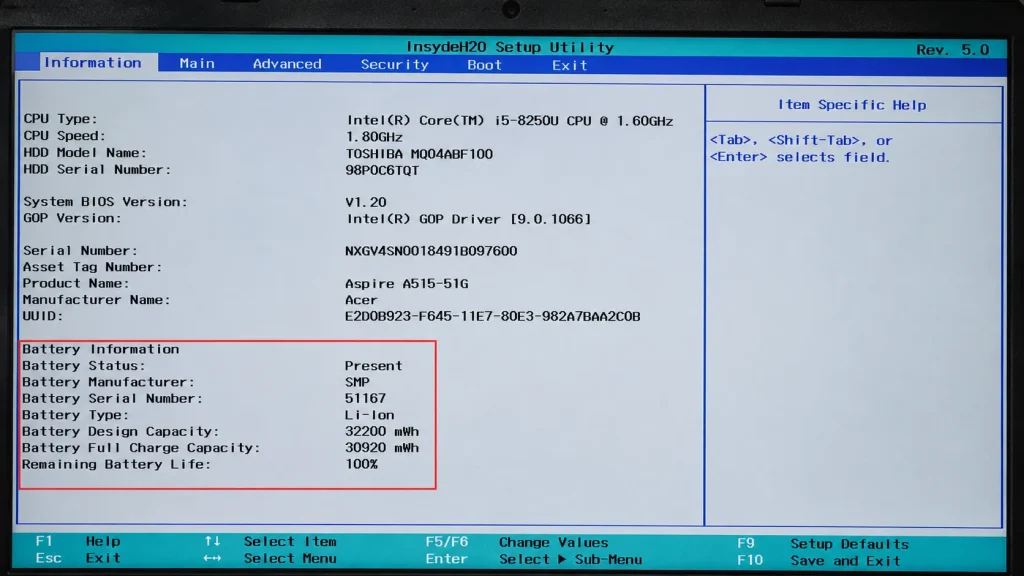
This step is very important. If BIOS detects the battery but Windows does not, the issue is likely software related. If BIOS also cannot detect the battery, the issue may be the battery, connector, motherboard, or charging circuit.
Dell laptops often include battery health in BIOS. HP laptops may show battery information under diagnostics. Lenovo laptops may show battery data in BIOS or Lenovo Vantage. ASUS laptops may show basic power data in UEFI.
Test the Charger and Power Adapter
Best for: Users whose laptop works on charger but does not charge or detect the battery.
How to do it:
- Check the charger wattage printed on the adapter, such as 45W, 65W, 90W, or 100W.
- Match it with your laptop’s required wattage.
- Inspect the cable for cuts, bent pins, loose USB-C tips, or heat marks.
- Try another original or certified charger with the same wattage.
- If using USB-C, test another USB-C PD port if your laptop has one.
Expected result: You will confirm if unstable power is blocking battery detection.
A weak charger can create confusing battery errors. The laptop may power on but fail to read or charge the battery. This is common with low-quality USB-C chargers, damaged barrel-pin adapters, and underpowered travel chargers.
For example, a laptop that needs a 65W USB-C PD charger may not work correctly with a 30W phone charger. Some gaming laptops need 150W, 180W, or higher adapters. They may run slowly or refuse charging with the wrong adapter.
Use a known-good charger when testing. For USB-C laptops, choose a certified 65W or 100W USB-C PD charger from a trusted brand.
Update BIOS and Battery Management Software
Best for: Users whose laptop battery not detected error started after updates, repairs, or long storage.
How to do it:
- Install your laptop brand’s official management app, such as Lenovo Vantage, Dell Power Manager, HP Support Assistant, ASUS MyASUS, or Acer Care Center.
- Open the app and check for BIOS, firmware, chipset, and battery updates.
- Plug in the charger before running any BIOS update.
- Do not shut down the laptop during the update.
- Restart and check battery status again.
Expected result: Updated firmware can restore correct battery detection and charging control.
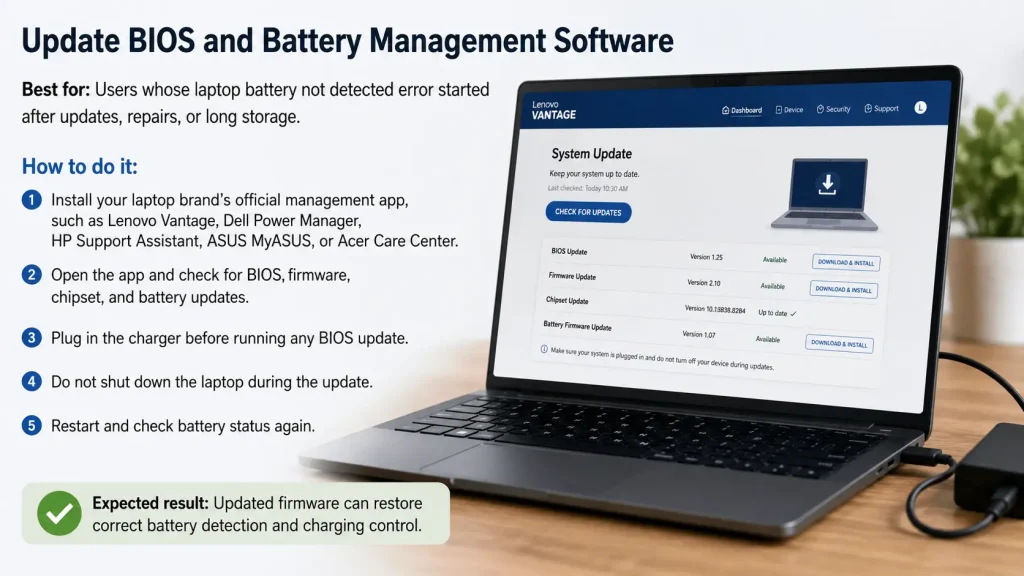
BIOS controls many low-level power functions. If the BIOS is outdated or buggy, the laptop may fail to read the smart battery chip. Battery management apps can also show health status, charge cycles, and battery protection settings.
Some apps include features like conservation mode, battery charge limit, adaptive charging, or smart charging. These are useful, but they can confuse users. Your laptop may stop charging at 60%, 80%, or 90% by design. That is different from a battery not detected issue.
Inspect the Battery Connector and Battery Health
Best for: Users with removable batteries, recently repaired laptops, or laptops dropped before the error appeared.
How to do it:
- Shut down the laptop and unplug the charger.
- Remove the back cover only if you are comfortable and your warranty allows it.
- Check whether the battery cable is fully seated in the motherboard connector.
- Look for dust, corrosion, swelling, or burn marks.
- Use HWiNFO, BatteryInfoView, or your brand app to check battery wear if the battery becomes visible again.
Expected result: You may find a loose cable, dirty connector, or worn battery causing the issue.
Many modern laptops use internal battery cables. If the laptop was dropped, opened, or repaired, the cable may loosen. Even a small gap can stop the motherboard from reading battery data.
Do not press hard on the motherboard. Do not use metal tools near the battery connector. If you see swelling, stop using the laptop and replace the battery safely. A swollen lithium-ion battery can damage the touchpad, keyboard, and case.
Battery health tools can help after the battery is detected again. HWiNFO can show battery wear level and charge capacity. BatteryInfoView can show design capacity and full charge capacity. These tools help you decide whether the battery is weak or just disconnected.
Replace the Battery with a Compatible Model
Best for: Users whose battery is old, swollen, not detected in BIOS, or fails all software fixes.
How to do it:
- Find your exact laptop model number, such as HP 15s, Dell Inspiron 15 3520, Lenovo IdeaPad 3, or ASUS TUF F15.
- Check the battery part number printed on the old battery.
- Match voltage, capacity, connector type, and screw layout.
- Choose an original or high-quality compatible battery.
- Install it carefully or ask a repair technician if the battery is internal.
Expected result: A healthy replacement battery should be detected and charge normally.
Battery replacement is not the first step, but it is sometimes the final fix. Laptop batteries wear out over time. Heat, deep discharge, cheap chargers, and long storage can make them fail faster.
A battery may also enter protection mode after being fully drained for too long. In that case, the laptop may not detect it at all. If BIOS cannot see the battery and all reset steps fail, replacement is likely.
Avoid random low-cost batteries with unclear labels. They may look like budget electronics, but poor cells can create safety and performance problems. Choose a battery that matches your exact model and power rating.
Step-by-Step Guide
- Save your work first. If the laptop shuts down when unplugged, keep the charger connected while backing up files to OneDrive, Google Drive, or an external SSD like Samsung T7.
- Check the battery icon. Hover over it and note the exact message, such as “No battery is detected” or “Plugged in, not charging.”
- Run a power reset. Shut down the laptop, unplug all devices, hold the power button for 30 to 60 seconds, then restart.
- Open Device Manager. Uninstall Microsoft ACPI-Compliant Control Method Battery, restart Windows, and check the battery icon again.
- Enter BIOS or UEFI. Restart and press F2, F10, Esc, or Del. Check whether the battery appears in system information.
- Test the charger. Use the correct wattage adapter. For USB-C laptops, test a certified 65W or 100W USB-C PD charger if supported.
- Run brand diagnostics. Use Lenovo Vantage, Dell Power Manager, HP Support Assistant, MyASUS, or Acer Care Center to check battery health and updates.
- Inspect or replace the battery. If BIOS cannot detect it and the battery is old, swollen, or deeply discharged, replace it with the exact compatible battery model.
Expert Tips and Common Mistakes
Pro Tips
- Check BIOS before buying a battery. If BIOS detects the battery, your issue may be Windows driver related, not hardware failure.
- Use the correct charger wattage. A 30W phone charger is not enough for many laptops that need 65W or more.
- Keep battery software updated. Tools like Lenovo Vantage, Dell Power Manager, and MyASUS can fix firmware-level battery issues.
- Watch for battery swelling. A raised touchpad, bent bottom cover, or uneven keyboard can signal a dangerous battery problem.
- Use battery reports wisely. In Windows, run
powercfg /batteryreportin Command Prompt to view battery capacity history.
Common Mistakes to Avoid
- Buying a cheap battery too soon. This is harmful because a driver or BIOS issue can look like a dead battery.
- Ignoring charger quality. A weak adapter can cause unstable charging and make the laptop battery not detected message appear again.
- Updating BIOS on low power. A failed BIOS update can cause serious startup problems, so always keep the charger plugged in.
- Opening the laptop without care. Metal tools, static electricity, or pulling the battery cable too hard can damage the motherboard.
Expert Insight: Most battery detection problems come from three areas: power reset issues, driver communication problems, or battery hardware failure. Start with the safest software fixes, then move to hardware checks only when needed.
FAQs
Why is my laptop battery not detected after Windows update?
A Windows update can change battery drivers, chipset files, or power settings. Open Device Manager, expand Batteries, uninstall Microsoft ACPI-Compliant Control Method Battery, then restart. Also check your brand app, such as Lenovo Vantage or HP Support Assistant, for BIOS and firmware updates. If BIOS detects the battery, the problem is likely software.
How do I fix laptop battery not detected on HP?
Start with a power reset. Shut down the HP laptop, unplug the charger, and hold the power button for 30 to 60 seconds. Then restart and open HP Support Assistant. Run battery diagnostics and check for BIOS updates. If the battery is not found in BIOS or diagnostics, the battery or internal connector may need service.
Can a bad charger cause laptop battery not detected?
Yes, a weak or wrong charger can stop proper battery communication. Some laptops need 45W, 65W, 90W, or higher power. Gaming laptops often need much more. If you use USB-C, make sure the charger supports USB-C PD and enough wattage. Test with an original or certified charger before replacing the battery.
Is laptop battery not detected the same as plugged in not charging?
No, they are different. “Plugged in not charging” means the laptop sees the battery but is not charging it. “Battery not detected” means the system cannot read the battery at all. The first issue may be a charge limit, adapter, or heat problem. The second may involve drivers, BIOS, connectors, or battery failure.
Should I replace the battery if BIOS does not detect it?
If BIOS does not detect the battery after a power reset, charger test, and BIOS update, replacement may be needed. First check the battery connector if your laptop has an internal battery and you can inspect it safely. If the battery is swollen, very old, or deeply discharged, replace it with the exact compatible part number.
Which tools help diagnose laptop battery not detected issues?
Use Device Manager for driver checks, Command Prompt with powercfg /batteryreport for battery history, and HWiNFO or BatteryInfoView for battery health details. Brand tools like Dell Power Manager, Lenovo Vantage, HP Support Assistant, MyASUS, and Acer Care Center can also show battery diagnostics and firmware updates.
Can I use my laptop while the battery is not detected?
You can use it while plugged in, but it is risky. If the charger disconnects, the laptop may shut down instantly. Save your work often and avoid heavy tasks until the issue is fixed. If the battery is swollen, stop using the laptop and replace the battery safely. A swollen battery can damage internal parts.
Why does my laptop say battery not detected after replacing the battery?
If your laptop cannot detect a new battery after replacement, the most common causes are an incorrectly seated battery connector, an incompatible replacement battery, or a battery driver that was not refreshed after the swap. First, open Device Manager, uninstall Microsoft ACPI-Compliant Control Method Battery, and restart the laptop to force Windows to re-detect the new battery. Also check that the replacement battery matches your exact laptop model number and part number. If BIOS still does not detect the battery, the connector may not be fully seated or the replacement battery may be faulty.
Conclusion
A laptop battery not detected error can come from a simple software glitch or a real hardware fault. Start with safe fixes first. Do a power reset, reinstall the Microsoft ACPI battery driver, check BIOS, test the charger, and update battery management software.
If those steps fail, inspect the battery connector and check battery health with tools like HWiNFO, BatteryInfoView, or your laptop brand app. Replace the battery only when the system cannot detect it in BIOS, the battery is swollen, or health tools show serious wear.
The key is to test in the right order. This saves money and protects your laptop. Today, start by shutting down your laptop, doing a 60-second power reset, and checking the battery again in Device Manager.

“Electronics aren’t just gadgets. They’re the invisible threads that connect our work, our play, and our world.”
I’m Julian Reed, and my obsession with tech started at age twelve, when I soldered a defunct gaming console back to life in my bedroom. That tiny green screen taught me that technology isn’t just a black box, it’s a tool you can master.
After fifteen years as a hardware engineer and a decade reviewing consumer tech, I’ve joined this team to cut through the jargon. Whether you’re building a high-end home theater or just need a laptop that won’t lag, I’m here to help you choose the gear that truly powers your life.


