
Quick Answer: To fix HP laptop plugged in not charging, start by plugging the charger directly into a wall outlet and checking the adapter wattage matches your HP model. Then shut down, unplug everything, and hold the power button for 30 seconds to reset the power controller.
In Windows 11, open Device Manager, uninstall Microsoft ACPI-Compliant Control Method Battery, and restart. Finally, press Esc then F2 at startup to run HP PC Hardware Diagnostics and confirm whether the battery or adapter is failing.
This guide covers HP laptops running Windows 10 and Windows 11. If you use an HP Chromebook, the charging troubleshooting steps are different.
Your HP laptop is plugged in. The charger is connected. The battery icon says “plugged in,” but the percentage does not move.
That problem is frustrating because it looks simple, but the cause can be hidden. It may be a loose USB-C charger, a weak adapter, a stuck battery driver, outdated BIOS, battery protection settings, or a failing internal battery.
The good news is that most HP charging problems can be checked at home before you visit a repair shop. You do not need expensive tools at first. You only need the right order of troubleshooting.
This guide shows you how to fix HP laptop plugged in not charging using safe, practical steps. You will learn how to test the charger, reset the battery system, update software, check HP diagnostics, and decide when the battery or charging port needs service.
Why Your HP Laptop Says Plugged In But Not Charging
An HP laptop plugged in but not charging usually means power is reaching the laptop, but the charging system is not adding energy to the battery. This can happen even when the laptop runs normally on the adapter.
The issue matters because it can slowly reduce battery health. A laptop that stays at 0%, 30%, or 80% may shut down the moment you unplug it. That is a serious problem if you work with online meetings, exams, design software, or travel.
Many HP Pavilion, Envy, Spectre, ProBook, and EliteBook models also use smart charging behavior. Some systems pause charging to protect the battery when it is already full or warm. That is normal in some cases. But if the battery keeps dropping or never charges, you need to troubleshoot.
Modern HP laptops also use USB-C Power Delivery, fast charging, BIOS-level battery management, and Windows 11 power drivers. These features are useful, but they also create more possible failure points.
A bad charger can look like a battery problem. A weak battery can look like a driver problem. A dirty USB-C port can look like a motherboard issue.
That is why you should not replace the battery first. Start with simple power checks, then move to Windows tools, HP diagnostics, BIOS updates, and hardware inspection.
Best Ways to Fix HP Laptop Plugged In Not Charging
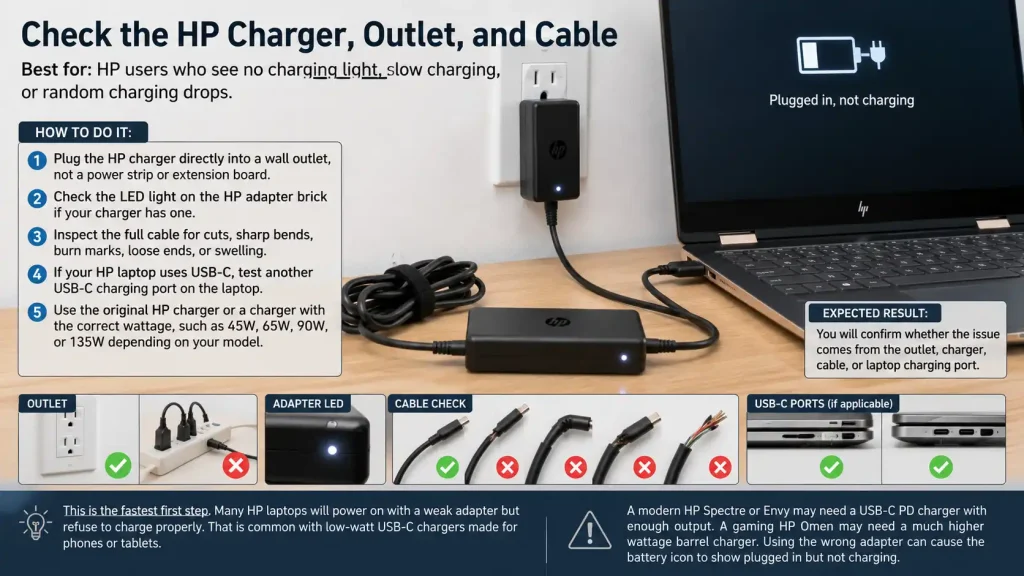
Check the HP Charger, Outlet, and Cable
Best for: HP users who see no charging light, slow charging, or random charging drops.
How to do it:
- Plug the HP charger directly into a wall outlet, not a power strip or extension board.
- Check the LED light on the HP adapter brick if your charger has one.
- Inspect the full cable for cuts, sharp bends, burn marks, loose ends, or swelling.
- If your HP laptop uses USB-C, test another USB-C charging port on the laptop.
- Use the original HP charger or a charger with the correct wattage, such as 45W, 65W, 90W, or 135W depending on your model.
Expected result: You will confirm whether the issue comes from the outlet, charger, cable, or laptop charging port.
This is the fastest first step. Many HP laptops will power on with a weak adapter but refuse to charge properly. That is common with low-watt USB-C chargers made for phones or tablets.
A modern HP Spectre or Envy may need a USB-C PD charger with enough output. A gaming HP Omen may need a much higher wattage barrel charger. Using the wrong adapter can cause the battery icon to show plugged in but not charging.
Perform a Hard Reset on the HP Laptop
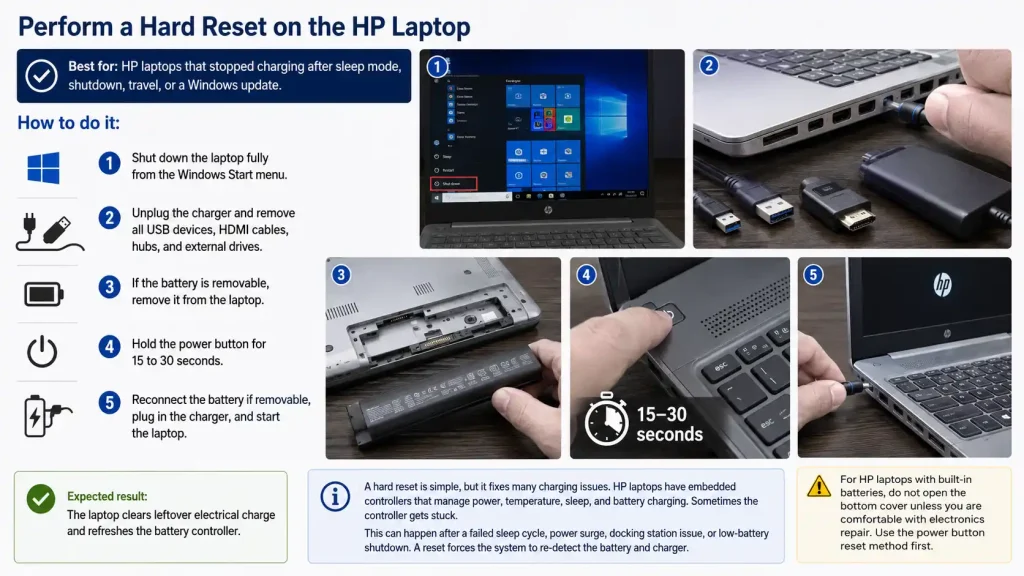
Best for: HP laptops that stopped charging after sleep mode, shutdown, travel, or a Windows update.
How to do it:
- Shut down the laptop fully from the Windows Start menu.
- Unplug the charger and remove all USB devices, HDMI cables, hubs, and external drives.
- If the battery is removable, remove it from the laptop.
- Hold the power button for 15 to 30 seconds.
- Reconnect the battery if removable, plug in the charger, and start the laptop.
Expected result: The laptop clears leftover electrical charge and refreshes the battery controller.
A hard reset is simple, but it fixes many charging issues. HP laptops have embedded controllers that manage power, temperature, sleep, and battery charging. Sometimes the controller gets stuck.
This can happen after a failed sleep cycle, power surge, docking station issue, or low-battery shutdown. A reset forces the system to re-detect the battery and charger.
For HP laptops with built-in batteries, do not open the bottom cover unless you are comfortable with electronics repair. Use the power button reset method first.
Reinstall the Microsoft ACPI Battery Driver
Best for: HP laptops that show “plugged in, not charging” after a Windows update or driver conflict.
How to do it:
- Right-click the Start button and open Device Manager.
- Expand Batteries.
- Right-click Microsoft ACPI-Compliant Control Method Battery.
- Select Uninstall device, then restart the laptop.
- After restart, plug in the charger and check the battery icon again.
Expected result: Windows reloads the battery driver and refreshes charging communication.
This is one of the best software fixes for HP laptop plugged in not charging problems. The ACPI battery driver helps Windows communicate with the laptop battery and charging circuit.
You are not deleting your battery. You are only removing a driver entry that Windows will reinstall automatically.
This fix is helpful after Windows 11 updates, power management changes, or sudden battery percentage errors. It is also useful when the battery percentage stays frozen even though the charger is connected.
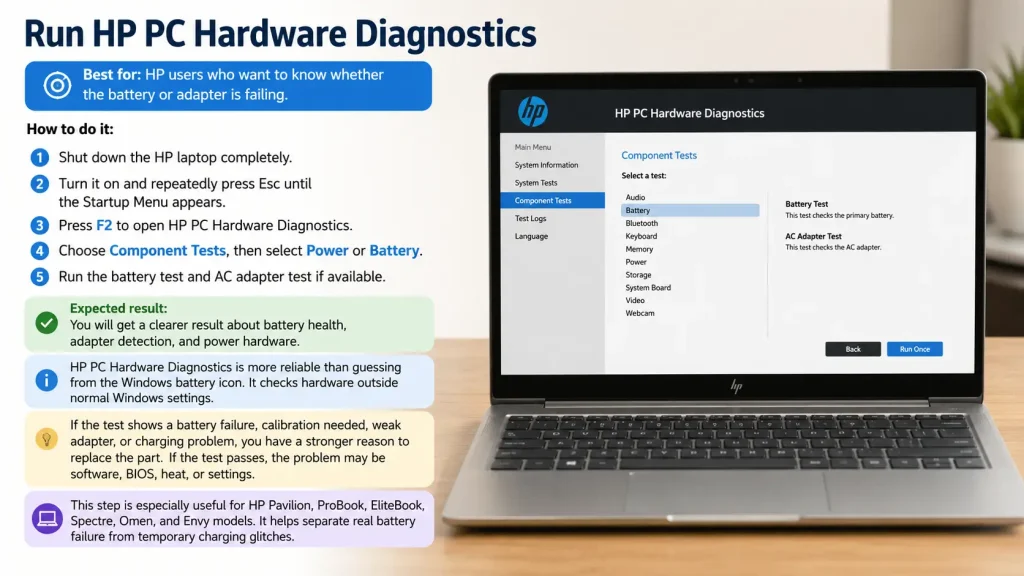
Run HP PC Hardware Diagnostics
Best for: HP users who want to know whether the battery or adapter is failing.
How to do it:
- Shut down the HP laptop completely.
- Turn it on and repeatedly press Esc until the Startup Menu appears.
- Press F2 to open HP PC Hardware Diagnostics.
- Choose Component Tests, then select Power or Battery.
- Run the battery test and AC adapter test if available.
Expected result: You will get a clearer result about battery health, adapter detection, and power hardware.
HP PC Hardware Diagnostics is more reliable than guessing from the Windows battery icon. It checks hardware outside normal Windows settings.
If the test shows a battery failure, calibration needed, weak adapter, or charging problem, you have a stronger reason to replace the part. If the test passes, the problem may be software, BIOS, heat, or settings.
This step is especially useful for HP Pavilion, ProBook, EliteBook, Spectre, Omen, and Envy models. It helps separate real battery failure from temporary charging glitches.
Update BIOS and HP Power Drivers
Best for: HP laptops that charge sometimes, stop at a fixed percentage, or show wrong battery information.
How to do it:
- Open HP Support Assistant from Windows.
- Go to Updates and check for BIOS, chipset, and power management updates.
- Keep the charger connected during the update.
- Do not shut down the laptop while BIOS is updating.
- Restart the laptop and check charging again.
Expected result: The laptop receives updated firmware and power control fixes.
BIOS controls how your HP laptop communicates with the battery, charger, USB-C port, thermal sensors, and motherboard power circuit. If BIOS is outdated or corrupted, charging may not work correctly.
A BIOS update can improve charger recognition, battery calibration, sleep behavior, and thermal control. It is one of the most important fixes after basic charger checks.
Use caution during BIOS updates. Keep the laptop connected to a stable power source. Do not update during storms, unstable electricity, or low battery unless the laptop is already running safely on the adapter.
Check Battery Health and Charging Limits
Best for: HP users whose laptop stops charging at 80%, 90%, or a fixed percentage.
How to do it:
- Open HP Support Assistant and check the battery health section.
- Open BIOS settings by restarting and pressing Esc, then F10.
- Look for battery health, adaptive battery, or battery care settings.
- Disable any temporary battery limit only if you need full charge for travel.
- Restart the laptop and observe charging for 20 to 30 minutes.
Expected result: You will know whether charging is limited by battery protection settings or actual failure.
Some HP laptops reduce full-time charging to protect battery health. This is helpful if you use your laptop mostly at a desk.
However, users often mistake this for a broken charger. If your HP laptop stops at a high percentage and works normally, it may be battery protection behavior.
If it stops at a low percentage, drains fast, or shuts down when unplugged, the battery may be weak. In that case, check diagnostics before buying a replacement.
Inspect the Charging Port and Try a Known-Good Adapter
Best for: HP laptops that charge only when the cable is held at an angle.
How to do it:
- Power off the laptop and unplug the charger.
- Use a flashlight to inspect the charging port.
- Look for dust, bent pins, burn marks, or looseness.
- Try a known-good HP charger with the correct wattage.
- If the port moves or sparks, stop using it and get hardware service.
Expected result: You will confirm whether the charging port or adapter connection is physically damaged.
A loose barrel jack or USB-C port can cause unstable charging. You may see the charging light flash, turn off, or work only when the cable is positioned a certain way.
Do not force the charger into the port. Do not use metal tools inside the port. That can damage the connector or short the board.
If a correct charger works in another HP laptop but not yours, the laptop charging port or internal power board may need repair.
Step-by-Step Guide
- Start with the wall outlet. Plug another device into the same outlet. If it does not work, move your HP charger to another room and test again.
- Confirm charger wattage. Check the label on the adapter. Match it with your HP model requirement. A 30W phone charger may not charge a laptop that needs 65W.
- Remove all accessories. Disconnect USB hubs, external monitors, docking stations, memory cards, and smart devices. A faulty accessory can interfere with power delivery.
- Hard reset the laptop. Shut it down, unplug everything, hold the power button for 15 to 30 seconds, reconnect the charger, and turn it on.
- Check Device Manager. Open Device Manager > Batteries and reinstall Microsoft ACPI-Compliant Control Method Battery.
- Run HP diagnostics. Restart, press Esc, press F2, and run the battery and adapter tests under HP PC Hardware Diagnostics.
- Update HP software. Open HP Support Assistant and install BIOS, chipset, battery, and power-related updates.
- Watch battery behavior. Let the laptop sit plugged in for 30 minutes. If the percentage does not move and diagnostics show failure, plan for battery or port service.
Expert Tips and Common Mistakes
Pro Tips
- Use the original HP adapter first. HP laptops may reject low-quality chargers even when the connector fits.
- Check USB-C wattage carefully. A USB-C charger should support proper Power Delivery output, not just phone charging.
- Run diagnostics before replacing parts. HP PC Hardware Diagnostics can save money by separating battery failure from adapter failure.
- Keep BIOS updated. BIOS updates can improve battery detection, thermal behavior, and charging stability.
- Test charging while powered off. If the laptop charges when off but not when running, the issue may involve heat, power load, or software.
Common Mistakes to Avoid
- Using a low-watt charger. It may power the laptop but fail to charge the battery, especially during heavy use.
- Ignoring heat. A hot battery or blocked vent can stop charging to protect the system.
- Buying a battery too early. Driver, BIOS, and adapter problems can look like battery failure.
- Forcing a loose connector. This can damage the charging port and make a simple repair more expensive.
FAQs
Why is my HP laptop plugged in but not charging?
Your HP laptop may be plugged in but not charging because the charger is weak, the adapter wattage is wrong, the battery driver is stuck, BIOS is outdated, or the battery has degraded. Start by testing the wall outlet and HP charger. Then reinstall the Microsoft ACPI battery driver and run HP PC Hardware Diagnostics from the F2 startup menu.
How do I reset an HP laptop battery that is not charging?
Shut down the laptop, unplug the charger, remove all connected devices, and hold the power button for 15 to 30 seconds. If your HP laptop has a removable battery, remove it first. Then reconnect the charger and start the laptop. This resets the power controller and can fix temporary charging detection problems.
Can a bad HP charger cause plugged in not charging?
Yes, a bad or underpowered HP charger can cause the plugged in not charging message. The laptop may receive enough power to run but not enough to charge the battery. Check the adapter label for wattage, such as 45W, 65W, 90W, or higher. Also inspect the cable, connector, and LED indicator if available.
Should I uninstall the Microsoft ACPI battery driver?
Yes, it is safe when done correctly. Open Device Manager, expand Batteries, right-click Microsoft ACPI-Compliant Control Method Battery, and select Uninstall device. Restart the laptop after that. Windows will reinstall the driver automatically. This often fixes charging errors after Windows updates or power management conflicts.
Why does my HP laptop stop charging at 80%?
Your HP laptop may stop charging at 80% because battery health protection or adaptive charging is active. This feature can reduce battery wear when the laptop stays plugged in for long periods. Check HP Support Assistant and BIOS battery settings. If the laptop works normally and diagnostics pass, the battery may not be faulty.
How do I know if my HP laptop battery needs replacement?
Run HP PC Hardware Diagnostics by restarting the laptop, pressing Esc, then F2. Choose battery or power tests. If the test reports battery failure, very low capacity, or replacement needed, the battery is likely worn. Also watch for fast drain, sudden shutdowns, swelling, or charging stuck at a low percentage.
Can BIOS fix HP laptop plugged in not charging?
Yes, BIOS can help if the problem is related to firmware, battery detection, USB-C charging, or power management. Use HP Support Assistant to check for BIOS and chipset updates. Keep the charger connected during the update and never shut down the laptop while BIOS is installing.
How do I fix HP laptop not charging after a Windows 11 update?
A Windows 11 update sometimes corrupts the battery driver or changes power management settings, causing HP laptops to show plugged in but not charging. Open Device Manager, expand Batteries, right-click Microsoft ACPI-Compliant Control Method Battery, and select Uninstall device. Restart the laptop and let Windows reinstall the driver automatically. If the problem continues, open HP Support Assistant and install any pending BIOS or chipset updates, as HP regularly releases firmware patches specifically to fix post-update charging behavior.
Conclusion
Fixing an HP laptop charging issue is easier when you follow the right order. Do not replace the battery first. Check the outlet, charger, cable, charging port, and wattage before moving into Windows settings.
Then reset the laptop, reinstall the ACPI battery driver, run HP diagnostics, and update BIOS. These steps help you find whether the issue is caused by software, firmware, adapter failure, battery wear, or port damage.
The best way to fix HP laptop plugged in not charging is to troubleshoot from simple power checks to advanced diagnostics. Today, start by testing the original HP charger in a direct wall outlet, then run the battery test from the HP startup diagnostics menu.

“Electronics aren’t just gadgets. They’re the invisible threads that connect our work, our play, and our world.”
I’m Julian Reed, and my obsession with tech started at age twelve, when I soldered a defunct gaming console back to life in my bedroom. That tiny green screen taught me that technology isn’t just a black box, it’s a tool you can master.
After fifteen years as a hardware engineer and a decade reviewing consumer tech, I’ve joined this team to cut through the jargon. Whether you’re building a high-end home theater or just need a laptop that won’t lag, I’m here to help you choose the gear that truly powers your life.


