
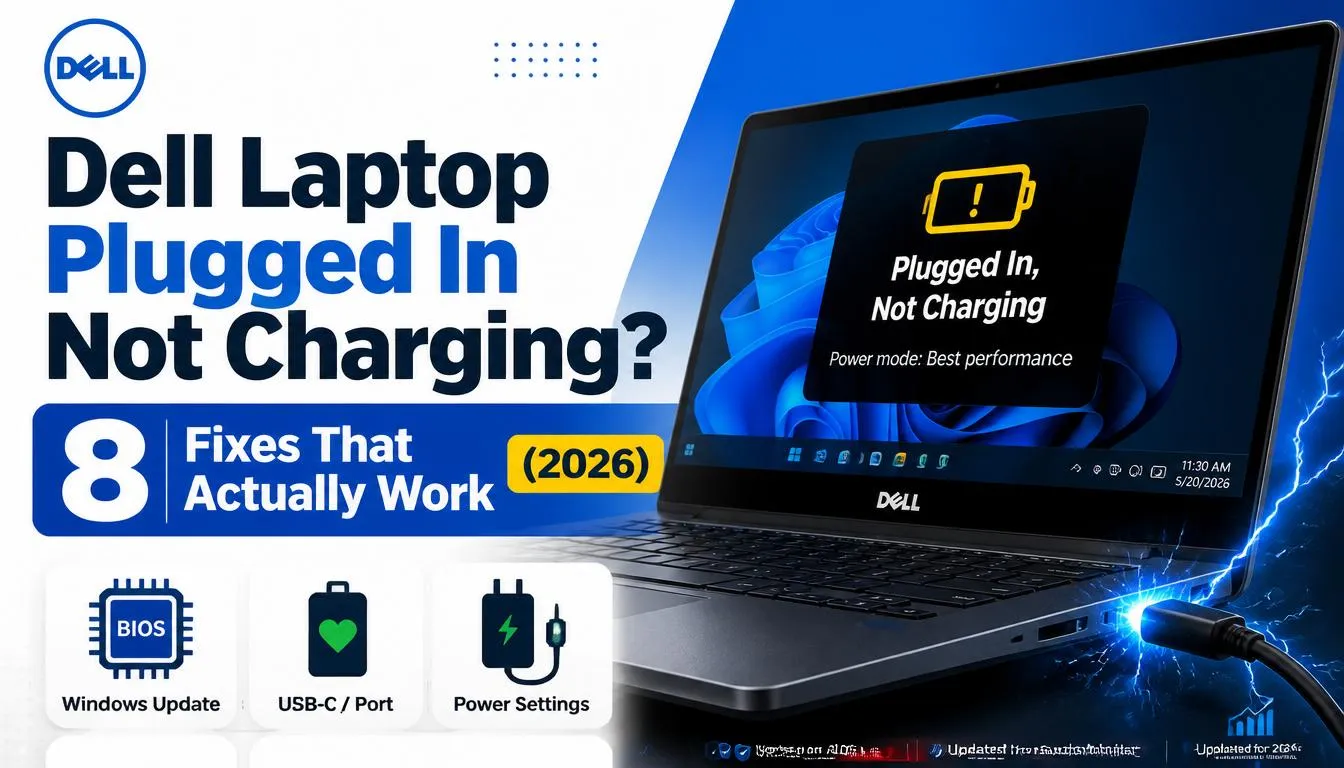
Quick Answer: Check the wall outlet, charger LED, and adapter wattage first. Then press F2 at startup to confirm AC Adapter status in Dell BIOS. If undetected, test another Dell charger. In Windows 11, open Device Manager and reinstall the Microsoft ACPI battery driver. Finally, open Dell SupportAssist and install any pending BIOS or chipset updates.
A Dell laptop that says “plugged in, not charging” can feel confusing. The charger is connected. The power icon appears. But the battery percentage stays frozen or drops slowly. This problem is common on Dell Inspiron, Latitude, XPS, Vostro, Alienware, and Precision laptops.
The issue is not always a dead battery. Sometimes Windows is reading the battery incorrectly. Sometimes Dell BIOS cannot identify the AC adapter. On newer Dell USB-C laptops, the wrong USB-C charger may power the laptop but fail to charge the battery properly.
In this guide, you will learn how to fix Dell laptop charger plugged in not charging with safe, practical steps. We will cover charger checks, BIOS settings, Dell SupportAssist diagnostics, battery drivers, Dell Power Manager, USB-C charging, and when to replace the charger or battery.
Dell Laptop Plugged In Not Charging: Why It Matters
When your Dell laptop charger is plugged in but not charging, the problem can affect more than battery life. Your laptop may run slower, stop charging at a fixed percentage, or shut down during important work.
This matters because Dell laptops often check the charger type before allowing full charging. Dell support guidance explains that BIOS can show the AC adapter status, and an unknown or incorrect adapter can stop normal charging.
For example, a Dell Latitude may detect a weak charger and reduce performance. A Dell XPS with USB-C charging may accept power from a phone charger but still not charge the battery. A Dell Inspiron may show “AC adapter type cannot be determined” if the charger pin, cable, or charging jack is damaged.
Battery age also matters. If your battery health is poor, Windows may show the charger as connected, but the battery may charge very slowly or fail to hold power. Dell lists BIOS, Windows battery reports, and Dell apps as ways to check laptop battery health.
The good news is that you can test the most common causes before buying a new charger or battery. Start with the simple checks. Then move to BIOS, drivers, battery health, and hardware inspection.
Best Ways to Fix Dell Charger Plugged In Not Charging
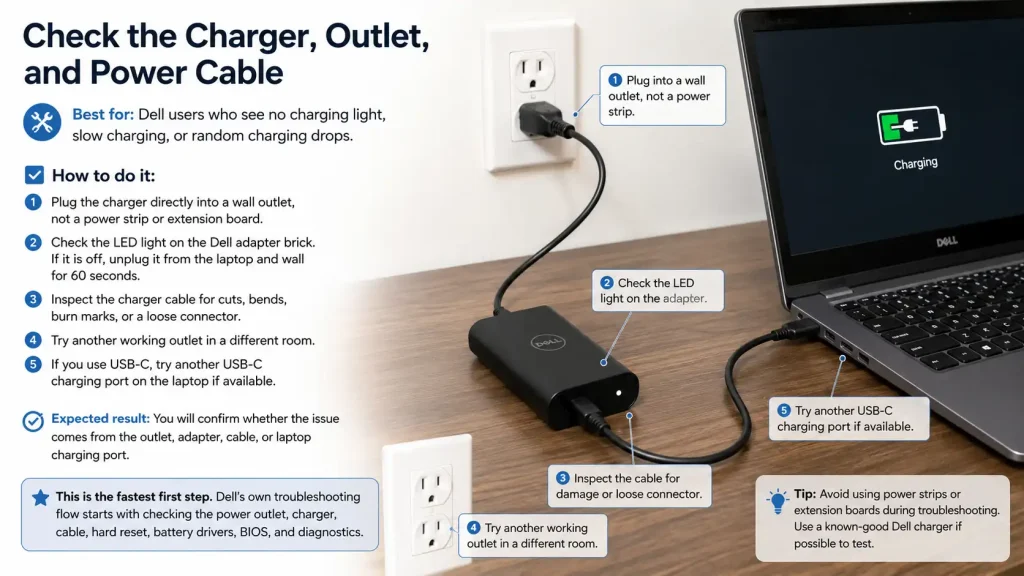
Check the Charger, Outlet, and Power Cable
Best for: Dell users who see no charging light, slow charging, or random charging drops.
How to do it:
- Plug the charger directly into a wall outlet, not a power strip or extension board.
- Check the LED light on the Dell adapter brick. If it is off, unplug it from the laptop and wall for 60 seconds.
- Inspect the charger cable for cuts, bends, burn marks, or a loose connector.
- Try another working outlet in a different room.
- If you use USB-C, try another USB-C charging port on the laptop if available.
Expected result: You will confirm whether the issue comes from the outlet, adapter, cable, or laptop charging port.
This is the fastest first step. Dell’s own troubleshooting flow starts with checking the power outlet, charger, cable, hard reset, battery drivers, BIOS, and diagnostics.
Confirm the Correct Dell Adapter Wattage
Best for: Users with “AC adapter type cannot be determined” or “plugged in, not charging” warnings.
How to do it:
- Look at the wattage printed on your Dell charger. Common ratings include 45W, 65W, 90W, 130W, 180W, and 240W.
- Compare it with your laptop’s required wattage on the bottom cover, BIOS, or original charger label.
- Do not use a low-watt phone charger for a Dell USB-C laptop.
- For USB-C Dell laptops, use a proper Dell USB-C charger such as a Dell 65W, Dell 90W, or Dell 130W USB-C adapter.
- Restart the laptop and check if the charging warning disappears.
Expected result: Your laptop should detect the charger correctly and allow normal charging.
Many Dell laptops can power on with a weaker adapter but may not charge well. Gaming laptops and workstations need higher wattage. An Alienware or Precision laptop may require a much stronger adapter than a basic Inspiron.
Check AC Adapter Status in Dell BIOS
Best for: Users who want to know whether the laptop recognizes the charger at hardware level.
How to do it:
- Shut down the laptop completely.
- Connect the Dell charger.
- Turn on the laptop and press F2 repeatedly when the Dell logo appears.
- Go to Overview or Battery Information.
- Check the AC Adapter Type field.
- If it says Unknown, None, or shows the wrong wattage, test another Dell-compatible charger.
Expected result: You will know if the charger is detected before Windows loads.
This is one of the most useful checks. If BIOS cannot identify the AC adapter, Windows fixes may not solve the issue. Dell notes that BIOS battery information can show whether the adapter is detected.
If BIOS shows the correct wattage, your charger and port are likely working. Then you can move to Windows battery drivers, Dell Power Manager, and battery settings.

Reinstall Microsoft ACPI Battery Drivers
Best for: Dell laptops that charge physically but show the wrong battery status in Windows.
How to do it:
- Right-click the Start button and open Device Manager.
- Expand Batteries.
- Right-click Microsoft AC Adapter and choose Uninstall device.
- Right-click Microsoft ACPI-Compliant Control Method Battery and choose Uninstall device.
- Restart your Dell laptop.
- Windows will reinstall the battery drivers automatically.
Expected result: Windows should refresh battery detection and update the charging status.
This is useful when the charger works, but Windows shows stale battery data. It can also help after Windows updates, BIOS updates, or battery replacement.
Do not delete random system drivers. Only remove the battery entries listed above. This is a safe reset for most Windows 11 Dell laptops.
Update BIOS, Chipset, and Dell Power Software
Best for: Dell users with charging bugs after updates, battery limits, or USB-C charging problems.
How to do it:
- Open Dell SupportAssist if installed.
- Run Get drivers & downloads or system update checks.
- Install BIOS, chipset, battery, and power management updates.
- Restart the laptop after every major update.
- Open Dell Power Manager or MyDell.
- Check charging mode settings such as Standard, Adaptive, ExpressCharge, or Primarily AC Use.
Expected result: Your Dell laptop should use updated firmware and correct battery charging rules.
Dell support states that outdated system drivers and BIOS can cause battery charging issues.
This is important for modern Dell laptops in 2026. Newer models use smarter power profiles, USB-C Power Delivery, AI PC efficiency settings, and battery health protection. A wrong power profile may look like a fault when the laptop is actually limiting charge to protect the battery.
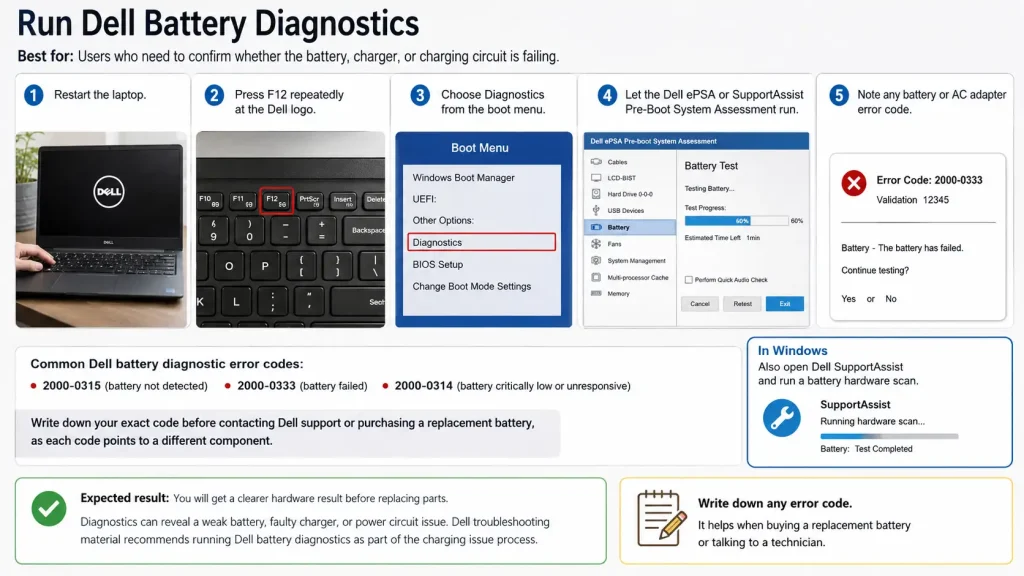
Run Dell Battery Diagnostics
Best for: Users who need to confirm whether the battery, charger, or charging circuit is failing.
How to do it:
- Restart the laptop.
- Press F12 repeatedly at the Dell logo.
- Choose Diagnostics from the boot menu.
- Let the Dell ePSA or SupportAssist Pre-Boot System Assessment run.
- Note any battery or AC adapter error code. Common Dell battery diagnostic error codes include 2000-0315 (battery not detected), 2000-0333 (battery failed), and 2000-0314 (battery critically low or unresponsive). Write down your exact code before contacting Dell support or purchasing a replacement battery, as each code points to a different component.
- In Windows, also open Dell SupportAssist and run a battery hardware scan.
Expected result: You will get a clearer hardware result before replacing parts.
Diagnostics can reveal a weak battery, faulty charger, or power circuit issue. Dell troubleshooting material recommends running Dell battery diagnostics as part of the charging issue process.
Write down any error code. It helps when buying a replacement battery or talking to a technician.
Inspect the Charging Port and USB-C Connection
Best for: Dell laptops that charge only at a certain cable angle or disconnect randomly.
How to do it:
- Turn off the laptop and unplug the charger.
- Use a flashlight to inspect the round DC jack or USB-C port.
- Look for dust, bent pins, looseness, burn marks, or broken plastic.
- Clean dust gently with a soft anti-static brush.
- Do not push metal tools inside the port.
- Test with another Dell original charger.
Expected result: You will know if the charging port is loose, dirty, or physically damaged.
A damaged DC-in jack can cause the charger to power the laptop but not charge the battery. Dell support information notes that adapter detection problems can relate to the adapter, DC-in port, or motherboard charging circuit.
If the port moves inside the laptop, stop forcing the charger. You may damage the motherboard.
Step-by-Step Guide
- Check the power source first. Plug the Dell charger into a direct wall outlet. Avoid power strips during testing.
- Look at the charger LED. If the adapter LED turns off after connecting to the laptop, unplug it and test another charger.
- Restart with a hard reset. Shut down the laptop. Unplug the charger. Hold the power button for 20–30 seconds. Reconnect the charger and turn it on.
- Enter BIOS with F2. Check Battery Information and confirm the AC adapter wattage. If it says unknown, focus on charger or port hardware.
- Check Windows battery drivers. Open Device Manager, uninstall Microsoft AC Adapter and Microsoft ACPI-Compliant Control Method Battery, then restart.
- Run Dell diagnostics. Press F12 at startup and choose Diagnostics. Save any error code.
- Update BIOS and chipset. Use Dell SupportAssist, MyDell, or the built-in update tool. Restart after installation.
- Review Dell Power Manager settings. Change charging mode to Standard for testing. Disable custom battery limits until charging works normally.
Expert Tips and Common Mistakes
Pro Tips
- Use the original wattage adapter. A Dell 45W charger may not properly charge a laptop designed for 65W, 90W, or 130W.
- Check BIOS before buying a battery. If BIOS shows AC Adapter = Unknown, the battery may not be the main issue.
- Use Dell Power Manager carefully. Settings like Primarily AC Use or custom charge limits may stop charging at a set percentage.
- Test USB-C chargers by wattage. For Dell USB-C laptops, choose a USB-C PD charger with enough wattage. A phone charger is not enough.
- Keep BIOS updated on modern Dell laptops. Newer Dell systems rely on firmware for charging control, USB-C power negotiation, and battery health management.
Common Mistakes to Avoid
- Buying a battery first. This is costly and may not fix the issue if the charger or DC jack is the real problem.
- Ignoring the adapter warning. The “AC adapter type cannot be determined” message usually means the laptop cannot identify the charger correctly.
- Using cheap unknown chargers. Low-quality adapters can cause slow charging, overheating, unstable power, or battery detection errors.
- Forcing a loose charging plug. A loose port can become worse if you twist or push the connector too hard.
FAQs
How to fix Dell laptop charger plugged in not charging on Windows 11?
Start by checking the charger LED, wall outlet, and adapter wattage. Then restart the laptop and open BIOS with F2 to check AC Adapter Type. In Windows 11, open Device Manager, uninstall Microsoft AC Adapter and Microsoft ACPI-Compliant Control Method Battery, then restart. Also run Dell SupportAssist and install BIOS or chipset updates.
Why does my Dell laptop say plugged in but not charging?
Your Dell laptop may say plugged in but not charging because the charger is underpowered, the battery driver is stuck, BIOS cannot identify the adapter, or Dell Power Manager has a charge limit enabled. It can also happen when the battery is old or the DC-in charging port is damaged.
How do I know if my Dell charger is bad?
Check the LED on the charger brick. If the light is off, flickering, or turns off when plugged into the laptop, the charger may be faulty. Also enter BIOS with F2 and check AC Adapter Type. If BIOS says Unknown while using the correct Dell adapter, test another original Dell charger.
Can Dell Power Manager stop my laptop from charging?
Yes. Dell Power Manager or MyDell can limit charging to protect battery health. For example, custom battery settings may stop charging before 100%. Open the app, check Battery Settings, and switch to Standard while troubleshooting. After the issue is fixed, you can return to a battery health mode.
Should I update BIOS when my Dell laptop is not charging?
Yes, but only when your laptop has enough stable power. BIOS updates can improve battery and charger detection. Use Dell SupportAssist or the Dell update utility. Keep the charger connected during the update. Do not interrupt the process because a failed BIOS update can create serious boot problems.
Why is my Dell USB-C charger plugged in but not charging?
Your USB-C charger may not provide enough wattage. Many Dell USB-C laptops need 65W, 90W, or 130W USB-C Power Delivery. A phone charger may power the laptop lightly but fail to charge the battery. Use a Dell-compatible USB-C adapter and test another USB-C port if your laptop has one.
When should I replace my Dell laptop battery?
Replace the battery if Dell diagnostics reports a battery failure, BIOS shows poor battery health, or the laptop drains quickly after a full charge. Also replace it if the battery is swollen. Do not keep using a swollen battery. Power off the laptop and get it serviced safely.
Why is my Dell laptop not charging past 80%?
This is almost always caused by Dell Power Manager’s battery health protection feature. Open Dell Power Manager or MyDell, go to Battery Settings, and check whether a custom charge limit is enabled. A setting called “Primarily AC Use” or a manual charge limit may be stopping the battery at 80% to extend long-term battery life. Switch the charging mode to Standard to allow full charging. Once troubleshooting is complete, you can re-enable battery health mode if you prefer it for daily desk use.
How to Read Your Dell Battery Health Report
Open Command Prompt as Administrator and run powercfg /batteryreport. Open the HTML file it generates and find these two numbers:
- Design Capacity — the original battery capacity when new
- Full Charge Capacity — what your battery can hold today
Divide Full Charge Capacity by Design Capacity and multiply by 100 to get your battery health percentage.
- Above 80% — Battery is healthy. Focus on charger and software fixes.
- 50–80% — Battery is aging. Monitor it and consider replacement soon.
- Below 40% — Replace the battery. Software fixes will not solve the charging problem at this level.
Conclusion
Learning how to fix Dell laptop charger plugged in not charging starts with simple checks. Test the wall outlet, charger LED, adapter wattage, BIOS battery status, Windows battery drivers, Dell Power Manager settings, and Dell diagnostics.
Do not rush to buy a new battery. Many Dell charging problems come from the charger, USB-C wattage, BIOS detection, or a loose charging port. Use the steps above in order. They help you find the real cause faster and avoid wasting money on the wrong part.
Today, start by restarting your Dell laptop, pressing F2, and checking whether BIOS shows the correct AC adapter wattage.

“Electronics aren’t just gadgets. They’re the invisible threads that connect our work, our play, and our world.”
I’m Julian Reed, and my obsession with tech started at age twelve, when I soldered a defunct gaming console back to life in my bedroom. That tiny green screen taught me that technology isn’t just a black box, it’s a tool you can master.
After fifteen years as a hardware engineer and a decade reviewing consumer tech, I’ve joined this team to cut through the jargon. Whether you’re building a high-end home theater or just need a laptop that won’t lag, I’m here to help you choose the gear that truly powers your life.


