
If your laptop feels unusually hot, the fan runs constantly, performance suddenly drops, or the system shuts down unexpectedly, it may be overheating. Monitoring temperatures with tools like HWMonitor or Core Temp can help confirm whether heat levels are exceeding safe operating ranges.
Laptops generate heat whenever the processor, graphics chip, memory, and storage devices are working. Modern systems are designed to handle this heat efficiently, but cooling systems can become less effective over time. Dust buildup, blocked vents, aging thermal paste, and demanding software can all contribute to rising temperatures.
Many users ignore early warning signs because they assume warmth is normal. While some heat is expected, excessive temperatures can damage components, reduce performance, shorten battery life, and even cause unexpected shutdowns. Recognizing the signs early can prevent costly repairs and data loss.
If you are wondering how to tell if laptop is overheating, this guide explains the most common symptoms, practical solutions, prevention methods, and the exact steps you can take to keep your system running safely in 2026 and beyond.
Why Laptop Overheating Matters
Understanding how to know if laptop is overheating is important because heat directly affects performance and hardware longevity.
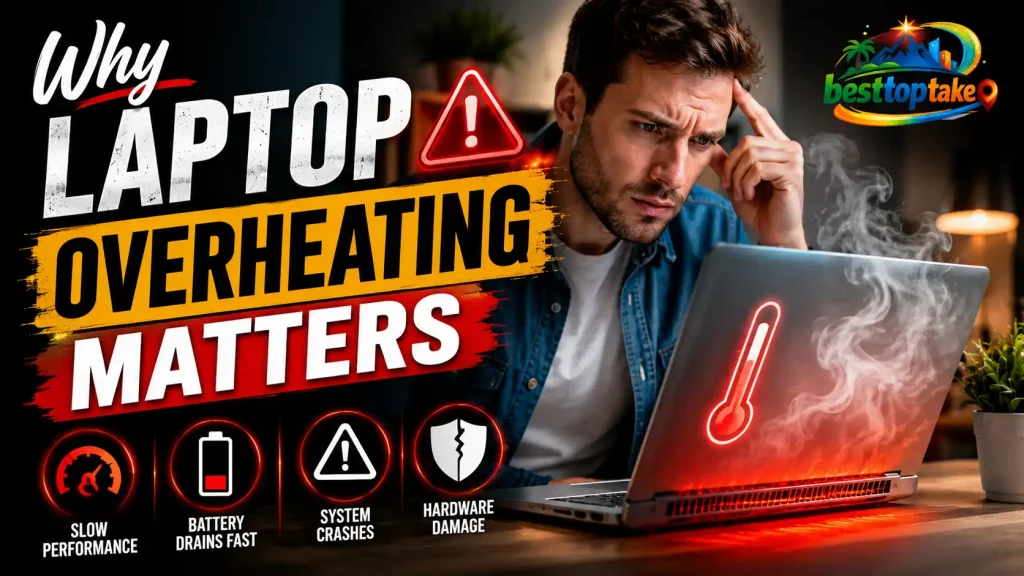
A laptop normally becomes warm during gaming, video editing, AI processing, or multitasking. However, when temperatures exceed safe limits, the system activates thermal throttling. This protective feature slows down the processor to reduce heat generation.
Many users first notice overheating when applications become sluggish. Games may lose frames, videos may stutter, and programs may take longer to respond. In severe cases, the laptop may restart or shut down without warning.
Another concern is hardware degradation. Prolonged exposure to high temperatures can accelerate wear on batteries, SSDs, processors, and motherboard components. Hardware data indicates that cooler operating temperatures generally improve long-term reliability.
If you experience laptop overheating for no reason, the cause is often hidden. Dust accumulation, malware, background processes, outdated drivers, or a failing cooling fan can create excessive heat without obvious symptoms.
Ignoring overheating can lead to system instability, reduced productivity, and expensive repairs. Identifying the problem early helps protect both your data and your investment.
Best Solutions for Identifying and Fixing Laptop Overheating
Monitor Internal Temperatures
Best for: Users who want accurate temperature readings.
How to do it:
- Install HWMonitor, Core Temp, or HWiNFO.
- Open the software and monitor CPU and GPU temperatures during normal use.
- Compare readings while idle and under load.
Expected result: You will know whether temperatures are within safe operating limits.
Check for Constant Fan Activity
Best for: Users noticing unusual fan noise.
How to do it:
- Listen for fans running at maximum speed for extended periods.
- Open Task Manager and identify resource-heavy applications.
- Close unnecessary programs and observe fan behavior.
Expected result: Reduced fan noise if excessive workload was causing heat.
Inspect Air Vents for Dust
Best for: Older laptops and dusty environments.
How to do it:
- Power off the laptop completely.
- Examine intake and exhaust vents using a flashlight.
- Remove visible dust using compressed air.
Expected result: Improved airflow and lower operating temperatures.
Use a Cooling Pad
Best for: Gamers and power users.
How to do it:
- Choose a cooling pad such as Cooler Master NotePal X3.
- Place the laptop on the cooling pad.
- Connect power and ensure fans are operating correctly.
Expected result: Better airflow and reduced surface temperatures.
Check Background Processes
Best for: Users experiencing sudden heat spikes.
How to do it:
- Open Task Manager.
- Sort processes by CPU usage.
- End unnecessary applications consuming excessive resources.
Expected result: Lower processor utilization and reduced heat generation.
Update Drivers and BIOS
Best for: Systems showing abnormal thermal behavior.
How to do it:
- Open Device Manager.
- Update graphics and chipset drivers.
- Install the latest BIOS version from the laptop manufacturer.
Expected result: Improved power management and thermal efficiency.
Replace Aging Thermal Paste
Best for: Laptops older than three years.
How to do it:
- Disassemble the cooling assembly carefully.
- Remove old thermal compound.
- Apply Arctic MX-4 or Thermal Grizzly Kryonaut evenly.
Expected result: Improved heat transfer from the CPU and GPU.
Step-by-Step Guide
- Install HWMonitor and record idle CPU temperatures.
- Run demanding applications for 15 minutes.
- Compare idle and load temperatures.
- Open Task Manager and identify processes using excessive CPU resources.
- Inspect vents for dust accumulation.
- Clean airflow channels using compressed air.
- Place the laptop on a hard, flat surface rather than fabric.
- Re-open HWMonitor or Core Temp and run the same demanding application for 15 minutes. Compare the new temperature readings against your earlier results. If CPU temperatures have dropped by 5°C or more, your cleaning and adjustments are working. If temperatures remain above 90°C under load, proceed to thermal paste replacement as the next step..
For gaming laptops, use manufacturer software such as Alienware Command Center, ASUS Armoury Crate, Lenovo Vantage, or MSI Center to monitor thermal performance more accurately.
Expert Tips and Common Mistakes
Pro Tips
- Monitor temperatures regularly using HWiNFO or Core Temp.
- Elevate the rear of the laptop slightly to improve airflow.
- Use performance profiles wisely instead of maximum-performance settings all the time.
- Keep room temperatures moderate during heavy workloads.
- Invest in quality cooling accessories rather than generic cooling solutions.
Common Mistakes to Avoid
- Blocking vents with blankets or pillows, which severely restricts airflow.
- Ignoring fan noise increases, as this often signals developing thermal problems.
- Running too many startup programs, creating unnecessary heat generation.
- Delaying internal cleaning, allowing dust to accumulate and reduce cooling efficiency.
A common misconception is that overheating only affects gaming laptops. In reality, ultrabooks, business laptops, and AI-powered productivity systems can all experience thermal issues if cooling systems become compromised.
FAQs on How to Tell If Your Laptop Is Overheating
How to tell if laptop is overheating during gaming?
Watch for frame drops, loud fan noise, sudden lag, screen stuttering, or unexpected shutdowns. Monitoring software such as HWMonitor can confirm whether CPU or GPU temperatures are reaching unusually high levels during gameplay.
How to know if laptop is overheating without software?
Physical signs include an extremely hot keyboard area, excessive fan noise, performance slowdowns, random restarts, and hot air continuously blasting from exhaust vents. These symptoms often indicate thermal stress.
What happens if a laptop overheats repeatedly?
Repeated overheating can reduce battery lifespan, cause hardware degradation, increase system instability, and shorten the life of critical components such as the processor, graphics chip, and motherboard.
What to do if laptop is overheating suddenly?
Immediately save your work, close resource-intensive applications, move the laptop to a hard surface, check airflow vents, and allow the system to cool. Then investigate temperature readings using monitoring software.
How often should I check my laptop temperature?
Check temperatures at least once every two to three months during demanding tasks such as gaming or video editing. If you notice new symptoms such as increased fan noise, sudden slowdowns, or unexpected shutdowns, check temperatures immediately. Regular monitoring using HWMonitor takes less than five minutes and can catch cooling problems before they cause permanent hardware damage.
Can malware cause laptop overheating?
Yes. Malware may run hidden processes that continuously use CPU resources. Running a full security scan can help identify software-related causes of excessive heat.
Can a cooling pad prevent overheating?
A quality cooling pad can improve airflow and reduce surface temperatures. While it may not solve serious internal cooling issues, it often helps maintain safer operating temperatures during demanding workloads.
Conclusion
Learning how to tell if laptop is overheating can help you prevent performance issues, hardware damage, and unexpected downtime. Common warning signs include excessive fan noise, hot surfaces, thermal throttling, lag, and sudden shutdowns. Fortunately, overheating is often preventable through regular maintenance, temperature monitoring, proper airflow, and the use of reliable cooling accessories.
By checking temperatures with tools like HWMonitor, cleaning vents, managing background processes, and maintaining your cooling system, you can keep your laptop running efficiently for years. Modern laptops are powerful machines, but they still depend on effective heat management.
Today, install a temperature-monitoring tool and check your laptop’s idle and load temperatures to identify potential overheating issues before they become serious problems.

“Electronics aren’t just gadgets. They’re the invisible threads that connect our work, our play, and our world.”
I’m Julian Reed, and my obsession with tech started at age twelve, when I soldered a defunct gaming console back to life in my bedroom. That tiny green screen taught me that technology isn’t just a black box, it’s a tool you can master.
After fifteen years as a hardware engineer and a decade reviewing consumer tech, I’ve joined this team to cut through the jargon. Whether you’re building a high-end home theater or just need a laptop that won’t lag, I’m here to help you choose the gear that truly powers your life.


