
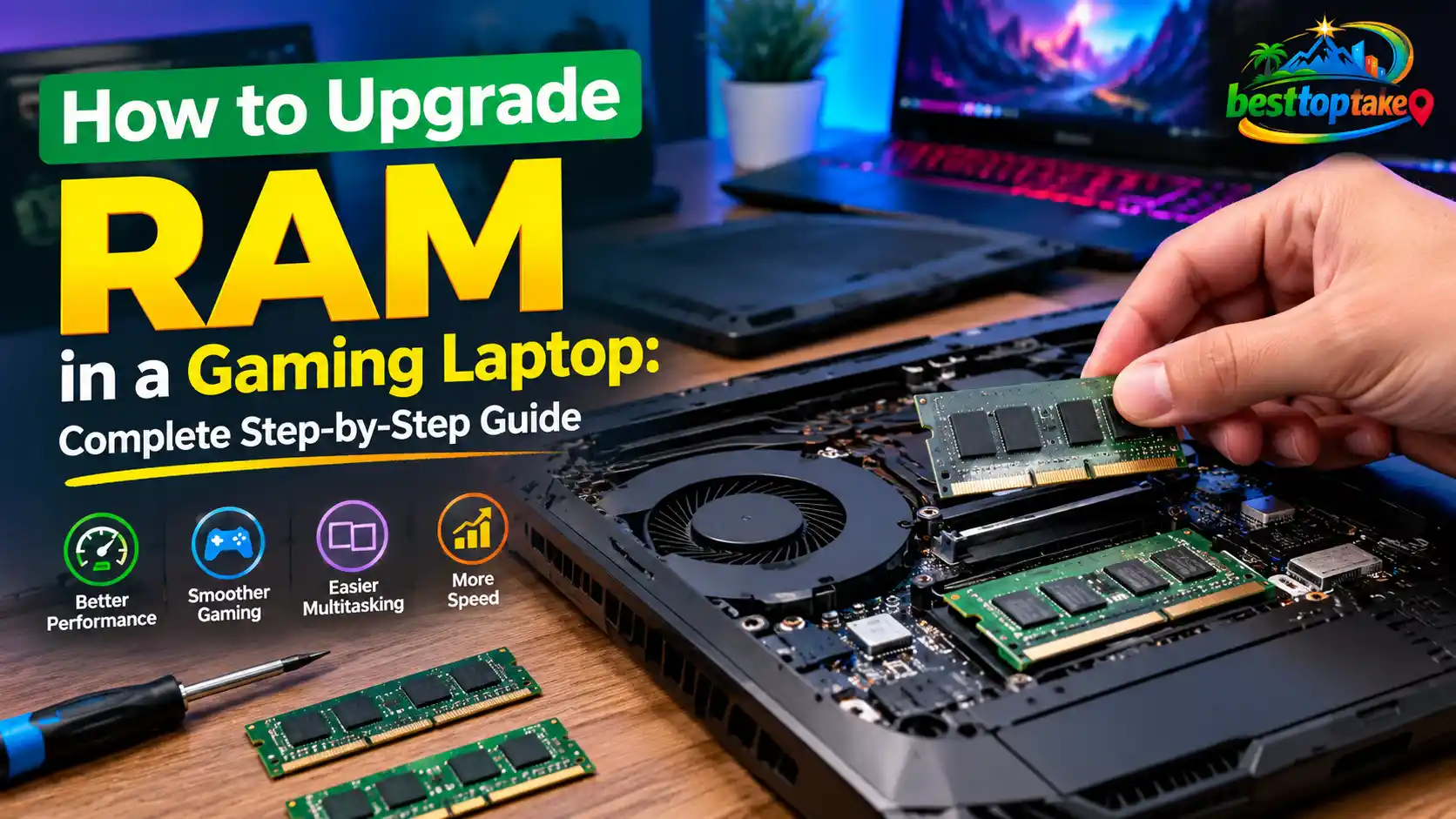
Upgrading the RAM in a gaming laptop can be one of the simplest ways to fix memory-related stuttering, improve multitasking, and give demanding games more breathing room. But buying a random memory kit and opening the laptop is not the right place to start.
First, you need to confirm that your laptop actually has upgradeable memory. Then you need to check the DDR generation, available slots, maximum supported capacity, memory speed, and current configuration.
Get any of those wrong and you may end up with RAM that does not fit, does not boot, runs slower than expected, or provides almost no gaming benefit.
The good news is that the process is straightforward once you know what to check.
This guide walks you through the entire gaming laptop RAM upgrade process—from deciding whether you need more memory to choosing compatible RAM, installing it safely, checking that it works, and fixing common problems afterward.
Can You Upgrade the RAM in Your Gaming Laptop?
Not every gaming laptop has upgradeable RAM.
Many traditional gaming laptops use removable SO-DIMM memory modules. These can usually be replaced or expanded if the laptop has an empty memory slot.
Other laptops may use a combination of soldered memory and one removable slot. In that case, part of the RAM is permanently attached to the motherboard while the remaining slot may still be upgradeable.
Some thin gaming laptops use fully soldered memory. If all of the memory is soldered, you cannot perform a normal RAM upgrade.
Before buying anything, find the exact model number of your laptop and check its official specifications or service manual.
Do not rely only on the product family.
For example, two laptops sold under the same gaming series can have completely different memory layouts depending on the generation, screen size, processor, or regional configuration.
If you are still shopping for a machine rather than upgrading one you already own, our guide on what to look for in a gaming laptop explains why upgradeability should be checked before buying.
SO-DIMM RAM vs Soldered RAM
Most upgradeable laptop memory comes in the SO-DIMM form factor.
SO-DIMM modules are smaller than the DIMMs used in desktop PCs and are designed to fit compact systems such as laptops and mini PCs.
Soldered or onboard memory is different. It is physically attached to the motherboard and cannot simply be removed from a slot.
Terms that may indicate soldered memory include:
- Onboard memory
- Soldered RAM
- Integrated memory
- LPDDR5
- LPDDR5X
That does not mean every specification containing one of these terms should be interpreted without checking the manufacturer’s documentation. Always verify the exact model.
Intel also recommends checking whether laptop memory is accessible or soldered before planning an upgrade. See Intel’s RAM guidance.
Do You Actually Need More RAM for Gaming?
More RAM does not automatically mean more FPS.
That is one of the biggest misunderstandings surrounding gaming laptop upgrades.
A RAM upgrade is most useful when your existing memory capacity or configuration is becoming a bottleneck.
Signs You May Need More RAM
Consider an upgrade if you regularly notice situations such as:
- Memory usage approaching its limit during gaming
- Games stuttering when Discord, Chrome, Spotify, or other apps are open
- Slow switching between a game and other applications
- Heavy paging or disk activity while gaming
- Poor multitasking with an 8GB system
- Streaming or recording software consuming too much available memory
- One memory module being installed when the laptop supports a dual-channel configuration
- Large games closing background programs because memory is running short
You can press Ctrl + Shift + Esc in Windows and open Task Manager → Performance → Memory while running your normal workload.
Microsoft describes Task Manager as a built-in tool for monitoring memory and other system resource usage. Microsoft’s Task Manager overview.
Do not look at memory usage while the computer is sitting idle and assume you need an upgrade. Test it while playing the games and running the applications you normally use.
If your laptop is generally slow but RAM usage remains comfortable, memory may not be the real problem. Work through other causes in our guide on how to reduce laptop lag before spending money on hardware.
When a RAM Upgrade Will Not Solve the Problem
RAM cannot compensate for every weak component.
Adding 32GB of memory will not turn an entry-level GPU into a high-end gaming GPU.
A RAM upgrade may provide little improvement when your main limitation is:
- GPU performance
- CPU performance
- Thermal throttling
- Poor game optimization
- Slow storage
- Incorrect power settings
- Outdated drivers
- High graphics settings
- An FPS cap
- A display refresh-rate limitation
If performance starts strong and becomes worse only after the laptop gets hot, memory may not be the problem at all. Our gaming laptop overheating guide covers that issue separately.
How Much RAM Do You Need for a Gaming Laptop?
There is no single capacity that is perfect for every gamer.
The right amount depends on your games, background applications, streaming habits, content-creation workload, and how long you want to keep the laptop.
| RAM Capacity | Best Suited For | Upgrade Advice |
|---|---|---|
| 8GB | Older, lightweight, or less demanding games | Consider upgrading if supported |
| 16GB | Mainstream gaming and everyday multitasking | A practical starting point for many gamers |
| 32GB | Gaming with heavier multitasking, streaming, creation, or demanding titles | Useful for heavier users |
| 64GB+ | Gaming plus professional workloads, VMs, large creative projects, or specialized applications | Usually unnecessary for gaming alone |
Upgrading From 8GB to 16GB RAM
Going from 8GB to 16GB can be a meaningful upgrade when the original 8GB is regularly being exhausted.
This is especially relevant if you play while keeping applications such as Discord, browsers, game launchers, RGB utilities, recording tools, and streaming software open in the background.
The improvement may appear as:
- Fewer stutters
- Better responsiveness
- Smoother application switching
- Fewer memory-related slowdowns
- More room for background applications
Do not assume that your average FPS will suddenly double. The main benefit comes from removing a memory shortage rather than magically increasing GPU power.
Upgrading From 16GB to 32GB RAM
The jump from 16GB to 32GB is more workload-dependent.
If your games and background applications are already comfortably using less than 16GB, adding another 16GB may have little effect on average gaming performance.
On the other hand, 32GB can make sense if you:
- Stream while gaming
- Record gameplay
- Keep many browser tabs open
- Run large mod packs
- Use demanding simulation games
- Edit video or photos on the same laptop
- Run development tools or virtual machines
- Want additional memory headroom for future workloads
Check your real usage before upgrading.
Do You Need 64GB of RAM for Gaming?
For gaming alone, usually not.
A 64GB configuration makes more sense when the gaming laptop doubles as a workstation for tasks such as professional video editing, virtual machines, large software projects, 3D applications, or other memory-intensive workloads.
Buying more capacity than you can use does not automatically make games faster.
Check RAM Compatibility Before Buying Anything
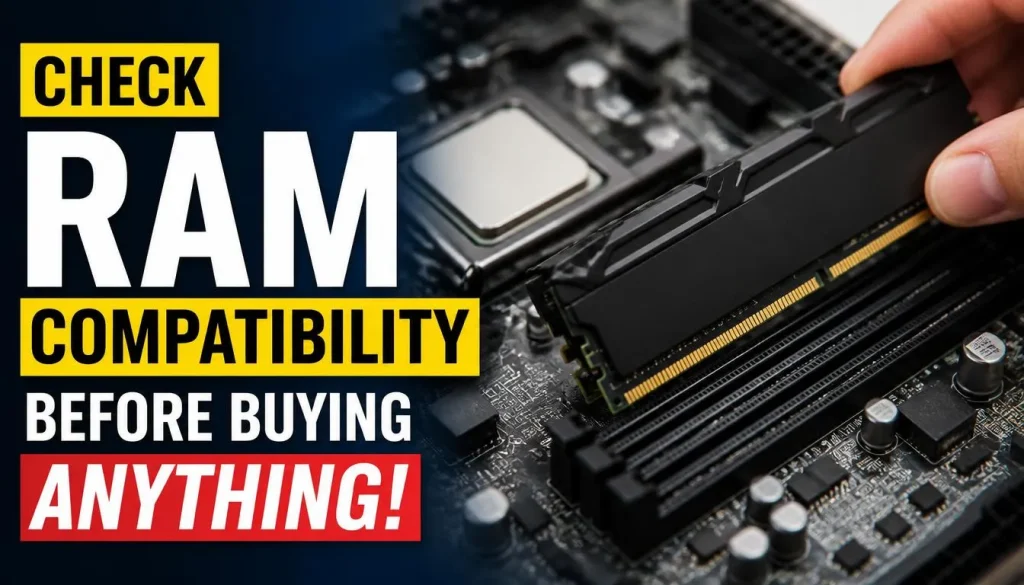
Compatibility is more important than brand, RGB, heat spreaders, or impressive-looking speed numbers.
Before ordering RAM, check each of the following.
1. Find the Exact Laptop Model
Look for the complete model identifier.
You may find it:
- On a label underneath the laptop
- Inside Windows System Information
- In manufacturer software
- In the BIOS or UEFI
- On the original invoice or packaging
Use that exact identifier when checking specifications.
2. Check Your Current RAM in Windows
Open:
Task Manager → Performance → Memory
Depending on the system and Windows configuration, this screen can provide useful information about memory capacity, usage, speed, and physical slots.
Kingston also recommends checking Task Manager before purchasing an upgrade and notes that the Performance tab can help users review current memory usage and available physical memory slots. Kingston’s laptop RAM upgrade guide.
Task Manager is a useful starting point, but it should not replace the manufacturer’s specifications.
3. Check Whether You Need DDR4 or DDR5
DDR4 and DDR5 are different memory generations.
Do not buy DDR5 for a laptop designed for DDR4, or DDR4 for a DDR5-only laptop.
They are not drop-in replacements for each other.
Use the memory generation specified by your laptop manufacturer.
4. Check the Number of RAM Slots
A laptop may have:
- Two removable SO-DIMM slots
- One removable slot plus soldered RAM
- One removable slot
- Fully soldered memory
Knowing the slot layout changes what you should buy.
For example, a laptop with one 16GB module and one empty slot may only require another compatible 16GB module to reach 32GB.
A laptop with two 8GB modules and no empty slots would require removing both modules if you want to install a 2×16GB kit.
5. Check Maximum Supported Capacity
Do not assume that physically fitting memory will automatically be supported.
Check the manufacturer’s maximum memory specification for your exact model and configuration.
Some laptops may have additional limitations related to:
- Capacity per slot
- Processor memory controller
- BIOS support
- Memory density
- Rank configuration
6. Check Supported Memory Speed
A module advertised at a higher speed may not necessarily run at that full advertised rate inside your laptop.
The final speed depends on factors such as:
- CPU memory controller
- Motherboard design
- BIOS
- Memory population
- Supported profiles
- Module specifications
Buying faster RAM can therefore be pointless if your system cannot operate it at that speed.
How to Choose Compatible RAM for Your Gaming Laptop
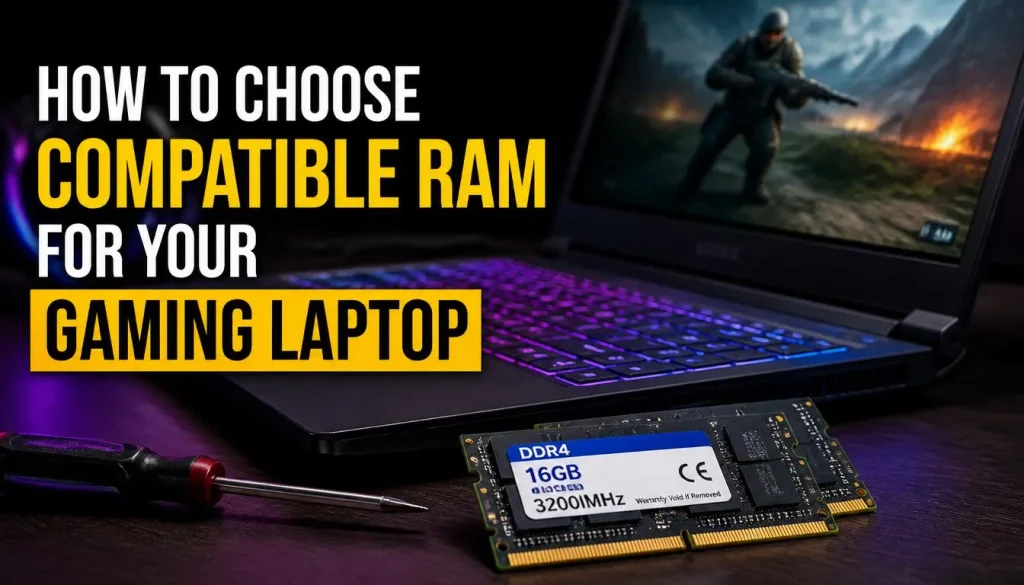
Once you know what your laptop supports, choosing the memory becomes much easier.
DDR4 vs DDR5
Always match the generation required by your laptop.
Do not choose between DDR4 and DDR5 based on which one sounds faster. Your motherboard determines which generation is compatible.
SO-DIMM vs Desktop DIMM
Gaming laptops generally use SO-DIMM memory when the RAM is removable.
Desktop memory modules are physically larger and are not substitutes for laptop SO-DIMMs.
1×16GB vs 2×8GB RAM for Gaming
If your laptop supports two memory channels and two removable slots, two compatible modules can provide more memory bandwidth than a single-module configuration.
That is why a 2×8GB configuration can have an advantage over 1×16GB in some systems and workloads, even though both provide 16GB of total capacity.
However, there is a trade-off.
With 1×16GB and an empty second slot, you have an easy upgrade path to 32GB later.
With 2×8GB, both slots may already be occupied.
Intel explains that dual-channel memory allows the processor’s memory controller to exchange data through two channels and recommends matched capacity—and ideally matched speed—for paired modules. Read Intel’s explanation of dual-channel RAM.
1×32GB vs 2×16GB
The same general principle applies when choosing 32GB.
A compatible 2×16GB configuration can make sense when you want both channels populated immediately.
A single 32GB module may offer more expansion flexibility if your laptop supports another 32GB module later.
The better option depends on:
- Your laptop’s supported configurations
- Number of slots
- Maximum capacity
- Upgrade plans
- Memory-channel architecture
Single-Channel vs Dual-Channel RAM
Memory channels affect bandwidth, not total capacity.
A laptop can have 16GB of RAM in different configurations:
- 1×16GB
- 2×8GB
Both contain 16GB, but the memory-channel configuration may be different.
The real gaming impact varies by hardware and workload, so avoid assuming that dual channel guarantees a specific FPS increase.
Can You Mix 8GB and 16GB RAM?
Sometimes, but it is not the cleanest configuration to recommend blindly.
Mixed-capacity configurations may work on supported systems, but memory behavior depends on the platform.
For fewer compatibility surprises, matched modules are generally easier to work with.
If you already own an 8GB module and want to add 16GB, first check your manufacturer’s supported memory configurations.
Can You Mix Different RAM Brands?
Brand names do not need to match simply for modules to exist in the same computer, but mixing memory can introduce variables.
Two modules may differ in:
- Speed
- Timings
- Voltage
- Rank
- Memory chips
- SPD programming
For the most predictable configuration, especially when buying both modules at the same time, a matched kit is usually the simpler choice.
Can You Mix Different RAM Speeds?
A system containing modules with different speed capabilities may operate at a mutually supported setting rather than letting each module run independently at its maximum advertised rate.
This is another reason to check the exact laptop specification before buying.
Kingston’s memory support guidance also notes that memory speed can be affected by platform and population limitations. See Kingston’s memory support information.
RAM MHz vs MT/s
You will often see laptop memory described with numbers such as:
- DDR5-4800
- DDR5-5200
- DDR5-5600
Memory marketing and casual discussion frequently use “MHz,” but effective DDR data rates are more accurately expressed in MT/s, or mega transfers per second.
The important thing for a normal upgrade is not arguing over terminology. It is buying a specification your laptop supports.
Does CAS Latency Matter?
CAS latency is one part of memory timing.
Lower latency can matter when comparing otherwise similar memory configurations, but laptop buyers should not prioritize it ahead of basic compatibility.
Get these right first:
- DDR generation
- Form factor
- Capacity
- Supported speed
- Slot configuration
Only then should timing differences become a deciding factor.
Single-Rank vs Dual-Rank RAM
Memory rank is different from single-channel and dual-channel memory.
A module may be single-rank or dual-rank depending on how its memory chips are organized.
Rank configuration can affect compatibility and performance in some systems, but it is an advanced consideration. Do not buy modules purely because somebody online claims that “dual rank is always faster.”
Follow the configurations supported by your laptop manufacturer or a reputable memory compatibility database.
What About XMP, EXPO, and JEDEC?
Desktop memory enthusiasts often use performance profiles such as XMP or EXPO.
Gaming laptops are less predictable.
Some support performance memory profiles. Others operate memory according to standard supported settings controlled by the BIOS and processor.
Do not assume that a high-speed XMP memory kit will run at its advertised profile simply because the module physically fits your laptop.
Check your laptop’s BIOS and manufacturer documentation first.
What You Need Before Upgrading Laptop RAM
You normally need only a few basic items:
- Compatible SO-DIMM RAM
- Correct-size screwdriver
- Plastic opening or pry tool if required
- Clean, well-lit workspace
- Your laptop’s service manual
- Anti-static precautions
Back up important files before working inside the laptop.
A RAM upgrade does not normally erase your storage, but backing up important data before hardware work is still sensible.
How to Upgrade Gaming Laptop RAM Step by Step
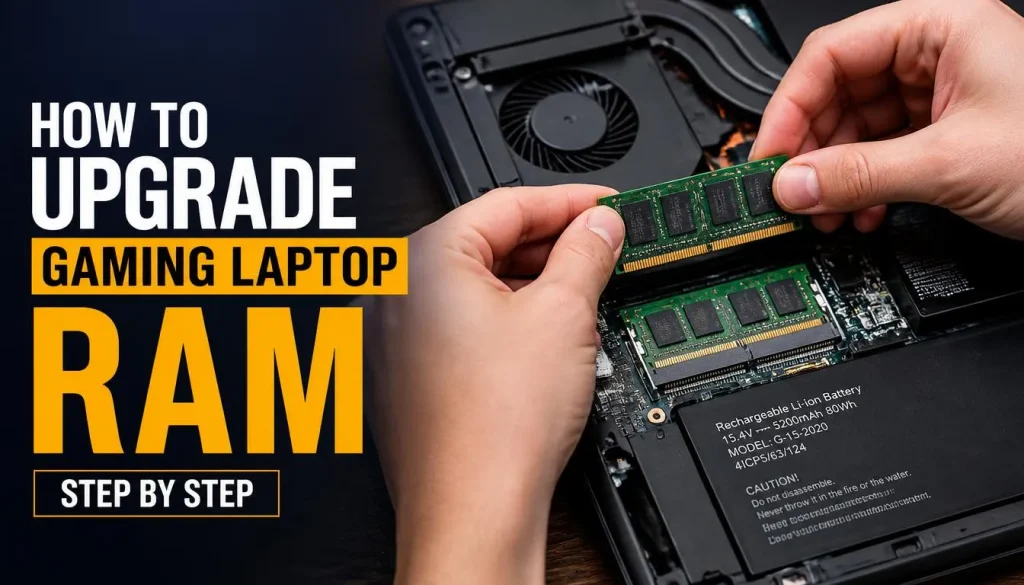
The exact disassembly procedure varies between models, so your laptop’s official service manual should take priority over generic instructions.
Step 1: Shut Down the Laptop Completely
Perform a full shutdown.
Do not leave the laptop in sleep mode.
Disconnect:
- Charger
- USB devices
- External displays
- Headsets
- Storage devices
- Other accessories
Step 2: Follow the Manufacturer’s Battery Procedure
Older laptops may have removable batteries.
Newer gaming laptops usually have internal batteries.
If the service procedure instructs you to disconnect the internal battery before working on memory, follow that instruction carefully.
Do not improvise around battery connectors if you are unsure what you are doing.
Step 3: Protect the Laptop From Static Electricity
Work on a clean, non-carpeted surface if possible.
Avoid touching the memory module’s electrical contacts.
Kingston recommends handling memory carefully and taking precautions against electrostatic discharge during SO-DIMM installation. See Kingston’s SO-DIMM installation instructions.
Step 4: Remove the Bottom Cover
Remove the required screws and keep track of where each one came from.
Some laptops use screws of different lengths.
Use a plastic opening tool where necessary rather than forcing the cover with a metal screwdriver.
If the panel does not release, stop and check for:
- Hidden screws
- Captive screws
- Screws beneath covers
- Clips that require a specific opening direction
Forcing the panel is an easy way to damage clips or the chassis.
Step 5: Locate the RAM Slots
SO-DIMM slots are usually easy to recognize.
Some laptops place a protective cover or shield over the memory.
Before touching anything, confirm that you have identified the correct component.
Step 6: Remove Existing RAM if Necessary
If you are replacing an existing SO-DIMM:
- Gently release the retaining clips on both sides.
- The module should lift upward at an angle.
- Hold it by the edges.
- Slide it out of the slot.
Do not pull straight upward while the module is still locked.
Step 7: Install the New SO-DIMM
Check the notch in the memory module and align it with the slot.
The notch prevents correct modules from being inserted in the wrong orientation.
Insert the SO-DIMM at an angle until the contacts are properly seated.
Then press the module downward gently until the retaining clips lock it into place.
If it requires excessive force, stop and check alignment.
Do not force RAM into the slot.
Step 8: Reconnect Anything You Disconnected
If you disconnected an internal battery according to the service instructions, reconnect it correctly.
Check that:
- RAM modules are seated evenly
- Retaining clips are locked
- No cable was accidentally disconnected
- No screw is loose inside the chassis
Step 9: Reinstall the Bottom Cover
Align the cover before tightening the screws.
Do not overtighten small laptop screws.
Step 10: Start the Laptop
Reconnect the charger if necessary and power on the machine.
Do not panic immediately if the first boot behaves slightly differently from normal. Some systems may perform memory initialization after hardware changes.
If the laptop fails to boot properly, move to the troubleshooting section below.
How to Check Whether Your RAM Upgrade Worked
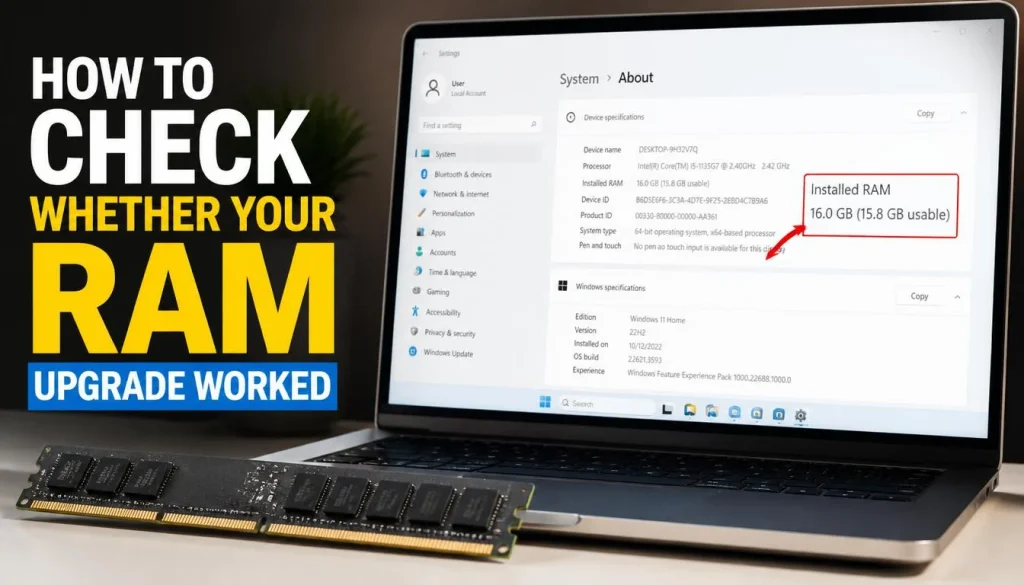
Do not assume success just because Windows started.
Verify the upgrade.
Check RAM in Task Manager
Open:
Ctrl + Shift + Esc → Performance → Memory
Confirm:
- Total memory capacity
- Reported memory speed
- Memory usage
- Slot information where available
If you upgraded from 16GB to 32GB, Windows should now report approximately the expected total capacity, allowing for normal system reporting differences and hardware-reserved memory.
Check the BIOS or UEFI
You can also verify installed memory in your laptop’s BIOS or UEFI.
If the BIOS detects the full amount but Windows does not, the troubleshooting direction may be different from a situation where the BIOS itself cannot see the module.
Run a Memory Test
After a major upgrade, especially if you experience crashes or unusual behavior, running a memory diagnostic is a sensible stability check.
Windows includes the Windows Memory Diagnostic tool. Microsoft documents how to launch it using the mdsched command and restart the computer for testing. Microsoft’s Windows Memory Diagnostic instructions.
Gaming Laptop Not Detecting New RAM? Try These Fixes
RAM upgrades are normally straightforward, but a small compatibility or installation problem can prevent the laptop from booting correctly.
Start with the simplest possibilities.
Laptop Won’t Boot After RAM Upgrade
Power the laptop off and disconnect external power.
Then check:
- Is the RAM fully seated?
- Is the module compatible with the laptop?
- Is the capacity supported?
- Are you using the correct DDR generation?
- Does the laptop boot with the original memory?
- Does each new module work individually?
- Does each slot work with a known-good module?
Returning temporarily to the original configuration is one of the fastest ways to determine whether the problem is related to the new memory.
Black Screen After RAM Upgrade
A black screen immediately after a RAM change often points toward a memory initialization, installation, or compatibility problem.
Try:
- Powering the laptop down completely
- Reseating the memory
- Testing one module at a time
- Testing the original module
- Confirming the module specification
- Checking the manufacturer’s supported memory configurations
Do not repeatedly force the laptop through boot cycles without first checking the physical installation.
New RAM Is Not Detected
If Windows still reports the old capacity:
- Check the BIOS.
- Shut down the computer.
- Reseat the module.
- Test the new module by itself where supported.
- Try the other slot if the laptop has two.
- Confirm maximum supported capacity.
- Confirm that the RAM is compatible with your exact model.
Kingston’s support documentation similarly recommends confirming compatibility and reseating memory when a system does not boot or recognize newly installed RAM.
Laptop Detects Only One RAM Stick
If two modules are installed but only one appears:
- Reseat both modules
- Test module A by itself
- Test module B by itself
- Test each slot
- Check for contamination or visible damage
- Verify supported capacities and configurations
This process helps distinguish a bad module from a slot, seating, or compatibility issue.
Installed 32GB but Windows Shows Less
First determine how much is missing.
A small difference associated with hardware-reserved memory is different from an entire 16GB module disappearing.
Check:
- BIOS-reported memory
- Windows Task Manager
- Whether both modules are detected
- Whether your operating system and laptop configuration support the installed capacity
If an entire stick is missing, treat it as a detection problem rather than a normal reserved-memory issue.
RAM Is Running Slower Than Advertised
Suppose you bought a DDR5-5600 module but your laptop reports a lower transfer rate.
That does not automatically mean the module is defective.
Memory speed can be limited by:
- CPU memory support
- BIOS
- Laptop motherboard design
- Module population
- Supported memory profiles
- Mixed-memory configuration
Use your laptop’s officially supported memory speed as the reference point—not only the maximum number printed on the RAM package.
Laptop Freezes or Crashes After RAM Upgrade
If freezing or blue-screen errors begin immediately after the upgrade:
- Reseat the RAM.
- Test each module individually.
- Restore the original RAM and see whether stability returns.
- Run a memory diagnostic.
- Verify the exact specification of the new modules.
- Check the laptop manufacturer’s BIOS and support information.
Avoid assuming that every crash after an upgrade is caused by Windows or a game. The timing of the problem is an important clue.
How Much Gaming Performance Can a RAM Upgrade Give You?
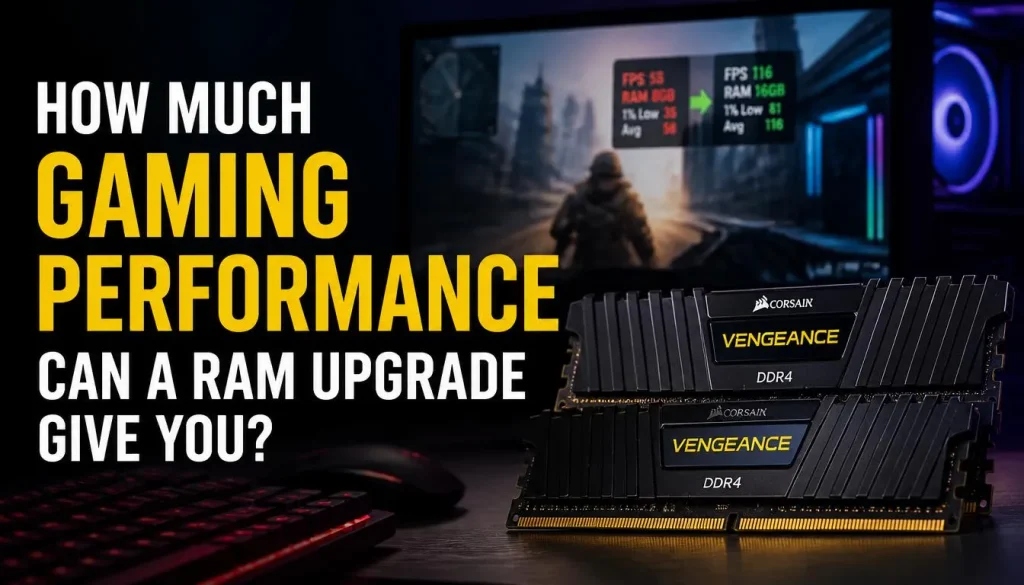
There is no universal percentage.
The result depends heavily on what was limiting the laptop before the upgrade.
Scenario 1: 8GB to 16GB When Memory Was Full
This is where you may notice one of the clearest improvements.
If the laptop was running out of physical memory, moving to 16GB can reduce memory pressure and improve responsiveness.
The biggest benefit may appear in stutter, multitasking, and consistency rather than headline average FPS.
Scenario 2: 16GB to 32GB When 16GB Was Already Enough
Expect a smaller gaming difference.
The extra memory provides additional headroom, but unused RAM does not directly make a GPU render frames faster.
Scenario 3: One Module to a Matched Two-Module Configuration
On a system that benefits from dual-channel operation, adding the appropriate second module can increase available memory bandwidth.
That may improve performance in certain games and workloads, but the size of the improvement depends on the rest of the hardware.
Kingston notes that additional memory does not necessarily make a computer faster unless the previous capacity was insufficient, while moving from a single-module configuration to an appropriate dual-channel configuration can increase memory bandwidth.
Scenario 4: Your GPU Is the Bottleneck
If the graphics processor is already running at its limit while RAM capacity remains adequate, adding more system memory may have almost no effect on gaming FPS.
In that situation, optimization may help more than additional RAM. See our guide on how to optimize a gaming laptop for maximum performance for settings and system-level improvements.
Does Upgrading RAM Void a Gaming Laptop Warranty?
There is no universal answer.
Warranty terms vary by:
- Manufacturer
- Model
- Country
- Retailer
- Protection plan
- Type of damage
This matters particularly for readers in the United States, United Kingdom, Canada, and Australia because consumer protections and manufacturer warranty terms are not identical across regions.
Before opening your laptop:
- Check the warranty terms for your country.
- Read the official service manual.
- Check whether the manufacturer describes the memory as user-accessible or service-only.
- Avoid damaging screws, clips, connectors, cables, or other components during the upgrade.
Even where upgrading a component is permitted, damage caused during disassembly may be treated differently from an unrelated hardware failure.
When in doubt, contact the manufacturer before opening an expensive laptop.
How Much Does a Gaming Laptop RAM Upgrade Cost?
The price depends on:
- DDR generation
- Capacity
- Speed
- Brand
- Module count
- Region
- Current memory-market pricing
A 16GB upgrade and a 64GB DDR5 kit are obviously in very different price categories.
Instead of focusing on the cheapest RAM you can find, prioritize:
- Confirmed compatibility
- Correct capacity
- Appropriate speed
- Reliable seller
- Suitable warranty
For readers in the USA, UK, Canada, and Australia, compare the total local cost rather than converting a US price directly. Taxes, availability, warranties, and retailer pricing can differ substantially.
RAM Upgradeability Varies by Gaming Laptop Model
Brand alone cannot tell you whether a laptop’s memory is upgradeable.
A manufacturer may sell one gaming laptop with two SO-DIMM slots and another with soldered memory.
| Laptop Family | What to Check |
|---|---|
| ASUS ROG / TUF | Exact model, DDR generation, slots, maximum capacity |
| Lenovo Legion / LOQ | Exact model and memory configuration |
| Acer Nitro / Predator | SO-DIMM layout, speed and capacity support |
| MSI Gaming | Slot count, factory configuration and supported capacity |
| HP OMEN / Victus | Service manual and exact product number |
| Dell G Series / Alienware | Supported configurations and service documentation |
| Razer Blade | Exact generation and memory design |
If you own or are considering a Lenovo model, our Lenovo gaming laptop guide explains the broader Legion and LOQ lineup.
For HP buyers, see our guide on whether HP laptops are good for gaming.
The key rule remains the same: always verify the complete model number before buying RAM.
Is Upgrading Gaming Laptop RAM Worth It?
A RAM upgrade can be excellent value when it solves an actual memory limitation.
It is especially worth considering when:
- Your laptop has only 8GB
- Memory usage frequently reaches its limit
- You run games alongside many background applications
- You stream or record gameplay
- You use the laptop for gaming and creative work
- Your current memory configuration leaves performance or capacity on the table
- Your laptop has an easy, supported upgrade path
It may not be worth spending money on RAM when:
- You already have enough memory for your workloads
- The GPU is the clear performance bottleneck
- Your laptop is overheating
- Your game is CPU-limited
- The RAM is fully soldered
- A different upgrade would solve the actual problem
If your memory cannot be upgraded and the laptop no longer meets your gaming needs, it may be more sensible to evaluate newer hardware. Our current gaming laptop guide can help you understand what specifications to prioritize.
Frequently Asked Questions About How to Upgrade RAM in a Gaming Laptop
Can I upgrade the RAM in any gaming laptop?
No. Many gaming laptops use replaceable SO-DIMM memory, but others have partially or fully soldered RAM. Check the exact model’s official specifications and service manual before buying memory.
Will adding more RAM increase FPS?
Sometimes, but not always.
You are more likely to see an improvement when your existing RAM capacity is insufficient or when moving from a bandwidth-limited memory configuration to a suitable multi-channel configuration.
If your GPU or CPU is the main bottleneck, more RAM may have little effect on average FPS.
Is 16GB of RAM enough for gaming?
For many gaming setups, 16GB remains a practical amount of memory.
However, 32GB can be useful for demanding games, heavy multitasking, streaming, recording, modding, and creative applications.
Check your real memory usage rather than upgrading based only on a number.
Is 32GB of RAM worth it for a gaming laptop?
It can be.
32GB is particularly useful when gaming is only one part of your workload or when 16GB is already becoming restrictive.
If your current games use far less than 16GB and you do little multitasking, the gaming improvement may be small.
Can I add 16GB of RAM to a laptop that already has 8GB?
Potentially, provided the laptop supports that capacity and configuration.
Check the manufacturer’s supported memory configurations before mixing module sizes.
A matched configuration may be preferable when you are buying all-new memory.
Can I mix different RAM brands?
It can work if the modules are electrically and technically compatible, but matched modules reduce uncertainty around speed, timings, rank, and other characteristics.
Can I install DDR5 RAM in a DDR4 gaming laptop?
No.
DDR4 and DDR5 are different memory generations and should not be treated as interchangeable upgrades.
Buy the generation specified for your laptop.
What happens if I install faster RAM than my laptop supports?
The memory may operate at a lower supported speed, or the configuration may not behave as expected depending on the laptop and module.
Buying a high advertised speed does not force your laptop to operate memory at that rate.
Does upgrading RAM delete my files?
Normally, no.
Your personal files are stored on the SSD or other storage device, not in system RAM.
However, creating a backup before performing hardware work is still good practice.
Do I need to reinstall Windows after upgrading RAM?
Normally, no.
A compatible RAM upgrade should not require reinstalling Windows.
After installation, boot normally and verify that Windows detects the new capacity.
How do I know the maximum RAM my gaming laptop supports?
Use the full laptop model number and check:
- Manufacturer specifications
- Official service manual
- Manufacturer support page
- Reliable memory compatibility tools
Do not assume the maximum based only on the processor or what another laptop in the same product family supports.
Why is my laptop showing less RAM after an upgrade?
Possible causes include:
- One module not being detected
- Incorrect seating
- Unsupported configuration
- Hardware-reserved memory
- Slot problems
- Incompatible RAM
Check the BIOS and Windows Task Manager to determine whether the missing capacity is an entire module or only a smaller reserved portion.
Why is my new RAM running slower than advertised?
Your laptop may be limiting the memory to a supported speed based on the processor, BIOS, motherboard, memory configuration, or supported profile.
The number on the RAM package represents the module’s rated capability, not a guarantee that every laptop will run it at that speed.
Final Thoughts
Upgrading gaming laptop RAM is not difficult, but choosing the correct memory requires more care than the physical installation.
Start with the exact laptop model.
Confirm whether the RAM is removable.
Check the DDR generation, SO-DIMM form factor, number of slots, maximum capacity, supported speed, and current memory configuration before spending money.
Then ask the most important question: Is RAM actually the problem I am trying to solve?
If your 8GB laptop is constantly running out of memory, moving to 16GB may make the whole system feel more comfortable. If you stream, create content, use large mods, or multitask heavily, 32GB may provide valuable headroom.
But if you already have enough memory and your GPU is running at full load, another 16GB of RAM is unlikely to transform your frame rate.
A successful upgrade is not about installing the biggest memory kit you can afford. It is about matching the right capacity and configuration to your laptop and the way you actually use it.
Check compatibility first, install carefully, verify the result, and test the system before calling the upgrade complete.

“Electronics aren’t just gadgets. They’re the invisible threads that connect our work, our play, and our world.”
I’m Julian Reed, and my obsession with tech started at age twelve, when I soldered a defunct gaming console back to life in my bedroom. That tiny green screen taught me that technology isn’t just a black box, it’s a tool you can master.
After fifteen years as a hardware engineer and a decade reviewing consumer tech, I’ve joined this team to cut through the jargon. Whether you’re building a high-end home theater or just need a laptop that won’t lag, I’m here to help you choose the gear that truly powers your life.


