
How to keep a gaming laptop cool while gaming? The best approach is to improve airflow, clean the cooling system, adjust game settings, and use smart cooling accessories. Keeping temperatures under control helps prevent lag, thermal throttling, and hardware damage during long gaming sessions.
Gaming laptops are built to handle demanding games, but they also generate a lot of heat. If your laptop gets hot when gaming, you’re not alone. I’ve dealt with overheating issues on several gaming laptops, and the good news is that most heat problems can be reduced with a few simple changes.
Why Gaming Laptops Get Hot During Gaming
Before fixing the issue, it’s important to understand why do gaming laptops get so hot.
Modern games push the CPU and GPU to their limits. These components process millions of calculations every second, creating heat in the process. Since laptops have limited internal space, cooling systems often struggle to remove heat as quickly as it is generated.
Common causes include:
- High graphics settings
- Dust buildup inside vents
- Poor airflow
- Background applications
- Aging thermal paste
- Warm room temperatures
- Long gaming sessions
If ignored, excessive heat can lead to:
- FPS drops
- Thermal throttling
- Random shutdowns
- Reduced battery life
- Shortened hardware lifespan
Is it normal for gaming laptops to get hot?
Yes, it is normal.
Most gaming laptops operate between:
- 70°C–85°C (158°F–185°F) during gaming
- Up to 90°C (194°F) during demanding workloads
However, temperatures consistently above 95°C (203°F) may indicate a cooling problem that should be addressed.
According to hardware testing data, gaming laptops that consistently operate above 90°C experience measurably faster degradation in CPU performance and battery capacity compared to systems maintained below 85°C. Keeping temperatures in check is one of the most effective ways to extend your laptop’s usable gaming life.
Keeping temperatures lower can help your gaming laptop last longer and maintain stable performance.
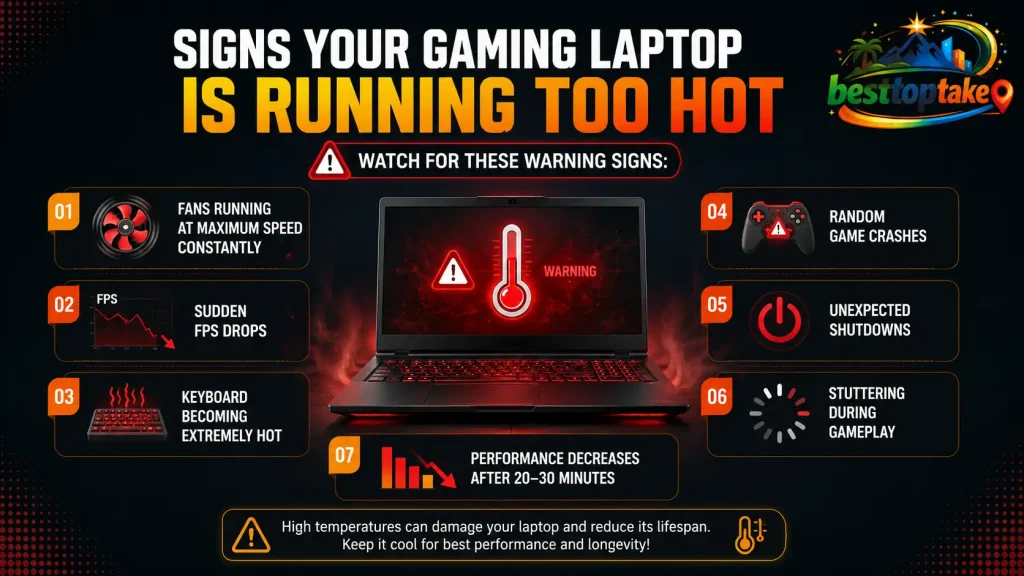
Signs Your Gaming Laptop Is Running Too Hot
Watch for these warning signs:
- Fans running at maximum speed constantly
- Sudden FPS drops
- Keyboard becoming extremely hot
- Random game crashes
- Unexpected shutdowns
- Stuttering during gameplay
- Performance decreases after 20–30 minutes
If you notice several of these symptoms, your laptop may need cooling improvements.
How to Keep Gaming Laptop Cool: 15 Proven Methods
Let’s go through the most effective solutions.
1. Use a Hard, Flat Surface
One of the easiest ways to keep laptop cool while gaming is using the right surface.
Avoid:
- Beds
- Blankets
- Pillows
- Sofas
These materials block air intake vents.
Instead, place your laptop on:
- A desk
- A laptop stand
- A cooling pad
- A solid table
This simple change can reduce temperatures significantly.
2. Elevate the Rear of the Laptop
Raising the back of the laptop improves airflow underneath.
I often use:
- Laptop stands
- Small rubber feet
- Adjustable cooling stands
Even lifting the rear by one inch can help cool air enter the vents more efficiently.
3. Invest in a Quality Cooling Pad
Many gamers ask about the best way to cool laptop while gaming.
A quality cooling pad is one of the easiest upgrades.
Benefits include:
- Increased airflow
- Lower surface temperatures
- Better gaming comfort
- Reduced fan strain
Look for cooling pads with:
- Large fans
- Adjustable speeds
- Metal mesh surfaces
For many users, temperatures drop by 3–8°C.
4. Clean Dust from Air Vents
Dust is one of the biggest causes of overheating.
Over time, dust blocks:
- Air vents
- Cooling fins
- Fan blades
This prevents heat from escaping properly.
I recommend cleaning vents every 3–6 months.
Use:
- Compressed air
- Soft brushes
- Electronic cleaning tools
Never use excessive force when cleaning internal components.
5. Adjust Graphics Settings
Running every game at maximum settings generates unnecessary heat.
Lowering a few settings can make a huge difference:
- Shadows
- Ray tracing
- Anti-aliasing
- Draw distance
- Reflections
You often gain lower temperatures without noticing major visual differences.
6. Limit FPS
Many gamers overlook this simple trick.
If your laptop screen refreshes at 144Hz, there is little reason to render 300 FPS.
Use:
- V-Sync
- NVIDIA Max Frame Rate
- AMD Frame Rate Target Control
- In-game FPS caps
Reducing FPS can lower CPU and GPU usage considerably.
7. Keep Room Temperature Cool
Environmental temperature matters.
A laptop gaming in a room at 90°F (32°C) struggles much more than one in a room at 70°F (21°C).
Tips:
- Use air conditioning
- Open windows when possible
- Improve room ventilation
- Avoid direct sunlight
Cooler rooms mean cooler laptops.
8. Close Background Programs
Extra software increases system load.
Before gaming, close:
- Web browsers
- Streaming apps
- Unused launchers
- Video editors
- Background downloads
This reduces CPU usage and heat generation.
9. Enable Performance Fan Modes
Most gaming laptops include manufacturer software that controls cooling.
Examples include software from:
- ASUS
- MSI
- Alienware
- Lenovo
- Acer
Switching to performance cooling modes often increases fan speed and improves heat management.
10. Replace Old Thermal Paste
Thermal paste transfers heat from the CPU and GPU to the cooling system.
Over time it dries out.
Signs of worn thermal paste include:
- Higher temperatures than before
- Loud fans
- Sudden overheating
How to do it:
- Search YouTube for a thermal paste guide specific to your exact laptop model before opening anything
- Power off completely and unplug all cables
- Remove the bottom panel carefully using a plastic pry tool
- Unscrew the cooling assembly and lift the heat pipe away from the CPU and GPU
- Clean old paste from all surfaces using isopropyl alcohol (90% or higher) and a lint-free cloth
- Apply a small pea-sized dot of new compound such as Arctic MX-4 or Thermal Grizzly Kryonaut to the center of each chip
- Reattach the heat pipe, replace the panel, and test temperatures
Most users see a temperature reduction of 10°C to 25°C after this procedure on laptops that are 3 or more years old.
11. Update Drivers and BIOS
Manufacturers frequently release updates that improve thermal management.
Check for updates to:
- Graphics drivers
- Chipset drivers
- BIOS firmware
Updated software can improve fan behavior and power efficiency.
To update drivers manually, press Windows + X, select Device Manager, right-click on your graphics card under Display Adapters, and choose Update Driver. For BIOS updates, visit your laptop manufacturer’s official support page and search for your exact model number.
12. Use Balanced Power Settings
Maximum performance modes create additional heat.
For some games, switching to balanced power settings can lower temperatures while maintaining smooth gameplay.
Experiment with:
- Balanced mode
- Performance mode
- Custom power profiles
Find the best combination for your system.
How to do it:
- Press Windows + I to open Settings
- Go to System, then Power & Battery
- Under Power Mode, select Balanced for everyday gaming
- For more control, press Windows + R, type powercfg.cpl, and press Enter
- Click Change plan settings next to your current plan, then Change advanced power settings
- Expand Processor power management and set Maximum processor state to 80% to 90% to reduce heat during less demanding games
13. Undervolt the CPU (If Supported)
Undervolting reduces CPU voltage while maintaining performance.
Benefits include:
- Lower temperatures
- Less power consumption
- Reduced fan noise
However, not all laptops support undervolting.
Important Warning: Undervolting incorrectly can cause system instability, crashes, or in rare cases prevent your laptop from booting. Always research your specific CPU model and laptop before attempting this. Tools commonly used include ThrottleStop and Intel XTU for Intel processors. If you are not confident with advanced system settings, skip this step and focus on the other 14 methods in this guide instead.
If you are unfamiliar with advanced settings, research your laptop model carefully before making changes.
14. Keep Air Vents Unblocked
Many users accidentally block vents.
Check that:
- Side vents remain open
- Rear vents have clearance
- Bottom intake vents are unobstructed
Proper airflow is critical for cooling.
15. Take Breaks During Long Gaming Sessions
Even excellent cooling systems have limits.
During marathon gaming sessions:
- Save progress
- Exit games occasionally
- Allow temperatures to stabilize
Short breaks can help maintain healthy operating temperatures.
Common Reasons a Laptop Gets Hot When Gaming
If your laptop gets hot when gaming, these factors are often responsible:
| Cause | Effect |
|---|---|
| Dust buildup | Restricted airflow |
| High graphics settings | Increased GPU load |
| Old thermal paste | Poor heat transfer |
| Warm room | Reduced cooling efficiency |
| Blocked vents | Trapped heat |
| Background apps | Extra CPU usage |
| Aging fans | Reduced airflow |
Identifying the root cause helps solve the issue faster.
Best Accessories to Cool a Gaming Laptop
Helpful accessories include:
Cooling Pads
Provide extra airflow underneath the laptop.
Laptop Stands
Improve ventilation by raising the device.
USB Desk Fans
Help circulate cool air around the setup.
Thermal Monitoring Software
Allows you to monitor temperatures in real time.
Popular tools include:
- HWMonitor
- HWiNFO
- MSI Afterburner
Monitoring temperatures helps identify problems before they become serious.

Mistakes That Make Gaming Laptops Hotter
Avoid these common errors:
Gaming on a Bed
Soft surfaces block air intake vents.
Ignoring Dust
Dust buildup slowly reduces cooling efficiency.
Running Too Many Programs
More software means more heat.
Blocking Exhaust Vents
Never place objects near cooling outlets.
Skipping Maintenance
Regular cleaning is essential for healthy temperatures.
What Hardware Experts Consistently Recommend:
Leading hardware reviewers and technicians agree on a core set of best practices for gaming laptop thermals. Clean vents every 3 to 6 months, replace thermal paste on laptops older than 3 years, use a quality cooling pad during extended sessions, and monitor temperatures using free tools like HWMonitor. These four habits alone address the majority of gaming laptop overheating issues.
My Personal Approach to Keeping a Gaming Laptop Cool
After years of gaming on laptops, I’ve found the best results come from combining several methods:
- Use a cooling pad.
- Keep vents clean.
- Limit unnecessary FPS.
- Close background programs.
- Play in a cool room.
- Monitor temperatures regularly.
Together, these habits help maintain stable performance and reduce overheating.
Frequently Asked Questions on How to Keep a Gaming Laptop Cool While Gaming
How to keep gaming laptop cool while gaming?
Use a cooling pad, clean vents regularly, improve airflow, lower graphics settings when necessary, and avoid gaming on soft surfaces.
How to cool laptop while gaming without a cooling pad?
Raise the rear of the laptop, use a hard surface, clean dust from vents, reduce graphics settings, and keep the room cool.
Why do gaming laptops get so hot?
Gaming laptops generate heat because powerful CPUs and GPUs work hard to process modern games in a compact chassis with limited cooling space.
Is it normal for gaming laptops to get hot?
Yes. Temperatures between 70°C and 85°C during gaming are generally normal. Sustained temperatures above 95°C may indicate a cooling issue.
What is the best way to cool laptop while gaming?
The most effective solution is a combination of proper airflow, regular cleaning, optimized game settings, and a quality cooling pad.
Can overheating damage a gaming laptop?
Yes. Long-term overheating can shorten component lifespan, reduce performance, and increase the risk of hardware failure.
Conclusion
If you’ve been wondering how to keep a gaming laptop cool while gaming, the answer is a combination of smart maintenance, better airflow, and sensible performance settings. While some heat is completely normal, excessive temperatures can affect both performance and hardware longevity.
I always recommend starting with the simplest fixes: clean the vents, use a hard surface, elevate the laptop, and close unnecessary applications. If your laptop gets hot when gaming, adding a cooling pad and monitoring temperatures can make a noticeable difference. By following these proven methods, you can enjoy smoother gameplay, fewer performance drops, and a healthier gaming laptop for years to come.

“Electronics aren’t just gadgets. They’re the invisible threads that connect our work, our play, and our world.”
I’m Julian Reed, and my obsession with tech started at age twelve, when I soldered a defunct gaming console back to life in my bedroom. That tiny green screen taught me that technology isn’t just a black box, it’s a tool you can master.
After fifteen years as a hardware engineer and a decade reviewing consumer tech, I’ve joined this team to cut through the jargon. Whether you’re building a high-end home theater or just need a laptop that won’t lag, I’m here to help you choose the gear that truly powers your life.


