
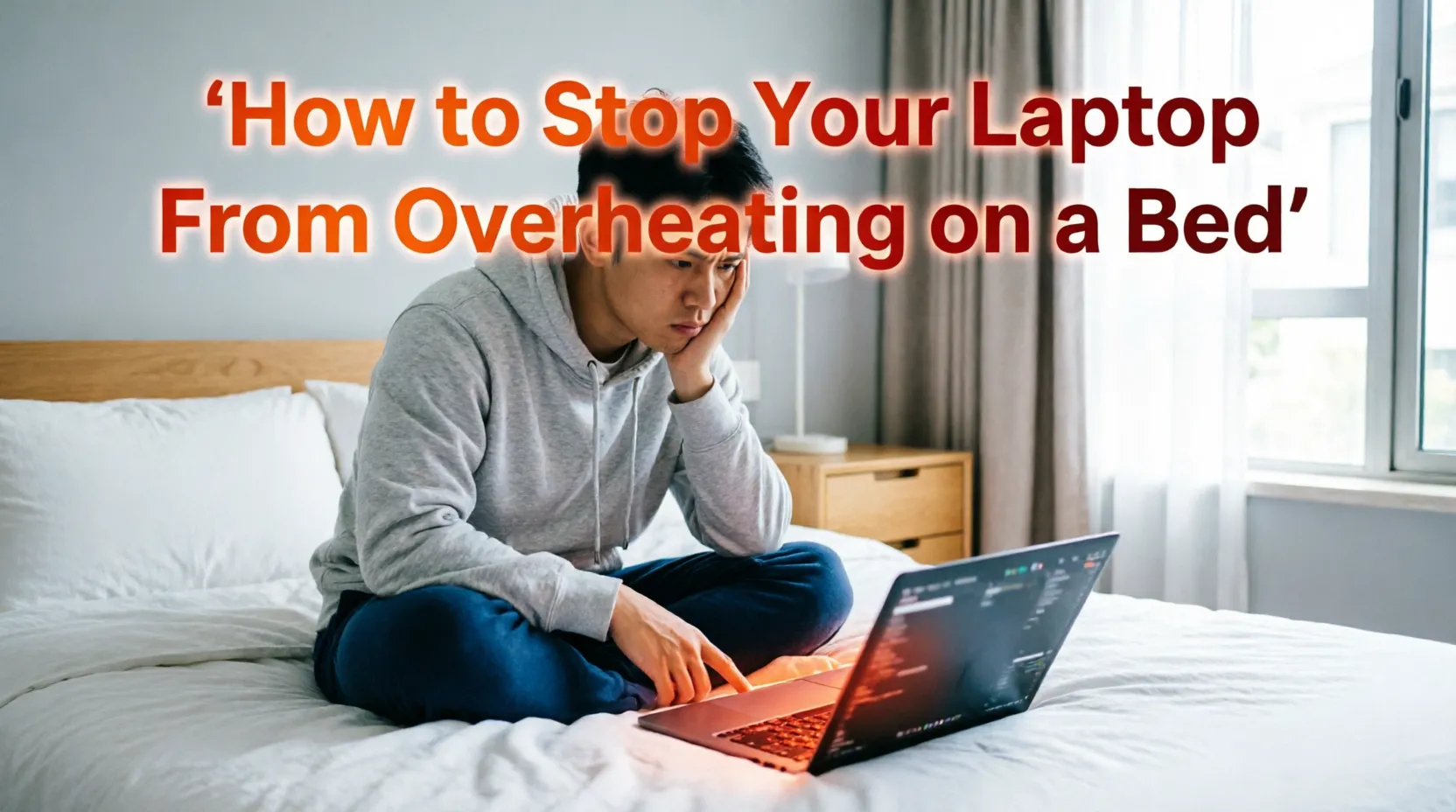
The best way to fix a laptop overheating on a bed is to place a solid, flat barrier between the device and your mattress. Blankets and sheets act as heavy insulators and physically block your laptop’s cooling vents, trapping hot air inside the chassis. To instantly stop your laptop from overheating on a bed, use a rigid lap desk, invest in an active cooling pad, or temporarily use a large hardcover book to lift the base and restore critical airflow.
Why Using a Laptop on a Bed Causes Overheating
The main reason your laptop gets burning hot on a bed comes down to basic airflow mechanics. Almost all modern laptops rely on an active cooling system to manage internal temperatures. They pull in cool air from the outside, pass it over hot internal components like the CPU and GPU, and exhaust the hot air out through the sides or back.
Most manufacturers place the intake vents directly on the bottom panel of the laptop. When you set your device down on a bed, couch, or pillow, the soft fabric immediately conforms to the shape of the laptop. This creates a perfect seal over the intake vents, completely suffocating the internal fans.
Without access to cool air, the fans spin faster and louder in a desperate attempt to lower the temperature. Furthermore, materials like fleece, cotton, and down are designed to retain body heat. When your laptop sinks into your mattress, the bedding absorbs the device’s heat and reflects it right back into the chassis, creating a dangerous thermal loop.
To stop a laptop from overheating on a bed, you have to break this cycle by restoring the airflow and removing the fabric from the equation.
5 Ways to Stop Your Laptop From Overheating on a Bed
Addressing this issue requires a mix of physical barriers, hardware accessories, and smart software tweaks. Here are the most effective ways to keep your laptop cool in bed.
1. Use a Dedicated Lap Desk
The absolute best way to fix this is by purchasing a lap desk. A lap desk features a hard, flat top surface (usually made of wood, bamboo, or rigid plastic) with a cushioned base that rests comfortably on your legs or mattress.
By providing a completely flat surface, a lap desk ensures your laptop’s rubber feet can do their job. Those tiny rubber feet are designed to lift the laptop exactly a few millimeters off a hard surface, providing just enough clearance for the bottom fans to breathe.
What to look for in a lap desk:
- Solid surface: Avoid lap desks with soft or fabric-covered tops.
- Built-in ventilation: Many premium wooden lap desks feature carved holes or slots specifically designed to aid heat dissipation.
- Mouse real estate: If you use an external mouse, ensure the desk is wide enough to accommodate it without pushing your laptop off the edge.
2. Invest in an Active Cooling Pad
If you are gaming, editing video, or doing heavy multitasking in bed, a simple lap desk might not be enough. In these scenarios, you should upgrade to an active laptop cooling pad.
A cooling pad is a rigid tray equipped with one or more USB-powered fans. You place your laptop on the pad, and the pad sits on your bed. The pad’s fans force a continuous stream of cool air directly up and into your laptop’s bottom intake vents.
How to choose the right cooling pad:
- Fan placement: Look at the bottom of your laptop to see where the intake vents are located. Buy a cooling pad where the fans align directly with your specific vents.
- Solid bottom chassis: Because you will be using this on a bed, the cooling pad must have side intakes or a solid bottom. If the cooling pad also pulls air from the bottom, the bed sheets will choke the cooling pad just like they choked your laptop.
- Adjustable speeds: Look for models with a dial to turn the fan speed down when you are just browsing the web to reduce noise.
3. Adjust Your System Power Settings
Sometimes the easiest way to prevent a laptop from overheating on a bed is to stop it from generating so much heat in the first place. High-performance processors run hot, but you rarely need maximum CPU power when you are simply watching Netflix or typing an email in bed.
By tweaking your operating system’s power plan, you can limit the processor’s maximum output, drastically reducing the heat generated inside the chassis.
For Windows Users:
- Open the Start Menu and search for Edit Power Plan.
- Click on Change advanced power settings.
- Scroll down to Processor power management and expand the menu.
- Expand Maximum processor state.
- Change the “On battery” and “Plugged in” values from 100% to 85% or 90%.
- Click Apply and OK. Your laptop will instantly run cooler with a negligible impact on daily performance.
For Mac Users:
- Open System Settings (or System Preferences).
- Click on Battery.
- Look for Low Power Mode.
- Change the setting to Always or Only on Battery. This reduces display brightness and limits background processing, significantly lowering your MacBook’s core temperature.
4. Identify and Clean Your Cooling Vents
Using a laptop on a bed exposes it to a massive amount of dust, lint, pet hair, and dead skin cells. Over time, your laptop’s cooling fans suck this debris into the chassis, clogging the internal heatsinks. If your vents are clogged with bed lint, your laptop will overheat regardless of whether it is on a desk or a blanket.
How to clean your laptop safely:
- Power down: Completely shut off your laptop and unplug it from the wall.
- Use compressed air: Hold a can of compressed air upright. Never shake the can.
- Short bursts: Shoot short, controlled bursts of air into the exhaust and intake vents to dislodge dust bunnies.
- Do not spin the fans: If you can see the fan blades through the vents, use a toothpick to gently hold the fan blade in place while spraying. Letting compressed air aggressively spin the fan can generate an electrical charge that damages the motherboard.
5. Elevate the Back Edge for Passive Cooling
If you are in bed right now and need an immediate, free solution, look around your room for a makeshift stand. You need to elevate the back edge of the laptop (the side closest to the screen) to create an air gap underneath.
Safe household items to use:
- A large, flat hardcover book.
- A smooth wooden cutting board.
- Two identical bottle caps placed under the back two rubber feet of the laptop.
What to avoid: Never prop your laptop up using a pillow, folded blanket, or plush toy. These will insulate the device and accelerate the overheating process.
The Hidden Dangers of Laptop Overheating
Ignoring a hot laptop is a fast track to expensive hardware failure. Laptops are packed with sensitive microelectronics that degrade rapidly under extreme thermal stress. According to independent testing by NotebookCheck, this thermal issue is common in thin-and-light laptops under heavy load, often resulting in severe performance throttling to prevent immediate destruction.
When you allow your laptop to consistently overheat on a bed, three major things happen:
- Thermal Throttling: To protect itself from melting, the laptop’s CPU intentionally slows down its processing speed. This results in lagging video, stuttering games, and unresponsive applications.
- Permanent Battery Degradation: Lithium-ion batteries are highly sensitive to heat. Exposing your laptop battery to temperatures above 95°F (35°C) for prolonged periods permanently reduces its total charge capacity. If your battery drains extremely fast, chronic overheating on your bed may be the culprit.
- Hardware Warping and Failure: Extreme, localized heat can warp plastic chassis components, dry out the thermal paste between the CPU and heatsink, and even cause solder points on the motherboard to fracture.
Frequently Asked Questions (FAQ)
Why does my laptop get so hot when I put it on my bed?
The main reason is that the soft fabric of your bed sheets conforms to the bottom of your laptop, completely blocking the air intake vents. Without cool air flowing into the chassis, the internal heat gets trapped, and the bedding acts as an insulator that reflects heat back into the device.
Is it safe to put a laptop on a blanket?
No, it is highly unsafe for the hardware. Placing a laptop directly on a blanket restricts airflow, traps heat, and introduces micro-fibers and lint into the laptop’s internal cooling fans. Over time, this leads to clogged heatsinks, thermal throttling, and permanent battery degradation.
Can a laptop catch a bed on fire?
While modern laptops have built-in safety mechanisms that force the system to shut down before reaching combustion temperatures, it is not completely impossible. If a laptop has a defective or swollen lithium-ion battery, trapping extreme heat under blankets can trigger a catastrophic thermal runaway, leading to a battery fire or explosion.
Do cooling pads actually work on a bed?
Yes, you can absolutely use a cooling pad on a bed, provided you choose the right type. You must use a cooling pad that features a solid, flat bottom casing. If the cooling pad pulls air from the bottom, the bed sheets will block it. Look for pads that pull air from the sides or top edges for use on soft surfaces.
Conclusion & Next Steps
Learning how to stop your laptop from overheating on a bed is crucial for extending the lifespan of your device and keeping your battery healthy. Remember, your laptop needs to breathe. Never place it directly on soft fabrics, blankets, or pillows. By investing in a simple lap desk, utilizing a cooling pad, or adjusting your power settings, you can comfortably watch movies and work from bed without cooking your internal hardware.
If you have tried all the steps above and your laptop fans still sound like a jet engine, it may be time to open the chassis for a deep clean or consider applying fresh thermal paste to your CPU.
What is your favorite way to use your laptop in bed? Drop a comment below, or check out our related guides on extending your laptop’s battery life!

“Electronics aren’t just gadgets. They’re the invisible threads that connect our work, our play, and our world.”
I’m Julian Reed, and my obsession with tech started at age twelve, when I soldered a defunct gaming console back to life in my bedroom. That tiny green screen taught me that technology isn’t just a black box, it’s a tool you can master.
After fifteen years as a hardware engineer and a decade reviewing consumer tech, I’ve joined this team to cut through the jargon. Whether you’re building a high-end home theater or just need a laptop that won’t lag, I’m here to help you choose the gear that truly powers your life.


