
A gaming laptop that suddenly shows a blue screen in the middle of a game is not just frustrating. It also leaves you wondering whether the problem is Windows, your graphics driver, overheating, RAM, or something more serious inside the laptop.
The good news is that a blue screen while gaming does not automatically mean your GPU or motherboard is dying.
Gaming places the CPU, GPU, RAM, storage, drivers, and cooling system under much heavier load than normal browsing or office work. A weakness that remains hidden during everyday use can therefore appear only after you launch a demanding game.
The fastest way to solve the problem is not to start changing random Windows settings. First, identify the stop code, determine whether the crash happens in one game or every game, and think about what changed shortly before the problem began.
Microsoft describes these crashes as stop code errors, bug checks, or BSOD errors and notes that hardware, drivers, or software can cause them. Microsoft’s official blue-screen troubleshooting guide
This guide walks you through that process step by step.
Quick diagnosis:
Write down the stop code → check the “What failed” file if shown → test another game → check recent driver or Windows changes → monitor temperatures → test memory and drivers → investigate hardware only after the easier causes have been ruled out.
First, Make Sure It Is Actually a Windows Stop Error
Not every gaming crash is a blue-screen problem.
Knowing exactly what is happening can save you a lot of unnecessary troubleshooting.
Blue Screen or Stop Error
A true Windows stop error normally causes Windows to display an error screen and restart the computer.
You may see information such as:
- A stop code
- A QR code
- A message saying the device ran into a problem
- A driver or system file name
- A percentage showing crash information being collected
On newer versions of Windows 11, the screen may not always be blue. Microsoft notes that Windows 11 version 24H2 and later can display a black stop-error screen instead. The troubleshooting principle is still the same. Microsoft’s current stop-code troubleshooting documentation
Game Crash to Desktop
If the game closes but Windows continues running normally, you are dealing with an application crash rather than a full Windows BSOD.
The likely causes shift more toward:
- Corrupted game files
- Mods
- Graphics settings
- Game bugs
- Overlays
- Anti-cheat software
- GPU drivers
Sudden Shutdown or Restart
If the laptop instantly powers off or restarts without displaying a stop code, overheating, power delivery, battery or charger issues, firmware, and hardware stability deserve more attention.
If heat appears to be involved, you may also want to read this guide on how to fix laptop overheating while gaming before assuming the crash is caused by Windows.
Why Does a Gaming Laptop Blue Screen While Gaming?
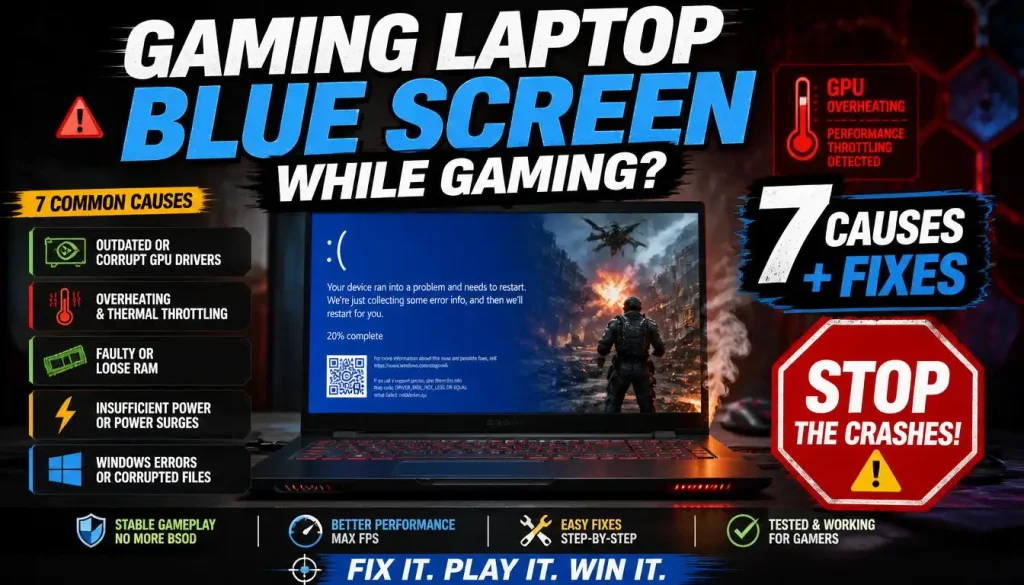
Gaming stresses several components simultaneously. That is why a laptop can appear perfectly stable while browsing the web and then crash ten minutes into Cyberpunk 2077, Fortnite, Call of Duty, Valorant, or another demanding title.
These are the main areas worth investigating.
1. An Unstable or Corrupted GPU Driver
The graphics driver is one of the first things to check when BSODs appear only during gaming.
Games place far more demand on the graphics driver than normal desktop applications. A corrupted installation, buggy update, compatibility problem, or old driver can therefore trigger a crash only when the GPU is under load.
This becomes even more likely when:
- The problem started immediately after a driver update
- You recently switched between driver versions
- Windows Update installed a display driver
- You see
VIDEO_TDR_FAILURE - The error mentions an NVIDIA, AMD, or Intel graphics component
2. CPU or GPU Overheating
Gaming laptops run hotter than ordinary laptops because powerful CPUs and GPUs are packed into a small chassis.
Heat alone does not mean something is wrong. However, blocked vents, excessive dust, a failing fan, degraded thermal material, or an unusually aggressive performance profile can push the system toward instability.
Watch for:
- Fans suddenly becoming extremely loud
- Performance dropping before the crash
- The laptop becoming much hotter than usual
- Crashes beginning after 15–30 minutes rather than immediately
- Shutdowns during demanding games but not lightweight games
If your temperatures seem suspicious, follow the more detailed steps in our guide to keeping a gaming laptop cool while gaming.
3. Faulty or Unstable RAM
Gaming can consume a large amount of system memory.
A weak RAM module, poor connection, incompatible upgrade, unstable memory settings, or memory-related driver corruption may not appear during light use but can become obvious when a game starts filling memory aggressively.
Stop codes such as MEMORY_MANAGEMENT or PAGE_FAULT_IN_NONPAGED_AREA make memory worth investigating, although neither code proves that the physical RAM is definitely faulty.
4. Hardware Instability Under Heavy Load
A laptop can pass normal desktop use and still fail when the CPU and GPU are both working hard.
Possible areas include:
- RAM
- GPU or VRAM
- SSD
- Motherboard
- CPU
- Power delivery
- Cooling hardware
A WHEA_UNCORRECTABLE_ERROR, for example, is associated with hardware error reporting in Windows. Microsoft recommends checking updates, drivers, recent changes, recovery options, and related stop-error troubleshooting rather than immediately assuming which individual component has failed. Microsoft’s WHEA_UNCORRECTABLE_ERROR guidance
5. A Recent Windows or Driver Update
Timing matters.
If your gaming laptop ran perfectly last week and started blue screening immediately after an update, that change should be near the top of your troubleshooting list.
The update itself may not always be defective. Sometimes an update simply exposes a compatibility issue with an older driver or application.
If your laptop also became sluggish after an update, our guide on a laptop running slow after an update covers several related checks.
6. Unstable Overclocking or Undervolting
CPU undervolting, GPU overclocking, VRAM tuning, custom power limits, and aggressive manufacturer performance profiles can all reduce stability.
A setting can appear stable during browsing but fail once a game pushes the component continuously.
If you have changed any performance-related settings, temporarily return everything to stock values before doing deeper troubleshooting.
7. BIOS, Firmware, or Chipset Problems
Gaming laptops depend heavily on firmware for:
- Power management
- Fan control
- CPU behavior
- GPU switching
- Memory compatibility
- Battery and charging control
An outdated or problematic BIOS or chipset driver can contribute to instability, especially after major Windows changes or hardware upgrades.
BIOS updates should be treated carefully. Use the support page for your exact laptop model and follow the manufacturer’s instructions.
8. Corrupted Windows System Files
Damaged Windows components can also cause instability.
This possibility becomes more relevant when you notice other problems outside gaming, such as:
- Windows features failing
- Random freezing
- Update errors
- Applications crashing
- File-system-related errors
Windows includes built-in DISM and System File Checker tools for checking and repairing damaged system components. Microsoft’s System File Checker instructions
9. Power or Charger Problems
A gaming laptop can draw considerably more power under load than during normal use.
An incorrect, damaged, or underpowered charger can therefore cause problems that appear only during gaming.
If the laptop behaves differently while charging, our guide to laptop overheating when charging explains several charger, airflow, and power-related checks.
10. Background Software or Anti-Cheat Drivers
Some gaming-related software operates at a deep level in Windows.
Potential conflicts can involve:
- Anti-cheat components
- Hardware-monitoring tools
- RGB utilities
- Third-party antivirus
- GPU tuning applications
- Overlays
- Manufacturer control software
- Recording applications
This is one reason a clean boot can be useful when crashes happen only with a particular game.
Check the Blue Screen Stop Code Before Trying Random Fixes
When Windows crashes, write down the exact stop code.
If Windows also displays a file after “What failed”, write that down too.
Here are some common examples.
| Stop Code or File | Area Worth Investigating First |
|---|---|
VIDEO_TDR_FAILURE | Graphics driver, GPU stability, temperatures |
MEMORY_MANAGEMENT | RAM, memory corruption, drivers |
WHEA_UNCORRECTABLE_ERROR | Hardware-related error reporting, drivers, firmware |
IRQL_NOT_LESS_OR_EQUAL | Drivers, memory corruption |
PAGE_FAULT_IN_NONPAGED_AREA | RAM, drivers, storage-related issues |
DPC_WATCHDOG_VIOLATION | Drivers, storage, GPU-related components |
SYSTEM_SERVICE_EXCEPTION | Drivers or Windows components |
KMODE_EXCEPTION_NOT_HANDLED | Drivers, firmware, memory |
nvlddmkm.sys | NVIDIA graphics driver/GPU path deserves investigation |
Treat this table as a starting point, not a final diagnosis.
A stop code tells you where to look. It usually does not tell you with certainty which physical component should be replaced.
How to Fix a Gaming Laptop That Blue Screens While Gaming
Work through the following steps in order. After each major change, test the same game again under similar conditions.
That makes it much easier to identify what actually solved the problem.
1. Restart the Laptop and Reproduce the Problem Once
One isolated crash is less useful than a repeatable pattern.
Restart the laptop normally and test the same game again.
Pay attention to:
- How long it takes to crash
- Whether it crashes in the same location
- GPU and CPU temperatures
- The stop code
- The file listed under “What failed”
- Whether the laptop was plugged in
- Whether an external monitor was connected
If the same BSOD happens again, you now have a useful pattern.
2. Install Pending Windows Updates
Open:
Settings → Windows Update → Check for updates
Install normal pending updates and restart the laptop.
Windows Update can also provide hardware drivers, and Microsoft recommends checking updates as part of stop-error troubleshooting.
Do not assume an update will automatically solve the problem, though.
If the BSOD began immediately after a specific update, skip ahead to the rollback and recovery section.
3. Update or Reinstall the GPU Driver
For a gaming-related BSOD, the graphics driver deserves early attention.
First identify whether your laptop uses NVIDIA, AMD, Intel graphics, or a combination of integrated and discrete graphics.
For NVIDIA systems, obtain drivers from the official NVIDIA driver download page.
For AMD systems, use AMD’s official software and driver installation resources. AMD specifically documents clean installation and cleanup options for situations involving corrupted or conflicting graphics driver installations. AMD’s Radeon software installation guide
Intel also provides a documented clean installation procedure for Intel graphics drivers.
For gaming laptops, however, there is one extra consideration: the laptop manufacturer’s driver may sometimes be the safer choice because notebook vendors can customize graphics switching, power management, and other features.
A sensible testing sequence is:
- Check your laptop manufacturer’s support page.
- Install the graphics driver recommended for your exact model.
- Restart and test.
- If the OEM driver is old and the problem remains, consider testing the current GPU-manufacturer driver.
- If the BSOD began after a new graphics driver, try rolling back to the previously stable version.
Do not update five different drivers at once. If you do, you will not know which change mattered.
4. Check CPU and GPU Temperatures While Gaming
Run the same game while monitoring temperatures.
You are not looking for one universal “danger number.” Different laptop CPUs and GPUs have different thermal limits and boost behavior.
Instead, look for a pattern.
Ask:
- Are temperatures suddenly much higher than they used to be?
- Does the crash happen as the laptop becomes hotter?
- Is one fan not spinning properly?
- Are vents blocked?
- Is the laptop sitting on a bed, blanket, carpet, or cushion?
- Has the cooling system gone years without cleaning?
Always test on a hard, flat surface with the vents unobstructed.
If heat appears to be a major part of the problem, see our full guide on how to avoid overheating a laptop while gaming.
5. Return Overclocking and Undervolting to Default
Temporarily disable:
- CPU undervolting
- GPU overclocking
- VRAM overclocking
- Custom power limits
- Experimental performance profiles
- Third-party tuning utilities
Also consider testing the laptop’s normal or balanced manufacturer profile instead of Turbo, Extreme, or Manual mode.
AMD’s system-stability guidance also recommends returning unstable overclocked configurations to default when troubleshooting stability problems. AMD’s system stability troubleshooting guidance
If the BSOD disappears at stock settings, you have narrowed the problem considerably.
6. Test the RAM
Memory problems can be difficult because they may appear only under heavy workloads.
Start with Windows’ built-in memory diagnostic or your laptop manufacturer’s hardware diagnostics.
If you recently upgraded the RAM, pay special attention to:
- Whether the modules are officially compatible
- RAM speed
- Capacity support
- Whether both modules match
- Whether a module is fully seated
- Whether the crash began immediately after installation
If practical for your specific laptop, testing the original configuration can help determine whether the upgrade is related.
Do not open the laptop if doing so conflicts with its warranty terms or if you are uncomfortable working inside it.
7. Check Device Manager
Right-click Start → Device Manager.
Look particularly at:
- Display adapters
- Storage controllers
- System devices
- Network adapters
- Audio devices
A warning symbol may point to a device or driver problem.
Microsoft documents driver updating and reinstallation directly through Device Manager, although Windows Update and the device manufacturer’s official drivers are often preferable starting points. Microsoft’s Device Manager driver guide
8. Perform a Clean Boot
If the laptop is stable in normal Windows use but crashes when a specific game runs, background software becomes more interesting.
A clean boot starts Windows with essential drivers and startup services so you can isolate software conflicts.
Microsoft specifically describes clean boot troubleshooting as useful for identifying background conflicts affecting apps and games. Microsoft’s official clean-boot instructions
If the game becomes stable during a clean boot, re-enable services gradually until the problem returns.
That process can help uncover conflicts involving:
- RGB software
- Performance utilities
- Monitoring tools
- Recording software
- Third-party antivirus
- Manufacturer utilities
- Other startup applications
9. Check the Game’s Anti-Cheat Software
If only one competitive game causes the BSOD, check whether it installs a kernel-level anti-cheat component.
A broken or conflicting anti-cheat installation can sometimes cause a system-level crash instead of a normal game crash.
Try:
- Updating the game.
- Repairing game files.
- Repairing or reinstalling its anti-cheat component.
- Removing unnecessary overlays or monitoring tools.
- Rebooting before testing again.
Do not disable required security or anti-cheat protections simply to keep playing online. Use the game’s supported repair process.
10. Repair Windows System Files
If Windows itself seems unstable, run DISM followed by SFC.
Open Command Prompt as Administrator and run:
DISM.exe /Online /Cleanup-Image /RestoreHealth
When it completes, run:
sfc /scannow
Microsoft recommends running DISM before System File Checker when repairing corrupted Windows system files. Microsoft’s DISM and SFC instructions
Restart the laptop when the process is finished and test again.
11. Check Your SSD and Free Storage
A nearly full or unhealthy system drive can contribute to instability, update problems, and general Windows trouble.
Check:
Settings → System → Storage
Make sure the Windows drive has reasonable free space.
Also check your SSD using either:
- Your laptop manufacturer’s diagnostic utility
- The SSD manufacturer’s software
- Built-in Windows health information where available
If the BSOD started immediately after installing or replacing an SSD, temporarily treat that upgrade as a possible variable.
12. Check the Minidump File
This is one of the most useful steps when basic troubleshooting does not reveal the cause.
Windows can store small crash dumps in:
C:\Windows\Minidump
A minidump contains diagnostic information about what Windows was doing around the time of the crash.
Microsoft documents the Minidump folder as the default location for small memory dump files and provides debugging guidance for reading them. Microsoft’s small memory dump documentation
What Can a Minidump Tell You?
A dump may reveal:
- The bug-check code
- Drivers loaded during the crash
- A suspected module
- Memory corruption
- The crashing thread
- Additional debugging information
But there is an important limitation.
The file named in the dump is not always the true root cause.
For example, seeing ntoskrnl.exe does not automatically mean the Windows kernel itself is broken. The kernel may simply be where the failure became visible.
Likewise, seeing an NVIDIA-related module gives you a strong reason to investigate the graphics-driver path, but it does not by itself prove that the physical GPU has failed.
13. Check Event Viewer Around the Time of the Crash
Open Event Viewer and inspect the Windows System log around the time the BSOD occurred.
You are looking for a cluster of events immediately before and after the crash rather than one isolated warning.
Useful clues may involve:
- BugCheck events
- Storage errors
- Display-driver errors
- Unexpected shutdowns
- Hardware errors
- Driver failures
Avoid treating every red Event Viewer entry as the cause. Windows systems routinely log warnings that are unrelated to the crash.
14. Test Hybrid Graphics and Dedicated GPU Modes
Many gaming laptops use both:
- An integrated GPU, or iGPU
- A dedicated NVIDIA or AMD GPU, or dGPU
The laptop switches between them depending on workload.
Some models also include a MUX switch or graphics mode such as:
- Hybrid
- Optimus
- dGPU only
- Discrete
- Ultimate
- Eco
- Integrated
If your laptop supports these options, testing another supported graphics mode can help determine whether the crash is connected to graphics switching.
For example, if the laptop repeatedly crashes in Hybrid mode but remains stable in a supported dGPU-only mode, you have discovered a useful diagnostic clue.
Do not assume every gaming laptop supports a MUX switch.
If you want to review other performance-related settings after the system is stable, see our guide on how to optimize a gaming laptop for maximum performance.
15. Disconnect External Monitors, Docks, and Unnecessary USB Devices
Temporarily simplify the setup.
Disconnect non-essential devices such as:
- USB hubs
- Docks
- External monitors
- Capture cards
- External audio interfaces
- Extra storage
- Unnecessary controllers
Then test the game using only the laptop, charger, and essential input devices.
This is especially useful if the problem appeared after adding a new peripheral or dock.
16. Update the BIOS and Chipset Drivers Carefully
If the previous steps do not help, check your laptop manufacturer’s support page for:
- BIOS updates
- Chipset drivers
- Firmware
- Graphics-related firmware
- Thunderbolt or USB4 updates where applicable
Use your exact model number.
Do not flash a BIOS intended for a similar-looking model.
Before updating firmware:
- Read the manufacturer’s instructions.
- Connect the correct AC adapter.
- Make sure the battery has adequate charge.
- Do not interrupt the process.
If the laptop is already unstable outside Windows, consider contacting the manufacturer before attempting a firmware update.
17. Use System Restore if the Problem Started Recently
If the laptop was stable until a recent driver, application, or system change, System Restore may allow you to return Windows system files and settings to an earlier state.
Microsoft notes that System Restore is designed for situations involving recent software, driver, or system-setting changes and does not normally affect personal files. Microsoft’s System Restore instructions
Still, back up important files before major recovery work.
Microsoft’s broader Windows recovery options guide can help if Windows is also freezing, failing to boot, or entering a restart loop.
Did the Blue Screen Start After a RAM or SSD Upgrade?
Do not overlook the timing of a hardware upgrade.
If the BSOD appeared shortly after adding RAM or replacing an SSD, return that change to the top of your suspect list.
For RAM, check:
- Module compatibility
- Supported capacity
- Supported speed
- Correct seating
- Matching modules
- BIOS recognition
For storage, check:
- SSD firmware
- Correct installation
- Storage-controller drivers
- Drive health
- Whether Windows was cloned from another drive
If possible, test the laptop in its previous known-good hardware configuration.
A new component does not have to be defective to cause trouble. It may simply be incompatible with that laptop or configuration.
Blue Screen Only Happens With One Game? Do This
When every other game works properly, do not immediately dismantle the laptop.
Start with the game itself.
Verify or Repair the Game Files
Steam, Epic Games, Xbox, Battle.net, and other launchers offer repair or file-verification options.
Use them before reinstalling the entire game.
Remove Mods Temporarily
Mods can interact with:
- Graphics APIs
- Memory
- Anti-cheat systems
- Game engines
- Overlay tools
Return the game to a clean state while testing.
Disable Overlays
Temporarily disable overlays from applications such as:
- Discord
- GPU software
- Recording utilities
- Performance-monitoring applications
- Game launchers
Reset Graphics Settings
Reset the game’s graphics settings to default.
Then lower demanding features temporarily, particularly if the crash appears only under maximum GPU load.
Repair Anti-Cheat Software
If the game uses a dedicated anti-cheat package, use its official repair or reinstall option.
Test Another Demanding Game
This is one of the simplest and most useful tests.
If Game A crashes but several equally demanding games work perfectly, you have evidence pointing toward a game-specific software issue.
If every demanding game triggers the BSOD, broaden the investigation to drivers, heat, RAM, power, and hardware stability.
Blue Screen Happens in Every Game? Check These First
When several unrelated games trigger the same problem, prioritize system-wide causes.
Check in roughly this order:
- Stop code
- GPU driver
- Temperatures
- Overclocking or undervolting
- RAM
- Windows and chipset drivers
- Power and charger
- Minidump information
- SSD health
- Hardware diagnostics
A simple rule is:
One game crashes → investigate that game and its software stack first.
Many demanding games crash → investigate the laptop, drivers, cooling, and hardware first.
What If the Blue Screen Started After a Windows or GPU Driver Update?
This is one of the clearest troubleshooting situations because you already have a timeline.
If the laptop was stable before the update:
For a Recent GPU Driver
Consider:
- Reinstalling the driver
- Performing a clean installation
- Trying the laptop manufacturer’s recommended driver
- Rolling back to the previously stable driver
Do not keep installing newer and newer drivers without testing.
For a Recent Windows Update
Check:
Settings → Windows Update → Update history
Look at what was installed immediately before the crashes began.
Microsoft’s recovery documentation includes options for uninstalling recent updates when a PC begins behaving incorrectly after an update.
Create a backup before making major recovery changes.
How to Tell Whether the Problem Is Software or Hardware
There is rarely one symptom that proves the answer, but patterns can help.
| Symptom | What Deserves More Investigation |
|---|---|
| BSOD began immediately after a GPU update | Graphics driver/software |
| Only one game crashes | Game, anti-cheat, mods, software |
| Several unrelated games crash | Driver, heat, memory, hardware |
| Crash appears after 20–30 minutes of heavy load | Cooling, GPU, power, memory |
| Visual artifacts appear before the crash | GPU/VRAM path |
| Memory test reports errors | RAM or memory subsystem |
| Crash began after RAM installation | New RAM/configuration |
| Crash began after SSD replacement | Storage/configuration |
| Laptop crashes during normal use too | Broader Windows or hardware problem |
| Stable after removing an overclock | Previous tuning was unstable |
| Stable during a clean boot | Background software conflict |
The goal is not to guess which component is broken.
The goal is to eliminate possibilities until one pattern consistently explains the crashes.
When Should You Stop Troubleshooting and Contact Support?
DIY troubleshooting makes sense up to a point.
Professional or manufacturer support is a better choice when:
- Hardware diagnostics report errors
- Memory tests repeatedly fail
- You see graphical artifacts outside games
- The laptop crashes during normal Windows use
- The laptop cannot reliably boot
- The SSD reports health problems
- The laptop smells burnt or shows signs of electrical damage
- One or more fans have stopped working
- Temperatures remain abnormal after basic airflow checks
- The device is still under warranty
- A BIOS update fails
- The BSOD continues after a clean Windows/software environment has been tested
If the laptop is still covered by warranty, avoid unnecessary disassembly.
Repeated crashes do not necessarily mean you need a new computer. Properly maintained gaming laptops can remain useful for years, and our guide on how long a gaming laptop can last explains the factors that usually affect longevity.
How to Prevent Blue Screens While Gaming
Once the laptop is stable again, a few habits can reduce the chance of the same problem returning.
Keep Drivers Stable, Not Just New
Newer is not automatically better.
Use drivers that are:
- Designed for your hardware
- Compatible with your laptop
- Stable with the games you play
If an update causes immediate problems, there is nothing wrong with returning to a known-good version while the issue is investigated.
Keep the Cooling System Clear
Use the laptop on a hard surface and keep intake and exhaust vents unobstructed.
Dust buildup should be addressed periodically according to the laptop manufacturer’s maintenance recommendations.
Avoid Unnecessary Tuning
A tiny performance improvement is not worth weekly crashes.
If you overclock or undervolt, test stability carefully.
Use the Correct Charger
Gaming laptops are designed around particular power requirements.
Use the manufacturer-specified charger or a properly supported replacement that meets the required specifications.
Leave Enough Storage Space
Do not operate the Windows drive permanently at the edge of full capacity.
Windows, games, shader caches, virtual memory, updates, and temporary files all need working space.
Pay Attention to Repeated Stop Codes
One random crash can happen.
Repeated crashes with the same stop code deserve investigation before the problem becomes more disruptive.
Frequently Asked Questions
Why does my gaming laptop blue screen only while gaming?
Gaming places the GPU, CPU, RAM, storage, cooling system, drivers, and power delivery under much heavier load than normal desktop use. Problems involving heat, graphics drivers, unstable memory, power delivery, or hardware can therefore appear during gaming even when the laptop seems normal at other times.
Can overheating cause a blue screen while gaming?
It can contribute to instability, but a hot laptop does not automatically mean overheating caused the BSOD. Check temperatures, fan behavior, airflow, stop codes, and crash timing before reaching that conclusion.
Can RAM cause BSODs while gaming?
Yes. Faulty, unstable, incompatible, or incorrectly installed memory can contribute to stop errors. This becomes especially worth checking when crashes began after a RAM upgrade or memory-related stop codes repeatedly appear.
Can a GPU driver cause a blue screen?
Yes. Display drivers operate at a low level in Windows, and graphics-driver problems can result in system crashes. If the BSOD began after a graphics update, reinstalling or rolling back the driver is a sensible early troubleshooting step.
What does nvlddmkm.sys mean on a gaming BSOD?
nvlddmkm.sys is associated with NVIDIA’s Windows display-driver path. Its appearance gives you a good reason to investigate the NVIDIA driver, temperatures, GPU stability, and related graphics settings. It does not prove by itself that the physical GPU is defective.
Why does my laptop blue screen after 10 or 20 minutes of gaming?
A delay before the crash can point toward conditions that build under sustained load, such as temperature, memory usage, GPU load, or power demand. Monitor temperatures and system behavior from the moment the game launches until the crash occurs.
Why does only one game cause a blue screen?
When one game causes the problem but other demanding games remain stable, investigate that game’s files, anti-cheat system, mods, overlays, graphics settings, and compatibility before assuming the laptop has a hardware failure.
Should I reinstall Windows if games cause BSODs?
Usually not as the first step. Check the stop code, graphics driver, Windows updates, temperatures, RAM, minidumps, system files, and recent changes first. Reinstalling or resetting Windows is a more disruptive troubleshooting step and should generally come later.
Can a faulty GPU cause BSODs?
Yes, GPU or VRAM hardware problems can cause crashes under gaming load, but software and driver issues can produce similar symptoms. Driver testing, temperature monitoring, dump analysis, and hardware diagnostics help separate those possibilities.
Why does my gaming laptop restart instead of showing a blue screen?
Windows may restart too quickly for you to read the error, or the failure may be a power, thermal, firmware, or hardware-related shutdown rather than a traditional stop screen. Check Event Viewer and crash-dump information to determine whether Windows recorded a bug check.
Is a blue screen while gaming dangerous for my laptop?
The blue screen itself is a protection mechanism: Windows stops when it encounters a serious condition that prevents safe continued operation. The more important question is what caused it. A recurring BSOD should be investigated rather than ignored.
Final Thoughts
A gaming laptop blue screen while gaming can come from many places, but troubleshooting becomes much easier once you stop treating every BSOD as the same problem.
Start with the evidence.
Write down the stop code. Check whether one game or every game triggers the crash. Think about recent Windows, graphics-driver, RAM, SSD, or BIOS changes. Watch the CPU and GPU temperatures. Then work through drivers, memory, background software, system files, minidumps, and hardware diagnostics in a logical order.
The most important rule is simple:
Change one major thing at a time and test again.
If you reinstall the GPU driver, update the BIOS, replace RAM, remove software, and change power settings all at once, you may fix the problem without ever learning what caused it.
A methodical approach takes a little more patience, but it gives you a much better chance of fixing the actual cause instead of temporarily hiding the symptom.

“Electronics aren’t just gadgets. They’re the invisible threads that connect our work, our play, and our world.”
I’m Julian Reed, and my obsession with tech started at age twelve, when I soldered a defunct gaming console back to life in my bedroom. That tiny green screen taught me that technology isn’t just a black box, it’s a tool you can master.
After fifteen years as a hardware engineer and a decade reviewing consumer tech, I’ve joined this team to cut through the jargon. Whether you’re building a high-end home theater or just need a laptop that won’t lag, I’m here to help you choose the gear that truly powers your life.


