
A gaming laptop that suddenly refuses to turn on can be alarming, especially if it was working perfectly the night before. You press the power button, but nothing happens. Or maybe the keyboard lights up and the fans start spinning, yet the screen stays completely black.
The good news is that a gaming laptop that won’t turn on is not automatically a dead laptop.
The problem could be as simple as a drained battery, a loose charger, a stuck power state, or an external device interfering with startup. In other cases, the laptop may actually be turning on but failing during POST, producing no display, or getting stuck before Windows loads.
Before opening the laptop or paying for a repair, work through the checks below in order. Start with the simple fixes and move to the more advanced ones only when necessary.
First, Find Out What “Won’t Turn On” Actually Means
Before troubleshooting anything, pay attention to what the laptop does when you press the power button.
This matters because “won’t turn on” can describe several completely different problems.
| What You See | What It Usually Means |
|---|---|
| No lights, fans, or sound | No power |
| Lights or fans turn on, but no startup | No POST |
| Laptop seems to run but screen stays black | No display/video |
| Manufacturer logo appears but Windows does not load | No boot |
| Laptop starts and immediately shuts down | Power, thermal, RAM, or hardware issue |
| Laptop only works while connected to the charger | Battery-related problem |
Dell’s startup troubleshooting documentation also separates startup faults into No Power, No POST, No Video, and No Boot because each symptom requires a different troubleshooting path. Dell’s guide to No Power, No POST, No Boot, and No Video issues
That distinction can save you a lot of unnecessary troubleshooting.
For example, replacing a battery probably will not solve a laptop that is successfully powering on but simply isn’t producing an image.
5 Quick Fixes to Try First
Before getting into hardware-specific troubleshooting, try these five steps.
1. Check the Wall Outlet and Charger
Start with the obvious.
Connect another device to the same wall outlet or socket to confirm that it is delivering power. If you are using a surge protector, extension lead, docking station, or power strip, temporarily bypass it and plug the laptop charger directly into the wall.
Then inspect the charger.
Look for:
- A damaged or frayed cable
- A bent connector
- A loose connection
- Burn marks
- An unusually hot adapter
- A charger indicator light that no longer comes on
- A loose charging port on the laptop
Gaming laptops often require significantly more power than standard notebooks, so do not assume that any charger with a matching connector will work correctly.
2. Connect the Correct Charger and Leave It for a While
If the battery is completely discharged, the laptop may not respond immediately when you connect power.
Plug in the correct adapter and leave the laptop alone for about 20 to 30 minutes before trying again.
If your laptop has a charging indicator, check whether it comes on.
No charging light does not prove that the battery is dead. It could also indicate a bad charger, damaged charging jack, power circuit problem, or motherboard fault.
3. Disconnect Everything From the Laptop
Remove all unnecessary external devices, including:
- USB drives
- External SSDs
- Memory card readers
- Gaming controllers
- Headsets
- External keyboards
- External mice
- HDMI cables
- DisplayPort adapters
- USB hubs
- Docking stations
Leave only the charger connected and try starting the laptop again.
A faulty peripheral or external device can occasionally interfere with the startup process.
If the laptop starts afterward, reconnect your accessories one at a time until you find the device causing the problem.
4. Perform a Power Reset
A laptop can sometimes become stuck in an abnormal electrical or power-management state.
A basic power reset may clear it.
For many laptops, you can try the following:
- Turn the laptop off.
- Disconnect the power adapter.
- Remove the battery if your model has an easily removable battery.
- Hold the power button for approximately 20 to 30 seconds.
- Reconnect the charger.
- Try turning the laptop on again.
The correct procedure varies between manufacturers, so check the support documentation for your exact model before performing model-specific reset procedures.
5. Look and Listen Before Pressing the Button Again
When you try to start the laptop, pay close attention.
Do you hear the fans?
Does the keyboard RGB turn on?
Does the power light blink?
Does the charging LED change color?
Do you hear beeps?
Does the screen briefly light up?
These clues tell you which troubleshooting section to follow next.
Gaming Laptop Won’t Turn On and Has No Lights
If pressing the power button produces absolutely nothing—no keyboard lighting, fan movement, status LEDs, or sound—you are most likely dealing with a power problem.
Start with the charger.
Test the Power Adapter
Make sure the adapter is fully connected at both ends.
Some gaming laptop chargers have an LED built into the power brick. If yours normally lights up but remains dark, disconnect it from the laptop and check again.
If the charger light turns on while disconnected but goes out when connected to the laptop, stop repeatedly reconnecting it. That behavior can indicate a problem that needs proper diagnosis.
If possible, test with another known-good, manufacturer-approved charger that meets the specifications of your laptop.
Make Sure the Charger Has Enough Wattage
This is particularly important with gaming laptops.
High-performance CPUs and GPUs can require much larger power adapters than ordinary office laptops. A USB-C charger that easily powers a lightweight notebook may not supply enough power for your gaming machine.
Check the wattage printed on your original adapter and compare it with the replacement you are using.
A connector fitting into the laptop does not automatically mean the charger is electrically suitable.
Inspect the Charging Port
Gently connect the charger and check whether the plug feels unusually loose.
Do not aggressively move the connector around.
If charging only works when the cable is held at a particular angle, the charging jack or connector may be damaged.
Try AC Power Without the Battery if Your Model Supports It
If your laptop uses an easily removable battery, you can remove the battery, connect the charger, and attempt to start the laptop using AC power alone.
Do not disassemble a modern internal battery unless you are comfortable working inside laptops and your manufacturer provides appropriate service instructions.
If your laptop is older and battery problems have become common, you may want to learn how to test a laptop battery properly before deciding whether it needs replacement.
Charging Light Is On but Gaming Laptop Won’t Turn On
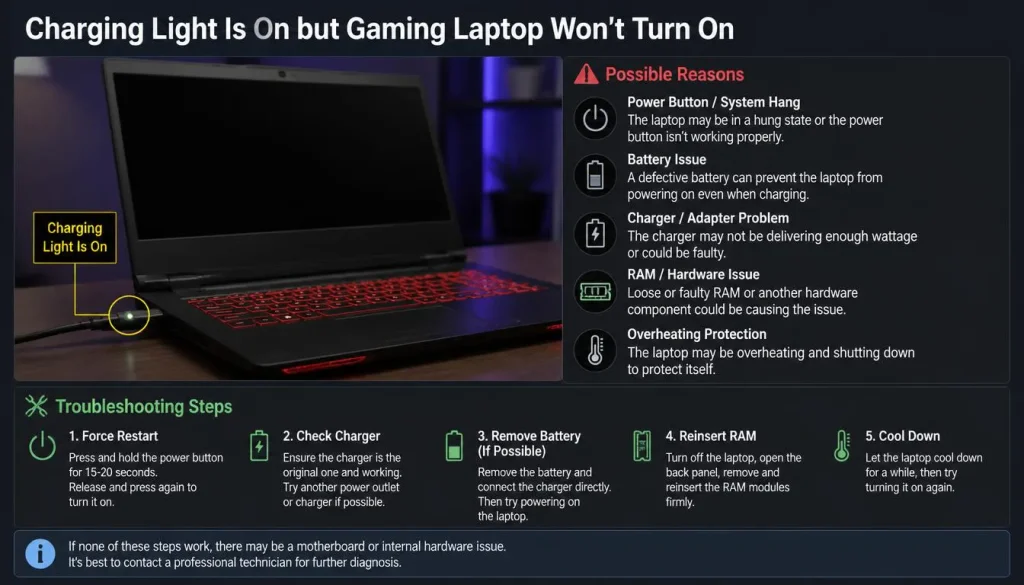
A charging light means the laptop is receiving at least some power, but it does not guarantee that the machine can complete startup.
Start with a power reset.
Disconnect accessories, disconnect the charger, perform the appropriate reset procedure for your model, reconnect power, and try again.
If that does not help, watch for other signs of life.
Does the keyboard light up?
Do the fans briefly move?
Does the power button illuminate?
Do any LEDs blink in a repeating pattern?
Those symptoms may point away from a simple charger problem and toward a POST, memory, display, firmware, or internal hardware issue.
Power Light Is Blinking but the Laptop Won’t Turn On
Do not ignore a blinking power, battery, Caps Lock, or status light.
On many laptops, repeating blink patterns are diagnostic codes.
Count the flashes before restarting the machine.
For example, you might see:
- Two flashes followed by a pause
- Three amber flashes and one white flash
- Repeated Caps Lock blinking
- A power LED switching between colors
The exact meaning is manufacturer- and model-specific, so do not rely on a generic chart found on an unrelated website.
Search the official support documentation for your exact laptop model and blink pattern.
Dell, for example, uses diagnostic LEDs and beep patterns on supported systems to help identify POST-related faults. See Dell’s official startup diagnostic guidance
If the laptop produces a repeating beep sequence, note that as well.
Gaming Laptop Turns On but the Screen Is Black
If the keyboard lights up, the fans run, or you hear Windows sounds, your laptop may be powered on normally while the display is failing to show an image.
This is a different problem from having no power.
Check Screen Brightness
It sounds simple, but make sure the screen brightness has not been reduced completely.
Use the laptop’s brightness function keys several times.
Look Closely at the Display
In a dark room, look at the screen from different angles.
If you can barely see an image, there may be a backlight-related display problem.
Connect an External Monitor
If your gaming laptop has HDMI or DisplayPort output, connect it to a known-working external monitor or TV.
If the external display works but the laptop screen remains black, the problem may be related to the internal display, display cable, backlight, or another part of the laptop’s display system.
If neither screen produces an image, you may be dealing with a POST, RAM, BIOS, or graphics-related issue instead.
ASUS also treats a system with a power indicator but no display differently from one that has no power at all. ASUS no-display troubleshooting guidance
Fans or Keyboard Lights Turn On but There’s No Display
This symptom often confuses people because the laptop clearly has power.
If the keyboard RGB and fans are running but you never see the manufacturer logo, Windows login screen, or BIOS interface, the machine may not be successfully completing POST.
Try the following:
- Disconnect every external device.
- Perform the correct power or EC reset for your model.
- Try an external monitor.
- Check for blinking diagnostic LEDs.
- Listen for beep codes.
- Think about whether the problem started after a hardware change.
If you recently replaced or upgraded the RAM, jump to the hardware-upgrade section below.
Gaming Laptop Turns On Then Shuts Off or Keeps Restarting
A gaming laptop that powers on for a few seconds and switches itself off is giving you an important clue.
Potential causes include:
- Unstable power
- A failing battery
- A charger problem
- Overheating
- RAM not being detected correctly
- Failed POST
- A recently installed component
- A motherboard or power-circuit fault
Does It Shut Down Almost Immediately?
If the laptop turns off within just a few seconds, pay attention to diagnostic LEDs or beep codes.
If you recently opened the laptop, double-check anything you changed.
Does It Shut Down After Running for a Few Minutes?
Heat becomes more suspicious if the laptop runs for a while and then powers off, particularly if the fans are extremely loud or the chassis becomes unusually hot.
If heat appears to be involved, read this related guide on why laptops overheat and how to fix the underlying causes.
For gaming-specific heat problems, the guide on how to avoid laptop overheating while gaming goes deeper into airflow and cooling.
Gaming Laptop Won’t Turn On Unless Plugged In
If the laptop starts normally while connected to the charger but shuts down immediately when you disconnect it, the battery becomes the obvious place to investigate.
Possible causes include:
- A worn-out battery
- A battery that is no longer holding charge
- A disconnected internal battery
- Battery-management problems
- Charging circuitry problems
Once you can get Windows running, check the battery condition rather than guessing.
On Windows, you can generate a battery report and compare the battery’s current full-charge capacity with its original design capacity. This guide explains how to check laptop battery health on Windows.
If testing confirms that the battery has badly deteriorated, review the laptop battery replacement guide before buying a replacement.
Gaming Laptop Won’t Turn On After the Battery Completely Died
A completely drained battery can make a laptop appear dead, especially if it has been sitting unused for a long time.
Connect the original or manufacturer-approved charger and leave the machine charging before repeatedly pressing the power button.
Then check:
- Does the charging LED come on?
- Does the light change after several minutes?
- Does the charger become slightly warm?
- Can the laptop start while connected to AC power?
If the battery was already old and had been providing very short runtime before this happened, battery deterioration is more likely.
However, avoid assuming the battery is responsible if the machine still shows no signs of power with a known-good charger connected.
Gaming Laptop Won’t Turn On After Sleep or Hibernate
Sometimes a laptop appears to be completely dead when it has actually failed to resume correctly from sleep or hibernation.
Try holding the power button until the laptop fully shuts down, then wait several seconds and start it again.
If the problem keeps returning after Windows starts normally, check:
- Windows updates
- GPU drivers
- Chipset drivers
- BIOS/firmware updates
- Sleep and power settings
Do not start changing several settings at once. Make one change at a time so you can identify what actually fixes the issue.
If the laptop becomes slow or unstable after Windows updates, this guide on fixing a laptop that runs slowly after an update may also help once you can boot normally again.
Gaming Laptop Won’t Turn On After a RAM, SSD, or Battery Upgrade
If your laptop stopped starting immediately after you changed hardware, begin by assuming the change is related until proven otherwise.
Restore the Previous Configuration
If possible, reinstall the original component and test again.
If the laptop starts, you have narrowed the problem considerably.
Reseat the RAM
Memory that is not fully seated can prevent POST.
Power down the laptop, disconnect external power, follow the manufacturer’s servicing instructions, and make sure the RAM is installed correctly.
If you have two memory modules and your laptop allows individual testing, you can test them separately to help isolate a faulty module or slot.
Check RAM Compatibility
Physical fit is not enough.
RAM type, capacity, speed, density, and platform support can all matter.
Use the laptop manufacturer’s specifications or a trusted memory compatibility tool before purchasing an upgrade.
Allow Time for Memory Training
This is particularly important after changing RAM or disconnecting certain components.
Some systems may temporarily show no display while completing memory training after a memory or battery change.
ASUS states that on affected systems, memory training after changes such as replacing memory or disconnecting the battery can leave the screen blank for roughly one to three minutes. ASUS guidance on memory training and no-display startup
If your manufacturer says this behavior is normal for your model, leave the laptop connected to power and allow the process to finish instead of repeatedly forcing it off.
Gaming Laptop Won’t Turn On After Gaming or Overheating
Gaming pushes the CPU and GPU much harder than ordinary browsing or office work, which also means considerably more heat is produced.
If the laptop shut down during a game and refuses to restart, stop trying to power it on repeatedly.
Disconnect it from power and let it cool naturally on a hard, flat surface.
Check whether:
- The vents were blocked
- The laptop was sitting on a bed or blanket
- The fans had become unusually loud
- A fan stopped spinning
- The laptop had recently started running much hotter than usual
- Dust is blocking the air intake or exhaust
Once the laptop has cooled, reconnect the charger and try again.
If the machine starts but continues running unusually hot, address the thermal problem before returning to long gaming sessions.
You can follow this detailed guide on how to fix laptop overheating while gaming.
If the laptop also becomes hot while connected to power, the article about laptop overheating while charging covers charger-related heat and airflow problems in more detail.
Gaming Laptop Won’t Turn On After a BIOS Update
A BIOS update is different from a normal Windows update.
If the update was interrupted, the laptop lost power, or the update failed, the machine may have trouble completing startup.
First, determine whether the laptop truly has no power or whether the lights and fans operate without a display.
Do not repeatedly attempt random BIOS flashing methods found online.
BIOS recovery procedures vary considerably by manufacturer and model. Use your laptop manufacturer’s official support instructions and make sure they match your exact model.
If the laptop is under warranty, contacting the manufacturer may be safer than opening the machine or attempting unsupported recovery procedures.
Perform an EC Reset When Your Manufacturer Recommends It
Gaming laptops contain an Embedded Controller, commonly called the EC, that can be involved in functions such as power management, keyboard behavior, charging, and other low-level hardware operations.
An EC reset can sometimes help when the laptop is stuck in an unusual power state.
However, there is no single reset sequence that applies to every gaming laptop.
For example, MSI’s official notebook instructions describe an EC reset procedure that includes turning off the computer, disconnecting power, holding the power button for 30 seconds, and reconnecting power. MSI’s official EC reset instructions
Other manufacturers and models may use a different procedure.
Always check the instructions for your exact machine.
Gaming Laptop Turns On but Won’t Boot Past the Logo
If you can see the ASUS, Alienware, Dell, HP, Lenovo, MSI, Razer, or Acer logo, your problem is no longer a classic “no power” issue.
The laptop is turning on.
Now the failure is happening later in the startup process.
Try disconnecting USB drives, memory cards, external drives, docks, and other peripherals before starting again.
If you can access the BIOS or UEFI interface, check whether your SSD is detected.
A laptop that repeatedly freezes at the manufacturer logo can have several causes, including:
- An external peripheral
- Storage failure
- Failed POST
- RAM trouble
- Firmware problems
- A recent hardware change
Avoid reinstalling Windows immediately. First determine whether the computer can reliably complete POST and detect its storage device.
Common Reasons a Gaming Laptop Won’t Turn On
Here is a quick summary of the most likely causes and the clues they often produce.
| Possible Cause | Common Clue |
|---|---|
| Completely discharged battery | Laptop appears dead until it charges |
| Worn-out battery | Laptop only works while plugged in |
| Faulty charger | No charging indicator or unstable power |
| Underpowered charger | Charging or startup problems |
| Damaged charging port | Power changes when connector moves |
| Stuck power state | Power reset may restore startup |
| Display problem | Fans and lights work but screen stays black |
| RAM issue | Laptop powers on but fails POST |
| BIOS/firmware problem | Startup fails before Windows loads |
| Overheating | Shutdown happens during or after gaming |
| Recent hardware upgrade | Problem begins immediately after upgrade |
| Motherboard/power circuit issue | Basic power checks fail |
What to Check on ASUS, Acer, Lenovo, Dell, HP, MSI, and Razer Gaming Laptops
The basic diagnosis is similar across brands, but reset procedures and diagnostic systems can differ.
| Gaming Laptop Brand | What to Look For |
|---|---|
| ASUS ROG / TUF | Power indicator, EC reset instructions, memory training behavior |
| Acer Nitro / Predator | Battery reset options, charging LEDs, diagnostic behavior |
| Lenovo Legion / LOQ | Emergency reset options on supported models, charging status |
| Dell G Series / Alienware | Diagnostic LEDs, beep codes, No POST troubleshooting |
| HP OMEN / Victus | LED blink codes and hardware diagnostics |
| MSI | EC reset, battery reset hole on supported models, status indicators |
| Razer Blade | Power adapter status, battery condition, manufacturer recovery guidance |
Always search your exact model number on the manufacturer’s support site instead of following instructions written for a different laptop from the same brand.
When Should You Stop Troubleshooting?
Some situations are better handled by a qualified technician.
Stop DIY troubleshooting if you notice:
- A swollen battery
- Burning smell
- Smoke
- Sparks
- Liquid damage
- A severely damaged charging connector
- Visible motherboard damage
- Extreme heat around the battery or charging port
- The laptop was recently dropped
- The charger repeatedly cuts out when connected
- You are not comfortable opening the laptop
A swollen lithium-ion battery is particularly important to take seriously. Do not puncture, bend, compress, or continue charging a visibly swollen battery.
If the machine is still under warranty, check your warranty conditions before opening the chassis.
Quick Troubleshooting Flowchart
If you are still unsure where to start, use this sequence.
Press the power button.
No lights, fans, or sound?
Check the wall outlet → charger → charger wattage → charging port → battery/power reset → professional power diagnosis if still dead.
Lights and fans turn on but the screen stays black?
Check brightness → external monitor → diagnostic lights → power/EC reset → RAM or recent hardware changes → manufacturer diagnostics.
Power light is blinking?
Count the flashes → note the colors → check your exact model’s diagnostic code.
Laptop starts and then shuts down?
Let it cool → check charger and battery → check overheating → undo recent hardware changes → inspect diagnostic codes.
Laptop only works while plugged in?
Test battery health → check internal battery connection if appropriate → replace the battery if testing confirms failure.
Logo appears but Windows does not load?
Disconnect peripherals → check whether BIOS detects the SSD → investigate No Boot rather than No Power.
What to Do After Your Gaming Laptop Starts Working Again
Do not immediately assume the problem is permanently solved.
Think about what caused it.
If overheating was involved, clean up the cooling situation before gaming again.
If the battery appears weak, check its health.
If the machine was unstable after an update or had become slow over time, basic maintenance can reduce future problems. This guide on how to optimize laptop performance and make it run faster covers sensible Windows performance maintenance.
And if repeated hardware problems are making you consider replacing the machine altogether, you can compare current options in the BestTopTake gaming laptop guide before spending money on another system.
Frequently Asked Questions
Why won’t my gaming laptop turn on even when plugged in?
The charger may not be delivering power, the adapter may not provide the correct wattage, the charging port may be damaged, or the laptop may be experiencing an internal power or motherboard fault. Start by confirming that the wall outlet works, inspecting the charger, disconnecting accessories, and performing the manufacturer-recommended power reset.
Why is my gaming laptop charging but not turning on?
A charging LED only confirms that part of the power system is responding. The laptop may still be failing POST, stuck in a power state, experiencing a RAM problem, or suffering from another internal hardware issue. Look for fan movement, keyboard lights, diagnostic LEDs, and beep codes.
Why does my gaming laptop keyboard light up but the screen stay black?
If the keyboard and fans work but the display stays black, the laptop has power but may have a display, RAM, POST, BIOS, or graphics-related problem. Try an external monitor and check for diagnostic indicators before assuming that the entire laptop is dead.
Can overheating cause a gaming laptop not to turn on?
Yes. A laptop may shut down to protect hardware when temperatures become excessive. If your laptop stopped during a gaming session, allow it to cool completely before attempting another startup. Repeated overheating should be investigated rather than ignored.
Why won’t my gaming laptop turn on after gaming?
Heat is one possibility, especially if the laptop shut down during a demanding game. Power-adapter problems, battery failure, or another hardware fault can cause similar symptoms. Let the machine cool, remove peripherals, connect the correct charger, and identify whether it has no power, no POST, or simply no display.
Can a dead battery stop a gaming laptop from turning on?
It can. However, many laptops should still be able to start from a suitable AC adapter even if the battery has failed. If your laptop remains completely dead with a confirmed working charger, the battery may not be the only possible cause.
Why does my gaming laptop turn on and immediately shut off?
Common possibilities include overheating, unstable power, battery problems, incorrectly installed RAM, failed POST, or another hardware fault. If the issue started immediately after installing new RAM, an SSD, or a battery, restore the previous configuration and test again.
Can bad RAM cause a gaming laptop not to turn on properly?
Yes. Faulty, incompatible, or incorrectly seated RAM can prevent a computer from completing POST. The laptop may show lights or fan activity without reaching the manufacturer logo or Windows.
Why is my gaming laptop power light blinking?
The blinking light may be a diagnostic code. Count the flashes, note the colors and pauses, and check the official support documentation for your exact laptop model. Blink-code meanings are not universal across brands.
Why won’t my gaming laptop turn on after a RAM upgrade?
The RAM may not be fully seated, may be incompatible, or the system may still be completing memory training. Reinstall the original memory if possible and check the manufacturer’s memory specifications.
How do I know if my gaming laptop motherboard is dead?
You usually cannot confirm a dead motherboard from one symptom alone. A laptop with no response to a verified working charger, no status lights, no fan activity, and no improvement after manufacturer-approved power troubleshooting may require professional board-level diagnosis.
Do not replace the motherboard based solely on an online guess.
Is my data safe if my gaming laptop won’t turn on?
Often, yes.
A laptop failing to power on does not automatically mean the SSD has failed. Your files may still be intact even if the battery, charger, display, motherboard, or another component is faulty.
Avoid unnecessary formatting, factory resets, or operating-system reinstallations if you have important files that are not backed up.
Final Thoughts
When a gaming laptop won’t turn on, the fastest way to solve the problem is to stop treating every startup failure as the same issue.
First determine what the laptop is actually doing.
If there are no lights or fans, focus on power. If the keyboard lights up but the screen stays black, investigate display and POST problems. If the manufacturer logo appears, you are dealing with a later-stage boot issue rather than a completely dead machine.
Start with the charger, outlet, external devices, and a proper power reset. Then use the laptop’s LEDs, fan behavior, beep codes, recent hardware changes, and external-display test to narrow the problem down.
Most importantly, avoid replacing expensive components until you have evidence that they are actually responsible. A careful five-minute diagnosis can sometimes save you from buying a battery, charger, screen, or even a new laptop that you never needed.

“Electronics aren’t just gadgets. They’re the invisible threads that connect our work, our play, and our world.”
I’m Julian Reed, and my obsession with tech started at age twelve, when I soldered a defunct gaming console back to life in my bedroom. That tiny green screen taught me that technology isn’t just a black box, it’s a tool you can master.
After fifteen years as a hardware engineer and a decade reviewing consumer tech, I’ve joined this team to cut through the jargon. Whether you’re building a high-end home theater or just need a laptop that won’t lag, I’m here to help you choose the gear that truly powers your life.


