
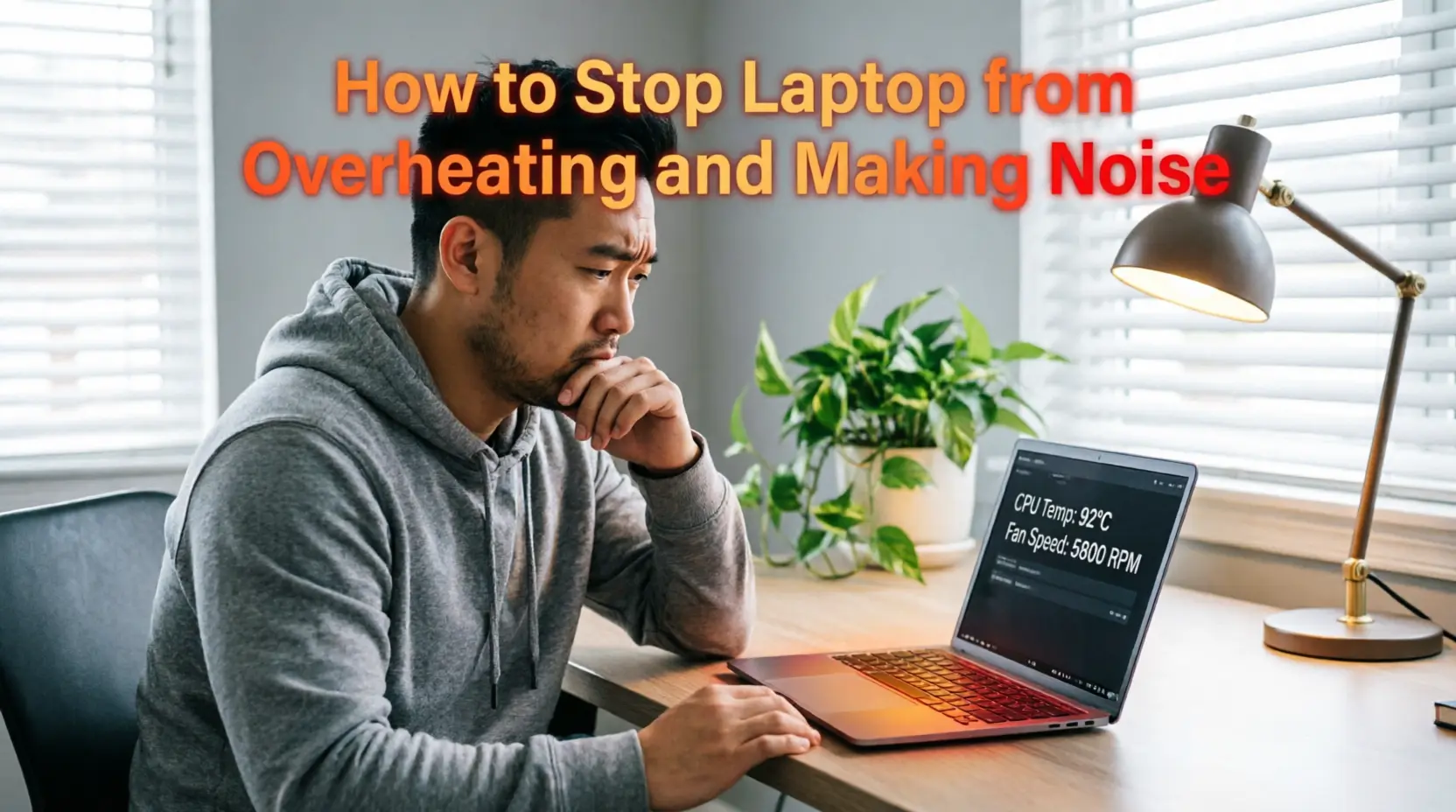
If your laptop is overheating and getting loud, it’s usually a sign that the cooling system is struggling. I’ve been through this myself, and with the right steps, you can keep your device cooler, quieter, and running smoothly without spending a fortune.
Why Laptops Overheat and Make Noise
Laptops are compact devices that pack powerful components in a small chassis. Overheating happens when the CPU, GPU, or other internal parts generate more heat than the cooling system can dissipate. This causes fans to spin faster, which increases noise. Common reasons include:
- Dust accumulation in vents and fans
- High CPU/GPU workload from games, streaming, or software
- Poor ventilation due to surfaces like beds, couches, or laps
- Aging thermal paste reducing heat transfer
- Malware or background processes overloading the system
Understanding these causes is the first step to keeping your laptop cool and quiet.
Simple Steps to Keep Your Laptop Cooler
Here’s what I do to manage heat effectively:
1. Keep Vents Clear
Always use your laptop on hard, flat surfaces. Avoid carpets or beds that block airflow. A simple laptop stand can elevate the device and allow air to circulate under it.
2. Clean the Fans and Vents
Dust is a major culprit. I regularly use a can of compressed air to blow out dust from fans and vents. If you’re comfortable, you can remove the back panel and carefully clean internal fans.
3. Monitor CPU and GPU Usage
Check which apps are causing high load using Task Manager (Windows) or Activity Monitor (Mac). Closing unnecessary apps or background processes immediately reduces heat and fan noise.
4. Update Software and Drivers
Manufacturers release updates that improve efficiency. Keeping your BIOS, GPU, and system drivers up to date can prevent overheating.
5. Adjust Power Settings
Switching to power-saving or balanced mode can reduce heat generation. For gaming laptops, lowering frame rates or resolution can also help.
6. Use a Cooling Pad
A cooling pad with extra fans can dramatically improve airflow. I personally noticed a 15–20% drop in temperature when using one.
7. Check Thermal Paste
Old laptops may have dried thermal paste between the CPU/GPU and heat sink. Replacing it can improve heat transfer and reduce fan activity.
8. Keep the Environment Cool
Room temperature plays a role. Working in a cooler room naturally helps the laptop stay quieter.
Advanced Tips for Gamers and Power Users
For heavy workloads like gaming, video editing, or 3D rendering, standard steps may not be enough. Here’s what I do for my high-performance setup:
- Limit Background Programs: Streaming and gaming together can overload the CPU. Close non-essential apps.
- Undervolting: Reduces voltage to CPU without affecting performance, which lowers heat generation. Tools like ThrottleStop (Windows) help achieve this safely.
- External GPU or Cloud Gaming: Offloads heavy GPU work, reducing internal heat and fan noise.
Choosing the Right Surfaces and Accessories
I’ve found that where you place your laptop matters as much as internal maintenance. Some tips:
- Avoid laps, beds, and soft couches that block airflow
- Use cooling stands with adjustable angles
- Keep at least 4–6 inches of clearance behind and sides
Pro Tip: Using a dedicated mouse and keyboard allows you to raise the laptop without affecting usability.
When Noise Means Trouble
Sometimes a noisy fan is a warning. Persistent high-pitched fan noise may indicate:
- Worn-out fans
- Loose screws causing vibration
- Hardware issues (like a failing GPU)
If these occur, consider professional servicing. Apple Support or other official repair services can safely replace fans and clean internal components.
Software Tools to Monitor Temperature
I use monitoring software to track heat and fan activity:
- HWMonitor: Real-time CPU/GPU temps and fan speeds (Windows)
- Core Temp: Tracks each CPU core temperature
- iStat Menus: Comprehensive monitoring for Mac users
Monitoring prevents surprises and lets you adjust usage before overheating gets serious.
Frequently Asked Questions on How to Stop Laptop from Overheating and Making Noise
Is it bad to use a laptop on a bed?
Yes. Soft surfaces block vents, trap heat, and force fans to spin faster, increasing noise and risk of overheating.
How often should I clean my laptop fans?
Every 3–6 months is ideal, depending on dust levels in your environment.
Can overheating damage my laptop permanently?
Yes, sustained high temperatures can reduce lifespan of CPU, GPU, battery, and other components.
Will a cooling pad completely stop noise?
Not completely, but it reduces fan speed and keeps temperatures lower, which cuts noise significantly.
Are software fixes alone enough?
For mild heat, yes. But hardware cleaning and proper ventilation are essential for long-term results.
Customer Pain Points Solved
Many people struggle with laptops that get too hot and loud while working or gaming. I faced this too—slow performance, noisy fans, and anxiety about hardware damage. By cleaning vents, using proper surfaces, monitoring workloads, and adding cooling accessories, I regained control over temperature, improved performance, and extended my laptop’s life. These simple, practical steps solve overheating and noise problems effectively.
Quotes from Experts
“Keeping laptops cool isn’t just about comfort—it directly impacts performance and lifespan.” – Jennifer Lee, IT Specialist
“A few minutes of routine cleaning can save hundreds on repairs later.” – Mark Davis, Tech Blogger
“Monitoring software helps you understand your device’s limits and avoid overheating surprises.” – Priya Sharma, System Analyst
Conclusion
Overheating and fan noise are common but preventable issues. By combining good habits—cleaning, monitoring, proper placement, cooling pads, and software tweaks—you can keep your laptop cooler and quieter.
Regular maintenance ensures your device performs reliably, stays comfortable to use, and avoids hardware damage. Start small with surface and vent management, then add monitoring and cooling enhancements for the best results.

“Electronics aren’t just gadgets. They’re the invisible threads that connect our work, our play, and our world.”
I’m Julian Reed, and my obsession with tech started at age twelve, when I soldered a defunct gaming console back to life in my bedroom. That tiny green screen taught me that technology isn’t just a black box, it’s a tool you can master.
After fifteen years as a hardware engineer and a decade reviewing consumer tech, I’ve joined this team to cut through the jargon. Whether you’re building a high-end home theater or just need a laptop that won’t lag, I’m here to help you choose the gear that truly powers your life.



1 thought on “How to Stop Laptop from Overheating and Making Noise | Laptop Cooling Tips”