
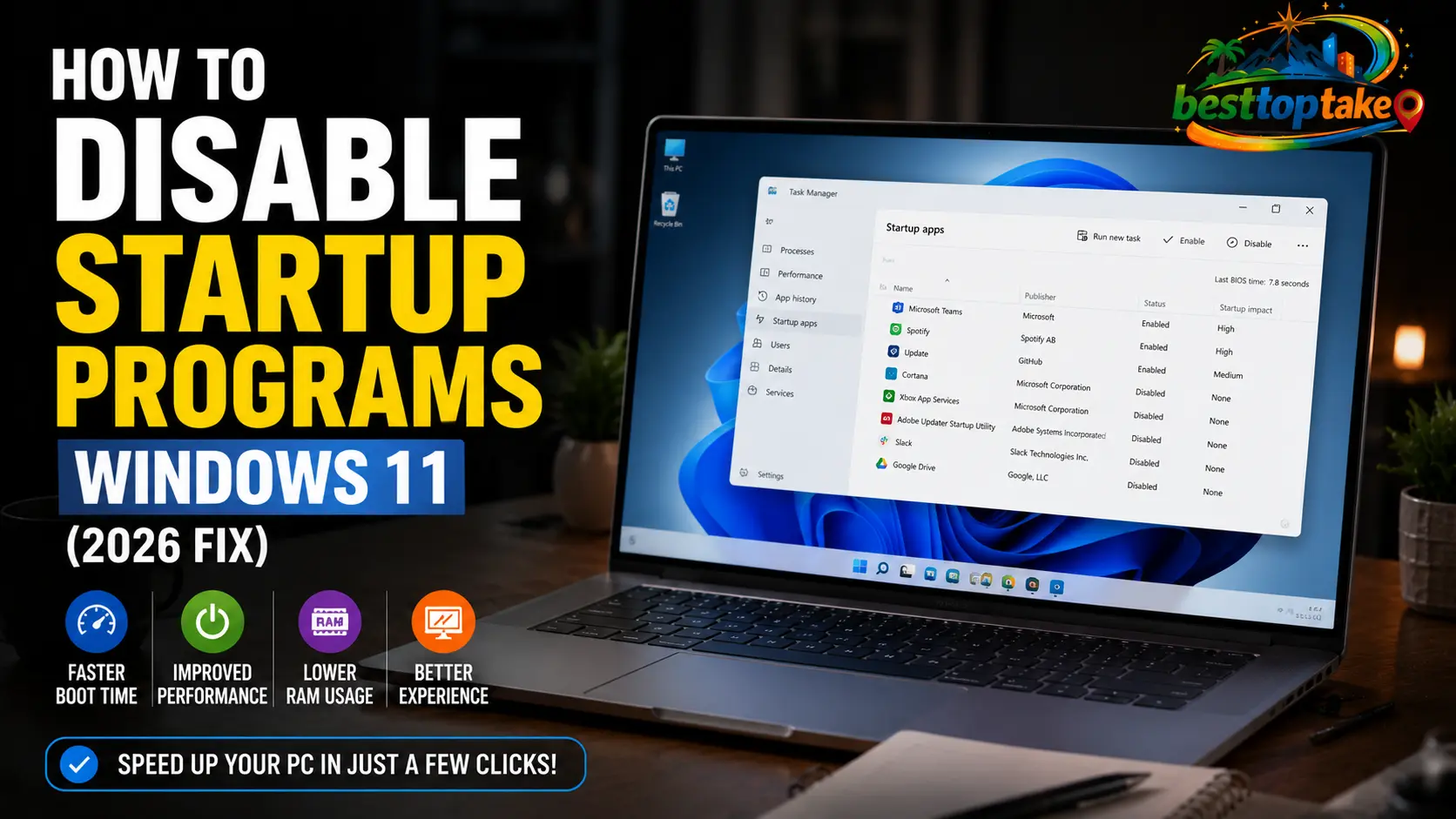
Waiting for a sluggish laptop to turn on is incredibly frustrating. If your PC takes several minutes to become usable after pressing the power button, background applications are almost certainly the culprit. Knowing exactly how to disable startup programs Windows 11 runs in the background is the fastest, easiest, and most effective way to reclaim your system’s performance.
When you install new software, many applications secretly set themselves to launch the moment you log in. Over time, these stacked applications hog your laptop’s memory, drain your battery, and drastically increase your boot times.
In this comprehensive guide, we will walk you through the most effective methods to stop apps from opening on startup in Windows 11.
Stop Apps Opening on Startup
The easiest way to stop applications from launching at boot is through the Task Manager. Press Ctrl + Shift + Esc on your keyboard to open the Task Manager. Click on the Startup apps icon on the left-hand sidebar (it looks like a speedometer). Find the application you want to stop, right-click its name, and select Disable.
Why Do Apps Automatically Open on Startup?
Software developers want their applications to be instantly available when you need them. Programs like Spotify, Microsoft Teams, Discord, and Adobe Creative Cloud configure themselves to launch in the background so that they open instantly when you click their icon later.
While this sounds convenient, the reality is that every single app launching at boot competes for your processor (CPU), memory (RAM), and disk usage.
If you have ten different applications fighting for system resources the moment you turn on your laptop, your boot time will slow to a crawl. Furthermore, these background processes constantly drain laptop batteries. By learning how to disable startup programs Windows 11 allows, you immediately lower system stress and improve overall battery life.
Method 1: How to Disable Startup Programs Windows 11 Using Task Manager
The Windows 11 Task Manager is the most powerful and direct tool for managing your computer’s boot cycle. It gives you a clear overview of every program trying to launch and tells you exactly how much of a toll they take on your system.
Here is the step-by-step process:
- Open the Task Manager: Press the keyboard shortcut Ctrl + Shift + Esc. Alternatively, right-click the Windows Start button and select “Task Manager” from the menu.
- Navigate to Startup Apps: On the left-hand sidebar, look for the icon that resembles a small speedometer. This is the Startup apps tab. Click it.
- Review the List: You will now see a list of every program configured to run at boot. Pay close attention to the Status column (which shows if it is Enabled or Disabled) and the Startup impact column.
- Disable the App: Right-click on any application you want to stop and select Disable from the context menu.
Understanding Startup Impact: Windows 11 categorizes applications into High, Medium, Low, or Not Measured impact. Applications labeled “High impact” are the primary culprits slowing down your laptop. You should focus on disabling these high-impact apps first to see an immediate improvement in your Windows 11 boot time.
Method 2: Turn Off Startup Apps via Windows Settings
If you prefer a more visual and user-friendly interface, the Windows 11 Settings app provides an excellent alternative to the Task Manager. This method is incredibly straightforward and perfect for beginners.
- Open Settings: Press Windows Key + I to open your Windows Settings.
- Go to Apps: Click on Apps in the left-hand navigation menu.
- Select Startup: Scroll to the bottom of the right-hand pane and click on Startup.
- Toggle Apps Off: You will see a list of applications with simple toggle switches next to them. To stop an app from launching, simply flip the toggle switch to the Off position.
Just like the Task Manager, the Settings menu will also show you an estimate of the system impact just below the toggle switch.
Method 3: Cleaning the Windows 11 Startup Folder
Sometimes, an older program might not appear in the Task Manager or the Settings menu. In these rare cases, the application might be hiding in a legacy Windows directory known as the Startup folder. Any shortcut placed in this folder will automatically trigger when you log in.
Here is how to check and clear the Startup folder:
- Open the Run Dialog: Press Windows Key + R to bring up the Run command box.
- Enter the Command: Type
shell:startupinto the box and press Enter. - Delete Shortcuts: A File Explorer window will open. If you see any program shortcuts in this folder that you do not want launching at boot, simply click on them and press the Delete key.
Note: Deleting a shortcut from this folder does not uninstall the program from your laptop; it only stops the program from launching automatically.
Method 4: Using Microsoft AutoRuns for Advanced Control
If you have a persistent piece of software that continues to launch even after you have disabled it using the methods above, you may need a more advanced tool.
Microsoft provides a free, advanced utility called AutoRuns. It digs deep into the Windows Registry to show you absolutely everything that loads during the boot process—including hidden services and scheduled tasks.
If you choose to use advanced tools, caution is required. According to official guidelines provided by Microsoft Support, you should never disable essential system services, as doing so can cause Windows to crash or function improperly. Only uncheck boxes for third-party software you explicitly recognize, like gaming launchers or update utilities.
Which Startup Programs Should You Actually Disable?
A common fear when optimizing a laptop is accidentally turning off something critical. Fortunately, disabling an app from starting automatically will not break the program; it just means you have to open it manually when you need it.
Programs You Should Disable:
- Gaming Launchers: Steam, Epic Games, EA App, and Battle.net are notorious memory hogs. Disable them unless you want to play a game immediately upon booting.
- Chat Applications: Skype, Discord, and Microsoft Teams do not need to run in the background 24/7.
- Cloud Storage: If you rarely use OneDrive, Google Drive, or Dropbox, turn them off to save bandwidth and CPU cycles.
- Bloatware: Pre-installed manufacturer software (like specific Dell, HP, or Lenovo support assistants) often provide little daily value and slow down boot times.
Programs You Should NOT Disable:
- Antivirus Software: Never disable Windows Defender, Malwarebytes, or any third-party security suite you rely on.
- Audio/Touchpad Drivers: Leave anything labeled “Realtek,” “Synaptics,” or “Intel” alone. These are required for your laptop’s speakers and trackpad to function correctly.
- Graphics Drivers: Leave AMD Radeon, NVIDIA GeForce, or Intel Graphics control panels enabled to ensure optimal display performance.
Frequently Asked Questions (FAQs)
Why is my Windows 11 boot time so slow?
The main reason is usually having too many third-party applications set to launch on startup. Over time, apps like Spotify, Steam, and Adobe background updaters accumulate, forcing your hard drive and CPU to process massive amounts of data before the desktop becomes fully usable. Disabling these is the fastest fix.
Does disabling startup programs speed up a laptop?
Yes, disabling startup apps directly improves boot times, frees up available RAM, and reduces idle CPU usage. This not only makes your laptop feel significantly faster, but it also reduces heat generation and extends your battery life on a single charge.
Can I disable all startup programs in Windows 11?
You can, but you shouldn’t. While disabling third-party apps is perfectly safe and highly recommended, disabling critical system drivers (like audio controllers, trackpad drivers, or antivirus software) can result in a laptop that has no sound, a broken mouse, or compromised security.
What is the difference between disabling and uninstalling an app?
Disabling an app simply stops it from turning itself on automatically when you start your computer. The app remains on your hard drive, and you can still open it normally. Uninstalling an app completely removes all its files and data from your laptop permanently.
Conclusion & Next Steps
Knowing how to disable startup programs Windows 11 runs in the background is a foundational skill for maintaining a healthy, fast, and responsive laptop. By spending just two minutes in the Task Manager or Windows Settings, you can drastically reduce your boot times, free up memory, and stretch your battery life further.
We recommend checking your startup list once every few months, as new software updates can sometimes re-enable background launching without your permission.
Did this guide help you speed up your laptop? Let us know in the comments below which app was secretly hogging your resources! If you are still experiencing performance issues, be sure to check out our comprehensive guide on troubleshooting fast battery drain on modern laptops.

“Electronics aren’t just gadgets. They’re the invisible threads that connect our work, our play, and our world.”
I’m Julian Reed, and my obsession with tech started at age twelve, when I soldered a defunct gaming console back to life in my bedroom. That tiny green screen taught me that technology isn’t just a black box, it’s a tool you can master.
After fifteen years as a hardware engineer and a decade reviewing consumer tech, I’ve joined this team to cut through the jargon. Whether you’re building a high-end home theater or just need a laptop that won’t lag, I’m here to help you choose the gear that truly powers your life.


