
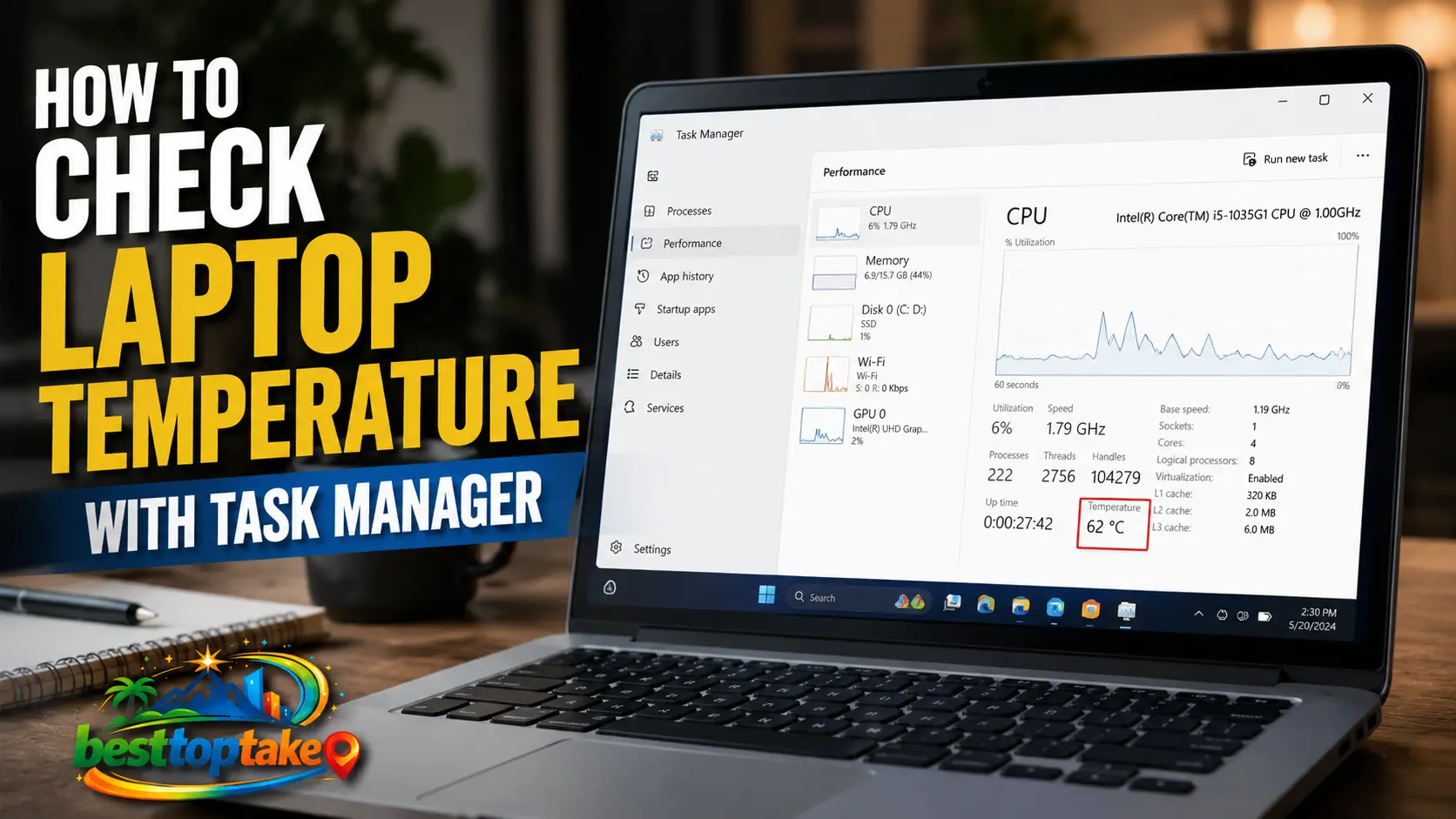
You can check your laptop temperature with Task Manager by opening Task Manager, navigating to the Performance tab, selecting your dedicated GPU, and viewing the temperature reading displayed near the bottom of the panel. However, Task Manager only shows GPU temperature on supported hardware and does not display CPU temperature, so you may need additional monitoring tools for a complete temperature overview.
Laptops work harder than ever in 2026. Whether you’re gaming, editing videos, attending online classes, or using AI-powered software, heat management directly affects performance, battery life, and hardware longevity. Many users notice their laptop fans spinning loudly or experience sudden slowdowns but don’t know whether excessive heat is the cause.
If you’ve ever wondered whether your laptop is overheating, Windows provides a surprisingly simple way to monitor part of your system’s temperature without installing third-party software. The built-in Task Manager offers temperature information for supported graphics processors, making it a convenient starting point for basic thermal monitoring.
In this guide, you’ll learn how to check laptop temperature with Task Manager, understand what the readings mean, identify warning signs of overheating, explore alternative monitoring methods, and discover practical ways to keep your laptop running cooler and more efficiently.
Why Laptop Temperature Monitoring Matters
Heat is one of the biggest enemies of modern electronics. Every component inside your laptop generates heat while operating. When temperatures climb too high, performance and reliability can suffer.
Common symptoms of overheating include:
- Loud and constantly running cooling fans
- Reduced gaming performance
- Unexpected application crashes
- Battery draining faster than normal
- System slowdowns during demanding tasks
- Automatic shutdowns for protection
Modern CPUs and GPUs automatically reduce performance when temperatures become excessive. This process, known as thermal throttling, helps prevent damage but can significantly affect productivity and gaming experiences.
Research from major chip manufacturers consistently shows that prolonged exposure to high temperatures can reduce component lifespan and accelerate wear on sensitive electronics.
“Temperature is a key factor affecting semiconductor reliability.” — Gordon Moore, Co-founder of Intel
For students, professionals, creators, and gamers alike, monitoring temperatures is one of the easiest ways to maintain peak laptop performance.
Best Solutions and Recommendations for Monitoring Laptop Temperature
When checking laptop temperatures, consider these practical approaches:
1. Use Windows Task Manager
Pros
- Built into Windows
- No installation required
- Easy to access
Cons
- Usually shows GPU temperature only
- Not available on all systems
2. Install Hardware Monitoring Software
Pros
- Monitors CPU, GPU, SSD, and motherboard temperatures
- Real-time tracking
Cons
- Requires installation
3. Use Manufacturer Utilities
Pros
- Optimized for your laptop
- Often includes fan controls
Cons
- Features vary by brand
4. Monitor During Gaming Sessions
Pros
- Reveals thermal performance under load
- Helps identify cooling issues
Cons
- Requires active testing
5. Invest in Cooling Accessories
Pros
- Improves airflow
- Reduces sustained temperatures
Cons
- Additional cost
6. Keep Laptop Vents Clean
Pros
- Free solution
- Improves cooling efficiency
Cons
- Requires regular maintenance
7. Upgrade to Smart Cooling Solutions
Pros
- Supports modern AI-powered workloads
- Better temperature control
Cons
- Available mainly on newer devices
Best Gadgets and Tech Essentials for Cooling
- Laptop cooling pads
- USB-powered external fans
- Elevated laptop stands
- Smart temperature monitors
- Budget electronics cleaning kits
- Smart devices with thermal monitoring
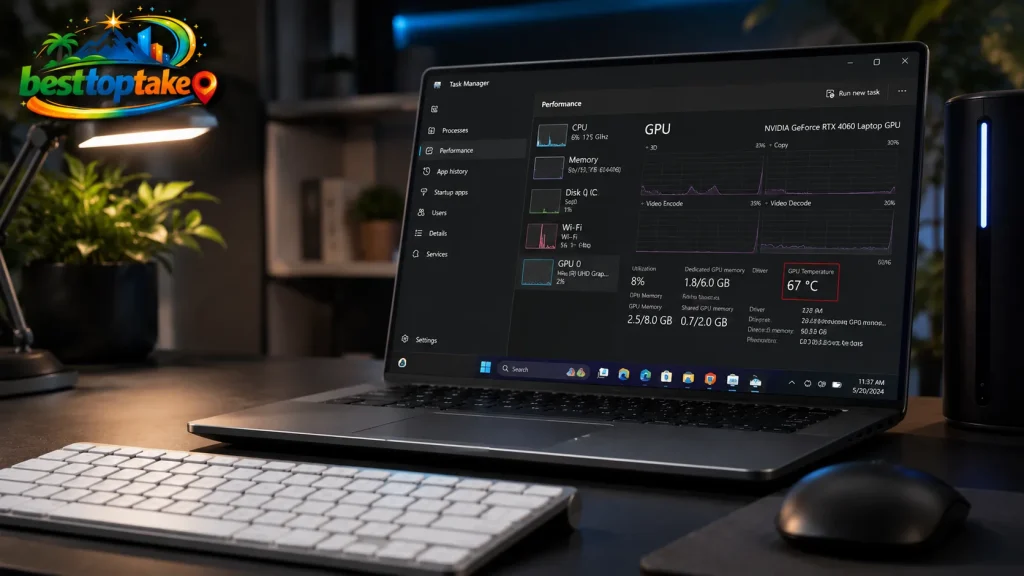
Step-by-Step Guide
Follow these steps to check laptop temperature using Task Manager:
- Press Ctrl + Shift + Esc to open Task Manager.
- If Task Manager opens in compact view, click More Details.
- Select the Performance tab.
- Look for the GPU section in the left sidebar.
- Click your dedicated graphics processor.
- Scroll down and locate the temperature reading.
- Observe the temperature while your laptop is idle.
- Launch demanding applications and compare temperature changes.
Understanding the Reading
- 30°C–50°C: Excellent idle temperature
- 50°C–70°C: Normal everyday use
- 70°C–85°C: Heavy workload range
- 85°C–95°C: High but often manageable
- Above 95°C: Potential overheating concern
If no temperature appears, your hardware, drivers, or Windows version may not support Task Manager temperature monitoring.
Expert Tips & Common Mistakes
Pro Tips
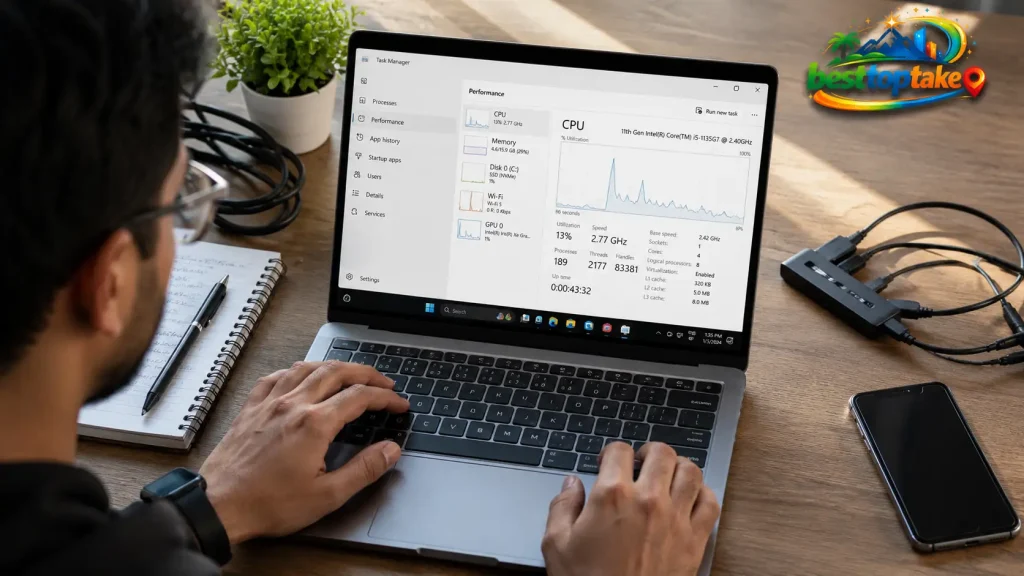
- Monitor temperatures during real workloads, not just idle time.
- Update graphics drivers regularly for accurate sensor reporting.
- Use a hard surface instead of a bed or couch.
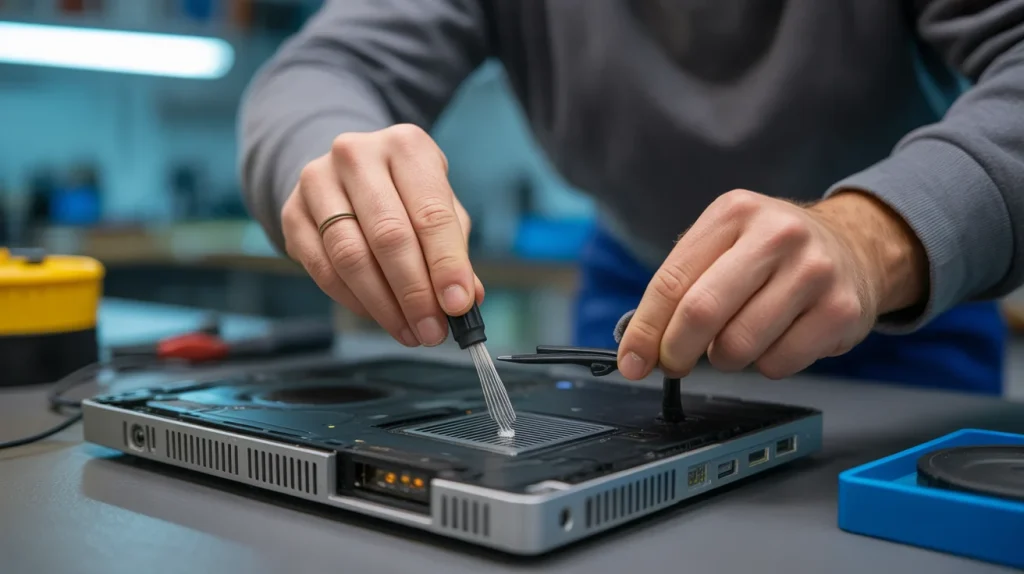
- Clean dust from vents every few months.
- Track temperature trends rather than focusing on a single reading.
Common Mistakes to Avoid
- Ignoring sudden temperature spikes.
- Blocking airflow vents during use.
- Assuming fan noise automatically means overheating.
- Using outdated monitoring software.
For example, many users place gaming laptops on blankets, which restrict airflow and dramatically increase internal temperatures.
“The best troubleshooting starts with accurate measurement.”— Steve Wozniak, Co-founder of Apple
FAQs
How to check laptop temperature with Task Manager on Windows 11?
Open Task Manager, click Performance, select GPU, and look for the temperature reading. Supported hardware and drivers are required for the feature to appear.
Can Task Manager show CPU temperature?
No. Windows Task Manager currently focuses on GPU temperature monitoring and generally does not display CPU temperature.
What is a normal laptop temperature?
Most laptops operate between 40°C and 80°C depending on workload. Gaming and rendering tasks naturally generate higher temperatures.
Why can’t I see GPU temperature in Task Manager?
Your graphics hardware, drivers, or Windows version may not support temperature reporting through Task Manager.
Is 90°C too hot for a laptop?
While some laptops can temporarily reach 90°C under heavy load, sustained operation at that level may reduce performance through thermal throttling.
What software can check CPU and GPU temperatures?
Popular monitoring tools include hardware monitoring applications that provide real-time temperature data for multiple components.
How often should I monitor laptop temperatures?
Checking temperatures periodically during demanding tasks is usually sufficient. Frequent monitoring is recommended if you notice overheating symptoms.
Conclusion
Learning how to check laptop temperature with Task Manager is a simple but valuable skill for maintaining laptop performance and reliability. While Task Manager primarily provides GPU temperature information, it offers a quick way to determine whether excessive heat may be affecting your system.
By regularly monitoring temperatures, cleaning cooling vents, improving airflow, and using modern cooling accessories when needed, you can reduce thermal stress and extend the life of your hardware. As AI-powered applications, wireless technologies, and high-performance computing become more common in 2026, effective thermal management is more important than ever.
Try these laptop temperature monitoring tips today and keep your device running cooler, quieter, and more efficiently for years to come.
“Innovation distinguishes between a leader and a follower.”— Steve Jobs, Apple
For more expert guidance, visit The Verge—one of the most trusted resources for electronics reviews, buying guides, and technology news. Their detailed coverage of laptop performance testing and thermal management can help you better understand how modern cooling systems affect real-world computing experiences.

“Electronics aren’t just gadgets. They’re the invisible threads that connect our work, our play, and our world.”
I’m Julian Reed, and my obsession with tech started at age twelve, when I soldered a defunct gaming console back to life in my bedroom. That tiny green screen taught me that technology isn’t just a black box, it’s a tool you can master.
After fifteen years as a hardware engineer and a decade reviewing consumer tech, I’ve joined this team to cut through the jargon. Whether you’re building a high-end home theater or just need a laptop that won’t lag, I’m here to help you choose the gear that truly powers your life.


